Use Free Quad (

) to generate an unstructured quadrilateral mesh on boundaries in 3D and domains in 2D, as shown in
Figure 8-69. The operation can also be used to remesh faces of imported surface meshes in 3D.
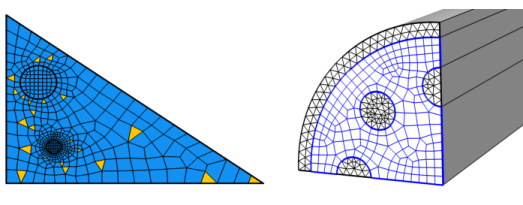
For imported meshes, use Free Quad to remesh one or several faces. The operation separates the selected boundaries from the mesh, creates geometry from the separated mesh, meshes the geometry, and then copies the new generated mesh onto the original mesh. Edges adjacent to faces outside the selection are kept unchanged, while other edges are remeshed.
To add a Free Quad (

) node, select boundaries (3D) or domains (2D) in the
Graphics, then choose one of the following:
To scale the geometry during the meshing operation, change the x-scale,
y-scale, and
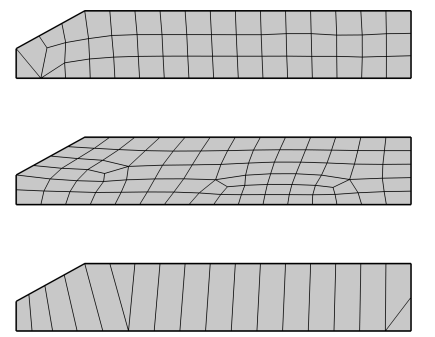
z-scale in 3D to positive real numbers. If any of the scale factors are not equal to one, the software scales the geometry in those directions before meshing; after meshing, it restores the geometry and mesh to fit the original size, as shown in
Figure 8-70.
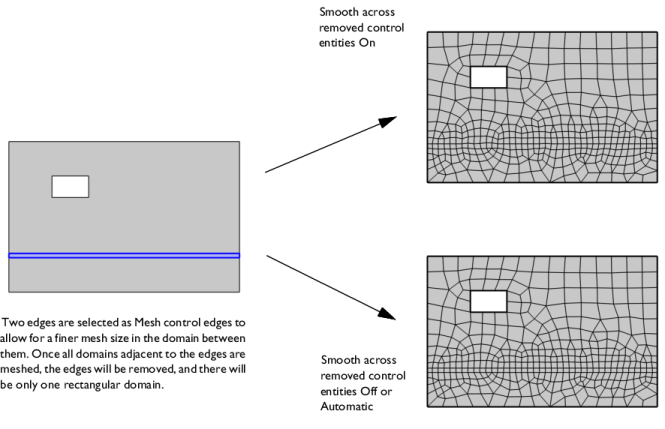
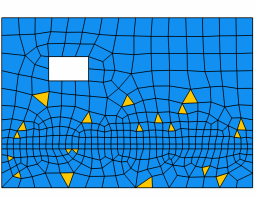
Use the Smooth across removed control entities setting to smooth the transition in element size across removed control entities. Use
Automatic (default) to let the algorithm decide if to apply smoothing or not. Smoothing will be applied if, for example, 2D domains adjacent to removed edges contain triangular elements only. When set to
On, the mesher adjusts the sizes of the mesh elements to get a smoother transition from large to small elements by adjusting the locations of the mesh vertices on the entity that is removed. Select
Off to not adjust the mesh. When set to
On, you can specify the number of smoothing iterations in the
Number of iterations field. In the
Maximum element depth to process field you can specify the maximum element depth for the mesh vertices to be smoothed.
From the Method list, choose the tessellation method to use for generating an unstructured quadrilateral mesh:
The Relative simplification tolerance (default value: 0.01) is relative to the dimensions of the entire geometry and specifies a global limit for how much the mesh can be modified. The
Defect removal factor (default value: 1) is relative to the local feature size, as estimated by the algorithm, and is combined with the global limit to produce a limit for how much the mesh can be modified at a certain location. If the mesh contains many defects that you want to remove, you could try to increase the value of the
Defect removal factor. If the mesh describes the desired geometry with high accuracy, you might want to decrease this factor instead.


 ) from the More Generators (
 ) menu (3D components and parts) or click the Free Quad (
 ) button (2D).
 ). For 3D components and parts, this is selected from the More Generators menu.



 ) from