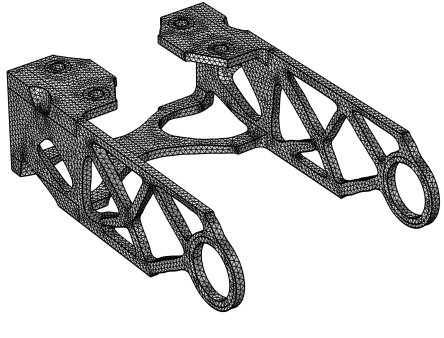
Use an Import node (

) to import a mesh from a file, from another meshing sequence, or from a mesh part. To position, rotate, and scale the mesh, use one or several
Transform attributes.
To import additional meshes, add another Import node. Then COMSOL Multiphysics adds the elements of the newly imported mesh to the existing mesh.
In the Source list, choose the type of data to import:
Any importable file,
Meshing sequence (if applicable meshing sequences are available), and
COMSOL Multiphysics file are always available. In addition to the native file formats, you can choose
NASTRAN file and
Sectionwise file in 2D and 3D. In 3D you can also choose
STL file (stereolithography file),
PLY file (Polygon File Format or Stanford Triangle Format file),
3MF file (3D Manufacturing Format file), and
VRML file (Virtual Reality Modeling Language file). Choose
Geometry sequence to import a triangle mesh of a Component’s geometry. Choose
Dataset to import the visualization mesh of a Filter or Partition dataset. This option is only available if there is at least one
Filter or
Partition node under
Datasets in
Results.
For file import, specify the filename in the Filename field or click the
Browse button (

). You can also click the downward arrow beside the
Browse button and choose
Browse From (

) to open the fullscreen
Select File window. Click the downward arrow for the
Location menu (

) to choose
Show in Auxiliary Data (

) to move to the row for this file in the
Auxiliary Data window,
Copy Location (

), and (if you have copied a file location)
Paste Location (

).
For import from another mesh in the model, select a meshing sequence or mesh part from the Mesh list below. To import a meshing sequence or a mesh part, click the
Import button. For import of a dataset in the model, select a Filter or Partition dataset from the
Dataset list below.
|
|
The Compact History action is not supported for models including a mesh imported from dataset.
|
If you have changed some property, the software automatically reimports the mesh when you click a build button. For import of a meshing sequence, select Build source mesh automatically (selected by default) to automatically build the source sequence and reimport the current version of the mesh. This is required when running a parametric sweep over some parameter that affects the source mesh.
In 3D, you can import 3D meshes and planar 2D meshes from COMSOL Multiphysics files (.mphtxt or
.mphbin). Planar 2D meshes, imported to a 3D component, always appear at
z = 0.
When you import a mesh from a COMSOL Multiphysics file that contains mesh selections, you need to select the Import selections checkbox (selected by default) to import the selections together with the mesh. If you choose to import mesh selections, corresponding selections are created and appear in the
Domain Selections,
Boundary Selections,
Edge Selections, or
Point Selections sections, depending on space dimension and the entity level for the imported selections. You can use the imported selections, for example, to add as a selection to a dataset or plot during results processing. See also
Entity Selections below.
In 3D, select the Import domain elements checkbox to import volumetric elements, such as tetrahedrons, hexahedrons, prisms, and pyramids. Clear this checkbox to only import boundary elements. The checkbox is selected by default for the following options from the
Source list:
Meshing Sequence,
COMSOL Multiphysics file,
NASTRAN file, and
Sectionwise file. However, when the software adds the
Import operation automatically in a new meshing sequence, the default is OFF for
Source: Meshing Sequence to allow for editing.
In 3D, select the Import unmeshed domains to import domain information from the source meshing sequence. Clear this checkbox to get voids inside surface meshes that form watertight regions. Domains can be created later, if needed, using the
Create Domains operation. When
Source is set to
COMSOL Multiphysics file,
NASTRAN, or
Sectionwise, the default is ON. For
Source: Sequence, the default depends on how the operation is added. When you add the
Import operation manually from
The Mesh Toolbar or
The Model Builder Context Menu, the default is OFF. When the software adds the
Import operation automatically in a new meshing sequence, the default is ON.
These settings are available with the following options from the Source list:
COMSOL Multiphysics file,
Dataset,
STL file,
VRML file,
NASTRAN file,
PLY file,
Sectionwise file, and
3MF file.
|
•
|
Select Automatic to let the software partition the boundary elements into boundaries automatically (the default setting).
|
|
•
|
Select Minimal to make a minimal boundary partitioning. This is useful when you import a mesh from a measured geometry or when Importing NASTRAN Meshes with a predefined boundary partitioning. The automatic face partitioning is not desired then.
|
|
•
|
Select Manual (in 2D) or Detect boundaries (in 3D) to manually control the partitioning. Both choices add a set of parameters that make it possible to influence the result of the partitioning algorithm; for the Detect boundaries case in 3D, the Detect Faces and Detect Edges sections appear, containing settings for controlling the face and edge partitioning, respectively.
|
If the Detect planar faces checkbox (3D) or the
Detect straight edges checkbox (2D) is selected (both are selected by default), the mesh import detects (approximately) planar faces or straight edges, respectively. The minimum size of a straight or planar boundary entity, relative to the entire boundary, can be set using the
Minimum relative length field (2D) and
Minimum relative area field (3D). The maximum accepted angle (in degrees) between elements for a boundary to be considered straight or planar can be set using the
Maximum deviation angle field. If the
Detect adjacent fillet faces checkbox (3D) is selected, the algorithm also searches for adjacent groups of boundary elements that form cylindrical faces.
If the Detect planar edges checkbox is selected (it is selected by default), the mesh import detects (approximately) planar edges. The
Detection parameter specifies to which extent the operation searches for planar edges. Use the slider to tune the detection level, where
Strict means that only fully planar edges are searched for, and
Tolerant means that the algorithm searches for planar edges with a wider tolerance. You can also enter the parameter value directly as a value between 0 (strict) and 1 (tolerant).
If the Detect straight edges checkbox is selected (it is selected by default), the mesh import detects (approximately) straight edges. The
Detection parameter specifies to which extent the operation searches for straight edges. Use the slider to tune the detection level, where
Strict means that only fully straight edges are searched for, and
Tolerant means that the algorithm searches for straight edges with a wider tolerance. You can also enter the parameter value directly as a value between 0 (strict) and 1 (tolerant).
From the Minimum edge length list, choose one of the following options:
Automatic (the default),
Relative, or
Absolute to specify the minimum required length of an edge to be detected. If you select
Relative, specify a minimum relative length in the
Minimum relative length field that appears, and if you select
Absolute, specify a minimum absolute length in the
Minimum absolute length field that appears.
The sections Domain Selections,
Boundary Selections,
Edge Selections (3D only), and
Point Selections appear after building the
Import operation. The selections are generated during the import based on selections defined in the source. In the
Name column, the name of each selection appears. For COMSOL Multiphysics file import, the
Name in file column contains the names available in the file. Select the name in the
Name column to highlight the selection in the
Graphics window. You can change the name of a selection by editing the corresponding table entry in the
Name column. If the
Keep checkbox (ON by default) is selected, the
Physics checkbox (
Instance in parts), when selected (ON by default), makes that selection also available when defining, for example, physics and materials as well as in instances of the mesh part.