Creating a Computational Mesh for Imported Mesh Data
Imported mesh data can be imported using a Mesh-Based Geometry sequence or a Mesh sequence. The physics is applied to the domains and boundaries defined by the mesh-based geometry or mesh, so no geometry is needed. A computational mesh typically requires domain elements, so when there is such a mesh, it is ready to be used by the solver. You can create a physics-controlled mesh both for mesh-based geometries and imported meshes, as shown in Figure 8-28, but you can also create user-controlled meshes. For curved surfaces, the mesh vertices in the computational mesh will be placed on a curved surface approximation of the input mesh, also if the input mesh is a linear mesh.
A Mesh-Based Geometry sequence is meshed using a separate Mesh sequence. Such a sequence is usually added by default when the Mesh-Based Geometry node is added to the Model Builder tree. For a Mesh sequence that operates on the geometric model of a Mesh-Based Geometry, it is possible to choose between building a physics-controlled mesh or setting up a user-controlled mesh.
A Mesh sequence that defines its own geometric model, which typically is an imported mesh, can define a computational mesh in itself. There are therefore two alternatives:
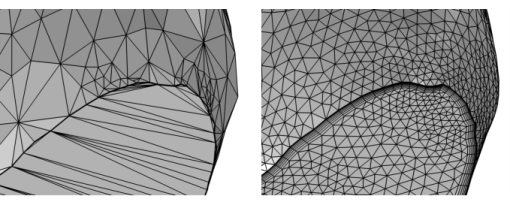
Figure 8-28: Creating a computational mesh for an imported STL mesh (left) using a physics-controlled mesh for CFD (right).
STL Import 1 — Repairing and Combining STL Files: Application Library path COMSOL_Multiphysics/Meshing_Tutorials/stl_1_repair_imported_meshes
Analyzing Porous Structures on the Microscopic Scale:
Application Library path Porous_Media_Flow_Module/Fluid_Flow/pore_scale_flow_3d
Alternative Remeshing Options
To remesh boundaries of an imported mesh, for example to give better results in the Booleans and Partitions operations, use the operations Remesh Faces (3D), Remesh Domains (2D), and Remesh Edges.
Cleanup Wizard
Run the Cleanup Wizard to remove small details in the geometric model of the mesh. It will detect small details, such as:
Small details, as the ones listed above, can lead to both a larger number of elements, elements with very large and/or small angles, and a huge size difference in elements.
To open the Cleanup Wizard, choose one of the following:
On The Mesh Toolbar, select Cleanup and Repair () and choose Cleanup Wizard ().
Right-click the Mesh node and choose Cleanup Wizard () from the Cleanup and Repair menu.
The details will be removed using mesh operations, for example some of the Cleanup and Repair and Entities operations.
For more information about the Cleanup Wizard and its functionality, see Geometry Cleanup.