






PDF

Lithium-Ion Battery Internal Resistance
Introduction
This tutorial analyzes the polarization (voltage) losses in a lithium-ion battery during a Hybrid Pulse Power Characterization (HPPC) test. The model is a continuation of the Lithium-Ion Battery Rate Capability tutorial, where the total discharge energy was compared between an energy-optimized and a power-optimized battery.
The internal resistance of a battery cell is generally calculated by dividing the voltage losses by the cell current. Many physical battery properties affect the internal resistance and rate capability, for instance:
The internal resistance can typically be decreased by using thinner separator and electrode layers, higher porosities, and smaller active material particles. However, decreasing the internal resistance will also mean decreasing the capacity of the battery, if the amount of electrode material per total battery cell volume decreases.
Figure 1: Selection of design parameters in a cell and their relation to increased internal resistance. Upward pointing arrows indicate increase, downward pointing decrease. For example, the internal resistance increases with decreased porosity and increased particle size.
The choice of active materials is important as well. Some materials are able to change their lithium concentrations efficiently even at high current loads. Additionally, the electrolyte is also important; for example, polymer batteries are seldom used in high-power applications since these contain a nonliquid electrolyte with poor lithium-ion transport properties.
Model Definition
The model is set up in 1D for a graphite/NMC battery cell. A more detailed description of the model can be found in Lithium-Ion Battery Base Model in 1D.
In this tutorial we will investigate the internal resistance of a battery subjected to a 10 A discharge pulse for 10 s, followed by a 20 s rest, followed by a 10 A charge for 10 s. The internal resistance and associated polarization losses are analyzed both for an energy-optimized and a power-optimized cell, featuring positive electrode thicknesses of 60 μm and 25 μm, respectively. The battery model is parameterized in such a way that when changing the positive electrode thickness, the negative electrode layer thicknesses changes correspondingly, as discussed in Lithium-Ion Battery Base Model in 1D.
Due to the 1D geometry, the current load of the battery model is formulated as a current density boundary condition with the unit of A/m2. To convert from the cell current Icell (A) to the applied current density iapp (A/m2) on the jelly roll we first compute the cell area Acell as discussed in Lithium-Ion Battery Base Model in 1D.
The applied current density, used as a boundary condition in the 1D model, is then defined as
(1)
The Events interface is used to define a duration-based state variable Sch-dch. Sch-dch has the value 1 during discharge, 0 during rest periods, and 1 during charging.
Finally, the boundary condition at the positive electrode current collector boundary is defined as
(2)
As for the 1D Lithium-Ion Battery Drive-Cycle Monitoring tutorial, the use of Events improves the numerical performance of the model since the fast transitions between charge and discharge need not be resolved by the time-dependent solver.
Analyzing voltage losses
Various quantities can be computed in order to analyze the voltage losses of a physics-based lithium-ion battery model.
In general, for an analysis of this kind, we want to compare the computed cell voltage to the open circuit voltage, which is a function of the (average) degrees of lithiation of the electrodes. For both the negative and the positive electrode the average degrees of lithiation, SOLavg (1), can be computed by first integrating over the extra dimension in the radial direction of the electrode particles, and then by a second integration over the whole electrode domain. The OCV of the cell may then be computed as
(3)
The total polarization of the cell is then computed as
(4)
The internal resistance is obtained by dividing by the cell current
(5)
For the voltage losses attributed to separate physical phenomena, we will define a set of voltage loss variables (all with the unit of V) that fulfill the relation
(6)
where El represents the electrolyte ohmic losses, Es the electrode ohmic losses, Eact the activation losses, and Econc the concentration voltage losses.
The general approach to define the loss variables is to first compute the total loss in terms of electric power, and then to divide this number by the cell current (see also Ref. 1).
The ohmic losses are computed by integrating the dot product of the gradient of the potential and the corresponding current vector, resulting in
(7)
and
(8)
for the electrolyte and electrode phases, respectively. In the above and following integral expressions, the integration is made for all applicable domains, and Ω is the volume element.
For the activation losses due to the charge transfer reactions in the electrodes, the loss of electric power is computed by integrating the product of the activation overpotential and the volumetric current density
(9)
Finally, the concentration losses are calculated by integrating the loss of electric power in charge transfer due to concentration gradients in the cell. This is computed as
(10)
where the concentration overpotential is calculated as the difference between the local equilibrium potential of the charge transfer reaction at the surface of the electrode particles and the open circuit equilibrium potential of the whole electrode
(11)
where SOLsurface is evaluated at the surface of the electrode particles, locally in the electrode.
Results and Discussion
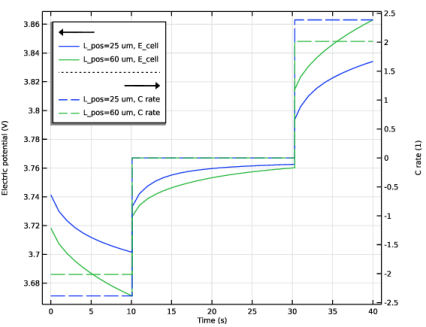
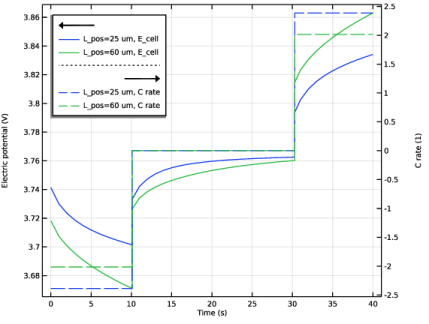
Figure 2 shows the cell voltage and corresponding C-rates for the two cell configurations. The C-rates are slightly higher for the power-optimized (positive electrode thickness of 25 μm) battery compared to the energy-optimized (positive electrode thickness of 60 μm) battery. The reason for this is that total current and volume are fixed, in combination with the energy-optimized featuring a higher capacity. The polarization (voltage deviation from the rest voltage) is however still higher for energy-optimized cell, despite the slightly lower C-rate.
Figure 2: Cell voltage and current C-rates versus time.
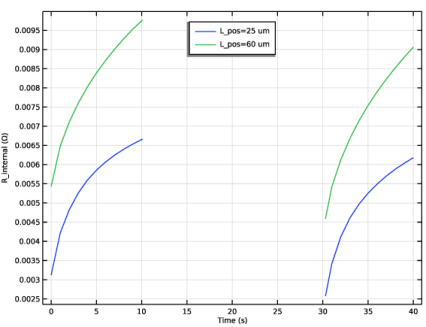
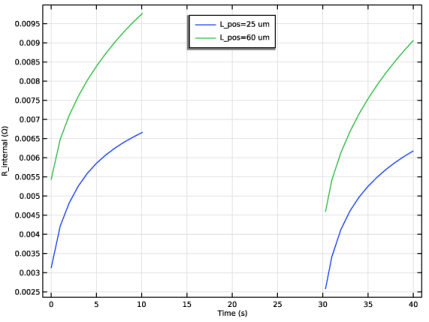
Dividing the polarization voltage by the current results in the internal resistance (Equation 5), which is shown in Figure 3. The resistance values are significantly higher for the energy optimized cell. The resistance increases with time, but is fairly similar for the two pulses.
Figure 3: Internal resistance versus time.
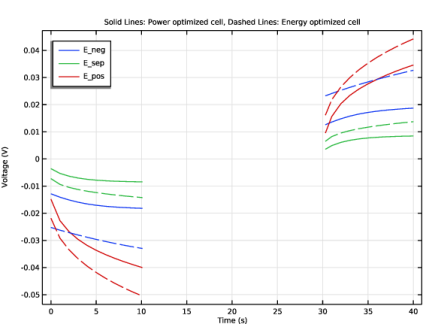
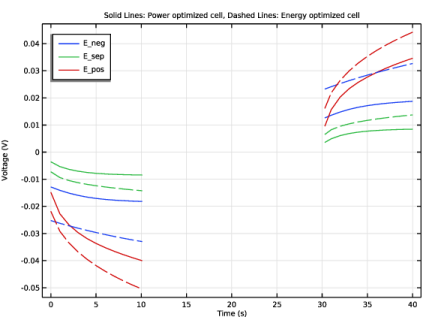
For a more detailed analysis of the origin of the different voltage losses, Figure 4 shows the total polarization of each domain, (that is, where Equation 6 has been computed separately per domain). Interestingly, the power-optimized cell features lower voltage losses in the electrodes, but higher losses in the separator, compared to the energy-optimized cell. The differences in the separator losses are directly attributed to the lower C-rate for the energy-optimized cell. All voltage losses increase with time during a pulse, but the positive electrode losses increase the most.
Figure 4: Voltage losses in the different domains versus time.
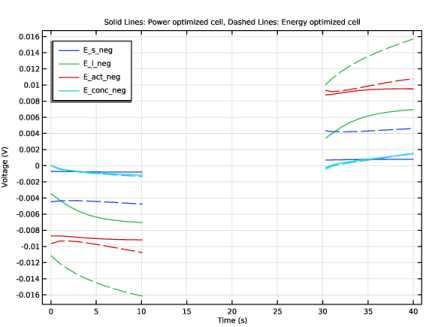
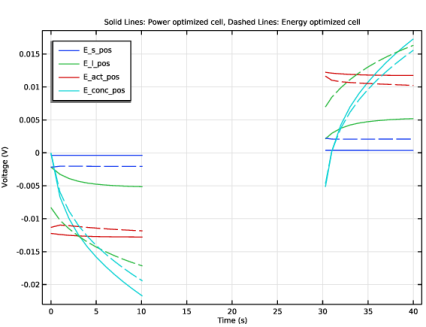
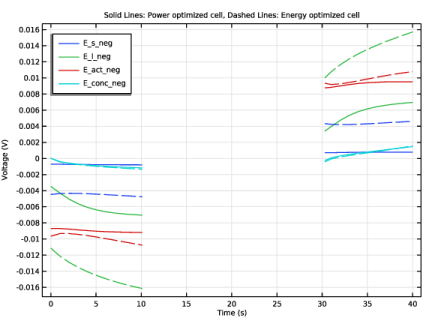
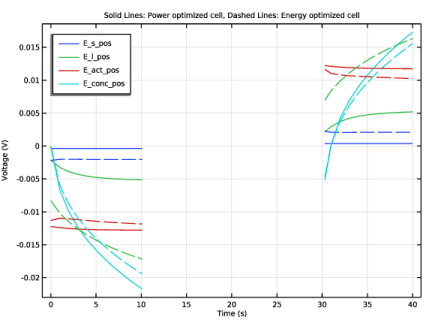
Finally, Figure 5and Figure 6 show the voltage losses attributed to the different physical phenomena (Equation 7 to Equation 10) in the negative and positive electrodes, respectively. As expected, the power-optimized cell generally features lower voltage losses, except for the concentration overpotentials in the positive electrode where the losses for the energy-optimized cell are slightly lower, once again due to the slightly lower C-rate. All losses increase with time, but the electrolyte ohmic losses seem to affected the most. This is due to the changed electrolyte conductivity due to ion accumulation/depletion in the electrodes, and also due to a reaction from moving into the electrode gradually increasing the transport length for the ions.
Figure 5: Voltage losses in the negative graphite electrode.
Figure 6: Voltage losses in the positive NMC electrode.
Reference
1. A. Nyman, T.G. Zavalis, R. Elger, M. Behm, and G. Lindbergh, “Analysis of the Polarization in Li-Ion Battery Cell by Numerical Simulations,” J. Electrochem. Soc., vol. 157, no. 11, pp. A1236–A1246, 2010.
Application Library path: Battery_Design_Module/Lithium-Ion_Batteries,_Performance/lib_internal_resistance
Modeling Instructions
Application Libraries
1
From the File menu, choose Application Libraries.
2
In the Application Libraries window, select Battery Design Module > Lithium-Ion Batteries, Performance > lib_base_model_1d in the tree.
3
In this tutorial we will perform an HPPC (hybrid pulse power characterization) test on the battery model you just loaded. The combined discharge-rest-charge load profile will be applied at 50% state of charge.
Global Definitions
Parameters 1
1
In the Model Builder window, under Global Definitions click Parameters 1.
2
In the Settings window for Parameters, locate the Parameters section.
3
Parameters - Pulse
Add a second group of parameters from a text file.
1
In the Home toolbar, click  Parameters and choose Add > Parameters.
2
In the Settings window for Parameters, type Parameters - Pulse in the Label text field.
3
Locate the Parameters section. Click  Load from File.
4
Add Physics
1
In the Home toolbar, click  Add Physics to open the Add Physics window.
2
Go to the Add Physics window.
To construct the current density boundary condition we will make use of a discrete state variable, set up by the Events interface.
3
In the tree, select Mathematics > ODE and DAE Interfaces > Events (ev).
4
Click the Add to Component 1 button in the window toolbar.
5
In the Home toolbar, click  Add Physics to close the Add Physics window.
Events (ev)
Discrete States 1
1
In the Physics toolbar, click  Global and choose Discrete States.
2
In the Settings window for Discrete States, locate the Discrete States section.
3
The initial value of the state variable is -1, defining the discharge part of the load profile.
Event Sequence 1
Add a sequence to control the charge-to-rest and rest-to-discharge transitions.
In the Physics toolbar, click  Global and choose Event Sequence.
Sequence Member 1
1
In the Model Builder window, expand the Event Sequence 1 node, then click Sequence Member 1.
2
In the Settings window for Sequence Member, locate the Sequence Member section.
3
In the Discrete state name text field, type DCH.
4
From the End condition list, choose Duration.
5
In the Duration text field, type t_pulse.
6
Locate the Reinitialization section. In the table, enter the following settings:
Event Sequence 1
In the Model Builder window, click Event Sequence 1.
Sequence Member 2
1
In the Physics toolbar, click  Attributes and choose Sequence Member.
2
In the Settings window for Sequence Member, locate the Sequence Member section.
3
In the Discrete state name text field, type REST.
4
From the End condition list, choose Duration.
5
In the Duration text field, type t_rest.
6
Locate the Reinitialization section. In the table, enter the following settings:
Definitions (comp1)
Variables 1
Now add a current density variable based on the state variable, and a variable for the internal resistance.
1
In the Model Builder window, expand the Component 1 (comp1) > Definitions node, then click Variables 1.
2
In the Settings window for Variables, locate the Variables section.
3
Lithium-Ion Battery (liion)
Electrode Current Density 1
1
In the Model Builder window, expand the Component 1 (comp1) > Lithium-Ion Battery (liion) node, then click Electrode Current Density 1.
2
In the Settings window for Electrode Current Density, locate the Electrode Current Density section.
3
In the in,s text field, type I_app.
Study 1
Step 2: Time Dependent
Specify the duration of the simulation and the times of interest to store in the solution in the times list.
1
In the Model Builder window, expand the Study 1 node, then click Step 2: Time Dependent.
2
In the Settings window for Time Dependent, locate the Study Settings section.
3
From the Time unit list, choose s.
4
In the Output times text field, type range(0,t_pulse/10,2*t_pulse+t_rest).
Parametric Sweep
Add a parametric sweep varying the positive electrode thickness parameter. This will perform the HPPC simulation both for a power optimized and an energy-optimized battery. When varying the L_pos parameter, the negative electrode thickness is automatically updated based on the correlation defined in the Parameters 1 node.
1
In the Study toolbar, click  Parametric Sweep.
2
In the Settings window for Parametric Sweep, locate the Study Settings section.
3
4
5
In the Study toolbar, click  Compute.
Results
Plot the cell voltage and current as follows:
Cell Voltage and Current
In the Settings window for 1D Plot Group, type Cell Voltage and Current in the Label text field.
Global 1
1
Right-click Cell Voltage and Current and choose Global.
2
In the Settings window for Global, click Replace Expression in the upper-right corner of the y-Axis Data section. From the menu, choose Component 1 (comp1) > Definitions > Variables > C_rate - C rate - 1.
3
Click to expand the Coloring and Style section. Find the Line style subsection. From the Line list, choose Dashed.
4
From the Color list, choose Cycle (reset).
Point Graph 1
1
In the Model Builder window, click Point Graph 1.
2
In the Settings window for Point Graph, click to expand the Legends section.
3
Select the Show legends checkbox.
4
Find the Include subsection. Clear the Point checkbox.
5
Find the Prefix and suffix subsection. In the Suffix text field, type , E_cell.
Cell Voltage and Current
1
In the Model Builder window, click Cell Voltage and Current.
2
In the Settings window for 1D Plot Group, click to expand the Title section.
3
From the Title type list, choose None.
4
Locate the Plot Settings section. Select the Two y-axes checkbox.
5
In the table, select the Plot on secondary y-axis checkbox for Global 1.
6
Locate the Legend section. From the Position list, choose Upper left.
7
In the Cell Voltage and Current toolbar, click  Plot.
Internal Resistance
1
In the Results toolbar, click  1D Plot Group.
Plot the internal resistance as follows:
2
In the Settings window for 1D Plot Group, type Internal Resistance in the Label text field.
3
Locate the Data section. From the Dataset list, choose Study 1/Parametric Solutions 1 (sol3).
Global 1
1
Right-click Internal Resistance and choose Global.
2
In the Settings window for Global, click Replace Expression in the upper-right corner of the y-Axis Data section. From the menu, choose Component 1 (comp1) > Definitions > Variables > R_internal - R_internal - Ω.
3
Click to expand the Legends section. Find the Include subsection. Clear the Description checkbox.
Internal Resistance
1
In the Model Builder window, click Internal Resistance.
2
In the Settings window for 1D Plot Group, locate the Title section.
3
From the Title type list, choose None.
4
Locate the Legend section. From the Position list, choose Upper middle.
5
In the Internal Resistance toolbar, click  Plot.
Definitions (comp1)
Add an additional list of variables, to be used for postprocessing, from a text file.
Variables 2
1
In the Model Builder window, under Component 1 (comp1) right-click Definitions and choose Variables.
2
In the Settings window for Variables, locate the Variables section.
3
Click  Load from File.
4
Many of the imported variables are marked in orange, indicating missing operators. Add these missing operators as follows:
Integration 1 (intop1)
1
In the Definitions toolbar, click  Nonlocal Couplings and choose Integration.
2
In the Settings window for Integration, type intop_neg in the Operator name text field.
3
Locate the Source Selection section. From the Selection list, choose Negative Electrode.
Integration 2 (intop2)
1
In the Definitions toolbar, click  Nonlocal Couplings and choose Integration.
2
In the Settings window for Integration, type intop_sep in the Operator name text field.
3
Locate the Source Selection section. From the Selection list, choose Separator.
Integration 3 (intop3)
1
In the Definitions toolbar, click  Nonlocal Couplings and choose Integration.
2
In the Settings window for Integration, type intop_pos in the Operator name text field.
3
Locate the Source Selection section. From the Selection list, choose Positive Electrode.
Variables 2
The variable expressions should now all have turned black.
Study 1
Update the solution to make the new variable definitions available in the already existing solution.
1
In the Study toolbar, click  Update Solution.
Results
Voltage Losses, All Domains
1
In the Results toolbar, click  1D Plot Group.
Plot the voltage losses in each domain as follows:
2
In the Settings window for 1D Plot Group, type Voltage Losses, All Domains in the Label text field.
Global 1
1
Right-click Voltage Losses, All Domains and choose Global.
2
In the Settings window for Global, locate the Data section.
3
From the Dataset list, choose Study 1/Parametric Solutions 1 (sol3).
4
From the Parameter selection (L_pos) list, choose From list.
5
In the Parameter values (L_pos (um)) list, select 25.
6
Click Add Expression in the upper-right corner of the y-Axis Data section. From the menu, choose Component 1 (comp1) > Definitions > Variables > E_neg - Voltage loss, negative - V.
7
Click Add Expression in the upper-right corner of the y-Axis Data section. From the menu, choose Component 1 (comp1) > Definitions > Variables > E_sep - Voltage loss, separator - V.
8
Click Add Expression in the upper-right corner of the y-Axis Data section. From the menu, choose Component 1 (comp1) > Definitions > Variables > E_pos - Voltage loss, positive - V.
9
Locate the Legends section. Find the Include subsection. Clear the Solution checkbox.
10
Clear the Description checkbox.
11
Select the Expression checkbox.
Global 2
1
Right-click Global 1 and choose Duplicate.
2
In the Settings window for Global, locate the Data section.
3
In the Parameter values (L_pos (um)) list, select 60.
4
Locate the Coloring and Style section. Find the Line style subsection. From the Line list, choose Dashed.
5
From the Color list, choose Cycle (reset).
6
Locate the Legends section. Clear the Show legends checkbox.
Voltage Losses, All Domains
1
In the Model Builder window, click Voltage Losses, All Domains.
2
In the Settings window for 1D Plot Group, locate the Title section.
3
From the Title type list, choose Manual.
4
In the Title text area, type Solid Lines: Power optimized cell, Dashed Lines: Energy optimized cell.
5
Locate the Plot Settings section.
6
Select the y-axis label checkbox. In the associated text field, type Voltage (V).
7
Locate the Legend section. From the Position list, choose Upper left.
8
In the Voltage Losses, All Domains toolbar, click  Plot.
Plot the individual voltage losses, stemming from different phenomena, in the negative electrode as follows:
Voltage Losses, Negative Electrode
1
In the Results toolbar, click  1D Plot Group.
2
In the Settings window for 1D Plot Group, type Voltage Losses, Negative Electrode in the Label text field.
Global 1
1
Right-click Voltage Losses, Negative Electrode and choose Global.
2
In the Settings window for Global, locate the Data section.
3
From the Dataset list, choose Study 1/Parametric Solutions 1 (sol3).
4
From the Parameter selection (L_pos) list, choose From list.
5
In the Parameter values (L_pos (um)) list, select 25.
6
Click Replace Expression in the upper-right corner of the y-Axis Data section. From the menu, choose Component 1 (comp1) > Definitions > Variables > E_s_neg - Electrode ohmic voltage loss, negative - V.
7
Click Add Expression in the upper-right corner of the y-Axis Data section. From the menu, choose Component 1 (comp1) > Definitions > Variables > E_l_neg - Electrolyte ohmic voltage loss, negative - V.
8
Click Add Expression in the upper-right corner of the y-Axis Data section. From the menu, choose Component 1 (comp1) > Definitions > Variables > E_act_neg - Electrode activation voltage loss, negative - V.
9
Click Add Expression in the upper-right corner of the y-Axis Data section. From the menu, choose Component 1 (comp1) > Definitions > Variables > E_conc_neg - Concentration voltage loss, negative - V.
10
In the Voltage Losses, Negative Electrode toolbar, click  Plot.
11
Locate the Legends section. Find the Include subsection. Clear the Solution checkbox.
12
Clear the Description checkbox.
13
Select the Expression checkbox.
Global 2
1
Right-click Global 1 and choose Duplicate.
2
In the Settings window for Global, locate the Data section.
3
In the Parameter values (L_pos (um)) list, select 60.
4
Locate the Coloring and Style section. Find the Line style subsection. From the Line list, choose Dashed.
5
From the Color list, choose Cycle (reset).
6
Locate the Legends section. Clear the Show legends checkbox.
Voltage Losses, Negative Electrode
1
In the Model Builder window, click Voltage Losses, Negative Electrode.
2
In the Settings window for 1D Plot Group, locate the Plot Settings section.
3
Select the y-axis label checkbox. In the associated text field, type Voltage (V).
4
Locate the Title section. From the Title type list, choose Manual.
5
In the Title text area, type Solid Lines: Power optimized cell, Dashed Lines: Energy optimized cell.
6
Locate the Legend section. From the Position list, choose Upper left.
7
In the Voltage Losses, Negative Electrode toolbar, click  Plot.
Duplicate and modify the plot to show the corresponding values for the positive electrode.
Voltage Losses, Positive Electrode
1
Right-click Voltage Losses, Negative Electrode and choose Duplicate.
2
In the Settings window for 1D Plot Group, type Voltage Losses, Positive Electrode in the Label text field.
Global 1
1
In the Model Builder window, expand the Voltage Losses, Positive Electrode node, then click Global 1.
2
In the Settings window for Global, locate the y-Axis Data section.
3
Global 2
1
In the Model Builder window, click Global 2.
2
In the Settings window for Global, locate the y-Axis Data section.
3
Voltage Losses, Positive Electrode
1
In the Model Builder window, click Voltage Losses, Positive Electrode.
2
In the Voltage Losses, Positive Electrode toolbar, click  Plot.