PDF

1D Lithium-Ion Battery Drive-Cycle Monitoring
Introduction
This application shows how a battery cell subjected to a hybrid electric vehicle drive cycle can be investigated using the Lithium-Ion Battery interface in COMSOL. The model is based on the Lithium-Ion Battery Base Model in 1D.
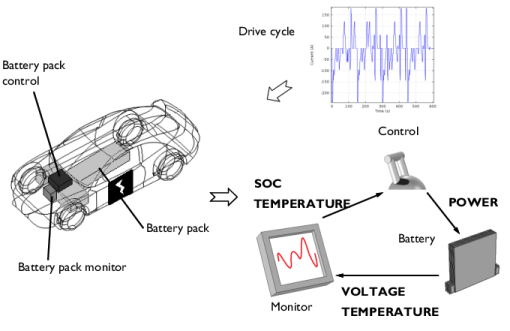
In Figure 1, an example of an electric vehicle with three critical components of a simplified battery management system is displayed. When the vehicle runs according to a specific drive cycle, the temperature and voltage of the battery will vary and be monitored. This tells the monitoring unit, usually with the help of some type of algorithm, the state of charge (SOC) of the battery, and decides, for instance, whether the battery is empty or full. In those two cases, the control unit will stop the discharge and charge, respectively. Monitored elevated temperature can also trigger the control unit.
Figure 1: Electric vehicle with key components within the battery management system visualized. As the flowchart to the right shows, the battery voltage and temperature are monitored and act as inputs to the control unit.
What the Lithium-Ion Battery interface can do here is to predict the battery behavior or make comparisons between computed and monitored properties. So the simulations will in fact act as either a premonitoring step of the battery or a tool to understand the battery behavior during the cycle better. The latter is possible, since the model setup includes the physical properties and can therefore calculate some properties that are difficult to measure, for instance:
At the same time, the model setup opens up the possibility to vary battery design parameters. For instance, materials and thickness of electrodes can easily be changed to evaluate their effect on the overall performance.
Model Definition
The model is set up in 1D for a graphite/NMC battery cell. A more detailed description of the model can be found in Lithium-Ion Battery Base Model in 1D.
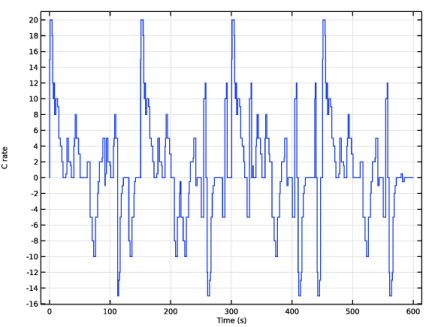
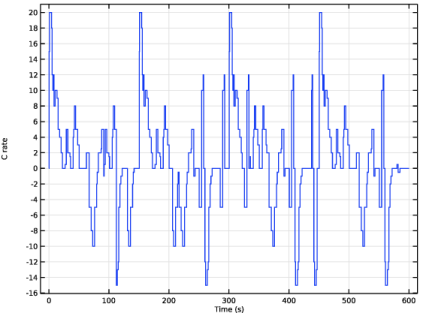
Drive cycle data containing C-rate versus time is imported and used as current load in the model. The drive cycle contains C-rates up to 20C and represents that of a typical hybrid electric vehicle. Figure 2 shows the drive cycle.
Figure 2: Drive cycle, defined as C-rate versus time.
The Modeling Instructions shows how to open up the base model and apply the load cycle to the battery model. First a shorter 60 s simulation is performed, and the preliminary analysis of the results indicate too low potentials in the negative electrode (an indication of lithium plating susceptibility). The battery is then made more power optimized by using thinner electrodes, and the simulation is then recomputed for 600 s. The results of the final simulation is discussed in the next section.
Results and Discussion
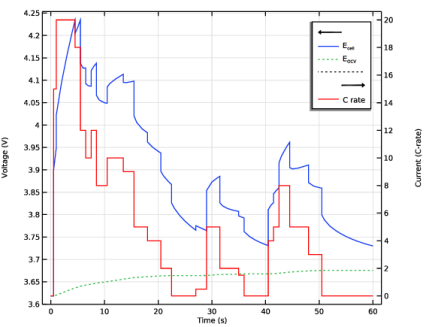
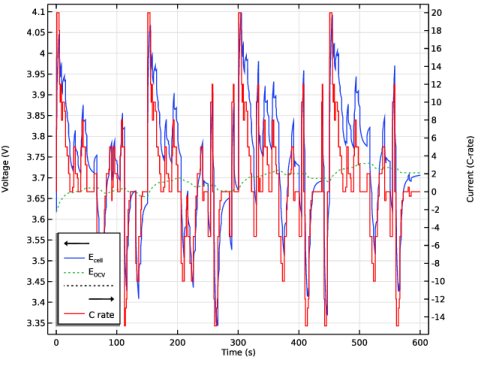
Figure 3 shows the cell voltage, and the corresponding open circuit voltage and the current levels (on the secondary y-axis) versus time. The cell voltage varies between 3.3 V and 4.1 V, while the open-circuit voltage (OCV), the voltage the cell would relax to if left at open circuit for a longer time, varies considerably less.
Figure 3: Cell voltage and open-circuit cell voltage, together with charge/discharge current C-rate.
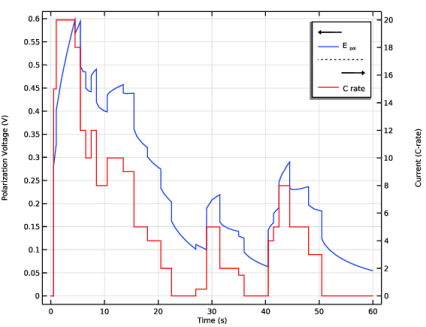
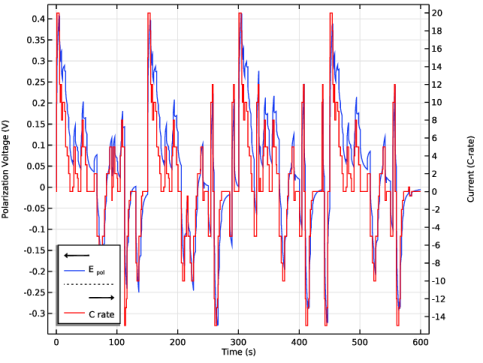
Figure 4 shows the total polarization, computed as the difference between the cell OCV and the cell voltage under load, and the current load. The two curves exhibit a dynamically changing nonlinear relationship with respect to each other. This stems from the contributions from several different phenomena to the total cell polarization of the cell. The models Lithium-Ion Battery Rate Capability and Lithium-Ion Battery Internal Resistance further look into the origin of these potential losses.
Figure 4: Total polarization and load.
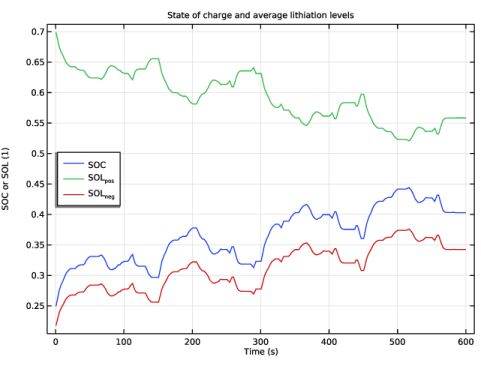
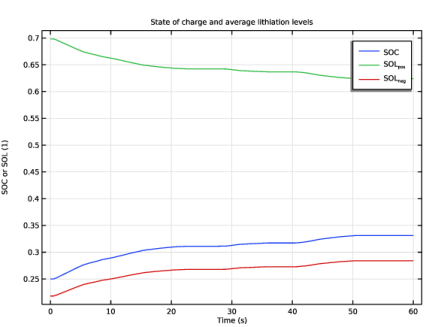
The SOC and the corresponding degrees of lithiation in each electrode are shown in Figure 5.
Figure 5: SOC of cell and electrodes at load during drive cycle.
The load cycle is not charge-neutral, resulting in an increase of the cell SOC from 25% to about 40% at the end of the simulation.
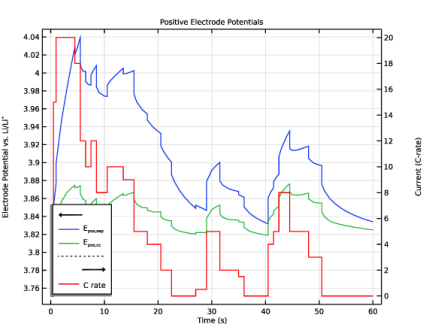
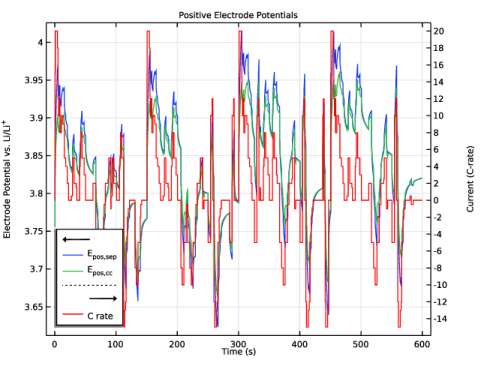
The degree of lithiation levels will impact the corresponding electrode potentials, in combination with the different contributions to the cell polarization. Figure 6 shows the potential in the positive electrode at two locations during the simulation: At the boundary between the separator and the electrode, and at the boundary between the electrode and the current collector. Analyzing these potentials is important since too high positive electrode potentials may result in, for instance, decomposition of the electrode host material. Generally the potentials vary more at the electrode-separator boundary compared to the electrode-current collector boundary. This is a result from the nonhomogeneous current distribution in the cell.
Figure 6: Positive electrode potentials.
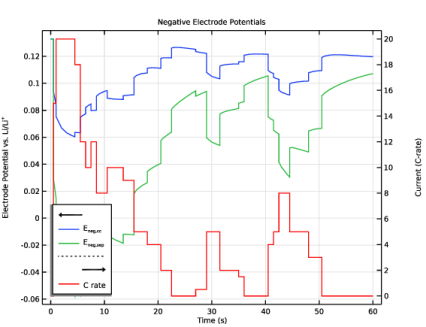
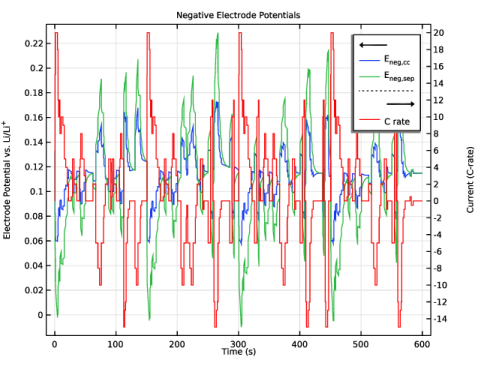
Similarly, Figure 7 shows the corresponding negative electrode potentials. At the separator, a negative electrode potential goes below 0 V during some of the 20C charge pulses. This will result lithium plating, which in turn may result in accelerated battery aging and capacity loss. A conclusion from this work is hence that for a battery with this configuration, the BMS system would have to, in some way, protect the battery from excessively large (>10C) charging currents.
Figure 7: Negative electrode potentials.
Notes About the COMSOL Implementation
The Explicit Event List node in the Events interface is used to define the time-dependent current load of the battery. Alternatively, one could have defined the load curve using time-dependent Piecewise or Interpolation functions. However, by the use of Events, the load transitions do not have to be resolved by the time-dependent solver. This shortens the computational time. In addition, by the use of Events, no solver settings (such as shortening the maximal time step) need to be tweaked in order to capture all load steps.
To reduce the computation time for the model, the Particle Intercalation node option Fast assembly in particle dimension is enabled. Enabling this option applies an alternative method for assembling the diffusion equation in the particle dimension. This alternative method typically decreases computation time for 1D models. For this model, the reduction in computation time is about 20%. Regardless of whether Fast assembly in particle dimension is selected or not, the same diffusion equations are solved for.
Application Library path: Battery_Design_Module/Lithium-Ion_Batteries,_Performance/lib_drive_cycle
Modeling Instructions
Application Libraries
1
From the File menu, choose Application Libraries.
2
In the Application Libraries window, select Battery Design Module > Lithium-Ion Batteries, Performance > lib_base_model_1d in the tree.
3
In this tutorial, we will run the battery model you just loaded versus a specified drive cycle. First for 60 s, then for 600 s.
The load cycle will be defined using a state variable controlled by an Explicit Event List in the Events interface.
Add Physics
1
In the Home toolbar, click  Add Physics to open the Add Physics window.
2
Go to the Add Physics window.
3
In the tree, select Mathematics > ODE and DAE Interfaces > Events (ev).
4
Click the Add to Component 1 button in the window toolbar.
5
In the Home toolbar, click  Add Physics to close the Add Physics window.
Events (ev)
Explicit Event List 1
1
In the Physics toolbar, click  Global and choose Explicit Event List.
2
In the Settings window for Explicit Event List, locate the Discrete State section.
3
In the u text field, type C.
4
In the text field, type C rate.
5
Locate the Explicit Events section. Click the Load button. From the menu, choose Load from File.
6
The load at t=0 is defined set by the initial value setting. Keep the default setting value of 0.
Inspect the imported table. Note that the table contains multiple rows where the load does not change. By not creating events for these rows, some computational time can be saved.
7
Locate the Auxiliary Settings section. Select the Ignore consecutive identical reinitialization expressions checkbox.
Lithium-Ion Battery (liion)
Electrode Current Density 1
Modify the current density boundary condition to make use of the state variable you just created.
1
In the Model Builder window, expand the Component 1 (comp1) > Lithium-Ion Battery (liion) node, then click Electrode Current Density 1.
2
In the Settings window for Electrode Current Density, locate the Electrode Current Density section.
3
In the in,s text field, type I_1C*C.
Porous Electrode - Negative
In the Particle Intercalation nodes of the Porous Electrode features, it is useful to enable fast assembly in the particle dimension option. This option enables an alternative method for assembling of the diffusion equation in the particle dimension, that typically decreases computation time for 1D models (for this model by about 20%). Note that the same diffusion equations are solved for regardless of assembly method.
Particle Intercalation 1
1
In the Model Builder window, expand the Porous Electrode - Negative node, then click Particle Intercalation 1.
2
In the Settings window for Particle Intercalation, click to expand the Particle Discretization section.
3
Select the Fast assembly in particle dimension checkbox.
Particle Intercalation 1
1
In the Model Builder window, expand the Porous Electrode - Positive node, then click Particle Intercalation 1.
2
In the Settings window for Particle Intercalation, locate the Particle Discretization section.
3
Select the Fast assembly in particle dimension checkbox.
Global Definitions
Parameters 1
Modify the parameter for the initial state of charge of the battery. This will impact the initial solid concentration levels (degrees of lithiation) defined in the Particle Intercalation child nodes to the Porous Electrode nodes.
1
In the Model Builder window, under Global Definitions click Parameters 1.
2
In the Settings window for Parameters, locate the Parameters section.
3
Study 1
Step 2: Time Dependent
The model is now ready for solving. First set the solver to run a simulation 60 s of cycling time only.
1
In the Model Builder window, expand the Study 1 node, then click Step 2: Time Dependent.
2
In the Settings window for Time Dependent, locate the Study Settings section.
3
From the Time unit list, choose s.
4
In the Output times text field, type range(0,1,60).
The problem is now ready for solving.
5
In the Study toolbar, click  Compute.
Results
Probe Plot Group 1
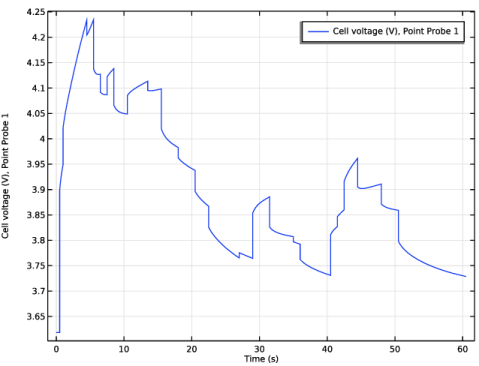
A probe plot of the battery voltage versus time is plotted automatically during the simulation:
1
In the Model Builder window, under Results click Probe Plot Group 1.
2
In the Probe Plot Group 1 toolbar, click  Plot.
Cell Voltage and Load
1
In the Results toolbar, click  1D Plot Group.
Create a plot of the cell voltage and corresponding current load as follows:
2
In the Settings window for 1D Plot Group, type Cell Voltage and Load in the Label text field.
Global 1
1
Right-click Cell Voltage and Load and choose Global.
2
In the Settings window for Global, click Replace Expression in the upper-right corner of the y-Axis Data section. From the menu, choose Component 1 (comp1) > Definitions > E_cell - Point Probe 1 - V.
3
Locate the y-Axis Data section. In the table, enter the following settings:
4
Click Add Expression in the upper-right corner of the y-Axis Data section. From the menu, choose Component 1 (comp1) > Definitions > Variables > E_ocv_cell - Open-circuit cell voltage - V.
5
Click to expand the Coloring and Style section. Find the Line style subsection. From the Line list, choose Cycle.
6
Click to expand the Legends section. From the Legends list, choose Manual.
7
Global 2
1
In the Model Builder window, right-click Cell Voltage and Load and choose Global.
2
In the Settings window for Global, locate the y-Axis Data section.
3
4
Locate the Coloring and Style section. From the Color list, choose Red.
5
Locate the Legends section. From the Legends list, choose Manual.
6
Cell Voltage and Load
1
In the Model Builder window, click Cell Voltage and Load.
2
In the Settings window for 1D Plot Group, click to expand the Title section.
3
From the Title type list, choose None.
4
Locate the Plot Settings section. Select the Two y-axes checkbox.
5
Select the y-axis label checkbox. In the associated text field, type Voltage (V).
6
Select the Secondary y-axis label checkbox. In the associated text field, type Current (C-rate).
7
In the table, select the Plot on secondary y-axis checkbox for Global 2.
8
In the Cell Voltage and Load toolbar, click  Plot.
Duplicate this plot and modify it slightly to create a plot of the total polarization.
Total Polarization and Load
1
Right-click Cell Voltage and Load and choose Duplicate.
2
In the Model Builder window, click Cell Voltage and Load 1.
3
In the Settings window for 1D Plot Group, type Total Polarization and Load in the Label text field.
4
Locate the Plot Settings section. In the y-axis label text field, type Polarization Voltage (V).
Global 1
1
In the Model Builder window, click Global 1.
2
In the Settings window for Global, click Replace Expression in the upper-right corner of the y-Axis Data section. From the menu, choose Component 1 (comp1) > Definitions > Variables > E_pol_tot - Total battery cell polarization - V.
3
Locate the Legends section. In the table, enter the following settings:
4
In the Total Polarization and Load toolbar, click  Plot.
SOC and Lithiation Levels
Create also a plot of the state of charge and the corresponding lithiation levels of the electrodes.
1
In the Results toolbar, click  1D Plot Group.
2
In the Settings window for 1D Plot Group, type SOC and Lithiation Levels in the Label text field.
Global 1
1
Right-click SOC and Lithiation Levels and choose Global.
2
In the Settings window for Global, click Replace Expression in the upper-right corner of the y-Axis Data section. From the menu, choose Component 1 (comp1) > Definitions > Variables > soc_cell - Battery cell state of charge - 1.
3
Click Add Expression in the upper-right corner of the y-Axis Data section. From the menu, choose Component 1 (comp1) > Definitions > Variables > sol_pos - Degree of lithiation, positive - 1.
4
Click Add Expression in the upper-right corner of the y-Axis Data section. From the menu, choose Component 1 (comp1) > Definitions > Variables > sol_neg - Degree of lithiation, negative - 1.
5
In the SOC and Lithiation Levels toolbar, click  Plot.
6
Locate the Legends section. From the Legends list, choose Manual.
7
8
In the SOC and Lithiation Levels toolbar, click  Plot.
SOC and Lithiation Levels
1
In the Model Builder window, click SOC and Lithiation Levels.
2
In the Settings window for 1D Plot Group, locate the Title section.
3
From the Title type list, choose Manual.
4
In the Title text area, type State of charge and average lithiation levels.
5
Locate the Plot Settings section.
6
Select the y-axis label checkbox. In the associated text field, type SOC or SOL (1).
7
In the SOC and Lithiation Levels toolbar, click  Plot.
Positive Electrode Potentials
Now plot the electrode potentials in the positive electrode as follows:
1
In the Results toolbar, click  1D Plot Group.
2
In the Settings window for 1D Plot Group, type Positive Electrode Potentials in the Label text field.
Point Graph 1
1
Right-click Positive Electrode Potentials and choose Point Graph.
2
3
In the Settings window for Point Graph, locate the y-Axis Data section.
4
In the Expression text field, type phis-phil.
5
Click to expand the Legends section. Select the Show legends checkbox.
6
From the Legends list, choose Manual.
7
8
In the Positive Electrode Potentials toolbar, click  Plot.
Global 2
In the Model Builder window, under Results > Total Polarization and Load right-click Global 2 and choose Copy.
Global 2
In the Model Builder window, right-click Positive Electrode Potentials and choose Paste Global.
Positive Electrode Potentials
1
In the Settings window for 1D Plot Group, locate the Plot Settings section.
2
Select the Two y-axes checkbox.
3
In the Positive Electrode Potentials toolbar, click  Plot.
4
Select the y-axis label checkbox. In the associated text field, type Electrode Potential vs. Li/Li<sup>+</sup>.
5
Select the Secondary y-axis label checkbox. In the associated text field, type Current (C-rate).
6
In the Positive Electrode Potentials toolbar, click  Plot.
7
Locate the Title section. From the Title type list, choose Manual.
8
In the Title text area, type Positive Electrode Potentials.
9
Locate the Legend section. From the Position list, choose Lower left.
10
In the Positive Electrode Potentials toolbar, click  Plot.
The potentials versus Li/Li+ are generally varying more at the electrode-separator boundary compared to the electrode-current collector boundary. This is due to an uneven current distribution in the cell.
Negative Electrode Potentials
1
Right-click Positive Electrode Potentials and choose Duplicate.
2
In the Settings window for 1D Plot Group, type Negative Electrode Potentials in the Label text field.
3
Locate the Title section. In the Title text area, type Negative Electrode Potentials.
Point Graph 1
1
In the Model Builder window, expand the Negative Electrode Potentials node, then click Point Graph 1.
2
In the Settings window for Point Graph, locate the Selection section.
3
4
Click  Clear Selection.
5
6
Locate the Legends section. In the table, enter the following settings:
7
In the Negative Electrode Potentials toolbar, click  Plot.
Global Definitions
Parameters 1
The negative potentials reaching levels below 0 V versus Li/Li+ at the separator-electrode boundary (seen in the last plot) is problematic since this may result in lithium plating in the cell. Making the electrodes thinner will make the battery more power optimized. Reduce the positive electrode thickness. The negative electrode thickness is automatically reduced based on the correlation defined in the Parameters 1 node.
1
In the Model Builder window, under Global Definitions click Parameters 1.
2
In the Settings window for Parameters, locate the Parameters section.
3
Study 1
Step 2: Time Dependent
Now increase the solver time to 600 s and recompute.
1
In the Model Builder window, under Study 1 click Step 2: Time Dependent.
2
In the Settings window for Time Dependent, locate the Study Settings section.
3
In the Output times text field, type range(0,1,600).
4
In the Study toolbar, click  Compute.
You may now compare the plots with the corresponding figures of the Results and Discussion section above.
Results
Cell Voltage and Load
1
In the Model Builder window, under Results click Cell Voltage and Load.
2
In the Settings window for 1D Plot Group, locate the Legend section.
3
From the Position list, choose Lower left.
4
In the Cell Voltage and Load toolbar, click  Plot.
Total Polarization and Load
1
In the Model Builder window, click Total Polarization and Load.
2
In the Settings window for 1D Plot Group, locate the Legend section.
3
From the Position list, choose Lower left.
4
In the Total Polarization and Load toolbar, click  Plot.
SOC and Lithiation Levels
1
In the Model Builder window, click SOC and Lithiation Levels.
2
In the Settings window for 1D Plot Group, locate the Legend section.
3
From the Position list, choose Middle left.
4
In the SOC and Lithiation Levels toolbar, click  Plot.
Positive Electrode Potentials
1
In the Model Builder window, click Positive Electrode Potentials.
2
In the Positive Electrode Potentials toolbar, click  Plot.
Negative Electrode Potentials
1
In the Model Builder window, click Negative Electrode Potentials.
2
In the Settings window for 1D Plot Group, locate the Legend section.
3
From the Position list, choose Upper right.
4
In the Negative Electrode Potentials toolbar, click  Plot.
After power-optimizing the battery, we have partly reduced the magnitude of the plating potentials (below 0 V) in the negative electrode, but probably we would have to make the battery electrodes even thinner in order to avoid plating entirely.