|
|
|


|
1
|
|
2
|
In the Application Libraries window, select Battery Design Module > Lithium-Ion Batteries, Performance > lib_base_model_1d in the tree.
|
|
3
|
Click
 Open. Open. |
|
1
|
|
2
|
|
1
|
In the Model Builder window, expand the Component 1 (comp1) > Definitions node, then click Variables 1.
|
|
2
|
|
1
|
In the Model Builder window, expand the Component 1 (comp1) > Lithium-Ion Battery (liion) node, then click Electrode Current Density 1.
|
|
2
|
|
3
|
|
1
|
|
2
|
Go to the Add Physics window.
|
|
3
|
|
4
|
Click the Add to Component 1 button in the window toolbar.
|
|
5
|
|
6
|
Click the Add to Component 1 button in the window toolbar.
|
|
7
|
|
1
|
In the Model Builder window, under Component 1 (comp1) > Cumulative Energy (ge) click Global Equations 1 (ODE1).
|
|
2
|
|
4
|
|
5
|
In the Dependent variable quantity table, enter the following settings:
|
|
6
|
Click
 Define Source Term Unit. Define Source Term Unit. |
|
7
|
In the Source term quantity table, enter the following settings:
|
|
1
|
|
1
|
|
2
|
|
1
|
|
2
|
|
3
|
|
1
|
|
2
|
|
3
|
Click
 Add. Add. |
|
1
|
|
2
|
In the Settings window for Current Distribution Initialization, locate the Physics and Variables Selection section.
|
|
3
|
In the Solve for column of the table, under Component 1 (comp1), clear the checkbox for Cumulative Energy (ge).
|
|
1
|
|
2
|
|
3
|
|
1
|
|
2
|
|
3
|
|
4
|
|
5
|
|
6
|
|
7
|
Right-click Study 1 > Solver Configurations > Solution 1 (sol1) > Time-Dependent Solver 1 and choose Stop Condition.
|
|
8
|
|
9
|
|
10
|
|
11
|
|
1
|
|
2
|
|
3
|
|
1
|
|
2
|
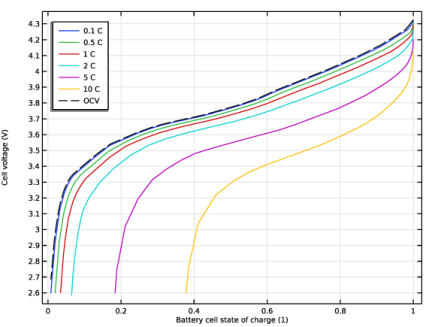
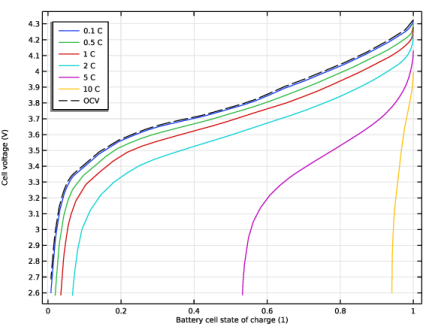
In the Settings window for Global, click Replace Expression in the upper-right corner of the y-Axis Data section. From the menu, choose Component 1 (comp1) > Definitions > E_cell - Point Probe 1 - V.
|
|
3
|
Locate the y-Axis Data section. In the table, enter the following settings:
|
|
4
|
|
5
|
|
6
|
|
7
|
|
1
|
|
2
|
In the Settings window for Global, click Replace Expression in the upper-right corner of the y-Axis Data section. From the menu, choose Component 1 (comp1) > Definitions > Variables > E_ocv_cell - Open-circuit cell voltage - V.
|
|
3
|
|
4
|
|
5
|
|
6
|
|
7
|
|
9
|
Click to expand the Coloring and Style section. Find the Line style subsection. From the Line list, choose Dashed.
|
|
10
|
|
11
|
|
1
|
|
2
|
|
3
|
|
4
|
Locate the Plot Settings section.
|
|
5
|
|
6
|
|
7
|
|
1
|
|
2
|
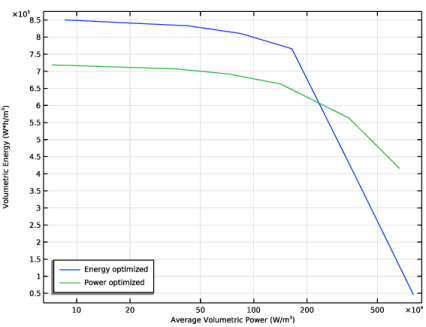
In the Settings window for Global Evaluation, type Ragone Plot Data Evaluation in the Label text field.
|
|
3
|
|
4
|
Locate the Expressions section. In the table, enter the following settings:
|
|
5
|
|
1
|
|
2
|
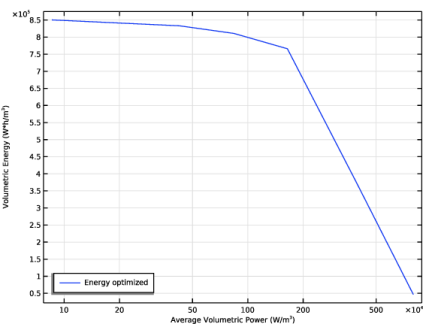
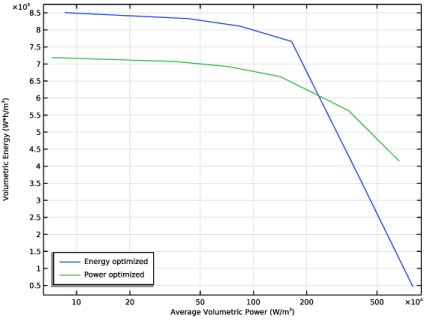
In the Settings window for Table, type Ragone Plot Data Energy Optimized Cell in the Label text field.
|
|
1
|
|
2
|
|
3
|
|
4
|
|
1
|
|
2
|
|
3
|
|
4
|
|
5
|
|
6
|
|
7
|
|
8
|
|
10
|
|
1
|
|
2
|
|
3
|
|
4
|
|
5
|
|
1
|
|
2
|
|
3
|
|
4
|
|
5
|
|
1
|
|
2
|
|
1
|
In the Model Builder window, under Study 1 > Solver Configurations right-click Parametric Solutions 1 (sol3) and choose Solution > Copy.
|
|
1
|
In the Model Builder window, under Study 1 > Solver Configurations click Parametric Solutions 1 - Copy 1 (sol10).
|
|
2
|
In the Settings window for Solution, type Parametric Solutions - Energy Optimized Cell in the Label text field.
|
|
3
|
|
1
|
|
2
|
|
1
|
In the Model Builder window, under Results > Derived Values right-click Ragone Plot Data Evaluation and choose Evaluate > New Table.
|
|
1
|
|
2
|
In the Settings window for Table, type Ragone Plot Data for Power Optimized Cell in the Label text field.
|
|
1
|
In the Model Builder window, under Results > Ragone Plots right-click Table Graph 1 and choose Duplicate.
|
|
2
|
|
3
|
|
4
|
Locate the Legends section. In the table, enter the following settings:
|
|
5
|
|
1
|
|
2
|
|
1
|
|
2
|



 next to