Test Application is used for testing an application during development. It opens a separate window with the application user interface while keeping the Application Builder desktop environment running. The figure below shows the
Test section as it appears in the
Form tab of the ribbon.
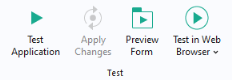
While testing an application, you can apply changes to forms, methods, and the embedded model at run time by clicking the Apply Changes button. Not all changes can be applied at run time, and in such a case, you are prompted to close the application and click
Test Application again.
When Test Application is used, all methods are automatically compiled with the built-in Java
® compiler. Any syntax errors will generate error messages and the process of testing the application will be stopped. To check for syntax errors before testing an application, click the
Check Syntax button in the
Method tab.
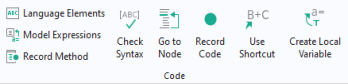
Check Syntax finds syntax errors by compiling the methods using the built-in Java
® compiler. Any syntax errors will, in this case, be displayed in the
Method Errors and Warnings window in the Method Editor. For more information, see
The Method Editor.
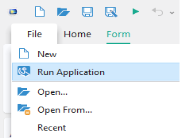
Run Application starts the application in the COMSOL Desktop environment. Select
Run Application to use an application for production purposes. For example, you can run an application that was created by someone else that is password protected from editing, but not from running.
When you double-click an MPH-file icon on the Windows® Desktop, the application opens in COMSOL Multiphysics, provided the MPH-file extension is associated with COMSOL Multiphysics. The application may either be opened for editing or for running. You control this behavior from the root node of the application tree. The
Settings window for this node has a section titled
Application in which you can select either
Edit application or
Run application. A change in this setting will be applied when you save the MPH-file.
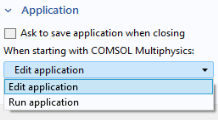
If the MPH-file was saved with the Edit application option, the application will open in either the Application Builder or the Model Builder, depending on which workspace was active at the time of saving.
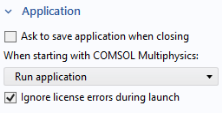
If the MPH-file was saved with the Run application option, the application will open in runtime mode for production use. This option is similar to selecting
Run Application in the
File menu with the difference that double-clicking an MPH-file will start a new COMSOL Multiphysics session.
If you have installed the COMSOL Client for Windows®, the MPH-file extension may instead be associated with the COMSOL Client, and double-clicking an MPH-file will prompt you to log in to a COMSOL Server.
In the Settings window for the application tree root node, the
Ignore license errors during launch checkbox is used to control the behavior with respect to licensed products when running applications.
Test in Web Browser is used for testing the application in a web browser. This functionality makes it easy to test the look and feel of the application when it is accessed from a web browser connected to a COMSOL Server installation.
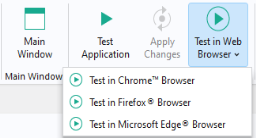
You can choose which of the installed web browsers you would like the application to launch in. Test in Web Browser opens a separate browser window with the application user interface while keeping the Application Builder desktop environment running.
Test Application launches the application with a user interface based on Microsoft
®. NET Framework components, whereas
Test in Web Browser launches the application with a user interface based on HTML5 components.
Test Application will display the user interface as it would appear as a standalone app, compiled using COMSOL Compiler, or when the application is run with COMSOL Multiphysics or COMSOL Server, provided the COMSOL Client for Windows
® is used to connect with the COMSOL Server installation.
Test in Web Browser will display the user interface as it would appear when the application is run with COMSOL Server, provided a web browser is used to connect with the COMSOL Server installation.
When you test an application, it is assigned the name Untitled.mph and is a copy of the original MPH-file. This is not the case when using the
Run application option.
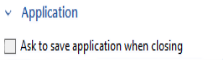
By default, when using the Run application option, the user of an application will not be prompted to save changes when exiting the application. You control this behavior from the root node of the application tree. The
Settings window for this node has a section titled
Application in which you can select the
Ask to save application when closing checkbox, as shown in the figure below.
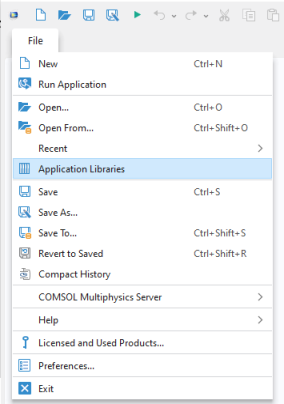
From the File menu, select
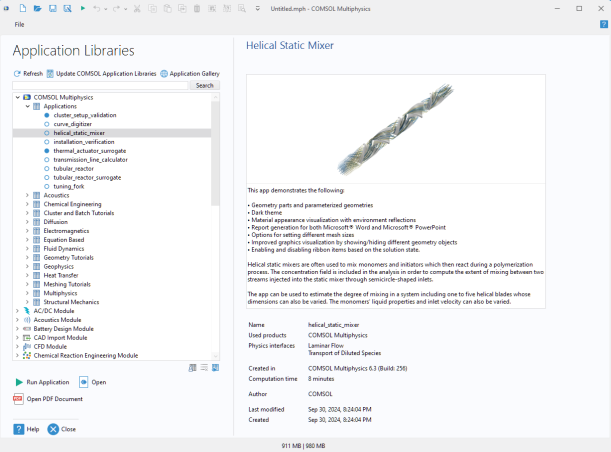
Application Libraries to run and explore the example applications that are included in the COMSOL installation. Many of the screenshots in this book are taken from these examples.
To set the thumbnail image, click the root node of the application tree. The Settings window has two options for choosing the image:
Set from Graphics Window and
Load from File. You can also
Clear the image.
The Load from File option allows you to load images in the PNG or JPG file formats. Choose an image size from 280-by-210 to 1024-by-768 pixels to ensure that the image displays properly as a thumbnail in COMSOL Multiphysics and COMSOL Server.
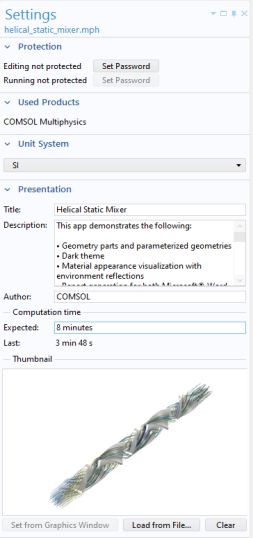
The Set from Graphics Window option automatically creates two thumbnail images:
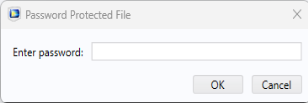
An application can be password protected to manage permissions. You assign separate passwords for editing and running in the Settings window, accessible by clicking the root node of the application tree in the Application Builder window. You must have permission to edit an application in order to create passwords for running it.
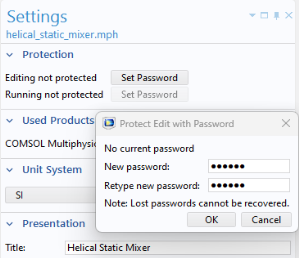
The security settings in COMSOL Multiphysics can be found in the Security page in the
Preferences window accessed from the
File menu. In COMSOL Server, they are available in the
Preferences page in the COMSOL Server web interface if you are logged in as an administrator. If you are not sure what security settings to use, contact your systems administrator.