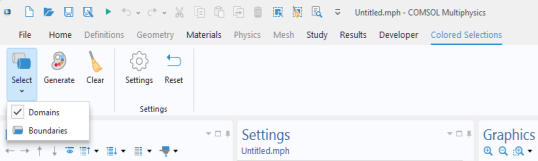
To customize the workflow in the Model Builder, you can use a Method Call or a
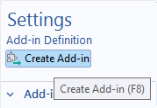
Settings Form. However, these are associated with a specific MPH-file, and you may want to reuse them between sessions or share them with colleagues. To make this possible, you can create an add-in based on a
Method Call,
Settings Form, or a custom ribbon tab. Such add-ins can then be stored in a user-defined add-in library. In addition, COMSOL Multiphysics comes with built-in add-in libraries. For the add-ins in the built-in library, you can review their Application Builder settings, including forms and methods, to quickly learn how to build your own add-ins.
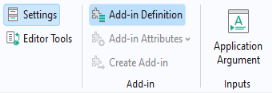
Right-click the Add-in Definitions node in the application tree and select
Form Definition.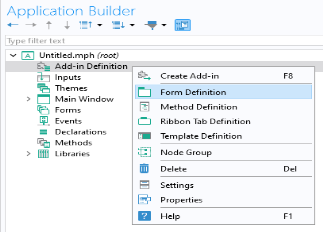
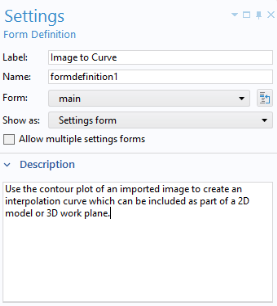
The figure below shows the Settings window for the
Form Definition. Here, you can type a
Label for the add-in form as well as select which form to use for the add-in. The
Label will be displayed in the user-defined add-in library. You can select whether the form should be displayed as a
Settings form in the model tree or as a
dialog. The
Allow multiple settings forms checkbox is used to allow for more than one instance of the
Settings form in the model tree. The
Description is displayed in the add-in library and as a tooltip when choosing among add-ins in the ribbon.
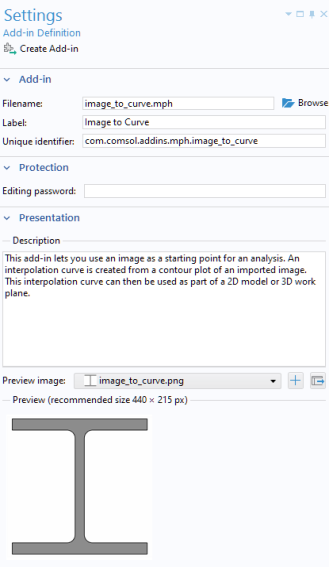
The Filename is the location of the add-in MPH-file in the user-defined add-in library. This location can be on a shared network drive if you wish to share the add-in with your colleagues. The
Label will be displayed in the
Add-in Libraries window. The
Unique identifier is what identifies the add-in and is intended to be unique for any COMSOL Multiphysics session. The unique identifier is recommended to be in a format similar to
<company name>.<Add-in name> ;for example,
my_company.my_add-in. The
Editing password will be applied to the created add-in and is different from the editing password that you can specify in the root node
Settings window of the MPH-file used to create the add-in.
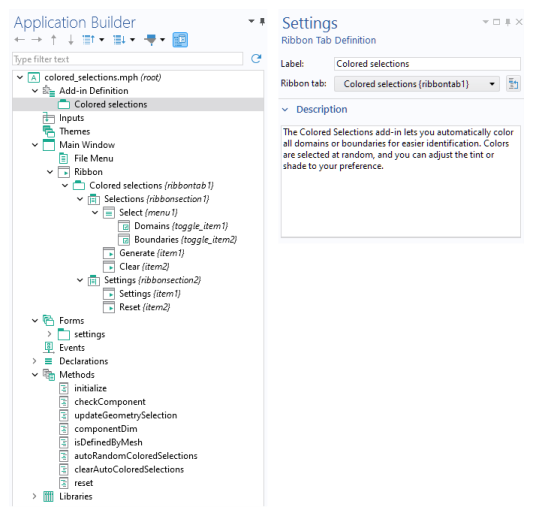
As an alternative to a Form Definition you can use a
Ribbon Tab Definition to create one or more ribbon tabs with customized buttons (items) and menus. The figures below show the settings for an add-in that defines a custom ribbon tab with menus and buttons.