If you have a license for COMSOL Compiler™, there will be a Compiler button in the ribbon section
Main, as shown below.
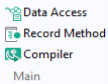
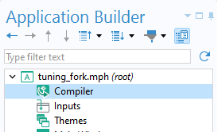
Clicking this button will add a Compiler node to the application tree, shown in the figure below.
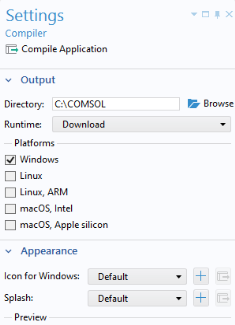
The Runtime option can be left at
Download for most situations. COMSOL Runtime contains all the COMSOL Multiphysics software components needed to run the application as a standalone program. The
Runtime setting specifies how the COMSOL Runtime environment will be acquired from the compiled application. If this setting is
Download then the first time a user starts the compiled application the COMSOL Runtime environment files will be downloaded (a service provided by COMSOL). If the COMSOL Runtime environment already exists on the computer, with a matching version number, then no download will be performed. The option
Embed will bundle the COMSOL Runtime files in the executable file. Note that with this option, the file size may be around 1GB even for smaller applications.
The Platforms settings determine which target-platform executables should be generated at compilation. The extensions of the executables for the Windows
® and Linux
® operating systems will be
.exe and
.sh, respectively. For macOS, a
.tar archive is created; unpack this archive on macOS to extract the app.
The Icon for Windows lets you specify the desktop icon. The
Splash setting lets you specify a BMP-image file to be displayed at startup.
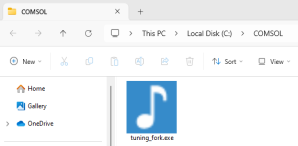
After compilation, in the Windows® operating system, the executable file will be available in the output directory, as shown in the figure below.
When running a compiled application, for example, by double-clicking the .exe file in the Windows
® operating system, a splash screen is shown and the application will start. If the application has the
Splash option set to
Default, then a neutral-looking built-in splash screen will be shown.
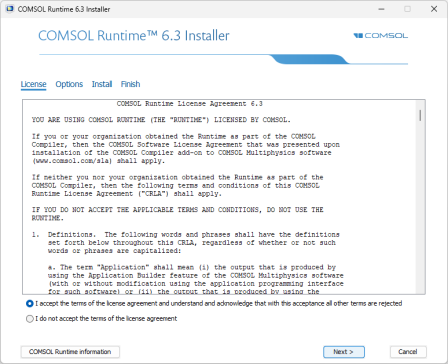
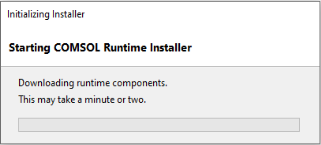
If this is the first time you are running an application on a particular computer, then, in addition, an Initializing Installer progress window will be displayed. The initialization progress window is shown below.
Click Next to proceed to the Options page, as shown in the figure below.
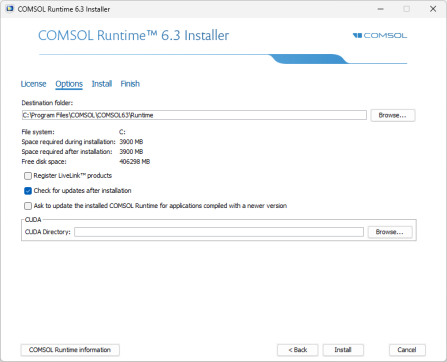
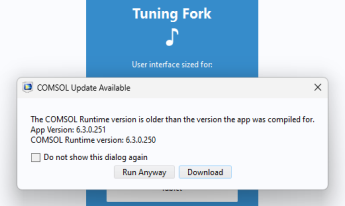
If you selected the Ask to update the installed COMSOL Runtime for applications compiled with a newer version checkbox while installing the COMSOL Runtime, running an application compiled with a newer version of COMSOL Multiphysics will give you the option to either run anyway or to download an update. An example of this is shown in the figure below.
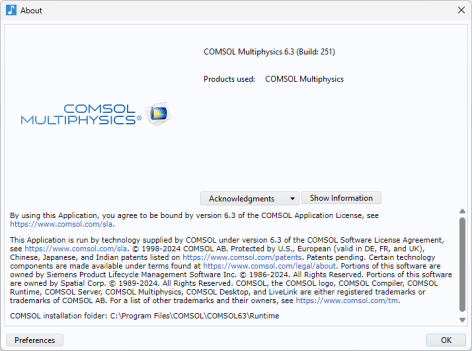
An option for showing the COMSOL About dialog is always available in a compiled application. The author of the application controls how this information is available from the
Settings of the
Main Window; see
About Dialog. The figure below shows the
About dialog.
In the About dialog, the user of a compiled application can access the
Preferences by clicking the corresponding button. The
Preferences window for a compiled application is shown below.
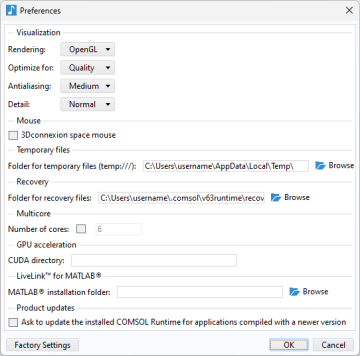
Here, the user can change settings for Visualization,
Mouse,
Temporary files,
Recovery,
Multicore,
GPU acceleration,
LiveLink™
for MATLAB®, and
Product updates. These settings represent a subset of the
Preferences available in COMSOL Multiphysics and more information can be found in the
COMSOL Multiphysics Reference Manual.

If the compiled application detects that OpenGL
® graphics hardware acceleration is not supported, then the application will automatically switch to software rendering and exit. The next time the application starts, software rendering will be used.