|
1
|
|
-
|
In the Width text field, enter 0.2-0.1/(3*sqrt(3)).
|
|
-
|
|
-
|
|
-
|
In the yw text field, enter -0.1/3.
|
|
3
|
|
2
|
In the Settings window for Circle under Size and Shape, enter 0.2/(3*sqrt(3)) in the Radius text field.
|
|
1
|
|
2
|
Go to the Settings window for Scale. Under Scale Factor in the Factor text field, enter sc_chamfer (one of the parameters entered in the step Global Definitions - Parameters and Variables).
|
|
3
|
|
2
|
Go to the Settings window for Extrude. Under Distances from Plane in the associated table, enter 0.1/3 in the Distances (m) column.
|
 .
. and choose Rectangle
  .
. button.
 and from the Transforms menu select Copy
  .
. button.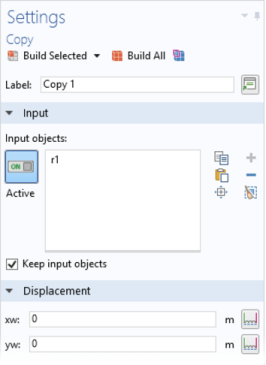
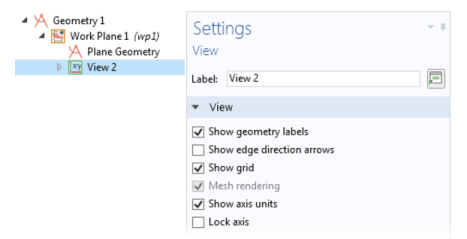
 and from the Transforms menu select Rotate
  .
. button and then click the Zoom Extents button
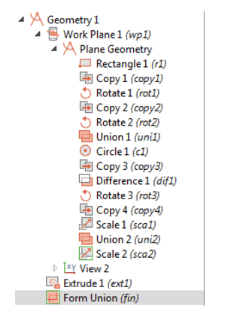
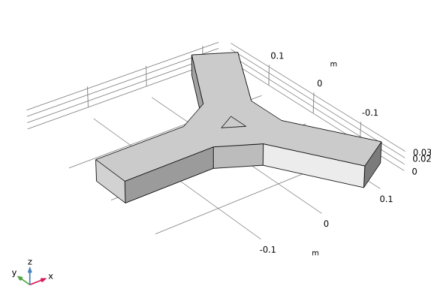
  on the Graphics toolbar. The geometry should match the figure so far.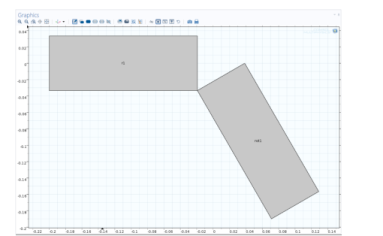
 and choose Transforms>Copy
  .
. button.
 and choose Transforms>Rotate
  .
. and choose Selection List. From the Selection List, right-click copy2 and choose Add to Selection to add it to the Input objects list.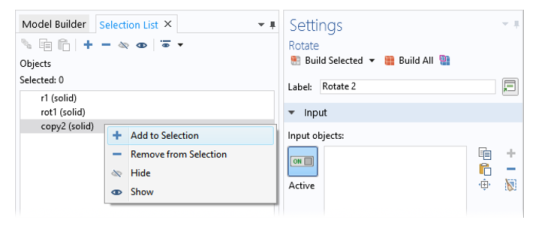
 button and then click the Zoom Extents
  button on the Graphics toolbar.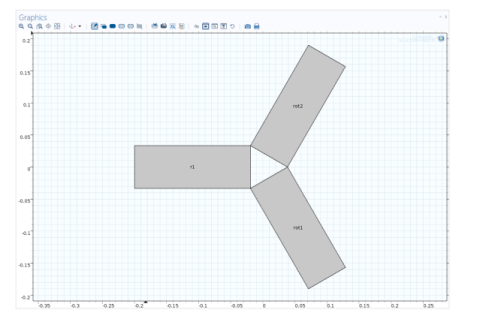
 and choose Boolean Operations>Union
  .
. button. There is one object created called uni1.
 and choose Circle
  .
. button.
  and choose Transforms>Copy
  . A Copy 3 node is added to the sequence.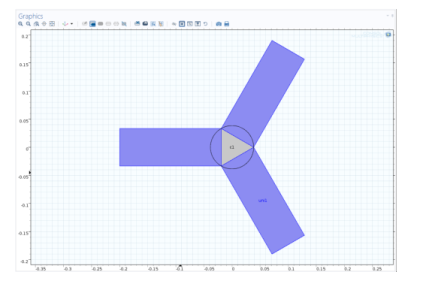
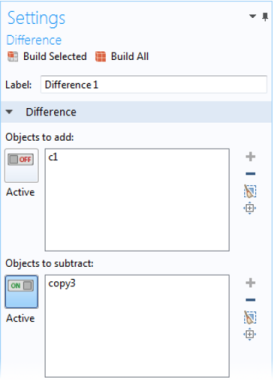
 and choose Boolean Operations>Difference
  .
.
 and choose Selection List.
 button.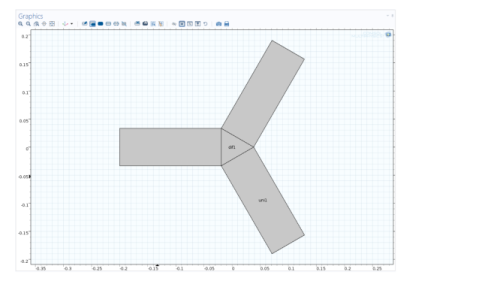
 and choose Transforms>Rotate
  .
. button.
 and choose Transforms>Copy
  .
. and choose Transforms>Scale
  .
. button.
 and choose Boolean Operations>Union
  .
. button.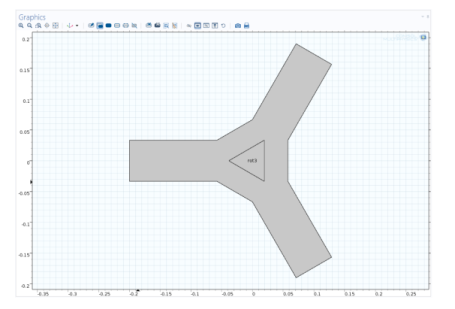
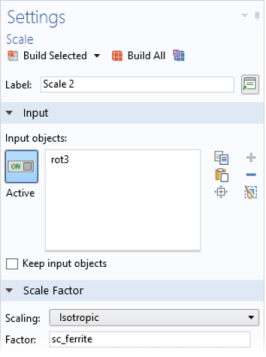
 and choose Transforms>Scale
  .
. button.
  and choose Extrude
  .
. button and then click the Zoom Extents
  button on the Graphics toolbar.
 .
. .
.