You are viewing the documentation for an older COMSOL version. The latest version is
available here
.
Model Wizard
These step-by-step instructions guide you through the design and modeling of the lossy three-port circulator in 3D. The first part involves the geometric design and impedance matching at a nominal frequency of 3 GHz. After that, a frequency sweep is performed to see how well it performs in a frequency band of 400 MHz centered at 3 GHz. Finally, computation and a Touchstone file export of the entire S-parameter matrix is performed.
Note:
These instructions are for the user interface on Windows but apply, with minor differences, also to Linux and Mac.
1
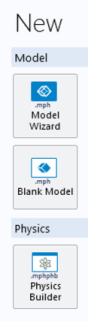
To start the software, double-click the COMSOL icon on the desktop. When the software opens, you can choose to use the Model Wizard to create a new COMSOL model or Blank Model to create one manually. For this tutorial, click the Model Wizard button.
If COMSOL is already open, you can start the Model Wizard by selecting New
from the File menu and then click Model Wizard
.
The Model Wizard guides you through the first steps of setting up a model. The next window lets you select the dimension of the modeling space.
2
In the Select Space Dimension window click 3D
.
3
In the Select Physics tree, expand Radio Frequency, and double-click Electromagnetic Waves, Frequency Domain
so that it appears in the Added physics interface list.
Alternatively, select Electromagnetic Waves, Frequency Domain
and click the Add button.
4
Click Study
.
5
In the Studies tree under General Studies, click Frequency Domain
.
6
Click Done
.
 from the File menu and then click Model Wizard
  .
. .
. so that it appears in the Added physics interface list.
  and click the Add button.
 .
. .
. .
.