PDF

Gaussian Beam Incident at the Brewster Angle
Introduction
For a plane wave incident at an interface between two different media, there exists an angle of incidence for which there is no reflectance if the incident wave is polarized in the plane of incidence. The angle, for which the reflectance is zero, is called the Brewster angle.
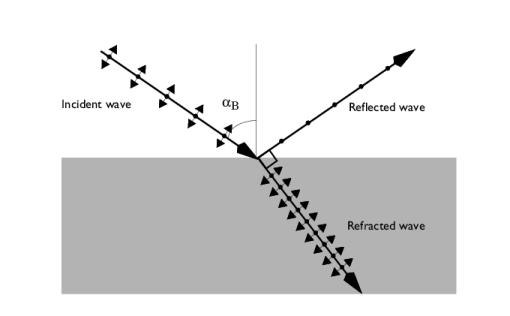
Figure 1 shows an incident wave being reflected and refracted at the interface between the two media. The polarization component polarized in the plane of incident (the plane spanned by the wave vector of the incident wave and the normal to the interface) is not reflected. This polarization component is called the p-polarization.
The polarization component orthogonal to the plane of incidence (the s-polarization) is both reflected and refracted.
Figure 1: The figure shows the incident, reflected, and refracted waves. At the Brewster angle αB the wave polarized in the plane of incidence is only refracted and not reflected.
At the Brewster angle, the incident p-polarized wave creates a polarization in the second medium (where the refracted wave is propagating) with the components in the propagation direction of the reflected wave. Because this is a longitudinal polarization for the reflected wave, and not a transverse polarization, it is clear that this polarization cannot excite a reflected wave.
Referring to the angles defined in Figure 1, write Snell’s law as
(1)
where n1 and n2 are the refractive indices above and below the interface, respectively.
Equation 1 results in the Brewster angle definition
From the Fresnel Equations Application Libraries example, the reflectance for the s-polarization at the Brewster angle is given by
(2)
This model does not use plane waves, but Gaussian beams (see for instance the Second Harmonic Generation of a Gaussian Beam Application Libraries model for a discussion about Gaussian beams). However, because the spot size for the beam is much larger than the wavelength, the plane wave relations above are good approximations also for the Gaussian beams.
Model Definition
This model demonstrates how the Matched Boundary Condition feature can be used to absorb waves that propagate toward a boundary in a direction different from the boundary’s normal direction. Here, a Scattering Boundary Condition feature is not an option, as that feature only absorbs waves propagating at or close to the normal direction to the boundary normal. A second alternative would be to use a Perfectly Matched Layer (PML) domain. However, in that case, extra degrees of freedom would have to be included for the PML domain. Thus, the Matched Boundary Condition feature is the best feature to use for absorbing beams propagating in directions that are not in the normal direction to the boundary.
Results and Discussion
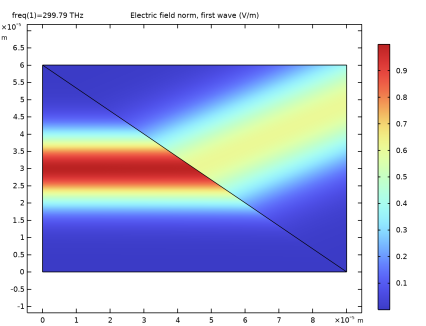
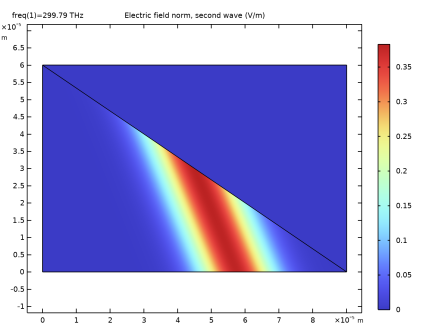
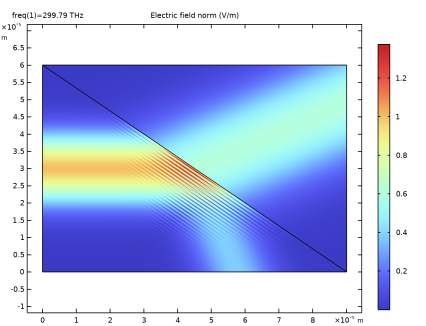
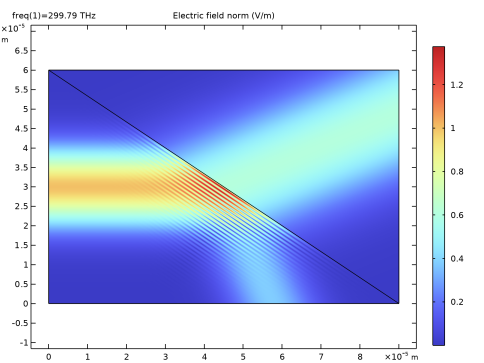
First, the results are computed for s-polarization, where the polarization is orthogonal to the plane of incidence (out-of-plane polarization). As shown in Figure 2, there are both a refracted and a reflected beam. The incident beam and the reflected beam form an inference pattern. Thanks to the fine mesh used in the model, the interference pattern is resolved. Equation 2 is also used to verify that the reflectance is correct. It should be close to 14.8%.
Figure 2: The incident, transmitted (refracted) and reflected Gaussian beams for s-polarization (out-of-plane polarization).
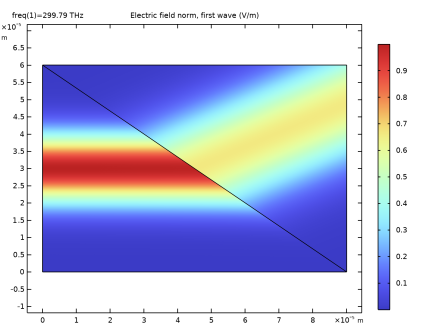
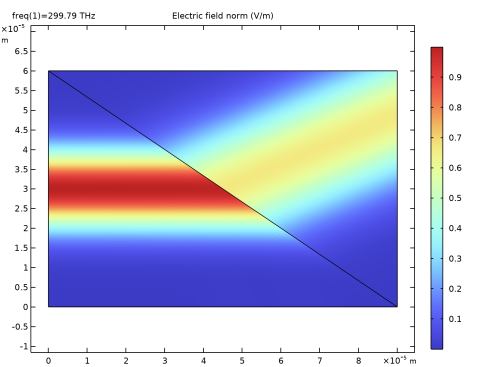
Figure 3 shows the results for p-polarization (in-plane polarization). As expected, when the beam is incident at the Brewster angle, there is no reflected beam, but only a refracted (transmitted) beam.
Figure 3: The incident and transmitted Gaussian beams for p-polarization (in-plane polarization). For this polarization, with Brewster angle incidence, the reflected beam is gone.
Application Library path: Wave_Optics_Module/Beam_Propagation/brewster_interface
Modeling Instructions
From the File menu, choose New.
New
In the New window, click  Model Wizard.
Model Wizard
1
In the Model Wizard window, click  2D.
2
In the Select Physics tree, select Optics > Wave Optics > Electromagnetic Waves, Beam Envelopes (ewbe).
3
Click Add.
4
Click  Study.
5
In the Select Study tree, select General Studies > Frequency Domain.
6
Global Definitions
Parameters 1
The parameters for the model will be read from a file.
1
In the Model Builder window, under Global Definitions click Parameters 1.
2
In the Settings window for Parameters, locate the Parameters section.
3
Click  Load from File.
4
Geometry 1
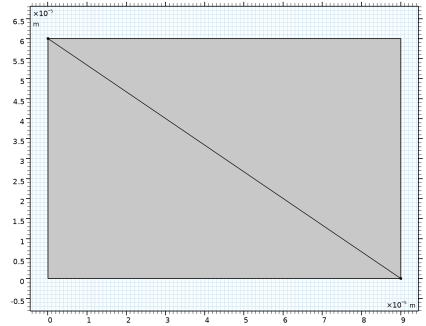
Define the geometry as a rectangle with a diagonal boundary.
Rectangle 1 (r1)
1
In the Geometry toolbar, click  Rectangle.
2
In the Settings window for Rectangle, locate the Size and Shape section.
3
In the Width text field, type b.
4
In the Height text field, type a.
Line Segment 1 (ls1)
1
In the Geometry toolbar, click  More Primitives and choose Line Segment.
2
On the object r1, select Point 4 only.
3
In the Settings window for Line Segment, locate the Endpoint section.
4
Click to select the  Activate Selection toggle button for End vertex.
5
On the object r1, select Point 2 only.
6
Click  Build All Objects.
7
Click the  Zoom Extents button in the Graphics toolbar.
Add Material
1
In the Home toolbar, click  Add Material to open the Add Material window.
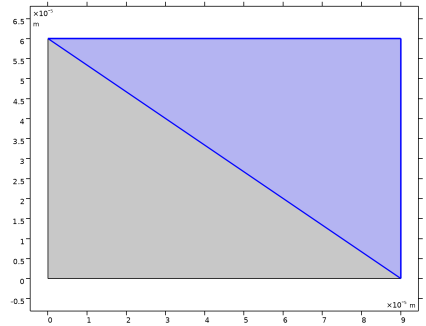
The leftmost part consists of air and the rightmost part will be glass.
2
Go to the Add Material window.
3
In the tree, select Built-in > Air.
4
Click the Add to Component button in the window toolbar.
5
In the Home toolbar, click  Add Material to close the Add Material window.
Materials
Glass
1
In the Model Builder window, under Component 1 (comp1) right-click Materials and choose Blank Material.
2
In the Settings window for Material, type Glass in the Label text field.
3
4
Click the  Zoom Extents button in the Graphics toolbar.
Define the refractive index for glass, using the parameter n2.
5
Locate the Material Contents section. In the table, enter the following settings:
Definitions
Set up expressions for the wave vector components for the two waves, with different expressions in the two domains.
Variables 1
1
In the Model Builder window, under Component 1 (comp1) right-click Definitions and choose Variables.
2
In the Settings window for Variables, locate the Geometric Entity Selection section.
3
From the Geometric entity level list, choose Domain.
4
5
Locate the Variables section. In the table, enter the following settings:
Variables 2
1
In the Definitions toolbar, click  Local Variables.
2
In the Settings window for Variables, locate the Geometric Entity Selection section.
3
From the Geometric entity level list, choose Domain.
4
5
Locate the Variables section. In the table, enter the following settings:
Electromagnetic Waves, Beam Envelopes (ewbe)
1
In the Model Builder window, under Component 1 (comp1) click Electromagnetic Waves, Beam Envelopes (ewbe).
2
In the Settings window for Electromagnetic Waves, Beam Envelopes, locate the Components section.
3
From the Electric field components solved for list, choose Out-of-plane vector.
4
Locate the Wave Vectors section. Specify the k1 vector as
5
Specify the k2 vector as
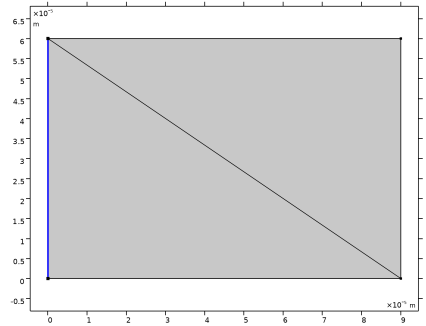
Matched Boundary Condition 1
1
In the Physics toolbar, click  Boundaries and choose Matched Boundary Condition.
2
3
In the Settings window for Matched Boundary Condition, locate the Matched Boundary Condition section.
4
From the Incident field list, choose Gaussian beam.
5
In the w0 text field, type w0.
6
Specify the Eg0 vector as
On this boundary, only an incident field is expected, but there should not be any scattered field. Thus, provide that information, with the following setting, to avoid any potential spurious solutions.
7
Find the Scattered field subsection. Select the No scattered field checkbox.
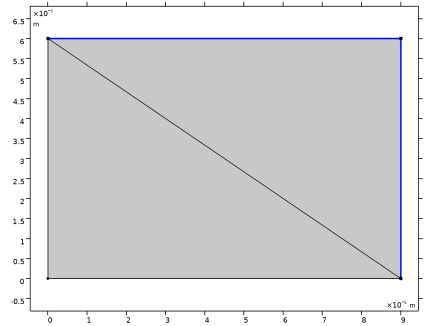
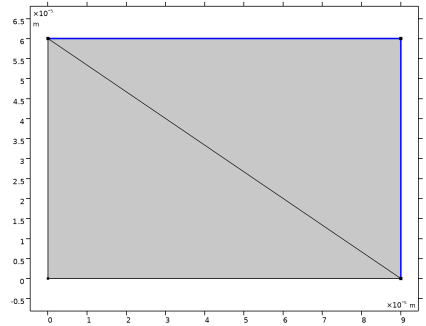
On the rightmost boundary, a transmitted Gaussian beam, propagating at an angle to the boundary normal, is expected. Thus, add a Matched Boundary Condition feature that will absorb this transmitted Gaussian beam.
Matched Boundary Condition 2
1
In the Physics toolbar, click  Boundaries and choose Matched Boundary Condition.
2
3
In the Settings window for Matched Boundary Condition, locate the Matched Boundary Condition section.
4
From the Input wave list, choose Second wave.
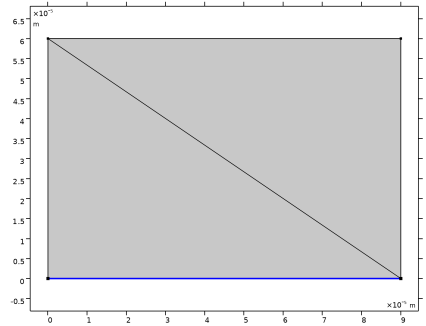
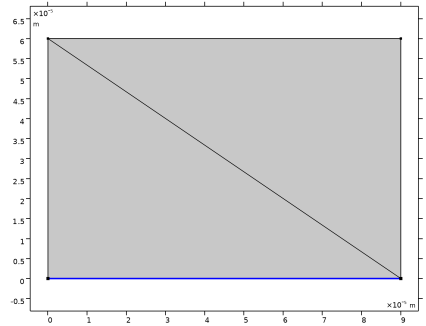
The reflected wave, propagating toward the bottom boundary, will also propagate at an angle to the normal to the bottom boundary. Thus, add a Matched Boundary Condition feature here, too, to absorb the reflected beam.
Matched Boundary Condition 3
1
In the Physics toolbar, click  Boundaries and choose Matched Boundary Condition.
2
Definitions
Set up integration operators to calculate the power of the incident, reflected, and transmitted beams.
Integration 1 (intop1)
1
In the Definitions toolbar, click  Nonlocal Couplings and choose Integration.
2
In the Settings window for Integration, locate the Source Selection section.
3
From the Geometric entity level list, choose Boundary.
4
Integration 2 (intop2)
1
In the Definitions toolbar, click  Nonlocal Couplings and choose Integration.
2
In the Settings window for Integration, locate the Source Selection section.
3
From the Geometric entity level list, choose Boundary.
4
Integration 3 (intop3)
1
In the Definitions toolbar, click  Nonlocal Couplings and choose Integration.
2
In the Settings window for Integration, locate the Source Selection section.
3
From the Geometric entity level list, choose Boundary.
4
Variables 3
Now, define the power variables for the beams, using the previously defined integration operators.
1
In the Model Builder window, right-click Definitions and choose Variables.
2
In the Settings window for Variables, locate the Variables section.
3
The minus sign for the input power is used as the power flow and the boundary normal point in the opposite directions.
Mesh 1
Let the physics define a triangular mesh where the maximum mesh element size is set to half a wavelength, to resolve the interference pattern created by the incident and the reflected beam.
1
In the Model Builder window, under Component 1 (comp1) click Mesh 1.
2
In the Settings window for Mesh, locate the Electromagnetic Waves, Beam Envelopes (ewbe) section.
3
From the Mesh type list, choose Triangular mesh.
4
In the hmax text field, type lda0/2.
Study 1
Step 1: Frequency Domain
Define the frequency and compute the solution for the model.
1
In the Model Builder window, under Study 1 click Step 1: Frequency Domain.
2
In the Settings window for Frequency Domain, locate the Study Settings section.
3
In the Frequencies text field, type f0.
4
In the Study toolbar, click  Compute.
Results
Electric Field, First Wave (ewbe)
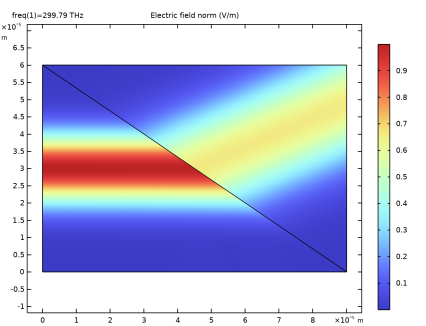
This is the electric field norm of the first wave for s-polarization.
Electric Field, Second Wave (ewbe)
1
In the Model Builder window, click Electric Field, Second Wave (ewbe).
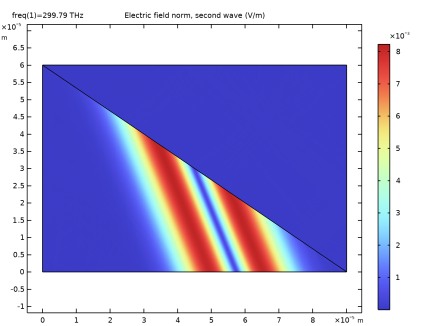
This is the electric field norm of the second wave for s-polarization.
Electric Field (ewbe)
1
Right-click Electric Field, Second Wave (ewbe) and choose Duplicate.
2
In the Settings window for 2D Plot Group, type Electric Field (ewbe) in the Label text field.
Electric Field
1
In the Model Builder window, expand the Electric Field (ewbe) node, then click Electric Field.
2
In the Settings window for Surface, locate the Expression section.
3
In the Expression text field, type ewbe.normE.
To really resolve the inference pattern to the left of the air-glass interface, set the resolution to extra fine.
4
Click to expand the Quality section. From the Evaluation settings list, choose Manual.
5
From the Resolution list, choose Extra fine.
6
In the Electric Field (ewbe) toolbar, click  Plot.
7
Click the  Zoom Extents button in the Graphics toolbar. Compare your result with the plot below.
Using the defined variables, compute the reflectance.
Global Evaluation 1
1
In the Results toolbar, click  Global Evaluation.
2
In the Settings window for Global Evaluation, locate the Expressions section.
3
4
Click  Evaluate.
Table 1
1
Go to the Table 1 window. Compare the calculated reflectance with the theoretical value for s-polarized plane waves. Notice that the values are almost the same.
2
In the Settings window for Global Evaluation, locate the Expressions section.
3
4
Click  Evaluate.
Now check that all incident power is either reflected or transmitted.
5
6
Click  Evaluate.
Electromagnetic Waves, Beam Envelopes (ewbe)
In this simulation, set the polarization to be in-plane, that is p-polarization. For this case, there should be no reflected beam.
1
In the Model Builder window, under Component 1 (comp1) click Electromagnetic Waves, Beam Envelopes (ewbe).
2
In the Settings window for Electromagnetic Waves, Beam Envelopes, locate the Components section.
3
From the Electric field components solved for list, choose In-plane vector.
Matched Boundary Condition 1
1
In the Model Builder window, under Component 1 (comp1) > Electromagnetic Waves, Beam Envelopes (ewbe) click Matched Boundary Condition 1.
2
In the Settings window for Matched Boundary Condition, locate the Matched Boundary Condition section.
3
Specify the Eg0 vector as
Study 1
In the Study toolbar, click  Compute.
Results
Electric Field, First Wave (ewbe)
This is the electric field norm of the first wave for p-polarization.
Electric Field, Second Wave (ewbe)
1
In the Model Builder window, click Electric Field, Second Wave (ewbe).
This is the electric field norm of the second wave for p-polarization. Note that the field amplitude is much smaller than the amplitude for the incident wave.
Electric Field (ewbe)
1
Click the  Zoom Extents button in the Graphics toolbar. Compare your result with the plot below. Notice that there is no reflected beam in this case.
2
In the Model Builder window, click Electric Field (ewbe).
Global Evaluation 1
Also check numerically that the reflected wave is almost gone for p-polarization at the Brewster angle.
1
In the Model Builder window, under Results > Derived Values click Global Evaluation 1.
2
In the Settings window for Global Evaluation, locate the Expressions section.
3
4
Click  Evaluate.