PDF

Postbuckling Analysis Using an Incremental Arc Length Method
Introduction
Buckling is a phenomenon that can cause sudden failure of a structure.
A linear buckling analysis predicts the critical buckling load. Such an analysis, however, does not give any information about what happens at loads higher than the critical load. It also often overpredicts the load-carrying capacity of the structure. Tracing the solution after the critical load is called a postbuckling analysis.
In order to accurately determine the critical buckling load or predict the postbuckling behavior, you can use the nonlinear solver and ramp up the applied load to compute the structure deformation. The buckling load can then be based on when a certain, not acceptable, deformation is reached.
Once the critical buckling load has been reached, it can happen that the structure undergoes a sudden large deformation into a new stable configuration. This is known as a snap-through phenomenon. A snap-through process cannot be simulated using prescribed load in a standard nonlinear static solver because the problem becomes numerically singular. Physically speaking, it is a highly transient problem as the structure “jumps” from one state to another. For simple cases with a single point load, it is often possible to replace the point load with a prescribed displacement and then measure the reaction force instead.
For more general problems, the postbuckling solution must however be tracked using more sophisticated methods, as shown in this example
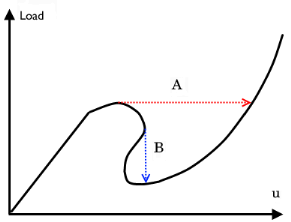
Figure 1 shows the variation of load versus the displacement for such a difficult case. It illustrates the possible computational problem by using either a load control (path A) or a displacement control (path B).
Figure 1: Load versus displacement in snap-through buckling.
The shell structure in this example has a behavior similar to this.
In this example, an incremental arc-length method combined with cubic extrapolation is used for postbuckling analysis of a hinged cylindrical panel subjected to a point load at its center. The results of this example can be compared with the similar Application Library example Postbuckling Analysis of a Hinged Cylindrical Shell which uses the global equation approach based on the monotonically increasing average displacement.
Model Definition
The model studied here is a benchmark for a hinged cylindrical panel subjected to a point load at its center; see Ref. 1.
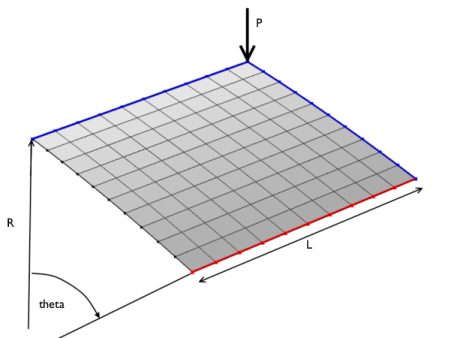
The radius of the cylinder is R = 2.54 m and all edges have a length of 2L = 0.508 m. The angular span of the panel is thus 0.2 radians. The panel thickness is th = 6.35 mm.
Due to the double symmetry, only one quarter of the geometry is modeled as shown in Figure 2. The blue lines show the symmetry edge conditions, while the red line shows the location of the hinged edge condition.
Figure 2: Problem description.
In general, you should be careful with using symmetry in buckling problems, because nonsymmetric solutions may exist.
Arc Length Method
The incremental arc length with cubic extrapolation method used in this example is proposed in Ref. 2, and explained below. Let X0, X1, X2, X3 be the last four converged solution vectors fulfilling equilibrium, where
and i is the index of the equilibrium step. An initial guess vector X4 for the next solution is given by the cubic extrapolation fit as
where y is the arc length function. The previous arc length functions are given by y0 = 0, y1 = A1, y2 = y1 + A2, y3 = y2 + A3, , y4 = y3 + ΔA . Here, we choose ΔA = A3. The secant arc lengths in the parametric space Ai are given by the Euclidean norm of differences as
The vector X4 provides the load value for next iteration as well as the initial guess for the displacements. With this method, it is possible to trace the equilibrium path automatically, including the snap-through behavior.
The Xi vectors in this method contain a combination of displacements and load. In order to avoid ill conditioning of the method, it is advisable to scale to load appropriately. In this example, a scale factor of 105 is used for the load.
Results
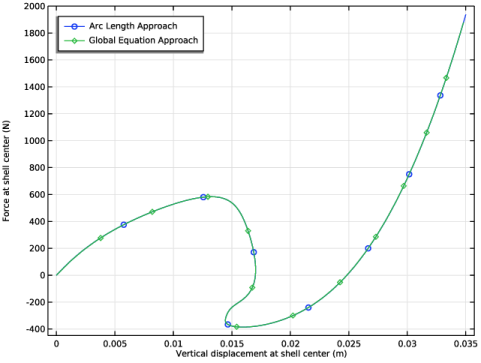
In Figure 3 you can see the applied load as a function of the panel center displacement. The figure shows clearly a nonunique solution for a given applied load (between 400 N to 600 N) or a given displacement (between 14.4 mm and 17 mm). The result matches the reference results computed using the global equation approach.
Figure 3: Applied load versus panel center displacement.
As shown in Table 1, the results agree well with the target data from Ref. 1.
Notes About the COMSOL Implementation
The main feature of this model is that a limit point instability occurs at the buckling load. Neither a load control, nor a point displacement control, would be able to track the jump between the stable solution paths (see Figure 1). To solve this type of problem one needs either of the approaches:
Find a proper parameter that increases monotonically. Then, use a Global Equation node where the load is made a function of this monotonically increasing parameter. The Application Library example Postbuckling Analysis of a Hinged Cylindrical Shell demonstrates this approach.
The arc length method is not built-in, so you have to implement yourself, using a Model Method. The code used in this example is fairly general, so it should be possible to copy it into other models, and reuse it with no or small modifications.
Reference
1. K.Y. Sze, X.H. Liua, and S.H. Lob, “Popular Benchmark Problems for Geometric Nonlinear Analysis of Shells,” Finite Element in Analysis and Design, vol. 40, issue 11, pp. 1551–1569, 2004.
2. Y.K. Cheung, and S.H. Chen, “Application of the Incremental Harmonic Balance Method to Cubic Non-linearity Systems,” Journal of Sound and Vibration, vol. 140, pp. 273-286, 1990.
Application Library path: Structural_Mechanics_Module/Verification_Examples/postbuckling_shell_arclength
Modeling Instructions
Root
In this example, you will start from an existing model in the Structural Mechanics Module.
Application Libraries
1
From the File menu, choose Application Libraries.
2
In the Application Libraries window, select Structural Mechanics Module > Verification Examples > postbuckling_shell in the tree.
3
Component 1 (comp1)
Remove the Postbuckling Study. Start by copying the evaluation group results to a table for future comparison.
Results
Evaluation Group: Force vs. Displacement
In the Model Builder window, expand the Component 1 (comp1) node, then click Results > Evaluation Group: Force vs. Displacement.
Table: Reference Result
1
In the Evaluation Group: Force vs. Displacement toolbar, click  Copy to Table.
2
In the Settings window for Table, type Table: Reference Result in the Label text field.
Postbuckling Study
In the Model Builder window, right-click Postbuckling Study and choose Delete.
Modify the parameter list.
Global Definitions
Parameters 1
1
In the Model Builder window, under Global Definitions click Parameters 1.
2
In the Settings window for Parameters, locate the Parameters section.
3
Definitions
Average 1 (aveop1)
1
In the Model Builder window, expand the Component 1 (comp1) > Definitions node.
2
Right-click Component 1 (comp1) > Definitions > Average 1 (aveop1) and choose Delete.
Delete the Global Equation node from the physics.
Shell (shell)
Global Equations 1 (ODE1)
1
In the Model Builder window, expand the Component 1 (comp1) > Shell (shell) node.
2
Right-click Component 1 (comp1) > Shell (shell) > Global Equations 1 (ODE1) and choose Delete.
Create model methods to run the postbuckling study with the arc length method. Note that the method editor is only available in the Windows® version of the COMSOL Desktop.
Application Builder
In the Home toolbar, click  Application Builder.
Methods
codeUtil
1
In the Home toolbar, click  More Libraries and choose Utility Class.
2
Right-click util1 and choose Rename.
3
In the Rename Utility Class dialog, type codeUtil in the New name text field.
4
5
Right-click codeUtil and choose Edit.
6
//This utility creates the requested methods

//Method to remove autocreated model nodes
public static void removeAutoCreatedNodes() {
  if (contains(model.study().tags(), "std_in"))
    model.study().remove("std_in");
  if (contains(model.study().tags(), "std_c"))
    model.study().remove("std_c");
  if (contains(model.study().tags(), "std_p"))
    model.study().remove("std_p");
  if (contains(model.sol().tags(), "sol_1"))
    model.sol().remove("sol_1");
  if (contains(model.sol().tags(), "sol_2"))
    model.sol().remove("sol_2");
  if (contains(model.sol().tags(), "sol_3"))
    model.sol().remove("sol_3");
  if (contains(model.sol().tags(), "sol_4"))
    model.sol().remove("sol_4");
  if (contains(model.result().dataset().tags(), "dset_c"))
    model.result().dataset().remove("dset_c");
  if (contains(model.result().evaluationGroup().tags(), "eg_c"))
    model.result().evaluationGroup().remove("eg_c");
}

//Method to create a placeholder study for the initial guess
public static void createPlaceholderStudyForInitialGuess() {
  Study study = model.study().create("std_in");
  String stdLabel = "Placeholder Study for Initial Guess";
  boolean isLabelExists = false;
  for (Study std : model.study()) {
    if (std.label().equals(stdLabel))
      isLabelExists = true;
  }
  if (!isLabelExists)
    study.label(stdLabel);
  study.create("stat_in", "Stationary");
  study.feature("stat_in").set("geometricNonlinearity", true);
  SolverSequence solin = model.sol().create("sol_in");
  solin.createAutoSequence("std_in");
  solin.attach("std_in");
}

//Method to create a study for the postbuckling analysis
public static void createPostbucklingStudy() {
  Study study = model.study().create("std_c");
  String stdLabel = "Postbuckling Study";
  boolean isLabelExists = false;
  for (Study std : model.study()) {
    if (std.label().equals(stdLabel))
      isLabelExists = true;
  }
  if (!isLabelExists)
    study.label(stdLabel);
  study.create("stat_c", "Stationary");
  study.feature("stat_c").set("geometricNonlinearity", true);
  SolverSequence solc = model.sol().create("sol_c");
  solc.createAutoSequence("std_c");
  solc.attach("std_c");
}

//Method to create a placeholder study for the parametric solution
public static void createPlaceholderStudyForParametricSolution(String p) {
  Study study = model.study().create("std_p");
  String stdLabel = "Placeholder Study for Parametric Solution";
  boolean isLabelExists = false;
  for (Study std : model.study()) {
    if (std.label().equals(stdLabel))
      isLabelExists = true;
  }
  if (!isLabelExists)
    study.label(stdLabel);
  study.create("stat_p", "Stationary");
  SolverSequence solp = model.sol().create("sol_p");
  solp.createAutoSequence("std_p");
  solp.attach("std_p");
  StudyFeature studyFeature = model.study("std_p").feature("stat_p");
  studyFeature.set("geometricNonlinearity", true);
  studyFeature.set("useparam", true);
  studyFeature.setIndex("pname", p, 0);
  studyFeature.setIndex("plistarr", "1 2", 0);
  studyFeature.setIndex("punit", "N", 0);
}

//Method to create an evaluation group
public static void createEvaluationGroup(String globalVariable) {
  DatasetFeature dsetc = model.result().dataset().create("dset_c", "Solution");
  dsetc.set("solution", "sol_c");
  EvaluationGroupFeature eg = model.result().evaluationGroup().create("eg_c", "EvaluationGroup");
  eg.set("data", "dset_c");
  eg.create("gev1", "EvalGlobal");
  eg.feature("gev1").setIndex("expr", globalVariable, 0);
  eg.set("includeparameters", false);
}

//Method for creating a stop condition in the solver
public static boolean stopCondition(double globalVariableMin, double globalVariableMax) {
  boolean stop = false;
  EvaluationGroupFeature eg = model.result().evaluationGroup("eg_c");
  eg.run();
  double[][] globalVariable = eg.getReal();
  if (globalVariable[0][0] > globalVariableMax || globalVariable[0][0] < globalVariableMin)
    stop = true;
  return stop;
}
New Method
1
In the Application Builder window, right-click Methods and choose New Method.
2
In the New Method dialog, type postBucklingWithArclength in the Name text field.
3
postBucklingWithArclength
1
In the Application Builder window, under Methods click postBucklingWithArclength.
2
Copy the following code into the postBucklingWithArclength window:
clearDebugLog();
long startTime = timeStamp();
if (!contains(model.param().varnames(), p))
  error("The load parameter with the given name does not exist in the parameter list of the model, check the model.");

if (p.equals("") || deltap == 0 || numberOfIter == 0 || (isStopConditionGiven && globalVariable.equals("")))
  error("The inputs assigned to the model method are either empty or zero, check the model.");

if (isStopConditionGiven && globalVariableMin == globalVariableMax)
  error("The lower and upper limits of the global variable in stop condition should not be the same, check the model.");

model.param().set(p, "0");
//Remove the autocreated model nodes
codeUtil.removeAutoCreatedNodes();
//Create a placeholder study to store the intial guess
codeUtil.createPlaceholderStudyForInitialGuess();
//Create a postbuckling study
codeUtil.createPostbucklingStudy();
//Create a placeholder study to store the parametric solutions
codeUtil.createPlaceholderStudyForParametricSolution(p);
//Create an evaluation group for the evaluation of the stop condition
if (isStopConditionGiven)
  codeUtil.createEvaluationGroup(globalVariable);

//First iteration
model.sol("sol_c").runAll();
model.sol("sol_p").setU(1, model.sol("sol_c").getU());
model.sol("sol_c").copySolution("sol_1");
//Second iteration
model.param().set(p, toString(deltap));
model.sol("sol_c").runAll();
model.sol("sol_p").setU(2, model.sol("sol_c").getU());
model.sol("sol_c").copySolution("sol_2");
//Third iteration
model.param().set(p, toString(2*deltap));
model.sol("sol_c").runAll();
model.sol("sol_p").setU(3, model.sol("sol_c").getU());
model.sol("sol_c").copySolution("sol_3");
//Fourth iteration
model.param().set(p, toString(3*deltap));
model.sol("sol_c").runAll();
model.sol("sol_p").setU(4, model.sol("sol_c").getU());
model.sol("sol_c").copySolution("sol_4");

//Next iterations by the arclength method
double[] parametricFull = new double[4+numberOfIter];
parametricFull[0] = 0;
parametricFull[1] = 1*deltap;
parametricFull[2] = 2*deltap;
parametricFull[3] = 3*deltap;
int pfinal = 4+numberOfIter;
model.study("std_c").feature("stat_c").set("useinitsol", true);
model.study("std_c").feature("stat_c").set("initmethod", "sol");
model.study("std_c").feature("stat_c").set("initstudy", "std_in");
model.study("std_c").feature("stat_c").set("initsol", "sol_in");
int sizeOfSolution = pfinal;

//Arclength method
for (int ii = 4; ii < pfinal; ii++) {
  double[] w_3 = remove(model.sol("sol_4").getU(), 0);
  double[] w_2 = remove(model.sol("sol_3").getU(), 0);
  double[] w_1 = remove(model.sol("sol_2").getU(), 0);
  double[] w_0 = remove(model.sol("sol_1").getU(), 0);
  
  double p_3 = parametricFull[ii-1];
  double p_2 = parametricFull[ii-2];
  double p_1 = parametricFull[ii-3];
  double p_0 = parametricFull[ii-4];
  
  double[] W_3 = append(w_3, p_3);
  double[] W_2 = append(w_2, p_2);
  double[] W_1 = append(w_1, p_1);
  double[] W_0 = append(w_0, p_0);
  
  double As3 = 0;
  double As2 = 0;
  double As1 = 0;
  for (int i = 0; i < W_3.length; i++) {
    As3 = As3+(W_3[i]-W_2[i])*(W_3[i]-W_2[i]);
    As2 = As2+(W_2[i]-W_1[i])*(W_2[i]-W_1[i]);
    As1 = As1+(W_1[i]-W_0[i])*(W_1[i]-W_0[i]);
  }
  double A3 = Math.sqrt(As3);
  double A2 = Math.sqrt(As2);
  double A1 = Math.sqrt(As1);
  double deltaA = A3;
  double yw0 = 0.0;
  double yw1 = yw0+A1;
  double yw2 = yw1+A2;
  double yw3 = yw2+A3;
  double yw4 = yw3+deltaA;
  double t0 = ((yw4-yw1)/(yw0-yw1))*((yw4-yw2)/(yw0-yw2))*((yw4-yw3)/(yw0-yw3));
  double t1 = ((yw4-yw0)/(yw1-yw0))*((yw4-yw2)/(yw1-yw2))*((yw4-yw3)/(yw1-yw3));
  double t2 = ((yw4-yw0)/(yw2-yw0))*((yw4-yw1)/(yw2-yw1))*((yw4-yw3)/(yw2-yw3));
  double t3 = ((yw4-yw0)/(yw3-yw0))*((yw4-yw1)/(yw3-yw1))*((yw4-yw2)/(yw3-yw2));
  double[] w_ini = new double[W_3.length];
  for (int i = 0; i < W_3.length; i++) {
    w_ini[i] = t0*W_0[i]+t1*W_1[i]+t2*W_2[i]+t3*W_3[i];
  }
  //Initial values
  double[] W_ini = new double[w_ini.length-1];
  for (int i = 0; i < w_ini.length-1; i++) {
    W_ini[i] = w_ini[i];
  }
  //Current value for the load
  double p_ini = w_ini[w_ini.length-1];
  
  parametricFull[ii] = p_ini;
  double[] W_ini_up = insert(W_ini, 1, 0);
  
  //Setting up the initial guess
  model.sol("sol_in").setU(W_ini_up);
  model.sol("sol_in").createSolution();
  
  //Load update
  model.param().set(p, p_ini);
  
  //Computing the current solution
  model.sol("sol_c").runAll();
  
  //Creating a parametric solution based on the current solution
  model.sol("sol_p").setU(ii+1, model.sol("sol_c").getU());
  
  //Updating the four last converged iterations
  model.sol("sol_2").copySolution("sol_1");
  model.sol("sol_3").copySolution("sol_2");
  model.sol("sol_4").copySolution("sol_3");
  model.sol("sol_c").copySolution("sol_4");
  
  //Debug log
  debugLog("Increment "+toString(ii));
  debugLog("The load is "+toString(p_ini));
  
  //Evaluating the stop condition
  if (isStopConditionGiven) {
    if (codeUtil.stopCondition(globalVariableMin, globalVariableMax)) {
      debugLog("Stop condition fulfilled for load "+toString(p_ini));
      pfinal = ii;
      sizeOfSolution = ii+1;
    }
  }
}

double[] parametric = new double[sizeOfSolution];
for (int ii = 0; ii < sizeOfSolution; ii++) {
  parametric[ii] = parametricFull[ii];
}
model.sol("sol_p").setPVals(parametric);
model.sol("sol_p").createSolution();
if (contains(model.result().dataset().tags(), "dset_c"))
  model.result().dataset().remove("dset_c");
long endTime = timeStamp();
long totalTime = (endTime-startTime);
String timeString = formattedTime(totalTime, "hr:min:sec");
debugLog("The solution time is "+timeString);
3
In the Settings window for Method, locate the Inputs and Output section.
4
Find the Inputs subsection. Click  Add seven times.
5
Methods
In the Home toolbar, click  Model Builder to switch to the main desktop.
Call the method postBucklingWithArclength in order to run it.
Model Builder
1
In the Home toolbar, click  Model Builder.
2
In the Developer toolbar, click  Method Call and choose postBucklingWithArclength.
Global Definitions
Run Postbuckling Study with Arclength Method
1
In the Model Builder window, under Global Definitions click PostBucklingWithArclength 1.
2
In the Settings window for Method Call, type Run Postbuckling Study with Arclength Method in the Label text field.
3
In the Tag text field, type postBucklingWithArclength.
Before running the Run Postbuckling Study with Arclength Method, assign correct inputs to the method.
4
Locate the Inputs section. In the Dimensionless Load Parameter text field, type p.
5
In the Dimensionless Load Stepsize text field, type 0.0003.
6
In the Number of Iterations text field, type 200.
7
Select the Activate Stop Condition checkbox.
8
In the Global Variable in Stop Condition text field, type w_center.
9
In the Upper Limit of Global Variable text field, type 0.035.
10
Methods
postBucklingWithArclength
In the Home toolbar, click  Model Builder.
Results
Stress
1
In the Results toolbar, click  3D Plot Group.
2
In the Settings window for 3D Plot Group, type Stress in the Label text field.
3
Locate the Data section. From the Dataset list, choose Placeholder Study for Parametric Solution/Solution 3 (sol_p).
Surface 1
1
Right-click Stress and choose Surface.
2
In the Settings window for Surface, locate the Expression section.
3
In the Expression text field, type shell.misesGp.
4
Locate the Coloring and Style section. From the Color table list, choose Prism.
Deformation 1
1
Right-click Surface 1 and choose Deformation.
2
In the Settings window for Deformation, locate the Scale section.
3
Select the Scale factor checkbox. In the associated text field, type 1.
Evaluation Group: Force vs. Displacement
1
In the Results toolbar, click  Evaluation Group.
2
In the Settings window for Evaluation Group, type Evaluation Group: Force vs. Displacement in the Label text field.
3
Locate the Data section. From the Dataset list, choose Placeholder Study for Parametric Solution/Solution 3 (sol_p).
Point Evaluation 1
1
Right-click Evaluation Group: Force vs. Displacement and choose Point Evaluation.
2
3
In the Settings window for Point Evaluation, locate the Expressions section.
4
Evaluation Group: Force vs. Displacement
1
In the Model Builder window, click Evaluation Group: Force vs. Displacement.
2
In the Settings window for Evaluation Group, click to expand the Format section.
3
From the Include parameters list, choose Off.
4
In the Evaluation Group: Force vs. Displacement toolbar, click  Evaluate.
Force vs. Displacement
1
In the Results toolbar, click  1D Plot Group.
2
In the Settings window for 1D Plot Group, type Force vs. Displacement in the Label text field.
3
Locate the Plot Settings section.
4
Select the x-axis label checkbox. In the associated text field, type Vertical displacement at shell center (m).
5
Select the y-axis label checkbox. In the associated text field, type Force at shell center (N).
6
Locate the Legend section. From the Position list, choose Upper left.
Table Graph 1
1
Right-click Force vs. Displacement and choose Table Graph.
2
In the Settings window for Table Graph, locate the Data section.
3
From the Source list, choose Evaluation group.
4
Locate the Coloring and Style section. Find the Line markers subsection. From the Marker list, choose Circle.
5
From the Positioning list, choose Interpolated.
6
Click to expand the Legends section. Select the Show legends checkbox.
7
From the Legends list, choose Manual.
8
Table Graph 2
1
Right-click Table Graph 1 and choose Duplicate.
2
In the Settings window for Table Graph, locate the Data section.
3
From the Source list, choose Table.
4
Locate the Coloring and Style section. Find the Line markers subsection. From the Marker list, choose Diamond.
5
In the Number text field, type 12.
6
Locate the Legends section. In the table, enter the following settings:
Force vs. Displacement
1
In the Model Builder window, click Force vs. Displacement.
2
In the Force vs. Displacement toolbar, click  Plot.