 | 
|
|
|
|
|
•
|
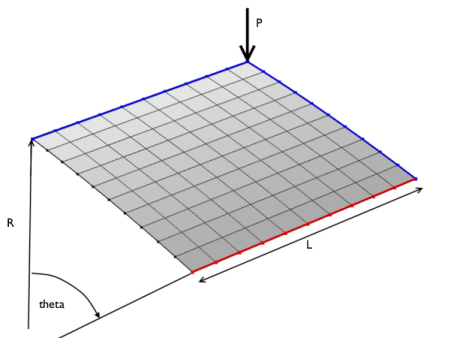
The radius of the cylinder is R = 2.54 m and all edges have a length of 2L = 0.508 m. The angular span of the panel is thus 0.2 radians. The panel thickness is th = 6.35 mm.
|
|
•
|
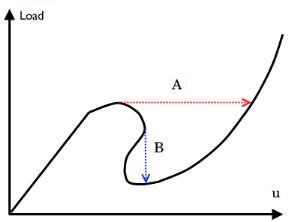
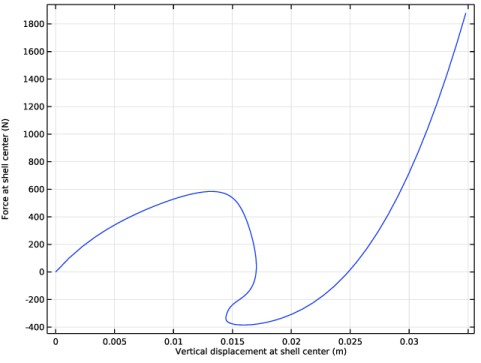
Find a proper parameter that increases monotonically. Then, use a Global Equation node where the load is made a function of this monotonically increasing parameter. This is the approach used in this example. In this case, a good such parameter is the average of the displacement in the direction of the applied force. You use a nonlocal average coupling to measure the displacement and then add a global equation to compute the appropriate point load for each prescribed parameter value. There is no general way to determine which controlling parameter to use, so it is necessary to use some physical insight.
|
|
•
|
Use an arc length method. The Application Library example Postbuckling Analysis Using an Incremental Arc Length Method demonstrates this approach. It is useful if you cannot find a suitable monotonically increasing control parameter.
|
|
1
|
|
2
|
|
3
|
Click Add.
|
|
4
|
Click
 Study. Study. |
|
5
|
|
6
|
Click
 Done. Done. |
|
1
|
|
2
|
|
1
|
|
2
|
|
3
|
|
4
|
Click
 Go to Plane Geometry. Go to Plane Geometry. |
|
1
|
|
2
|
|
3
|
|
4
|
|
5
|
|
6
|
|
7
|
Click
 Build Selected. Build Selected. |
|
1
|
|
2
|
|
3
|
Click the Angles button.
|
|
4
|
|
5
|
Locate the Revolution Axis section. Find the Direction of revolution axis subsection. In the xw text field, type 1.
|
|
6
|
|
7
|
Click
 Build Selected. Build Selected. |
|
1
|
|
2
|
|
3
|
|
1
|
|
2
|
|
3
|
|
1
|
|
2
|
|
1
|
In the Model Builder window, under Component 1 (comp1) > Shell (shell) click Thickness and Offset 1.
|
|
2
|
|
3
|
|
1
|
|
1
|
|
1
|
|
3
|
|
4
|
|
5
|
|
6
|
In the Show More Options dialog, in the tree, select the checkbox for the node Physics > Equation Contributions.
|
|
7
|
Click OK.
|
|
1
|
|
2
|
|
4
|
|
5
|
|
6
|
|
7
|
Click OK.
|
|
8
|
|
9
|
Click
 Select Source Term Quantity. Select Source Term Quantity. |
|
10
|
|
11
|
|
12
|
Click OK.
|
|
1
|
In the Model Builder window, under Component 1 (comp1) right-click Materials and choose Blank Material.
|
|
2
|
|
1
|
|
1
|
|
3
|
|
4
|
|
5
|
Click
 Build Selected. Build Selected. |
|
1
|
|
2
|
|
1
|
|
2
|
|
3
|
Select the Auxiliary sweep checkbox.
|
|
4
|
Click
 Add. Add. |
|
6
|
|
1
|
|
2
|
|
3
|
In the Model Builder window, expand the Postbuckling Study > Solver Configurations > Solution 1 (sol1) > Stationary Solver 1 node.
|
|
4
|
Right-click Postbuckling Study > Solver Configurations > Solution 1 (sol1) > Stationary Solver 1 > Parametric 1 and choose Stop Condition.
|
|
5
|
|
6
|
Click
 Add. Add. |
|
8
|
|
9
|
Clear the Add information checkbox.
|
|
10
|
In the Model Builder window, under Postbuckling Study > Solver Configurations > Solution 1 (sol1) click Stationary Solver 1.
|
|
11
|
|
12
|
Clear the Reaction forces checkbox.
|
|
13
|
Click
 Run. Run. |
|
1
|
|
2
|
In the Settings window for Evaluation Group, type Evaluation Group: Force vs. Displacement in the Label text field.
|
|
1
|
|
3
|
|
1
|
|
2
|
|
3
|
|
4
|
|
1
|
|
2
|
|
3
|
Locate the Plot Settings section.
|
|
4
|
Select the x-axis label checkbox. In the associated text field, type Vertical displacement at shell center (m).
|
|
5
|
|
1
|
|
2
|
|
3
|
|
1
|
|
2
|


