| 
|
|
|
|

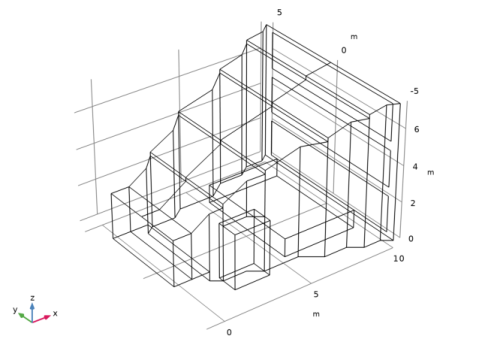
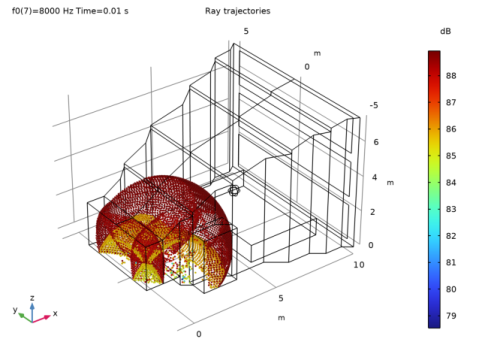
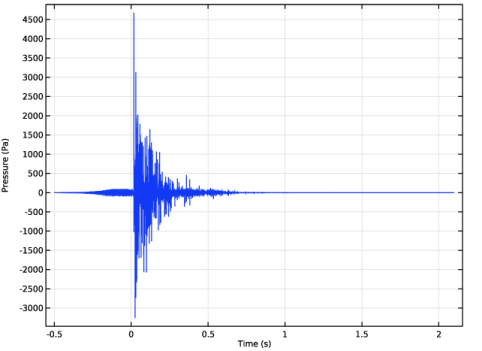
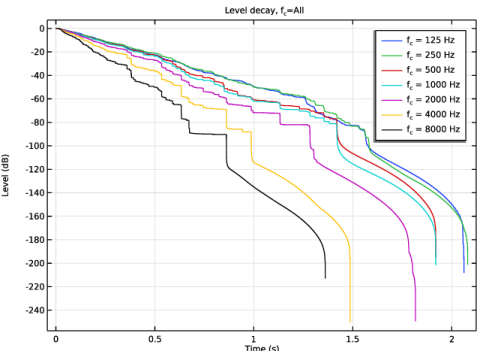


 is the average wall absorption (see Ref. 2). The results show a good agreement in this case. However, it is not expected that the Sabine and Eyring predictions always match simulation results closely, especially in rooms where the diffuse sound field assumption does not hold.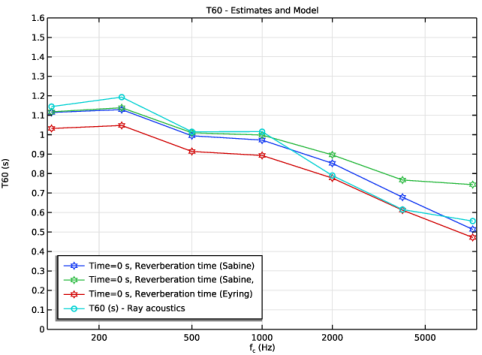
|
1
|
|
2
|
|
3
|
Click Add.
|
|
4
|
Click
 Study. Study. |
|
5
|
|
6
|
Click
 Done. Done. |
|
1
|
|
2
|
Browse to the model’s Application Libraries folder and double-click the file small_concert_hall_geom_sequence.mph.
|
|
3
|
|
4
|
|
5
|
|
6
|
|
1
|
|
2
|
|
3
|
|
4
|
Browse to the model’s Application Libraries folder and double-click the file small_concert_hall_parameters_model.txt.
|
|
1
|
|
2
|
In the Settings window for Parameters, type Parameters 2 - Source and Receiver Positions in the Label text field.
|
|
3
|
|
4
|
Browse to the model’s Application Libraries folder and double-click the file small_concert_hall_parameters_source_positions.txt.
|
|
1
|
|
2
|
In the Settings window for Parameters, type Parameters 3 - Source and Receiver Settings in the Label text field.
|
|
3
|
|
4
|
Browse to the model’s Application Libraries folder and double-click the file small_concert_hall_parameters_source_settings.txt.
|
|
1
|
|
2
|
|
3
|
|
4
|
Click
 Browse. Browse. |
|
5
|
Browse to the model’s Application Libraries folder and double-click the file small_concert_hall_radiation_balloon.txt.
|
|
6
|
Click
 Import. Import. |
|
7
|
Locate the Data Column Settings section. In the table, click to select the cell at row number 1 and column number 1.
|
|
8
|
|
10
|
|
12
|
|
14
|
|
15
|
|
17
|
|
18
|
|
1
|
|
2
|
|
3
|
|
4
|
Click
 Browse. Browse. |
|
5
|
Browse to the model’s Application Libraries folder and double-click the file small_concert_hall_absorption_parameters.txt.
|
|
6
|
Click
 Import. Import. |
|
7
|
Locate the Data Column Settings section. In the table, enter the following settings:
|
|
9
|
|
11
|
|
12
|
|
14
|
|
15
|
|
17
|
|
18
|
|
20
|
|
21
|
|
23
|
|
24
|
|
26
|
|
27
|
|
29
|
|
30
|
|
1
|
|
2
|
|
3
|
|
4
|
Click
 Browse. Browse. |
|
5
|
Browse to the model’s Application Libraries folder and double-click the file small_concert_hall_air_attenuation.txt.
|
|
6
|
Click
 Import. Import. |
|
7
|
|
8
|
Locate the Interpolation and Extrapolation section. From the Interpolation list, choose Nearest neighbor.
|
|
9
|
|
10
|
In the Function table, enter the following settings:
|
|
1
|
|
2
|
|
3
|
|
4
|
|
5
|
|
1
|
|
2
|
|
3
|
|
4
|
|
5
|
|
1
|
|
2
|
|
3
|
|
4
|
|
5
|
|
6
|
|
7
|
|
8
|
Locate the Selections of Resulting Entities section. Select the Resulting objects selection checkbox.
|
|
9
|
|
10
|
|
1
|
|
2
|
|
3
|
|
4
|
|
5
|
|
1
|
|
2
|
|
3
|
|
4
|
|
1
|
|
2
|
|
3
|
|
4
|
|
1
|
|
2
|
|
3
|
|
4
|
|
1
|
|
2
|
|
3
|
|
4
|
|
1
|
|
2
|
|
3
|
|
4
|
|
1
|
|
2
|
|
3
|
|
4
|
|
1
|
|
2
|
In the Settings window for Variables, type Variables: Quality Metric Estimates in the Label text field.
|
|
3
|
|
4
|
Browse to the model’s Application Libraries folder and double-click the file small_concert_hall_variables.txt.
|
|
1
|
|
2
|
|
3
|
|
4
|
Locate the Material Properties of Exterior and Unmeshed Domains section. In the cext text field, type c0.
|
|
5
|
|
6
|
|
1
|
In the Model Builder window, under Component 1 (comp1) > Ray Acoustics (rac) click Ray Properties 1.
|
|
2
|
|
3
|
|
1
|
|
2
|
|
3
|
|
4
|
|
5
|
|
1
|
|
2
|
|
3
|
|
4
|
|
5
|
|
1
|
|
2
|
|
3
|
|
4
|
|
5
|
|
1
|
|
2
|
|
3
|
|
4
|
|
5
|
|
1
|
|
2
|
|
3
|
|
4
|
|
5
|
|
1
|
|
2
|
|
3
|
|
4
|
|
5
|
|
1
|
|
2
|
|
3
|
|
5
|
|
6
|
|
1
|
|
2
|
|
3
|
Select the Compute smoothed accumulated variable checkbox.
|
|
1
|
|
2
|
|
3
|
|
5
|
|
6
|
|
1
|
|
2
|
|
3
|
|
4
|
|
5
|
|
6
|
|
7
|
|
1
|
|
2
|
|
3
|
|
4
|
|
5
|
|
6
|
Locate the Intensity and Power section. In the D(φθ,) text field, type 20*log10(abs(preal(rac.swd2.phi,rac.swd2.theta,f0)+i*pimag(rac.swd2.phi,rac.swd2.theta,f0))/sqrt(2)/20e-6[Pa]).
|
|
7
|
|
8
|
|
1
|
|
2
|
|
3
|
|
4
|
|
5
|
|
1
|
|
2
|
|
3
|
|
1
|
|
2
|
|
3
|
|
4
|
|
1
|
|
2
|
|
3
|
|
4
|
Clear the Minimum element size checkbox.
|
|
1
|
|
2
|
|
3
|
|
1
|
|
2
|
|
3
|
Click
 Clear Selection. Clear Selection. |
|
5
|
|
6
|
Locate the Element Size Parameters section.
|
|
7
|
|
1
|
|
2
|
|
3
|
Click
 Paste Selection. Paste Selection. |
|
4
|
|
5
|
Click OK.
|
|
6
|
|
1
|
|
2
|
|
1
|
|
2
|
|
3
|
|
4
|
|
5
|
Locate the Physics and Variables Selection section. Select the Modify model configuration for study step checkbox.
|
|
6
|
|
7
|
Click
 Disable. Disable. |
|
1
|
|
2
|
|
3
|
Click
 Add. Add. |
|
6
|
Click
 Range. Range. |
|
7
|
|
8
|
|
9
|
|
10
|
Click Replace.
|
|
11
|
|
1
|
|
2
|
|
3
|
|
4
|
|
1
|
|
2
|
|
3
|
|
4
|
|
1
|
|
2
|
|
3
|
|
4
|
|
1
|
|
2
|
|
3
|
|
4
|
|
1
|
|
2
|
|
3
|
|
4
|
Click
 Range. Range. |
|
5
|
|
6
|
|
7
|
|
8
|
Click Replace.
|
|
9
|
|
10
|
|
11
|
|
12
|
|
13
|
|
14
|
Select the Only plot when requested checkbox.
|
|
15
|
Select the Recompute all plot data after solving checkbox.
|
|
16
|
|
17
|
|
18
|
|
19
|
|
20
|
Click OK.
|
|
1
|
|
2
|
|
1
|
|
2
|
|
3
|
|
4
|
|
1
|
|
2
|
|
3
|
|
4
|
|
1
|
|
2
|
|
3
|
|
1
|
|
2
|
|
3
|
|
4
|
|
5
|
|
1
|
|
2
|
|
3
|
|
4
|
|
5
|
|
1
|
|
2
|
|
3
|
|
4
|
|
5
|
|
6
|
|
7
|
|
8
|
|
9
|
|
10
|
|
11
|
|
1
|
|
2
|
|
3
|
|
4
|
Click
 Browse. Browse. |
|
5
|
Browse to the model’s Application Libraries folder and double-click the file small_concert_hall_impulse_response.wav.
|
|
6
|
Find the Functions subsection. In the table, enter the following settings:
|
|
7
|
|
8
|
In the Argument table, enter the following settings:
|
|
1
|
|
2
|
Expand the Impulse Response 1 node.
|
|
1
|
|
2
|
|
1
|
|
2
|
|
3
|
|
4
|
|
1
|
|
2
|
|
3
|
|
4
|
|
5
|
|
6
|
|
7
|
|
8
|
|
9
|
Select the Frequency range checkbox.
|
|
10
|
|
11
|
|
12
|
Select the In dB checkbox.
|
|
13
|
|
14
|
|
15
|
|
16
|
|
17
|
|
18
|
|
19
|
|
20
|
|
21
|
|
1
|
|
2
|
|
3
|
Locate the Data section. From the Dataset list, choose Study 1 - Omnidirectional Source/Parametric Solutions 1 (sol2).
|
|
4
|
|
1
|
|
2
|
In the Settings window for Surface, click Replace Expression in the upper-right corner of the Expression section. From the menu, choose Component 1 (comp1) > Ray Acoustics > Accumulated variables > Wall intensity comp1.rac.wall8.spl1.Iw > rac.wall8.spl1.Lp - Sound pressure level - dB.
|
|
3
|
|
4
|
|
1
|
|
2
|
|
3
|
|
4
|
Locate the Plot Settings section.
|
|
5
|
|
6
|
|
7
|
|
8
|
|
1
|
|
2
|
|
3
|
|
4
|
|
5
|
Click to expand the Coloring and Style section. Find the Line style subsection. From the Line list, choose None.
|
|
6
|
|
7
|
|
8
|
Select the Show legends checkbox.
|
|
1
|
|
2
|
|
3
|
|
4
|
Locate the Legends section. In the table, enter the following settings:
|
|
5
|
|
1
|
|
2
|
|
3
|
Locate the Data section. From the Dataset list, choose Study 1 - Omnidirectional Source/Parametric Solutions 1 (sol2).
|
|
4
|
|
5
|
|
6
|
Locate the Plot Settings section.
|
|
7
|
|
8
|
|
9
|
|
10
|
|
11
|
|
12
|
|
13
|
Select the x-axis log scale checkbox.
|
|
14
|
|
1
|
|
2
|
|
4
|
|
5
|
Click to expand the Coloring and Style section. Find the Line markers subsection. From the Marker list, choose Star.
|
|
1
|
|
2
|
|
3
|
|
4
|
|
5
|
|
6
|
Locate the Coloring and Style section. Find the Line markers subsection. From the Marker list, choose Circle.
|
|
7
|
|
8
|
|
9
|
|
1
|
|
2
|
|
3
|
Locate the Data section. From the Dataset list, choose Study 1 - Omnidirectional Source/Parametric Solutions 1 (sol2).
|
|
4
|
|
5
|
|
6
|
Locate the Plot Settings section.
|
|
7
|
|
8
|
|
9
|
|
10
|
|
11
|
|
12
|
|
13
|
|
14
|
Select the x-axis log scale checkbox.
|
|
15
|
|
1
|
|
2
|
|
4
|
|
5
|
Click to expand the Coloring and Style section. Find the Line markers subsection. From the Marker list, choose Star.
|
|
1
|
|
2
|
|
3
|
|
4
|
|
5
|
|
6
|
Locate the Coloring and Style section. Find the Line markers subsection. From the Marker list, choose Circle.
|
|
7
|
|
8
|
|
9
|
|
1
|
|
2
|
|
3
|
|
4
|
|
5
|
|
6
|
|
7
|
|
1
|
|
2
|
|
1
|
|
2
|
|
3
|
|
4
|
|
1
|
|
2
|
|
3
|
|
4
|
|
5
|
|
6
|
|
7
|
|
8
|
|
1
|
|
2
|
|
1
|
|
2
|
|
3
|
|
4
|
|
1
|
|
2
|
|
3
|
|
4
|
|
5
|
|
6
|
|
7
|
|
1
|
|
2
|
|
1
|
|
2
|
|
3
|
|
1
|
|
2
|
|
3
|
|
4
|
|
5
|
|
6
|
|
7
|
|
8
|
|
1
|
|
2
|
|
3
|
|
4
|
|
1
|
In the Model Builder window, under Results, Ctrl-click to select Definition, Clarity, Center Time, Reverberation Times, and Speech Transmission Index.
|
|
2
|
Right-click and choose Group.
|
|
1
|
|
2
|
Go to the Add Study window.
|
|
3
|
Find the Studies subsection. In the Select Study tree, select Preset Studies for Selected Physics Interfaces > Ray Tracing.
|
|
4
|
Click the Add Study button in the window toolbar.
|
|
5
|
|
1
|
|
2
|
|
3
|
|
4
|
|
5
|
Locate the Physics and Variables Selection section. Select the Modify model configuration for study step checkbox.
|
|
6
|
|
7
|
Click
 Disable. Disable. |
|
1
|
|
2
|
|
3
|
Click
 Add. Add. |
|
6
|
Click
 Range. Range. |
|
7
|
|
8
|
|
9
|
|
10
|
Click Replace.
|
|
11
|
|
1
|
|
2
|
|
3
|
|
1
|
In the Model Builder window, expand the Ray Trajectories (rac) 1 node, then click Ray Trajectories 1.
|
|
2
|
|
3
|
|
4
|
|
1
|
|
2
|
|
3
|
|
4
|
|
1
|
|
2
|
|
3
|
Locate the Data section. From the Dataset list, choose Study 2 - Directional Loudspeaker/Solution 10 (sol10).
|
|
4
|
|
1
|
|
2
|
|
3
|
|
4
|
Locate the Coloring and Style section.
|
|
5
|
|
6
|
|
1
|
|
2
|
|
3
|
|
4
|
|
1
|
|
2
|
|
3
|
Click
 Browse. Browse. |
|
4
|
Browse to the model’s Application Libraries folder and double-click the file small_concert_hall.mphbin.
|
|
5
|
Click
 Import. Import. |
|
6
|
|
1
|
|
2
|
On the object imp1, select Boundary 40 only.
|
|
1
|
|
2
|
On the object del1, select Boundary 39 only.
|
|
3
|
|
4
|
Select the Reverse direction checkbox.
|
|
5
|
Click
 Build Selected. Build Selected. |
|
1
|
|
2
|
On the object ext1, select Boundary 41 only.
|
|
1
|
|
2
|
|
3
|
|
4
|
On the object del2, select Boundaries 63–65 only.
|
|
1
|
|
2
|
|
3
|
|
4
|
On the object del2, select Boundaries 39–42 and 59 only.
|
|
1
|
|
2
|
|
3
|
|
4
|
On the object del2, select Boundaries 13, 15, 29, 30, 43, 44, 51, and 52 only.
|
|
1
|
|
2
|
|
3
|
|
4
|
On the object del2, select Boundaries 3, 8, 12, 14, 18, and 21 only.
|
|
1
|
|
2
|
|
3
|
|
4
|
On the object del2, select Boundaries 16, 19, 20, 23, 31, and 32 only.
|
|
1
|
|
2
|
|
3
|
|
4
|
On the object del2, select Boundaries 1, 2, 4–7, 9–11, 17, 22, 24–28, 34–37, 45–50, 53–58, and 60–62 only.
|
|
1
|
|
2
|
|
3
|
|
4
|
On the object del2, select Boundaries 33 and 38 only.
|
|
1
|
|
2
|