
PDF

Chamber Music Hall
Introduction
The main purpose of performance spaces such as concert halls is to deliver sound of high quality to the audience; acoustic conditions are therefore of utmost importance. These conditions can be investigated numerically to predict the behavior of the room before the building or renovation phase is started. In spaces with large dimensions compared to the wavelengths of interest, like the one at hand, acoustic ray tracing is the best fitted solution for numerical simulations.
This model studies the acoustics of the Small Hall in the Konzerthaus Berlin. It is a moderately sized hall with 386 seats, primarily used for chamber music concerts. The model is set up with the Ray Acoustics physics interface. The room acoustic parameters are derived from impulse responses with 10 pairs of source-receiver positions, and the results are compared to in-situ measurements (see Ref. 1). The goal of this study is to assess the accuracy of the calculations; for a detailed guide on how to set up a room acoustic simulation see the Small Concert Hall Acoustics model, also included in the Acoustics Module Application Library.
Note: The geometry model, room data, and measurement data used here were provided by the authors of Ref. 1 and Ref. 2 under the Creative Commons BY-SA 4.0 license; the public database can be found in Ref. 2. One modification has been made to the geometry model: the seating on the central area and on the balconies has been extruded to a height of 0.8 m instead of being represented as flat surfaces.
Model Definition
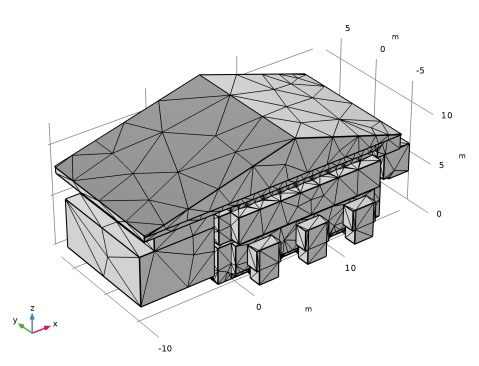
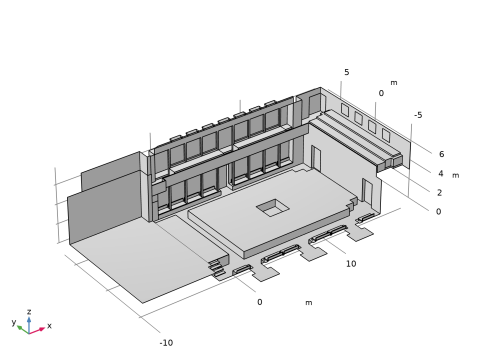
The model represents a concert hall with a volume = 2350 m3, excluding the coupled attic volume. The geometry was provided by Ref. 2, as well as the assignment of materials to the different surfaces, absorption and scattering data, source and receiver positions, and measurement data. The only modification that has been made to the provided material is the geometry of the seating area. In the original model, the central seats on the ground floor and the seats on the balcony are represented as flat surfaces, whereas in this study they have been extruded to a height of 0.8 m. The inside of the hall geometry can be seen in Figure 1.
Figure 1: Interior geometry of the chamber music hall.
The simulation is performed in 1/3-octave bands ranging from 100 Hz to 5000 Hz. Two omnidirectional source positions are defined on the stage, together with five receiver positions spread over the central seating area. Their coordinates are given in Table 1, with the location of the origin centered at the foot of the stage.
The size of the receivers is set to match the width of one seat, with a receiver radius = 0.3 m. The number of rays emitted by each source is then determined to limit the error in the calculated impulse responses. For an expected error of 1 dB in every time interval Δt of the response, the number of rays should be (see Ref. 3)
(1)
With Δt = 0.01 s, the resulting value is rounded up to Nrays = 46,000. Boundary conditions are defined as absorption and scattering coefficients in 1/3-octave bands. The amplitude attenuation of air was computed at the 1/3-octave band center frequencies from a Pressure Acoustics model and is imported from the file chamber_music_hall_air_attenuation.txt.
Results and Discussion
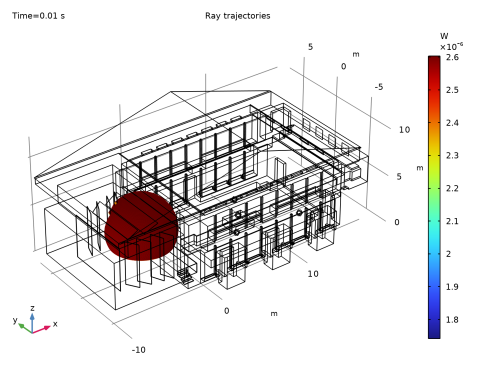
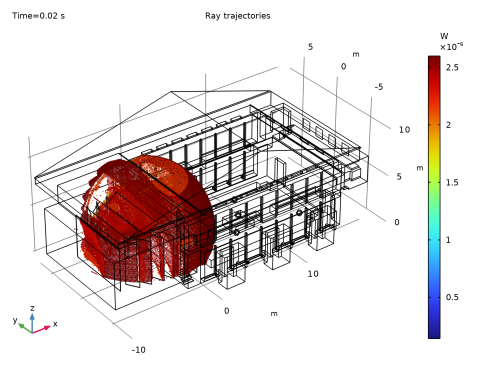
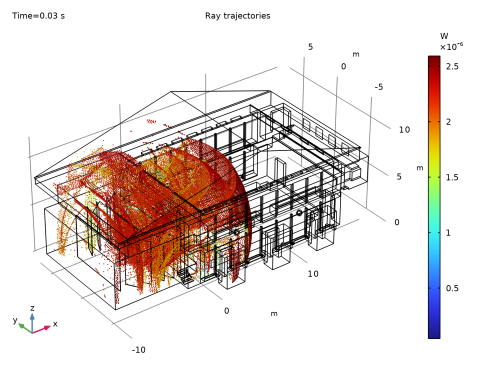
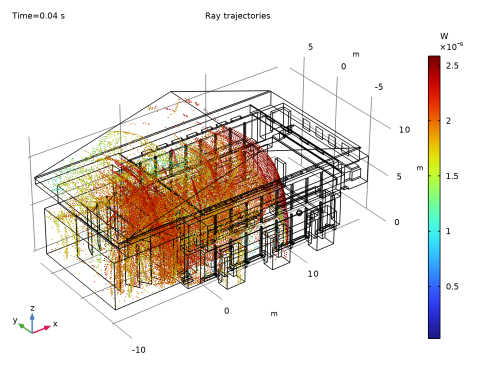
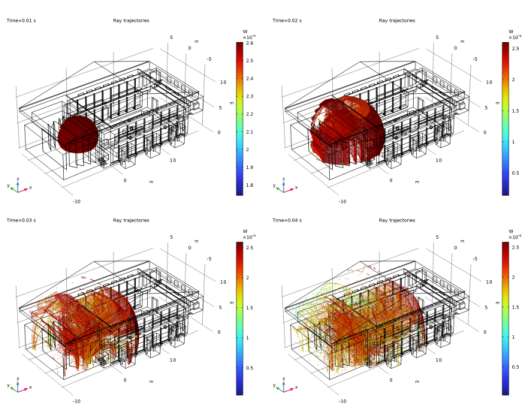
The power carried by each ray emitted from source 1 at 5000 Hz is shown in Figure 2 at different times. In this model the intensity along each ray is not computed in order to limit the number of degrees of freedom solved for in the simulation, hence reducing the computation time and the size of the saved file. As a result, it is not possible to plot local wavefront variables that depend on curvature computation, such as the sound pressure level. Nevertheless, the acoustic power and the reflection count along each ray are sufficient to generate the room impulse responses.
Figure 2: Ray location and power from source 1 at 5000 Hz after 10 ms (top left), 20 ms (top right), 30 ms (bottom left), and 40 ms (bottom right).
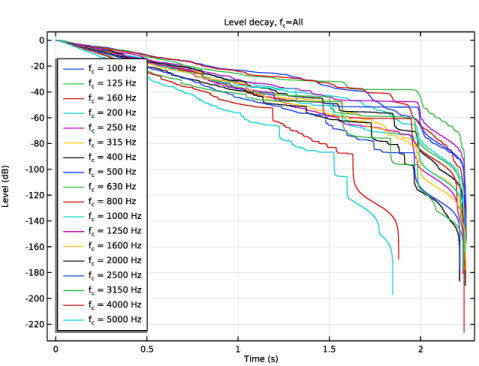
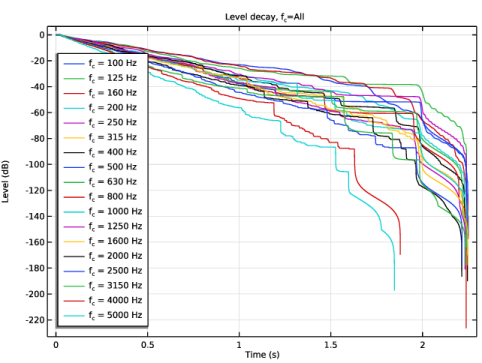
The impulse response energy decay used to compute the room acoustic parameters for one source-receiver pair is found in Figure 3. The curves are seen to be smooth from 0 dB to at least 40 dB, and the response duration is long enough to allow the necessary decay for reverberation time calculation. The results obtained should therefore be reliable.
Similarly to measurement procedures, level decay curves are generated for all the source-receiver pairs in the model. Hence, 10 values are derived for each room acoustic parameter. The average over the 10 source-receiver pairs is then calculated to obtain an overall value for the room.
Figure 3: Level decay curves for source 1 and receiver 1.
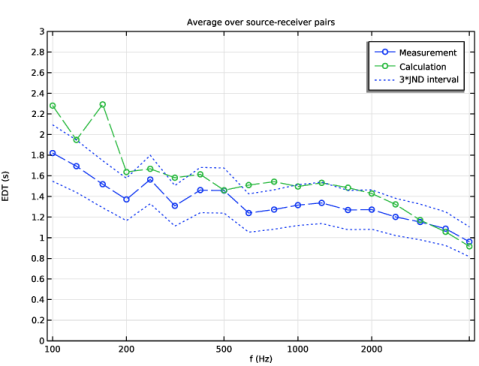
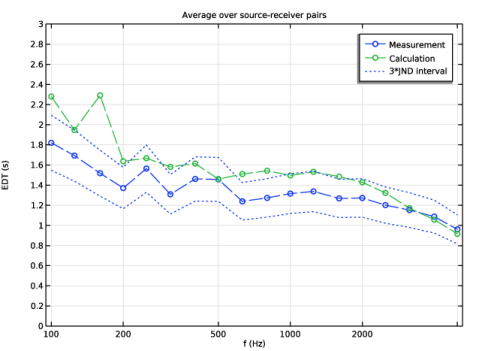
The comparison between the measured and calculated Early Decay Time (EDT) is plotted in Figure 4. The interval representing three times the just noticeable difference (JND) is also depicted. A satisfying match is observed, with the result of the calculation lying within 3 JND of the measurement in many 1/3-octave bands or slightly above this interval otherwise.
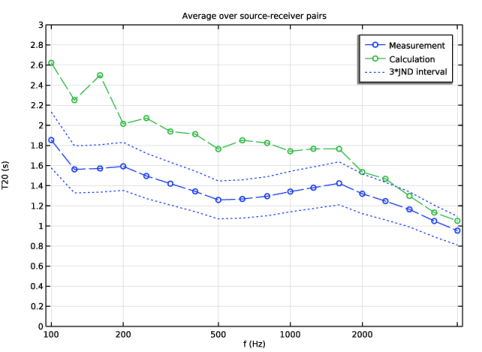
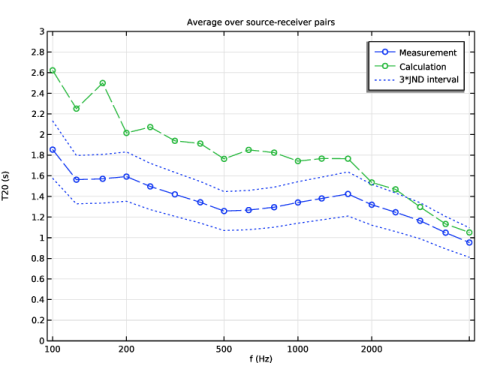
The measured and calculated reverberation times T20 are also compared in Figure 5. In this case, the reverberation time is overestimated by the calculation. This finding concurs with Ref. 1, where T20 was overestimated by all the simulation algorithms. Since this issue did not arise in the EDT, the difference between measurement and calculation does not originate from the early part of the sound field.
Figure 4: Early Decay Time averaged across the room.
Figure 5: Reverberation time T20 averaged across the room.
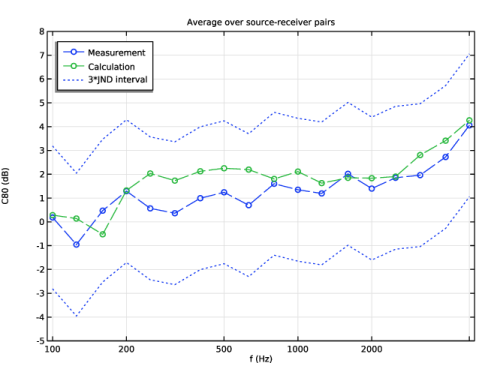
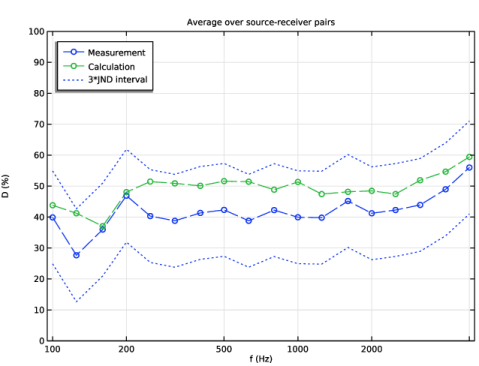
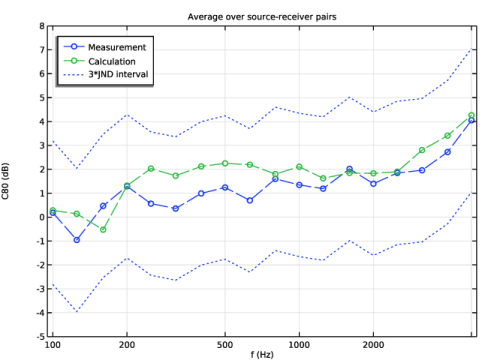
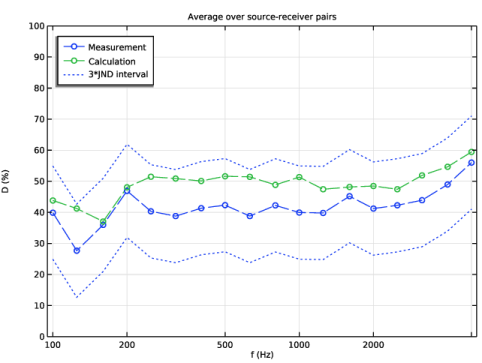
Two more acoustics parameters, the clarity C80 and the definition D, are shown in Figure 6 and Figure 7 respectively. They both fit nicely with the measurements and appear well within the 3 JND interval over the whole frequency range.
In the subjective perception of room acoustics, early reflections that reach listeners before 50 ms to 100 ms are considered to contribute positively by reinforcing the direct sound (see Ref. 4). C80 and D both give an indication of this aspect with their energy ratios of early sound field to either late or total sound field. The difference in their definitions of the transition between early and late reflections stems from their respective purposes, with C80 describing the transparency of music and D the speech intelligibility. Moreover, EDT only takes into account the first 10 dB of the level decay to focus on the early energy. As a result, it is more closely related to the perceived reverberance of a room than other quantifications of reverberation time. Finding a good fit with the measurements in these three parameters is therefore an encouraging sign for the accuracy of the simulation.
Figure 6: Clarity C80 averaged across the room.
Figure 7: Definition D averaged across the room.
Overall, a good accuracy has been found in the study of this chamber music hall. The calculation results matched closely with in-situ measurements for most of the common room acoustic parameters. This demonstrates the potential for modeling advanced room acoustic cases.
Notes About the COMSOL Implementation
The rays that are emitted in the simulation need to be terminated when their energy content becomes too small to avoid unnecessary calculations. This can be done by defining a power threshold as termination criterion. With the total source power P0, each ray is emitted with an initial power P0/Nrays. In this model, a ray is terminated when the power it carries is 107 times smaller than initially, in other words when its power has dropped by 70 dB. The power threshold for termination is then expressed as P0/Nrays·10-7.
When plotting an energy decay curve, the EDT and reverberation times are automatically checked to detect potentially large differences. These can be due to a small number of rays or an early termination of the rays and simulation. In this model, a warning might appear depending on the random effects of scattering; however, the comparison with measurement data shows that the simulation is well set.
Some postprocessing is needed in this model in order to obtain results averaged over the room. After calculating the impulse responses, the acoustic parameters for the different source-receiver pairs must be interpolated as functions of frequency. First, an Interpolation is created for each impulse response under Global Definitions. A new Study is then added with the same Parametric Sweep as the previous ones but no ray tracing step. The role of this study is to load the newly created interpolation functions without running a full calculation of the model again, its output results are therefore not relevant. Once the new study has been computed, the acoustic parameters can be processed to return values averaged over the room.
Given the number of impulse responses and the time needed to render them, it is advisable to save the plot data in the model. However, this can create a very large saved file. To reduce the file size by up to a factor 10, the Only store receiver data and accumulated variables option is activated. This allows to get rid of all ray information that does not contribute to any of the receivers in the model. However, this prevents from studying results that are not linked to the Receiver feature, such as the Ray Trajectories plot for example. Therefore, a first Ray Acoustics physics interface with full solution data is set up in the model and solved for a single frequency. The second Ray Acoustics interface then only contains the receiver data needed to calculate the impulse responses and their associated room acoustic parameters. Some further disc space can be spared by setting File > Preferences > Save > Optimize for > File size.
References
1. F. Brinkmann, L. Aspöck, D. Ackermann, S. Lepa, M. Vorländer, and S. Weinzierl, “A round robin on room acoustical simulation and auralization,” J. Acoust. Soc. Am., vol. 145, pp. 2746–2760, 2019, doi: 10.1121/1.5096178.
2. L. Aspöck, F. Brinkmann, D. Ackermann, S. Weinzierl, and M. Vorländer, “BRAS - Benchmark for Room Acoustical Simulation,” 2020, publications.rwth-aachen.de/record/808874.
3. M. Vorländer, Auralization: Fundamentals of Acoustics, Modelling, Simulation, Algorithms and Acoustic Virtual Reality, Springer, 2008.
4. H. Kuttruff, Room Acoustics, CRC Press, 2009.
Application Library path: Acoustics_Module/Building_and_Room_Acoustics/chamber_music_hall
Modeling Instructions
This section contains the modeling instructions for the Chamber Music Hall model. They are followed by the Geometry Modeling Instructions section.
From the File menu, choose New.
New
In the New window, click  Model Wizard.
Model Wizard
1
In the Model Wizard window, click  3D.
2
In the Select Physics tree, select Acoustics > Geometrical Acoustics > Ray Acoustics (rac).
3
Click Add.
4
Click  Study.
5
In the Select Study tree, select Preset Studies for Selected Physics Interfaces > Ray Tracing.
6
Start by loading parameter definitions, material properties, and measurement data.
Global Definitions
Parameters 1 - Study setup
1
In the Model Builder window, under Global Definitions click Parameters 1.
2
In the Settings window for Parameters, type Parameters 1 - Study setup in the Label text field.
3
Locate the Parameters section. Click  Load from File.
4
Parameters 2 - Source and receiver positions
1
In the Home toolbar, click  Parameters and choose Add > Parameters.
2
In the Settings window for Parameters, type Parameters 2 - Source and receiver positions in the Label text field.
3
Locate the Parameters section. Click  Load from File.
4
Create interpolation functions to import the air attenuation, the absorption and scattering coefficients of the different surfaces, and the acoustic parameters measured in the room.
Interpolation 1 (int1)
1
In the Home toolbar, click  Functions and choose Global > Interpolation.
2
In the Settings window for Interpolation, locate the Definition section.
3
From the Data source list, choose File.
4
Click  Browse.
5
6
Click  Import.
7
In the Function name text field, type a_air.
8
Locate the Interpolation and Extrapolation section. From the Interpolation list, choose Nearest neighbor.
9
Locate the Units section. In the Function table, enter the following settings:
10
In the Argument table, enter the following settings:
Interpolation 2 (int2)
1
In the Home toolbar, click  Functions and choose Global > Interpolation.
2
In the Settings window for Interpolation, locate the Definition section.
3
From the Data source list, choose File.
4
Click  Browse.
5
6
Locate the Data Column Settings section. In the table, click to select the cell at row number 1 and column number 1.
7
In the Unit text field, type Hz.
8
9
In the Name text field, type a_ceiling.
10
In the Unit text field, type 1.
11
12
In the Name text field, type s_ceiling.
13
In the Unit text field, type 1.
14
Locate the Interpolation and Extrapolation section. From the Interpolation list, choose Nearest neighbor.
15
Locate the Definition section. Click  Import.
Interpolation 3 (int3)
1
In the Home toolbar, click  Functions and choose Global > Interpolation.
2
In the Settings window for Interpolation, locate the Definition section.
3
From the Data source list, choose File.
4
Click  Browse.
5
6
Locate the Data Column Settings section. In the table, click to select the cell at row number 1 and column number 1.
7
In the Unit text field, type Hz.
8
9
In the Name text field, type a_floor.
10
In the Unit text field, type 1.
11
12
In the Name text field, type s_floor.
13
In the Unit text field, type 1.
14
Locate the Interpolation and Extrapolation section. From the Interpolation list, choose Nearest neighbor.
15
Locate the Definition section. Click  Import.
Interpolation 4 (int4)
1
In the Home toolbar, click  Functions and choose Global > Interpolation.
2
In the Settings window for Interpolation, locate the Definition section.
3
From the Data source list, choose File.
4
Click  Browse.
5
6
Locate the Data Column Settings section. In the table, click to select the cell at row number 1 and column number 1.
7
In the Unit text field, type Hz.
8
9
In the Name text field, type a_plaster.
10
In the Unit text field, type 1.
11
12
In the Name text field, type s_plaster.
13
In the Unit text field, type 1.
14
Locate the Interpolation and Extrapolation section. From the Interpolation list, choose Nearest neighbor.
15
Locate the Definition section. Click  Import.
Interpolation 5 (int5)
1
In the Home toolbar, click  Functions and choose Global > Interpolation.
2
In the Settings window for Interpolation, locate the Definition section.
3
From the Data source list, choose File.
4
Click  Browse.
5
6
Locate the Data Column Settings section. In the table, click to select the cell at row number 1 and column number 1.
7
In the Unit text field, type Hz.
8
9
In the Name text field, type a_seating.
10
In the Unit text field, type 1.
11
12
In the Name text field, type s_seating.
13
In the Unit text field, type 1.
14
Locate the Interpolation and Extrapolation section. From the Interpolation list, choose Nearest neighbor.
15
Locate the Definition section. Click  Import.
Interpolation 6 (int6)
1
In the Home toolbar, click  Functions and choose Global > Interpolation.
2
In the Settings window for Interpolation, locate the Definition section.
3
From the Data source list, choose File.
4
Click  Browse.
5
6
Locate the Data Column Settings section. In the table, click to select the cell at row number 1 and column number 1.
7
In the Unit text field, type Hz.
8
9
In the Name text field, type a_stagepanels.
10
In the Unit text field, type 1.
11
12
In the Name text field, type s_stagepanels.
13
In the Unit text field, type 1.
14
Locate the Interpolation and Extrapolation section. From the Interpolation list, choose Nearest neighbor.
15
Locate the Definition section. Click  Import.
Interpolation 7 (int7)
1
In the Home toolbar, click  Functions and choose Global > Interpolation.
2
In the Settings window for Interpolation, locate the Definition section.
3
From the Data source list, choose File.
4
Click  Browse.
5
6
Locate the Data Column Settings section. In the table, click to select the cell at row number 1 and column number 1.
7
In the Unit text field, type Hz.
8
9
In the Name text field, type a_structuredplaster.
10
In the Unit text field, type 1.
11
12
In the Name text field, type s_structuredplaster.
13
In the Unit text field, type 1.
14
Locate the Interpolation and Extrapolation section. From the Interpolation list, choose Nearest neighbor.
15
Locate the Definition section. Click  Import.
Interpolation 8 (int8)
1
In the Home toolbar, click  Functions and choose Global > Interpolation.
2
In the Settings window for Interpolation, locate the Definition section.
3
From the Data source list, choose File.
4
Click  Browse.
5
6
Locate the Data Column Settings section. In the table, click to select the cell at row number 1 and column number 1.
7
In the Unit text field, type Hz.
8
9
In the Name text field, type a_windows.
10
In the Unit text field, type 1.
11
12
In the Name text field, type s_windows.
13
In the Unit text field, type 1.
14
Locate the Interpolation and Extrapolation section. From the Interpolation list, choose Nearest neighbor.
15
Locate the Definition section. Click  Import.
Interpolation 9 (int9)
1
In the Home toolbar, click  Functions and choose Global > Interpolation.
2
In the Settings window for Interpolation, locate the Definition section.
3
From the Data source list, choose File.
4
Click  Browse.
5
6
Click  Import.
7
In the Function name text field, type EDT_meas.
8
Locate the Interpolation and Extrapolation section. From the Interpolation list, choose Nearest neighbor.
9
Locate the Units section. In the Function table, enter the following settings:
10
In the Argument table, enter the following settings:
Interpolation 10 (int10)
1
In the Home toolbar, click  Functions and choose Global > Interpolation.
2
In the Settings window for Interpolation, locate the Definition section.
3
From the Data source list, choose File.
4
Click  Browse.
5
6
Click  Import.
7
In the Function name text field, type T20_meas.
8
Locate the Interpolation and Extrapolation section. From the Interpolation list, choose Nearest neighbor.
9
Locate the Units section. In the Function table, enter the following settings:
10
In the Argument table, enter the following settings:
Interpolation 11 (int11)
1
In the Home toolbar, click  Functions and choose Global > Interpolation.
2
In the Settings window for Interpolation, locate the Definition section.
3
From the Data source list, choose File.
4
Click  Browse.
5
6
Click  Import.
7
In the Function name text field, type C80_meas.
8
Locate the Interpolation and Extrapolation section. From the Interpolation list, choose Nearest neighbor.
9
Locate the Units section. In the Function table, enter the following settings:
10
In the Argument table, enter the following settings:
Interpolation 12 (int12)
1
In the Home toolbar, click  Functions and choose Global > Interpolation.
2
In the Settings window for Interpolation, locate the Definition section.
3
From the Data source list, choose File.
4
Click  Browse.
5
6
Click  Import.
7
In the Function name text field, type D50_meas.
8
Locate the Interpolation and Extrapolation section. From the Interpolation list, choose Nearest neighbor.
9
Locate the Units section. In the Function table, enter the following settings:
10
In the Argument table, enter the following settings:
Import the geometry and add the receivers.
Geometry 1
1
In the Geometry toolbar, click  Insert Sequence.
2
3
In the Geometry toolbar, click  Build All.
Sphere 1 (sph1)
1
In the Geometry toolbar, click  Sphere.
2
In the Settings window for Sphere, locate the Object Type section.
3
From the Type list, choose Surface.
4
Locate the Size section. In the Radius text field, type r_rec.
5
Locate the Position section. In the x text field, type x_r1.
6
In the y text field, type y_r1.
7
In the z text field, type z_r1.
8
Locate the Selections of Resulting Entities section. Select the Resulting objects selection checkbox.
9
From the Show in physics list, choose Boundary selection.
10
Find the Cumulative selection subsection. Click New.
11
In the New Cumulative Selection dialog, type All receivers in the Name text field.
12
Sphere 2 (sph2)
1
Right-click Sphere 1 (sph1) and choose Duplicate to create the second receiver, then enter its correct coordinates. Repeat this operation for all the receivers needed.
2
In the Geometry toolbar, click  Build All.
Disable the analysis of the geometry as the remaining small geometric details can be kept.
3
In the Model Builder window, click Geometry 1.
4
In the Settings window for Geometry, locate the Cleanup section.
5
Clear the Automatic detection of small details checkbox.
Now set up the ray acoustics simulation. The first physics interface will be used for a general single-frequency study where the whole solution data will be saved.
Ray Acoustics (rac)
1
In the Model Builder window, under Component 1 (comp1) click Ray Acoustics (rac).
2
In the Settings window for Ray Acoustics, locate the Material Properties of Exterior and Unmeshed Domains section.
3
In the cext text field, type c0.
4
In the ρext text field, type rho0.
5
In the αext text field, type a_air(f0).
Ray Properties 1
1
In the Model Builder window, expand the Ray Acoustics (rac) node, then click Ray Properties 1.
2
In the Settings window for Ray Properties, locate the Ray Properties section.
3
In the f text field, type f0.
Define the boundary conditions with the imported absorption and scattering coefficients.
Wall - Plaster
1
In the Physics toolbar, click  Boundaries and choose Wall.
2
In the Settings window for Wall, type Wall - Plaster in the Label text field.
3
Locate the Boundary Selection section. From the Selection list, choose Plaster.
4
Locate the Wall Condition section. In the s text field, type s_plaster(f0).
5
In the α text field, type a_plaster(f0).
Wall - Stage Panels
1
In the Physics toolbar, click  Boundaries and choose Wall.
2
In the Settings window for Wall, type Wall - Stage Panels in the Label text field.
3
Locate the Boundary Selection section. From the Selection list, choose Stage panels.
4
Locate the Wall Condition section. In the s text field, type s_stagepanels(f0).
5
In the α text field, type a_stagepanels(f0).
Wall - Windows
1
In the Physics toolbar, click  Boundaries and choose Wall.
2
In the Settings window for Wall, type Wall - Windows in the Label text field.
3
Locate the Boundary Selection section. From the Selection list, choose Windows.
4
Locate the Wall Condition section. In the s text field, type s_windows(f0).
5
In the α text field, type a_windows(f0).
Wall - Seating
1
In the Physics toolbar, click  Boundaries and choose Wall.
2
In the Settings window for Wall, type Wall - Seating in the Label text field.
3
Locate the Boundary Selection section. From the Selection list, choose Seating.
4
Locate the Wall Condition section. In the s text field, type s_seating(f0).
5
In the α text field, type a_seating(f0).
Wall - Floor
1
In the Physics toolbar, click  Boundaries and choose Wall.
2
In the Settings window for Wall, type Wall - Floor in the Label text field.
3
Locate the Boundary Selection section. From the Selection list, choose Floor.
4
Locate the Wall Condition section. In the s text field, type s_floor(f0).
5
In the α text field, type a_floor(f0).
Wall - Ceiling
1
In the Physics toolbar, click  Boundaries and choose Wall.
2
In the Settings window for Wall, type Wall - Ceiling in the Label text field.
3
Locate the Boundary Selection section. From the Selection list, choose Ceiling.
4
Locate the Wall Condition section. In the s text field, type s_ceiling(f0).
5
In the α text field, type a_ceiling(f0).
Wall - Structured Plaster
1
In the Physics toolbar, click  Boundaries and choose Wall.
2
In the Settings window for Wall, type Wall - Structured Plaster in the Label text field.
3
Locate the Boundary Selection section. From the Selection list, choose Structured plaster.
4
Locate the Wall Condition section. In the s text field, type s_structuredplaster(f0).
5
In the α text field, type a_structuredplaster(f0).
Enter the source and ray properties.
Source with Directivity 1
1
In the Physics toolbar, click  Global and choose Source with Directivity.
2
In the Settings window for Source with Directivity, locate the Initial Position section.
3
Specify the q0 vector as
4
Locate the Ray Direction Vector section. In the Nw text field, type Nrays.
5
Locate the Intensity and Power section. From the Directivity list, choose Specify total source power.
6
In the Psrc text field, type P0.
Source with Directivity 2
1
Right-click Source with Directivity 1 and choose Duplicate.
2
In the Settings window for Source with Directivity, locate the Initial Position section.
3
Specify the q0 vector as
Define the spatial and power termination criteria. The given expression for threshold power ensures consistent termination with regards to the source parameters.
Ray Termination 1
1
In the Physics toolbar, click  Global and choose Ray Termination.
2
In the Settings window for Ray Termination, locate the Termination Criteria section.
3
From the Spatial extents of ray propagation list, choose Bounding box, from geometry.
4
From the Additional termination criteria list, choose Power.
5
In the Qth text field, type P0/Nrays*1e-7.
Add a second Ray Acoustics interface with receivers to avoid unnecessarily long postprocessing times. Only the data related to the receivers will be stored to reduce the size of the saved file.
6
In the Model Builder window, right-click Ray Acoustics (rac) and choose Copy.
Ray Acoustics 2 (rac2)
1
In the Model Builder window, right-click Component 1 (comp1) and choose Paste Ray Acoustics.
2
In the Messages from Paste dialog, click OK.
3
In the Settings window for Ray Acoustics, locate the Ray Release and Propagation section.
4
Select the Only store receiver data and accumulated variables checkbox.
Receiver 1
1
In the Physics toolbar, click  Boundaries and choose Receiver.
2
In the Settings window for Receiver, locate the Boundary Selection section.
3
From the Selection list, choose Sphere 1.
Repeat the operation for the 4 remaining receivers and remember to choose the correct sphere selection.
Now create the mesh. In ray tracing simulations for room acoustics, the mesh is only used to detect the collisions between rays and boundaries. Therefore, accuracy is not compromised with a coarse resolution.
In the present model you can disregard the warning messages in the mesh. They are due to small surfaces in the imported geometry that do not affect the ray tracing.
Mesh 1
1
In the Model Builder window, under Component 1 (comp1) click Mesh 1.
2
In the Settings window for Mesh, locate the Physics-Controlled Mesh section.
3
From the Element size list, choose Extremely coarse.
4
Locate the Sequence Type section. From the list, choose User-controlled mesh.
Free Triangular 1
1
In the Model Builder window, under Component 1 (comp1) > Mesh 1 click Free Triangular 1.
2
In the Settings window for Free Triangular, locate the Boundary Selection section.
3
From the Selection list, choose All boundaries.
The receivers need a finer mesh to work properly. The recommended element size is 1/3 of the receiver radius.
Size 1
1
Right-click Free Triangular 1 and choose Size.
2
In the Settings window for Size, locate the Geometric Entity Selection section.
3
From the Selection list, choose All receivers.
4
Locate the Element Size section. Click the Custom button.
5
Locate the Element Size Parameters section.
6
Select the Maximum element size checkbox. In the associated text field, type r_rec/3.
7
Click  Build All.
The mesh should look like this.
Create a study for the first physics interface that will calculate single-frequency ray trajectories.
Study 1 - Single Frequency
1
In the Model Builder window, click Study 1.
2
In the Settings window for Study, type Study 1 - Single Frequency in the Label text field.
Step 1: Ray Tracing
1
In the Model Builder window, under Study 1 - Single Frequency click Step 1: Ray Tracing.
2
In the Settings window for Ray Tracing, locate the Study Settings section.
3
From the Time unit list, choose s.
4
In the Output times text field, type 0 2.
5
Locate the Physics and Variables Selection section. Select the Modify model configuration for study step checkbox.
6
In the tree, select Component 1 (comp1) > Ray Acoustics (rac) > Source with Directivity 2.
7
8
In the tree, select Component 1 (comp1) > Ray Acoustics 2 (rac2).
9
Click  Disable in Model.
10
In the Study toolbar, click  Compute.
Results
Ray Trajectories (rac)
1
In the Settings window for 3D Plot Group, locate the Data section.
2
From the Time (s) list, choose Interpolation.
3
In the Time text field, type 0.01.
Ray Trajectories 1
1
In the Model Builder window, expand the Ray Trajectories (rac) node, then click Ray Trajectories 1.
2
In the Settings window for Ray Trajectories, locate the Coloring and Style section.
3
Find the Line style subsection. From the Type list, choose None.
4
Find the Point style subsection. From the Type list, choose Point.
Color Expression 1
1
In the Model Builder window, expand the Ray Trajectories 1 node, then click Color Expression 1.
2
In the Settings window for Color Expression, locate the Expression section.
3
In the Expression text field, type rac.Q.
4
In the Ray Trajectories (rac) toolbar, click  Plot.
Ray Trajectories (rac)
1
In the Model Builder window, under Results click Ray Trajectories (rac).
2
In the Settings window for 3D Plot Group, locate the Data section.
3
In the Time text field, type 0.02.
4
In the Ray Trajectories (rac) toolbar, click  Plot.
5
In the Model Builder window, click Ray Trajectories (rac).
6
In the Time text field, type 0.03.
7
In the Ray Trajectories (rac) toolbar, click  Plot.
8
In the Model Builder window, click Ray Trajectories (rac).
9
In the Time text field, type 0.04.
10
In the Ray Trajectories (rac) toolbar, click  Plot.
Now create one study for each source position in the second physics interface.
Add Study
1
In the Home toolbar, click  Add Study to open the Add Study window.
2
Go to the Add Study window.
3
Find the Studies subsection. In the Select Study tree, select Preset Studies for Selected Physics Interfaces > Ray Tracing.
4
Click the Add Study button in the window toolbar.
5
In the Home toolbar, click  Add Study to close the Add Study window.
Study 2 - Source 1
In the Settings window for Study, type Study 2 - Source 1 in the Label text field.
Parametric Sweep
1
In the Study toolbar, click  Parametric Sweep.
2
In the Settings window for Parametric Sweep, locate the Study Settings section.
3
4
5
6
Click  Range.
7
In the Range dialog, choose ISO preferred frequencies from the Entry method list.
8
In the Start frequency text field, type 100.
9
In the Stop frequency text field, type 5000.
10
From the Interval list, choose 1/3 octave.
11
Click Replace.
Step 1: Ray Tracing
1
In the Model Builder window, click Step 1: Ray Tracing.
2
In the Settings window for Ray Tracing, locate the Study Settings section.
3
From the Time unit list, choose s.
4
In the Output times text field, type 0 2.
5
Locate the Physics and Variables Selection section. Select the Modify model configuration for study step checkbox.
6
In the tree, select Component 1 (comp1) > Ray Acoustics (rac).
7
Click  Disable in Model.
8
In the tree, select Component 1 (comp1) > Ray Acoustics 2 (rac2) > Source with Directivity 2.
9
Add Study
1
In the Study toolbar, click  Add Study to open the Add Study window.
2
Go to the Add Study window.
3
Find the Studies subsection. In the Select Study tree, select Preset Studies for Selected Physics Interfaces > Ray Tracing.
4
Click the Add Study button in the window toolbar.
5
In the Study toolbar, click  Add Study to close the Add Study window.
Study 3 - Source 2
In the Settings window for Study, type Study 3 - Source 2 in the Label text field.
Parametric Sweep
1
In the Study toolbar, click  Parametric Sweep.
2
In the Settings window for Parametric Sweep, locate the Study Settings section.
3
4
5
6
Click  Range.
7
In the Range dialog, choose ISO preferred frequencies from the Entry method list.
8
In the Start frequency text field, type 100.
9
In the Stop frequency text field, type 5000.
10
From the Interval list, choose 1/3 octave.
11
Click Replace.
Step 1: Ray Tracing
1
In the Model Builder window, click Step 1: Ray Tracing.
2
In the Settings window for Ray Tracing, locate the Study Settings section.
3
From the Time unit list, choose s.
4
In the Output times text field, type 0 2.
5
Locate the Physics and Variables Selection section. Select the Modify model configuration for study step checkbox.
6
In the tree, select Component 1 (comp1) > Ray Acoustics (rac).
7
Click  Disable in Model.
8
In the tree, select Component 1 (comp1) > Ray Acoustics 2 (rac2) > Source with Directivity 1.
9
Click  Disable.
Make sure to select the following options to facilitate your workflow. All the results will be rendered after the model has solved. Rendering of all 10 impulse responses with 18 1/3-octave bands takes around 45 minutes depending on your hardware. Moreover, the size of the saved file can be very large due to the many impulse responses calculated and stored. To save some disk space, set the saving preferences to optimize for file size.
Results
1
In the Model Builder window, click Results.
2
In the Settings window for Results, locate the Update of Results section.
3
Select the Only plot when requested checkbox.
4
Select the Recompute all plot data after solving checkbox.
5
Locate the Save Data in the Model section. From the Save plot data list, choose On.
Add study references to compute both studies at once.
Add Study
1
In the Home toolbar, click  Add Study to open the Add Study window.
2
Go to the Add Study window.
3
Find the Studies subsection. In the Select Study tree, select Empty Study.
4
Click the Add Study button in the window toolbar.
5
In the Home toolbar, click  Add Study to close the Add Study window.
Study 4
No Study
1
In the Study toolbar, click  More Study Extensions and choose Study Reference.
2
In the Settings window for Study Reference, locate the Study Reference section.
3
From the Study reference list, choose Study 2 - Source 1.
4
In the Study toolbar, click  More Study Extensions and choose Study Reference.
1
In the Settings window for Study Reference, locate the Study Reference section.
2
From the Study reference list, choose Study 3 - Source 2.
3
In the Study toolbar, click  Compute.
Reassign the solutions associated to the datasets for Ray 2 and Ray 3 to match with Study 2 and Study 3.
Results
Ray 2
1
In the Model Builder window, expand the Results > Datasets node, then click Ray 2.
2
In the Settings window for Ray, locate the Ray Solution section.
3
From the Solution list, choose Parametric Solutions 1 (sol5).
Ray 3
1
In the Model Builder window, click Ray 3.
2
In the Settings window for Ray, locate the Ray Solution section.
3
From the Solution list, choose Parametric Solutions 2 (sol6).
Next, label the datasets corresponding to the 10 source-receiver pairs.
Receiver 3D 1_1
1
In the Model Builder window, click Receiver 3D 1.
2
In the Settings window for Receiver 3D, type Receiver 3D 1_1 in the Label text field.
Repeat the previous operation for all receiver datasets related to the same study.
Receiver 3D 2_1
1
In the Model Builder window, under Results > Datasets click Receiver 3D 6.
2
In the Settings window for Receiver 3D, type Receiver 3D 2_1 in the Label text field.
Repeat this operation for the 4 remaining receiver datasets.
Set up the impulse responses corresponding to the datasets previously created, plot the level decay curves using the Energy Decay subfeature, and compute the desired room acoustic parameters.
Impulse response 1_1
1
In the Results toolbar, click  1D Plot Group.
2
In the Settings window for 1D Plot Group, type Impulse response 1_1 in the Label text field.
3
Locate the Data section. From the Dataset list, choose Receiver 3D 1_1.
4
Locate the Legend section. From the Position list, choose Lower left.
Impulse Response 1
1
In the Impulse response 1_1 toolbar, click  More Plots and choose Impulse Response.
2
In the Settings window for Impulse Response, locate the Data section.
3
From the Frequency interpretation list, choose 1/3 octave.
4
Locate the Expression section. In the Frequency text field, type rac2.f.
5
In the Power text field, type rac2.Q.
6
In the Density text field, type rac2.rho.
7
In the Speed of sound text field, type rac2.c.
8
In the Number of reflections text field, type rac2.Nrefl.
9
Click to expand the Legends section. Select the Show legends checkbox.
Energy Decay 1
1
Right-click Impulse Response 1 and choose Energy Decay.
2
In the Settings window for Energy Decay, locate the Display section.
3
From the Band type list, choose Individual bands.
4
From the Plot list, choose Level decay.
5
Locate the Table section. Find the Early energy subsection. Clear the C50 , Clarity checkbox.
6
Clear the tr , First ray arrival time checkbox.
7
Clear the ts , Center time checkbox.
8
Find the Reverberation subsection. Clear the T30 checkbox.
9
Clear the T60 checkbox.
10
Find the Speech intelligibility subsection. Clear the SNR, Apparent SNR checkbox.
11
Clear the STI, Speech transmission index checkbox.
12
In the Impulse response 1_1 toolbar, click  Plot.
13
Locate the Display section. From the Band frequency list, choose All frequencies.
14
In the Impulse response 1_1 toolbar, click  Plot.
Impulse response 1_2
1
In the Model Builder window, right-click Impulse response 1_1 and choose Duplicate.
2
In the Settings window for 1D Plot Group, type Impulse response 1_2 in the Label text field.
3
Locate the Data section. From the Dataset list, choose Receiver 3D 1_2.
4
In the Impulse response 1_2 toolbar, click  Plot.
Repeat the duplication and dataset selection operations to create the impulse responses corresponding to the 8 remaining source-receiver pairs.
Impulse response 1_1, Impulse response 1_2, Impulse response 1_3, Impulse response 1_4, Impulse response 1_5, Impulse response 2_1, Impulse response 2_2, Impulse response 2_3, Impulse response 2_4, Impulse response 2_5
1
In the Model Builder window, under Results, Ctrl-click to select Impulse response 1_1, Impulse response 1_2, Impulse response 1_3, Impulse response 1_4, Impulse response 1_5, Impulse response 2_1, Impulse response 2_2, Impulse response 2_3, Impulse response 2_4, and Impulse response 2_5.
2
Impulse responses
1
In the Settings window for Group, type Impulse responses in the Label text field.
Rename the result tables to match with their corresponding impulse responses. Repeat the following steps accordingly for the ten tables.
Objective Quality Metrics 1_1
1
In the Model Builder window, expand the Results > Tables node, then click Objective Quality Metrics.
2
In the Settings window for Table, type Objective Quality Metrics 1_1 in the Label text field.
Objective Quality Metrics 2_1
1
In the Model Builder window, under Results > Tables click Objective Quality Metrics 5.
2
In the Settings window for Table, type Objective Quality Metrics 2_1 in the Label text field.
Now that the impulse responses of the different source-receiver pairs have been computed, interpolate the resulting acoustic parameters for postprocessing.
Global Definitions
Interpolation 13 (int13)
1
In the Home toolbar, click  Functions and choose Global > Interpolation.
2
In the Settings window for Interpolation, locate the Definition section.
3
From the Data source list, choose Result table.
4
Locate the Data Column Settings section. In the table, enter the following settings:
5
6
In the Unit text field, type Hz.
7
8
In the Name text field, type D50_11.
9
In the Unit text field, type %.
10
11
In the Name text field, type C80_11.
12
In the Unit text field, type dB.
13
14
In the Name text field, type EDT_11.
15
In the Unit text field, type s.
16
17
In the Name text field, type T20_11.
18
In the Unit text field, type s.
19
Locate the Interpolation and Extrapolation section. From the Interpolation list, choose Nearest neighbor.
Interpolation 14 (int14)
1
In the Home toolbar, click  Functions and choose Global > Interpolation.
2
In the Settings window for Interpolation, locate the Definition section.
3
From the Data source list, choose Result table.
4
From the Table from list, choose Objective Quality Metrics 1_2.
5
Locate the Data Column Settings section. In the table, enter the following settings:
6
7
In the Unit text field, type Hz.
8
9
In the Name text field, type D50_12.
10
In the Unit text field, type %.
11
12
In the Name text field, type C80_12.
13
In the Unit text field, type dB.
14
15
In the Name text field, type EDT_12.
16
In the Unit text field, type s.
17
18
In the Name text field, type T20_12.
19
In the Unit text field, type s.
20
Locate the Interpolation and Extrapolation section. From the Interpolation list, choose Nearest neighbor.
Interpolation 15 (int15)
1
In the Home toolbar, click  Functions and choose Global > Interpolation.
2
In the Settings window for Interpolation, locate the Definition section.
3
From the Data source list, choose Result table.
4
From the Table from list, choose Objective Quality Metrics 1_3.
5
Locate the Data Column Settings section. In the table, enter the following settings:
6
7
In the Unit text field, type Hz.
8
9
In the Name text field, type D50_13.
10
In the Unit text field, type %.
11
12
In the Name text field, type C80_13.
13
In the Unit text field, type dB.
14
15
In the Name text field, type EDT_13.
16
In the Unit text field, type s.
17
18
In the Name text field, type T20_13.
19
In the Unit text field, type s.
20
Locate the Interpolation and Extrapolation section. From the Interpolation list, choose Nearest neighbor.
Interpolation 16 (int16)
1
In the Home toolbar, click  Functions and choose Global > Interpolation.
2
In the Settings window for Interpolation, locate the Definition section.
3
From the Data source list, choose Result table.
4
From the Table from list, choose Objective Quality Metrics 1_4.
5
Locate the Data Column Settings section. In the table, enter the following settings:
6
7
In the Unit text field, type Hz.
8
9
In the Name text field, type D50_14.
10
In the Unit text field, type %.
11
12
In the Name text field, type C80_14.
13
In the Unit text field, type dB.
14
15
In the Name text field, type EDT_14.
16
In the Unit text field, type s.
17
18
In the Name text field, type T20_14.
19
In the Unit text field, type s.
20
Locate the Interpolation and Extrapolation section. From the Interpolation list, choose Nearest neighbor.
Interpolation 17 (int17)
1
In the Home toolbar, click  Functions and choose Global > Interpolation.
2
In the Settings window for Interpolation, locate the Definition section.
3
From the Data source list, choose Result table.
4
From the Table from list, choose Objective Quality Metrics 1_5.
5
Locate the Data Column Settings section. In the table, enter the following settings:
6
7
In the Unit text field, type Hz.
8
9
In the Name text field, type D50_15.
10
In the Unit text field, type %.
11
12
In the Name text field, type C80_15.
13
In the Unit text field, type dB.
14
15
In the Name text field, type EDT_15.
16
In the Unit text field, type s.
17
18
In the Name text field, type T20_15.
19
In the Unit text field, type s.
20
Locate the Interpolation and Extrapolation section. From the Interpolation list, choose Nearest neighbor.
Interpolation 18 (int18)
1
In the Home toolbar, click  Functions and choose Global > Interpolation.
2
In the Settings window for Interpolation, locate the Definition section.
3
From the Data source list, choose Result table.
4
From the Table from list, choose Objective Quality Metrics 2_1.
5
Locate the Data Column Settings section. In the table, enter the following settings:
6
7
In the Unit text field, type Hz.
8
9
In the Name text field, type D50_21.
10
In the Unit text field, type %.
11
12
In the Name text field, type C80_21.
13
In the Unit text field, type dB.
14
15
In the Name text field, type EDT_21.
16
In the Unit text field, type s.
17
18
In the Name text field, type T20_21.
19
In the Unit text field, type s.
20
Locate the Interpolation and Extrapolation section. From the Interpolation list, choose Nearest neighbor.
Interpolation 19 (int19)
1
In the Home toolbar, click  Functions and choose Global > Interpolation.
2
In the Settings window for Interpolation, locate the Definition section.
3
From the Data source list, choose Result table.
4
From the Table from list, choose Objective Quality Metrics 2_2.
5
Locate the Data Column Settings section. In the table, enter the following settings:
6
7
In the Unit text field, type Hz.
8
9
In the Name text field, type D50_22.
10
In the Unit text field, type %.
11
12
In the Name text field, type C80_22.
13
In the Unit text field, type dB.
14
15
In the Name text field, type EDT_22.
16
In the Unit text field, type s.
17
18
In the Name text field, type T20_22.
19
In the Unit text field, type s.
20
Locate the Interpolation and Extrapolation section. From the Interpolation list, choose Nearest neighbor.
Interpolation 20 (int20)
1
In the Home toolbar, click  Functions and choose Global > Interpolation.
2
In the Settings window for Interpolation, locate the Definition section.
3
From the Data source list, choose Result table.
4
From the Table from list, choose Objective Quality Metrics 2_3.
5
Locate the Data Column Settings section. In the table, enter the following settings:
6
7
In the Unit text field, type Hz.
8
9
In the Name text field, type D50_23.
10
In the Unit text field, type %.
11
12
In the Name text field, type C80_23.
13
In the Unit text field, type dB.
14
15
In the Name text field, type EDT_23.
16
In the Unit text field, type s.
17
18
In the Name text field, type T20_23.
19
In the Unit text field, type s.
20
Locate the Interpolation and Extrapolation section. From the Interpolation list, choose Nearest neighbor.
Interpolation 21 (int21)
1
In the Home toolbar, click  Functions and choose Global > Interpolation.
2
In the Settings window for Interpolation, locate the Definition section.
3
From the Data source list, choose Result table.
4
From the Table from list, choose Objective Quality Metrics 2_4.
5
Locate the Data Column Settings section. In the table, enter the following settings:
6
7
In the Unit text field, type Hz.
8
9
In the Name text field, type D50_24.
10
In the Unit text field, type %.
11
12
In the Name text field, type C80_24.
13
In the Unit text field, type dB.
14
15
In the Name text field, type EDT_24.
16
In the Unit text field, type s.
17
18
In the Name text field, type T20_24.
19
In the Unit text field, type s.
20
Locate the Interpolation and Extrapolation section. From the Interpolation list, choose Nearest neighbor.
Interpolation 22 (int22)
1
In the Home toolbar, click  Functions and choose Global > Interpolation.
2
In the Settings window for Interpolation, locate the Definition section.
3
From the Data source list, choose Result table.
4
From the Table from list, choose Objective Quality Metrics 2_5.
5
Locate the Data Column Settings section. In the table, enter the following settings:
6
7
In the Unit text field, type Hz.
8
9
In the Name text field, type D50_25.
10
In the Unit text field, type %.
11
12
In the Name text field, type C80_25.
13
In the Unit text field, type dB.
14
15
In the Name text field, type EDT_25.
16
In the Unit text field, type s.
17
18
In the Name text field, type T20_25.
19
In the Unit text field, type s.
20
Locate the Interpolation and Extrapolation section. From the Interpolation list, choose Nearest neighbor.
Create an empty study to load the newly defined interpolation functions.
Add Study
1
In the Home toolbar, click  Add Study to open the Add Study window.
2
Go to the Add Study window.
3
Find the Studies subsection. In the Select Study tree, select Empty Study.
4
Click the Add Study button in the window toolbar.
5
In the Home toolbar, click  Add Study to close the Add Study window.
Study 5 - Empty for postprocessing
1
In the Settings window for Study, type Study 5 - Empty for postprocessing in the Label text field.
2
Locate the Study Settings section. Clear the Generate default plots checkbox.
Parametric Sweep
1
In the Study toolbar, click  Parametric Sweep.
2
In the Settings window for Parametric Sweep, locate the Study Settings section.
3
4
5
6
Click  Range.
7
In the Range dialog, choose ISO preferred frequencies from the Entry method list.
8
In the Start frequency text field, type 100.
9
In the Stop frequency text field, type 5000.
10
From the Interval list, choose 1/3 octave.
11
Click Replace.
12
In the Study toolbar, click  Compute.
Take the average of the acoustic parameters to obtain their values over the room.
Results
Early Decay Time EDT
1
In the Results toolbar, click  1D Plot Group.
2
In the Settings window for 1D Plot Group, type Early Decay Time EDT in the Label text field.
3
Locate the Data section. From the Dataset list, choose Study 5 - Empty for postprocessing/Parametric Solutions 3 (sol44).
4
From the Time selection list, choose First.
5
Click to expand the Title section. From the Title type list, choose Manual.
6
In the Title text area, type Average over source-receiver pairs.
7
Locate the Plot Settings section.
8
Select the x-axis label checkbox. In the associated text field, type f (Hz).
9
Select the y-axis label checkbox. In the associated text field, type EDT (s).
10
Locate the Axis section. Select the Manual axis limits checkbox.
11
In the x minimum text field, type 95.
12
In the x maximum text field, type 5250.
13
In the y minimum text field, type 0.
14
In the y maximum text field, type 3.
15
Select the x-axis log scale checkbox.
Global 1
1
Right-click Early Decay Time EDT and choose Global.
2
In the Settings window for Global, locate the y-Axis Data section.
3
4
Locate the x-Axis Data section. From the Axis source data list, choose f0.
5
Click to expand the Coloring and Style section. Find the Line style subsection. From the Line list, choose Dashed.
6
Find the Line markers subsection. From the Marker list, choose Circle.
7
Click to expand the Legends section. From the Legends list, choose Manual.
8
Global 2
1
In the Model Builder window, right-click Early Decay Time EDT and choose Global.
2
In the Settings window for Global, locate the y-Axis Data section.
3
4
Locate the x-Axis Data section. From the Axis source data list, choose f0.
5
Locate the Coloring and Style section. Find the Line style subsection. From the Line list, choose Dotted.
6
From the Color list, choose Cycle (reset).
7
Locate the Legends section. From the Legends list, choose Manual.
8
Global 3
1
Right-click Early Decay Time EDT and choose Global.
2
In the Settings window for Global, locate the y-Axis Data section.
3
4
Locate the x-Axis Data section. From the Axis source data list, choose f0.
5
Locate the Coloring and Style section. Find the Line style subsection. From the Line list, choose Dotted.
6
From the Color list, choose Cycle (reset).
7
Locate the Legends section. Clear the Show legends checkbox.
8
In the Early Decay Time EDT toolbar, click  Plot.
Reverberation Time T20
1
Right-click Early Decay Time EDT and choose Duplicate.
2
In the Settings window for 1D Plot Group, type Reverberation Time T20 in the Label text field.
3
Locate the Plot Settings section. In the y-axis label text field, type T20 (s).
Global 1
1
In the Model Builder window, expand the Reverberation Time T20 node, then click Global 1.
2
In the Settings window for Global, locate the y-Axis Data section.
3
Global 2
1
In the Model Builder window, click Global 2.
2
In the Settings window for Global, locate the y-Axis Data section.
3
Global 3
1
In the Model Builder window, click Global 3.
2
In the Settings window for Global, locate the y-Axis Data section.
3
4
In the Reverberation Time T20 toolbar, click  Plot.
Clarity C80
1
In the Model Builder window, right-click Reverberation Time T20 and choose Duplicate.
2
In the Settings window for 1D Plot Group, type Clarity C80 in the Label text field.
3
Locate the Plot Settings section. In the y-axis label text field, type C80 (dB).
4
Locate the Axis section. In the y minimum text field, type -5.
5
In the y maximum text field, type 8.
6
Locate the Legend section. From the Position list, choose Upper left.
Global 1
1
In the Model Builder window, expand the Clarity C80 node, then click Global 1.
2
In the Settings window for Global, locate the y-Axis Data section.
3
Global 2
1
In the Model Builder window, click Global 2.
2
In the Settings window for Global, locate the y-Axis Data section.
3
Global 3
1
In the Model Builder window, click Global 3.
2
In the Settings window for Global, locate the y-Axis Data section.
3
4
In the Clarity C80 toolbar, click  Plot.
Definition D
1
In the Model Builder window, right-click Clarity C80 and choose Duplicate.
2
In the Settings window for 1D Plot Group, type Definition D in the Label text field.
3
Locate the Plot Settings section. In the y-axis label text field, type D (%).
4
Locate the Axis section. In the y minimum text field, type 0.
5
In the y maximum text field, type 100.
Global 1
1
In the Model Builder window, expand the Definition D node, then click Global 1.
2
In the Settings window for Global, locate the y-Axis Data section.
3
Global 2
1
In the Model Builder window, click Global 2.
2
In the Settings window for Global, locate the y-Axis Data section.
3
Global 3
1
In the Model Builder window, click Global 3.
2
In the Settings window for Global, locate the y-Axis Data section.
3
4
In the Definition D toolbar, click  Plot.
Geometry Modeling Instructions
The geometry in this model was provided by Ref. 2. After importing it, the seating areas are extruded. The surfaces that have become obsolete are then deleted. Finally, surfaces are grouped into selections according to the assignment of materials.
From the File menu, choose New.
New
In the New window, click  Blank Model.
Add Component
In the Home toolbar, click  Add Component and choose 3D.
Geometry 1
Import 1 (imp1)
1
In the Geometry toolbar, click  Import.
2
In the Settings window for Import, locate the Source section.
3
Click  Browse.
4
5
Click  Import.
6
Click the  Wireframe Rendering button in the Graphics toolbar.
Extrude 1 (ext1)
1
In the Geometry toolbar, click  Extrude.
2
On the object imp1, select Boundary 238 only.
3
In the Settings window for Extrude, locate the Distances section.
4
Extrude 2 (ext2)
1
In the Geometry toolbar, click  Extrude.
2
Click the  Go to Default View button in the Graphics toolbar.
3
On the object ext1, select Boundaries 197, 213, 408, 419, and 661 only.
4
In the Settings window for Extrude, locate the Distances section.
5
Extrude 3 (ext3)
1
In the Geometry toolbar, click  Extrude.
2
On the object ext2, select Boundary 724 only.
3
In the Settings window for Extrude, locate the Distances section.
4
Extrude 4 (ext4)
1
In the Geometry toolbar, click  Extrude.
2
On the object ext3, select Boundary 746 only.
3
In the Settings window for Extrude, locate the Distances section.
4
Delete Entities 1 (del1)
1
In the Model Builder window, right-click Geometry 1 and choose Delete Entities.
2
Click the  Go to Default View button in the Graphics toolbar.
3
On the object ext4, select Boundaries 240, 252, 300, 359, 481, 543, and 597 only.
4
Click the  Go to Default View button in the Graphics toolbar.
5
On the object ext4, select Boundaries 228, 240, 252, 282, 300, 341, 359, 481, 543, and 597 only.
6
Click the  Go to Default View button in the Graphics toolbar.
7
On the object ext4, select Boundaries 228, 240, 252, 282, 300, 341, 359, 460, 481, 519, 543, 582, and 597 only.
8
Click the  Go to Default View button in the Graphics toolbar.
9
On the object ext4, select Boundaries 199, 220, 228, 240, 252, 282, 300, 341, 359, 436, 452, 460, 481, 519, 543, 582, and 597 only.
10
Click the  Go to Default View button in the Graphics toolbar.
11
On the object ext4, select Boundaries 199, 220, 228, 240, 252, 282, 300, 341, 359, 436, 452, 460, 481, 519, 543, 582, 597, 712, 714, 721, 723, 725, 742–744, 746, 750, 754, 755, and 760 only.
12
Click the  Go to Default View button in the Graphics toolbar.
13
On the object ext4, select Boundaries 199, 220, 228, 240, 252, 282, 300, 341, 359, 436, 452, 460, 481, 519, 543, 582, 597, 712, 714, 721, 723, 725, 742–746, 750, 751, 754, 755, and 760 only.
14
Click the  Go to Default View button in the Graphics toolbar.
All boundaries
1
In the Geometry toolbar, click  Selections and choose Box Selection.
2
In the Settings window for Box Selection, type All boundaries in the Label text field.
3
Locate the Geometric Entity Level section. From the Level list, choose Boundary.
Stage panels
1
In the Geometry toolbar, click  Selections and choose Explicit Selection.
2
In the Settings window for Explicit Selection, type Stage panels in the Label text field.
3
Click in the Graphics window and then press Ctrl+D to clear all objects.
4
Locate the Entities to Select section. From the Geometric entity level list, choose Boundary.
5
Click the  Paste Selection button for Entities to select.
6
In the Paste Selection dialog, type del1: 10, 11, 13-92 in the Selection text field.
7
Windows
1
In the Geometry toolbar, click  Selections and choose Explicit Selection.
2
In the Settings window for Explicit Selection, type Windows in the Label text field.
3
Click in the Graphics window and then press Ctrl+D to clear all objects.
4
Locate the Entities to Select section. From the Geometric entity level list, choose Boundary.
5
Click the  Paste Selection button for Entities to select.
6
In the Paste Selection dialog, type del1: 194, 369, 540, 725-728 in the Selection text field.
7
Seating
1
In the Geometry toolbar, click  Selections and choose Explicit Selection.
2
In the Settings window for Explicit Selection, type Seating in the Label text field.
3
Click in the Graphics window and then press Ctrl+D to clear all objects.
4
Locate the Entities to Select section. From the Geometric entity level list, choose Boundary.
5
Click the  Paste Selection button for Entities to select.
6
In the Paste Selection dialog, type del1: 158, 160, 162, 164, 166-169, 195, 197, 199, 200, 205, 209, 211, 222-224, 229, 231, 232, 246-249, 257, 263, 273-275, 280, 282-289, 309, 315, 319, 321, 330-332, 337, 339-346, 370, 376, 379, 381, 388, 411, 412, 414, 425, 427, 428, 445-447, 452, 454, 455, 459-464, 477, 482, 488, 492, 494, 502-504, 509, 511, 512, 516, 517, 521-524, 541, 547, 551, 553, 560, 561, 565, 570, 572, 573, 591, 597, 607, 608, 610, 613, 616, 618-621, 625-628, 635-638, 640-643, 681, 695-698, 703-705, 707, 714, 715, 717, 719-723 in the Selection text field.
7
Floor
1
In the Geometry toolbar, click  Selections and choose Explicit Selection.
2
In the Settings window for Explicit Selection, type Floor in the Label text field.
3
Click in the Graphics window and then press Ctrl+D to clear all objects.
4
Locate the Entities to Select section. From the Geometric entity level list, choose Boundary.
5
Click the  Paste Selection button for Entities to select.
6
In the Paste Selection dialog, type del1: 12, 96, 98-107, 109-115, 117, 119, 122, 126, 132, 135-140, 142, 146, 150, 154, 155, 184, 185, 188, 190, 193, 298, 300, 304, 363, 365, 368, 390, 393, 396, 397, 408, 413, 473, 475, 476, 534, 536, 539, 612, 617, 622, 624, 631, 632, 639, 659, 677, 684, 685, 699-702, 706, 712, 713, 716, 718, 730 in the Selection text field.
7
Ceiling
1
In the Geometry toolbar, click  Selections and choose Explicit Selection.
2
In the Settings window for Explicit Selection, type Ceiling in the Label text field.
3
Click in the Graphics window and then press Ctrl+D to clear all objects.
4
Locate the Entities to Select section. From the Geometric entity level list, choose Boundary.
5
Click the  Paste Selection button for Entities to select.
6
In the Paste Selection dialog, type del1: 2, 8, 97, 120, 127, 143, 152, 181, 186, 191, 238, 241, 250, 252, 295, 301, 305, 307, 352, 355, 359, 361, 366, 400, 403, 407, 415, 417, 456, 470, 478, 480, 513, 518, 530, 532, 537, 562, 574, 584, 586, 646, 647, 649, 650, 652, 653, 655, 656, 663, 690, 693, 709 in the Selection text field.
7
Structured plaster
1
In the Geometry toolbar, click  Selections and choose Explicit Selection.
2
In the Settings window for Explicit Selection, type Structured plaster in the Label text field.
3
Click in the Graphics window and then press Ctrl+D to clear all objects.
4
Locate the Entities to Select section. From the Geometric entity level list, choose Boundary.
5
Click the  Paste Selection button for Entities to select.
6
In the Paste Selection dialog, type del1: 1, 3-7, 9, 108, 121, 128-131, 145, 148, 149, 151, 153, 171-180, 182, 187, 198, 201-204, 206, 208, 212-216, 218, 220, 225, 227, 233, 235, 239, 243, 251, 253, 259-262, 264, 266-272, 276, 278, 290, 292, 296, 303, 306, 308, 311-314, 316, 318, 323, 324, 326-329, 333, 335, 347, 349, 353, 357, 358, 360, 362, 372-375, 377, 378, 382-387, 389, 391, 392, 394, 395, 399, 401, 405, 416, 418, 426, 429-439, 441, 443, 448, 450, 457, 465, 467, 472, 479, 481, 484-487, 489, 491, 496-501, 505, 507, 514, 520, 525, 527, 531, 533, 543-546, 548, 550, 554-559, 563, 566, 568, 576, 577, 579, 585, 587, 593-596, 598, 600-606, 611, 614, 615, 629, 630, 634, 680, 711 in the Selection text field.
7
Plaster
1
In the Geometry toolbar, click  Selections and choose Difference Selection.
2
In the Settings window for Difference Selection, type Plaster in the Label text field.
3
Locate the Geometric Entity Level section. From the Level list, choose Boundary.
4
Locate the Input Entities section. Click the  Add button for Selections to add.
5
In the Add dialog, select All boundaries in the Selections to add list.
6
7
In the Settings window for Difference Selection, locate the Input Entities section.
8
Click the  Add button for Selections to subtract.
9
In the Add dialog, in the Selections to subtract list, choose Stage panels, Windows, Seating, Floor, Ceiling, and Structured plaster.
10
11
In the Geometry toolbar, click  Build All.
12
Click the  Go to Default View button in the Graphics toolbar.