
PDF

Acoustics in a Single-Family Home
Introduction
The study of acoustics over several floors in a building can give essential information for industrial settings with machinery but also for dwellings. Especially, the noise level caused by constant sources is a valuable quantity to evaluate whether an environment is acoustically comfortable or not. Problems with such a large geometry scale are best modeled with the acoustic diffusion equation, which makes use of the high-frequency limit to assume a perfectly diffuse sound field (see Ref. 1 and Ref. 2).
This tutorial model shows the basic steps and principles used when setting up a model using the Acoustic Diffusion Equation physics interface. In the model, the acoustics of a single-family home is investigated. The model setup includes studies for steady state, eigenvalue, and transient analyses. This allows to derive the sound pressure level distribution and reverberation times in the different rooms. The sound pressure level radiated outside the house is also determined with a manual coupling to the Ray Acoustics physics interface.
Model Definition
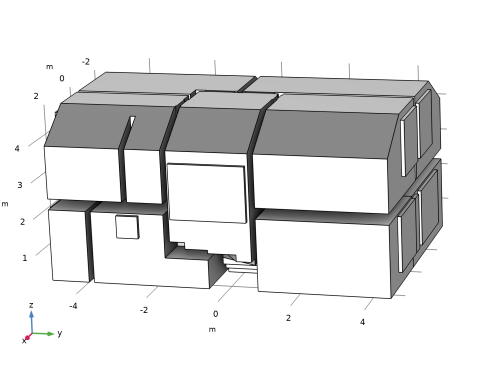
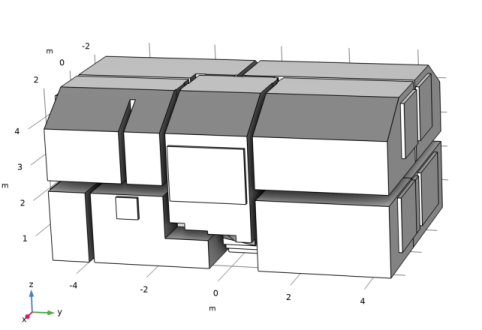
In this model the acoustics of a generic single-family home is analyzed over broadband frequency. It is a two-story house consisting of 10 rooms, as depicted in Figure 1. The rooms are coupled with each other either by defining the transmission loss of the partition between them or by forcing continuity in the sound field. Two types of partitions are defined in this model, namely light and heavy, with transmission losses of 5 dB and 10 dB respectively. Wall boundary conditions are entered as absorption coefficients, with values assumed to be realistic for the materials in the model (Ref. 3). The acoustic mean free path in each room is also calculated with a simple equation based on the room volume and surface area from Ref. 4. For complex geometries, however, the mean free path should be measured or estimated from a separate detailed model. A monopole point source is located in the living room at the coordinates (xs, ys, zs) and radiates with a power Ps. These are parameters found under Global Definitions > Parameters 1 - Source.
Three studies with the Acoustic Diffusion Equation physics interface are performed to assess the acoustic conditions inside the house. The first one is a stationary study, returning sound field properties caused by constant emission from the source. The second study investigates the eigenvalues in the problem to analyze the modal behavior of the model. The last study looks into the transient decay of sound when the constant source is turned off. Following these, a fourth study investigates the sound field outside the house thanks
to the Ray Acoustics physics interface. The outdoor area on one side of the house adjacent to the living room is considered.
Figure 1: Geometry of the single-family home.
The coupling between the Acoustic Diffusion Equation and the Ray Acoustics interfaces is done manually. Sound is assumed to be radiated uniformly from the two windows closest to the source. The sound power incident on each window is then calculated from the stationary study and used as input to the Release from Boundary feature in Ray Acoustics. Transmission loss through the windows is also applied to obtain the correct total power radiated.
Results and Discussion
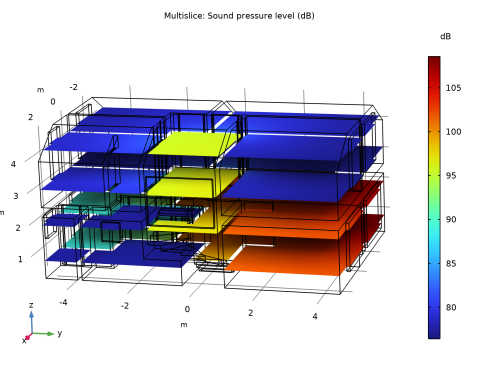
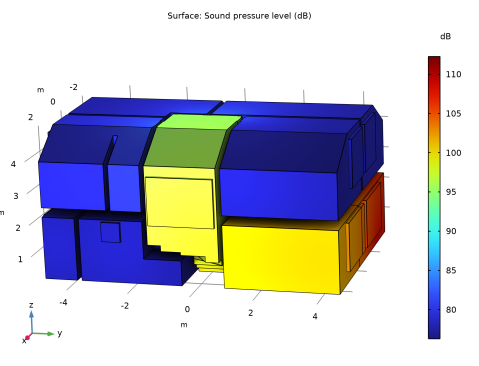
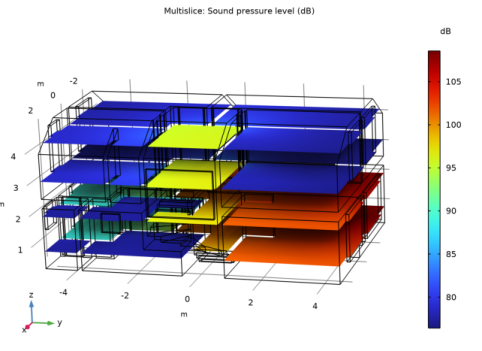
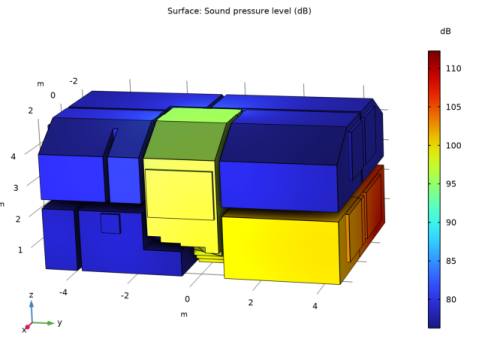
The sound pressure level (SPL) caused by a constant source is depicted in Figure 2 on slices and in Figure 3 on the boundaries of the model. It is naturally seen that the highest SPL is found in the rooms closest to the source, especially the living room and the staircase which were coupled together with a continuous sound field. The decrease in SPL as rooms get further from the source is due both to transmission loss through partitions and to absorption within rooms.
Figure 2: SPL on horizontal slices of the model.
Figure 3: SPL on the boundaries of the model.
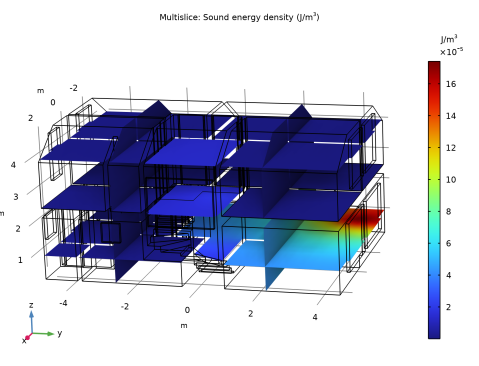
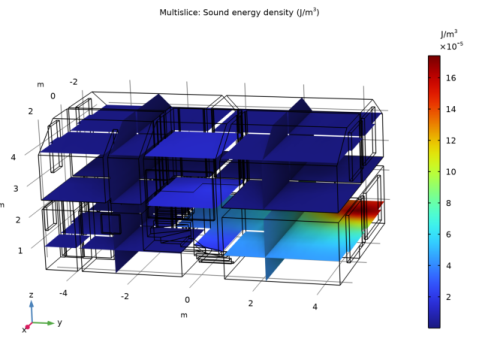
The energy distribution in the house can also be studied by means of sound energy density as plotted in Figure 4. The linear scale of this quantity makes it more suited to analyze the direct surroundings of the source, as opposed to the logarithmic scale of the SPL. Due to its location close to a corner, the radiation pattern appears as if the source was broader than a single monopole point.
Figure 4: Sound energy density in the house with a constant source.
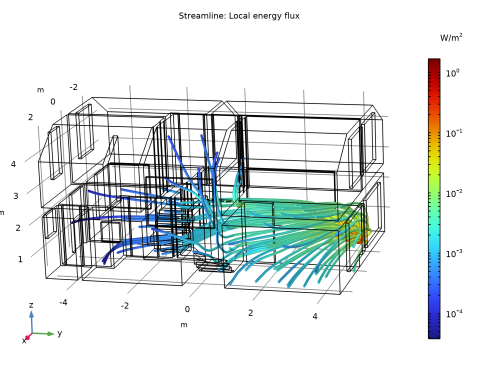
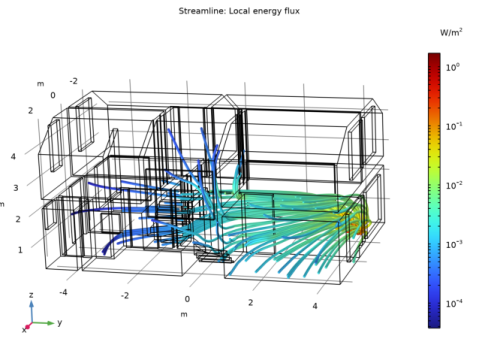
In addition to energy distribution, the local energy flux through the house is represented in Figure 5. The location of the point source is naturally seen as the origin of the energy flux, and the propagation to adjacent rooms and up the staircase is clearly visible. While this result could easily be anticipated given the simplicity of the study case, such an analysis can give valuable information in a more complex setting.
Figure 5: Energy flux through the house caused by a point source.
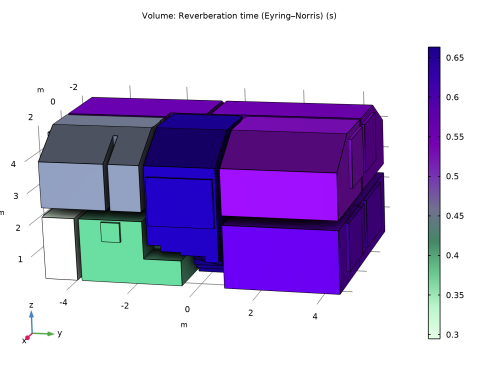
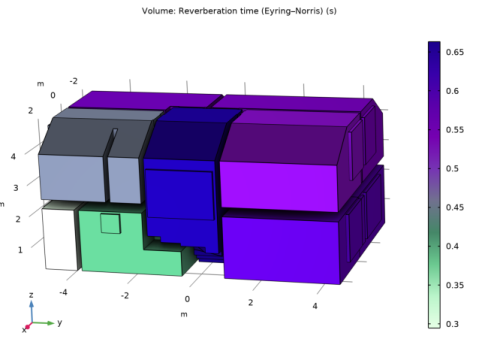
The reverberation times T60 shown in Figure 6 were obtained from Eyring–Norris formula
(1)
with V the volume of the given room, c the speed of sound, A the absorption area of the room, and ma the air absorption constant. The study was carried out for broadband frequency, resulting in one value for each room. The reverberation times found lie between 0.3 s and 0.65 s. These are coherent values given the small volumes of the rooms in the house.
Figure 6: Eyring–Norris reverberation times of the rooms.
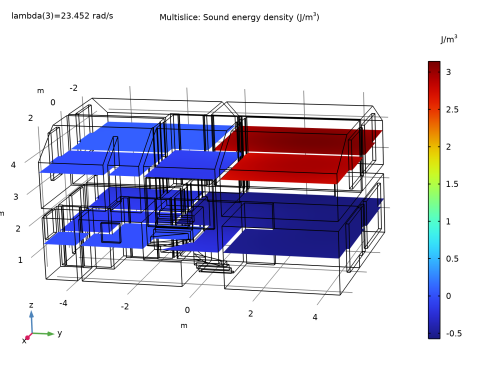
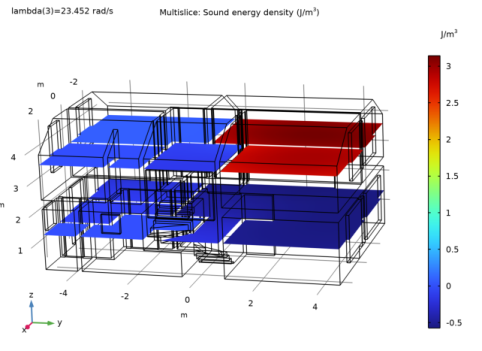
The eigenvalue study allows to investigate the modes in the building. For example, the third sound energy density mode is displayed in Figure 7. It shows that two adjacent rooms on the first floor are excited together at the eigenvalue λ = 23.45 rad/s. The eigenvalues describe the exponential decays of the modes, they are therefore directly linked to the reverberation times of the rooms or groups of coupled rooms through the formula T60 = 55.3/4λ. The relation between the first ten eigenvalues and reverberation times is given in Table 1. Use the table in combination with the figure to identify the reverberation times of the different spaces.
Figure 7: Sound energy density mode at λ = 23.45 rad/s.
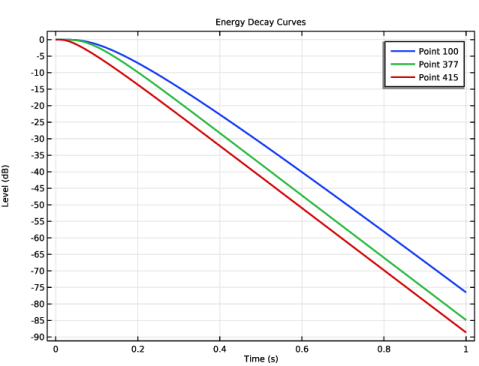
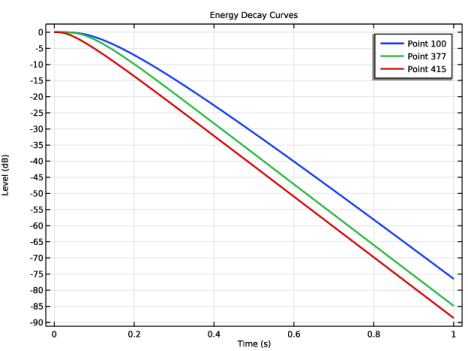
The transient behavior of the house can be investigated by modeling the constant source being turned off. With this technique, the normalized SPL in a room becomes a measure of the sound energy decay, as represented in Figure 8. The decay curves appear as straight lines due to the underlying assumption of a perfectly diffuse sound field.
Figure 8: Energy decay curves from three different rooms.
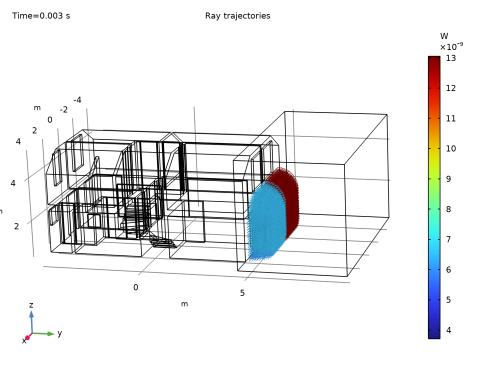
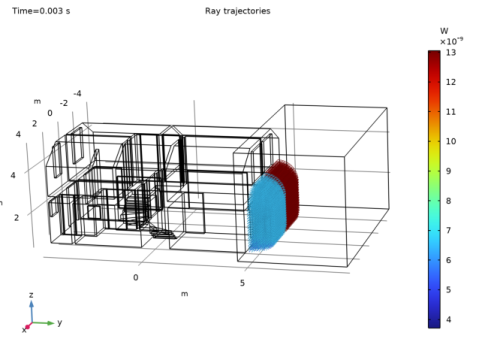
The rays emitted from the two radiating windows are depicted in Figure 9 after 3 ms. This type of plot can be helpful to visually inspect radiation and reflection patterns. In the present case, the hemisphere radiated into appears to be sufficiently sampled. Moreover, the total source power of each window was calculated from the incident power on their inner surface. It is then logical to find that the window closest to the source emits the largest power. The analysis of reflections is, however, limited. The outdoor area next to the house was modeled as a domain bounded by air and without any obstacle. Therefore, only few reflections at most can happen before a ray disappears into an air boundary.
Figure 9: Ray location and power after 3 ms.
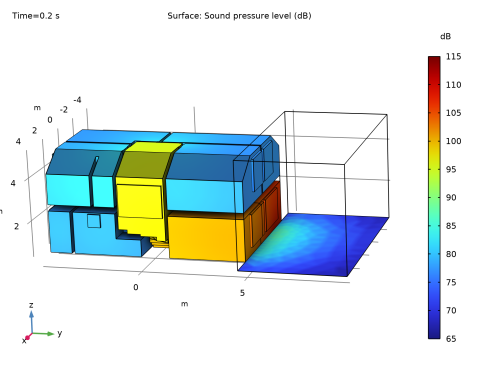
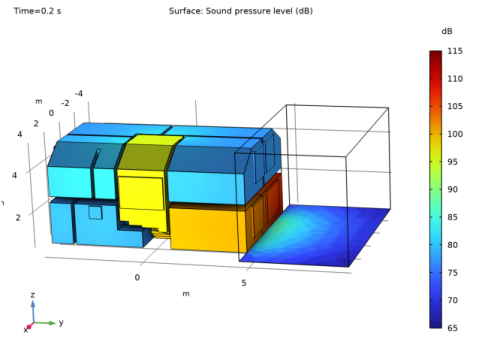
The SPL on the ground surface resulting from the window radiation is shown in Figure 10. The SPL on the inner boundaries of the house is also represented for comparison. With the lack of reflections from obstacles, the highest SPL is found in front of the house at 87 dB. The effect of the transmission loss through the windows is also clearly seen from the large drop between the interior and the exterior of the living room.
Figure 10: SPL on the house boundaries and on the ground surface outside the house.
Notes About the COMSOL Implementation
The studies in this tutorial were performed for broadband frequency. Nevertheless, the Acoustic Diffusion Equation interface allows to set up models in octave bands, 1/3 octave bands, as well as custom bands defined by the user.
The stationary solution computed first was later used as input to a time dependent study and to a ray tracing study. This process is done under Values of Dependent Variables > Values of variables not solved for in the study steps by selecting Settings > User controlled, Method > Solution, and Study > Study 1 - Stationary. Remember to disable all sources in the time-dependent study step by enabling the Modify physics tree and variables for study step option, and to disable the Acoustic Diffusion Equation interface in the ray tracing study step.
The Release from Boundary feature requires two numbers to determine the emission of rays. The Number of rays per release controls the number of points created to discretize the radiating surface. Rays are released from every of these points. Then, the Number of rays in wave vector space dictates the number of rays released by each point. As a consequence, the total number of rays in the feature is the product of these two numbers. For a detailed guide on how to set up the Ray Acoustics physics interface in the context of room acoustics see the Small Concert Hall Acoustics model, also included in the Acoustics Module Application Library.
References
1. R. Schroeder, “New method of measuring reverberation time,” J. Acoust. Soc. Am., vol. 37, pp. 409–412, 1965.
2. V. Valeau, J. Picaut, and M. Hodgson, “On the use of a diffusion equation for room acoustic prediction,” J. Acoust. Soc. Am., vol. 119, p. 1504, 2006.
3. T.J. Cox and P. D’Antonio, Acoustic Absorbers and Diffusers: Theory, design and application, 2nd ed., Taylor and Francis, 2009.
4. J. Pujolle, “Les différentes définitions du libre parcours moyen du son dans une salle,” Revue d’Acoustique, vol. 36, pp. 44–50, 1976 (in French).
Application Library path: Acoustics_Module/Building_and_Room_Acoustics/one_family_house
Modeling Instructions
This section contains the modeling instructions for the model. They are followed by the Geometry Modeling Instructions section.
From the File menu, choose New.
New
In the New window, click  Model Wizard.
Model Wizard
1
In the Model Wizard window, click  3D.
2
In the Select Physics tree, select Acoustics > Geometrical Acoustics > Acoustic Diffusion Equation (ade).
3
Click Add.
4
Click  Study.
5
In the Select Study tree, select General Studies > Stationary.
6
The geometry is set up by importing a geometry sequence. The sequence imports the one-family house geometry, including parameters for source location and power, and sets up several selections. The predefined selections simplify the rest of the model setup.
Geometry 1
1
In the Geometry toolbar, click Insert Sequence and choose Insert Sequence.
2
Import 1 (imp1)
1
In the Model Builder window, under Component 1 (comp1) > Geometry 1 click Import 1 (imp1).
2
In the Settings window for Import, click  Build Selected.
3
Click the  Zoom Extents button in the Graphics toolbar.
4
In the Geometry toolbar, click  Build All.
5
Click the  Wireframe Rendering button in the Graphics toolbar.
Global Definitions
Import the model parameters from text files. The parameters include the source location and power, as well as boundary conditions for the surfaces and partitions.
Parameters 1 - Source
The parameters for the source location were defined in the geometry-sequence file. Add a parameter for the source power.
1
In the Model Builder window, under Global Definitions click Parameters 1.
2
In the Settings window for Parameters, type Parameters 1 - Source in the Label text field.
3
Locate the Parameters section. In the table, enter the following settings:
Parameters 2 - Indoor Boundaries
1
In the Home toolbar, click  Parameters and choose Add > Parameters.
2
In the Settings window for Parameters, type Parameters 2 - Indoor Boundaries in the Label text field.
3
Locate the Parameters section. Click  Load from File.
4
Add Material
1
In the Materials toolbar, click  Add Material to open the Add Material window.
2
Go to the Add Material window.
3
In the tree, select Built-in > Air.
4
Click the right end of the Add to Component split button in the window toolbar.
5
From the menu, choose Add to Component.
6
In the Materials toolbar, click  Add Material to close the Add Material window.
Proceed to set up the physics of the model. Broadband frequency is considered in this case, which is also equivalent to single frequency. Each room is defined with absorption coefficients on its boundaries and a mean free path. The rooms are then coupled with each other by applying transmission loss or sound field continuity on the partitions they have in common.
Acoustic Diffusion Equation (ade)
Select Domains 2–12 only.
Room 1
1
In the Model Builder window, expand the Acoustic Diffusion Equation (ade) node, then click Room 1.
2
In the Settings window for Room, locate the Domain Selection section.
3
Click  Clear Selection.
4
Wall 1
1
In the Model Builder window, expand the Room 1 node, then click Wall 1.
2
In the Settings window for Wall, locate the Boundary Selection section.
3
From the Selection list, choose All boundaries.
4
Locate the Wall Absorption Properties section. In the α text field, type a_wall.
Room 1
In the Model Builder window, click Room 1.
Wall 2
1
In the Physics toolbar, click  Attributes and choose Wall.
2
In the Settings window for Wall, locate the Boundary Selection section.
3
From the Selection list, choose Windows.
4
Locate the Wall Absorption Properties section. In the α text field, type a_window.
Room 1
In the Model Builder window, click Room 1.
Wall 3
1
In the Physics toolbar, click  Attributes and choose Wall.
2
In the Settings window for Wall, locate the Boundary Selection section.
3
From the Selection list, choose Wooden Floors.
4
Locate the Wall Absorption Properties section. In the α text field, type a_floor.
Room 1
In the Model Builder window, click Room 1.
Wall 4
1
In the Physics toolbar, click  Attributes and choose Wall.
2
In the Settings window for Wall, locate the Boundary Selection section.
3
From the Selection list, choose Ceilings.
4
Locate the Wall Absorption Properties section. In the α text field, type a_ceiling.
Room 2
1
Right-click Room 1 and choose Duplicate.
2
In the Settings window for Room, locate the Domain Selection section.
3
Click  Clear Selection.
4
Room 3
1
Right-click Room 1 and choose Duplicate.
2
In the Settings window for Room, locate the Domain Selection section.
3
Click  Clear Selection.
4
Wall 3
1
In the Model Builder window, expand the Room 3 node, then click Wall 3.
2
In the Settings window for Wall, locate the Boundary Selection section.
3
From the Selection list, choose Stairs.
4
Locate the Wall Absorption Properties section. In the α text field, type a_stairs.
Room 4
1
In the Model Builder window, under Component 1 (comp1) > Acoustic Diffusion Equation (ade) right-click Room 1 and choose Duplicate.
2
In the Settings window for Room, locate the Domain Selection section.
3
Click  Clear Selection.
4
Room 5
1
Right-click Room 1 and choose Duplicate.
2
In the Settings window for Room, locate the Domain Selection section.
3
Click  Clear Selection.
4
Room 6
1
Right-click Room 1 and choose Duplicate.
2
In the Settings window for Room, locate the Domain Selection section.
3
Click  Clear Selection.
4
Room 7
1
Right-click Room 1 and choose Duplicate.
2
In the Settings window for Room, locate the Domain Selection section.
3
Click  Clear Selection.
4
Room 8
1
Right-click Room 1 and choose Duplicate.
2
In the Settings window for Room, locate the Domain Selection section.
3
Click  Clear Selection.
4
Room 9
1
Right-click Room 1 and choose Duplicate.
2
In the Settings window for Room, locate the Domain Selection section.
3
Click  Clear Selection.
4
Room 10
1
Right-click Room 1 and choose Duplicate.
2
In the Settings window for Room, locate the Domain Selection section.
3
Click  Clear Selection.
4
Mapped Room Coupling 1
1
In the Physics toolbar, click  Boundaries and choose Mapped Room Coupling.
2
In the Settings window for Mapped Room Coupling, locate the Boundary Selection section.
3
From the Selection list, choose Door 1.
4
Locate the Transmission Loss section. In the TL text field, type TL_heavy.
Mapped Room Coupling 2
1
Right-click Mapped Room Coupling 1 and choose Duplicate.
2
In the Settings window for Mapped Room Coupling, locate the Boundary Selection section.
3
From the Selection list, choose Door 2.
Mapped Room Coupling 3
1
Right-click Mapped Room Coupling 2 and choose Duplicate.
2
In the Settings window for Mapped Room Coupling, locate the Boundary Selection section.
3
From the Selection list, choose Door 3.
Mapped Room Coupling 4
1
Right-click Mapped Room Coupling 3 and choose Duplicate.
2
In the Settings window for Mapped Room Coupling, locate the Boundary Selection section.
3
From the Selection list, choose Door 4.
Mapped Room Coupling 5
1
Right-click Mapped Room Coupling 4 and choose Duplicate.
2
In the Settings window for Mapped Room Coupling, locate the Boundary Selection section.
3
From the Selection list, choose Door 5.
Mapped Room Coupling 6
1
Right-click Mapped Room Coupling 5 and choose Duplicate.
2
In the Settings window for Mapped Room Coupling, locate the Boundary Selection section.
3
From the Selection list, choose Door 6.
Mapped Room Coupling 7
1
Right-click Mapped Room Coupling 6 and choose Duplicate.
2
In the Settings window for Mapped Room Coupling, locate the Boundary Selection section.
3
From the Selection list, choose Door 7.
Mapped Room Coupling 8
1
Right-click Mapped Room Coupling 7 and choose Duplicate.
2
In the Settings window for Mapped Room Coupling, locate the Boundary Selection section.
3
From the Selection list, choose Door 8.
4
Locate the Transmission Loss section. In the TL text field, type TL_light.
Mapped Room Coupling 9
1
Right-click Mapped Room Coupling 8 and choose Duplicate.
2
In the Settings window for Mapped Room Coupling, locate the Boundary Selection section.
3
From the Selection list, choose Wall Partition.
Room Coupling 1
1
In the Physics toolbar, click  Boundaries and choose Room Coupling.
2
In the Settings window for Room Coupling, locate the Boundary Selection section.
3
From the Selection list, choose Door 9.
4
Locate the Transmission Loss section. In the TL text field, type TL_light.
5
Click to expand the Continuity section. Select the Force continuity checkbox.
Point Source 1
1
In the Physics toolbar, click  Points and choose Point Source.
2
3
In the Settings window for Point Source, locate the Point Source section.
4
In the qp text field, type P_s.
Now create a mesh for the model. Geometrical acoustics methods do not require a fine mesh to perform accurately; however, in order to study the sound-pressure level on the different surfaces the element sizes should remain reasonably small.
Mesh 1
In the Model Builder window, under Component 1 (comp1) right-click Mesh 1 and choose Build All.
Proceed to compute the stationary study. Solving the model takes a few seconds.
Study 1 - Stationary
1
In the Model Builder window, click Study 1.
2
In the Settings window for Study, type Study 1 - Stationary in the Label text field.
3
In the Study toolbar, click  Compute.
Results
Sound Pressure Level (ade) - Slices
In the Settings window for 3D Plot Group, type Sound Pressure Level (ade) - Slices in the Label text field.
Multislice
1
In the Model Builder window, expand the Sound Pressure Level (ade) - Slices node, then click Multislice.
2
In the Settings window for Multislice, locate the Multiplane Data section.
3
Find the X-planes subsection. In the Planes text field, type 0.
4
Find the Y-planes subsection. In the Planes text field, type 0.
5
Find the Z-planes subsection. In the Planes text field, type 4.
6
In the Sound Pressure Level (ade) - Slices toolbar, click  Plot.
Sound Pressure Level (ade) - Boundaries
1
In the Results toolbar, click  3D Plot Group.
2
In the Settings window for 3D Plot Group, type Sound Pressure Level (ade) - Boundaries in the Label text field.
3
Locate the Color Legend section. Select the Show units checkbox.
Surface 1
1
Right-click Sound Pressure Level (ade) - Boundaries and choose Surface.
2
In the Settings window for Surface, locate the Expression section.
3
In the Expression text field, type ade.Lp.
4
In the Sound Pressure Level (ade) - Boundaries toolbar, click  Plot.
Multislice
1
In the Model Builder window, expand the Sound Energy Density (ade) node, then click Multislice.
2
In the Settings window for Multislice, locate the Multiplane Data section.
3
Find the X-planes subsection. In the Planes text field, type 0.
4
Find the Y-planes subsection. In the Planes text field, type 2.
5
Find the Z-planes subsection. In the Planes text field, type 3.
6
In the Sound Energy Density (ade) toolbar, click  Plot.
Arrow Volume
1
In the Model Builder window, expand the Local Energy Flux (ade) node.
2
Right-click Arrow Volume and choose Disable.
Streamline 1
1
In the Model Builder window, right-click Local Energy Flux (ade) and choose Streamline.
2
In the Settings window for Streamline, locate the Streamline Positioning section.
3
In the Number text field, type 100.
4
5
Locate the Coloring and Style section. Find the Line style subsection. From the Type list, choose Tube.
Color Expression 1
1
Right-click Streamline 1 and choose Color Expression.
2
In the Settings window for Color Expression, locate the Expression section.
3
In the Expression text field, type sqrt(ade.Jx^2+ade.Jy^2+ade.Jz^2).
4
Locate the Coloring and Style section. From the Scale list, choose Logarithmic.
5
In the Local Energy Flux (ade) toolbar, click  Plot.
Reverberation Time
1
In the Home toolbar, click  Add Plot Group and choose 3D Plot Group.
2
In the Settings window for 3D Plot Group, type Reverberation Time in the Label text field.
Volume 1
1
Right-click Reverberation Time and choose Volume.
2
In the Settings window for Volume, locate the Expression section.
3
In the Expression text field, type ade.T60_EN.
4
Locate the Coloring and Style section. From the Color table list, choose AuroraBorealis.
5
In the Reverberation Time toolbar, click  Plot.
Model Thumbnail
1
In the Results toolbar, click  3D Plot Group.
2
In the Settings window for 3D Plot Group, type Model Thumbnail in the Label text field.
Streamline 1
In the Model Builder window, under Results > Local Energy Flux (ade) right-click Streamline 1 and choose Copy.
Streamline 1
1
In the Model Builder window, right-click Model Thumbnail and choose Paste Streamline.
2
In the Settings window for Streamline, locate the Streamline Positioning section.
3
In the Number text field, type 50.
Color Expression 1
1
In the Model Builder window, expand the Streamline 1 node, then click Color Expression 1.
2
In the Settings window for Color Expression, locate the Coloring and Style section.
3
Clear the Color legend checkbox.
Slice 1
1
In the Model Builder window, right-click Model Thumbnail and choose Slice.
2
In the Settings window for Slice, locate the Expression section.
3
In the Expression text field, type ade.Lp.
4
Locate the Plane Data section. From the Plane list, choose XY-planes.
5
From the Entry method list, choose Coordinates.
6
In the Z-coordinates text field, type 0.3.
7
Locate the Coloring and Style section. Clear the Color legend checkbox.
Surface 1
Right-click Model Thumbnail and choose Surface.
Selection 1
1
In the Model Builder window, right-click Surface 1 and choose Selection.
2
In the Settings window for Selection, locate the Selection section.
3
From the Selection list, choose Stairs.
Surface 1
1
In the Model Builder window, click Surface 1.
2
In the Settings window for Surface, locate the Expression section.
3
In the Expression text field, type 1.
4
Locate the Coloring and Style section. Clear the Color legend checkbox.
5
From the Coloring list, choose Uniform.
6
From the Color list, choose Gray.
Surface 2
Right-click Results > Model Thumbnail > Surface 1 and choose Duplicate.
Selection 1
1
In the Model Builder window, expand the Surface 2 node, then click Selection 1.
2
In the Settings window for Selection, locate the Selection section.
3
Click  Clear Selection.
4
Click  Paste Selection.
5
In the Paste Selection dialog, type 16, 17, 20, 21, 23, 25, 29, 32, 45, 61, 123, 201 in the Selection text field.
6
7
In the Model Thumbnail toolbar, click  Plot.
Add and compute an eigenvalue study to investigate the modes in the house and derive associated reverberation times.
Add Study
1
In the Home toolbar, click  Add Study to open the Add Study window.
2
Go to the Add Study window.
3
Find the Studies subsection. In the Select Study tree, select General Studies > Eigenvalue.
4
Click the Add Study button in the window toolbar.
5
In the Home toolbar, click  Add Study to close the Add Study window.
Study 2
Step 1: Eigenvalue
1
In the Settings window for Eigenvalue, locate the Study Settings section.
2
Select the Desired number of eigenvalues checkbox. In the associated text field, type 10.
3
Select the Search for eigenvalues around shift checkbox.
4
From the Search method around shift list, choose Larger real part.
5
In the Model Builder window, click Study 2.
6
In the Settings window for Study, type Study 2 - Eigenvalue in the Label text field.
7
In the Study toolbar, click  Compute.
Results
Sound Energy Density Modes (ade)
1
In the Settings window for 3D Plot Group, locate the Data section.
2
From the Eigenvalue (rad/s) list, choose 23.452.
Multislice
1
In the Model Builder window, expand the Sound Energy Density Modes (ade) node, then click Multislice.
2
In the Settings window for Multislice, locate the Multiplane Data section.
3
Find the X-planes subsection. In the Planes text field, type 0.
4
Find the Y-planes subsection. In the Planes text field, type 0.
5
Find the Z-planes subsection. In the Planes text field, type 2.
6
In the Sound Energy Density Modes (ade) toolbar, click  Plot.
Reverberation Time
1
In the Model Builder window, under Results click Evaluation Group 1.
2
In the Settings window for Evaluation Group, type Reverberation Time in the Label text field.
3
In the Reverberation Time toolbar, click  Evaluate.
Add a transient study to calculate the energy decay in the different rooms. The solution from Study 1 serves as input to represent a stationary source being turned off at the initial time of the transient study.
Add Study
1
In the Home toolbar, click  Add Study to open the Add Study window.
2
Go to the Add Study window.
3
Find the Studies subsection. In the Select Study tree, select General Studies > Time Dependent.
4
Click the Add Study button in the window toolbar.
5
In the Home toolbar, click  Add Study to close the Add Study window.
Study 3
Step 1: Time Dependent
1
In the Settings window for Time Dependent, locate the Study Settings section.
2
In the Output times text field, type range(0,0.01,1).
3
Locate the Physics and Variables Selection section. Select the Modify model configuration for study step checkbox.
4
In the tree, select Component 1 (comp1) > Acoustic Diffusion Equation (ade) > Point Source 1.
5
6
Click to expand the Values of Dependent Variables section. Find the Initial values of variables solved for subsection. From the Settings list, choose User controlled.
7
From the Method list, choose Solution.
8
From the Study list, choose Study 1 - Stationary, Stationary.
9
In the Model Builder window, click Study 3.
10
In the Settings window for Study, type Study 3 - Transient in the Label text field.
11
Locate the Study Settings section. Clear the Generate default plots checkbox.
12
In the Study toolbar, click  Compute.
Results
Energy Decay Curves (normalized)
1
In the Results toolbar, click  1D Plot Group.
2
In the Settings window for 1D Plot Group, type Energy Decay Curves (normalized) in the Label text field.
3
Locate the Data section. From the Dataset list, choose Study 3 - Transient/Solution 3 (sol3).
4
Click to expand the Title section. From the Title type list, choose Manual.
5
In the Title text area, type Energy Decay Curves.
6
Locate the Plot Settings section.
7
Select the y-axis label checkbox. In the associated text field, type Level (dB).
Point Graph 1
1
Right-click Energy Decay Curves (normalized) and choose Point Graph.
2
3
In the Settings window for Point Graph, locate the y-Axis Data section.
4
In the Expression text field, type ade.Lp-with('first',ade.Lp).
5
Click to expand the Coloring and Style section. From the Width list, choose 2.
6
Click to expand the Legends section. Select the Show legends checkbox.
7
Find the Prefix and suffix subsection. In the Prefix text field, type Point .
8
In the Energy Decay Curves (normalized) toolbar, click  Plot.
The sound field radiated outside the house can be investigated with the Ray Acoustics interface. Start by importing parameters to represent absorption and scattering coefficients in the outdoor domain.
Global Definitions
Parameters 3 - Outdoor Boundaries
1
In the Home toolbar, click  Parameters and choose Add > Parameters.
2
In the Settings window for Parameters, type Parameters 3 - Outdoor Boundaries in the Label text field.
3
Locate the Parameters section. Click  Load from File.
4
Define the surfaces radiating outward and import the variables to set up the manual coupling between the Acoustics Diffusion Equation and Ray Acoustics interfaces.
Definitions
Radiating Window 1
1
In the Definitions toolbar, click  Explicit.
2
In the Settings window for Explicit, type Radiating Window 1 in the Label text field.
3
Locate the Input Entities section. From the Geometric entity level list, choose Boundary.
4
Radiating Window 2
1
Right-click Radiating Window 1 and choose Duplicate.
2
In the Settings window for Explicit, type Radiating Window 2 in the Label text field.
3
Locate the Input Entities section. Click  Clear Selection.
4
Integration 1 (intop1)
1
In the Definitions toolbar, click  Nonlocal Couplings and choose Integration.
2
In the Settings window for Integration, locate the Source Selection section.
3
From the Geometric entity level list, choose Boundary.
4
From the Selection list, choose Radiating Window 1.
Integration 2 (intop2)
1
Right-click Integration 1 (intop1) and choose Duplicate.
2
In the Settings window for Integration, locate the Source Selection section.
3
From the Selection list, choose Radiating Window 2.
Variables 1 - Outdoor Radiation
1
In the Model Builder window, right-click Definitions and choose Variables.
2
In the Settings window for Variables, type Variables 1 - Outdoor Radiation in the Label text field.
3
Locate the Variables section. Click  Load from File.
4
Proceed to set up the physics model. To compute the sound pressure level on surfaces, it is necessary to model the power along the rays.
Add Physics
1
In the Home toolbar, click  Add Physics to open the Add Physics window.
2
Go to the Add Physics window.
3
In the tree, select Acoustics > Geometrical Acoustics > Ray Acoustics (rac).
4
Find the Physics interfaces in study subsection. In the table, clear the Solve checkboxes for Study 1 - Stationary, Study 2 - Eigenvalue, and Study 3 - Transient.
5
Click the Add to Component 1 button in the window toolbar.
6
In the Home toolbar, click  Add Physics to close the Add Physics window.
Ray Acoustics (rac)
1
In the Settings window for Ray Acoustics, locate the Domain Selection section.
2
Click  Clear Selection.
3
Medium Properties 1
1
In the Model Builder window, under Component 1 (comp1) > Ray Acoustics (rac) click Medium Properties 1.
2
In the Settings window for Medium Properties, locate the Pressure Acoustics Model section.
3
From the Fluid model list, choose Atmosphere attenuation.
4
Locate the Model Input section. In the ϕw text field, type 0.45.
Set up the sources as radiating surfaces based on the sound power calculated in Study 1.
Release from Boundary 1
1
In the Physics toolbar, click  Boundaries and choose Release from Boundary.
Start by selecting the desired surface and defining its discretization. Rays will be released from every point on the surface.
2
In the Settings window for Release from Boundary, locate the Boundary Selection section.
3
From the Selection list, choose Radiating Window 1.
4
Locate the Initial Position section. In the N text field, type 200.
Continue with the radiation direction and the number of rays released by each point.
5
Locate the Ray Direction Vector section. From the Ray direction vector list, choose Hemispherical.
6
Select the Specify tangential and normal vector components checkbox.
7
In the Nw text field, type 500.
8
Specify the r vector as
Finally, enter the source power previously defined in variables.
9
Locate the Total Source Power section. In the Psrc text field, type Prad1.
Release from Boundary 2
1
Right-click Release from Boundary 1 and choose Duplicate.
2
In the Settings window for Release from Boundary, locate the Boundary Selection section.
3
From the Selection list, choose Radiating Window 2.
4
Locate the Total Source Power section. In the Psrc text field, type Prad2.
Wall 2 - Ground
1
In the Physics toolbar, click  Boundaries and choose Wall.
2
In the Settings window for Wall, type Wall 2 - Ground in the Label text field.
3
4
Locate the Wall Condition section. In the s text field, type 1-s_ground.
5
In the α text field, type a_ground.
Sound Pressure Level Calculation 1
In the Physics toolbar, click  Attributes and choose Sound Pressure Level Calculation.
Wall 3 - Exterior Wall
1
In the Physics toolbar, click  Boundaries and choose Wall.
2
In the Settings window for Wall, type Wall 3 - Exterior Wall in the Label text field.
3
4
Locate the Wall Condition section. In the s text field, type s_extwall.
5
In the α text field, type a_extwall.
Wall 4 - Windows
1
Right-click Wall 3 - Exterior Wall and choose Duplicate.
2
In the Settings window for Wall, type Wall 4 - Windows in the Label text field.
3
Locate the Boundary Selection section. Click  Clear Selection.
4
5
Locate the Wall Condition section. In the s text field, type s_window.
6
In the α text field, type a_window.
General Wall 1 - Air
1
In the Physics toolbar, click  Boundaries and choose General Wall.
2
In the Settings window for General Wall, type General Wall 1 - Air in the Label text field.
3
4
Locate the Wall Condition section. From the Wall condition list, choose Disappear.
Proceed with the ray tracing study, setting the results from Study 1 as input.
Add Study
1
In the Home toolbar, click  Add Study to open the Add Study window.
2
Go to the Add Study window.
3
Find the Studies subsection. In the Select Study tree, select Preset Studies for Selected Physics Interfaces > Ray Acoustics > Ray Tracing.
4
Find the Physics interfaces in study subsection. In the table, clear the Solve checkbox for Acoustic Diffusion Equation (ade).
5
Click the Add Study button in the window toolbar.
6
In the Home toolbar, click  Add Study to close the Add Study window.
Study 4
Step 1: Ray Tracing
1
In the Settings window for Ray Tracing, locate the Study Settings section.
2
From the Time unit list, choose s.
3
In the Output times text field, type 0 0.2.
4
Click to expand the Values of Dependent Variables section. Find the Values of variables not solved for subsection. From the Settings list, choose User controlled.
5
From the Method list, choose Solution.
6
From the Study list, choose Study 1 - Stationary, Stationary.
7
In the Model Builder window, click Study 4.
8
In the Settings window for Study, type Study 4 - Ray Acoustics in the Label text field.
9
In the Study toolbar, click  Compute.
Results
Ray Trajectories (rac)
1
Click the  Zoom Extents button in the Graphics toolbar.
2
In the Settings window for 3D Plot Group, locate the Data section.
3
From the Time (s) list, choose Interpolation.
4
In the Time text field, type 0.003.
Ray Trajectories 1
1
Click the  Zoom Extents button in the Graphics toolbar.
2
In the Model Builder window, expand the Ray Trajectories (rac) node, then click Ray Trajectories 1.
3
In the Settings window for Ray Trajectories, locate the Coloring and Style section.
4
Find the Line style subsection. From the Type list, choose None.
5
Find the Point style subsection. From the Type list, choose Point.
Color Expression 1
1
In the Model Builder window, expand the Ray Trajectories 1 node, then click Color Expression 1.
2
In the Settings window for Color Expression, locate the Expression section.
3
In the Expression text field, type rac.Q.
4
In the Ray Trajectories (rac) toolbar, click  Plot.
Outdoor SPL
1
In the Results toolbar, click  3D Plot Group.
2
In the Settings window for 3D Plot Group, type Outdoor SPL in the Label text field.
3
Locate the Data section. From the Dataset list, choose Study 4 - Ray Acoustics/Solution 4 (sol4).
4
Locate the Color Legend section. Select the Show units checkbox.
Surface 1
1
Right-click Outdoor SPL and choose Surface.
2
In the Settings window for Surface, locate the Expression section.
3
In the Expression text field, type rac.wall2.spl1.Lp.
4
Click to expand the Range section. Select the Manual color range checkbox.
5
In the Minimum text field, type 65.
6
In the Maximum text field, type 115.
Surface 2
1
Right-click Surface 1 and choose Duplicate.
2
In the Settings window for Surface, locate the Data section.
3
From the Dataset list, choose Study 1 - Stationary/Solution 1 (sol1).
4
Locate the Expression section. In the Expression text field, type ade.Lp.
5
Click to expand the Title section. From the Title type list, choose None.
6
Locate the Coloring and Style section. Clear the Color legend checkbox.
7
In the Outdoor SPL toolbar, click  Plot.
Geometry Modeling Instructions
From the File menu, choose New.
New
In the New window, click  Blank Model.
Global Definitions
Parameters 1
1
In the Model Builder window, under Global Definitions click Parameters 1.
2
In the Settings window for Parameters, locate the Parameters section.
3
Click  Load from File.
4
Add Component
In the Home toolbar, click  Add Component and choose 3D.
Geometry 1
Import 1 (imp1)
1
In the Geometry toolbar, click  Import.
2
In the Settings window for Import, locate the Source section.
3
In the Filename text field, type one_family_house.mphbin.
4
5
Click the  Wireframe Rendering button in the Graphics toolbar.
Point 1 (pt1)
1
In the Geometry toolbar, click  More Primitives and choose Point.
2
In the Settings window for Point, locate the Point section.
3
In the x text field, type x_s.
4
In the y text field, type y_s.
5
In the z text field, type z_s.
Block 1 (blk1)
1
In the Geometry toolbar, click  Block.
2
In the Settings window for Block, locate the Size and Shape section.
3
In the Width text field, type 9.
4
In the Depth text field, type 5.
5
In the Height text field, type 5.
6
Locate the Position section. In the x text field, type -4.5.
7
In the y text field, type 4.695.
8
In the z text field, type 0.3.
Difference 1 (dif1)
1
In the Geometry toolbar, click  Booleans and Partitions and choose Difference.
2
3
In the Settings window for Difference, locate the Difference section.
4
Click to select the  Activate Selection toggle button for Objects to subtract.
5
6
Select the Keep objects to subtract checkbox.
7
Clear the Keep interior boundaries checkbox.
Line Segment 1 (ls1)
1
In the Geometry toolbar, click  More Primitives and choose Line Segment.
2
On the object dif1, select Point 6 only.
3
In the Settings window for Line Segment, locate the Endpoint section.
4
Click to select the  Activate Selection toggle button for End vertex.
5
On the object dif1, select Point 7 only.
Line Segment 2 (ls2)
1
In the Geometry toolbar, click  More Primitives and choose Line Segment.
2
On the object dif1, select Point 27 only.
3
In the Settings window for Line Segment, locate the Endpoint section.
4
Click to select the  Activate Selection toggle button for End vertex.
5
On the object dif1, select Point 29 only.
Line Segment 3 (ls3)
1
In the Geometry toolbar, click  More Primitives and choose Line Segment.
2
On the object dif1, select Point 54 only.
3
In the Settings window for Line Segment, locate the Endpoint section.
4
Click to select the  Activate Selection toggle button for End vertex.
5
On the object dif1, select Point 55 only.
Windows
1
In the Geometry toolbar, click  Selections and choose Explicit Selection.
2
In the Settings window for Explicit Selection, type Windows in the Label text field.
3
Locate the Entities to Select section. From the Geometric entity level list, choose Boundary.
4
Click the  Paste Selection button for Entities to select.
5
In the Paste Selection dialog, type imp1: 1 2 6 37 42 48 104 105 140 156 208 251 252 in the Selection text field.
6
Wooden Floors
1
In the Geometry toolbar, click  Selections and choose Explicit Selection.
2
In the Settings window for Explicit Selection, type Wooden Floors in the Label text field.
3
Locate the Entities to Select section. From the Geometric entity level list, choose Boundary.
4
Click the  Paste Selection button for Entities to select.
5
In the Paste Selection dialog, type imp1: 8 13 17 26 56 95 118 135 144 191 in the Selection text field.
6
Stairs
1
In the Geometry toolbar, click  Selections and choose Explicit Selection.
2
In the Settings window for Explicit Selection, type Stairs in the Label text field.
3
Locate the Entities to Select section. From the Geometric entity level list, choose Boundary.
4
Click the  Paste Selection button for Entities to select.
5
In the Paste Selection dialog, type imp1: 82 128-130 153-155 170 171 177 179 180 200 201-203 213-216 221-224 226-234 in the Selection text field.
6
Ceilings
1
In the Geometry toolbar, click  Selections and choose Explicit Selection.
2
In the Settings window for Explicit Selection, type Ceilings in the Label text field.
3
Locate the Entities to Select section. From the Geometric entity level list, choose Boundary.
4
Click the  Paste Selection button for Entities to select.
5
In the Paste Selection dialog, type imp1: 14 18 22 27 39 40 57 83 96 119 136 145 186-188 192 in the Selection text field.
6
Door 1
1
In the Geometry toolbar, click  Selections and choose Explicit Selection.
2
In the Settings window for Explicit Selection, type Door 1 in the Label text field.
3
Locate the Entities to Select section. From the Geometric entity level list, choose Boundary.
4
Click the  Paste Selection button for Entities to select.
5
In the Paste Selection dialog, type imp1: 107 109 in the Selection text field.
6
7
Right-click Door 1 and choose Group.
Room Separations
In the Settings window for Group, type Room Separations in the Label text field.
Door 2
1
In the Geometry toolbar, click  Selections and choose Explicit Selection.
2
In the Settings window for Explicit Selection, type Door 2 in the Label text field.
3
Locate the Entities to Select section. From the Geometric entity level list, choose Boundary.
4
Click the  Paste Selection button for Entities to select.
5
In the Paste Selection dialog, type imp1: 79 85 in the Selection text field.
6
Door 3
1
In the Geometry toolbar, click  Selections and choose Explicit Selection.
2
In the Settings window for Explicit Selection, type Door 3 in the Label text field.
3
Locate the Entities to Select section. From the Geometric entity level list, choose Boundary.
4
Click the  Paste Selection button for Entities to select.
5
In the Paste Selection dialog, type imp1: 78 80 in the Selection text field.
6
Door 4
1
In the Geometry toolbar, click  Selections and choose Explicit Selection.
2
In the Settings window for Explicit Selection, type Door 4 in the Label text field.
3
Locate the Entities to Select section. From the Geometric entity level list, choose Boundary.
4
Click the  Paste Selection button for Entities to select.
5
In the Paste Selection dialog, type imp1: 162 164 in the Selection text field.
6
Door 5
1
In the Geometry toolbar, click  Selections and choose Explicit Selection.
2
In the Settings window for Explicit Selection, type Door 5 in the Label text field.
3
Locate the Entities to Select section. From the Geometric entity level list, choose Boundary.
4
Click the  Paste Selection button for Entities to select.
5
In the Paste Selection dialog, type imp1: 141 142 in the Selection text field.
6
Door 6
1
In the Geometry toolbar, click  Selections and choose Explicit Selection.
2
In the Settings window for Explicit Selection, type Door 6 in the Label text field.
3
Locate the Entities to Select section. From the Geometric entity level list, choose Boundary.
4
Click the  Paste Selection button for Entities to select.
5
In the Paste Selection dialog, type imp1: 31 33 in the Selection text field.
6
Door 7
1
In the Geometry toolbar, click  Selections and choose Explicit Selection.
2
In the Settings window for Explicit Selection, type Door 7 in the Label text field.
3
Locate the Entities to Select section. From the Geometric entity level list, choose Boundary.
4
Click the  Paste Selection button for Entities to select.
5
In the Paste Selection dialog, type imp1: 185 189 in the Selection text field.
6
Door 8
1
In the Geometry toolbar, click  Selections and choose Explicit Selection.
2
In the Settings window for Explicit Selection, type Door 8 in the Label text field.
3
Locate the Entities to Select section. From the Geometric entity level list, choose Boundary.
4
Click the  Paste Selection button for Entities to select.
5
In the Paste Selection dialog, type imp1: 60 62 in the Selection text field.
6
Door 9
1
In the Geometry toolbar, click  Selections and choose Explicit Selection.
2
In the Settings window for Explicit Selection, type Door 9 in the Label text field.
3
Locate the Entities to Select section. From the Geometric entity level list, choose Boundary.
4
Click the  Paste Selection button for Entities to select.
5
In the Paste Selection dialog, type imp1: 127 in the Selection text field.
6
Wall Partition
1
In the Geometry toolbar, click  Selections and choose Explicit Selection.
2
In the Settings window for Explicit Selection, type Wall Partition in the Label text field.
3
Locate the Entities to Select section. From the Geometric entity level list, choose Boundary.
4
Click the  Paste Selection button for Entities to select.
5
In the Paste Selection dialog, type imp1: 76 93 in the Selection text field.
6
7
In the Geometry toolbar, click  Build All.