PDF

Loudspeaker Driver in 3D — Frequency-Domain Analysis
Introduction
This tutorial shows how to best solve full 3D electro-vibroacoustic multiphysics models of a loudspeaker driver. The model is a 3D version of the existing 2D axisymmetric Application Library model Loudspeaker Driver — Frequency-Domain Analysis. In the 3D model, certain geometry details are no longer axisymmetric, for example, the basket geometry and the presence of a hole in the former. The setup of the physics is essentially the same in this 3D version as in the 2D axisymmetric version. The current 3D model discusses and shows best practices for solving the coupled acoustic, structural, and electromagnetic multiphysics problem efficiently using an iterative solver.
Model Definition
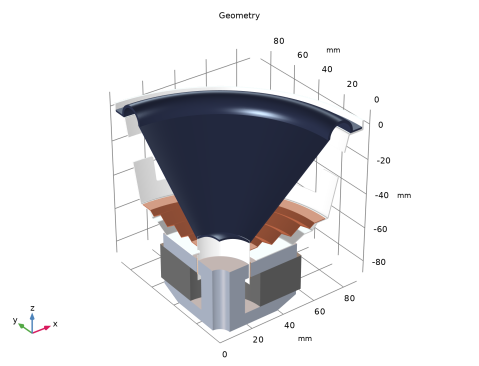
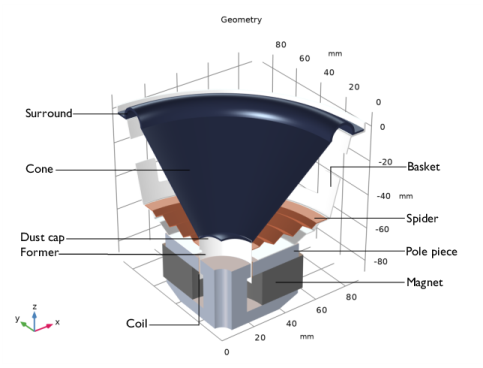
The geometry of the loudspeaker driver analyzed in this tutorial is presented in Figure 1. The model solves for 1/4 of the full geometry and symmetries are applied to the sides. Specifically, the basket structure is included here and it is not axisymmetric (see also Figure 2), as compared to the 2D axisymmetric geometry used in the Loudspeaker Driver — Frequency-Domain Analysis model. There is also a small venting hole in the former.
Figure 1: Loudspeaker driver geometry and definitions of various components.
The setup of the physics as well as the material properties correspond very closely to the setup used in the 2D axisymmetric version of the model. All the details can be found in the Loudspeaker Driver — Frequency-Domain Analysis model.
Results and Discussion
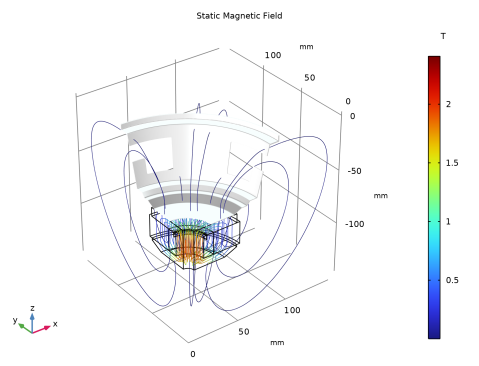
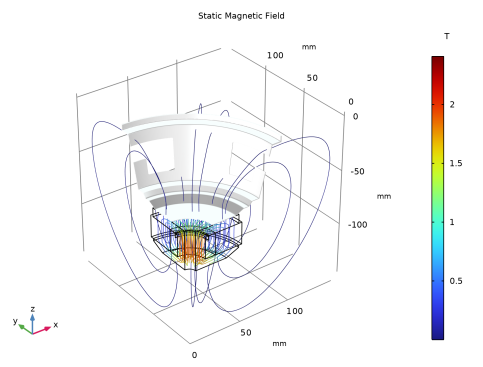
The stationary magnetic field generated by the permanent magnets is depicted in Figure 2. This DC magnetic field is used as the linearization point for the small signal or AC frequency domain perturbation analysis.
Figure 2: Static magnetic flux density (field lines) of the permanent magnet.
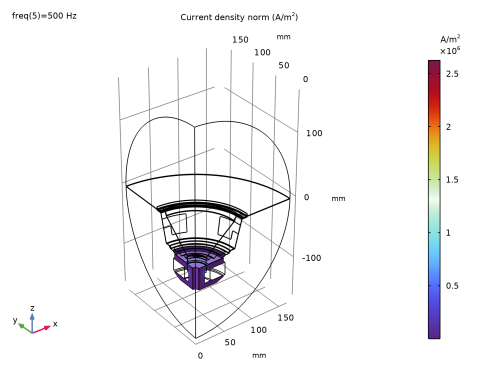
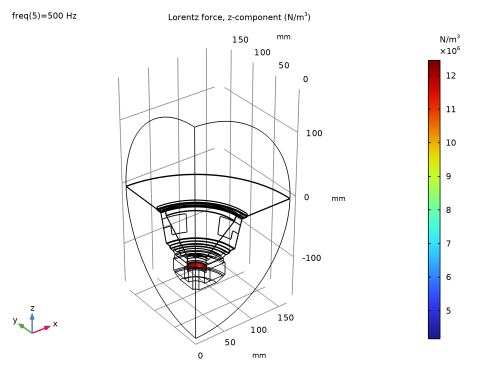
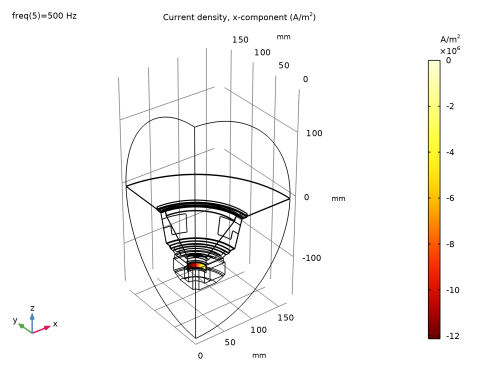
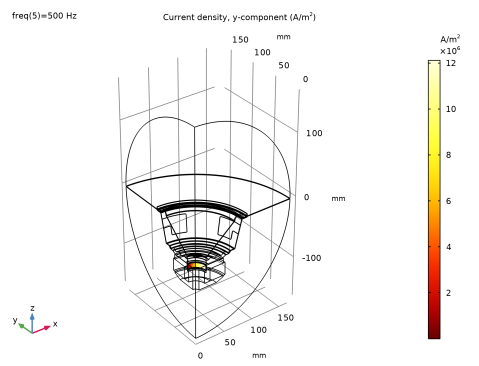
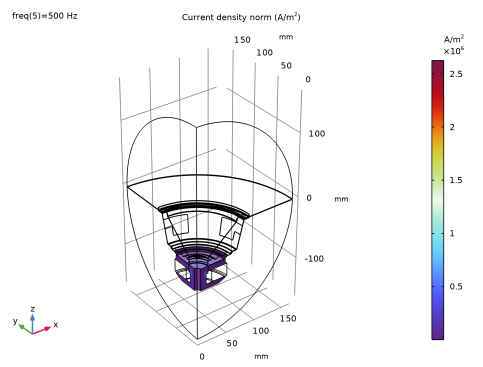
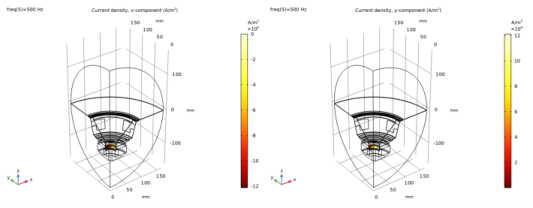
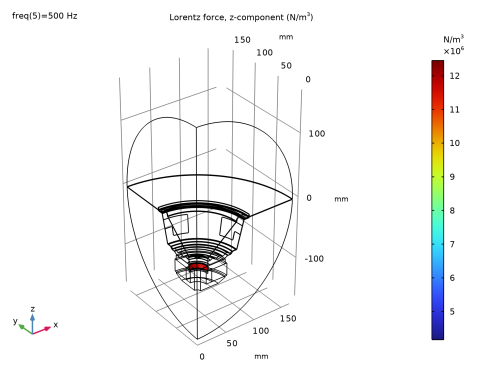
Some important electromagnetic quantities are plotted in Figure 3, Figure 4, and Figure 5. In the first figure, the current density norm is depicted at 500 Hz. From the color range bar, it is evident that a high current density exists in the model; this is the current in the surface of the conducting structures (pole piece and basket) within the skin-depth region. Zooming in the model or selecting a lower frequency makes this more evident. In Figure 4, the x- and y-components of the current density vector are depicted in the coil domain. Then in Figure 5, the z-component of the Lorentz force acting on the coil domain is plotted, also at 500 Hz. This is the variable mmcpl1.FLtzz. Since this force term is a nonlinear expression of the electromagnetic quantities, it is very important to select the Compute differential option in the plot, when evaluating it. This will ensure that it is evaluated as a linearized perturbation around the DC magnetic solution. If this option is not selected, the evaluated results will be unphysical.
Figure 3: Current density in the pole piece and part of the aluminum basket evaluated at 500 Hz.
Figure 4: x- and y-components of the current density in the coil domain.
Figure 5: Evaluation of the z-component of the Lorentz-force in the coil domain.
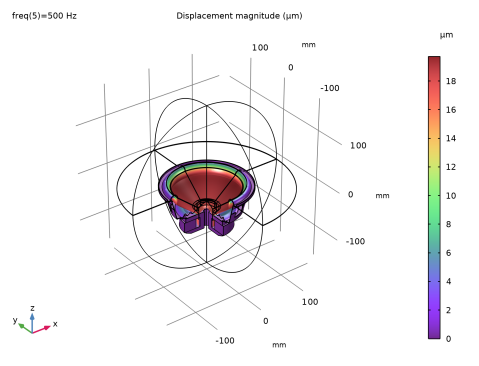
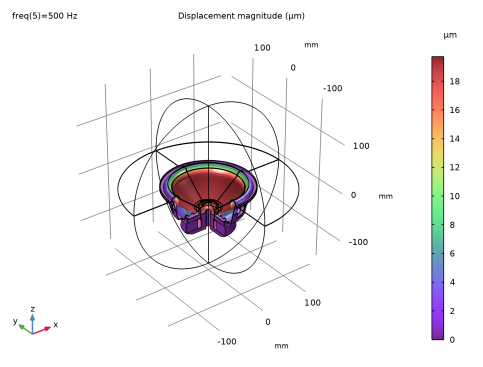
Figure 6: Structural displacement of the moving parts of the loudspeaker evaluated at 500 Hz.
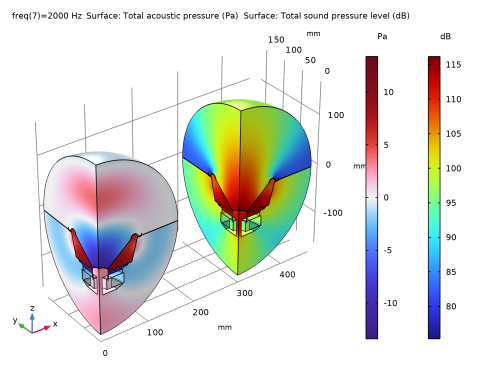
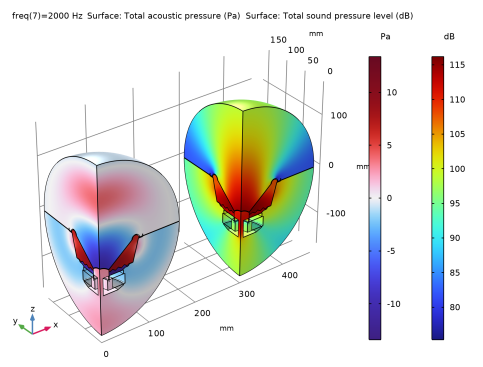
The displacement of the structural parts of the speaker is depicted in Figure 6, here evaluated at 500 Hz. It is evident that at this frequency the driver is still behaving like a piston. The acoustic pressure and the sound pressure level at 2000 Hz are plotted in Figure 7.
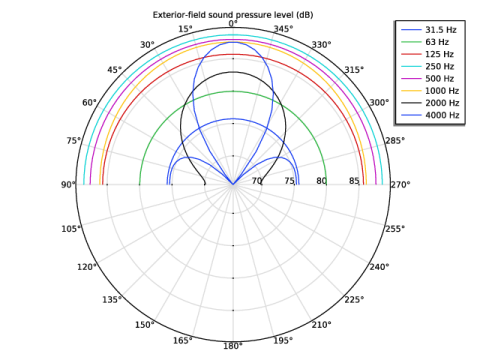
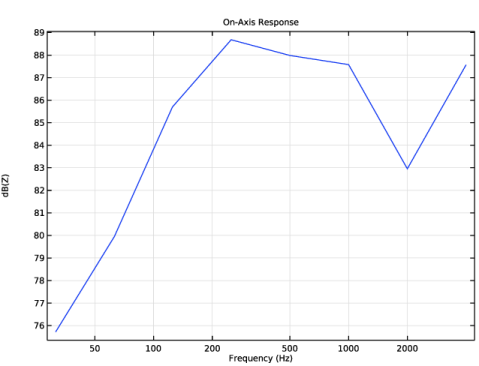
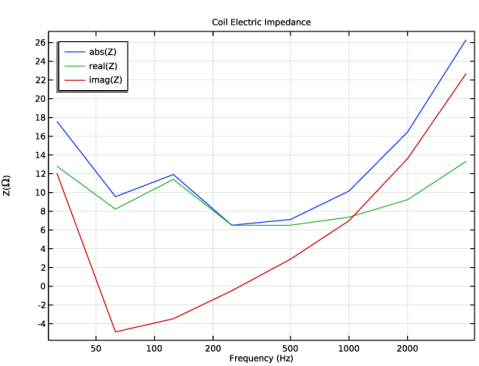
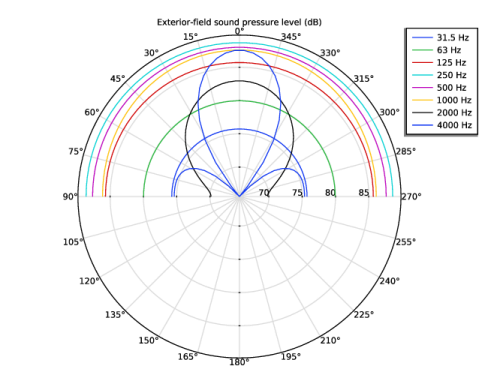
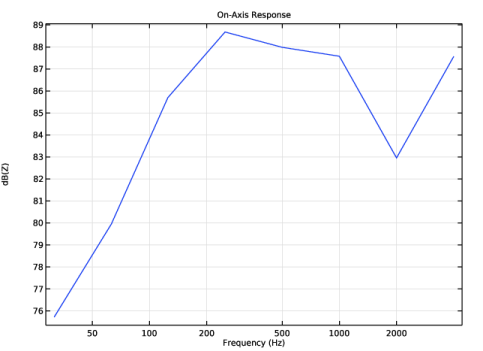
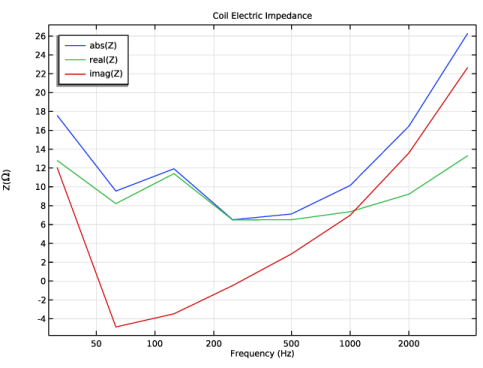
The loudspeaker on-axis sensitivity is depicted in Figure 8 while the spatial response in the yz-plane for some selected frequencies is depicted in Figure 9. The real, imaginary, and absolute values of the voice-coil impedance is plotted in Figure 10 as a function of frequency.
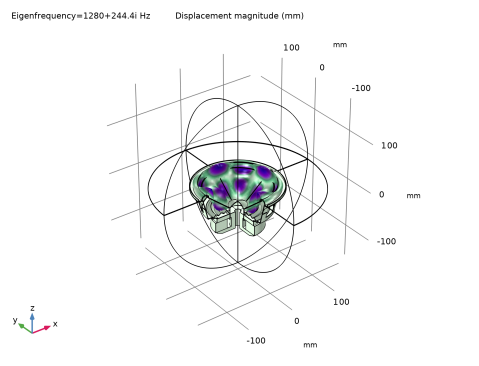
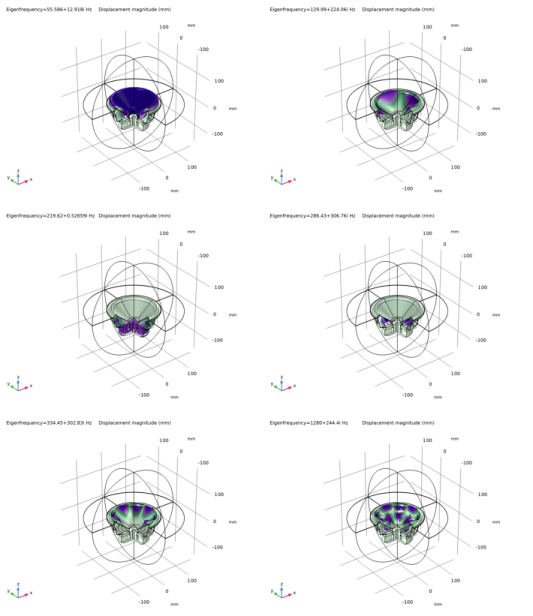
Finally, Figure 11 displays the results of a pure structural eigenfrequency analysis, depicting the first six eigenfrequencies and associated eigenmodes. Note that the use of the symmetries of the model limit the solution space.
Figure 7: Pressure and sound pressure level distribution outside the speaker evaluated at 2000 Hz.
Figure 8: Loudspeaker sensitivity (on-axis response).
Figure 9: Spatial response in the yz-plane.
Figure 10: Electric impedance of the voice coil.
Figure 11: The first six structural mode shapes.
Notes About the COMSOL Implementation
To solve a full vibroelectroacoustic model of a loudspeaker driver in 3D, it is necessary to use an iterative solver. In this model, the automatically generated solver suggestion is selected and used for the frequency-domain analysis. To ensure good performance of the iterative method it is necessary to set a small numerical (stabilizing) electric conductivity in the nonconductive domains. This is achieved automatically in the air domains when using the default Free Space feature.
The value of this electric conductivity at audio frequencies is approximately set so that it results in an effective skin depth (at the given frequency) that is 50 times larger than the geometry dimensions of the model. This gives the definition
where the skin depth δS is chosen such that it is 50 times the geometric dimension of the model, here 50 times the radius of the air domain, which is 165 mm.
In the Free Space feature of the model, the skin depth is manually set to the above mentioned value. This value is a bit less conservative than the automatic option and gives faster convergence. For a frequency-dependent study, the stabilizing conductivity will use the given frequency solved for. For the stationary study it will use the fallback value, but here the conductivity has no influence on the solution. The fallback value becomes important for transient models.
Application Library path: Acoustics_Module/Electroacoustic_Transducers/loudspeaker_driver_3d
Modeling Instructions
From the File menu, choose New.
New
In the New window, click  Model Wizard.
Model Wizard
1
In the Model Wizard window, click  3D.
2
In the Select Physics tree, select AC/DC > Electromagnetic Fields > Magnetic Fields (mf).
3
Click Add.
4
In the Select Physics tree, select Acoustics > Pressure Acoustics > Pressure Acoustics, Frequency Domain (acpr).
5
Click Add.
6
In the Select Physics tree, select Structural Mechanics > Solid Mechanics (solid).
7
Click Add.
8
Click  Study.
9
In the Select Study tree, select Preset Studies for Some Physics Interfaces > Coil Geometry Analysis.
10
Global Definitions
Parameters 1
The model parameters are loaded from the file loudspeaker_driver_3d_parameters.txt.
1
In the Model Builder window, under Global Definitions click Parameters 1.
2
In the Settings window for Parameters, locate the Parameters section.
3
Click  Load from File.
4
Geometry 1
1
In the Model Builder window, under Component 1 (comp1) click Geometry 1.
2
In the Settings window for Geometry, locate the Units section.
3
From the Length unit list, choose mm.
4
Locate the Advanced section. From the Geometry representation list, choose CAD kernel.
In this model, the geometry is imported as a sequence from the geometry file. Symmetry planes are used to only model a quarter of the geometry and reduce the number of degrees of freedom to solve for. The instructions to the geometry can be found in the appendix at the end of this document.
Import 1 (imp1)
1
In the Geometry toolbar, click  Import.
2
In the Settings window for Import, locate the Source section.
3
Click  Browse.
4
5
Click  Import.
6
In the Home toolbar, click  Build All.
Definitions
Create selections to make the physics setup easier.
Symmetry
1
In the Definitions toolbar, click  Explicit.
2
In the Settings window for Explicit, type Symmetry in the Label text field.
3
Locate the Input Entities section. From the Geometric entity level list, choose Boundary.
4
5
Select the Group by continuous tangent checkbox.
Coil
1
In the Definitions toolbar, click  Explicit.
2
In the Settings window for Explicit, type Coil in the Label text field.
3
Click the  Wireframe Rendering button in the Graphics toolbar.
4
Air Domain
1
In the Definitions toolbar, click  Explicit.
2
In the Settings window for Explicit, type Air Domain in the Label text field.
3
Aluminum Domain
1
In the Definitions toolbar, click  Explicit.
2
In the Settings window for Explicit, type Aluminum Domain in the Label text field.
3
Magnet
1
In the Definitions toolbar, click  Explicit.
2
In the Settings window for Explicit, type Magnet in the Label text field.
3
Variables 1
In the Model Builder window, right-click Definitions and choose Variables.
Pole Pieces
1
In the Definitions toolbar, click  Explicit.
2
In the Settings window for Explicit, type Pole Pieces in the Label text field.
3
Nonconductive Solid Domains
1
In the Definitions toolbar, click  Explicit.
2
In the Settings window for Explicit, type Nonconductive Solid Domains in the Label text field.
3
Materials
While the material properties used in this model are partly made up, they resemble those used in a real driver. The coil former has properties representative of glass fiber materials. The spider, acting as a spring, is made of a phenolic cloth with a much lower stiffness. The material used in the coil is taken to be lighter than copper, as the wire is insulated and does not completely fill the coil domain. The surround, finally, is a light resistive foam.
Except for air and soft iron, the materials all come from a library created especially for this model (loaded from the file loudspeaker_driver_materials.mph). You may notice that some of the materials report missing properties. For example, the composite does not include any electromagnetic properties. This is not a problem, as the magnetic fields will not be modeled in the domains where the composite is used.
Add Material
1
In the Materials toolbar, click  Add Material to open the Add Material window.
2
Go to the Add Material window.
3
In the tree, select Built-in > Air.
4
Click the Add to Component button in the window toolbar.
5
In the tree, select AC/DC > Soft Iron (With Losses).
6
Click the Add to Component button in the window toolbar.
7
In the tree, select Built-in > Aluminum.
8
Click the Add to Component button in the window toolbar.
9
In the Materials toolbar, click  Add Material to close the Add Material window.
Materials
Aluminum (mat3)
In the Materials toolbar, click  Browse Materials.
Material Browser
1
In the Material Browser window, In the ribbon make sure to select the Materials tab and then click the Browse Materials icon.
The Import Material Library functionality is activated by clicking the small icon below the Material Browser tree.
2
click  Import Material Library.
3
4
In the tree, select loudspeaker driver materials > Composite.
5
Click  Add to Component.
6
In the tree, select loudspeaker driver materials > Cloth.
7
Click  Add to Component.
8
In the tree, select loudspeaker driver materials > Foam.
9
Click  Add to Component.
10
In the tree, select loudspeaker driver materials > Coil.
11
Click  Add to Component.
12
In the tree, select loudspeaker driver materials > Glass Fiber.
13
Click  Add to Component.
14
In the tree, select loudspeaker driver materials > Generic Ferrite.
15
Click  Add to Component.
16
Materials
Soft Iron (With Losses) (mat2)
1
In the Model Builder window, under Component 1 (comp1) > Materials click Soft Iron (With Losses) (mat2).
2
In the Settings window for Material, locate the Geometric Entity Selection section.
3
From the Selection list, choose Pole Pieces.
4
Locate the Material Contents section. In the table, enter the following settings:
Aluminum (mat3)
1
In the Model Builder window, click Aluminum (mat3).
2
In the Settings window for Material, locate the Geometric Entity Selection section.
3
From the Selection list, choose Aluminum Domain.
Composite (mat4)
1
In the Model Builder window, click Composite (mat4).
2
Cloth (mat5)
1
In the Model Builder window, click Cloth (mat5).
2
Foam (mat6)
1
In the Model Builder window, click Foam (mat6).
2
Coil (mat7)
1
In the Model Builder window, click Coil (mat7).
2
In the Settings window for Material, locate the Geometric Entity Selection section.
3
From the Selection list, choose Coil.
Glass Fiber (mat8)
1
In the Model Builder window, click Glass Fiber (mat8).
2
Generic Ferrite (mat9)
1
In the Model Builder window, click Generic Ferrite (mat9).
2
In the Settings window for Material, locate the Geometric Entity Selection section.
3
From the Selection list, choose Magnet.
Magnetic Fields (mf)
The Magnetic Fields physics is solved in and around the magnetic motor. To reduce simulation time, make this physics interface active only where it is needed. You can remove all domains where you expect the magnetic field to be negligible.
1
In the Model Builder window, under Component 1 (comp1) click Magnetic Fields (mf).
2
In the Settings window for Magnetic Fields, locate the Domain Selection section.
3
From the Selection list, choose Manual.
4
Free Space 1
The Free Space feature is per default assigned to all domains where the physics interface is active (and is here used in the Air domains). Add Ampère’s Law in the remaining domains where different constitutive relations are needed.
The Stabilization conductivity is here defined using the From skin depth option. This adds an artificial electric conductivity, used to stabilize the numerical method, which gives a skin depth equal to 50 times the radius of the air domain (165 mm). This value is a bit less conservative than the automatic option and gives a faster convergence. For a frequency dependent study the stabilizing conductivity will use the given frequency solved for. For the stationary study it will use the fallback value, but here the conductivity has no influence on the solution. The fallback value becomes important for transient models.
1
In the Model Builder window, under Component 1 (comp1) > Magnetic Fields (mf) click Free Space 1.
2
In the Settings window for Free Space, locate the Stabilization section.
3
From the σstab list, choose From skin depth.
4
Find the Skin depth subsection. In the δs text field, type deltaS.
Ampère’s Law in Solids 1
1
In the Physics toolbar, click  Domains and choose Ampère’s Law in Solids.
2
In the Settings window for Ampère’s Law in Solids, locate the Domain Selection section.
3
From the Selection list, choose Nonconductive Solid Domains.
In the nonconductive solid domains a small conductivity value of 5 S/m is used. The exact value used will have a very small influence on the results when compared to other numerical factors like, for example, the mesh resolution. For numerical reasons it is best to avoid the use of zero conductivity.
4
In the Model Builder window, click Ampère’s Law in Solids 1.
5
Locate the Constitutive Relation Jc-E section. From the σ list, choose User defined. In the associated text field, type 5[S/m].
Ampère’s Law in Solids 2
1
In the Physics toolbar, click  Domains and choose Ampère’s Law in Solids.
2
In the Settings window for Ampère’s Law in Solids, locate the Domain Selection section.
3
From the Selection list, choose Magnet.
4
Locate the Constitutive Relation B-H section. From the Magnetization model list, choose Remanent flux density.
5
Specify the e vector as
6
Locate the Constitutive Relation Jc-E section. From the σ list, choose User defined. In the associated text field, type 5[S/m].
This setting gives a static remanent flux density equal to 0.4 T in the z direction. This will create a static magnetic field distribution in the model, providing the linearization point for the frequency domain study.
Ampère’s Law in Solids 3
1
In the Physics toolbar, click  Domains and choose Ampère’s Law in Solids.
2
In the Settings window for Ampère’s Law in Solids, locate the Domain Selection section.
3
From the Selection list, choose Pole Pieces.
4
Locate the Constitutive Relation B-H section. From the Magnetization model list, choose B-H curve.
The B-H curve is provided by the soft iron material.
Ampère’s Law in Solids 4
1
In the Physics toolbar, click  Domains and choose Ampère’s Law in Solids.
2
In the Settings window for Ampère’s Law in Solids, locate the Domain Selection section.
3
From the Selection list, choose Aluminum Domain.
Domain Coil 1
1
In the Physics toolbar, click  Domains and choose Domain Coil.
2
In the Settings window for Domain Coil, locate the Domain Selection section.
3
From the Selection list, choose Coil.
4
Locate the Coil section. From the Conductor model list, choose Homogenized multiturn.
5
From the Coil type list, choose Numeric.
6
From the Coil excitation list, choose Voltage.
7
In the Vcoil text field, type linper(V0).
This is the driving voltage. Because the linper() operator is used it will only be active in the Frequency Domain, Perturbation study.
8
Locate the Homogenized Conductor section. In the N text field, type N0.
9
10
Find the High-frequency effective loss subsection. Clear the Include harmonic loss checkbox.
11
In the a text field, type 3.5e-8[m^2].
With N0 = 100 turns, the total cross-sectional area covered by the wires will be 3.5e-8 m2. The area of the coil domain is 6e-8 m2, making the fill factor approximately 60%.
Geometry Analysis 1
1
In the Model Builder window, expand the Component 1 (comp1) > Magnetic Fields (mf) > Domain Coil 1 > Geometry Analysis 1 node, then click Geometry Analysis 1.
2
In the Settings window for Geometry Analysis, click to expand the Symmetry Specification section.
3
In the FL text field, type 4.
Input 1
1
In the Model Builder window, click Input 1.
2
Geometry Analysis 1
In the Model Builder window, click Geometry Analysis 1.
Output 1
1
In the Physics toolbar, click  Attributes and choose Output.
2
Symmetry Plane 1
1
In the Physics toolbar, click  Boundaries and choose Symmetry Plane.
2
In the Settings window for Symmetry Plane, locate the Boundary Selection section.
3
From the Selection list, choose Symmetry.
Pressure Acoustics, Frequency Domain (acpr)
Select the air domains above and under the speaker.
1
In the Model Builder window, under Component 1 (comp1) click Pressure Acoustics, Frequency Domain (acpr).
2
In the Settings window for Pressure Acoustics, Frequency Domain, locate the Domain Selection section.
3
From the Selection list, choose Air Domain.
Symmetry 1
1
In the Physics toolbar, click  Boundaries and choose Symmetry.
2
In the Settings window for Symmetry, locate the Boundary Selection section.
3
From the Selection list, choose Symmetry.
Exterior Field Calculation 1
1
In the Physics toolbar, click  Boundaries and choose Exterior Field Calculation.
The exterior-field calculation requires a source boundary encompassing all local sound sources, with a symmetry plane to account for the infinite baffle. After computing the solution, the sound pressure can be evaluated in any point (x,y,z) outside the domain by entering pext(x,y,z).
2
3
In the Settings window for Exterior Field Calculation, locate the Exterior Field Calculation section.
4
From the Symmetry type list, choose Sector symmetry with one symmetry plane.
5
From the Transformation list, choose Rotation and reflection.
6
In the n text field, type 4.
Perfectly Matched Boundary 1
1
In the Physics toolbar, click  Boundaries and choose Perfectly Matched Boundary.
Use the Perfectly Matched Boundary to model a nonreflecting condition and avoid unphysical reflections (spurious reflections) where the sound leaves the model.
2
The narrow air gaps around the voice coil have a significant effect on the damping of the back cavity modes, especially, near resonance.
Narrow Region Acoustics 1
1
In the Physics toolbar, click  Domains and choose Narrow Region Acoustics.
2
3
In the Settings window for Narrow Region Acoustics, locate the Duct Properties section.
4
From the Duct type list, choose Slit.
5
In the h text field, type h_slit1.
Narrow Region Acoustics 2
1
In the Physics toolbar, click  Domains and choose Narrow Region Acoustics.
2
3
In the Settings window for Narrow Region Acoustics, locate the Duct Properties section.
4
From the Duct type list, choose Slit.
5
In the h text field, type h_slit2.
Narrow Region Acoustics 3
1
In the Physics toolbar, click  Domains and choose Narrow Region Acoustics.
2
3
In the Settings window for Narrow Region Acoustics, locate the Duct Properties section.
4
From the Duct type list, choose Circular duct.
5
In the a text field, type 1.5[mm].
Solid Mechanics (solid)
1
In the Model Builder window, under Component 1 (comp1) click Solid Mechanics (solid).
2
In the Settings window for Solid Mechanics, locate the Domain Selection section.
3
Click  Clear Selection.
4
The magnet, pole piece, and top plate are left out of the above selection. These domains are considered perfectly rigid by using the default sound hard wall condition on their surfaces.
Linear Elastic Material 1
Add damping to some of the solid materials.
1
In the Model Builder window, under Component 1 (comp1) > Solid Mechanics (solid) click Linear Elastic Material 1.
Damping 1
1
In the Physics toolbar, click  Attributes and choose Damping.
2
In the Settings window for Damping, locate the Domain Selection section.
3
Click  Clear Selection.
4
5
Locate the Damping Settings section. From the Damping type list, choose Isotropic loss factor.
Linear Elastic Material 1
In the Model Builder window, click Linear Elastic Material 1.
Damping 2
1
In the Physics toolbar, click  Attributes and choose Damping.
2
In the Settings window for Damping, locate the Domain Selection section.
3
Click  Clear Selection.
4
5
Locate the Damping Settings section. In the βdK text field, type 0.14/omega_loss.
Linear Elastic Material 1
In the Model Builder window, click Linear Elastic Material 1.
Damping 3
1
In the Physics toolbar, click  Attributes and choose Damping.
2
In the Settings window for Damping, locate the Domain Selection section.
3
Click  Clear Selection.
4
5
Locate the Damping Settings section. In the βdK text field, type 0.46/omega_loss.
Symmetry 1
1
In the Physics toolbar, click  Boundaries and choose Symmetry.
2
In the Settings window for Symmetry, locate the Boundary Selection section.
3
From the Selection list, choose Symmetry.
The spider and the surround are attached to the case.
Fixed Constraint 1
1
In the Physics toolbar, click  Boundaries and choose Fixed Constraint.
2
Now is a good time to inspect the Acoustic-Structure Boundary 1 multiphysics coupling under the Multiphysics node. When using a predefined multiphysics interface, the coupling is automatically applied to all acoustic-solid boundaries.
Multiphysics
Acoustic–Structure Boundary 1 (asb1)
1
In the Physics toolbar, click  Multiphysics Couplings and choose Boundary > Acoustic–Structure Boundary.
2
In the Settings window for Acoustic–Structure Boundary, locate the Boundary Selection section.
3
From the Selection list, choose All boundaries.
Now, the Magnetomechanics multiphysics feature is added to handle the Lorentz force on the coil (it represents the product of the time-harmonic current and the static magnetic field in which it is traveling).
Magnetomechanics, Solid 1 (mmcpl1)
1
In the Physics toolbar, click  Multiphysics Couplings and choose Domain > Magnetomechanics, Solid.
2
In the Settings window for Magnetomechanics, Solid, locate the Domain Selection section.
3
From the Selection list, choose Coil.
4
Locate the Lorentz Coupling section. Select the Only use Lorentz force checkbox.
Study 1 - Frequency Response
1
In the Model Builder window, click Study 1.
2
In the Settings window for Study, type Study 1 - Frequency Response in the Label text field.
3
Locate the Study Settings section. Clear the Generate default plots checkbox.
Step 1: Coil Geometry Analysis
1
In the Model Builder window, under Study 1 - Frequency Response click Step 1: Coil Geometry Analysis.
2
In the Settings window for Coil Geometry Analysis, locate the Study Settings section.
3
Clear the Include geometric nonlinearity checkbox.
The Study node already contains the Coil Current Calculation study. Add a Stationary study step and disable the Pressure Acoustics and Solid Mechanics interfaces.
Step 2: Stationary
1
In the Study toolbar, click  Stationary.
2
In the Settings window for Stationary, locate the Physics and Variables Selection section.
3
In the Solve for column of the table, under Component 1 (comp1), clear the checkbox for Solid Mechanics (solid).
4
In the Solve for column of the table, under Component 1 (comp1) > Multiphysics, clear the checkbox for Magnetomechanics, Solid 1 (mmcpl1).
Add a Frequency Domain, Perturbation study step.
Step 3: Frequency-Domain Perturbation
1
In the Study toolbar, click  More Study Steps and choose Frequency Domain > Frequency-Domain Perturbation.
2
In the Settings window for Frequency-Domain Perturbation, locate the Study Settings section.
3
Click  Range.
4
In the Range dialog, choose ISO preferred frequencies from the Entry method list.
5
In the Start frequency text field, type 20.
6
In the Stop frequency text field, type fmax.
7
Click Replace.
In this model, the mesh is set up manually. Proceed by directly adding the desired mesh component.
Mesh 1
The mesh used to compute the impedance needs to resolve the induced eddy currents in the pole piece and the top plate. For the results to be accurate, the skin depth needs to be resolved by at least one, preferably two quadratic elements.
With a conductivity of 1.12e7 S/m and a peak relative permeability of 1200, the skin depth in the iron at the maximum frequency of 8 kHz does not go below 0.05 mm. In practice, most of the induced currents will run in regions of the pole piece where the biased relative permeability is much less than 1200, which makes the skin depth greater. In this model, it is therefore sufficient to use a mesh size of 0.5 mm along the iron surfaces that are closest to the voice coil.
For the acoustic-structure interaction, the air domain and the thin moving structures also need to be well resolved. In general, five to six second-order elements per wavelength are needed to resolve the waves. For more details, see Meshing (Resolving the Waves) in the Acoustics Module User’s Guide. In this model, use five elements per wavelength in the acoustic domains.
Mapped 1
In the Mesh toolbar, click  More Generators and choose Mapped.
Size
1
In the Model Builder window, click Size.
2
In the Settings window for Size, locate the Element Size section.
3
Click the Custom button.
4
Locate the Element Size Parameters section. In the Maximum element size text field, type 343[m/s]/fmax/5.
5
In the Minimum element size text field, type 1[mm].
Mapped 1
1
In the Model Builder window, click Mapped 1.
2
Distribution 1
1
In the Mesh toolbar, click  Distribution.
2
3
In the Settings window for Distribution, locate the Distribution section.
4
In the Number of elements text field, type 16.
Distribution 2
1
In the Mesh toolbar, click  Distribution.
2
3
In the Settings window for Distribution, locate the Distribution section.
4
In the Number of elements text field, type 2.
Distribution 3
1
In the Mesh toolbar, click  Distribution.
2
3
In the Settings window for Distribution, locate the Distribution section.
4
In the Number of elements text field, type 4.
Edge 1
1
In the Mesh toolbar, click  More Generators and choose Edge.
2
Distribution 1
1
In the Mesh toolbar, click  Distribution.
2
3
In the Settings window for Distribution, locate the Distribution section.
4
In the Number of elements text field, type 3.
Distribution 2
1
In the Mesh toolbar, click  Distribution.
2
3
In the Settings window for Distribution, locate the Distribution section.
4
In the Number of elements text field, type 2.
Mapped 2
1
In the Mesh toolbar, click  More Generators and choose Mapped.
2
Distribution 1
1
In the Mesh toolbar, click  Distribution.
2
3
In the Settings window for Distribution, locate the Distribution section.
4
In the Number of elements text field, type 6.
Distribution 2
1
In the Mesh toolbar, click  Distribution.
2
3
In the Settings window for Distribution, locate the Distribution section.
4
In the Number of elements text field, type 2.
Swept 1
1
In the Mesh toolbar, click  Swept.
2
In the Settings window for Swept, locate the Domain Selection section.
3
From the Geometric entity level list, choose Domain.
4
Distribution 1
1
In the Mesh toolbar, click  Distribution.
2
3
In the Settings window for Distribution, locate the Distribution section.
4
In the Number of elements text field, type 18.
Free Triangular 1
1
In the Mesh toolbar, click  More Generators and choose Free Triangular.
2
Size 1
1
Right-click Free Triangular 1 and choose Size.
2
In the Settings window for Size, locate the Element Size section.
3
Click the Custom button.
4
Locate the Element Size Parameters section.
5
Select the Maximum element size checkbox. In the associated text field, type 3[mm].
Swept 2
1
In the Mesh toolbar, click  Swept.
2
In the Settings window for Swept, locate the Domain Selection section.
3
From the Geometric entity level list, choose Domain.
4
Mapped 3
1
In the Mesh toolbar, click  More Generators and choose Mapped.
2
Distribution 1
1
In the Mesh toolbar, click  Distribution.
2
3
In the Settings window for Distribution, locate the Distribution section.
4
In the Number of elements text field, type 10.
Distribution 2
1
In the Mesh toolbar, click  Distribution.
2
3
In the Settings window for Distribution, locate the Distribution section.
4
In the Number of elements text field, type 2.
Distribution 3
1
In the Mesh toolbar, click  Distribution.
2
3
In the Settings window for Distribution, locate the Distribution section.
4
In the Number of elements text field, type 3.
Distribution 4
1
In the Mesh toolbar, click  Distribution.
2
3
In the Settings window for Distribution, locate the Distribution section.
4
In the Number of elements text field, type 4.
Distribution 5
1
In the Mesh toolbar, click  Distribution.
2
3
In the Settings window for Distribution, locate the Distribution section.
4
In the Number of elements text field, type 18.
Free Triangular 2
1
In the Mesh toolbar, click  More Generators and choose Free Triangular.
2
Size 1
1
Right-click Free Triangular 2 and choose Size.
2
In the Settings window for Size, locate the Element Size section.
3
Click the Custom button.
4
Locate the Element Size Parameters section.
5
Select the Maximum element size checkbox. In the associated text field, type 5[mm].
6
Select the Curvature factor checkbox. In the associated text field, type 0.4.
Swept 3
1
In the Mesh toolbar, click  Swept.
2
In the Settings window for Swept, locate the Domain Selection section.
3
From the Geometric entity level list, choose Domain.
4
Distribution 1
1
In the Mesh toolbar, click  Distribution.
2
In the Settings window for Distribution, locate the Distribution section.
3
In the Number of elements text field, type 2.
Mapped 4
1
In the Mesh toolbar, click  More Generators and choose Mapped.
2
Distribution 1
1
In the Mesh toolbar, click  Distribution.
2
3
In the Settings window for Distribution, locate the Distribution section.
4
In the Number of elements text field, type 4.
Distribution 2
1
In the Mesh toolbar, click  Distribution.
2
3
In the Settings window for Distribution, locate the Distribution section.
4
In the Number of elements text field, type 2.
Free Triangular 3
1
In the Mesh toolbar, click  More Generators and choose Free Triangular.
2
Size 1
1
Right-click Free Triangular 3 and choose Size.
2
3
In the Settings window for Size, locate the Element Size section.
4
Click the Custom button.
5
Locate the Element Size Parameters section.
6
Select the Maximum element size checkbox. In the associated text field, type 6[mm].
Swept 4
1
In the Mesh toolbar, click  Swept.
2
In the Settings window for Swept, locate the Domain Selection section.
3
From the Geometric entity level list, choose Domain.
4
Swept 5
1
In the Mesh toolbar, click  Swept.
2
In the Settings window for Swept, locate the Domain Selection section.
3
From the Geometric entity level list, choose Domain.
4
Distribution 1
1
In the Mesh toolbar, click  Distribution.
2
In the Settings window for Distribution, locate the Distribution section.
3
In the Number of elements text field, type 2.
Swept 6
1
In the Mesh toolbar, click  Swept.
2
In the Settings window for Swept, locate the Domain Selection section.
3
From the Geometric entity level list, choose Domain.
4
Free Triangular 4
1
In the Mesh toolbar, click  More Generators and choose Free Triangular.
2
Size 1
1
Right-click Free Triangular 4 and choose Size.
2
In the Settings window for Size, locate the Element Size section.
3
Click the Custom button.
4
Locate the Element Size Parameters section.
5
Select the Maximum element size checkbox. In the associated text field, type 2[mm].
Boundary Layers 1
1
In the Mesh toolbar, click  Boundary Layers.
2
In the Settings window for Boundary Layers, locate the Geometric Entity Selection section.
3
From the Geometric entity level list, choose Boundary.
4
Boundary Layer Properties
1
In the Model Builder window, click Boundary Layer Properties.
2
3
In the Settings window for Boundary Layer Properties, locate the Layers section.
4
In the Number of layers text field, type 5.
5
In the Thickness adjustment factor text field, type 1.1.
Swept 7
1
In the Mesh toolbar, click  Swept.
2
In the Settings window for Swept, locate the Domain Selection section.
3
From the Geometric entity level list, choose Domain.
4
Free Tetrahedral 1
1
In the Mesh toolbar, click  Free Tetrahedral.
2
In the Settings window for Free Tetrahedral, locate the Domain Selection section.
3
From the Geometric entity level list, choose Domain.
4
Boundary Layers 2
1
In the Mesh toolbar, click  Boundary Layers.
2
In the Settings window for Boundary Layers, locate the Geometric Entity Selection section.
3
From the Geometric entity level list, choose Domain.
4
5
Click to expand the Transition section. Clear the Smooth transition to interior mesh checkbox.
Boundary Layer Properties
1
In the Model Builder window, click Boundary Layer Properties.
2
3
In the Settings window for Boundary Layer Properties, locate the Layers section.
4
In the Number of layers text field, type 1.
Mapped 1
In the Mesh toolbar, click  Build Mesh.
Study 1 - Frequency Response
For the Frequency Domain, Perturbation study step, select and enable the suggested iterative solver for a more efficient solver; then Compute.
Solution 1 (sol1)
1
In the Study toolbar, click  Show Default Solver.
2
In the Model Builder window, expand the Solution 1 (sol1) node.
3
In the Model Builder window, expand the Study 1 - Frequency Response > Solver Configurations > Solution 1 (sol1) > Stationary Solver 3 node.
4
Right-click Study 1 - Frequency Response > Solver Configurations > Solution 1 (sol1) > Stationary Solver 3 > Suggested Iterative Solver (GMRES with GMG) (asb1_mmcpl1) and choose Enable.
5
In the Study toolbar, click  Compute.
Add Study
1
In the Study toolbar, click  Add Study to open the Add Study window.
2
Go to the Add Study window.
Add an Eigenfrequency study to investigate the modal behavior of the mechanical structure of the loudspeaker; then Compute. Only the Solid Mechanics physics is solved here.
3
Find the Studies subsection. In the Select Study tree, select Preset Studies for Selected Multiphysics > Eigenfrequency.
4
Click the Add Study button in the window toolbar.
5
In the Study toolbar, click  Add Study to close the Add Study window.
Study 2 - Structural Eigenmodes
1
In the Settings window for Study, type Study 2 - Structural Eigenmodes in the Label text field.
2
Locate the Study Settings section. Clear the Generate default plots checkbox.
Step 1: Eigenfrequency
1
In the Model Builder window, under Study 2 - Structural Eigenmodes click Step 1: Eigenfrequency.
2
In the Settings window for Eigenfrequency, locate the Study Settings section.
3
From the Search method around shift list, choose Larger real part.
4
Locate the Physics and Variables Selection section. In the Solve for column of the table, under Component 1 (comp1), clear the checkboxes for Magnetic Fields (mf) and Pressure Acoustics, Frequency Domain (acpr).
5
In the Solve for column of the table, under Component 1 (comp1) > Multiphysics, clear the checkboxes for Acoustic–Structure Boundary 1 (asb1) and Magnetomechanics, Solid 1 (mmcpl1).
6
In the Study toolbar, click  Compute.
Proceed with creating plots to analyze the results.
Results
In the Model Builder window, expand the Results node.
Sector 3D 1
1
In the Model Builder window, expand the Results > Datasets node.
2
Right-click Results > Datasets and choose More 3D Datasets > Sector 3D.
Use Sector 3D datasets to exploit symmetries in the model.
3
In the Settings window for Sector 3D, locate the Symmetry section.
4
In the Number of sectors text field, type 4.
5
From the Sectors to include list, choose Manual.
6
In the Start sector text field, type 3.
7
In the Number of sectors to include text field, type 3.
8
From the Transformation list, choose Rotation and reflection.
Sector 3D 2
1
In the Results toolbar, click  More Datasets and choose Sector 3D.
2
In the Settings window for Sector 3D, locate the Data section.
3
From the Dataset list, choose Study 2 - Structural Eigenmodes/Solution 4 (sol4).
4
Locate the Symmetry section. In the Number of sectors text field, type 4.
5
From the Sectors to include list, choose Manual.
6
In the Start sector text field, type 3.
7
In the Number of sectors to include text field, type 3.
8
From the Transformation list, choose Rotation and reflection.
Geometry
1
In the Results toolbar, click  3D Plot Group.
2
In the Settings window for 3D Plot Group, type Geometry in the Label text field.
3
Locate the Data section. From the Dataset list, choose Study 1 - Frequency Response/Solution Store 2 (sol3).
4
Click to expand the Title section. From the Title type list, choose Label.
5
Locate the Plot Settings section. Clear the Plot dataset edges checkbox.
Volume 1
1
In the Geometry toolbar, click  Volume.
2
In the Settings window for Volume, locate the Expression section.
3
In the Expression text field, type 1.
Selection 1
1
Right-click Volume 1 and choose Selection.
2
Material Appearance 1
1
In the Model Builder window, right-click Volume 1 and choose Material Appearance.
2
In the Settings window for Material Appearance, locate the Appearance section.
3
From the Appearance list, choose Custom.
4
From the Material type list, choose Aluminum.
Geometry
In the Geometry toolbar, click  Volume.
Volume 2
1
In the Settings window for Volume, locate the Expression section.
2
In the Expression text field, type 1.
3
Locate the Coloring and Style section. From the Coloring list, choose Uniform.
4
From the Color list, choose Custom.
5
6
Click Define custom colors.
7
8
Click Add to custom colors.
9
Click Show color palette only or OK on the cross-platform desktop.
Selection 1
1
In the Geometry toolbar, click  Selection.
2
Material Appearance 1
1
In the Model Builder window, right-click Volume 2 and choose Material Appearance.
2
In the Settings window for Material Appearance, locate the Appearance section.
3
From the Appearance list, choose Custom.
4
From the Material type list, choose Textile.
5
Locate the Color section. Select the Use the plot’s color checkbox.
Geometry
In the Geometry toolbar, click  Volume.
Volume 3
1
In the Settings window for Volume, locate the Expression section.
2
In the Expression text field, type 1.
3
Locate the Coloring and Style section. From the Coloring list, choose Uniform.
4
From the Color list, choose Custom.
5
6
Click Define custom colors.
7
8
Click Add to custom colors.
9
Click Show color palette only or OK on the cross-platform desktop.
Selection 1
1
In the Geometry toolbar, click  Selection.
2
Material Appearance 1
1
In the Model Builder window, right-click Volume 3 and choose Material Appearance.
2
In the Settings window for Material Appearance, locate the Appearance section.
3
From the Appearance list, choose Custom.
4
From the Material type list, choose Textile.
5
Locate the Color section. Select the Use the plot’s color checkbox.
Geometry
In the Geometry toolbar, click  Volume.
Volume 4
1
In the Settings window for Volume, locate the Expression section.
2
In the Expression text field, type 1.
Selection 1
1
In the Geometry toolbar, click  Selection.
2
Material Appearance 1
1
In the Model Builder window, right-click Volume 4 and choose Material Appearance.
2
In the Settings window for Material Appearance, locate the Appearance section.
3
From the Appearance list, choose Custom.
4
From the Material type list, choose Chrome.
Geometry
In the Geometry toolbar, click  Volume.
Volume 5
1
In the Settings window for Volume, locate the Expression section.
2
In the Expression text field, type 1.
Selection 1
1
Right-click Volume 5 and choose Selection.
2
In the Settings window for Selection, locate the Selection section.
3
From the Selection list, choose Coil.
Material Appearance 1
1
Right-click Volume 5 and choose Material Appearance.
2
In the Settings window for Material Appearance, locate the Appearance section.
3
From the Appearance list, choose Custom.
4
From the Material type list, choose Copper.
Geometry
In the Geometry toolbar, click  Volume.
Volume 6
1
In the Settings window for Volume, locate the Expression section.
2
In the Expression text field, type 1.
3
Locate the Coloring and Style section. From the Coloring list, choose Uniform.
4
From the Color list, choose Custom.
5
6
Click Define custom colors.
7
8
Click Add to custom colors.
9
Click Show color palette only or OK on the cross-platform desktop.
Selection 1
1
Right-click Volume 6 and choose Selection.
2
Material Appearance 1
1
Right-click Volume 6 and choose Material Appearance.
2
In the Settings window for Material Appearance, locate the Appearance section.
3
From the Appearance list, choose Custom.
4
From the Material type list, choose Iron.
5
Locate the Color section. Select the Use the plot’s color checkbox.
Geometry
In the Geometry toolbar, click  Volume.
Volume 7
1
In the Settings window for Volume, locate the Expression section.
2
In the Expression text field, type 1.
3
Locate the Coloring and Style section. From the Coloring list, choose Uniform.
4
From the Color list, choose Custom.
5
6
Click Define custom colors.
7
8
Click Add to custom colors.
9
Click Show color palette only or OK on the cross-platform desktop.
Selection 1
1
Right-click Volume 7 and choose Selection.
2
Material Appearance 1
1
Right-click Volume 7 and choose Material Appearance.
2
In the Settings window for Material Appearance, locate the Appearance section.
3
From the Appearance list, choose Custom.
4
From the Material type list, choose Soil.
5
Locate the Color section. Select the Use the plot’s color checkbox.
6
In the Geometry toolbar, click  Plot.
Static Magnetic Field
1
In the Results toolbar, click  3D Plot Group.
2
In the Settings window for 3D Plot Group, type Static Magnetic Field in the Label text field.
3
Locate the Data section. From the Dataset list, choose Study 1 - Frequency Response/Solution Store 2 (sol3).
4
Click to expand the Title section. From the Title type list, choose Label.
5
Locate the Plot Settings section. Clear the Plot dataset edges checkbox.
6
Locate the Color Legend section. Select the Show units checkbox.
Streamline 1
1
In the Static Magnetic Field toolbar, click  Streamline.
2
In the Settings window for Streamline, locate the Streamline Positioning section.
3
In the Number text field, type 50.
4
Locate the Selection section. Click  Paste Selection.
5
In the Paste Selection dialog, type 100 in the Selection text field.
6
7
In the Settings window for Streamline, locate the Coloring and Style section.
8
Find the Line style subsection. From the Type list, choose Tube.
9
In the Tube radius expression text field, type 0.2.
10
Select the Radius scale factor checkbox.
Color Expression 1
In the Static Magnetic Field toolbar, click  Color Expression.
Static Magnetic Field
In the Static Magnetic Field toolbar, click  Volume.
Volume 1
1
In the Settings window for Volume, locate the Expression section.
2
In the Expression text field, type 1.
Selection 1
1
In the Static Magnetic Field toolbar, click  Selection.
2
In the Settings window for Selection, locate the Selection section.
3
From the Selection list, choose Aluminum Domain.
Material Appearance 1
1
In the Model Builder window, right-click Volume 1 and choose Material Appearance.
2
In the Settings window for Material Appearance, locate the Appearance section.
3
From the Appearance list, choose Custom.
4
From the Material type list, choose Aluminum.
Static Magnetic Field
In the Static Magnetic Field toolbar, click  Line.
Line 1
1
In the Settings window for Line, locate the Expression section.
2
In the Expression text field, type 1.
3
Locate the Coloring and Style section. From the Line type list, choose Tube.
4
In the Tube radius expression text field, type 0.3.
5
Select the Radius scale factor checkbox.
6
From the Coloring list, choose Uniform.
7
From the Color list, choose Black.
Selection 1
1
In the Static Magnetic Field toolbar, click  Selection.
2
In the Settings window for Selection, locate the Selection section.
3
Click  Paste Selection.
4
In the Paste Selection dialog, type 12-23, 27, 28, 31-36, 38, 39, 63-67, 69, 70, 92, 93, 95, 96, 102, 103, 106-108, 119-123, 132, 133, 142, 147-151, 153, 154, 159-161, 258-260, 276-279, 282, 284-287, 289, 301-303, 305, 317, 319, 323, 325, 326, 332-334, 352, 357, 360-363, 366 in the Selection text field.
5
Static Magnetic Field
1
In the Model Builder window, under Results click Static Magnetic Field.
2
In the Static Magnetic Field toolbar, click  Plot.
Current Density
1
In the Home toolbar, click  Add Plot Group and choose 3D Plot Group.
2
In the Settings window for 3D Plot Group, type Current Density in the Label text field.
3
Locate the Data section. From the Parameter value (freq (Hz)) list, choose 500.
4
Locate the Color Legend section. Select the Show units checkbox.
Surface 1
1
In the Current Density toolbar, click  Surface.
2
In the Settings window for Surface, locate the Expression section.
3
In the Expression text field, type mf.normJ.
4
Locate the Coloring and Style section. From the Color table list, choose Dipole.
Selection 1
1
In the Current Density toolbar, click  Selection.
2
In the Settings window for Selection, locate the Selection section.
3
Click  Paste Selection.
4
In the Paste Selection dialog, type 11, 12, 14, 20, 85, 88, 90-92, 94, 110, 112, 132, 174, 190-192, 198, 199, 205 in the Selection text field.
5
Current Density
1
In the Model Builder window, under Results click Current Density.
2
In the Current Density toolbar, click  Plot.
Acoustic Pressure and SPL
1
In the Results toolbar, click  3D Plot Group.
2
In the Settings window for 3D Plot Group, type Acoustic Pressure and SPL in the Label text field.
3
Locate the Data section. From the Parameter value (freq (Hz)) list, choose 2000.
4
Locate the Color Legend section. Select the Show units checkbox.
Surface 1
1
In the Acoustic Pressure and SPL toolbar, click  Surface.
2
In the Settings window for Surface, locate the Expression section.
3
In the Expression text field, type acpr.p_t.
4
Locate the Coloring and Style section. From the Color table list, choose Wave.
5
From the Scale list, choose Linear symmetric.
Acoustic Pressure and SPL
In the Model Builder window, click Acoustic Pressure and SPL.
Surface 2
1
In the Acoustic Pressure and SPL toolbar, click  Surface.
2
In the Settings window for Surface, locate the Expression section.
3
In the Expression text field, type acpr.Lp_t.
Transformation 1
1
In the Acoustic Pressure and SPL toolbar, click  More Attributes and choose Transformation.
2
In the Settings window for Transformation, locate the Transformation section.
3
In the x text field, type 300.
Acoustic Pressure and SPL
1
In the Model Builder window, under Results click Acoustic Pressure and SPL.
2
In the Acoustic Pressure and SPL toolbar, click  Plot.
Displacement
1
In the Results toolbar, click  3D Plot Group.
2
In the Settings window for 3D Plot Group, type Displacement in the Label text field.
3
Locate the Data section. From the Dataset list, choose Sector 3D 1.
4
From the Parameter value (freq (Hz)) list, choose 500.
5
Locate the Color Legend section. Select the Show units checkbox.
Surface 1
1
In the Displacement toolbar, click  Surface.
2
In the Settings window for Surface, locate the Expression section.
3
In the Expression text field, type solid.disp.
4
From the Unit list, choose µm.
5
Locate the Coloring and Style section. From the Color table list, choose SpectrumLight.
Deformation 1
In the Displacement toolbar, click  Deformation.
Displacement
1
In the Model Builder window, under Results click Displacement.
2
Lorentz-Force (z-Component)
1
In the Results toolbar, click  3D Plot Group.
2
In the Settings window for 3D Plot Group, type Lorentz-Force (z-Component) in the Label text field.
3
Locate the Data section. From the Parameter value (freq (Hz)) list, choose 500.
4
Locate the Color Legend section. Select the Show units checkbox.
Volume 1
1
In the Lorentz-Force (z-Component) toolbar, click  Volume.
2
In the Settings window for Volume, locate the Expression section.
3
In the Expression text field, type mmcpl1.FLtzz.
4
Select the Compute differential checkbox.
Lorentz-Force (z-Component)
1
In the Model Builder window, click Lorentz-Force (z-Component).
2
In the Lorentz-Force (z-Component) toolbar, click  Plot.
Coil Current Density Jx
1
In the Results toolbar, click  3D Plot Group.
2
In the Settings window for 3D Plot Group, type Coil Current Density Jx in the Label text field.
3
Locate the Data section. From the Parameter value (freq (Hz)) list, choose 500.
4
Locate the Color Legend section. Select the Show units checkbox.
Volume 1
1
In the Coil Current Density Jx toolbar, click  Volume.
2
In the Settings window for Volume, locate the Expression section.
3
In the Expression text field, type mf.Jx.
4
Select the Compute differential checkbox.
5
Locate the Coloring and Style section. From the Color table list, choose Thermal.
Selection 1
1
In the Coil Current Density Jx toolbar, click  Selection.
2
In the Settings window for Selection, locate the Selection section.
3
From the Selection list, choose Coil.
Coil Current Density Jx
1
In the Model Builder window, under Results click Coil Current Density Jx.
2
In the Coil Current Density Jx toolbar, click  Plot.
Coil Current Density Jy
1
In the Results toolbar, click  3D Plot Group.
2
In the Settings window for 3D Plot Group, type Coil Current Density Jy in the Label text field.
3
Locate the Data section. From the Parameter value (freq (Hz)) list, choose 500.
4
Locate the Color Legend section. Select the Show units checkbox.
Volume 1
1
In the Coil Current Density Jy toolbar, click  Volume.
2
In the Settings window for Volume, locate the Expression section.
3
In the Expression text field, type mf.Jy.
4
Select the Compute differential checkbox.
5
Locate the Coloring and Style section. From the Color table list, choose Thermal.
Selection 1
1
In the Coil Current Density Jy toolbar, click  Selection.
2
In the Settings window for Selection, locate the Selection section.
3
From the Selection list, choose Coil.
Coil Current Density Jy
1
In the Model Builder window, under Results click Coil Current Density Jy.
2
In the Coil Current Density Jy toolbar, click  Plot.
On-Axis Response
1
In the Results toolbar, click  1D Plot Group.
2
In the Settings window for 1D Plot Group, type On-Axis Response in the Label text field.
3
Click to expand the Title section. From the Title type list, choose Label.
4
Locate the Axis section. Select the x-axis log scale checkbox.
5
Locate the Plot Settings section.
6
Select the x-axis label checkbox. In the associated text field, type Frequency (Hz).
7
Select the y-axis label checkbox. In the associated text field, type dB(Z).
Octave Band 1
1
In the On-Axis Response toolbar, click  More Plots and choose Octave Band.
2
In the Settings window for Octave Band, locate the Selection section.
3
From the Geometric entity level list, choose Global.
4
Locate the y-Axis Data section. In the Expression text field, type pext(0,0,1[m]).
5
Locate the Plot section. From the Quantity list, choose Continuous power spectral density.
On-Axis Response
1
In the Model Builder window, click On-Axis Response.
2
In the On-Axis Response toolbar, click  Plot.
Coil Electric Impedance
1
In the Results toolbar, click  1D Plot Group.
2
In the Settings window for 1D Plot Group, type Coil Electric Impedance in the Label text field.
3
Click to expand the Title section. From the Title type list, choose Label.
4
Locate the Plot Settings section.
5
Select the x-axis label checkbox. In the associated text field, type Frequency (Hz).
6
Select the y-axis label checkbox. In the associated text field, type Z(\Omega).
7
Locate the Axis section. Select the x-axis log scale checkbox.
8
Locate the Legend section. From the Position list, choose Upper left.
Global 1
1
In the Coil Electric Impedance toolbar, click  Global.
2
In the Settings window for Global, locate the y-Axis Data section.
3
Coil Electric Impedance
1
In the Model Builder window, click Coil Electric Impedance.
2
In the Coil Electric Impedance toolbar, click  Plot.
Spatial Response
1
In the Results toolbar, click  Polar Plot Group.
2
In the Settings window for Polar Plot Group, type Spatial Response in the Label text field.
3
Locate the Axis section. From the Zero angle list, choose Up.
Radiation Pattern 1
1
In the Spatial Response toolbar, click  More Plots and choose Radiation Pattern.
2
In the Settings window for Radiation Pattern, locate the Evaluation section.
3
Find the Angles subsection. From the Restriction list, choose Manual.
4
In the ϕ start text field, type -90.
5
In the ϕ range text field, type 180.
6
Find the Normal vector subsection. In the x text field, type 1.
7
In the z text field, type 0.
8
Find the Evaluation distance subsection. In the Radius text field, type 1[m].
9
Find the Reference direction subsection. In the x text field, type 0.
10
In the z text field, type 1.
11
Click to expand the Legends section. Select the Show legends checkbox.
Spatial Response
1
In the Model Builder window, click Spatial Response.
2
In the Spatial Response toolbar, click  Plot.
Result Templates
1
In the Results toolbar, click  Result Templates to open the Result Templates window.
2
Go to the Result Templates window.
3
In the tree, select Study 2 - Structural Eigenmodes/Solution 4 (sol4) > Solid Mechanics > Mode Shape (solid).
4
Click the Add Result Template button in the window toolbar.
5
In the Results toolbar, click  Result Templates to close the Result Templates window.
Results
Mode Shape (solid)
1
In the Settings window for 3D Plot Group, locate the Data section.
2
From the Dataset list, choose Sector 3D 2.
3
From the Eigenfrequency (Hz) list, choose 1280+244.4i.
4
In the Mode Shape (solid) toolbar, click  Plot.
Geometry Modeling Instructions
From the File menu, choose New.
New
In the New window, click  Blank Model.
The model is created based on a 2D axisymmetric geometry. This simple geometry is transformed through a revolution operation to obtain a 3D geometry, and details are added to model the loudspeaker driver thoroughly.
Add Component
In the Home toolbar, click  Add Component and choose 3D.
Geometry 1
1
In the Settings window for Geometry, locate the Units section.
2
From the Length unit list, choose mm.
3
Locate the Advanced section. From the Geometry representation list, choose CAD kernel.
Work Plane 1 (wp1)
1
In the Geometry toolbar, click  Work Plane.
2
In the Settings window for Work Plane, locate the Plane Definition section.
3
From the Plane list, choose xz-plane.
Work Plane 1 (wp1) > Plane Geometry
In the Model Builder window, click Plane Geometry.
Work Plane 1 (wp1) > Import 1 (imp1)
1
In the Home toolbar, click  Import.
Start by importing the 2D geometry.
2
In the Settings window for Import, locate the Source section.
3
Click  Browse.
4
5
Click  Import.
6
Click  Build Selected.
Work Plane 1 (wp1) > Polygon 1 (pol1)
1
In the Work Plane toolbar, click  Polygon.
2
In the Settings window for Polygon, locate the Coordinates section.
3
Click  Load from File.
4
Work Plane 1 (wp1) > Fillet 1 (fil1)
1
In the Work Plane toolbar, click  Fillet.
2
In the Settings window for Fillet, locate the Points section.
3
Click the  Paste Selection button for Vertices to fillet.
4
In the Paste Selection dialog, type pol1 | 6,7,8,11,12,13 in the Selection text field.
5
6
In the Settings window for Fillet, locate the Radius section.
7
In the Radius text field, type 0.5.
Work Plane 1 (wp1) > Fillet 2 (fil2)
1
In the Work Plane toolbar, click  Fillet.
2
In the Settings window for Fillet, locate the Points section.
3
Click the  Paste Selection button for Vertices to fillet.
4
In the Paste Selection dialog, type fil1 | 5, 6 in the Selection text field.
5
6
In the Settings window for Fillet, locate the Radius section.
7
In the Radius text field, type 2.
Work Plane 1 (wp1) > Fillet 3 (fil3)
1
In the Work Plane toolbar, click  Fillet.
2
In the Settings window for Fillet, locate the Points section.
3
Click the  Paste Selection button for Vertices to fillet.
4
In the Paste Selection dialog, type fil2 | 9,10 in the Selection text field.
5
6
In the Settings window for Fillet, locate the Radius section.
7
In the Radius text field, type 1.
Work Plane 1 (wp1) > Partition Edges 1 (pare1)
1
In the Work Plane toolbar, click  Booleans and Partitions and choose Partition Edges.
2
In the Settings window for Partition Edges, locate the Edge Selection section.
3
Click the  Paste Selection button for Edges to partition.
4
In the Paste Selection dialog, type fil3 |13 in the Selection text field.
5
6
In the Settings window for Partition Edges, locate the Positions section.
7
Work Plane 1 (wp1) > Line Segment 1 (ls1)
1
In the Work Plane toolbar, click  More Primitives and choose Line Segment.
2
In the Settings window for Line Segment, locate the Starting Point section.
3
Click to select the  Activate Selection toggle button for Start vertex.
4
On the object pare1, select Point 25 only.
5
Locate the Endpoint section. Click to select the  Activate Selection toggle button for End vertex.
6
On the object pare1, select Point 23 only.
Work Plane 1 (wp1) > Line Segment 2 (ls2)
1
In the Work Plane toolbar, click  More Primitives and choose Line Segment.
2
On the object pare1, select Point 13 only.
3
In the Settings window for Line Segment, locate the Endpoint section.
4
Click to select the  Activate Selection toggle button for End vertex.
5
On the object pare1, select Point 14 only.
Revolve 1 (rev1)
1
In the Model Builder window, right-click Geometry 1 and choose Revolve.
2
In the Settings window for Revolve, locate the Revolution Angles section.
3
Click the Angles button.
4
In the End angle text field, type 90.
Delete Entities 1 (del1)
1
Right-click Geometry 1 and choose Delete Entities.
2
In the Settings window for Delete Entities, locate the Entities or Objects to Delete section.
3
From the Geometric entity level list, choose Domain.
4
Click the  Paste Selection button for Selection.
5
In the Paste Selection dialog, type rev1 | 1,5 in the Selection text field.
6
Cap Faces 1 (cap1)
1
In the Geometry toolbar, click  Defeaturing and Repair and choose Cap Faces.
2
Click the  Go to XZ View button in the Graphics toolbar.
3
On the object del1, select Edges 217, 218, 220, 222, 224, 227, 362–366, and 368 only.
Partition Edges 1 (pare1)
1
In the Geometry toolbar, click  Booleans and Partitions and choose Partition Edges.
2
In the Settings window for Partition Edges, locate the Edge Selection section.
3
Click the  Paste Selection button for Edges to partition.
4
In the Paste Selection dialog, type cap1 | 199,201,207 in the Selection text field.
5
6
In the Settings window for Partition Edges, locate the Positions section.
7
Line Segment 1 (ls1)
1
In the Geometry toolbar, click  More Primitives and choose Line Segment.
2
Click the  Wireframe Rendering button in the Graphics toolbar.
3
On the object pare1, select Point 199 only.
4
In the Settings window for Line Segment, locate the Endpoint section.
5
Click to select the  Activate Selection toggle button for End vertex.
6
On the object pare1, select Point 201 only.
Line Segment 2 (ls2)
1
In the Geometry toolbar, click  More Primitives and choose Line Segment.
2
On the object pare1, select Point 188 only.
3
In the Settings window for Line Segment, locate the Endpoint section.
4
Click to select the  Activate Selection toggle button for End vertex.
5
On the object pare1, select Point 198 only.
Line Segment 3 (ls3)
1
In the Geometry toolbar, click  More Primitives and choose Line Segment.
2
On the object pare1, select Point 111 only.
3
In the Settings window for Line Segment, locate the Endpoint section.
4
Click to select the  Activate Selection toggle button for End vertex.
5
On the object pare1, select Point 112 only.
Line Segment 4 (ls4)
1
In the Geometry toolbar, click  More Primitives and choose Line Segment.
2
On the object pare1, select Point 154 only.
3
In the Settings window for Line Segment, locate the Endpoint section.
4
Click to select the  Activate Selection toggle button for End vertex.
5
On the object pare1, select Point 158 only.
Union 1 (uni1)
1
In the Geometry toolbar, click  Booleans and Partitions and choose Union.
2
In the Settings window for Union, locate the Union section.
3
Click the  Paste Selection button for Input objects.
4
In the Paste Selection dialog, type ls1,ls2,ls3,ls4,pare1 in the Selection text field.
5
Extract 1 (extract1)
1
In the Geometry toolbar, click  Extract.
2
In the Settings window for Extract, locate the Entities or Objects to Extract section.
3
Click the  Paste Selection button for Selection.
4
In the Paste Selection dialog, type uni1 | 141,171,196,197 in the Selection text field.
5
Thicken 1 (thi1)
1
In the Geometry toolbar, click  Conversions and choose Thicken.
2
In the Settings window for Thicken, locate the Input section.
3
Click the  Paste Selection button for Input objects.
4
In the Paste Selection dialog, type extract1 in the Selection text field.
5
6
In the Settings window for Thicken, locate the Options section.
7
From the Offset list, choose Asymmetric.
8
In the Downside thickness text field, type 2.
Fillet 1 (fil1)
1
In the Geometry toolbar, click  Editing and choose Fillet.
2
On the object thi1, select Edges 9, 14, 20, 26, 27, 37, 39, and 44 only.
3
In the Settings window for Fillet, locate the Radius section.
4
In the Radius text field, type 1.
Cylinder 1 (cyl1)
1
In the Geometry toolbar, click  Cylinder.
2
In the Settings window for Cylinder, locate the Size and Shape section.
3
In the Radius text field, type 1.5.
4
In the Height text field, type 3.
5
Locate the Position section. In the y text field, type 18.
6
In the z text field, type -48.
7
Locate the Axis section. From the Axis type list, choose y-axis.
Intersection 1 (int1)
1
In the Geometry toolbar, click  Booleans and Partitions and choose Intersection.
2
In the Settings window for Intersection, locate the Intersection section.
3
Click the  Paste Selection button for Input objects.
4
In the Paste Selection dialog, type cyl1, uni1 in the Selection text field.
5
6
In the Settings window for Intersection, locate the Intersection section.
7
Select the Keep input objects checkbox.
Delete Entities 2 (del2)
1
Right-click Geometry 1 and choose Delete Entities.
2
In the Settings window for Delete Entities, locate the Entities or Objects to Delete section.
3
From the Geometric entity level list, choose Domain.
4
On the object cyl1, select Domain 1 only.
Form Union (fin)
In the Geometry toolbar, click  Build All.
Form Composite Domains 1 (cmd1)
1
In the Geometry toolbar, click  Virtual Operations and choose Form Composite Domains.
2
On the object fin, select Domains 1, 7, 20, 21, 23, 31, and 37 only.
Form Composite Faces 1 (cmf1)
1
In the Geometry toolbar, click  Virtual Operations and choose Form Composite Faces.
2
In the Settings window for Form Composite Faces, locate the Input section.
3
Click the  Paste Selection button for Faces to composite.
4
In the Paste Selection dialog, type 145,146,155,186,212,214,216,218,224,231,234,235 in the Selection text field.
5
Form Composite Faces 2 (cmf2)
1
In the Geometry toolbar, click  Virtual Operations and choose Form Composite Faces.
2
On the object cmf1, select Boundaries 149, 181, 184, 217, 219, and 227 only.
Form Composite Domains 2 (cmd2)
1
In the Geometry toolbar, click  Virtual Operations and choose Form Composite Domains.
2
On the object cmf2, select Domains 30, 32, and 33 only.