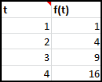
The LiveLink™ interface has the functionality to import model definitions to a worksheet — for example, parameters, variables, and functions. You find the related tools grouped under
Definitions on the
COMSOL tab in the Excel® user interface.
To import all global parameters, select a cell in the worksheet and click the Parameters button. The parameters are inserted to the right and down from the selected cell. A link to the model, represented by a comment inserted in the selected cell, ensures that you can update the model with changes to the parameters in the worksheet. The imported data is formatted as in
Figure 2-1, with the parameter definitions organized into six columns.
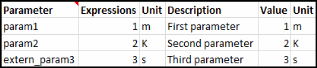
The Value column is automatically updated with the expressions you enter. You can change this behavior in the Users Preferences window; see
Preference Settings.
The first Unit column is the unit to append to the expression, while the second Unit column is the unit for the parameter evaluation. You can change the formatting to include the parameter unit together its expression in the users preferences; see
Preference Settings.
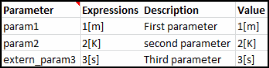
If you want to import and link only some of the parameters, you can create several Parameters nodes in the COMSOL model. Then click
Parameters >
Parameters Nodes, to select and import the parameters defined in a parameters node only.

Alternatively define parameters with the prefix extern_ in their name, and click
Parameters >
Filter, to import only these parameters.

To import all model variables, select a cell in the worksheet and click the Variables button. Variables are inserted to the right and down from the selected cell. A link to the COMSOL model, represented by a comment inserted in the selected cell, ensures that the model can be updated with changes to the variables in the worksheet. After the import, the variable definitions are formatted as in
Figure 2-5.
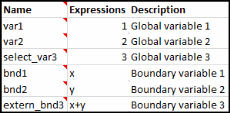
Variables >
Select, to import all the variables from the selected feature node only.
To import function definitions from the model, select a cell in the worksheet and click the Functions button. The
Functions window opens, allowing you to select analytic or interpolation functions in the model. The imported data is inserted to the right and down from the selected cell. A link to the COMSOL model, represented by a comment inserted in the selected cell, ensures that the model can be updated with changes to the function in the worksheet.