Go to the File ribbon tab and click
COMSOL to open the COMSOL Backstage view. Click
Preferences (

) to open the
Preferences window.
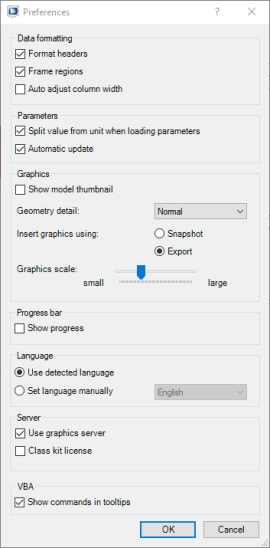
Under Data formatting, select
Format headers to create column or row headers with bold fonts.
Frame regions adds a frame around the inserted data. Select the
Auto adjust column width checkbox to automatically adjust cell width to fit the imported data.
Under Parameters, clear the
Split value from unit when loading parameters checkbox if you want the value and unit of parameters to be inserted together as a string into a single cell. By default, the checkbox is selected so that the parameter values are formatted as numbers, and the parameter units are imported into a separate cell. Clear
Automatic update if you do not want the parameters imported in Excel to have their values updated on the fly before computing the solution.
Under Graphics, select
Show model thumbnail if you want the model image to be inserted into the worksheet when a model is loaded. In the
Geometry detail list you can change the level of detail for geometry displayed in the COMSOL Multiphysics server graphics window. Click
Snapshot to insert the graphics as it looks like in the Graphics window (including background image). Click
Export to insert the graphics without background image. Use the
Graphics scale slider to change the size of the image to be inserted into the worksheet; see
Insert Screenshot.
Under Progress bar, select
Show progress to display an external progress bar. The progress bar is shown when plotting the geometry or the mesh and when computing the solution.
Under Language select
Set language manually radio button to manually define the Display and Screen Tip language, choose the language in the list box.
Select Use detected language to use the language set in Excel.
Under Server, select the
Use a graphics server checkbox (selected by default) to enable the graphics window for the COMSOL Multiphysics server the next time it is started automatically. The graphics window can display the geometry, the mesh, and the available results plots.
Select Class kit license to connect to a COMSOL Multiphysics server that is running using a class kit license type.
In the VBA section, select the
Show commands in tooltips checkbox (selected by default) to display information about the VBA commands corresponding to the buttons in the COMSOL tab in the buttons’ tooltips.