To update all model definitions with values from a worksheet, click the Update All button (

), which you find when expanding the menu under the
Update button.
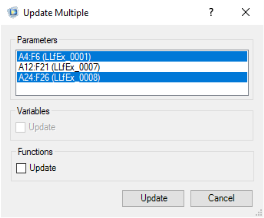
To update model definitions with parameter values from several linked cell ranges, expand the Update menu the choose
Select (

). In the dialog that opens select the cell ranges to use for updating model definitions.
First select the cell with the comment representing the link to the sweep node in the model. In the Study group, click the
Sweep button (

). In the dialog that opens, click
Update Model to update the parametric sweep node with the one stored in the worksheet.
In the Numerical Results group, click the
Update button (

) to update all results data found in a worksheet.
Click Parameters button (

) to import results parameters from the model. These parameters allow you to update simulation results without recomputing the solution. Once you have edited the parameters in the worksheet, click the
Update button (

).
For model definitions and numerical results imported into the worksheet the LiveLink™ for Excel® interface adds a comment to the cell selected at the time of the import. This cell comment is a link to the model ensuring that the data can be updated. The comment can also contain the evaluation settings to allow subsequent editing of the evaluation operation. Click
Break Link (

), or
Break All Links, to remove a comment from a cell, or all comments from the current worksheet respectively.
 ).
).