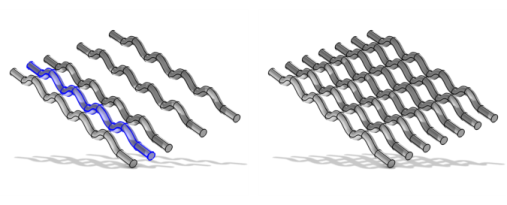
You can also right-click the Geometry node to add this node from the
Transforms submenu. Then enter the properties of the array operation using the following sections:
From the Input objects list, choose
Manual (default) to select the geometry objects that you want to duplicate in the
Graphics window. Click the
Activate Selection button to toggle between turning ON

and OFF

the
Input objects selections. Alternatively, choose
All objects to select all objects or choose
All nonconstruction objects to automatically select all objects that have not been marked as
Construction Geometry. The objects appear in the
Input objects list. If the geometry sequence includes user-defined selections above the
Array node, you can choose one of the selections from the
Input objects list.
To create a linear array of objects in 2D or 3D, change Array type to
Linear. Enter the number of duplicates in the
Size field.
Set the displacement in each coordinate direction in the x,
y, and
z fields (not all fields are available in 1D and 2D).
The coordinate system in which the displacement coordinates above are interpreted (in 3D geometries only). From the Take work plane from list, select
This sequence (the default) to use a work plane earlier in the same geometry sequence, or choose a part instance earlier in the sequence to choose a work plane from that part. From the
Work plane list, select
xy-plane (the default, for a standard global Cartesian coordinate system) or select any work plane defined above this node in the geometry sequence. If you choose a work plane, the work plane and its coordinate system appears in the
Graphics window, using an extra coordinate triad with the directions
xw,
yw, and
zw (which are then used to specify the array displacement).
Select the Resulting objects selection checkbox to create predefined selections (for all levels — objects, domains, boundaries, edges, and points — that are applicable) in subsequent nodes in the geometry sequence. To also make all or one of the types of resulting entities (domains, boundaries, edges, and points) that the resulting objects consist of available as selections in all applicable selection lists (in physics and materials settings, for example), choose an option from the
Show in physics (
Show in instances if in a geometry part;
Show in 3D in a plane geometry under a work plane in a 3D component) list:
All levels,
Domain selection,
Boundary selection,
Edge selection, or
Point selection. The default is
Domain selection, which is suitable for use with materials and physics defined in domains. For use with a boundary condition, for example, choose
Boundary selection. These selections do not appear as separate selection nodes in the model tree. Select
Off to not make any selection available outside of the geometry sequence. From the
Color list, choose a color for highlighting the resulting objects selection. See
Selection Colors.
If you have Named Selections that include entities on the input objects, select the
Propagate selections to moved objects (selected by default) checkbox to update the selections to corresponding entities on the moved objects, when possible. Clear the checkbox to not propagate the selection to the moved objects.
Select the Create index attributes checkbox to assign 1-based values to the output objects that correspond to the object’s array index. The default attribute tag names are listed in the corresponding edit fields (
x attribute tag,
y attribute tag, and
z attribute tag in 3D). The names can be changed. The attribute tags can be used in expressions in
Logical Expression Selection (Geometry Sequences) and
Logical Expression (in Definitions) to quickly select some of the array objects.
From the Construction geometry list choose
On to make the resulting objects available only in the feature’s geometry sequence. The default option
Inherit means that the resulting objects become construction geometry if all input objects are construction geometry. Choose
Off to never output construction geometry objects. For more information, see
Construction Geometry.
 ) menu, select Array (
 ).
).