PDF

Lumped Composite Thermal Barrier with Shells
Introduction
This example shows how to replace two 3D finite element domains by thin structures for heat transfer modeling, and to connect them through a lumped thermal system to account for a thermal barrier.
The model is a variant of the Composite Thermal Barrier and Lumped Composite Thermal Barrier models, in which two ceramic thin layers with different thermal conductivities are sandwiched in a steel column.
Three modeling approaches are compared for the computation of the temperature distribution through the whole column. First, both the steel column and the composite (made of the ceramic layers) are modeled as 3D objects. In the second approach, to avoid resolving both the column and the ceramic layers in the geometry, the Heat Transfer in Shells interface is used to model the upper and lower parts of the steel column, and the Lumped Thermal System interface is used for the ceramic layers, and coupled to the two shells through boundary conditions. Finally, the equivalent lumped system is simulated with a single resistor carrying the equivalent thermal resistance of the ceramic layers. In case of such simple lumped thermal system, it can be entirely encapsulated in the Thermal Connection, Interface-Interface feature, the Lumped Thermal System physics interface is then not required.
This methodology is useful when modeling heat transfer through thermal barriers like multilayer coatings.
Model Definition
Geometry
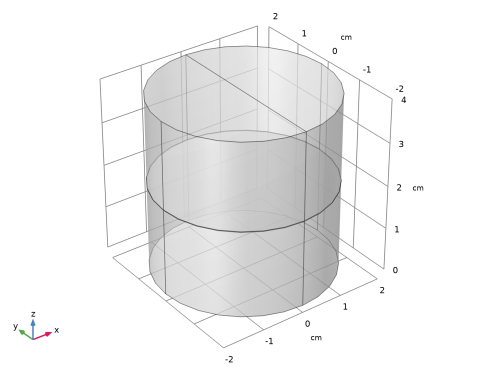
This tutorial uses a simple geometry as shown in Figure 1. The cylinder has a radius of 2 cm and a height of 4 cm.
Figure 1: Geometry.
The composite consists of two layers with different thermal conductivities. The first approach resolves each layer as a 3D domain. The height of the layers is about three orders of magnitude smaller than the bulk height. This often requires to build a mesh manually to accurately resolve the thin structure.
Thin Structure Representation of the Steel Column
The Heat Transfer in Shells interface is used to model the conductive heat transfer in the top and bottom parts of the steel column.
The top and bottom cylinders are represented by two circular shells whose thickness is defined in the Layered Material settings. Although the column thickness is not represented explicitly in the geometry, the Layered Material technology allows to solve the temperature distribution through the shells. The number of implicit mesh elements can be set in the Layered Material node as well, to fit the settings used for the swept meshes of the 3D domains.
The Temperature, Interface condition is applied on the bottom interface of the lower part of the column, and on the top interface of the upper part of the column, to prescribe the temperature at each extremity of the column.
Network Representation of the Thermal Barrier
COMSOL Multiphysics provides the Lumped Thermal System physics interface, available from the Heat Transfer Module, and in which the Conductive Thermal Resistor feature allows to model conductive heat transfer without representing the underlying geometry.
The Lumped Thermal System physics interface uses a network representation of thermal systems to model heat transfer by analogy with electrical circuits. The domain and boundary conditions for heat transfer are idealized by components joined by a network of perfectly thermally conductive wires.
This 0D approach simplifies the geometry and thus the mesh. In complex geometries, this lumped approach can significantly reduce the amount of memory and time required for the simulation.
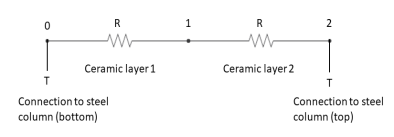
For the modeling of the thermally resistive ceramic layers, two Conductive Thermal Resistor components are connected in a serial circuit.
The coupling between the two physics interfaces, Heat Transfer in Shells (2D approach) and Lumped Thermal System (0D approach), is performed through the following features:
Thermal Connection, Interface-Interface feature in the Heat Transfer in Shells interface, applied on the bottom interface of the top shell, and on the top interface of the bottom shell. This feature uses the heat rate defined by each External Terminal feature to set a heat flux on the corresponding boundary in the distributed finite element model.
External Terminal feature in the Lumped Thermal System interface, applied at each extremity of the thermal circuit. This feature prescribes the temperature Text provided by the Thermal Connection, Interface-Interface feature of the Heat Transfer in Shells interface.
The complete thermal circuit modeled by the Lumped Thermal System interface is as shown in Figure 2.
Figure 2: Thermal circuit for heat transfer in the ceramic layers.
Conductive Thermal Resistor
The Conductive Thermal Resistor feature models heat conduction in a thin shell of constant conductivity. In this example, a plane shell configuration is assumed, and the thermal resistance R (SI unit: K/W) of each layer is expressed from the thermal conductivity k (SI unit: W/(m·K)), the thickness L (SI unit: m), and the surface area A (SI unit: m²) as follows:
It then assumes that the heat rate P (SI unit: W) through each layer is proportional to the temperature difference ΔT (SI unit: K) across it:
See Theory for the Lumped Thermal System Interface in the Heat Transfer Module User’s Guide for more details about the underlying theory.
In case of a lumped thermal system consisting of two serially connected resistors as presented in Figure 2, the total thermal resistance can be defined as the sum of the two resistances:
Such simple lumped systems can be directly encapsulated in the Thermal Connection, Interface-Interface feature of the Heat Transfer in Shells interface. In that case, the Lumped Thermal System physics interface is not required. This approach is demonstrated as well in the present tutorial.
Material Properties
The cylinder is made of steel. The composite consists of two layers of different ceramics.
Boundary Conditions
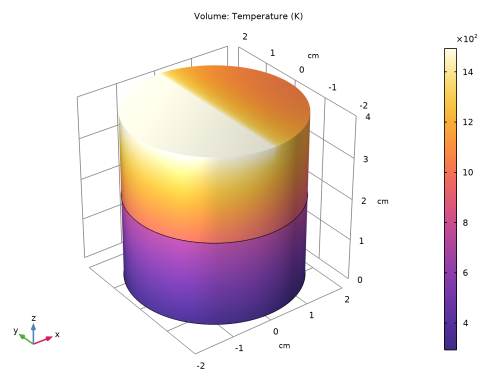
The temperature at the bottom is fixed to 20°C whereas one half of the top boundary is held at 1220°C (1493 K). All other outer boundaries are perfectly insulated.
Results and Discussion
Figure 3 shows the temperature distribution in the cylinder. The composite acts as a thermal barrier resulting in a jump of the temperature over the layer.
Figure 3: Temperature distribution.
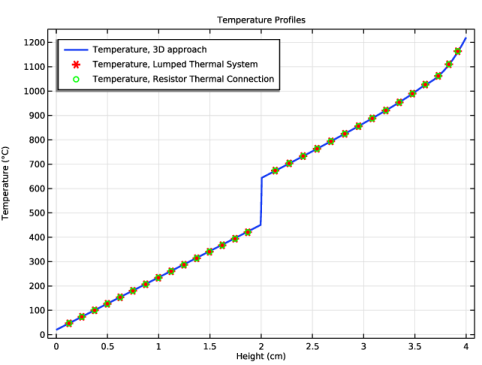
Of interest is if the lumped approach (using Heat Transfer in Shells and Lumped Thermal System) produces reliable results compared to resolving the whole steel column in 3D. This can be done with a comparative line graph as in Figure 4. Using the lumped approaches accurate results for the bulk temperatures are obtained.
Figure 4: Temperature profile for 3D and lumped approaches.
Another important question for simulating is the influence on the mesh size and on the required RAM.
With the default tetrahedral mesh of the 3D model, the number of mesh elements is about 130,000 elements and the meshing algorithm gives some warnings.
With the swept mesh feature you can significantly reduce the number of elements to about 2800 elements (prisms), which is only 2% of the initial number of elements. Note that in complex geometries the swept mesh algorithm is often not applicable.
Using the lumped approach, the number of mesh elements reduces to about 1300 elements (triangles). You can see the number of mesh elements used in the Messages window below the Graphics window.
Notes About the COMSOL Implementation
To compare the results directly, three approaches are handled in a single MPH-file.
Application Library path: Heat_Transfer_Module/Tutorials,_Thin_Structure/lumped_composite_thermal_barrier_shells
Modeling Instructions
From the File menu, choose New.
New
In the New window, click  Model Wizard.
Model Wizard
1
In the Model Wizard window, click  3D.
2
In the Select Physics tree, select Heat Transfer > Heat Transfer in Solids (ht).
3
Click Add.
4
Click  Study.
5
In the Select Study tree, select General Studies > Stationary.
6
Global Definitions
Parameters 1
1
In the Model Builder window, under Global Definitions click Parameters 1.
2
In the Settings window for Parameters, locate the Parameters section.
3
Geometry 1
1
In the Model Builder window, under Component 1 (comp1) click Geometry 1.
2
In the Settings window for Geometry, locate the Units section.
3
From the Length unit list, choose cm.
Cylinder 1 (cyl1)
1
In the Geometry toolbar, click  Cylinder.
2
In the Settings window for Cylinder, locate the Size and Shape section.
3
In the Radius text field, type 2.
4
In the Height text field, type 4.
5
In the Geometry toolbar, click  Build All.
Now, create thin cylinders to define the ceramic layers between the two steel domains.
Cylinder 2 (cyl2)
1
In the Geometry toolbar, click  Cylinder.
2
In the Settings window for Cylinder, locate the Size and Shape section.
3
In the Radius text field, type 2.
4
In the Height text field, type d_ceram1.
5
Locate the Position section. In the z text field, type 2-(d_ceram1+d_ceram2)/2.
6
In the Geometry toolbar, click  Build All.
Cylinder 3 (cyl3)
1
In the Geometry toolbar, click  Cylinder.
2
In the Settings window for Cylinder, locate the Size and Shape section.
3
In the Radius text field, type 2.
4
In the Height text field, type d_ceram2.
5
Locate the Position section. In the z text field, type 2-(d_ceram1+d_ceram2)/2+d_ceram1.
6
In the Geometry toolbar, click  Build All.
Polygon 1 (pol1)
1
In the Geometry toolbar, click  More Primitives and choose Polygon.
2
In the Settings window for Polygon, locate the Coordinates section.
3
4
In the Geometry toolbar, click  Build All.
Materials
Material Link 1 (matlnk1)
1
In the Model Builder window, under Component 1 (comp1) right-click Materials and choose More Materials > Material Link.
2
In the Settings window for Material Link, locate the Link Settings section.
3
Click  Add Material from Library.
Add Material to Material Link 1 (matlnk1)
1
Go to the Add Material to Material Link 1 (matlnk1) window.
2
In the tree, select Built-in > Steel AISI 4340.
3
Right-click and choose Add to Material Link 1 (matlnk1).
Materials
Material Link 2 (matlnk2)
1
Right-click Materials and choose More Materials > Material Link.
2
In the Settings window for Material Link, locate the Geometric Entity Selection section.
3
Click  Paste Selection.
4
In the Paste Selection dialog, type 2 in the Selection text field.
5
6
In the Settings window for Material Link, locate the Link Settings section.
7
Click  Blank Material.
8
In the Model Builder window, click Material Link 2 (matlnk2).
9
Click  Go to Material.
Global Definitions
Ceramic 1
1
In the Model Builder window, under Global Definitions > Materials click Material 2 (mat2).
2
In the Settings window for Material, type Ceramic 1 in the Label text field.
3
Locate the Material Contents section. In the table, enter the following settings:
Materials
Material Link 3 (matlnk3)
1
In the Model Builder window, under Component 1 (comp1) right-click Materials and choose More Materials > Material Link.
2
In the Settings window for Material Link, locate the Geometric Entity Selection section.
3
Click  Paste Selection.
4
In the Paste Selection dialog, type 3 in the Selection text field.
5
6
In the Settings window for Material Link, locate the Link Settings section.
7
Click  Blank Material.
8
In the Model Builder window, click Material Link 3 (matlnk3).
9
Click  Go to Material.
Global Definitions
Ceramic 2
1
In the Model Builder window, under Global Definitions > Materials click Material 3 (mat3).
2
In the Settings window for Material, type Ceramic 2 in the Label text field.
3
Locate the Material Contents section. In the table, enter the following settings:
Heat Transfer in Solids (ht)
Temperature 1
1
In the Physics toolbar, click  Boundaries and choose Temperature.
2
Temperature 2
1
In the Physics toolbar, click  Boundaries and choose Temperature.
2
3
In the Settings window for Temperature, locate the Temperature section.
4
In the T0 text field, type T_hot.
Mesh 1
First, mesh the top surface with a free triangular mesh and extrude it in layers through the cylindrical geometry. With a Distribution node, specify how many mesh layers are to be created within the domain. Resolve the composite layers with two elements in thickness.
Free Triangular 1
1
In the Mesh toolbar, click  More Generators and choose Free Triangular.
2
3
In the Settings window for Free Triangular, click  Build Selected.
Swept 1
In the Mesh toolbar, click  Swept.
Distribution 1
1
Right-click Swept 1 and choose Distribution.
2
3
In the Settings window for Distribution, locate the Distribution section.
4
In the Number of elements text field, type 2.
5
Click  Build All.
Study 1: 3D approach
1
In the Model Builder window, right-click Study 1 and choose Rename.
2
In the Rename Study dialog, type Study 1: 3D approach in the New label text field.
3
4
In the Study toolbar, click  Compute.
Results
Change the unit of the temperature results to degrees Celsius.
Preferred Units 1
1
In the Results toolbar, click  Configurations and choose Preferred Units.
2
In the Settings window for Preferred Units, locate the Units section.
3
Click  Add Physical Quantity.
4
In the Physical Quantity dialog, select General > Temperature (K) in the tree.
5
6
In the Settings window for Preferred Units, locate the Units section.
7
8
Click  Apply.
Temperature, 3D approach
The following plot is produced by default: temperature profile on the volume as in Figure 3.
1
In the Model Builder window, under Results click Temperature (ht).
2
In the Settings window for 3D Plot Group, type Temperature, 3D approach in the Label text field.
Create now the second model which uses the Heat Transfer in Shells and Lumped Thermal System interfaces and compare the results to the first approach.
Add Component
In the Model Builder window, right-click the root node and choose Add Component > 3D.
Geometry 2
Work Plane 1 (wp1)
1
In the Geometry toolbar, click  Work Plane.
2
In the Settings window for Geometry, locate the Units section.
3
From the Length unit list, choose cm.
Work Plane 1 (wp1) > Plane Geometry
In the Model Builder window, click Plane Geometry.
Work Plane 1 (wp1) > Circle 1 (c1)
1
In the Work Plane toolbar, click  Circle.
2
In the Settings window for Circle, locate the Size and Shape section.
3
In the Radius text field, type 2.
Work Plane 2 (wp2)
1
In the Model Builder window, right-click Geometry 2 and choose Work Plane.
2
In the Settings window for Work Plane, locate the Plane Definition section.
3
In the z-coordinate text field, type 2+(d_ceram1+d_ceram2)/2.
Work Plane 2 (wp2) > Plane Geometry
In the Model Builder window, click Plane Geometry.
Work Plane 2 (wp2) > Circle 1 (c1)
1
In the Work Plane toolbar, click  Circle.
2
In the Settings window for Circle, locate the Size and Shape section.
3
In the Radius text field, type 2.
Polygon 1 (pol1)
1
In the Model Builder window, right-click Geometry 2 and choose More Primitives > Polygon.
2
In the Settings window for Polygon, locate the Coordinates section.
3
4
Click  Build All Objects.
Materials
Layered Material Link 1 (llmat1)
1
In the Model Builder window, under Component 2 (comp2) right-click Materials and choose Layers > Layered Material Link.
2
In the Settings window for Layered Material Link, locate the Layered Material Settings section.
3
Click  Add Layered Material.
Global Definitions
Layered Material 1 (lmat1)
1
In the Model Builder window, under Global Definitions > Materials click Layered Material 1 (lmat1).
2
In the Settings window for Layered Material, locate the Layer Definition section.
3
Materials
Layered Material Link 1 (llmat1)
1
In the Model Builder window, under Component 2 (comp2) > Materials click Layered Material Link 1 (llmat1).
2
In the Settings window for Layered Material Link, click Section_bar in the upper-right corner of the Layered Material Settings section. From the menu, choose Layer Cross-Section Preview.
3
Locate the Orientation and Position section. From the Position list, choose Bottom side on boundary.
Global Definitions
Layered Material 1 (lmat1)
1
In the Model Builder window, under Global Definitions > Materials click Layered Material 1 (lmat1).
2
In the Settings window for Layered Material, locate the Layer Definition section.
3
Add Physics
1
In the Home toolbar, click  Add Physics to open the Add Physics window.
2
Go to the Add Physics window.
3
In the tree, select Heat Transfer > Thin Structures > Heat Transfer in Shells (htlsh).
4
Find the Physics interfaces in study subsection. In the table, clear the Solve checkbox for Study 1: 3D approach.
5
Click the Add to Component 2 button in the window toolbar.
6
In the tree, select Heat Transfer > Lumped Thermal System (lts).
7
In the table, clear the Solve checkbox for Study 1: 3D approach.
8
Click the Add to Component 2 button in the window toolbar.
9
In the Home toolbar, click  Add Physics to close the Add Physics window.
Lumped Thermal System (lts)
Ceramic 1
1
In the Physics toolbar, click  Global and choose Conductive Thermal Resistor.
2
In the Settings window for Conductive Thermal Resistor, type Ceramic 1 in the Label text field.
3
Locate the Component Parameters section. From the Specify list, choose Thermal and geometric properties.
4
From the Material list, choose Ceramic 1 (mat2).
5
In the A text field, type pi*(2[cm])^2.
6
In the L text field, type d_ceram1.
Ceramic 2
1
In the Physics toolbar, click  Global and choose Conductive Thermal Resistor.
2
In the Settings window for Conductive Thermal Resistor, type Ceramic 2 in the Label text field.
3
Locate the Node Connections section. In the table, enter the following settings:
4
Locate the Component Parameters section. From the Specify list, choose Thermal and geometric properties.
5
From the Material list, choose Ceramic 2 (mat3).
6
In the A text field, type pi*(2[cm])^2.
7
In the L text field, type d_ceram2.
External Terminal 1 (term1)
1
In the Physics toolbar, click  Global and choose External Terminal.
2
In the Settings window for External Terminal, locate the Node Connections section.
3
In the Node name text field, type 0.
External Terminal 2 (term2)
1
In the Physics toolbar, click  Global and choose External Terminal.
2
In the Settings window for External Terminal, locate the Node Connections section.
3
In the Node name text field, type 2.
Heat Transfer in Shells (htlsh)
Solid 1
1
In the Model Builder window, under Component 2 (comp2) > Heat Transfer in Shells (htlsh) click Solid 1.
2
In the Settings window for Solid, locate the Layer Model section.
3
From the Layer type list, choose General.
Add Thermal Connection, Interface-Interface feature on top and bottom boundaries of the composite barrier to connect the External Terminal features added previously.
Thermal Connection, Interface-Interface 1
1
In the Physics toolbar, click  Global and choose Thermal Connection, Interface-Interface.
2
In the Settings window for Thermal Connection, Interface-Interface, locate the Shell Properties section.
3
From the Layered material for connector 1 list, choose Layered Material Link 1 (llmat1).
4
From the Layered material for connector 2 list, choose Layered Material Link 1 (llmat1).
5
6
Locate the Boundary Selection, Connector 2 section. Click to select the  Activate Selection toggle button.
7
8
Locate the Interface Selection section. From the Connector 2, apply to list, choose Bottom interface.
9
Locate the Thermal Connection section. From the Connection type list, choose Lumped thermal system.
10
Find the Connector 2 subsection. From the Pext,2 list, choose External Terminal 2 (term2) (lts/term2).
Temperature, Interface 1
1
In the Physics toolbar, click  Boundaries and choose Temperature, Interface.
2
3
In the Settings window for Temperature, Interface, locate the Interface Selection section.
4
From the Apply to list, choose Bottom interface.
Temperature, Interface 2
1
In the Physics toolbar, click  Boundaries and choose Temperature, Interface.
2
3
In the Settings window for Temperature, Interface, locate the Interface Selection section.
4
From the Apply to list, choose Top interface.
5
Locate the Temperature section. In the T0 text field, type T_hot.
Mesh 2
1
In the Model Builder window, under Component 2 (comp2) click Mesh 2.
2
In the Settings window for Mesh, locate the Physics-Controlled Mesh section.
3
In the table, clear the Use checkbox for Geometric Analysis, Detail Size.
Add Study
1
In the Home toolbar, click  Add Study to open the Add Study window.
2
Go to the Add Study window.
3
Find the Studies subsection. In the Select Study tree, select General Studies > Stationary.
4
Click the Add Study button in the window toolbar.
5
In the Home toolbar, click  Add Study to close the Add Study window.
Study 2
Step 1: Stationary
1
In the Settings window for Stationary, locate the Physics and Variables Selection section.
2
In the Solve for column of the table, under Component 1 (comp1), clear the checkbox for Heat Transfer in Solids (ht).
3
In the Model Builder window, right-click Study 2 and choose Rename.
4
In the Rename Study dialog, type Study 2: Lumped Thermal System approach in the New label text field.
5
6
In the Study toolbar, click  Compute.
Results
Temperature, Lumped Thermal System approach
In the Settings window for 3D Plot Group, type Temperature, Lumped Thermal System approach in the Label text field.
Volume 1
1
In the Model Builder window, expand the Temperature, Lumped Thermal System approach node, then click Volume 1.
2
In the Settings window for Volume, locate the Expression section.
3
From the Unit list, choose °C.
4
Click the  Zoom Extents button in the Graphics toolbar.
Create now the third model which represents a simplified version of the second model. It simulates the same lumped thermal system but with one single resistor of resistance Rtot previously defined. Such simple systems with one single resistor can be defined directly in Thermal Connection, Interface-Interface boundary feature. Create this model and compare the results to the previous approaches.
Add Component
In the Model Builder window, right-click the root node and choose Add Component > 3D.
Geometry 3
Work Plane 1 (wp1)
1
In the Geometry toolbar, click  Work Plane.
2
In the Settings window for Geometry, locate the Units section.
3
From the Length unit list, choose cm.
Work Plane 1 (wp1) > Plane Geometry
In the Model Builder window, click Plane Geometry.
Work Plane 1 (wp1) > Circle 1 (c1)
1
In the Work Plane toolbar, click  Circle.
2
In the Settings window for Circle, locate the Size and Shape section.
3
In the Radius text field, type 2.
Work Plane 2 (wp2)
1
In the Model Builder window, right-click Geometry 3 and choose Work Plane.
2
In the Settings window for Work Plane, locate the Plane Definition section.
3
In the z-coordinate text field, type 2+(d_ceram1+d_ceram2)/2.
Work Plane 2 (wp2) > Plane Geometry
In the Model Builder window, click Plane Geometry.
Work Plane 2 (wp2) > Circle 1 (c1)
1
In the Work Plane toolbar, click  Circle.
2
In the Settings window for Circle, locate the Size and Shape section.
3
In the Radius text field, type 2.
Polygon 1 (pol1)
1
In the Model Builder window, right-click Geometry 3 and choose More Primitives > Polygon.
2
In the Settings window for Polygon, locate the Coordinates section.
3
4
Click  Build All Objects.
Materials
Layered Material Link 2 (llmat2)
1
In the Model Builder window, under Component 3 (comp3) right-click Materials and choose Layers > Layered Material Link.
2
In the Settings window for Layered Material Link, locate the Orientation and Position section.
3
From the Position list, choose Bottom side on boundary.
Add Physics
1
In the Home toolbar, click  Add Physics to open the Add Physics window.
2
Go to the Add Physics window.
3
In the tree, select Heat Transfer > Thin Structures > Heat Transfer in Shells (htlsh).
4
Find the Physics interfaces in study subsection. In the table, clear the Solve checkboxes for Study 1: 3D approach and Study 2: Lumped Thermal System approach.
5
Click the Add to Component 3 button in the window toolbar.
6
In the Home toolbar, click  Add Physics to close the Add Physics window.
Heat Transfer in Shells 2 (htlsh2)
Solid 1
1
In the Settings window for Solid, locate the Layer Model section.
2
From the Layer type list, choose General.
Temperature, Interface 1
1
In the Physics toolbar, click  Boundaries and choose Temperature, Interface.
2
3
In the Settings window for Temperature, Interface, locate the Interface Selection section.
4
From the Apply to list, choose Bottom interface.
Temperature, Interface 2
1
In the Physics toolbar, click  Boundaries and choose Temperature, Interface.
2
3
In the Settings window for Temperature, Interface, locate the Interface Selection section.
4
From the Apply to list, choose Top interface.
5
Locate the Temperature section. In the T0 text field, type T_hot.
Thermal Connection, Interface-Interface 1
1
In the Physics toolbar, click  Global and choose Thermal Connection, Interface-Interface.
2
In the Settings window for Thermal Connection, Interface-Interface, locate the Shell Properties section.
3
From the Layered material for connector 1 list, choose Layered Material Link 2 (llmat2).
4
From the Layered material for connector 2 list, choose Layered Material Link 2 (llmat2).
5
6
Locate the Boundary Selection, Connector 2 section. Click to select the  Activate Selection toggle button.
7
8
Locate the Interface Selection section. From the Connector 2, apply to list, choose Bottom interface.
9
Locate the Thermal Connection section. In the R text field, type (d_ceram1/k_ceram1+d_ceram2/k_ceram2)/(pi*(2[cm])^2).
Mesh 3
1
In the Model Builder window, under Component 3 (comp3) click Mesh 3.
2
In the Settings window for Mesh, locate the Physics-Controlled Mesh section.
3
In the table, clear the Use checkbox for Geometric Analysis, Detail Size.
4
Click  Build All.
Add Study
1
In the Home toolbar, click  Add Study to open the Add Study window.
2
Go to the Add Study window.
3
Find the Studies subsection. In the Select Study tree, select General Studies > Stationary.
4
Click the Add Study button in the window toolbar.
5
In the Home toolbar, click  Add Study to close the Add Study window.
Study 3: Resistor Thermal Connection approach
1
In the Model Builder window, right-click Study 3 and choose Rename.
2
In the Rename Study dialog, type Study 3: Resistor Thermal Connection approach in the New label text field.
3
Step 1: Stationary
1
In the Model Builder window, under Study 3: Resistor Thermal Connection approach click Step 1: Stationary.
2
In the Settings window for Stationary, locate the Physics and Variables Selection section.
3
In the Solve for column of the table, clear the checkboxes for Component 1 (comp1) and Component 2 (comp2).
4
In the Study toolbar, click  Compute.
Results
Temperature, Resistor Thermal Connection approach
In the Settings window for 3D Plot Group, type Temperature, Resistor Thermal Connection approach in the Label text field.
Volume 1
1
In the Model Builder window, expand the Temperature, Resistor Thermal Connection approach node, then click Volume 1.
2
In the Settings window for Volume, locate the Expression section.
3
From the Unit list, choose °C.
4
Click the  Zoom Extents button in the Graphics toolbar.
Now, create temperature profiles along the height of the cylinder for all three approaches.
Temperature Profiles
1
In the Results toolbar, click  1D Plot Group.
2
In the Settings window for 1D Plot Group, type Temperature Profiles in the Label text field.
3
Locate the Plot Settings section.
4
Select the x-axis label checkbox. In the associated text field, type Height (cm).
5
Select the Flip the x- and y-axes checkbox.
6
Click to expand the Title section. From the Title type list, choose Manual.
7
In the Title text area, type Temperature Profiles.
8
Locate the Legend section. From the Position list, choose Upper left.
9
In the Maximum relative width text field, type 0.6.
Line Graph 1
1
Right-click Temperature Profiles and choose Line Graph.
2
3
In the Settings window for Line Graph, locate the y-Axis Data section.
4
In the Expression text field, type z.
5
Locate the x-Axis Data section. From the Parameter list, choose Expression.
6
Click to expand the Coloring and Style section. From the Width list, choose 2.
7
Click to expand the Legends section. From the Legends list, choose Manual.
8
Select the Show legends checkbox.
9
Temperature Profiles
In the Model Builder window, click Temperature Profiles.
Through Thickness 1
1
In the Temperature Profiles toolbar, click  More Plots and choose Through Thickness.
2
In the Settings window for Through Thickness, locate the Data section.
3
From the Dataset list, choose Study 2: Lumped Thermal System approach/Solution 2 (3) (sol2).
4
5
Locate the x-Axis Data section. In the Expression text field, type T2.
6
Locate the y-Axis Data section. From the Parameter list, choose Expression.
7
In the Expression text field, type llmat1.th.
8
Click to expand the Coloring and Style section. Find the Line style subsection. From the Line list, choose None.
9
From the Color list, choose Red.
10
Find the Line markers subsection. From the Marker list, choose Asterisk.
11
From the Positioning list, choose Interpolated.
12
Set the Number value to 15.
13
Click to expand the Legends section. Select the Show legends checkbox.
14
From the Legends list, choose Manual.
15
Temperature Profiles
In the Model Builder window, click Temperature Profiles.
Through Thickness 2
1
In the Temperature Profiles toolbar, click  More Plots and choose Through Thickness.
2
In the Settings window for Through Thickness, locate the Data section.
3
From the Dataset list, choose Study 2: Lumped Thermal System approach/Solution 2 (3) (sol2).
4
5
Locate the x-Axis Data section. In the Expression text field, type T2.
6
Locate the y-Axis Data section. From the Parameter list, choose Expression.
7
In the Expression text field, type llmat1.th + 2[cm].
8
Locate the Coloring and Style section. Find the Line style subsection. From the Line list, choose None.
9
From the Color list, choose Red.
10
Find the Line markers subsection. From the Marker list, choose Asterisk.
11
From the Positioning list, choose Interpolated.
12
Set the Number value to 15.
13
In the Temperature Profiles toolbar, click  Plot.
Temperature Profiles
In the Model Builder window, click Temperature Profiles.
Through Thickness 3
1
In the Temperature Profiles toolbar, click  More Plots and choose Through Thickness.
2
In the Settings window for Through Thickness, locate the Data section.
3
From the Dataset list, choose Study 3: Resistor Thermal Connection approach/Solution 3 (6) (sol3).
4
5
Locate the x-Axis Data section. In the Expression text field, type T3.
6
Locate the y-Axis Data section. From the Parameter list, choose Expression.
7
In the Expression text field, type llmat2.th.
8
Locate the Coloring and Style section. Find the Line style subsection. From the Line list, choose None.
9
From the Color list, choose Green.
10
Find the Line markers subsection. From the Marker list, choose Circle.
11
From the Positioning list, choose Interpolated.
12
Set the Number value to 15.
13
Locate the Legends section. Select the Show legends checkbox.
14
From the Legends list, choose Manual.
15
Temperature Profiles
In the Model Builder window, click Temperature Profiles.
Through Thickness 4
1
In the Temperature Profiles toolbar, click  More Plots and choose Through Thickness.
2
In the Settings window for Through Thickness, locate the Data section.
3
From the Dataset list, choose Study 3: Resistor Thermal Connection approach/Solution 3 (6) (sol3).
4
5
Locate the x-Axis Data section. In the Expression text field, type T3.
6
Locate the y-Axis Data section. From the Parameter list, choose Expression.
7
In the Expression text field, type llmat2.th + 2[cm].
8
Locate the Coloring and Style section. Find the Line style subsection. From the Line list, choose None.
9
From the Color list, choose Green.
10
Find the Line markers subsection. From the Marker list, choose Circle.
11
From the Positioning list, choose Interpolated.
12
Set the Number value to 15.
13
In the Temperature Profiles toolbar, click  Plot.