|
|
|
|
1
|
|
2
|
Click
 Done. Done. |
|
1
|
|
2
|
|
3
|
Click
 Browse. Browse. |
|
4
|
|
5
|
Click
 Import. Import. |
|
6
|
|
1
|
In the Model Builder window, expand the Global Definitions>Mesh Parts>Mesh Part 1>Import 1 node, then click Information.
|
|
2
|
|
3
|
|
4
|
|
5
|
|
6
|
|
7
|
|
8
|
|
9
|
|
1
|
|
2
|
|
3
|
|
4
|
|
1
|
|
2
|
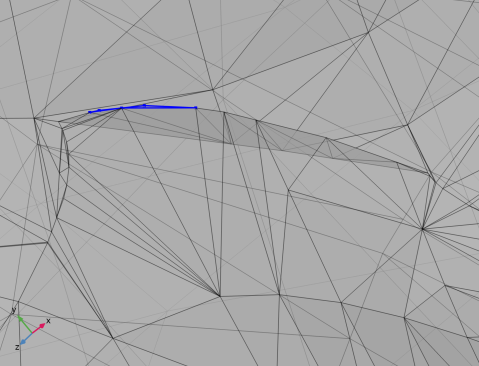
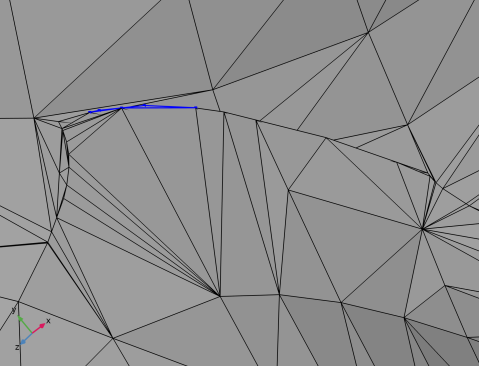
Expand the Information node and click on the second Information1 node. In the Settings window, you find information that the operation was unable to delete two edges. Make sure both edges are selected in the list.
|
|
3
|
Click the
 Zoom to Selection button in the Graphics toolbar to zoom in on the selected edges. The button is also available next to the Selection list. Zoom to Selection button in the Graphics toolbar to zoom in on the selected edges. The button is also available next to the Selection list. |
|
4
|
|
5
|
|
1
|
|
2
|
|
3
|
|
4
|
In the list, select 1 (the large face of the vertebra).
|
|
5
|
|
6
|
|
7
|
Close the Selection List window.
|
|
1
|
|
2
|
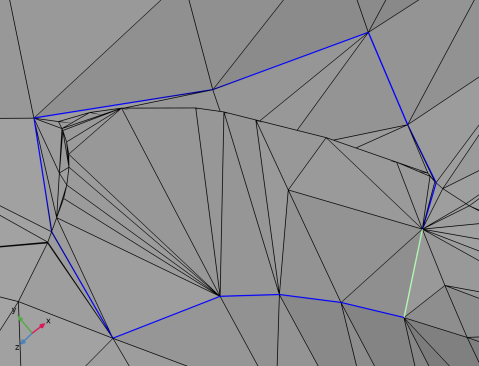
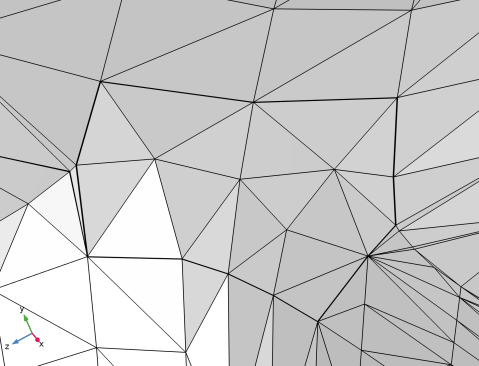
Select mesh edges around the fold by clicking them in the Graphics, similar to what is shown in the image below. The selection is most easily done with transparency off. If there are mesh edges on the opposite side of the view or are located inside a closed mesh face, it is recommended to use a Clip Plane or to hide boundaries in the mesh to reach those mesh edges. The selected edges can differ from the ones selected in the figure, as long as the edges form a closed loop, include the fold, and delimit only a small region around the fold. The last requirement is important when generating a new mesh face that follows the original mesh as close as possible.
 |
|
3
|
In the Settings window for Create Edges, click
 Build Selected to generate the edges and partition the boundary. Build Selected to generate the edges and partition the boundary. |
|
1
|
|
3
|
|
1
|
|
3
|
|
4
|
Clear the Create domains check box to avoid getting further Information nodes about intersecting elements.
|
|
5
|
|
1
|
|
2
|
Click in the Graphics window and then press Ctrl+A to select both boundaries.
|
|
3
|
|
4
|
|
1
|
|
2
|
|
3
|
|
4
|
|
5
|
|
1
|
|
2
|
|
3
|
|
1
|
|
2
|
|
1
|
|
2
|
Select the object imp1 only, in other words the object for the imported vertebra.
|
|
3
|
|
4
|
|
5
|
|
6
|
|
7
|
Click the
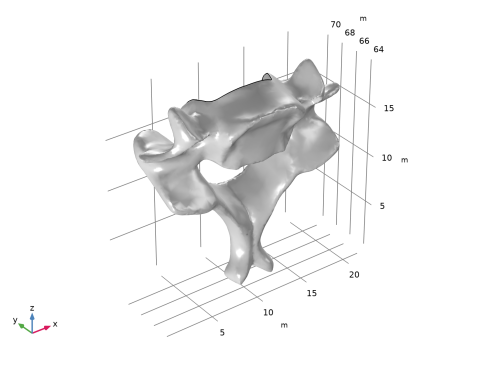
 Zoom Extents button in the Graphics toolbar. This will make sure the vertebra is once again in view. Zoom Extents button in the Graphics toolbar. This will make sure the vertebra is once again in view. |
|
1
|
|
2
|
Select the object rot1 only.
|
|
3
|
|
4
|
|
5
|
|
6
|
|
1
|
|
2
|
|
3
|
|
4
|
|
5
|
|
6
|
|
7
|
|
8
|
|
9
|
|
1
|
|
2
|
Select the object blk1 only (the block).
|
|
3
|
|
4
|
|
5
|
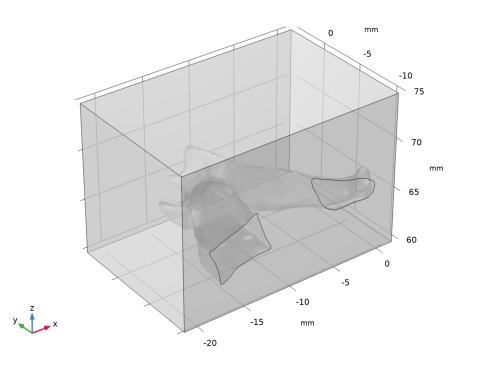
Select the object rot2 only (the vertebra).
|
|
6
|
|
7
|
|
8
|
|
1
|
|
2
|
|
1
|
|
2
|
|
3
|
|
1
|
In the Model Builder window, under Component 1 (comp1)>Mesh 1 right-click Size and choose Build Selected.
|
|
1
|
|
1
|
|
2
|
|
3
|
Click the Custom button.
|
|
4
|
|
5
|
|
6
|
|
1
|
In the Model Builder window, under Component 1 (comp1)>Mesh 1 right-click Free Tetrahedral 1 and choose Build All to once again build the mesh on the domains.
|
|
2
|
|
3
|
|
4
|
|
5
|
|
6
|
|
7
|
|
1
|
|
2
|
Right-click Global Definitions>Mesh Parts>Mesh Part 1 and choose Create Geometry to reimport the vertebra into a new Component.
|
|
1
|
|
3
|
|
1
|
|
2
|
|
3
|
|
4
|
|
5
|
|
6
|
In the Mesh toolbar, click
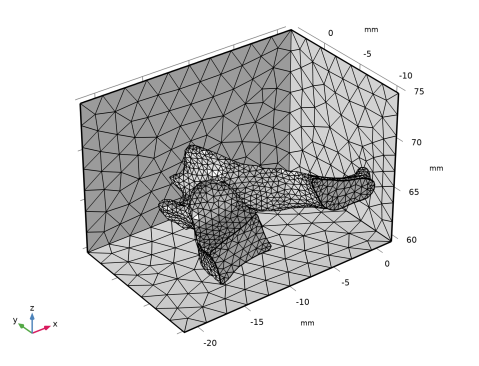
 Plot to automatically create a Mesh dataset and add a Mesh Plot under Results. Plot to automatically create a Mesh dataset and add a Mesh Plot under Results. |
|
1
|
|
2
|
|
3
|
|
4
|
|
1
|
|
2
|
|
3
|
|
1
|
|
2
|
|
3
|
|
1
|
|
2
|
|
3
|
|
4
|
|
5
|
|
1
|
|
2
|
|
3
|
|
4
|
|
1
|
|
2
|
|
1
|
|
2
|
|
3
|
|
4
|
|
1
|
|
2
|




 next to








 next to