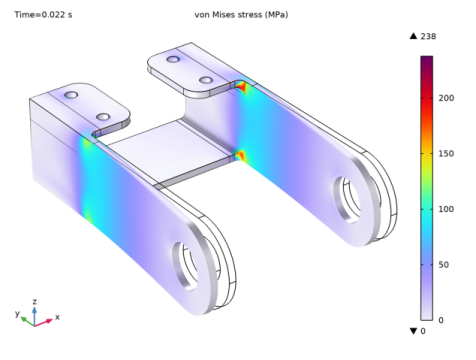
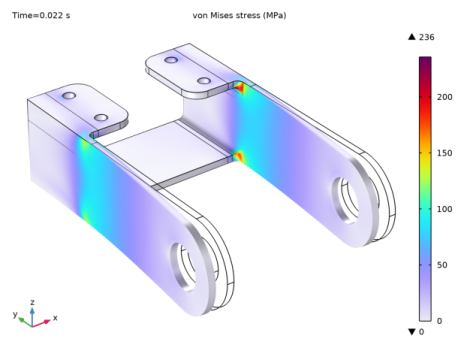
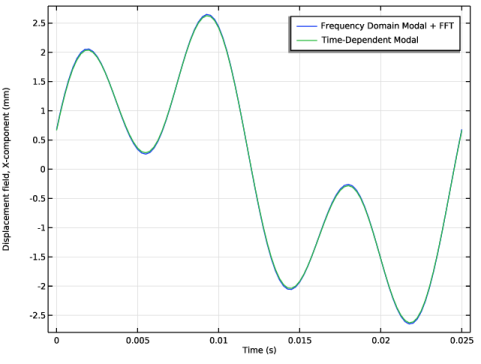
|
|
|
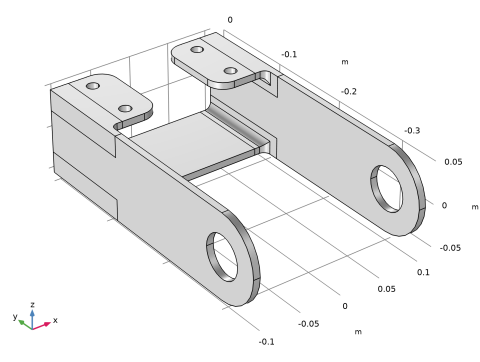





|
1
|
|
2
|
In the Application Libraries window, select Structural Mechanics Module > Tutorials > bracket_basic in the tree.
|
|
3
|
Click
 Open. Open. |
|
1
|
|
2
|
|
1
|
|
2
|
|
4
|
|
5
|
In the Function table, enter the following settings:
|
|
1
|
|
2
|
|
3
|
|
4
|
|
5
|
|
6
|
Locate the Units section. In the table, enter the following settings:
|
|
7
|
|
8
|
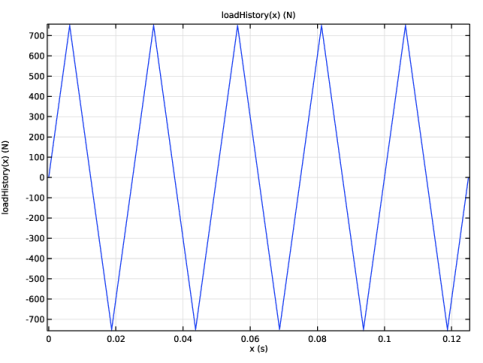
Locate the Plot Parameters section. In the table, enter the following settings:
|
|
9
|
Click
 Plot. Plot. |
|
1
|
|
2
|
|
3
|
|
4
|
|
1
|
|
2
|
Go to the Add Physics window.
|
|
3
|
|
4
|
Click the Add to Component 2 button in the window toolbar.
|
|
5
|
|
1
|
|
3
|
|
4
|
|
5
|
|
6
|
Click OK.
|
|
7
|
|
8
|
Click
 Select Source Term Quantity. Select Source Term Quantity. |
|
9
|
|
10
|
Click OK.
|
|
1
|
|
2
|
Go to the Add Study window.
|
|
3
|
|
4
|
Right-click and choose Add Study.
|
|
5
|
|
1
|
In the Settings window for Study, type Study 1: Fourier Coefficient Generation in the Label text field.
|
|
2
|
|
1
|
In the Model Builder window, under Study 1: Fourier Coefficient Generation click Step 1: Time Dependent.
|
|
2
|
|
3
|
|
4
|
Locate the Physics and Variables Selection section. In the Solve for column of the table, under Component 1 (comp1), clear the checkbox for Solid Mechanics (solid).
|
|
1
|
|
2
|
|
3
|
|
4
|
|
5
|
Locate the Physics and Variables Selection section. In the Solve for column of the table, under Component 1 (comp1), clear the checkbox for Solid Mechanics (solid).
|
|
1
|
|
2
|
|
3
|
In the Model Builder window, under Study 1: Fourier Coefficient Generation > Solver Configurations > Solution 1 (sol1) click Time-Dependent Solver 1.
|
|
4
|
|
5
|
|
6
|
Find the Algebraic variable settings subsection. From the Consistent initialization list, choose Off.
|
|
7
|
|
1
|
|
2
|
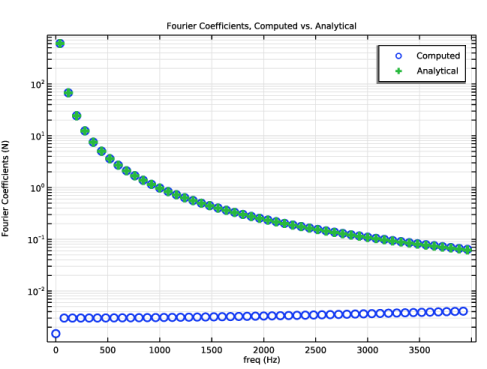
In the Settings window for 1D Plot Group, type Fourier Coefficients, Computed vs. Analytical in the Label text field.
|
|
3
|
|
4
|
|
5
|
|
6
|
Locate the Plot Settings section.
|
|
7
|
|
8
|
|
9
|
|
1
|
|
2
|
|
3
|
Locate the y-Axis Data section. In the table, enter the following settings:
|
|
4
|
Click to expand the Coloring and Style section. Find the Line style subsection. From the Line list, choose None.
|
|
5
|
|
6
|
|
7
|
|
1
|
|
2
|
|
3
|
Locate the y-Axis Data section. In the table, enter the following settings:
|
|
4
|
Locate the Data section. From the Dataset list, choose Study 1: Fourier Coefficient Generation/Solution 1 (1) (sol1).
|
|
5
|
|
6
|
|
7
|
Locate the Coloring and Style section. Find the Line markers subsection. From the Marker list, choose Plus sign.
|
|
8
|
Locate the Legends section. In the table, enter the following settings:
|
|
9
|
|
1
|
|
2
|
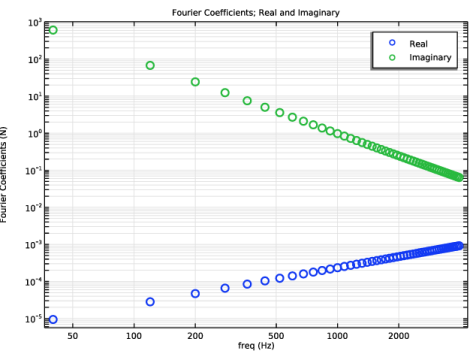
In the Settings window for 1D Plot Group, type Fourier Coefficients; Real and Imaginary in the Label text field.
|
|
3
|
|
4
|
|
5
|
|
6
|
|
7
|
Select the y-axis log scale checkbox.
|
|
8
|
Locate the Plot Settings section.
|
|
9
|
|
10
|
|
1
|
|
2
|
|
4
|
Locate the Coloring and Style section. Find the Line style subsection. From the Line list, choose None.
|
|
5
|
|
6
|
|
7
|
|
9
|
|
1
|
|
2
|
|
3
|
|
4
|
|
5
|
|
6
|
|
7
|
|
8
|
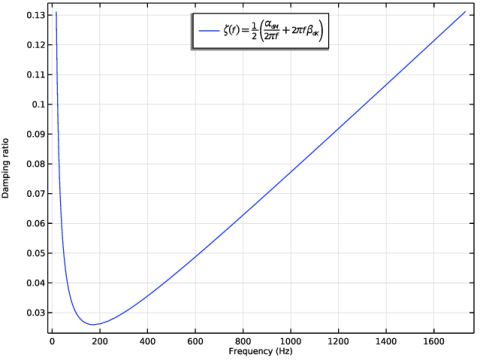
Click Damping Ratio Preview in the upper-right corner of the Damping Settings section. From the menu, choose Create Damping Ratio Plot.
|
|
1
|
|
2
|
|
1
|
|
2
|
|
3
|
|
4
|
|
5
|
|
6
|
|
1
|
|
2
|
Go to the Add Study window.
|
|
3
|
Find the Studies subsection. In the Select Study tree, select Preset Studies for Selected Physics Interfaces > Solid Mechanics > Frequency Domain, Modal.
|
|
4
|
Right-click and choose Add Study.
|
|
5
|
|
1
|
In the Model Builder window, under Study 2: Frequency Domain Modal + FFT click Step 1: Eigenfrequency.
|
|
2
|
|
3
|
|
4
|
Locate the Physics and Variables Selection section. Select the Modify model configuration for study step checkbox.
|
|
5
|
In the tree, select Component 1 (comp1) > Solid Mechanics (solid) > Linear Elastic Material 1 > Damping 1.
|
|
6
|
Right-click and choose Disable.
|
|
7
|
|
8
|
Right-click and choose Disable in Solvers.
|
|
1
|
|
2
|
|
3
|
|
4
|
Locate the Physics and Variables Selection section. Select the Modify model configuration for study step checkbox.
|
|
5
|
|
6
|
Right-click and choose Disable in Solvers.
|
|
1
|
|
2
|
|
3
|
|
4
|
|
5
|
Locate the Physics and Variables Selection section. Select the Modify model configuration for study step checkbox.
|
|
6
|
|
7
|
Right-click and choose Disable in Solvers.
|
|
8
|
|
1
|
|
2
|
|
3
|
|
4
|
|
1
|
In the Model Builder window, expand the Stress: Frequency Domain Modal + FFT node, then click Volume 1.
|
|
2
|
|
3
|
|
1
|
|
2
|
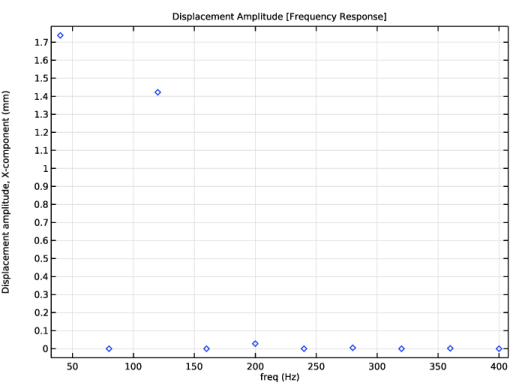
In the Settings window for 1D Plot Group, type Displacement Amplitude [Frequency Response] in the Label text field.
|
|
3
|
|
4
|
Locate the Data section. From the Dataset list, choose Study 2: Frequency Domain Modal + FFT/Solution Store 3 (9) (sol5).
|
|
5
|
|
6
|
|
1
|
|
3
|
In the Settings window for Point Graph, click Replace Expression in the upper-right corner of the y-Axis Data section. From the menu, choose Component 1 (comp1) > Solid Mechanics > Displacement > Displacement amplitude (material and geometry frames) - m > solid.uAmpX - Displacement amplitude, X-component.
|
|
4
|
Click to expand the Coloring and Style section. Find the Line style subsection. From the Line list, choose None.
|
|
5
|
|
6
|
|
1
|
|
2
|
In the Settings window for Boundary Load, type Boundary Load, Time Domain Amplitude in the Label text field.
|
|
3
|
|
4
|
|
5
|
|
1
|
In the Model Builder window, under Study 2: Frequency Domain Modal + FFT click Step 2: Frequency Domain, Modal.
|
|
2
|
In the Settings window for Frequency Domain, Modal, locate the Physics and Variables Selection section.
|
|
3
|
In the tree, select Component 1 (comp1) > Solid Mechanics (solid) > Boundary Load, Time Domain Amplitude.
|
|
4
|
Right-click and choose Disable.
|
|
1
|
|
2
|
In the Settings window for Frequency to Time FFT, locate the Physics and Variables Selection section.
|
|
3
|
In the tree, select Component 1 (comp1) > Solid Mechanics (solid) > Boundary Load, Time Domain Amplitude.
|
|
4
|
Right-click and choose Disable.
|
|
1
|
|
2
|
Go to the Add Study window.
|
|
3
|
Find the Studies subsection. In the Select Study tree, select Preset Studies for Selected Physics Interfaces > Solid Mechanics > Time Dependent, Modal.
|
|
4
|
Right-click and choose Add Study.
|
|
5
|
|
1
|
|
2
|
|
3
|
|
4
|
Locate the Physics and Variables Selection section. Select the Modify model configuration for study step checkbox.
|
|
5
|
|
6
|
Right-click and choose Disable.
|
|
7
|
|
8
|
Right-click and choose Disable in Solvers.
|
|
1
|
|
2
|
|
3
|
|
4
|
|
5
|
|
6
|
|
7
|
|
8
|
|
1
|
|
2
|
|
3
|
|
4
|
|
1
|
|
2
|
|
1
|
|
2
|
Go to the Result Templates window.
|
|
3
|
In the tree, select Study 3: Time-Dependent Modal [Verification]/Solution 6 (11) (sol6) > Solid Mechanics > Applied Loads (solid) > Boundary Loads (solid).
|
|
4
|
Click the Add Result Template button in the window toolbar.
|
|
5
|
|
1
|
|
2
|
|
3
|
|
4
|
|
5
|
|
1
|
|
3
|
|
4
|
|
5
|
|
6
|
|
7
|
|
1
|
|
2
|
|
3
|
|
4
|
|
5
|
|
6
|
Locate the Legends section. In the table, enter the following settings:
|
|
7
|
|
1
|
|
2
|
|
1
|
|
2
|
|
3
|
Click to select the
 Activate Selection toggle button. Activate Selection toggle button. |
|
4
|
Click
 Clear Selection. Clear Selection. |
|
6
|
|
1
|
|
2
|
|
3
|
Click to select the
 Activate Selection toggle button. Activate Selection toggle button. |
|
4
|
Click
 Clear Selection. Clear Selection. |
|
6
|
|
7
|