
PDF

Shape Optimization of Coils
Introduction
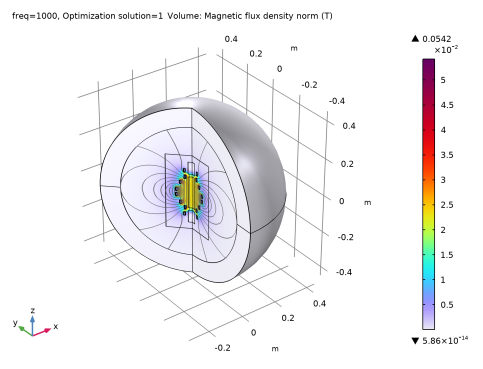
This model demonstrates how to design a coil geometry using gradient-based shape optimization. The objective is to achieve a uniform magnetic field along the coil axis and a field minimum near the axis ends. The model assumes azimuthal symmetry, but one can use the optimization result as inspiration for a 3D design.
Model Definition
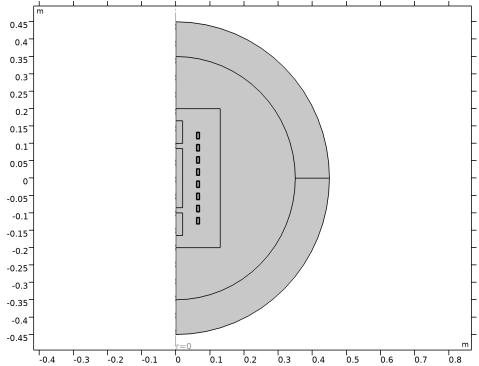
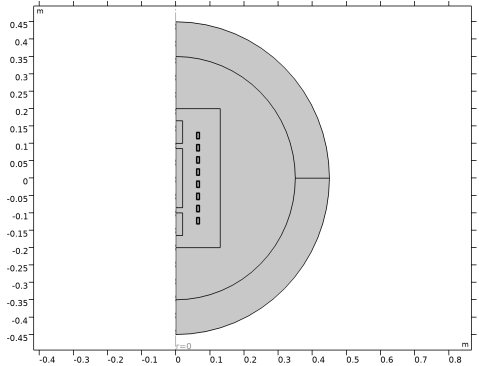
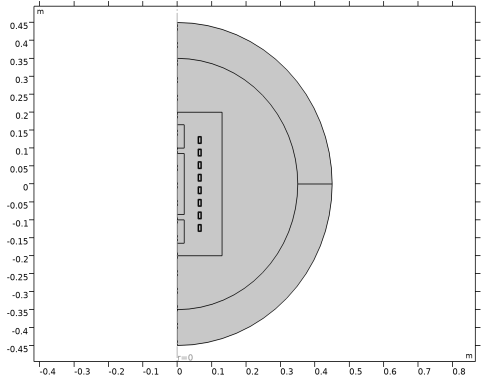
The model is set up with six inner coils and one coil at each end with the opposite current direction. The current in the two outermost coils at each end is also optimized to mimic the effect of having coils with partial turns. The result of the shape optimization is shown in Figure 2, while the initial geometry for this model is shown in Figure 1.
Figure 1: The initial geometry.
The Transformation and Free Shape Domain features are used to allow the coils to move in the radial direction. There are 8 control variables for the coil positions and one for the current in the outer coils. The IPOPT optimization can solve such problems fast.
The objective function, φ, consists of two terms:
The setup of the first objective function is simplified by the use of the Standard Deviation feature.
Results and Discussion
Figure 2: The optimized geometry.
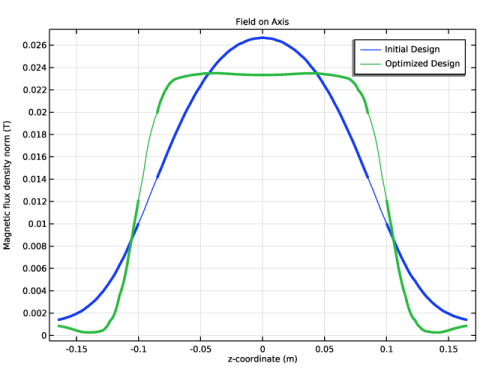
Figure 2 shows the optimized design. The first and second objectives are reduced by around 90% and 50%, respectively. The strength of the magnetic field on the axis is illustrated in Figure 3.
Figure 3: The optimization increases the magnetic field in the middle domain and decreases it in the outer domains.
Notes About the COMSOL Implementation
This model can be constructed in a way that exploits symmetry in the xy-plane, leading to a reduction in the computational time.
Application Library path: Optimization_Module/Shape_Optimization/coil_shape_optimization
Modeling Instructions
From the File menu, choose New.
New
In the New window, click  Model Wizard.
Model Wizard
1
In the Model Wizard window, click  2D Axisymmetric.
2
In the Select Physics tree, select AC/DC > Electromagnetic Fields > Magnetic Fields (mf).
3
Click Add.
4
Click  Study.
5
In the Select Study tree, select General Studies > Frequency Domain.
6
Geometry 1
1
In the Model Builder window, expand the Component 1 (comp1) > Geometry 1 node.
2
Right-click Geometry 1 and choose Insert Sequence.
3
4
In the Geometry toolbar, click  Build All.
5
Click the  Zoom Extents button in the Graphics toolbar.
The geometry should now look like that in Figure 1.
Global Definitions
Geometry Parameters
1
In the Model Builder window, under Global Definitions click Parameters 1.
2
In the Settings window for Parameters, type Geometry Parameters in the Label text field.
Parameters 2
1
In the Home toolbar, click  Parameters and choose Add > Parameters.
2
In the Settings window for Parameters, locate the Parameters section.
3
Add Material
1
In the Materials toolbar, click  Add Material to open the Add Material window.
2
Go to the Add Material window.
3
In the tree, select Built-in > Air.
4
Click the Add to Component button in the window toolbar.
5
In the tree, select Built-in > Copper.
6
Click the Add to Component button in the window toolbar.
7
In the Materials toolbar, click  Add Material to close the Add Material window.
Materials
Copper (mat2)
1
In the Settings window for Material, locate the Geometric Entity Selection section.
2
From the Selection list, choose Objects to Mirror.
Magnetic Fields (mf)
Domain Coil 1
1
In the Physics toolbar, click  Domains and choose Domain Coil.
2
In the Settings window for Domain Coil, locate the Domain Selection section.
3
From the Selection list, choose Inner Coils.
4
Locate the Coil section. Select the Coil group checkbox.
5
In the Icoil text field, type 1[kA].
Domain Coil 2
1
Right-click Domain Coil 1 and choose Duplicate.
2
In the Settings window for Domain Coil, locate the Domain Selection section.
3
From the Selection list, choose Outer Coils 2.
4
Locate the Coil section. In the Icoil text field, type 1[kA]*lastTurns.
In a 2D axisymmetric model, specifying a coil with a fraction of the total current is a way to represent a coil with partial turns. Similarly, specifying a current with the opposite sign represents a coil that is wound in the opposite direction.
Domain Coil 3
1
Right-click Domain Coil 2 and choose Duplicate.
2
In the Settings window for Domain Coil, locate the Domain Selection section.
3
From the Selection list, choose Outer Coils.
4
Locate the Coil section. In the Icoil text field, type -1[kA]*lastTurns.
Mesh 1
Mapped 1
1
In the Mesh toolbar, click  Mapped.
2
In the Settings window for Mapped, locate the Domain Selection section.
3
From the Geometric entity level list, choose Domain.
4
From the Selection list, choose Infinite Domains.
Distribution 1
1
Right-click Mapped 1 and choose Distribution.
2
In the Settings window for Distribution, locate the Boundary Selection section.
3
From the Selection list, choose Infinite Domain Boundaries.
Free Triangular 1
In the Mesh toolbar, click  Free Triangular.
Size 1
1
Right-click Free Triangular 1 and choose Size.
2
In the Settings window for Size, locate the Geometric Entity Selection section.
3
From the Geometric entity level list, choose Domain.
4
From the Selection list, choose Deforming Domain.
5
Locate the Element Size section. From the Predefined list, choose Extremely fine.
Size 2
1
In the Model Builder window, right-click Free Triangular 1 and choose Size.
2
In the Settings window for Size, locate the Geometric Entity Selection section.
3
From the Geometric entity level list, choose Boundary.
4
From the Selection list, choose Whole Axis.
5
Locate the Element Size section. Click the Custom button.
6
Locate the Element Size Parameters section.
7
Select the Maximum element size checkbox. In the associated text field, type 0.004.
8
Click  Build All.
Component 1 (comp1)
Free Shape Domain 1
1
In the Physics toolbar, click  Optimization and choose Shape Optimization.
2
In the Settings window for Free Shape Domain, locate the Domain Selection section.
3
From the Selection list, choose Deforming Domain.
Transformation 1
1
In the Shape Optimization toolbar, click  Transformation.
2
In the Settings window for Transformation, locate the Geometric Entity Selection section.
3
From the Selection list, choose Objects to Mirror.
4
Locate the Translation section. In the table, enter the following settings:
5
Locate the Scaling section. From the Scaling type list, choose No scaling.
Definitions
Standard Deviation 1 (std1)
1
In the Definitions toolbar, click  Physics Utilities and choose Standard Deviation.
2
In the Settings window for Standard Deviation, locate the Geometric Entity Selection section.
3
From the Selection list, choose Rectangle 4.
4
Click Replace Expression in the upper-right corner of the Standard Deviation section. From the menu, choose Component 1 (comp1) > Magnetic Fields > Magnetic > comp1.mf.normB - Magnetic flux density norm - T.
5
Locate the Quadrature Settings section. Select the Compute integral in revolved geometry checkbox.
Average outer magnetic field
1
In the Definitions toolbar, click  Probes and choose Domain Probe.
2
In the Settings window for Domain Probe, type Average outer magnetic field in the Label text field.
3
In the Variable name text field, type Bouter.
4
Locate the Source Selection section. From the Selection list, choose Outer Objective Domain.
5
Locate the Expression section. In the Expression text field, type mf.normB.
Infinite Element Domain 1 (ie1)
1
In the Definitions toolbar, click  Infinite Element Domain.
2
In the Settings window for Infinite Element Domain, locate the Domain Selection section.
3
From the Selection list, choose Infinite Domains.
Study 1
Step 1: Frequency Domain
1
In the Model Builder window, under Study 1 click Step 1: Frequency Domain.
2
In the Settings window for Frequency Domain, locate the Study Settings section.
3
In the Frequencies text field, type f0.
General Optimization
1
In the Study toolbar, click  Optimization and choose General Optimization.
2
In the Settings window for General Optimization, locate the Optimization Solver section.
3
From the Method list, choose GCMMA.
4
Click Add Expression in the upper-right corner of the Objective Function section. From the menu, choose Component 1 (comp1) > Definitions > comp1.std1 - Standard deviation.
5
Click Add Expression in the upper-right corner of the Objective Function section. From the menu, choose Component 1 (comp1) > Definitions > comp1.Bouter - Average outer magnetic field - T.
6
Locate the Control Variables and Parameters section. Click  Add.
Initialize the study to generate a plot for use while solving.
7
8
Click to expand the Solver Settings section. Find the Objective settings subsection. From the Objective scaling list, choose Initial solution based.
9
Click to expand the Output section. From the Keep solutions list, choose First and last.
10
From the Probes list, choose None.
11
In the Model Builder window, click Study 1.
12
In the Settings window for Study, type Shape Optimization in the Label text field.
13
In the Study toolbar, click  Get Initial Value.
Results
Shape Optimization
The plot shows the displacement. Add an Annotation feature to also show the value of the lastTurns parameter.
Annotation 1
1
In the Model Builder window, right-click Shape Optimization and choose Annotation.
2
In the Settings window for Annotation, locate the Annotation section.
3
In the Text text field, type eval(lastTurns).
4
Locate the Coloring and Style section. Clear the Show point checkbox.
5
From the Background color list, choose Gray.
Shape Optimization
General Optimization
1
In the Model Builder window, under Shape Optimization click General Optimization.
2
In the Settings window for General Optimization, locate the Output section.
3
Select the Plot checkbox.
4
Enable move limits to reduce the risk of inverted elements.
Solver Configurations
In the Model Builder window, expand the Shape Optimization > Solver Configurations node.
Solution 1 (sol1)
1
In the Model Builder window, expand the Shape Optimization > Solver Configurations > Solution 1 (sol1) node, then click Optimization Solver 1.
2
In the Settings window for Optimization Solver, locate the Optimization Solver section.
3
Select the Move limits checkbox.
4
Select the Maximum number of outer iterations checkbox. In the associated text field, type 50.
5
Results
Magnetic Flux Density, Revolved Geometry (mf)
1
In the Magnetic Flux Density, Revolved Geometry (mf) toolbar, click  Plot.
2
Click the  Zoom Extents button in the Graphics toolbar.
Field on Axis
1
In the Results toolbar, click  1D Plot Group.
2
In the Settings window for 1D Plot Group, type Field on Axis in the Label text field.
3
Locate the Data section. From the Optimization solution list, choose First.
4
Click to expand the Title section. From the Title type list, choose Label.
Line Graph 1
1
Right-click Field on Axis and choose Line Graph.
2
In the Settings window for Line Graph, locate the Selection section.
3
From the Selection list, choose Whole Axis.
4
Locate the x-Axis Data section. From the Parameter list, choose Expression.
5
In the Expression text field, type z.
6
Click to expand the Legends section. Select the Show legends checkbox.
7
From the Legends list, choose Manual.
8
Line Graph 2
1
Right-click Line Graph 1 and choose Duplicate.
2
In the Settings window for Line Graph, locate the Data section.
3
From the Dataset list, choose Shape Optimization/Solution 1 (sol1).
4
From the Optimization solution list, choose Last.
5
Locate the Legends section. In the table, enter the following settings:
Line Graph 3
1
In the Model Builder window, right-click Field on Axis and choose Line Graph.
2
In the Settings window for Line Graph, locate the Selection section.
3
From the Selection list, choose Inner Axis.
4
Locate the x-Axis Data section. From the Parameter list, choose Expression.
5
In the Expression text field, type z.
6
Click to expand the Coloring and Style section. From the Color list, choose Cycle (reset).
7
From the Width list, choose 3.
Line Graph 4
1
Right-click Line Graph 3 and choose Duplicate.
2
In the Settings window for Line Graph, locate the Data section.
3
From the Dataset list, choose Shape Optimization/Solution 1 (sol1).
4
From the Optimization solution list, choose Last.
5
Locate the Coloring and Style section. From the Color list, choose Cycle.
Line Graph 3, Line Graph 4
1
In the Model Builder window, under Results > Field on Axis, Ctrl-click to select Line Graph 3 and Line Graph 4.
2
Line Graph 5
1
In the Settings window for Line Graph, locate the Selection section.
2
From the Selection list, choose Outer Axis.
Line Graph 6
1
In the Model Builder window, click Line Graph 6.
2
In the Settings window for Line Graph, locate the Selection section.
3
From the Selection list, choose Outer Axis.
4
In the Field on Axis toolbar, click  Plot.
5
Click the  Zoom Extents button in the Graphics toolbar.
Compute the value of the objective functions before and after optimization.
Evaluation Group 1
In the Results toolbar, click  Evaluation Group.
Global Evaluation 1
1
Right-click Evaluation Group 1 and choose Global Evaluation.
2
In the Settings window for Global Evaluation, click Add Expression in the upper-right corner of the Expressions section. From the menu, choose Component 1 (comp1) > Definitions > std1 - Standard deviation - T.
3
Click Add Expression in the upper-right corner of the Expressions section. From the menu, choose Component 1 (comp1) > Definitions > Bouter - Average outer magnetic field - T.
4
In the Evaluation Group 1 toolbar, click  Evaluate.
Compute the value of the corners, so that one can construct an interpolation function for 3D verification.
Point Displacements
1
In the Results toolbar, click  Evaluation Group.
2
In the Settings window for Evaluation Group, type Point Displacements in the Label text field.
3
Locate the Data section. From the Optimization solution list, choose Last.
Point Evaluation 1
1
Right-click Point Displacements and choose Point Evaluation.
2
In the Settings window for Point Evaluation, locate the Selection section.
3
From the Selection list, choose Lower left point.
4
Locate the Expressions section. In the table, enter the following settings:
5
In the Point Displacements toolbar, click  Evaluate.
Geometry Modeling Instructions
From the File menu, choose New.
New
In the New window, click  Model Wizard.
Model Wizard
1
In the Model Wizard window, click  2D Axisymmetric.
2
In the Select Physics tree, select AC/DC > Electromagnetic Fields > Magnetic Fields (mf).
3
Click Add.
4
Click  Study.
5
In the Select Study tree, select General Studies > Frequency Domain.
6
Geometry 1
1
In the Model Builder window, expand the Component 1 (comp1) > Geometry 1 node.
2
Right-click Geometry 1 and choose Insert Sequence.
3
4
In the Geometry toolbar, click  Build All.
5
Click the  Zoom Extents button in the Graphics toolbar.
The geometry should now look like that in Figure 1.
Global Definitions
Geometry Parameters
1
In the Model Builder window, under Global Definitions click Parameters 1.
2
In the Settings window for Parameters, type Geometry Parameters in the Label text field.
Parameters 2
1
In the Home toolbar, click  Parameters and choose Add > Parameters.
2
In the Settings window for Parameters, locate the Parameters section.
3
Add Material
1
In the Materials toolbar, click  Add Material to open the Add Material window.
2
Go to the Add Material window.
3
In the tree, select Built-in > Air.
4
Click the Add to Component button in the window toolbar.
5
In the tree, select Built-in > Copper.
6
Click the Add to Component button in the window toolbar.
7
In the Materials toolbar, click  Add Material to close the Add Material window.
Materials
Copper (mat2)
1
In the Settings window for Material, locate the Geometric Entity Selection section.
2
From the Selection list, choose Objects to Mirror.
Magnetic Fields (mf)
Domain Coil 1
1
In the Physics toolbar, click  Domains and choose Domain Coil.
2
In the Settings window for Domain Coil, locate the Domain Selection section.
3
From the Selection list, choose Inner Coils.
4
Locate the Coil section. Select the Coil group checkbox.
5
In the Icoil text field, type 1[kA].
Domain Coil 2
1
Right-click Domain Coil 1 and choose Duplicate.
2
In the Settings window for Domain Coil, locate the Domain Selection section.
3
From the Selection list, choose Outer Coils 2.
4
Locate the Coil section. In the Icoil text field, type 1[kA]*lastTurns.
In a 2D axisymmetric model, specifying a coil with a fraction of the total current is a way to represent a coil with partial turns. Similarly, specifying a current with the opposite sign represents a coil that is wound in the opposite direction.
Domain Coil 3
1
Right-click Domain Coil 2 and choose Duplicate.
2
In the Settings window for Domain Coil, locate the Domain Selection section.
3
From the Selection list, choose Outer Coils.
4
Locate the Coil section. In the Icoil text field, type -1[kA]*lastTurns.
Mesh 1
Mapped 1
1
In the Mesh toolbar, click  Mapped.
2
In the Settings window for Mapped, locate the Domain Selection section.
3
From the Geometric entity level list, choose Domain.
4
From the Selection list, choose Infinite Domains.
Distribution 1
1
Right-click Mapped 1 and choose Distribution.
2
In the Settings window for Distribution, locate the Boundary Selection section.
3
From the Selection list, choose Infinite Domain Boundaries.
Free Triangular 1
In the Mesh toolbar, click  Free Triangular.
Size 1
1
Right-click Free Triangular 1 and choose Size.
2
In the Settings window for Size, locate the Geometric Entity Selection section.
3
From the Geometric entity level list, choose Domain.
4
From the Selection list, choose Deforming Domain.
5
Locate the Element Size section. From the Predefined list, choose Extremely fine.
Size 2
1
In the Model Builder window, right-click Free Triangular 1 and choose Size.
2
In the Settings window for Size, locate the Geometric Entity Selection section.
3
From the Geometric entity level list, choose Boundary.
4
From the Selection list, choose Whole Axis.
5
Locate the Element Size section. Click the Custom button.
6
Locate the Element Size Parameters section.
7
Select the Maximum element size checkbox. In the associated text field, type 0.004.
8
Click  Build All.
Component 1 (comp1)
Free Shape Domain 1
1
In the Physics toolbar, click  Optimization and choose Shape Optimization.
2
In the Settings window for Free Shape Domain, locate the Domain Selection section.
3
From the Selection list, choose Deforming Domain.
Transformation 1
1
In the Shape Optimization toolbar, click  Transformation.
2
In the Settings window for Transformation, locate the Geometric Entity Selection section.
3
From the Selection list, choose Objects to Mirror.
4
Locate the Translation section. In the table, enter the following settings:
5
Locate the Scaling section. From the Scaling type list, choose No scaling.
Definitions
Standard Deviation 1 (std1)
1
In the Definitions toolbar, click  Physics Utilities and choose Standard Deviation.
2
In the Settings window for Standard Deviation, locate the Geometric Entity Selection section.
3
From the Selection list, choose Rectangle 4.
4
Click Replace Expression in the upper-right corner of the Standard Deviation section. From the menu, choose Component 1 (comp1) > Magnetic Fields > Magnetic > comp1.mf.normB - Magnetic flux density norm - T.
5
Locate the Quadrature Settings section. Select the Compute integral in revolved geometry checkbox.
Average outer magnetic field
1
In the Definitions toolbar, click  Probes and choose Domain Probe.
2
In the Settings window for Domain Probe, type Average outer magnetic field in the Label text field.
3
In the Variable name text field, type Bouter.
4
Locate the Source Selection section. From the Selection list, choose Outer Objective Domain.
5
Locate the Expression section. In the Expression text field, type mf.normB.
Infinite Element Domain 1 (ie1)
1
In the Definitions toolbar, click  Infinite Element Domain.
2
In the Settings window for Infinite Element Domain, locate the Domain Selection section.
3
From the Selection list, choose Infinite Domains.
Study 1
Step 1: Frequency Domain
1
In the Model Builder window, under Study 1 click Step 1: Frequency Domain.
2
In the Settings window for Frequency Domain, locate the Study Settings section.
3
In the Frequencies text field, type f0.
General Optimization
1
In the Study toolbar, click  Optimization and choose General Optimization.
2
In the Settings window for General Optimization, locate the Optimization Solver section.
3
From the Method list, choose GCMMA.
4
Click Add Expression in the upper-right corner of the Objective Function section. From the menu, choose Component 1 (comp1) > Definitions > comp1.std1 - Standard deviation.
5
Click Add Expression in the upper-right corner of the Objective Function section. From the menu, choose Component 1 (comp1) > Definitions > comp1.Bouter - Average outer magnetic field - T.
6
Locate the Control Variables and Parameters section. Click  Add.
Initialize the study to generate a plot for use while solving.
7
8
Click to expand the Solver Settings section. Find the Objective settings subsection. From the Objective scaling list, choose Initial solution based.
9
Click to expand the Output section. From the Keep solutions list, choose First and last.
10
From the Probes list, choose None.
11
In the Model Builder window, click Study 1.
12
In the Settings window for Study, type Shape Optimization in the Label text field.
13
In the Study toolbar, click  Get Initial Value.
Results
Shape Optimization
The plot shows the displacement. Add an Annotation feature to also show the value of the lastTurns parameter.
Annotation 1
1
In the Model Builder window, right-click Shape Optimization and choose Annotation.
2
In the Settings window for Annotation, locate the Annotation section.
3
In the Text text field, type eval(lastTurns).
4
Locate the Coloring and Style section. Clear the Show point checkbox.
5
From the Background color list, choose Gray.
Shape Optimization
General Optimization
1
In the Model Builder window, under Shape Optimization click General Optimization.
2
In the Settings window for General Optimization, locate the Output section.
3
Select the Plot checkbox.
4
Enable move limits to reduce the risk of inverted elements.
Solver Configurations
In the Model Builder window, expand the Shape Optimization > Solver Configurations node.
Solution 1 (sol1)
1
In the Model Builder window, expand the Shape Optimization > Solver Configurations > Solution 1 (sol1) node, then click Optimization Solver 1.
2
In the Settings window for Optimization Solver, locate the Optimization Solver section.
3
Select the Move limits checkbox.
4
Select the Maximum number of outer iterations checkbox. In the associated text field, type 50.
5
Results
Magnetic Flux Density, Revolved Geometry (mf)
1
In the Magnetic Flux Density, Revolved Geometry (mf) toolbar, click  Plot.
2
Click the  Zoom Extents button in the Graphics toolbar.
Field on Axis
1
In the Results toolbar, click  1D Plot Group.
2
In the Settings window for 1D Plot Group, type Field on Axis in the Label text field.
3
Locate the Data section. From the Optimization solution list, choose First.
4
Click to expand the Title section. From the Title type list, choose Label.
Line Graph 1
1
Right-click Field on Axis and choose Line Graph.
2
In the Settings window for Line Graph, locate the Selection section.
3
From the Selection list, choose Whole Axis.
4
Locate the x-Axis Data section. From the Parameter list, choose Expression.
5
In the Expression text field, type z.
6
Click to expand the Legends section. Select the Show legends checkbox.
7
From the Legends list, choose Manual.
8
Line Graph 2
1
Right-click Line Graph 1 and choose Duplicate.
2
In the Settings window for Line Graph, locate the Data section.
3
From the Dataset list, choose Shape Optimization/Solution 1 (sol1).
4
From the Optimization solution list, choose Last.
5
Locate the Legends section. In the table, enter the following settings:
Line Graph 3
1
In the Model Builder window, right-click Field on Axis and choose Line Graph.
2
In the Settings window for Line Graph, locate the Selection section.
3
From the Selection list, choose Inner Axis.
4
Locate the x-Axis Data section. From the Parameter list, choose Expression.
5
In the Expression text field, type z.
6
Click to expand the Coloring and Style section. From the Color list, choose Cycle (reset).
7
From the Width list, choose 3.
Line Graph 4
1
Right-click Line Graph 3 and choose Duplicate.
2
In the Settings window for Line Graph, locate the Data section.
3
From the Dataset list, choose Shape Optimization/Solution 1 (sol1).
4
From the Optimization solution list, choose Last.
5
Locate the Coloring and Style section. From the Color list, choose Cycle.
Line Graph 3, Line Graph 4
1
In the Model Builder window, under Results > Field on Axis, Ctrl-click to select Line Graph 3 and Line Graph 4.
2
Line Graph 5
1
In the Settings window for Line Graph, locate the Selection section.
2
From the Selection list, choose Outer Axis.
Line Graph 6
1
In the Model Builder window, click Line Graph 6.
2
In the Settings window for Line Graph, locate the Selection section.
3
From the Selection list, choose Outer Axis.
4
In the Field on Axis toolbar, click  Plot.
5
Click the  Zoom Extents button in the Graphics toolbar.
Compute the value of the objective functions before and after optimization.
Evaluation Group 1
In the Results toolbar, click  Evaluation Group.
Global Evaluation 1
1
Right-click Evaluation Group 1 and choose Global Evaluation.
2
In the Settings window for Global Evaluation, click Add Expression in the upper-right corner of the Expressions section. From the menu, choose Component 1 (comp1) > Definitions > std1 - Standard deviation - T.
3
Click Add Expression in the upper-right corner of the Expressions section. From the menu, choose Component 1 (comp1) > Definitions > Bouter - Average outer magnetic field - T.
4
In the Evaluation Group 1 toolbar, click  Evaluate.
Compute the value of the corners, so that one can construct an interpolation function for 3D verification.
Point Displacements
1
In the Results toolbar, click  Evaluation Group.
2
In the Settings window for Evaluation Group, type Point Displacements in the Label text field.
3
Locate the Data section. From the Optimization solution list, choose Last.
Point Evaluation 1
1
Right-click Point Displacements and choose Point Evaluation.
2
In the Settings window for Point Evaluation, locate the Selection section.
3
From the Selection list, choose Lower left point.
4
Locate the Expressions section. In the table, enter the following settings:
5
In the Point Displacements toolbar, click  Evaluate.