PDF

Euler Angle Rotation in Surface Acoustic Wave Modeling
Introduction
In COMSOL Multiphysics, default material property matrices are defined with respect to crystal axes using the global X, Y, and Z coordinates (shown in the COMSOL Desktop geometry window). In general, surface acoustic wave (SAW) devices use different crystal cuts of piezoelectric materials that do not coincide with crystal axes, for examples, 128° YX-cut lithium niobate (LiNbO3), AT-cut quartz, and 42° YX-cut lithium tantalate (LiTaO3). When cut-specific data is not available, material property matrices can be derived from default material properties using Euler angle rotation. This tutorial presents examples of how Euler angle rotations are applied in three configurations using the 128° YX-cut LiNbO3 to calculate eigenfrequencies and eigenmodes. Successful rotation can be confirmed quantitatively via the values of eigenfrequency or related phase velocity and qualitatively via the smooth and undistorted mode shapes.
Model Definition
In the ZXZ convention adopted by COMSOL Multiphysics, the Euler angles α, β, and γ define three successive rotations starting from the global axes (X, Y, Z) and ending at the local (crystal) axes (x, y, z). In this convention, the 128° YX-cut is defined in Global Definitions by α = alpha_128 = 0°, β = beta_128 = -38°, γ = gamma_128 = 0° as described in the Modeling Instructions. More information on the Euler angle rotation can be found in the documentation for the model Thickness Shear Mode Quartz Oscillator, also included in the MEMS Module Application Library.
Component 1, 3D
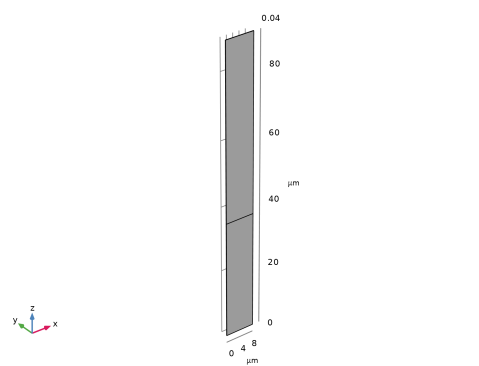
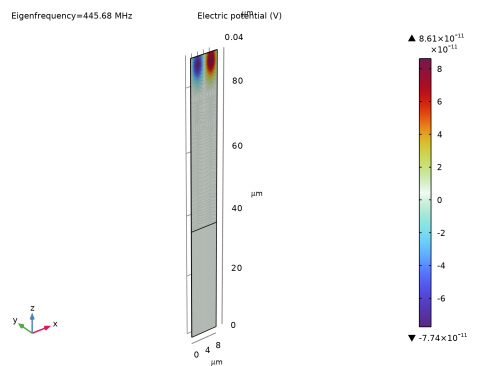
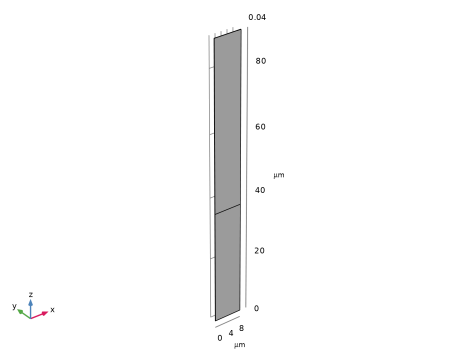
In the first example, a 3D component represents a unit cell with an XZ sagittal plane and wave propagation along the x-axis. In this configuration, the interdigital transducer (IDT) aperture would be defined along the y-axis. The geometry is shown in Figure 1. Define a Rotated System with α = alpha_128, β = beta_128, γ = gamma_128 and select it as the coordinate system in the Piezoelectric Material Settings window. Set up Study 1 as an eigenfrequency study to calculate eigenfrequencies and eigenmodes for this configuration.
Figure 1: 3D geometry representing a unit cell with XZ sagittal plane and wave propagation along the x-axis.
Component 2, 3D
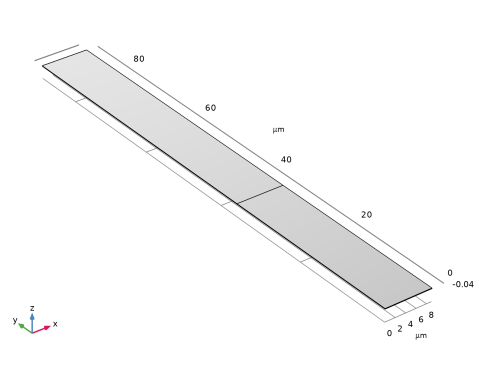
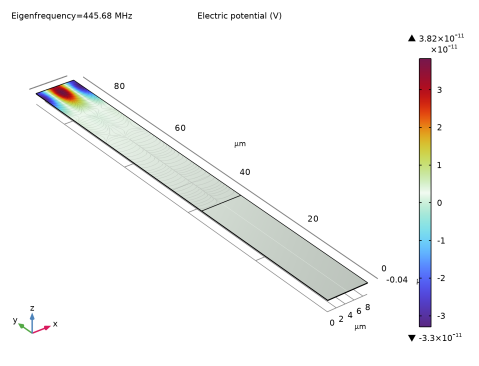
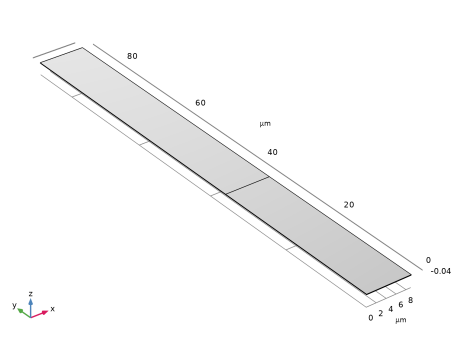
In the second example, a 3D component represents a unit cell with an XY sagittal plane, wave propagation along the x-axis, and the IDT aperture defined along the z-axis. Here Component 1 has been rotated around the x-axis by 90° as shown in Figure 2. Accordingly, define a Rotated System with α = alpha_128, β = beta_128-90°, γ = gamma_128 and use it as the coordinate system in the Piezoelectric Material Settings window. Set up Study 2 as an eigenfrequency study.
Figure 2: 3D geometry representing a unit cell with XY sagittal plane and wave propagation along the x-axis.
Component 3, 2D
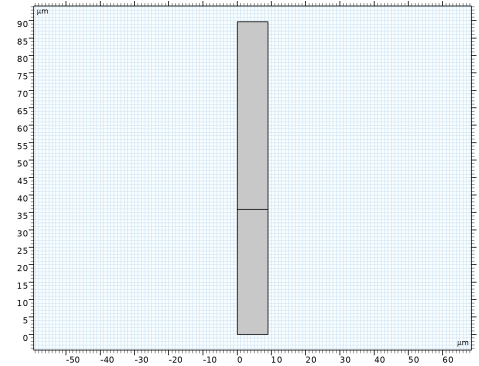
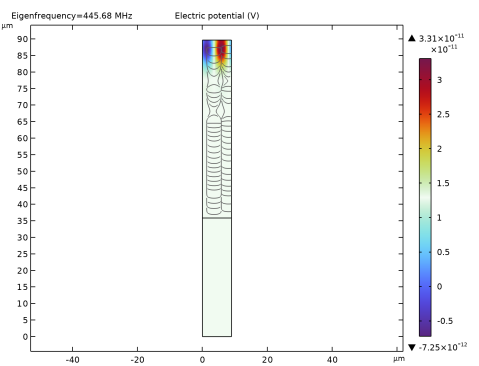
The third example is a 2D version of the unit cell with an XY sagittal plane and wave propagation along the x-axis, as shown in Figure 3. Here the 128° YX-cut is again defined by a Rotated System with α = alpha_128, β = beta_128-90°, γ = gamma_128. Use it as the coordinate system in the Piezoelectric Material Settings window and set up Study 3 as an eigenfrequency study.
.
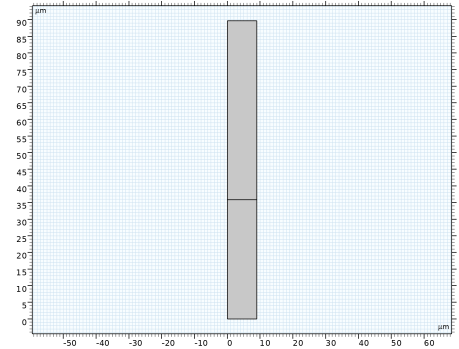
Figure 3: 2D component representing a unit cell with wave propagating along the x-axis and sagittal plane in the XZ-plane.
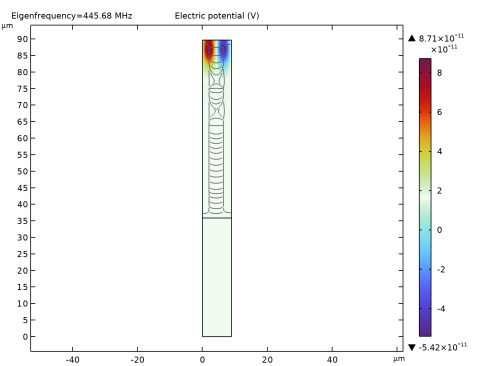
In the last example, you are given the material property matrices for 128° YX-cut LiNbO3 in Table 1, Table 2, and Table 3. Add a second Piezoelectric Material model in the Electrostatics node under the 2D component. Instead of using a rotated system, copy and paste the values of the matrices directly into the table in the Piezoelectric Material Settings as shown as described in the Modeling Instructions. Set up Study 4 as an eigenfrequency study.
Table 1: Elasticity matrix for 128° XY-cut lithium niobate
Table 2: Coupling matrix for 128° XY-cut lithium niobate
Table 3: Relative permittivity for 128° XY-cut lithium niobate
Results and Discussion
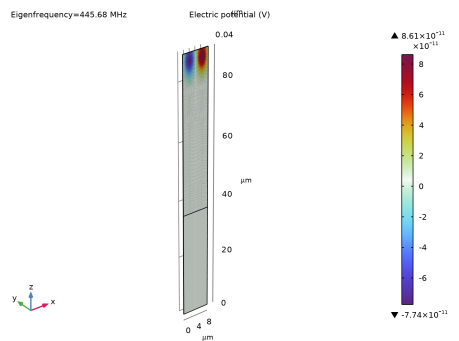
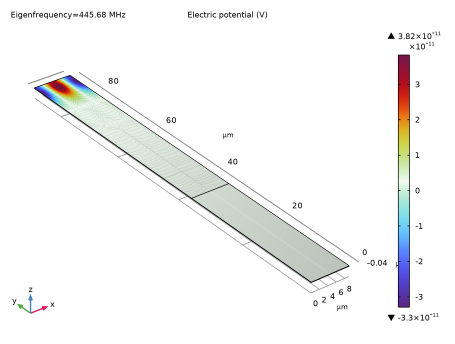
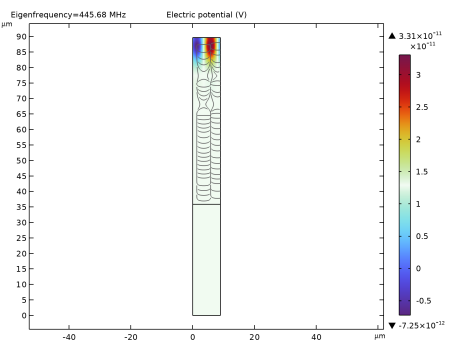
The results for Study 1 (Figure 4), Study 2 (Figure 5), and Study 3 and Study 4 (Figure 6) are identical. With correct rotations, variants of conversion from the default properties of LiNb03 to 128° YX-cut LiNbO3 lead to identical results for mode shapes, eigenfrequencies, material data, and SAW velocity. It is recommended that such simple unit-cell verification is done before more complex configurations are investigated.
Figure 4: Result of Study 1 for Component 1 showing the eigenmode with eigenfrequency of 445.68 MHz.
Figure 5: Result of Study 2 for Component 2 showing the eigenmode with eigenfrequency of 445.68 MHz.
Figure 6: The result of Study 3 or Study 4 for Component 3 showing the eigenmode with eigenfrequency of 445.68 MHz.
Reference
1. K. Hashimoto, Surface Acoustic Wave Devices in Telecommunications: Modeling and Simulation, Springer-Verlag Berlin, Heidelberg, 2000; DOI: doi.org/10.1007/978-3-662-04223-6.
Application Library path: MEMS_Module/Piezoelectric_Devices/saw_euler_angle_rotation
Modeling Instructions
Start by creating a new 3D model with a Piezoelectricity multiphysics interface to model propagation along the XZ-plane. This first example shows how the Euler angle rotations are applied to obtain the material properties of the 128° YX-cut LiNbO3. Also select Eigenfrequency for the first study.
From the File menu, choose New.
New
In the New window, click  Model Wizard.
Model Wizard
1
In the Model Wizard window, click  3D.
2
In the Select Physics tree, select AC/DC > Electromagnetics and Mechanics > Piezoelectricity > Piezoelectricity, Solid.
3
Click Add.
4
Click  Study.
5
In the Select Study tree, select Preset Studies for Selected Multiphysics > Eigenfrequency.
6
Global Definitions
It is given that 128° YX-cut LiNbO3 is defined by α = alpha_128 = 0°, β = beta_128 = -38°, γ = gamma_128 = 0° based on the X-Z-X rotation sequence. Define and specify these and other parameters of the model in Global Definitions.
Parameters 1
1
In the Model Builder window, under Global Definitions click Parameters 1.
2
In the Settings window for Parameters, locate the Parameters section.
3
Component 1 3D X-Propagation & XZ Sagittal Plane
1
In the Model Builder window, click Component 1 (comp1).
2
In the Settings window for Component, type Component 1 3D X-Propagation & XZ Sagittal Plane in the Label text field.
Geometry 1
Use microns as the geometry unit. Create the geometry for the unit cell with the XZ-plane as the sagittal plane.
1
In the Model Builder window, under Component 1 3D X-Propagation & XZ Sagittal Plane (comp1) click Geometry 1.
2
In the Settings window for Geometry, locate the Units section.
3
From the Length unit list, choose µm.
Block 1 (blk1)
1
In the Geometry toolbar, click  Block.
2
In the Settings window for Block, locate the Size and Shape section.
3
In the Width text field, type lambdaG.
4
In the Depth text field, type 0.01*lambdaG.
5
In the Height text field, type 10*lambdaG.
6
Click to expand the Layers section. In the table, enter the following settings:
7
In the Geometry toolbar, click  Build All.
8
In the Model Builder window, click Geometry 1.
Definitions
Define operators that could be useful in results processing.
Maximum 1 (maxop1)
1
In the Model Builder window, expand the Component 1 3D X-Propagation & XZ Sagittal Plane (comp1) > Definitions node.
2
Right-click Definitions and choose Nonlocal Couplings > Maximum.
3
In the Settings window for Maximum, locate the Source Selection section.
4
From the Selection list, choose All domains.
Define a Rotated System for 128° YX-cut LiNbO3 in terms of the parameters alpha_128, beta_128 and gamma_128 and use it for the Piezoelectric Material feature under Solid Mechanics to compute the material properties for 128° YX-cut LiNbO3.
Rotated System 2 (sys2)
1
In the Definitions toolbar, click  Coordinate Systems and choose Rotated System.
2
In the Settings window for Rotated System, locate the Rotation section.
3
Find the Euler angles subsection. In the α text field, type alpha_128.
4
In the β text field, type beta_128.
5
In the γ text field, type gamma_128.
Define a perfectly matched layer.
Perfectly Matched Layer 1 (pml1)
1
In the Definitions toolbar, click  Perfectly Matched Layer.
2
Add materials and assign the domains they belong to.
Add Material
1
In the Materials toolbar, click  Add Material to open the Add Material window.
2
Go to the Add Material window.
3
In the tree, select Piezoelectric > Lithium Niobate.
4
Click the Add to Component button in the window toolbar.
5
In the Materials toolbar, click  Add Material to close the Add Material window.
Specify the settings for the Electrostatics and Solid Mechanics interfaces in the unit cell.
Electrostatics (es)
Periodic Condition 1
1
In the Physics toolbar, click  Boundaries and choose Periodic Condition.
2
In the Settings window for Periodic Condition, locate the Boundary Selection section.
3
Click  Paste Selection.
4
In the Paste Selection dialog, type 2 5 8 9 in the Selection text field.
5
Periodic Condition 2
1
In the Physics toolbar, click  Boundaries and choose Periodic Condition.
2
In the Settings window for Periodic Condition, locate the Boundary Selection section.
3
Click  Paste Selection.
4
In the Paste Selection dialog, type 1 4 10 11 in the Selection text field.
5
Use the previously defined rotated system in the Piezoelectric Material to compute the material properties for 128° YX-cut LiNbO3.
Solid Mechanics (solid)
Piezoelectric Material 1
1
In the Model Builder window, under Component 1 3D X-Propagation & XZ Sagittal Plane (comp1) > Solid Mechanics (solid) click Piezoelectric Material 1.
2
In the Settings window for Piezoelectric Material, locate the Coordinate System Selection section.
3
From the Coordinate system list, choose Rotated System 2 (sys2).
Periodic Condition 1
1
In the Physics toolbar, click  Boundaries and choose Periodic Condition.
2
In the Settings window for Periodic Condition, locate the Boundary Selection section.
3
Click  Paste Selection.
4
In the Paste Selection dialog, type 2 5 8 9 in the Selection text field.
5
Periodic Condition 2
1
In the Physics toolbar, click  Boundaries and choose Periodic Condition.
2
In the Settings window for Periodic Condition, locate the Boundary Selection section.
3
Click  Paste Selection.
4
In the Paste Selection dialog, type 1 4 10 11 in the Selection text field.
5
Fixed Constraint 1
1
In the Physics toolbar, click  Boundaries and choose Fixed Constraint.
2
In the Settings window for Fixed Constraint, locate the Boundary Selection section.
3
Click  Paste Selection.
4
In the Paste Selection dialog, type 3 in the Selection text field.
5
Create a mesh for the unit cell with XZ sagittal plane.
Mesh 1
Mapped 1
1
In the Mesh toolbar, click  More Generators and choose Mapped.
2
In the Settings window for Mapped, locate the Boundary Selection section.
3
Click  Paste Selection.
4
In the Paste Selection dialog, type 2 5 in the Selection text field.
5
Distribution 1
1
Right-click Mapped 1 and choose Distribution.
2
In the Settings window for Distribution, locate the Edge Selection section.
3
Click  Paste Selection.
4
In the Paste Selection dialog, type 1 in the Selection text field.
5
6
In the Settings window for Distribution, locate the Distribution section.
7
In the Number of elements text field, type 10.
Swept 1
In the Mesh toolbar, click  Swept.
Size
1
In the Model Builder window, click Size.
2
In the Settings window for Size, locate the Element Size section.
3
Click the Custom button.
4
Locate the Element Size Parameters section. In the Maximum element size text field, type lambdaG/20.
5
In the Minimum element size text field, type lambdaG/20.
6
In the Model Builder window, right-click Mesh 1 and choose Build All.
For the second example, create a 3D component for a unit cell with XY sagittal plane starting by copying from Component 1 and then rotating the geometry by -90°. Because the geometry (or the XY sagittal plane) has been rotated -90° from the first case, define Rotated System with beta = beta_128-90[deg] for 128° YX-cut LiNbO3.
Component 1 3D X-Propagation & XZ Sagittal Plane (comp1)
1
In the Model Builder window, collapse the Component 1 3D X-Propagation & XZ Sagittal Plane (comp1) node.
2
In the Model Builder window, right-click Component 1 3D X-Propagation & XZ Sagittal Plane (comp1) and choose Copy.
Component 1 3D X-Propagation & XZ Sagittal Plane 1 (comp2)
In the Model Builder window, right-click the root node and choose Paste Multiple Items.
Component 2 3D X-Propagation & XY Sagittal Plane
1
In the Messages from Paste dialog, click OK.
2
In the Settings window for Component, type Component 2 3D X-Propagation & XY Sagittal Plane in the Label text field.
Definitions (comp2)
Rotated System 2 (sys4)
1
In the Model Builder window, under Component 2 3D X-Propagation & XY Sagittal Plane (comp2) > Definitions click Rotated System 2 (sys4).
2
In the Settings window for Rotated System, locate the Rotation section.
3
Find the Euler angles subsection. In the β text field, type beta_128-90[deg].
Geometry 1
Rotate 1 (rot1)
1
In the Model Builder window, expand the Component 2 3D X-Propagation & XY Sagittal Plane (comp2) > Geometry 1 node.
2
Right-click Geometry 1 and choose Transforms > Rotate.
3
4
In the Settings window for Rotate, locate the Rotation section.
5
From the Axis type list, choose x-axis.
6
In the Angle text field, type -90.
7
Click  Build Selected.
The third example is modeled in 2D by Component 3. Create a 2D component for the unit cell with XY sagittal plane and wave propagation in the X-direction, same as in the previous case. This model will use the same rotated system as the previous case.
Add Component
In the Model Builder window, right-click the root node and choose Add Component > 2D.
Geometry 3
1
In the Settings window for Geometry, locate the Units section.
2
From the Length unit list, choose µm.
Rectangle 1 (r1)
1
In the Geometry toolbar, click  Rectangle.
2
In the Settings window for Rectangle, locate the Size and Shape section.
3
In the Width text field, type lambdaG.
4
In the Height text field, type 10*lambdaG.
5
Click to expand the Layers section. In the table, enter the following settings:
6
Click  Build Selected.
Definitions (comp3)
Maximum 3 (maxop3)
1
In the Definitions toolbar, click  Nonlocal Couplings and choose Maximum.
2
Click in the Graphics window and then press Ctrl+A to select both domains.
Define a rotated system for the 128° YX-cut LiNbO3.
Rotated System 6 (sys6)
1
In the Definitions toolbar, click  Coordinate Systems and choose Rotated System.
2
In the Settings window for Rotated System, locate the Rotation section.
3
From the Input method list, choose General rotation.
4
Find the Euler angles subsection. In the α text field, type alpha_128.
5
In the β text field, type beta_128-90[deg].
6
In the γ text field, type gamma_128.
Define a perfectly matched layer.
Perfectly Matched Layer 3 (pml3)
1
In the Definitions toolbar, click  Perfectly Matched Layer.
2
Add materials and assign the domains they belong to.
Add Material
1
In the Materials toolbar, click  Add Material to open the Add Material window.
2
Go to the Add Material window.
3
In the tree, select Piezoelectric > Lithium Niobate.
4
Click the Add to Component button in the window toolbar.
5
In the Materials toolbar, click  Add Material to close the Add Material window.
Materials
Lithium Niobate (mat3)
Specify the settings for the Electrostatics and Solid Mechanics interfaces in the unit cell.
Add Physics
1
In the Physics toolbar, click  Add Physics to open the Add Physics window.
2
Go to the Add Physics window.
3
In the tree, select AC/DC > Electromagnetics and Mechanics > Piezoelectricity > Piezoelectricity, Solid.
4
Click the Add to Component 3 button in the window toolbar.
5
In the Physics toolbar, click  Add Physics to close the Add Physics window.
Electrostatics 3 (es3)
Periodic Condition 1
1
In the Physics toolbar, click  Boundaries and choose Periodic Condition.
2
In the Settings window for Periodic Condition, locate the Boundary Selection section.
3
Click  Paste Selection.
4
In the Paste Selection dialog, type 1 3 6 7 in the Selection text field.
5
Solid Mechanics 3 (solid3)
For 2D geometry, enable Out-of-plane mode extension in Solid Mechanics.
1
In the Model Builder window, under Component 3 (comp3) click Solid Mechanics 3 (solid3).
2
In the Settings window for Solid Mechanics, locate the 2D Approximation section.
3
Select the Out-of-plane mode extension (time-harmonic) checkbox.
Piezoelectric Material Rotated
1
In the Model Builder window, under Component 3 (comp3) > Solid Mechanics 3 (solid3) click Piezoelectric Material 1.
2
In the Settings window for Piezoelectric Material, type Piezoelectric Material Rotated in the Label text field.
3
Locate the Coordinate System Selection section. From the Coordinate system list, choose Rotated System 6 (sys6).
In this last example, you are given the material property matrices for 128° YX-cut LiNbO3. To the 2D component, add a second Piezoelectric Material and define the material properties manually.
Piezoelectric Material Copy-Paste Data
1
In the Physics toolbar, click  Domains and choose Piezoelectric Material.
2
In the Settings window for Piezoelectric Material, type Piezoelectric Material Copy-Paste Data in the Label text field.
3
Locate the Domain Selection section. Click  Paste Selection.
4
In the Paste Selection dialog, type 1 2 in the Selection text field.
5
6
In the Settings window for Piezoelectric Material, locate the Piezoelectric Material Properties section.
7
From the cE list, choose User defined. Specify the associated matrix as
8
From the eES list, choose User defined. Specify the associated matrix as
9
From the εrS list, choose User defined. From the list, choose Symmetric.
10
Specify the εrS matrix as
11
From the ρ list, choose User defined. In the associated text field, type 4700[kg/m^3].
Periodic Condition 1
1
In the Physics toolbar, click  Boundaries and choose Periodic Condition.
2
In the Settings window for Periodic Condition, locate the Boundary Selection section.
3
Click  Paste Selection.
4
In the Paste Selection dialog, type 1 3 6 7 in the Selection text field.
5
Fixed Constraint 1
1
In the Physics toolbar, click  Boundaries and choose Fixed Constraint.
2
In the Settings window for Fixed Constraint, locate the Boundary Selection section.
3
Click  Paste Selection.
4
In the Paste Selection dialog, type 2 in the Selection text field.
5
Component 3 2D X-Propagation & XY Sagittal Plane
1
In the Model Builder window, click Component 3 (comp3).
2
In the Settings window for Component, type Component 3 2D X-Propagation & XY Sagittal Plane in the Label text field.
Create a mesh for the 2D unit cell.
Mesh 3
Mapped 1
In the Mesh toolbar, click  Mapped.
Distribution 1
1
Right-click Mapped 1 and choose Distribution.
2
In the Settings window for Distribution, locate the Boundary Selection section.
3
Click  Paste Selection.
4
In the Paste Selection dialog, type 1 in the Selection text field.
5
6
In the Settings window for Distribution, locate the Distribution section.
7
In the Number of elements text field, type 10.
Size
1
In the Model Builder window, under Component 3 2D X-Propagation & XY Sagittal Plane (comp3) > Mesh 3 click Size.
2
In the Settings window for Size, locate the Element Size section.
3
Click the Custom button.
4
Locate the Element Size Parameters section. In the Maximum element size text field, type lambdaG/20.
5
In the Minimum element size text field, type lambdaG/20.
6
Click  Build Selected.
7
In the Model Builder window, right-click Mesh 3 and choose Build All.
Set up the Eigenfrequency study to search around f_apr for the unit cell with XZ sagittal plane. For this study, disable Component 2 and Component 3.
Study 1: 3D X-Propagation & XZ Sagittal Plane
1
In the Model Builder window, click Study 1.
2
In the Settings window for Study, type Study 1: 3D X-Propagation & XZ Sagittal Plane in the Label text field.
Step 1: Eigenfrequency
1
In the Model Builder window, under Study 1: 3D X-Propagation & XZ Sagittal Plane click Step 1: Eigenfrequency.
2
In the Settings window for Eigenfrequency, locate the Study Settings section.
3
Select the Desired number of eigenfrequencies checkbox. In the associated text field, type 2.
4
From the Unit list, choose MHz.
5
In the Search for eigenfrequencies around shift text field, type f_apr.
6
Locate the Physics and Variables Selection section. In the Solve for column of the table, clear the checkboxes for Component 2 3D X-Propagation & XY Sagittal Plane (comp2) and Component 3 2D X-Propagation & XY Sagittal Plane (comp3).
7
In the Study toolbar, click  Compute.
Add an Eigenfrequency study for the 3D unit cell with XY sagittal plane and set it up to search around f_apr. For this study, disable Component 1 and Component 3.
Add Study
1
In the Study toolbar, click  Add Study to open the Add Study window.
2
Go to the Add Study window.
3
Find the Studies subsection. In the Select Study tree, select Preset Studies for Selected Multiphysics > Eigenfrequency.
4
Click the Add Study button in the window toolbar.
5
In the Study toolbar, click  Add Study to close the Add Study window.
Study 2: 3D X-Propagation & XY Sagittal Plane
1
In the Settings window for Eigenfrequency, locate the Study Settings section.
2
Select the Desired number of eigenfrequencies checkbox. In the associated text field, type 2.
3
From the Unit list, choose MHz.
4
In the Search for eigenfrequencies around shift text field, type f_apr.
5
Locate the Physics and Variables Selection section. In the Solve for column of the table, clear the checkboxes for Component 1 3D X-Propagation & XZ Sagittal Plane (comp1) and Component 3 2D X-Propagation & XY Sagittal Plane (comp3).
6
In the Model Builder window, click Study 2.
7
In the Settings window for Study, type Study 2: 3D X-Propagation & XY Sagittal Plane in the Label text field.
8
In the Study toolbar, click  Compute.
Add an Eigenfrequency study for the 2D unit cell with XY sagittal plane and set it up to search around f_apr. For this study, disable Component 1 and Component 2 and Piezoelectric Material 2.
Add Study
1
In the Study toolbar, click  Add Study to open the Add Study window.
2
Go to the Add Study window.
3
Find the Studies subsection. In the Select Study tree, select Preset Studies for Selected Multiphysics > Eigenfrequency.
4
Click the Add Study button in the window toolbar.
5
In the Study toolbar, click  Add Study to close the Add Study window.
Study 3: 2D X-Propagation & XY Sagittal Plane, Rotated
1
In the Settings window for Eigenfrequency, locate the Study Settings section.
2
Select the Desired number of eigenfrequencies checkbox. In the associated text field, type 2.
3
From the Unit list, choose MHz.
4
In the Search for eigenfrequencies around shift text field, type f_apr.
5
Locate the Physics and Variables Selection section. In the Solve for column of the table, clear the checkboxes for Component 1 3D X-Propagation & XZ Sagittal Plane (comp1) and Component 2 3D X-Propagation & XY Sagittal Plane (comp2).
6
Select the Modify model configuration for study step checkbox.
7
In the tree, select Component 3 2D X-Propagation & XY Sagittal Plane (comp3) > Solid Mechanics 3 (solid3) > Piezoelectric Material Copy-Paste Data.
8
Click  Disable.
9
In the Model Builder window, click Study 3.
10
In the Settings window for Study, type Study 3: 2D X-Propagation & XY Sagittal Plane, Rotated in the Label text field.
11
In the Study toolbar, click  Compute.
Results
Electric Potential (es3)
Add an Eigenfrequency study for the 2D unit cell with XY sagittal plane as in the preceding study without disabling Piezoelectric Material Copy-Paste Data.
Add Study
1
In the Home toolbar, click  Add Study to open the Add Study window.
2
Go to the Add Study window.
3
Find the Studies subsection. In the Select Study tree, select Preset Studies for Selected Multiphysics > Eigenfrequency.
4
Click the Add Study button in the window toolbar.
5
In the Home toolbar, click  Add Study to close the Add Study window.
Study 4
Step 1: Eigenfrequency
1
In the Settings window for Eigenfrequency, locate the Study Settings section.
2
Select the Desired number of eigenfrequencies checkbox. In the associated text field, type 2.
3
From the Unit list, choose MHz.
4
In the Search for eigenfrequencies around shift text field, type f_apr.
5
Locate the Physics and Variables Selection section. In the Solve for column of the table, clear the checkboxes for Component 1 3D X-Propagation & XZ Sagittal Plane (comp1) and Component 2 3D X-Propagation & XY Sagittal Plane (comp2).
6
In the Model Builder window, click Study 4.
7
In the Settings window for Study, type Study 4: 2D X-Propagation & XY Sagittal Plane, Copy-Paste Data in the Label text field.
8
In the Study toolbar, click  Compute.