



PDF

Wave-Based Time-Domain Room Acoustics with Frequency-Dependent Impedance
Introduction
The use of wave-based techniques for room acoustic simulations has spread in the last years due to the increase in computational performance as well as the development of new numerical methods. The challenge of including realistic impedance conditions at walls is traditionally solved in the frequency domain. Recent research has focused on the implementation of frequency-dependent impedance in the time-domain models using partial fraction representation of the frequency-dependent data (see Ref. 1, Ref. 2, Ref. 3).
This tutorial shows how to get partial fraction representation of frequency-dependent wall impedance data via the Partial Fraction Fit function and how to use the results to set up the built-in impedance boundary conditions for room acoustic response simulation in the time domain. The model uses the Pressure Acoustics, Time Explicit interface to simulate the propagation of sound. The physics interface is based on the discontinuous Galerkin (dG-FEM) method which uses a matrix free approach and a time explicit solver. The method is very memory efficient and well suited for distributed computing on a cluster architecture.
Model Definition
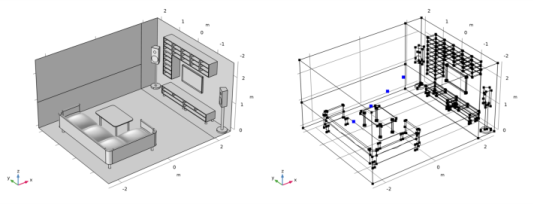
The model studies the response of a small 50.5 m3 room shown in Figure 1 on the left. The loudspeaker to the left of the TV emits an acoustic signal given as a sine wave modulated by a Gaussian envelope at the center frequency f0 = 700 Hz. As the signal propagates from the speaker, the acoustic pressure is measured at four listening points located equidistantly on a line drawn from the speaker to the sofa, as shown in Figure 1 on the right.
Figure 1: Room geometry (left) and location of listening points (right).
The sound absorption properties of the carpet, ceiling, sofa, and walls are modeled using the simplified local reacting approximation which states that the response at a certain point of the surface depends on the sound pressure at that point. This behavior is described by an impedance boundary condition imposed on the surface. When not purely resistive, as, for example, for porous materials, the boundary impedance will depend on the frequency, resulting in the following boundary condition in the frequency domain
(1),
where Z is the frequency-dependent specific impedance and Y is the admittance. The time-domain equivalent of Equation 1 involves a convolution instead of the multiplication
(2)
and thus requires the knowledge of Y(t) in the time domain and thus the computation of the inverse Fourier (or Laplace) transform, which, obviously, cannot be done analytically for a general Y(ω) obtained from various poroacoustic models or measurements. Moreover, it is not enough to know the values of the impedance (admittance) for a number of frequencies or for a frequency range to translate the boundary condition from the frequency to the time domain. Therefore, Y(ω) has to be extended to the whole complex plane.
An approximate analytical representation of Y(t) can be retrieved from a rational approximation of Y(ω) that is defined on the whole complex plane:
(3).
Indeed, each fraction term on the right-hand side of Equation 3 corresponds to an exponential decay in the time domain
(4),
where L1 is the inverse Laplace transform and H(t) is the Heaviside step function.
However, the approximation given by Equation 3 has to fulfill three conditions in order for the time-domain boundary condition to be physical:
Causality, Y(ω) is analytic and nonzero in ℑ(ω) > 0;
Reality, , that is, ℜ(Y(ω)) is even and ℑ(Y(ω)) is odd;
Passivity, ℜ(Y(ω)) > 0 for all real ω.
The causality and reality conditions are fulfilled if Y is real; the residues, Ak, and poles, αk, are either real or come in complex-conjugate pairs; and ℜ(αk) < 0 (for the exponentials in Equation 4 to decay as the time increases). That is
(5),
where NR and NC are the numbers of pure real poles and complex-conjugate pole pairs, respectively.
The form given in Equation 5 is used to reduce the evaluation of the integral in Equation 2 to system of auxiliary ordinary differential equations (ODEs) for memory variables. This approach is referred to as ADE method (see Ref. 1, Ref. 2, Ref. 3). The system of ODEs is automatically created and solved when you set up an Impedance boundary condition with a General local reacting (rational approximation) option.
Results and Discussion
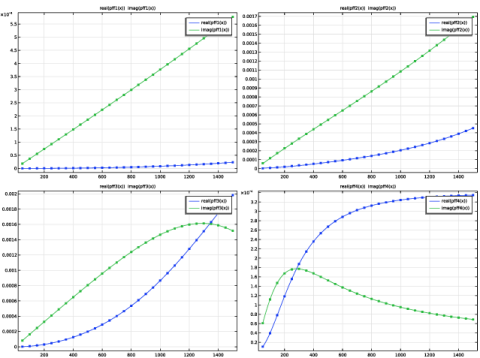
The real and imaginary parts of the fitted frequency dependent admittance data are depicted in Figure 2. As seen, the sofa surface is more absorptive that the others, especially at the higher frequencies.
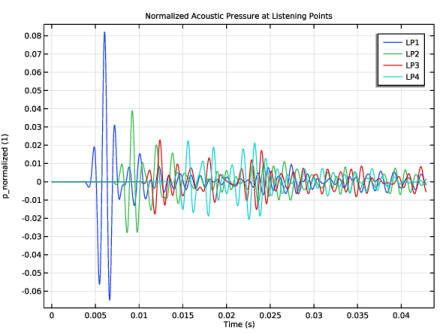
Figure 3 shows the acoustic pressure recorded at the listening points in blue, green, red, and cyan colors as the point moves away from the source. The values are normalized to the maximum pressure at the source. As seen from the plot, the pressure magnitude decreases with the time.
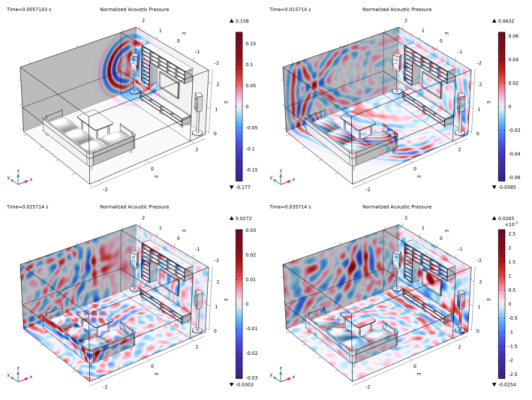
The history of the signal propagation through the room is shown in Figure 4. The signal emitted from the loudspeaker reaches listening point 1 at t = 4T0 (T0 = 1/f0) and listening point 4 at t = 11T0. Then multiple reflections occur while the signal magnitude goes down at t = 18T0 and t = 25T0.
Figure 2: Original admittance data and partial fraction expansions for the carpet, ceiling, sofa, and wall (from the top, left to right).
Figure 3: Acoustic pressure at listening points.
Figure 4: Normalized acoustic pressure at t = 4T0, 11T0, 18T0, and 25T0 (from the top, left to right).
Notes About the COMSOL Implementation
Partial Fraction Fit of Admittance Data
The partial fraction approximation (expansion) is obtained for the carpet, ceiling, sofa, and walls admittance through the built-in Partial Fraction Fit function within the frequency range from 50 Hz to 1.5 kHz. The form given by Equation 5 ensures that the reality condition is fulfilled. This is not always the case for the causality and passivity conditions. However, the Partial Fraction Fit function has the necessary tools that can be used to make the result fulfill the causality and reality conditions, thus making the time-domain impedance boundary condition physical.
The Partial Fraction Fit function fits the input data within a given tolerance that is found in the Advanced section (default 103). A higher tolerance error results in a higher degree, N, of the polynomials in Equation 3 and therefore a larger number of terms in the expansion Equation 5. The number of poles/residues in the expansion in turns corresponds to the number of ODEs solved for the memory variables. The default tolerance provides a balance between the approximation accuracy and the number of terms in the expansion, thus the computation costs when the expansion is used in an impedance boundary condition. On the other hand, increasing the tolerance may yield better results.
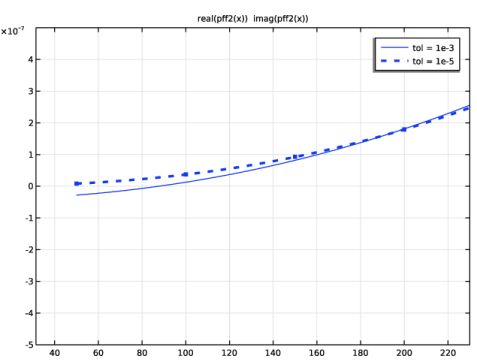
For example, the first Partial Fraction Fit function present in the model fits the admittance of the carpet. The default tolerance results in one real-valued pole and one complex-valued pole pair. From a distance the result looks good, but a closer look reveals that the passivity condition is violated at low frequencies: the real part of Y becomes negative between 50 and 90 Hz. A tighter tolerance of 105 yields two extra terms with real-valued poles and a partial fraction expansion that is passive within the given frequency range (see Figure 5).
Figure 5: Real part of the carpet admittance fit obtained with tolerance of 10-3 and 10-5.
The violation of the causality condition takes place when one or more poles in the partial fraction expansion have positive real part (that is, they are unstable), which can usually happen to the pure real poles. If an unstable pole has a relatively large residue, click the Flip Poles button to flip it onto the left half plane and circumvent the issue. The residues will be recomputed and updated automatically. Otherwise, enable the Automatically detect and remove Froissart doublets option and run the fit. The poles with relatively small residues will be removed during the cleanup process. This procedure is carried out when fitting the ceiling admittance data with the second Partial Fraction Fit function.
A different situation appears with the third Partial Fraction Fit function that is used to build a partial fraction expansion for the sofa admittance. Fitting the data with the default tolerance yields an approximation that fulfills all three conditions. However, the absolute value of the real-valued pole is much larger than that of the complex-valued pole. This results in a stiff ODE, which affects the stability of the time-integration scheme. Indeed, the Pressure Acoustics, Time Explicit physics interface used in this tutorial relies on explicit time-integration schemes. The time step is deduced solely from the minimum mesh element size (see the section below) and the speed of sound, and it can be too large to achieve a stable solution of the ODE.
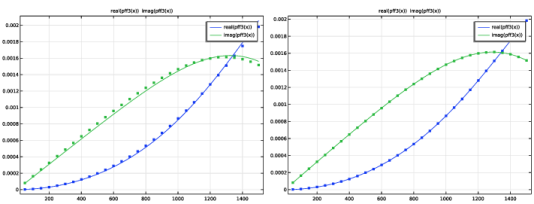
The influence of such poles is often localized and therefore they can be discarded with the following update of the residues by clicking the Update Residues button. For the default tolerance, the approximation becomes worse after discarding the real-valued pole (see Figure 6 on the left). Increasing the tolerance results in an extra complex-valued pole pair, and the result visually remains the same after the real-valued pole has been removed.
Figure 6: Sofa admittance approximation computed with the tolerance of 10-3 (left) and
10-5 (right) after discarding the real-valued pole.
The same procedure should be applied when the expansion contains spurious poles (also known as Froissart doublets). Those are the poles with residues close to zero, which is equivalent to very near pole and zero pairs in the rational approximation given by Equation 3.
Mesh and Time Explicit Solver
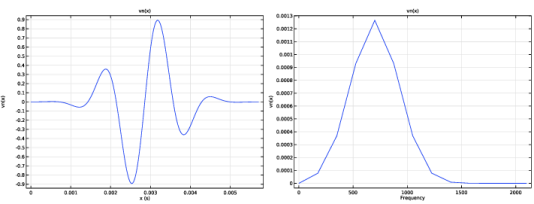
Solving wave propagation problems in the time domain has some requirements on both spatial and temporal resolution of the wave pattern. The mesh has to be fine enough to resolve the frequency content of the signal. For the quartic discretization used by default in the Nonlinear Pressure Acoustic, Time Explicit physics interface, the proper accuracy is achieved when the maximum mesh element size does not exceed 2/3 of the minimum wavelength. This tutorial studies the propagation of a broadband signal shown together with its frequency content in Figure 7. As seen, the frequency content is not limited by f0 = 700 Hz. Therefore, the mesh should resolve smaller wavelengths to achieve accurate results; at least up to λ0/2 = c0/(2f0). This yields hmax  λ0/3.
Figure 7: Source signal (left) and its frequency content (right).
The Pressure Acoustic, Time Explicit interface is based on dG-FEM and uses an explicit time integration schemes. The time step is supposed to obey the CFL condition to ensure the stability of the time integration method. That is, Δ hmin/c0, where hmin is the minimum mesh element size. The solver automatically deduces the time step from the mesh and the speed of sound.
References
1. H. Wang, M. Cosnefroy, and M. Hornikx, “An arbitrary high-order discontinuous Galerkin method with local time-stepping for linear acoustic wave propagation,” J. Acoust. Soc. Am., vol. 149, p. 569, 2021; doi.org/10.1121/10.0003340.
2. F. Pind, A.P. Eising-Karup, C-H Jeong, J.S. Hesthaven, and J. Strømann-Andersen, “Time-domain room acoustic simulations with extended-reacting porous absorbers using the discontinuous Galerkin method,” J. Acoust. Soc. Am., vol. 148, p. 2851, 2020; doi.org/10.1121/10.0002448.
3. H. Wang and M. Hornikx, “Time-domain impedance boundary condition modeling with the discontinuous Galerkin method for room acoustics simulations,” J. Acoust. Soc. Am., vol. 147, p. 2534, 2020; doi.org/10.1121/10.0001128.
Application Library path: Acoustics_Module/Building_and_Room_Acoustics/wave_based_room
Modeling Instructions
From the File menu, choose New.
New
In the New window, click  Model Wizard.
Model Wizard
1
In the Model Wizard window, click  3D.
2
In the Select Physics tree, select Acoustics > Pressure Acoustics > Pressure Acoustics, Time Explicit (pate).
3
Click Add.
4
Click  Study.
5
In the Select Study tree, select General Studies > Time Dependent.
6
This tutorial studies the propagation of an acoustic signal whose wavelength at the center frequency is large compared to most of the details of the model geometry. Thus, it is approved to change the Geometry shape function order to Linear Lagrange. This will increase the robustness of the model.
Component 1 (comp1)
1
In the Model Builder window, click Component 1 (comp1).
2
In the Settings window for Component, locate the Curved Mesh Elements section.
3
From the Geometry shape function list, choose Linear Lagrange.
Geometry 1
1
In the Model Builder window, under Component 1 (comp1) click Geometry 1.
2
In the Settings window for Geometry, locate the Advanced section.
3
From the Geometry representation list, choose CAD kernel.
4
Locate the Cleanup section. Select the Automatic detection of small details checkbox.
Import 1 (imp1)
1
In the Home toolbar, click  Import.
2
In the Settings window for Import, locate the Source section.
3
Click  Browse.
4
5
Click  Import.
6
Click the  Wireframe Rendering button in the Graphics toolbar.
Point 1 (pt1)
1
In the Geometry toolbar, click  More Primitives and choose Point.
2
In the Settings window for Point, locate the Point section.
3
In the x text field, type 1.2[m] 0.2[m] -0.8[m] -1.8[m].
4
In the y text field, type 0.75*1.75[m] 0.5*1.75[m] 0.25*1.75[m] 0[m].
5
In the z text field, type 1[m] 1[m] 1[m] 1[m].
6
Click  Build Selected.
Definitions
Sofa
1
In the Definitions toolbar, click  Explicit.
2
In the Settings window for Explicit, type Sofa in the Label text field.
3
Locate the Input Entities section. From the Geometric entity level list, choose Boundary.
4
Click  Paste Selection.
5
In the Paste Selection dialog, type 10-20, 25-31, 51, 52, 61, 68-71 in the Selection text field.
6
Sofa Legs
1
In the Definitions toolbar, click  Explicit.
2
In the Settings window for Explicit, type Sofa Legs in the Label text field.
3
Locate the Input Entities section. From the Geometric entity level list, choose Boundary.
4
Click  Paste Selection.
5
In the Paste Selection dialog, type 21-24, 32-35, 53-56 in the Selection text field.
6
Shelves
1
In the Definitions toolbar, click  Explicit.
2
In the Settings window for Explicit, type Shelves in the Label text field.
3
Locate the Input Entities section. From the Geometric entity level list, choose Boundary.
4
Click  Paste Selection.
5
In the Paste Selection dialog, type 116-206, 265-270, 272-274, 277-279, 281-289 in the Selection text field.
6
TV
1
In the Definitions toolbar, click  Explicit.
2
In the Settings window for Explicit, type TV in the Label text field.
3
Locate the Input Entities section. From the Geometric entity level list, choose Boundary.
4
Click  Paste Selection.
5
In the Paste Selection dialog, type 241-261 in the Selection text field.
6
TV Table
1
In the Definitions toolbar, click  Explicit.
2
In the Settings window for Explicit, type TV Table in the Label text field.
3
Locate the Input Entities section. From the Geometric entity level list, choose Boundary.
4
Click  Paste Selection.
5
In the Paste Selection dialog, type 79-115, 233-240, 263, 264, 271, 275, 276, 280 in the Selection text field.
6
Sofa Table
1
In the Definitions toolbar, click  Explicit.
2
In the Settings window for Explicit, type Sofa Table in the Label text field.
3
Locate the Input Entities section. From the Geometric entity level list, choose Boundary.
4
Click  Paste Selection.
5
In the Paste Selection dialog, type 36-50, 57-60, 62-67, 72 in the Selection text field.
6
Speaker Legs
1
In the Definitions toolbar, click  Explicit.
2
In the Settings window for Explicit, type Speaker Legs in the Label text field.
3
Locate the Input Entities section. From the Geometric entity level list, choose Boundary.
4
Click  Paste Selection.
5
In the Paste Selection dialog, type 207-212, 225-228 in the Selection text field.
6
Ceiling
1
In the Definitions toolbar, click  Explicit.
2
In the Settings window for Explicit, type Ceiling in the Label text field.
3
Locate the Input Entities section. From the Geometric entity level list, choose Boundary.
4
Click  Paste Selection.
5
In the Paste Selection dialog, type 7, 77 in the Selection text field.
6
Carpet
1
In the Definitions toolbar, click  Explicit.
2
In the Settings window for Explicit, type Carpet in the Label text field.
3
Locate the Input Entities section. From the Geometric entity level list, choose Boundary.
4
Click  Paste Selection.
5
In the Paste Selection dialog, type 3, 75 in the Selection text field.
6
Wall
1
In the Definitions toolbar, click  Explicit.
2
In the Settings window for Explicit, type Wall in the Label text field.
3
Locate the Input Entities section. From the Geometric entity level list, choose Boundary.
4
Click  Paste Selection.
5
In the Paste Selection dialog, type 1, 2, 4, 5, 8, 9, 74, 78, 262 in the Selection text field.
6
All Surfaces
1
In the Definitions toolbar, click  Explicit.
2
In the Settings window for Explicit, type All Surfaces in the Label text field.
3
Locate the Input Entities section. From the Geometric entity level list, choose Boundary.
4
Select the All boundaries checkbox.
Listening Points
1
In the Definitions toolbar, click  Explicit.
2
In the Settings window for Explicit, locate the Input Entities section.
3
From the Geometric entity level list, choose Point.
4
5
In the Label text field, type Listening Points.
Create four Point Probes for calculating the acoustic pressure on the way from the loudspeaker to the sofa.
Point Probe 1 (point1)
1
In the Definitions toolbar, click  Probes and choose Point Probe.
2
In the Settings window for Point Probe, locate the Source Selection section.
3
Click  Clear Selection.
4
5
Locate the Expression section. In the Expression text field, type pate.p_t/(1[m/s]*pate.Z).
6
Select the Description checkbox. In the associated text field, type LP1.
Point Probe 2 (point2)
1
Right-click Point Probe 1 (point1) and choose Duplicate.
2
In the Settings window for Point Probe, locate the Source Selection section.
3
Click  Clear Selection.
4
5
Locate the Expression section. In the Description text field, type LP2.
Point Probe 3 (point3)
1
Right-click Point Probe 2 (point2) and choose Duplicate.
2
In the Settings window for Point Probe, locate the Source Selection section.
3
Click  Clear Selection.
4
5
Locate the Expression section. In the Description text field, type LP3.
Point Probe 4 (point4)
1
Right-click Point Probe 3 (point3) and choose Duplicate.
2
In the Settings window for Point Probe, locate the Source Selection section.
3
Click  Clear Selection.
4
5
Locate the Expression section. In the Description text field, type LP4.
Global Definitions
Parameters 1
1
In the Model Builder window, under Global Definitions click Parameters 1.
2
In the Settings window for Parameters, locate the Parameters section.
3
Waveform 1 (wv1)
1
In the Home toolbar, click  Functions and choose Global > Waveform.
2
In the Settings window for Waveform, type vn in the Function name text field.
3
Locate the Parameters section. In the T text field, type T0.
4
Click to expand the Modulation section. From the Amplitude modulation list, choose Gaussian.
5
In the σ text field, type T0/2.
6
Click  Create Plot.
Results
Source Signal Frequency Content
In the Settings window for 1D Plot Group, type Source Signal Frequency Content in the Label text field.
Function 1
1
In the Model Builder window, expand the Source Signal Frequency Content node, then click Function 1.
2
In the Settings window for Function, locate the Output section.
3
From the Display list, choose Discrete Fourier transform.
4
From the Show list, choose Frequency spectrum.
5
From the Scale list, choose Multiply by sampling period.
6
Select the Frequency range checkbox.
7
In the Maximum text field, type 3*f0.
8
In the Source Signal Frequency Content toolbar, click  Plot.
Global Definitions
Partial Fraction Fit - Carpet
1
In the Home toolbar, click  Functions and choose Global > Partial Fraction Fit.
2
In the Settings window for Partial Fraction Fit, type Partial Fraction Fit - Carpet in the Label text field.
3
Locate the Data section. Click  Browse.
4
Tighten the tolerance for the result to fulfill the passivity condition.
5
Click to expand the Advanced section. In the Tolerance text field, type 1e-5.
6
Click  Fit Parameters.
7
Partial Fraction Fit - Ceiling
1
In the Home toolbar, click  Functions and choose Global > Partial Fraction Fit.
2
In the Settings window for Partial Fraction Fit, type Partial Fraction Fit - Ceiling in the Label text field.
3
Locate the Data section. Click  Browse.
4
5
Click  Fit Parameters.
One of the real-valued poles is unstable and should be flipped to the left half plane by clicking the Flip Poles button. On the other hand, its residue is much smaller than those for the other poles, which indicates that the approximant may have a zero near the pole location. Run the cleanup procedure to remove the unstable pole.
6
Locate the Advanced section. Select the Automatically detect and remove Froissart doublets checkbox.
7
Click  Fit Parameters.
8
Partial Fraction Fit - Sofa
1
In the Home toolbar, click  Functions and choose Global > Partial Fraction Fit.
2
In the Settings window for Partial Fraction Fit, type Partial Fraction Fit - Sofa in the Label text field.
3
Locate the Data section. Click  Browse.
4
Tune the tolerance and discard the real-valued pole as discussed earlier.
5
Locate the Advanced section. In the Tolerance text field, type 1e-5.
6
Click  Fit Parameters.
7
Locate the Poles and Residues section. Find the Real residues and poles subsection. Click  Clear Table or Delete the table row containing the real-valued residue and pole.
8
Click  Update Residues.
9
Partial Fraction Fit - Wall
1
In the Home toolbar, click  Functions and choose Global > Partial Fraction Fit.
2
In the Settings window for Partial Fraction Fit, type Partial Fraction Fit - Wall in the Label text field.
3
Locate the Data section. Click  Browse.
4
5
Click  Fit Parameters.
6
Add Material
1
In the Materials toolbar, click  Add Material to open the Add Material window.
2
Go to the Add Material window.
3
In the tree, select Built-in > Air.
4
Click the Add to Component button in the window toolbar.
5
In the Materials toolbar, click  Add Material to close the Add Material window.
The model setup demonstrated below makes it possible to use an optimized solver that can be run on either a CPU or a GPU.
Pressure Acoustics, Time Explicit (pate)
1
In the Settings window for Pressure Acoustics, Time Explicit, locate the Model Equation and Solver Settings section.
2
Select the Use accelerated solver formulation checkbox.
If you have a GPU that is powerful enough to speed up the computation, keep the other settings unchanged, otherwise
3
Clear the Compute residual on GPU checkbox to run the accelerated solver on the CPU.
Normal Velocity 1
1
In the Model Builder window, expand the Pressure Acoustics, Time Explicit (pate) node.
2
Right-click Pressure Acoustics, Time Explicit (pate) and choose Normal Velocity.
3
Unlike the ‘regular’ solver, the accelerated solver requires that the prescribed fields be given as a product of their spatial and temporal parts. Specify the Normal Velocity as shown below.
4
In the Settings window for Normal Velocity, locate the Normal Velocity section.
5
In the vn(x) text field, type 1.
6
In the l(t) text field, type vn(t).
Impedance 1 - Carpet
1
In the Physics toolbar, click  Boundaries and choose Impedance.
2
In the Settings window for Impedance, type Impedance 1 - Carpet in the Label text field.
3
Locate the Boundary Selection section. From the Selection list, choose Carpet.
4
Locate the Impedance section. From the Impedance model list, choose General local reacting (rational approximation).
5
From the Partial fraction fit list, choose From function.
6
From the Reference list, choose Partial Fraction Fit - Carpet (pff1).
7
Click  Import.
Impedance 2 - Ceiling
1
Right-click Impedance 1 - Carpet and choose Duplicate.
2
In the Settings window for Impedance, type Impedance 2 - Ceiling in the Label text field.
3
Locate the Boundary Selection section. From the Selection list, choose Ceiling.
4
Locate the Impedance section. From the Reference list, choose Partial Fraction Fit - Ceiling (pff2).
5
Click  Import.
Impedance 3 - Sofa
1
Right-click Impedance 2 - Ceiling and choose Duplicate.
2
In the Settings window for Impedance, type Impedance 3 - Sofa in the Label text field.
3
Locate the Boundary Selection section. From the Selection list, choose Sofa.
4
Locate the Impedance section. From the Reference list, choose Partial Fraction Fit - Sofa (pff3).
5
Click  Import.
Impedance 4 - Wall
1
Right-click Impedance 3 - Sofa and choose Duplicate.
2
In the Settings window for Impedance, type Impedance 4 - Wall in the Label text field.
3
Locate the Boundary Selection section. From the Selection list, choose Wall.
4
Locate the Impedance section. From the Reference list, choose Partial Fraction Fit - Wall (pff4).
5
Click  Import.
Mesh 1
Swept 1
1
In the Mesh toolbar, click  Swept.
2
In the Settings window for Swept, locate the Domain Selection section.
3
From the Geometric entity level list, choose Domain.
4
Free Triangular 1
1
In the Mesh toolbar, click  More Generators and choose Free Triangular.
2
In the Settings window for Free Triangular, locate the Boundary Selection section.
3
From the Selection list, choose Sofa.
Free Tetrahedral 1
1
In the Mesh toolbar, click  Free Tetrahedral.
2
In the Settings window for Free Tetrahedral, click to expand the Element Quality Optimization section.
3
From the Optimization level list, choose High.
4
Select the Avoid elements that are too small checkbox.
Size
1
In the Model Builder window, click Size.
2
In the Settings window for Size, locate the Element Size section.
3
Click the Custom button.
4
Locate the Element Size Parameters section. In the Maximum element size text field, type lam0/3.
5
In the Minimum element size text field, type 0.04.
6
In the Curvature factor text field, type 0.3.
7
Click  Build All.
Study 1
Step 1: Time Dependent
1
In the Model Builder window, under Study 1 click Step 1: Time Dependent.
2
In the Settings window for Time Dependent, locate the Study Settings section.
3
In the Output times text field, type range(0,T0,30*T0).
This setting specifies at which time steps the solution is saved and only influences the stored solution (and thus the file size). The internal time steps taken by the solver are automatically controlled by COMSOL to fulfill the appropriate CFL condition. Note that the acoustic pressure recorded at the probe points is computed with a higher resolution at the time steps taken by the solver.
4
Click to expand the Store in Output section. In the table, enter the following settings:
5
Under Selections, click  Add.
6
In the Add dialog, select All Surfaces in the Selections list.
7
8
In the Model Builder window, click Study 1.
9
In the Settings window for Study, locate the Study Settings section.
10
Clear the Generate default plots checkbox.
11
In the Study toolbar, click  Get Initial Value.
Results
Point Probe 1
Increase the table size as there will be more than 10000 cells in the probe table.
Probe Table 1
1
Go to the Probe Table 1 window.
2
Click the Settings button in the window toolbar.
Results
Probe Table 1
1
In the Settings window for Table, locate the Display section.
2
In the Maximum number of rows displayed text field, type 20000.
Study 1
In the Study toolbar, click  Compute.
All the plots are depicted in the previous sections of the documentation.
Results
Normalized Acoustic Pressure at Listening Points
1
In the Model Builder window, under Results click Probe Plot Group 2.
2
In the Settings window for 1D Plot Group, type Normalized Acoustic Pressure at Listening Points in the Label text field.
3
Click to expand the Title section. From the Title type list, choose Label.
4
Locate the Plot Settings section.
5
Select the y-axis label checkbox. In the associated text field, type p_normalized (1).
Probe Table Graph 1
1
In the Model Builder window, expand the Normalized Acoustic Pressure at Listening Points node, then click Probe Table Graph 1.
2
In the Settings window for Table Graph, click to expand the Legends section.
3
From the Legends list, choose Manual.
4
5
In the Normalized Acoustic Pressure at Listening Points toolbar, click  Plot.
Normalized Acoustic Pressure
1
In the Results toolbar, click  3D Plot Group.
2
In the Settings window for 3D Plot Group, type Normalized Acoustic Pressure in the Label text field.
3
Locate the Data section. From the Time (s) list, choose 0.015714.
4
Click to expand the Title section. From the Title type list, choose Label.
5
Locate the Color Legend section. Select the Show maximum and minimum values checkbox.
6
Select the Show units checkbox.
Surface 1
1
In the Normalized Acoustic Pressure toolbar, click  Surface.
2
In the Settings window for Surface, locate the Expression section.
3
In the Expression text field, type pate.p_t/(1[m/s]*pate.Z).
4
Locate the Coloring and Style section. From the Color table list, choose Wave.
5
From the Scale list, choose Linear symmetric.
Selection 1
1
In the Normalized Acoustic Pressure toolbar, click  Selection.
2
In the Settings window for Selection, locate the Selection section.
3
Click  Paste Selection.
4
In the Paste Selection dialog, type 3, 8-72, 75, 78-289 in the Selection text field.
5