


PDF

Porous Absorber with Local and Extended Reacting Approximations for Time-Domain Modeling
Introduction
This tutorial studies the propagation of sound in the presence of a porous absorber in the time domain. It demonstrates how to model a porous absorber using the local and extended reacting approximations and compares the two approaches for absorbers of various thickness. The dissipative and resonant behavior of the absorber is frequency dependent. The use of the Partial Fraction Fit functionality makes it possible to account for the frequency dependency in the time-domain simulations.
Model Definition
The sound propagation is induced by an initial pressure pulse given by a Ricker wavelet of the form
with the width B = 0.045 m which has sufficient energy up to 4 kHz. The source center is located 0.5 m above a porous layer, and the receiver is located at the same height 2 m away from the source.
The porous layer is rigidly backed and made of melamine foam. It has the thickness of 5 or 15 cm. This tutorial studies two approaches to modeling of sound absorption: local reacting (LR) and extended reacting (ER) (see Ref. 1, Ref. 2). In the LR approximation, the absorbing properties of the porous layer are taken into account through the impedance boundary condition imposed that establishes a relation between the acoustic pressure and the acoustic particle velocity on the absorber boundary. That is,
(1),
The impedance values, Z, are in general angle-dependent (θ) and vary over frequency (ω). In the time domain, the boundary admittance, Y, is used instead. Those can either be measured or computed as demonstrated in the Acoustic Treatment Boundary Calculator application.
The ER approximation is more accurate, because it is based on modeling of the sound propagation inside the porous domain. The absorbing properties of the porous media are described by various equivalent fluid models with the complex-valued frequency-dependent bulk modulus and density. In the absence of domain sources the governing equations read
(2),
where βs is the isentropic compressibility, which is the inverse of the bulk modulus, and ρ is the density. This tutorial relies on the Johnson–Champoux–Allard (JCA) poroacoustic model for the absorber with the porosity of 0.99, tortuosity factor of 1, flow resistivity of 4500 Pa·s/m2, and viscous and thermal characteristic lengths of 130 and 160 μm, respectively.
In the time domain, the products of the frequency-dependent quantities in Equation 1 and Equation 2 turn into convolutions. Their efficient computation is possible with the use of the Partial Fraction Fit functionality which creates a rational approximant to a complex-valued function, allowing for analytical calculation of its inverse Laplace transform (see Wave-Based Time-Domain Room Acoustics with Frequency-Dependent Impedance for details).
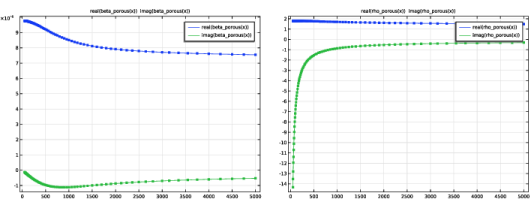
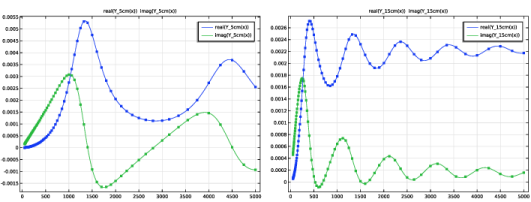
The frequency-dependent isentropic compressibility and density as well as the frequency-dependent admittance for the absorber thickness of 5 and 15 cm are fitted within the frequency range from 50 Hz to 5 kHz with 12 samples per octave. The sampled and the fitted curves are shown in Figure 1 and Figure 2 below.
Figure 1: Fitted frequency-dependent isentropic compressibility (left) and density (right).
Figure 2: Fitted admittance for 5 (left) and 15 (right) cm thick porous layer at θ = 0°.
Results and Discussion
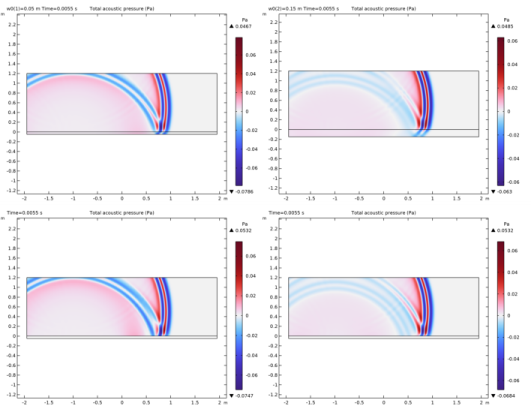
The acoustic pressure profiles at t = 5.5 ms are depicted in Figure 3. It shows only a slight visual difference between the results from the ER (top) and LR (bottom) approaches. At the same time, the signal reflected from the absorber is different for the thinner (left) and thicker (right) layers. The thicker layer absorbs more acoustic energy, which is seen from the magnitude of the reflected signal.
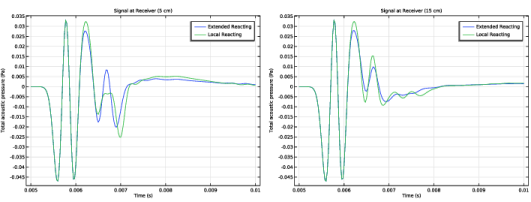
Figure 4 shows the profiles of the signal that has reached the receiver. The direct sound is the same regardless of the absorber thickness and the approach used to model it. However, the reflected sound is different. The ER approximation results in the peaks and troughs at the same locations for both 5 and 15 cm thick layers: 6.2 and 6.7 ms for the peaks and 6.5 and 6.9 ms for the troughs. Only their magnitude differs. On the other hand, the LR approximation yields the reflected sound with peaks and troughs at different locations. This indicates that the ER approach has a higher accuracy. At the same time, it is computationally more demanding, as it involves solving the governing equations in the porous domain thus resulting in a larger number of degrees of freedom compared to the LR approach.
Figure 3: Acoustic pressure computed using the ER (top) and LR (bottom) approximations for the 5 (left) and 15 (right) cm thick porous layer.
Figure 4: Acoustic pressure at the receiver for the 5 (left) and 15 (right) cm thick porous layer.
References
1. F. Pind, A.P. Eising-Karup, C-H Jeong, J.S. Hesthaven, and J. Strømann-Andersen, “Time-domain room acoustic simulations with extended-reacting porous absorbers using the discontinuous Galerkin method,” J. Acoust. Soc. Am., vol. 148, p. 2851, 2020; doi.org/10.1121/10.0002448.
2. H. Wang and M. Hornikx, “Extended reacting boundary modeling of porous materials with thin coverings for time-domain room acoustic simulations,” J. Sound Vib., vol. 548, 117550, 2023; doi.org/10.1016/j.jsv.2022.117550.
Application Library path: Acoustics_Module/Building_and_Room_Acoustics/porous_absorber_time_domain
Modeling Instructions
From the File menu, choose New.
New
In the New window, click  Model Wizard.
Model Wizard
1
In the Model Wizard window, click  2D.
2
Global Definitions
Parameters 1
1
In the Model Builder window, under Global Definitions click Parameters 1.
2
In the Settings window for Parameters, locate the Parameters section.
3
Create an Analytic function for the initial pressure pulse that initiates the sound.
Analytic 1 (an1)
1
In the Home toolbar, click  Functions and choose Global > Analytic.
2
In the Settings window for Analytic, type p_init in the Function name text field.
3
Locate the Definition section. In the Expression text field, type (1 - ((x - xs)^2 + (y - ys)^2)/B^2)*exp(-((x - xs)^2 + (y - ys)^2)/B^2/2).
4
In the Arguments text field, type x, y.
Then, create four Partial Fraction Fit functions for the partial fraction representation of the frequency-dependent data used in the model.
Make sure that the results fulfill the causality and reality conditions, that is, that the poles have negative real parts, as well as the passivity condition, that is, that the functions have non-negative real parts.
Partial Fraction Fit 1 (pff1)
1
In the Home toolbar, click  Functions and choose Global > Partial Fraction Fit.
2
In the Settings window for Partial Fraction Fit, type beta_porous in the Function name text field.
3
Locate the Data section. Click  Browse.
4
5
Click  Fit Parameters.
6
7
In the Function Plot window, click the x-Axis Log Scale button in the window toolbar.
Partial Fraction Fit 2 (beta_porous2)
1
Right-click Partial Fraction Fit 1 (beta_porous) and choose Duplicate.
2
In the Settings window for Partial Fraction Fit, type rho_porous in the Function name text field.
3
Locate the Data section. Click  Browse.
4
5
Click  Fit Parameters.
6
7
In the Function Plot window, click the x-Axis Log Scale button in the window toolbar.
Partial Fraction Fit 3 (rho_porous3)
1
Right-click Partial Fraction Fit 2 (rho_porous) and choose Duplicate.
2
In the Settings window for Partial Fraction Fit, type Y_5cm in the Function name text field.
3
Locate the Data section. Click  Browse.
4
5
Click  Fit Parameters.
6
7
In the Function Plot window, click the x-Axis Log Scale button in the window toolbar.
Partial Fraction Fit 4 (Y_5cm4)
1
Right-click Partial Fraction Fit 3 (Y_5cm) and choose Duplicate.
2
In the Settings window for Partial Fraction Fit, type Y_15cm in the Function name text field.
3
Locate the Data Column Settings section. In the table, enter the following settings:
4
Click  Fit Parameters.
5
6
In the Function Plot window, click the x-Axis Log Scale button in the window toolbar.
Geometry 1
Rectangle 1 (r1)
1
In the Geometry toolbar, click  Rectangle.
2
In the Settings window for Rectangle, locate the Size and Shape section.
3
In the Width text field, type 3*L0.
4
In the Height text field, type L0.
5
Locate the Position section. In the x text field, type -1.5*L0.
6
Click to expand the Layers section. Select the Layers to the left checkbox.
7
Select the Layers to the right checkbox.
8
Clear the Layers on bottom checkbox.
9
Select the Layers on top checkbox.
10
11
Click  Build Selected.
Rectangle 2 (r2)
1
In the Geometry toolbar, click  Rectangle.
2
In the Settings window for Rectangle, locate the Size and Shape section.
3
In the Width text field, type 3*L0.
4
In the Height text field, type w0.
5
Locate the Position section. In the x text field, type -1.5*L0.
6
In the y text field, type -w0.
7
Locate the Layers section. Select the Layers to the right checkbox.
8
Select the Layers to the left checkbox.
9
Clear the Layers on bottom checkbox.
10
11
Click  Build Selected.
Point 1 (pt1)
1
In the Geometry toolbar, click  Point.
2
In the Settings window for Point, locate the Point section.
3
In the x text field, type xs.
4
In the y text field, type ys.
5
Click  Build Selected.
Point 2 (pt2)
1
Right-click Point 1 (pt1) and choose Duplicate.
2
In the Settings window for Point, locate the Point section.
3
In the x text field, type xr.
4
Click  Build Selected.
Create selections to simplify the model setup.
Definitions
Air
1
In the Definitions toolbar, click  Explicit.
2
3
In the Settings window for Explicit, type Air in the Label text field.
Porous Layer
1
In the Definitions toolbar, click  Explicit.
2
3
In the Settings window for Explicit, type Porous Layer in the Label text field.
Absorbing Layer
1
In the Definitions toolbar, click  Explicit.
2
3
In the Settings window for Explicit, type Absorbing Layer in the Label text field.
Physical Domain
1
In the Definitions toolbar, click  Difference.
2
In the Settings window for Difference, locate the Input Entities section.
3
Under Selections to add, click  Add.
4
In the Add dialog, select Air in the Selections to add list.
5
6
In the Settings window for Difference, locate the Input Entities section.
7
Under Selections to add, click  Add.
8
In the Add dialog, select Porous Layer in the Selections to add list.
9
10
In the Settings window for Difference, locate the Input Entities section.
11
Under Selections to subtract, click  Add.
12
In the Add dialog, select Absorbing Layer in the Selections to subtract list.
13
14
In the Settings window for Difference, type Physical Domain in the Label text field.
Interface
1
In the Definitions toolbar, click  Explicit.
2
In the Settings window for Explicit, locate the Input Entities section.
3
From the Geometric entity level list, choose Boundary.
4
5
In the Label text field, type Interface.
Outer Boundary
1
In the Definitions toolbar, click  Explicit.
2
In the Settings window for Explicit, locate the Input Entities section.
3
From the Geometric entity level list, choose Boundary.
4
5
In the Label text field, type Outer Boundary.
6
Click the  Zoom Extents button in the Graphics toolbar.
Add Material
1
In the Materials toolbar, click  Add Material to open the Add Material window.
2
Go to the Add Material window.
3
In the tree, select Built-in > Air.
4
Click the Add to Component button in the window toolbar.
5
In the Materials toolbar, click  Add Material to close the Add Material window.
Add Physics
1
In the Home toolbar, click  Add Physics to open the Add Physics window.
2
Go to the Add Physics window.
3
In the tree, select Acoustics > Pressure Acoustics > Pressure Acoustics, Time Explicit (pate).
4
Click the Add to Component 1 button in the window toolbar.
5
In the Home toolbar, click  Add Physics to close the Add Physics window.
Pressure Acoustics, Time Explicit (pate)
Initial Values 1
1
In the Settings window for Initial Values, locate the Initial Values section.
2
In the p text field, type p_init(x, y).
Poroacoustics 1
1
In the Physics toolbar, click  Domains and choose Poroacoustics.
2
In the Settings window for Poroacoustics, locate the Domain Selection section.
3
From the Selection list, choose Porous Layer.
4
Locate the Poroacoustics Model section. From the Poroacoustics model list, choose User defined.
5
Click to expand the Isentropic Compressibility section. From the Partial fraction fit list, choose From function.
6
From the Reference list, choose Partial Fraction Fit 1 (beta_porous).
7
Click  Import.
8
Click to collapse the Isentropic Compressibility section. Click to expand the Density section. From the Partial fraction fit list, choose From function.
9
From the Reference list, choose Partial Fraction Fit 2 (rho_porous).
10
Click  Import.
Note that the material discontinuity across the interface between the fluid and porous material domains is handled automatically by the Continuity of Total Fields feature.
Impedance 1
1
In the Physics toolbar, click  Boundaries and choose Impedance.
2
In the Settings window for Impedance, locate the Boundary Selection section.
3
From the Selection list, choose Outer Boundary.
Definitions
Absorbing Layer 1 (ab1)
1
In the Definitions toolbar, click  Absorbing Layer.
2
In the Settings window for Absorbing Layer, locate the Domain Selection section.
3
From the Selection list, choose Absorbing Layer.
Mesh 1
Mapped 1
In the Mesh toolbar, click  Mapped.
Size
1
In the Model Builder window, click Size.
2
In the Settings window for Size, click to expand the Element Size Parameters section.
3
In the Maximum element size text field, type 343[m/s]/4000[Hz]/1.5.
4
Click  Build All.
Add Study
1
In the Home toolbar, click  Add Study to open the Add Study window.
2
Go to the Add Study window.
3
Find the Studies subsection. In the Select Study tree, select General Studies > Time Dependent.
4
Click the Add Study button in the window toolbar.
5
In the Home toolbar, click  Add Study to close the Add Study window.
Study 1 - Extended Reacting
1
In the Settings window for Study, type Study 1 - Extended Reacting in the Label text field.
The plots will be generated manually.
2
Locate the Study Settings section. Clear the Generate default plots checkbox.
Step 1: Time Dependent
1
In the Model Builder window, under Study 1 - Extended Reacting click Step 1: Time Dependent.
2
In the Settings window for Time Dependent, locate the Study Settings section.
3
In the Output times text field, type range(0, 1[ms], 5[ms]) range(5.025[ms], 0.025[ms], 10[ms]).
It takes about 5 ms for the signal to reach the receiver. Therefore, use a coarser time resolution before that point in time. This will reduce the file size of the saved model.
Parametric Sweep
1
In the Study toolbar, click  Parametric Sweep.
2
In the Settings window for Parametric Sweep, locate the Study Settings section.
3
4
5
In the Study toolbar, click  Compute.
Add Physics
1
In the Home toolbar, click  Add Physics to open the Add Physics window.
2
Go to the Add Physics window.
3
In the tree, select Recently Used > Pressure Acoustics, Time Explicit (pate).
4
Click the Add to Selection button in the window toolbar.
5
In the Home toolbar, click  Add Physics to close the Add Physics window.
Pressure Acoustics, Time Explicit 2 (pate2)
Initial Values 1
1
In the Settings window for Initial Values, locate the Initial Values section.
2
In the p2 text field, type p_init(x, y).
3
In the Model Builder window, click Pressure Acoustics, Time Explicit 2 (pate2).
4
In the Settings window for Pressure Acoustics, Time Explicit, locate the Domain Selection section.
5
From the Selection list, choose Air.
Impedance 1
1
In the Physics toolbar, click  Boundaries and choose Impedance.
2
In the Settings window for Impedance, locate the Boundary Selection section.
3
From the Selection list, choose Outer Boundary.
Impedance 2 - Local Reacting, 5 cm
1
In the Physics toolbar, click  Boundaries and choose Impedance.
2
In the Settings window for Impedance, type Impedance 2 - Local Reacting, 5 cm in the Label text field.
3
Locate the Boundary Selection section. From the Selection list, choose Interface.
4
Locate the Impedance section. From the Impedance model list, choose General local reacting (rational approximation).
5
From the Partial fraction fit list, choose From function.
6
From the Reference list, choose Partial Fraction Fit 3 (Y_5cm).
7
Click  Import.
Impedance 3 - Local Reacting, 15 cm
1
In the Physics toolbar, click  Boundaries and choose Impedance.
2
In the Settings window for Impedance, type Impedance 3 - Local Reacting, 15 cm in the Label text field.
3
Locate the Boundary Selection section. From the Selection list, choose Interface.
4
Locate the Impedance section. From the Impedance model list, choose General local reacting (rational approximation).
5
From the Partial fraction fit list, choose From function.
6
From the Reference list, choose Partial Fraction Fit 4 (Y_15cm).
7
Click  Import.
Add Study
1
In the Home toolbar, click  Add Study to open the Add Study window.
2
Go to the Add Study window.
3
Find the Studies subsection. In the Select Study tree, select General Studies > Time Dependent.
4
Click the Add Study button in the window toolbar.
Study 2 - Local Reacting, 5 cm
1
In the Settings window for Study, type Study 2 - Local Reacting, 5 cm in the Label text field.
2
Locate the Study Settings section. Clear the Generate default plots checkbox.
Step 1: Time Dependent
1
In the Model Builder window, under Study 2 - Local Reacting, 5 cm click Step 1: Time Dependent.
2
In the Settings window for Time Dependent, locate the Study Settings section.
3
In the Output times text field, type range(0, 1[ms], 5[ms]) range(5.025[ms], 0.025[ms], 10[ms]).
4
Locate the Physics and Variables Selection section. Select the Modify model configuration for study step checkbox.
5
In the tree, select Component 1 (comp1) > Pressure Acoustics, Time Explicit (pate).
6
Click  Disable in Solvers.
7
In the tree, select Component 1 (comp1) > Pressure Acoustics, Time Explicit 2 (pate2) > Impedance 3 - Local Reacting, 15 cm.
8
Click  Disable.
9
In the Study toolbar, click  Compute.
Add Study
1
Go to the Add Study window.
2
Find the Studies subsection. In the Select Study tree, select General Studies > Time Dependent.
3
Click the Add Study button in the window toolbar.
4
In the Study toolbar, click  Add Study to close the Add Study window.
Study 3 - Local Reacting, 15 cm
1
In the Settings window for Study, type Study 3 - Local Reacting, 15 cm in the Label text field.
2
Locate the Study Settings section. Clear the Generate default plots checkbox.
1
In the Model Builder window, under Study 3 - Local Reacting, 15 cm click Step 1: Time Dependent.
2
In the Settings window for Time Dependent, locate the Study Settings section.
3
In the Output times text field, type range(0, 1[ms], 5[ms]) range(5.025[ms], 0.025[ms], 10[ms]).
4
Locate the Physics and Variables Selection section. In the Solve for column of the table, under Component 1 (comp1), clear the checkbox for Pressure Acoustics, Time Explicit (pate).
5
In the Study toolbar, click  Compute.
Before creating plots, process the datasets to only plot the results in the physical domains.
Results
In the Model Builder window, expand the Results node.
Study 1 - Extended Reacting/Parametric Solutions 1 (sol2)
In the Model Builder window, expand the Results > Datasets node, then click Study 1 - Extended Reacting/Parametric Solutions 1 (sol2).
Selection
1
In the Results toolbar, click  Attributes and choose Selection.
2
In the Settings window for Selection, locate the Geometric Entity Selection section.
3
From the Geometric entity level list, choose Domain.
4
From the Selection list, choose Physical Domain.
Study 2 - Local Reacting, 5 cm/Solution 5 (sol5)
In the Model Builder window, under Results > Datasets click Study 2 - Local Reacting, 5 cm/Solution 5 (sol5).
Selection
1
In the Results toolbar, click  Attributes and choose Selection.
2
In the Settings window for Selection, locate the Geometric Entity Selection section.
3
From the Geometric entity level list, choose Domain.
4
From the Selection list, choose Physical Domain.
Study 3 - Local Reacting, 15 cm/Solution 6 (sol6)
In the Model Builder window, under Results > Datasets click Study 3 - Local Reacting, 15 cm/Solution 6 (sol6).
Selection
1
In the Results toolbar, click  Attributes and choose Selection.
2
In the Settings window for Selection, locate the Geometric Entity Selection section.
3
From the Geometric entity level list, choose Domain.
4
From the Selection list, choose Physical Domain.
5
In the Model Builder window, collapse the Results > Datasets node.
Acoustic Pressure, Extended Reacting (5 cm)
1
In the Results toolbar, click  2D Plot Group.
2
In the Settings window for 2D Plot Group, type Acoustic Pressure, Extended Reacting (5 cm) in the Label text field.
3
Locate the Data section. From the Dataset list, choose Study 1 - Extended Reacting/Parametric Solutions 1 (sol2).
4
From the Parameter value (w0 (m)) list, choose 0.05.
5
From the Time (s) list, choose 0.0055.
6
Locate the Color Legend section. Select the Show units checkbox.
7
Select the Show maximum and minimum values checkbox.
Surface 1
1
Right-click Acoustic Pressure, Extended Reacting (5 cm) and choose Surface.
2
In the Settings window for Surface, locate the Coloring and Style section.
3
From the Color table list, choose Wave.
4
From the Scale list, choose Linear symmetric.
5
In the Acoustic Pressure, Extended Reacting (5 cm) toolbar, click  Plot.
6
Click the  Zoom Extents button in the Graphics toolbar.
Acoustic Pressure, Extended Reacting (15 cm)
1
In the Model Builder window, right-click Acoustic Pressure, Extended Reacting (5 cm) and choose Duplicate.
2
In the Settings window for 2D Plot Group, type Acoustic Pressure, Extended Reacting (15 cm) in the Label text field.
3
Locate the Data section. From the Parameter value (w0 (m)) list, choose 0.15.
4
In the Acoustic Pressure, Extended Reacting (15 cm) toolbar, click  Plot.
Acoustic Pressure, Local Reacting (5 cm)
1
In the Results toolbar, click  2D Plot Group.
2
In the Settings window for 2D Plot Group, type Acoustic Pressure, Local Reacting (5 cm) in the Label text field.
3
Locate the Data section. From the Dataset list, choose Study 2 - Local Reacting, 5 cm/Solution 5 (sol5).
4
From the Time (s) list, choose 0.0055.
5
Locate the Color Legend section. Select the Show units checkbox.
6
Select the Show maximum and minimum values checkbox.
Surface 1
1
Right-click Acoustic Pressure, Local Reacting (5 cm) and choose Surface.
2
In the Settings window for Surface, locate the Expression section.
3
In the Expression text field, type pate2.p_t.
4
Locate the Coloring and Style section. From the Color table list, choose Wave.
5
From the Scale list, choose Linear symmetric.
6
In the Acoustic Pressure, Local Reacting (5 cm) toolbar, click  Plot.
Acoustic Pressure, Local Reacting (15 cm)
1
In the Model Builder window, right-click Acoustic Pressure, Local Reacting (5 cm) and choose Duplicate.
2
In the Settings window for 2D Plot Group, type Acoustic Pressure, Local Reacting (15 cm) in the Label text field.
3
Locate the Data section. From the Dataset list, choose Study 3 - Local Reacting, 15 cm/Solution 6 (sol6).
4
In the Acoustic Pressure, Local Reacting (15 cm) toolbar, click  Plot.
Plot the signal recorded by the receiver starting from 5 ms.
Signal at Receiver (5 cm)
1
In the Results toolbar, click  1D Plot Group.
2
In the Settings window for 1D Plot Group, locate the Data section.
3
From the Dataset list, choose None.
4
In the Label text field, type Signal at Receiver (5 cm).
5
Click to expand the Title section. From the Title type list, choose Label.
Point Graph 1
1
Right-click Signal at Receiver (5 cm) and choose Point Graph.
2
In the Settings window for Point Graph, locate the Data section.
3
From the Dataset list, choose Study 1 - Extended Reacting/Parametric Solutions 1 (sol2).
4
From the Parameter selection (w0) list, choose First.
5
From the Time selection list, choose Manual.
6
In the Time indices (1-206) text field, type range(6, 1, 206).
7
8
Locate the x-Axis Data section. From the Axis source data list, choose Time.
9
Click to expand the Legends section. Select the Show legends checkbox.
10
From the Legends list, choose Manual.
11
Point Graph 2
1
In the Model Builder window, right-click Signal at Receiver (5 cm) and choose Point Graph.
2
In the Settings window for Point Graph, locate the Data section.
3
From the Dataset list, choose Study 2 - Local Reacting, 5 cm/Solution 5 (sol5).
4
From the Time selection list, choose Manual.
5
In the Time indices (1-206) text field, type range(6, 1, 206).
6
7
Locate the y-Axis Data section. In the Expression text field, type comp1.pate2.p_t.
8
Locate the Legends section. Select the Show legends checkbox.
9
From the Legends list, choose Manual.
10
11
In the Signal at Receiver (5 cm) toolbar, click  Plot.
Signal at Receiver (15 cm)
1
Right-click Signal at Receiver (5 cm) and choose Duplicate.
2
In the Settings window for 1D Plot Group, type Signal at Receiver (15 cm) in the Label text field.
Point Graph 1
1
In the Model Builder window, expand the Signal at Receiver (15 cm) node, then click Point Graph 1.
2
In the Settings window for Point Graph, locate the Data section.
3
From the Parameter selection (w0) list, choose Last.
Point Graph 2
1
In the Model Builder window, click Point Graph 2.
2
In the Settings window for Point Graph, locate the Data section.
3
From the Dataset list, choose Study 3 - Local Reacting, 15 cm/Solution 6 (sol6).
4
In the Signal at Receiver (15 cm) toolbar, click  Plot.
Poroacoustics Data for Fitting
In these final steps, set up a small model to generate the frequency domain poroacoustics data used for the fitting. Add a new component with a Poroacoustics domain feature in the frequency domain. Run the model with no sources and on a coarse mesh; then use the Results Templates to set up evaluation groups for the complex-valued compressibility and density.
Add Component
In the Model Builder window, right-click the root node and choose Add Component > 2D.
Geometry 2
Rectangle 1 (r1)
In the Geometry toolbar, click  Rectangle.
Add Physics
1
In the Home toolbar, click  Windows and choose Add Physics.
2
Go to the Add Physics window.
3
In the tree, select Acoustics > Pressure Acoustics > Pressure Acoustics, Frequency Domain (acpr).
4
Click the Add to Component 2 button in the window toolbar.
5
In the Home toolbar, click  Add Physics to close the Add Physics window.
Pressure Acoustics, Frequency Domain (acpr)
Poroacoustics 1
1
In the Physics toolbar, click  Domains and choose Poroacoustics.
2
3
In the Settings window for Poroacoustics, locate the Poroacoustics Model section.
4
From the Poroacoustics model list, choose Johnson–Champoux–Allard (JCA).
Add Material from Library
In the Home toolbar, click  Windows and choose Add Material from Library.
Add Material
1
Go to the Add Material window.
2
In the tree, select Built-in > Air.
3
Click the Add to Component button in the window toolbar.
4
In the Home toolbar, click  Add Material to close the Add Material window.
Materials
Generic Melamine Foam
1
In the Model Builder window, under Component 2 (comp2) right-click Materials and choose Blank Material.
2
In the Settings window for Material, type Generic Melamine Foam in the Label text field.
Pressure Acoustics, Frequency Domain (acpr)
Poroacoustics 1
1
In the Model Builder window, under Component 2 (comp2) > Pressure Acoustics, Frequency Domain (acpr) click Poroacoustics 1.
2
In the Settings window for Poroacoustics, locate the Porous Matrix Properties section.
3
From the Porous elastic material list, choose Generic Melamine Foam (mat3).
Materials
Generic Melamine Foam (mat3)
1
In the Model Builder window, under Component 2 (comp2) > Materials click Generic Melamine Foam (mat3).
2
In the Settings window for Material, locate the Material Contents section.
3
Mesh 2
Free Triangular 1
In the Mesh toolbar, click  Free Triangular.
Size
1
In the Model Builder window, click Size.
2
In the Settings window for Size, locate the Element Size section.
3
From the Predefined list, choose Extremely coarse.
Add Study
1
In the Home toolbar, click  Windows and choose Add Study.
2
Go to the Add Study window.
3
Find the Physics interfaces in study subsection. In the table, clear the Solve checkboxes for Pressure Acoustics, Time Explicit (pate) and Pressure Acoustics, Time Explicit 2 (pate2).
4
Find the Studies subsection. In the Select Study tree, select General Studies > Frequency Domain.
5
Click the Add Study button in the window toolbar.
6
In the Home toolbar, click  Add Study to close the Add Study window.
Study 4 - Poroacoustics Data for Fitting
1
In the Settings window for Study, type Study 4 - Poroacoustics Data for Fitting in the Label text field.
2
Locate the Study Settings section. Clear the Generate default plots checkbox.
Step 1: Frequency Domain
1
In the Model Builder window, under Study 4 - Poroacoustics Data for Fitting click Step 1: Frequency Domain.
2
In the Settings window for Frequency Domain, locate the Study Settings section.
3
Click  Range.
4
In the Range dialog, choose ISO preferred frequencies from the Entry method list.
5
In the Start frequency text field, type 50.
6
In the Stop frequency text field, type 5000.
7
From the Interval list, choose 1/6 octave.
8
Click Replace.
9
In the Study toolbar, click  Compute.
Result Templates
In the Home toolbar, click  Windows and choose Result Templates.
Result Templates
1
In the Home toolbar, click  Windows and choose Result Templates.
2
Go to the Result Templates window.
3
In the tree, select Study 4 - Poroacoustics Data for Fitting/Solution 7 (6) (sol7) > Pressure Acoustics, Frequency Domain > Poroacoustics Compressibility (acpr).
4
Click the Add Result Template button in the window toolbar.
5
In the tree, select Study 4 - Poroacoustics Data for Fitting/Solution 7 (6) (sol7) > Pressure Acoustics, Frequency Domain > Poroacoustics Density (acpr).
6
Click the Add Result Template button in the window toolbar.
7
In the Results toolbar, click  Result Templates to close the Result Templates window.
Two evaluation groups have been generated with the necessary data to perform a Partial Fraction Fit for the computed frequency range. The data can be exported to a .txt file by selecting the Export action on the table. In this model, the data is imported to the Partial Fraction Fit from a file. It is also possible to directly point to the computed data by selecting the Data source to be a Results table.