



PDF

Loudspeaker Driver — Transient Analysis
Introduction
This tutorial presents a full transient analysis of a loudspeaker driver and is an extension of the frequency domain analysis carried out in the Loudspeaker Driver — Frequency-Domain Analysis model. The transient analysis allows for nonlinear characterization of the driver, for example, to determine the total harmonic distortion (THD) or the intermodulation distortion (IMD) of the acoustic signals produced but the system. Both of these quantities are important parts of the distortion measurements of loudspeakers, and this sort of analysis cannot be done in frequency domain simulations which are intrinsically linear. The step-by-step instructions will show you how to set up the transient analysis of the coupled electromagnetic, structural, and acoustic systems of the loudspeaker driver.
The model is set up with the Magnetic Fields interface from the AC/DC Module; and the Pressure Acoustics, Transient, the Solid Mechanics, and the Thermoviscous Acoustics, Transient interfaces available with the Acoustics Module. The Magnetomechanics multiphysics coupling is used for handling the electromagnetic forces and induced currents over the voice coil. The Moving Mesh functionality is used to handle the large displacements in the air domains.
The whole analysis is divided into two parts: a transient analysis of the loudspeaker subjected to a harmonic driving voltage and a frequency spectrum analysis of the acoustic pressure at the listening point. The first part is carried out using two study steps. First a stationary step solves only the electromagnetic part of the problem to evaluate the field of the permanent magnet, with the driver in stand-still. Then the full time dependent study step takes care of all the relevant multiphysics interactions of the moving speaker. The frequency spectrum analysis of the output signal is performed using the combination of the Time Dependent and the Time to Frequency FFT study steps solving an auxiliary algebraic 0D equation which is set up with the Global ODEs and DAEs interface.
Note: This model requires the both the Acoustics Module and the AC/DC Module.
Model Definition
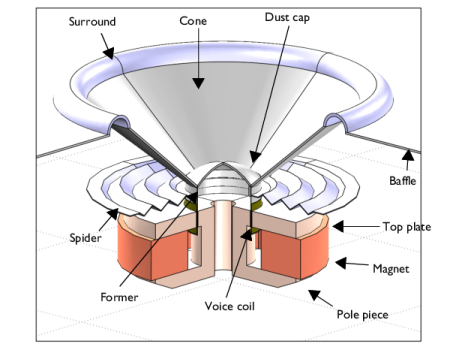
The loudspeaker is a baffled driver similar to that studied in the Loudspeaker Driver — Frequency-Domain Analysis model. Figure 1 shows its geometry and functional parts. The field from the magnet is supported and focused by the iron pole piece and top plate to the thin gap where the voice coil is wound around a former extending from the apex of the cone. A driving AC voltage applied to the voice coil causes it to vibrate, and the cone to create sound.
The dust cap protects the magnetic motor. In this design, it is made of the same stiff and light composite material as the cone and also contributes to the sound. A centered hole in the pole piece counteracts pressure buildup beneath the dust cap. The suspension, consisting of the surround, made of a light foam material, and the spider, a flexible cloth, keeps the cone in place and provide damping and spring forces.
The outer perimeters of the magnet and suspension are normally attached to a basket, a hollow supporting metal structure. The basket is not included in this model explicitly, but the magnet assembly and outer rims of the spider and surround are considered to be fixed. The absence of the basket means that the considered geometry is rotationally symmetric and can be modeled in the rz-plane.
Figure 1: Geometry of the modeled loudspeaker driver.
Input Signals for a Distortion Analysis
Performing the transient analysis of the loudspeaker is possible for any time-dependent voltage signal V(t) applied to the voice coil. The choice of a specific type of input signal depends on the characteristic under investigation. The step-by-step instruction below concerns the total harmonic distortion or THD analysis of the loudspeaker. The input is in this case a harmonic voltage signal
(1).
The input signal frequency and the amplitude are chosen as f0 = 70 Hz and V0 = 10 V, respectively.
In the case of an intermodulation distortion or IMD analysis, the input signal is composed of two (or more) harmonic signals with different frequencies, for example,
.
An example of an IMD analysis of the same loudspeaker can be found in the COMSOL Application Gallery at www.comsol.com/model/loudspeaker-driver-transient-analysis-47151.
Multiphysics Setup
The relation between the driving voltage and the electromagnetic force on the voice coil as well as the so-called back electromotive force (EMF) are easily set up in COMSOL using built-in functionality. More details are given in the section Electromagnetic Interactions. The force and the EMF generated by the displacement is fully coupled through an acoustic-structure interaction analysis to compute the sound generation.
The structural equations are solved in the moving parts of the driver and the acoustics equation in the surrounding air. The motion of the voice coil and the loudspeaker cone contributes to nonlinear behavior of the system as the topology changes. In the domains next to the moving structures the Moving Mesh feature (with Deforming Domain) is used to model the large deformations, such as the voice coil moving (partially) in and out of the magnetic gap. The structural equations are formulated in the so-called material frame while the acoustic and EM equations in the so-called spatial frame. Moving mesh is necessary to capture large displacements for the equations in the spatial frame.
It is important to note that the second order formulation (second order in time) used in the Pressure Acoustics, Transient physics is not compatible with Moving Mesh. The acoustics in the deforming domains are modeled using the Thermoviscous Acoustics, Transient physics, which is based on a first order formulation (first order in time). In most cases the best approach is to use the Adiabatic formulation of the equations as well as Slip (ideal) on walls. This is physically identical to solving pressure acoustics. As an added benefit, using thermoviscous acoustics makes it possible to easily include the viscous damping in the magnetic air-gap between the pole pieces and the voice coil. This effect is also included in the frequency domain version of the model, however it is here based on the Narrow Region Acoustics feature only available in the frequency domain.
The acoustics equation is automatically excited by the structural vibrations, and feeds back the pressure load onto the structure, using the built in Thermoviscous Acoustic–Structure Boundary multiphysics coupling. Pressure and thermoviscous acoustics are coupled using the Acoustic–Thermoviscous Acoustic Boundary multiphysics coupling.
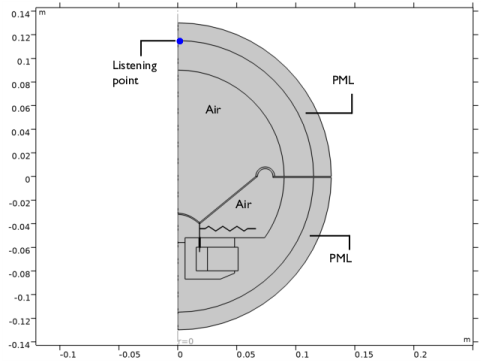
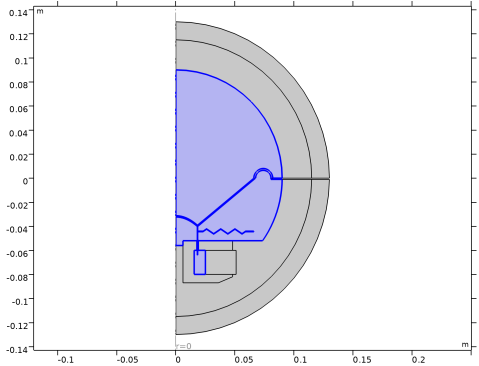
The air domains and the baffle should ideally extend to infinity. To avoid unphysical reflections where you truncate the geometry, a perfectly matched layer (PML) is used, as seen in Figure 2. For more information about the PMLs for transient pressure acoustics applications, see the section Modeling with the Pressure Acoustics Branch (FEM-Based Interfaces) in the Acoustics Module User’s Guide.
Real life measurements of nonlinear distortions are performed in the near field of the loudspeaker. Therefore, the PML can be placed close to the driver. Here, the distance from the coordinate system origin to the PML is 0.12 m.
Figure 2: Overview of the model geometry.
Electromagnetic Interactions
This theory section shortly describes the electromagnetic analysis of the current in the voice coil and the driving force that this current gives rise to.
The Lorentz force on a wire of length L and with the current I in an externally generated magnetic flux density B perpendicular to the wire is given by F = LI × B. The voice coil consists of a single copper wire making N0 = 100 turns. The coil is homogenized so that
where Jφ is the azimuthally directed current density through a cross-section of the coil, and the integral is taken over its area in the rz-plane. The total driving force on the coil hence becomes
(2)
with Br being the r-component of the magnetic flux density, and the integral evaluated over the volume occupied by the coil domain. If you write Equation 2 in terms of the coil current I rather than the cross-sectional current density taking the axial symmetry of the geometry into account, you get
(3)
where it is assumed that Jφ = IN0/A and is constant over the coil cross-section of area A. The factor Bl in Equation 3 is known in the loudspeaker community as the force factor:
Note that if A → 0, the integral becomes equal to a magnetic flux density times the length of the coil, hence the name.
Results and Discussion
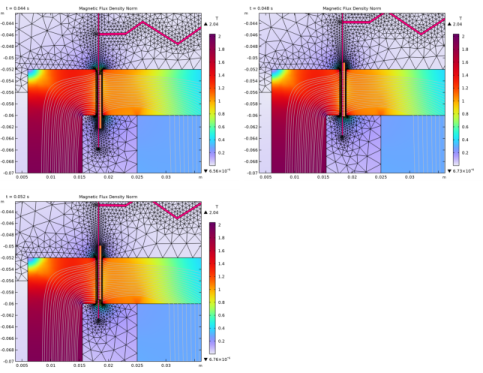
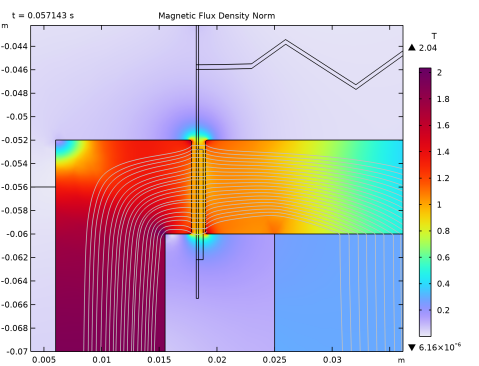
The magnetic field in and around the voice coil gap is depicted in Figure 3. The results correspond to the time steps t = 0.044 s (upper left), t = 0.048 s (upper right), and t = 0.052 s (lower left). The motion of the voice coil (in orange), the former, and the spider (both in pink) is clearly observable. You can also see how the moving mesh adapts the mesh to the changed topology of the system.
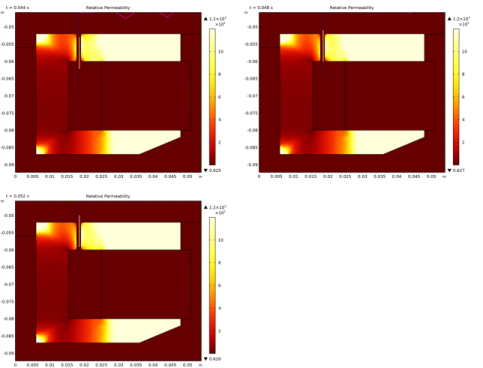
The iron in the pole piece and top plate is modeled as a nonlinear magnetic material, with the relationship between the B and H fields described by interpolation from measured data. Figure 4 shows the local effective relative permeability μr = B/(μ0H). The plots look similar to that in the Loudspeaker Driver — Frequency-Domain Analysis model. The relative permeability remains the same throughout the iron at different time steps. It changes slightly only in the areas close to the voice coil.
.
Figure 3: Magnetic field in and around the voice coil gap at three different time steps.
Figure 4: Local relative permeability in the pole piece and top plate at three different time steps.
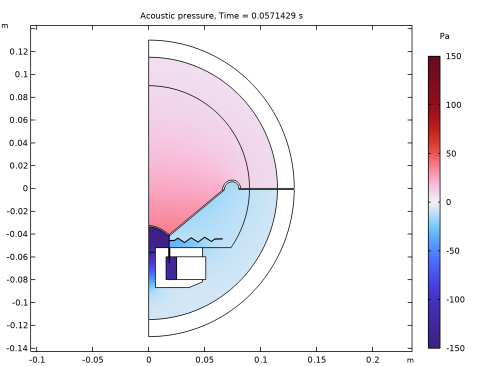
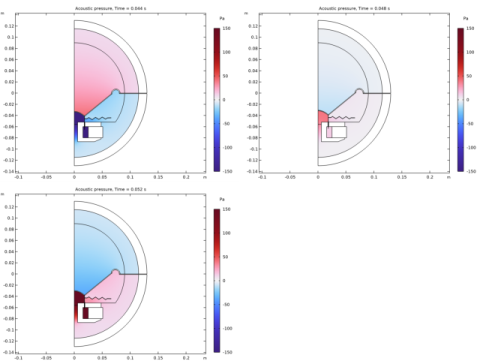
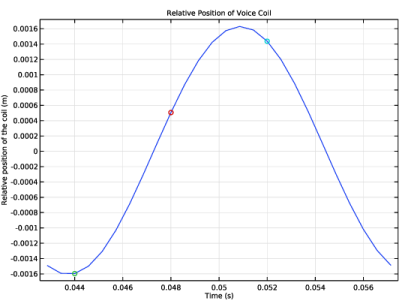
Figure 5 shows the distribution of the acoustic pressure around the loudspeaker. The voice coil and the loudspeaker cone are at the lowermost position at = 0.044 s (see Figure 7). At = 0.048 s and = 0.052 s, the cone is on its way up and down, respectively.
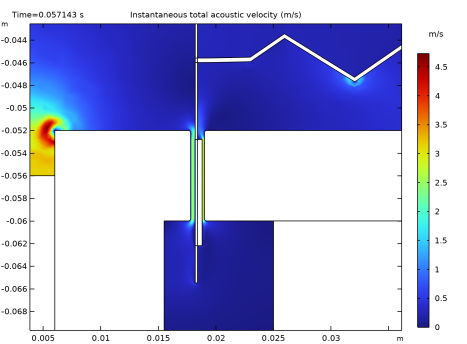
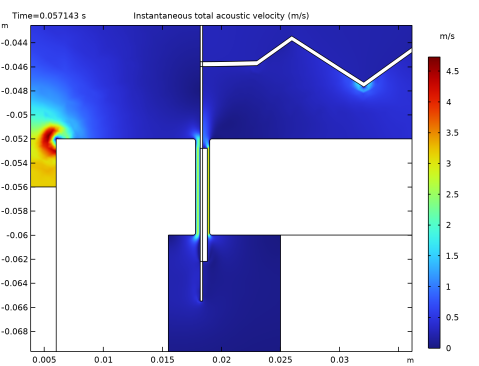
The acoustic particle velocity in the region of the magnetic air gap (between pole pieces and voice coil) is depicted in Figure 6. In this region a no-slip condition has been applied to the thermoviscous acoustic wall condition. This allows modeling of the damping occur here at resonances.
Figure 5: Acoustic pressure at three different time steps.
Figure 6: Acoustic particle velocity in the magnetic air gap and coil region.
Figure 7: Relative position of the voice coil.
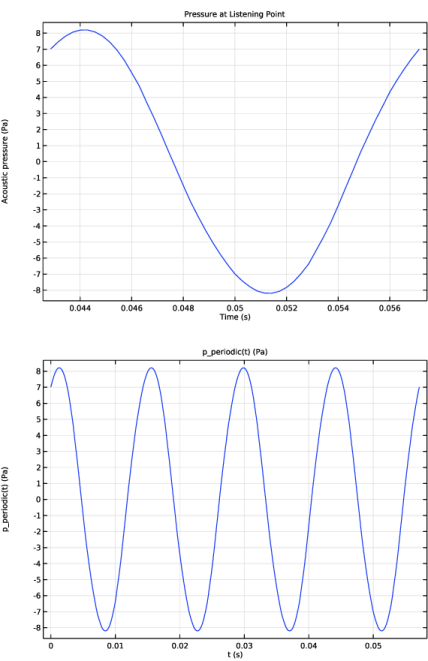
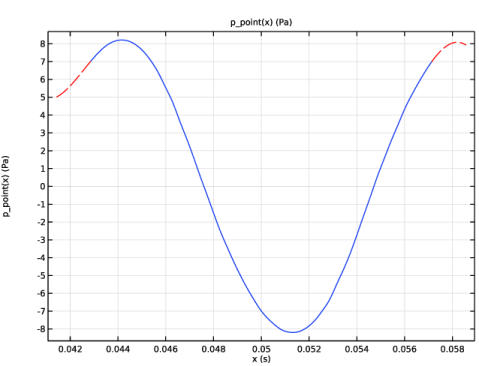
The acoustic pressure at the listening point is depicted in Figure 8. At the top, you can see the pressure signal as a function of time plotted from = 3T0 to = 4T0, where T0 is the period given by the frequency of the input signal. Here, T0 = 1/70 s. It is assumed that the loudspeaker reaches the steady state by the time = 3T0. This makes it possible to perform a periodic extension of the pressure signal over time. The extended signal is shown in Figure 8 at the bottom. You can see that the profile slightly differs from a perfect sinusoidal. This means that the output signal also contains frequency components other than f0, that is, the value of THD calculated as
,
where HN is the harmonic response of Nth harmonic and H1 is the fundamental response, is different from 0.
.
Figure 8: Acoustic pressure at the listening point (top) and its periodic extension (bottom).
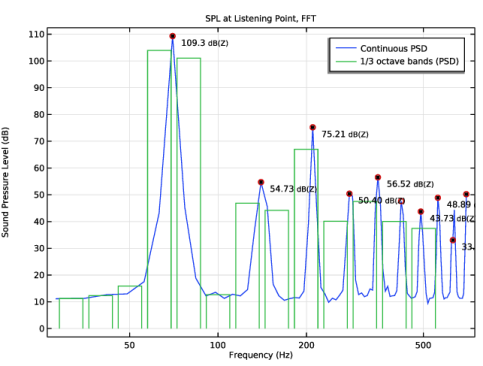
Figure 9 shows the frequency spectrum of the acoustic signal at the steady state as the value of SPL over frequency. The highest peaks appear at the frequencies multiple of f0 (red dots) and yields a THD = 2.0% (the value is computed in the Global Evaluation node Derived Values > THD Evaluation). You can see that the SPL for the odd-order harmonics is higher than that for the even-order harmonics, which means the symmetrical system nonlinearities dominate the asymmetrical ones.
Figure 9: Sound pressure level distribution at the listening point.
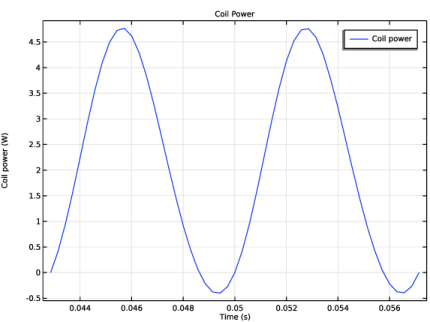
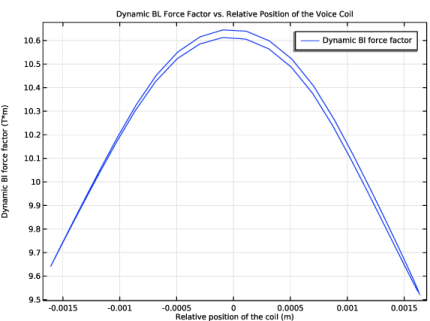
The plots of the coil power and the dynamic force factor (BL) are depicted in Figure 10 and Figure 11. You can see that the coil power is negative over certain time intervals. This means that the power flows from the voice coil into the circuit, that is, the voice coil operates in the generator mode. The RMS value of the power is of course positive.
The BL curve has a typical shape for a loudspeaker configuration where the voice coil height is comparable to the magnetic pole piece gap depth. Obtaining an idealized BL factor curve, with a constant value, requires a configuration where the coil is much larger or much smaller than the gap height.
Figure 10: Coil power at the steady state.
Figure 11: Dynamic Bl force factor versus relative position of the voice coil.
Notes About the COMSOL Implementation
The step-by-step instruction takes you through the following steps:
The first study in this model contains a Stationary and a Time Dependent study step. The first computes the stationary magnetic field from the permanent magnet. The magnetic field distribution is then used as the initial value for time t = 0 s in the second study step. This step computes the transient acoustic-structure interaction and electromagnetic behavior due to the applied voltage, movement, and geometry change. Both study steps account for nonlinear deformation of the structural parts of the loudspeaker (Include geometric nonlinearities checkbox). The Automatic remeshing option is enabled in the time-dependent study step to avoid using highly distorted meshes, which could lead to numerically ill-posed problems. In this model, a new mesh is created as soon as the distortion of the current mesh elements exceeds a certain level you specify in advance.
Note: It is important that the quality of the initial mesh is good. If the mesh has bad quality elements with sharp wedge-like corners, the remeshing may break down as the quality starts out worse than that specified in the Condition for Remeshing section.
The input voltage signal applied to the voice coil is defined by Equation 1. The signal is ramped over the first period, which yields a smooth transition of the voltage from 0 to V(t). The Time Dependent study step solves for the period of time from 0 to Tend = 4T0. The full time interval is split into two subintervals in the study: from 0 to 3T0 and from 3T0 to Tend. The second one is of the most interest since it is assumed that the steady state takes place from the time 3T0. Therefore, the time stepping is finer over the second subinterval.
The steady-state output signal — the acoustic pressure at the listening point — is interpolated by a cubic spline and extrapolated from the interval [3T0, Tend] to any time t > 0 through the Periodic Extension. The Global ODEs and DAEs interface and the second study take care of the computation of the frequency spectrum of the output signal. The study here consists of a Time Dependent and a Time to Frequency FFT step. The former picks up the values of the periodically extended signal on a specified time interval; the latter, computes the FFT of the signal. Note that the accuracy of the FFT computation becomes higher for longer time intervals. Here, the time interval is chosen to be equal to 10T0. Increasing the time interval from the initial T0 to 10T0 (or even higher) is possible because of the Periodic Extension of the output signal.
The present model runs at a relatively low frequency (including the harmonics) and does not require a resolution of eddy currents (the skin depth) in the pole piece. Thus, compared to the frequency-domain analysis, the boundary layer mesh has been removed.
Reference
1. Brüel & Kjær, “Audio Distortion Measurements,” Application Note BO0385, 1993.
Application Library path: Acoustics_Module/Electroacoustic_Transducers/loudspeaker_driver_transient
Note: This model also requires the file Acoustics_Module/Electroacoustic_Transducers/loudspeaker_driver_materials.mph, which contains the required material definitions.
Modeling Instructions
From the File menu, choose New.
New
In the New window, click  Model Wizard.
Model Wizard
1
In the Model Wizard window, click  2D Axisymmetric.
2
In the Select Physics tree, select AC/DC > Electromagnetic Fields > Magnetic Fields (mf).
3
Click Add.
4
In the Select Physics tree, select Acoustics > Pressure Acoustics > Pressure Acoustics, Transient (actd).
5
Click Add.
6
In the Select Physics tree, select Acoustics > Elastic Waves > Solid Mechanics (Elastic Waves) (solid).
7
Click Add.
8
In the Select Physics tree, select Acoustics > Thermoviscous Acoustics > Thermoviscous Acoustics, Transient (tatd).
9
Click Add.
10
Click  Study.
The Model Wizard lets you select the first of the study steps you plan to use in the model. Select a stationary study used to solve for the initial condition; the static (DC) magnetic fields.
11
In the Select Study tree, select Preset Studies for Some Physics Interfaces > Stationary.
12
Global Definitions
Parameters 1
1
In the Model Builder window, under Global Definitions click Parameters 1.
2
In the Settings window for Parameters, locate the Parameters section.
3
Click  Load from File.
4
Geometry 1
When working with your own modeling project of an acoustic driver, you will typically either draw the geometry in COMSOL Multiphysics, or import a CAD file of the driver itself and add the surrounding air and PML domains. Here, the entire geometry is imported as a sequence from the geometry file. The instructions to the geometry are found in the appendix at the end of this document.
The geometry should look like that in Figure 2.
1
In the Geometry toolbar, click Insert Sequence and choose Insert Sequence.
2
3
In the Geometry toolbar, click  Build All.
4
Click the  Zoom Extents button in the Graphics toolbar.
Add a Ramp function in order to model the transient regime of the input voltage before it reaches the steady state.
Global Definitions
Ramp 1 (rm1)
1
In the Home toolbar, click  Functions and choose Global > Ramp.
2
In the Settings window for Ramp, locate the Parameters section.
3
In the Location text field, type 0.1*T0.
4
In the Slope text field, type 1/T0.
5
Select the Cutoff checkbox.
6
Click to expand the Smoothing section.
7
Select the Size of transition zone at start checkbox. In the associated text field, type 0.2*T0.
8
Select the Size of transition zone at cutoff checkbox. In the associated text field, type 0.2*T0.
Create selections for the coil and the domains where you will specify the physics and also a selection for the boundary adjacent to the Solid Mechanics domains. Here, the selections are pasted to the text field to simplify the modeling. Normally, they are selected in the geometry window.
Definitions
Coil
1
In the Definitions toolbar, click  Explicit.
2
In the Settings window for Explicit, type Coil in the Label text field.
3
Locate the Input Entities section. Click  Paste Selection.
4
In the Paste Selection dialog, type 15 in the Selection text field.
5
Solid Mechanics
1
In the Definitions toolbar, click  Explicit.
2
In the Settings window for Explicit, type Solid Mechanics in the Label text field.
3
Locate the Input Entities section. Click  Paste Selection.
4
In the Paste Selection dialog, type 4, 9-17, 20 in the Selection text field.
5
Magnetic Fields
1
In the Definitions toolbar, click  Explicit.
2
In the Settings window for Explicit, type Magnetic Fields in the Label text field.
3
Locate the Input Entities section. Click  Paste Selection.
4
In the Paste Selection dialog, type 2, 3, 8-13, 15, 16, 18, 19 in the Selection text field.
5
Pressure Acoustic
1
In the Definitions toolbar, click  Explicit.
2
In the Settings window for Explicit, type Pressure Acoustic in the Label text field.
3
Locate the Input Entities section. Click  Paste Selection.
4
In the Paste Selection dialog, type 1, 2, 6, 7 in the Selection text field.
5
Thermoviscous Acoustic and Moving Mesh
1
In the Definitions toolbar, click  Explicit.
2
In the Settings window for Explicit, type Thermoviscous Acoustic and Moving Mesh in the Label text field.
3
Locate the Input Entities section. Click  Paste Selection.
4
In the Paste Selection dialog, type 3, 5 in the Selection text field.
5
Solid Mechanics Exterior Boundaries
1
In the Definitions toolbar, click  Adjacent.
2
In the Settings window for Adjacent, type Solid Mechanics Exterior Boundaries in the Label text field.
3
Locate the Input Entities section. Under Input selections, click  Add.
4
In the Add dialog, select Solid Mechanics in the Input selections list.
5
Define an Average operator over the coil domain.
Average 1 (aveop1)
1
In the Definitions toolbar, click  Nonlocal Couplings and choose Average.
2
In the Settings window for Average, locate the Source Selection section.
3
From the Selection list, choose Coil.
4
Locate the Advanced section. Clear the Compute integral in revolved geometry checkbox.
Materials
While the material properties used in this model are partly made up, they resemble those used in a real driver. The diaphragm and dust cap both consist of a HexaCone®-like material; a light and very stiff composite. The apex has properties representative of glass fiber materials. The spider, acting as a spring, is made of a phenolic cloth with a much lower stiffness. The material used in the coil is taken to be lighter than copper, as the wire is insulated and does not completely fill the coil domain. The surround, finally, is a light resistive foam.
Except for air and soft Iron, the materials you will use all come from a material library created especially for this model (to be loaded from the file loudspeaker_driver_materials.mph). You may notice that some of the materials will report missing properties. For example, the composite does not include any electromagnetic properties. This is fine, as you will not model the magnetic fields in the domains where the composite is used.
Add Material
1
In the Materials toolbar, click  Add Material to open the Add Material window.
2
Go to the Add Material window.
3
In the tree, select Built-in > Air.
4
Click the Add to Component button in the window toolbar.
Materials
Air (mat1)
First, add air which will be present everywhere in your geometry. Next, switch to using nonlinear Iron in the pole piece and top plate.
Add Material
1
Go to the Add Material window.
2
In the tree, select AC/DC > Soft Iron (With Losses).
3
Click the Add to Component button in the window toolbar.
Materials
Soft Iron (With Losses) (mat2)
1
In the ribbon, on the Materials tab click Browse Materials.
The Import Material Library functionality is activated by clicking the small icon at the lower-right, below the Material Browser tree.
Material Browser
1
In the Material Browser window, click  Import Material Library.
2
3
Add Material
1
Go to the Add Material window.
2
In the tree, select loudspeaker driver materials > Composite.
3
Click the Add to Component button in the window toolbar.
Materials
Composite (mat3)
Select Domains 4 and 17 only.
Add Material
1
Go to the Add Material window.
2
In the tree, select loudspeaker driver materials > Cloth.
3
Click the Add to Component button in the window toolbar.
Materials
Cloth (mat4)
Select Domain 16 only.
Add Material
1
Go to the Add Material window.
2
In the tree, select loudspeaker driver materials > Foam.
3
Click the Add to Component button in the window toolbar.
Materials
Foam (mat5)
Select Domain 20 only.
Add Material
1
Go to the Add Material window.
2
In the tree, select loudspeaker driver materials > Coil.
3
Click the Add to Component button in the window toolbar.
Materials
Coil (mat6)
Select Domain 15 only.
Add Material
1
Go to the Add Material window.
2
In the tree, select loudspeaker driver materials > Glass Fiber.
3
Click the Add to Component button in the window toolbar.
Materials
Glass Fiber (mat7)
Select Domains 9–14 only.
Add Material
1
Go to the Add Material window.
2
In the tree, select loudspeaker driver materials > Generic Ferrite.
3
Click the Add to Component button in the window toolbar.
4
In the Materials toolbar, click  Add Material to close the Add Material window.
Materials
Generic Ferrite (mat8)
Select Domain 19 only.
Now it is time to set up the physics interfaces. Specify the selection where the Magnetic Fields equation needs to be solved, that is the magnetic motor domain and its surroundings. In the other domains, the magnetic field is assumed to be negligible.
Magnetic Fields (mf)
1
In the Model Builder window, under Component 1 (comp1) click Magnetic Fields (mf).
2
In the Settings window for Magnetic Fields, locate the Domain Selection section.
3
From the Selection list, choose Magnetic Fields.
Add an instance of the Ampère’s Law in Solids domain feature in all Magnetic Fields domains, where the material is different from air.
Ampère’s Law in Solids - Generic Ferrite
1
In the Physics toolbar, click  Domains and choose Ampère’s Law in Solids.
2
In the Settings window for Ampère’s Law in Solids, type Ampère's Law in Solids - Generic Ferrite in the Label text field.
3
4
Locate the Constitutive Relation B-H section. From the Magnetization model list, choose Remanent flux density.
5
Specify the e vector as
Ampère’s Law in Solids - Soft Iron
1
In the Physics toolbar, click  Domains and choose Ampère’s Law in Solids.
2
In the Settings window for Ampère’s Law in Solids, type Ampère's Law in Solids - Soft Iron in the Label text field.
3
4
Locate the Constitutive Relation B-H section. From the Magnetization model list, choose B-H curve.
The BH curve is provided by the soft iron material.
Ampère’s Law in Solids - Nonconductive Solids
1
In the Physics toolbar, click  Domains and choose Ampère’s Law in Solids.
2
In the Settings window for Ampère’s Law in Solids, locate the Domain Selection section.
3
From the Selection list, choose Solid Mechanics.
4
In the Label text field, type Ampère's Law in Solids - Nonconductive Solids.
Domain Coil 1
1
In the Physics toolbar, click  Domains and choose Domain Coil.
2
In the Settings window for Domain Coil, locate the Domain Selection section.
3
From the Selection list, choose Coil.
4
Locate the Material Type section. From the Material type list, choose Solid.
5
Locate the Coil section. From the Conductor model list, choose Homogenized multiturn.
6
From the Coil excitation list, choose Voltage.
7
In the Vcoil text field, type V0*sin(2*pi*f0*t)*rm1(t).
The harmonic voltage is multiplied by the previously defined ramp function to add the smooth build-up time to the signal.
8
Locate the Homogenized Conductor section. In the N text field, type N0.
9
10
Find the High-frequency effective loss subsection. Clear the Include harmonic loss checkbox.
11
In the a text field, type 2.4e-8[m^2].
The area of the coil domain is 4·106 m2. The number of turns N0 = 100 makes the total cross-sectional area covered by the wires equal to 2.4·106 m2, which will give the fill factor of 60%.
Pressure Acoustics, Transient (actd)
1
In the Model Builder window, under Component 1 (comp1) click Pressure Acoustics, Transient (actd).
2
In the Settings window for Pressure Acoustics, Transient, locate the Domain Selection section.
3
From the Selection list, choose Pressure Acoustic.
Modify the Transient Solver Settings according to the frequency of the input signal. This setting will adjust the time-dependent solver settings.
4
Locate the Transient Solver Settings section. In the Maximum frequency to resolve field enter Nhar*f0. It will give the maximal time step for the Transient Solver.
Solid Mechanics (solid)
1
In the Model Builder window, under Component 1 (comp1) click Solid Mechanics (solid).
2
In the Settings window for Solid Mechanics, locate the Domain Selection section.
3
From the Selection list, choose Solid Mechanics.
With the above selection, you leave out the magnet, pole piece, and top plate. You will consider these domains as perfectly rigid by using the default sound hard wall condition on their surfaces.
Add damping to some of the solid materials.
Linear Elastic Material 1
In the Model Builder window, under Component 1 (comp1) > Solid Mechanics (solid) click Linear Elastic Material 1.
Damping 1
1
In the Physics toolbar, click  Attributes and choose Damping.
2
In the Settings window for Damping, locate the Damping Settings section.
3
In the βdK text field, type 0.14/omega_d.
4
Locate the Domain Selection section. Click  Clear Selection.
5
Click  Paste Selection.
6
In the Paste Selection dialog, type 16 in the Selection text field.
7
Linear Elastic Material 1
In the Model Builder window, click Linear Elastic Material 1.
Damping 2
1
In the Physics toolbar, click  Attributes and choose Damping.
2
In the Settings window for Damping, locate the Damping Settings section.
3
In the βdK text field, type 0.46/omega_d.
4
Locate the Domain Selection section. Click  Clear Selection.
5
Click  Paste Selection.
6
In the Paste Selection dialog, type 20 in the Selection text field.
7
Linear Elastic Material 1
In the Model Builder window, click Linear Elastic Material 1.
Damping 3
1
In the Physics toolbar, click  Attributes and choose Damping.
2
In the Settings window for Damping, locate the Damping Settings section.
3
From the Damping type list, choose Viscous damping.
4
In the ηb text field, type eta_s_gf*K_gf/omega0.
5
In the ηv text field, type eta_s_gf*G_gf/omega0.
6
Locate the Domain Selection section. Click  Clear Selection.
7
Click  Paste Selection.
8
In the Paste Selection dialog, type 9-14 in the Selection text field.
9
Linear Elastic Material 1
In the Model Builder window, click Linear Elastic Material 1.
Damping 4
1
In the Physics toolbar, click  Attributes and choose Damping.
2
In the Settings window for Damping, locate the Damping Settings section.
3
From the Damping type list, choose Viscous damping.
4
In the ηb text field, type eta_s_com*K_com/omega0.
5
In the ηv text field, type eta_s_com*G_com/omega0.
6
Locate the Domain Selection section. Click  Clear Selection.
7
Click  Paste Selection.
8
In the Paste Selection dialog, type 4 17 in the Selection text field.
9
The spider and the surround are attached to the case.
Fixed Constraint 1
1
In the Physics toolbar, click  Boundaries and choose Fixed Constraint.
2
In the Settings window for Fixed Constraint, locate the Boundary Selection section.
3
Click  Paste Selection.
4
In the Paste Selection dialog, type 72 76 in the Selection text field.
5
Now proceed and set up the transient Thermoviscous Acoustics physics. It will be active in the Moving Mesh domain. For this large domain the Adiabatic formulation is ideal.
Thermoviscous Acoustics, Transient (tatd)
1
In the Model Builder window, under Component 1 (comp1) click Thermoviscous Acoustics, Transient (tatd).
2
In the Settings window for Thermoviscous Acoustics, Transient, locate the Domain Selection section.
3
From the Selection list, choose Thermoviscous Acoustic and Moving Mesh.
4
Locate the Transient Solver and Mesh Settings section. In the fmax text field, type Nhar*f0.
5
Locate the Thermoviscous Acoustics Equation Settings section. Select the Adiabatic formulation checkbox.
Wall 1
1
In the Model Builder window, under Component 1 (comp1) > Thermoviscous Acoustics, Transient (tatd) click Wall 1.
2
In the Settings window for Wall, locate the Mechanical section.
3
From the Mechanical condition list, choose Slip (perfect).
Wall 2
1
In the Physics toolbar, click  Boundaries and choose Wall.
2
Now, look into the multiphysics coupling under the Multiphysics node.
Now, the Magnetomechanics multiphysics feature is added to handle Lorentz force on the coil.
Multiphysics
Magnetomechanics, Solid 1 (mmcpl1)
1
In the Physics toolbar, click  Multiphysics Couplings and choose Domain > Magnetomechanics, Solid.
2
In the Settings window for Magnetomechanics, Solid, locate the Domain Selection section.
3
From the Selection list, choose Coil.
4
Locate the Lorentz Coupling section. Select the Only use Lorentz force checkbox.
Acoustic–Thermoviscous Acoustic Boundary 1 (atb1)
1
In the Physics toolbar, click  Multiphysics Couplings and choose Boundary > Acoustic–Thermoviscous Acoustic Boundary.
2
In the Settings window for Acoustic–Thermoviscous Acoustic Boundary, locate the Boundary Selection section.
3
From the Selection list, choose All boundaries.
Thermoviscous Acoustic–Structure Boundary 1 (tsb1)
1
In the Physics toolbar, click  Multiphysics Couplings and choose Boundary > Thermoviscous Acoustic–Structure Boundary.
2
In the Settings window for Thermoviscous Acoustic–Structure Boundary, locate the Boundary Selection section.
3
From the Selection list, choose All boundaries.
First select all the boundaries (giving all applicable), then go to Manual and de-select the two boundaries on the Coil (19 and 42). Here we want to model the viscous losses and will add a No Slip.
4
From the Selection list, choose Manual.
5
Locate the Mechanical section. From the Mechanical condition list, choose Slip (perfect).
Thermoviscous Acoustic–Structure Boundary 2 (tsb2)
1
In the Physics toolbar, click  Multiphysics Couplings and choose Boundary > Thermoviscous Acoustic–Structure Boundary.
2
Add a Perfectly Matched Layer to truncate the computational domain without introducing spurious reflections of the acoustic waves from the outer boundary.
Definitions
Perfectly Matched Layer 1 (pml1)
1
In the Definitions toolbar, click  Perfectly Matched Layer.
2
3
In the Settings window for Perfectly Matched Layer, locate the Scaling section.
4
In the PML scaling curvature parameter text field, type 3.
The Solid Mechanics domains will move and deform due to the motion of the voice coil caused by the Lorenz force. To account for the deformed configuration of the system during the calculation, add the Moving Mesh feature and specify the Deforming Domain above and below the moving parts. The movement of the mesh is automatically taken from the Solid Mechanics interface. The Moving Mesh is not compatible with the second order formulation of Pressure Acoustics, Transient. Thermoviscous Acoustics, Transient is used on the moving domains, this also allows to include the viscous damping in the magnetic air gap. On the axis-of-symmetry add the Symmetry/Roller conditions, as the mesh needs to slide where it is in contact with the moving dust cap. Not adding this condition will force the moving mesh to be fixed on the axis.
Component 1 (comp1)
Deforming Domain 1
1
In the Physics toolbar, click  Moving Mesh and choose Free Deformation.
2
In the Settings window for Deforming Domain, locate the Domain Selection section.
3
From the Selection list, choose Thermoviscous Acoustic and Moving Mesh.
4
Locate the Smoothing section. From the Mesh smoothing type list, choose Laplace.
Symmetry/Roller 1
1
In the Moving Mesh toolbar, click  Symmetry/Roller.
2
In the model Acoustics_Module/Electroacoustic_Transducers/loudspeaker_driver, it was important to have a finer mesh along the iron surfaces next to the voice coil. The mesh refinement took the skin depth into account, which resolved the eddy currents in the pole and the top plate at higher frequencies.
Here, the frequency of the driving voltage is f0 = 70 Hz. This gives the skin depth of approximately 0.5 mm, which is comparable to the width of the voice coil. Therefore, the mesh refinement it is not necessary in this case.
For the acoustic-structure interaction, the air domain and the thin moving structures also need to be well resolved. In general, 5 to 6 second-order elements per wavelength are needed to resolve the waves. For more details, see Meshing (Resolving the Waves) in the Acoustics Module User’s Guide. The Extra fine setting gives a maximum element size of 6 mm which is by orders of magnitude smaller than 6 elements per wavelength (80 cm here) slowing down the analysis without adding any relevant information. That is why the model uses a user defined mesh with a very fine mesh around the voice coil and a coarser mesh in the rest of the model. For the structural components, the model uses a Mapped mesh with 2 elements through the thickness. The PML is also preferably meshed with mapped elements; use 8 elements for the default polynomial scaling.
Mesh 1
Free Triangular 1
In the Mesh toolbar, click  Free Triangular.
Size
1
In the Model Builder window, click Size.
2
In the Settings window for Size, locate the Element Size section.
3
Click the Custom button.
4
Locate the Element Size Parameters section. In the Maximum element size text field, type 15[mm].
5
In the Minimum element size text field, type 0.10[mm].
6
In the Curvature factor text field, type 0.25.
7
Click  Build Selected.
Mapped 1
1
In the Mesh toolbar, click  Mapped.
2
In the Settings window for Mapped, locate the Domain Selection section.
3
From the Geometric entity level list, choose Domain.
4
5
Click to expand the Reduce Element Skewness section. Select the Adjust edge mesh checkbox.
Distribution 1
1
Right-click Mapped 1 and choose Distribution.
2
3
In the Settings window for Distribution, locate the Distribution section.
4
In the Number of elements text field, type 2.
Size 1
1
In the Model Builder window, right-click Mapped 1 and choose Size.
2
In the Settings window for Size, locate the Geometric Entity Selection section.
3
Click  Clear Selection.
4
5
Locate the Element Size section. Click the Custom button.
6
Locate the Element Size Parameters section.
7
Select the Maximum element size checkbox. In the associated text field, type 0.15[mm].
Size 2
1
Right-click Mapped 1 and choose Size.
2
In the Settings window for Size, locate the Geometric Entity Selection section.
3
Click  Clear Selection.
4
5
Locate the Element Size section. Click the Custom button.
6
Locate the Element Size Parameters section.
7
Select the Maximum element size checkbox. In the associated text field, type 0.7[mm].
Size 3
1
Right-click Mapped 1 and choose Size.
2
In the Settings window for Size, locate the Geometric Entity Selection section.
3
Click  Clear Selection.
4
5
Locate the Element Size section. Click the Custom button.
6
Locate the Element Size Parameters section.
7
Select the Maximum element size checkbox. In the associated text field, type 1.0[mm].
Distribution 2
1
Right-click Mapped 1 and choose Distribution.
2
3
In the Settings window for Distribution, locate the Distribution section.
4
From the Distribution type list, choose Predefined.
5
In the Number of elements text field, type 20.
6
In the Element ratio text field, type 3.
Distribution 3
1
Right-click Mapped 1 and choose Distribution.
2
3
In the Settings window for Distribution, locate the Distribution section.
4
From the Distribution type list, choose Predefined.
5
In the Number of elements text field, type 10.
6
In the Element ratio text field, type 3.
7
Select the Reverse direction checkbox.
Free Triangular 1
1
In the Model Builder window, under Component 1 (comp1) > Mesh 1 click Free Triangular 1.
2
In the Settings window for Free Triangular, locate the Domain Selection section.
3
From the Geometric entity level list, choose Domain.
4
Size 1
1
Right-click Free Triangular 1 and choose Size.
2
In the Settings window for Size, locate the Geometric Entity Selection section.
3
Click  Clear Selection.
4
5
Locate the Element Size section. Click the Custom button.
6
Locate the Element Size Parameters section.
7
Select the Maximum element size checkbox. In the associated text field, type 3[mm].
8
Select the Minimum element size checkbox. In the associated text field, type 0.5[mm].
Size 2
1
Right-click Free Triangular 1 and choose Size.
2
In the Settings window for Size, locate the Geometric Entity Selection section.
3
From the Geometric entity level list, choose Boundary.
4
5
Locate the Element Size section. Click the Custom button.
6
Locate the Element Size Parameters section.
7
Select the Maximum element size checkbox. In the associated text field, type 1[mm].
8
Click  Build All.
Mapped 2
1
In the Mesh toolbar, click  Mapped.
2
In the Settings window for Mapped, locate the Reduce Element Skewness section.
3
Select the Adjust edge mesh checkbox.
Distribution 1
1
Right-click Mapped 2 and choose Distribution.
2
3
In the Settings window for Distribution, locate the Distribution section.
4
In the Number of elements text field, type 8.
5
Click  Build All.
It is time to set up the study that will include the interaction between all physics interfaces present in the model. In the Stationary study step, clear all of the physics interfaces except for the Magnetic Fields.
Study 1
Step 1: Stationary
1
In the Model Builder window, under Study 1 click Step 1: Stationary.
2
In the Settings window for Stationary, locate the Physics and Variables Selection section.
3
In the Solve for column of the table, under Component 1 (comp1), clear the checkboxes for Solid Mechanics (solid) and Moving Mesh.
Add a Time Dependent study step which will account for the acoustics-structure interaction and the moving mesh.
Step 2: Time Dependent
1
In the Study toolbar, click  Time Dependent.
Assume that the transient process reaches the steady state by the time 3*T0. Split the time interval into two intervals: form 0 to 3*T0 and from 3*T0 to T_end. In the first one, use a coarser time stepping for the solution storage; in the second one, use a finer time stepping.
2
In the Settings window for Time Dependent, locate the Study Settings section.
3
In the Output times text field, type {range(0, T0/5, 14*T0/5) range(3*T0, T0/50, T_end)}.
4
Click to expand the Study Extensions section. Select the Automatic remeshing checkbox.
The Automatic Remeshing option assures that the distortion of the mesh elements will not exceed a certain threshold. As soon as the threshold is reached, the domain will be remeshed.
Solution 1 (sol1)
1
In the Study toolbar, click  Show Default Solver.
2
In the Model Builder window, expand the Solution 1 (sol1) node.
3
In the Model Builder window, expand the Study 1 > Solver Configurations > Solution 1 (sol1) > Dependent Variables 2 node, then click Spatial Mesh Displacement (comp1.spatial.disp).
4
In the Settings window for Field, locate the Scaling section.
5
In the Scale text field, type 1e-4.
Change the Time Stepping Method to BDF, because it is more robust for detecting events necessary when Automatic Remeshing is used in the model.
6
In the Model Builder window, under Study 1 > Solver Configurations > Solution 1 (sol1) click Time-Dependent Solver 1.
7
In the Settings window for Time-Dependent Solver, locate the General section.
8
From the Times to store list, choose Output times by interpolation.
9
Click to expand the Time Stepping section. From the Method list, choose BDF.
10
From the Steps taken by solver list, choose Manual.
11
In the Initial step fraction text field, type 0.5.
12
In the Initial step growth rate text field, type 1.4.
13
Right-click Study 1 > Solver Configurations > Solution 1 (sol1) > Time-Dependent Solver 1 and choose Fully Coupled.
14
In the Model Builder window, expand the Study 1 > Solver Configurations > Solution 1 (sol1) > Time-Dependent Solver 1 node, then click Fully Coupled 1.
15
In the Settings window for Fully Coupled, click to expand the Method and Termination section.
16
From the Nonlinear method list, choose Automatic (Newton).
17
In the Maximum number of iterations text field, type 10.
18
In the Model Builder window, under Study 1 > Solver Configurations > Solution 1 (sol1) > Time-Dependent Solver 1 click Direct.
19
In the Settings window for Direct, locate the General section.
20
From the Solver list, choose PARDISO.
21
In the Model Builder window, under Study 1 > Solver Configurations > Solution 1 (sol1) > Time-Dependent Solver 1 click Automatic Remeshing.
22
In the Settings window for Automatic Remeshing, locate the Condition for Remeshing section.
23
From the Condition type list, choose Distortion.
24
In the Stop when distortion exceeds text field, type 2.5.
25
Locate the Remesh section. Clear the Store solution when new meshes are created checkbox.
26
In the Model Builder window, click Study 1.
27
In the Settings window for Study, type Study 1 - Time Dependent Analysis in the Label text field.
28
In the Study toolbar, click  Compute.
Results
Plot the magnetic field in the voice coil air gap. It is clearly seen that the voice coil has moved down from its initial position. Use the Zoom Box to zoom in on the magnetic gap.
Magnetic Flux Density (mf)
1
In the Settings window for 2D Plot Group, click to expand the Title section.
2
From the Title type list, choose Manual.
3
In the Title text area, type Magnetic Flux Density Norm.
4
In the Parameter indicator text field, type t = eval(t) s.
5
Locate the Color Legend section. Select the Show units checkbox.
6
Locate the Plot Settings section. From the View list, choose New view.
7
In the Magnetic Flux Density (mf) toolbar, click  Plot.
8
In the Model Builder window, expand the Magnetic Flux Density (mf) node.
Contour 1, Streamline 1
1
In the Model Builder window, under Results > Magnetic Flux Density (mf), Ctrl-click to select Streamline 1 and Contour 1.
2
Streamline 2
1
In the Model Builder window, right-click Magnetic Flux Density (mf) and choose Streamline.
2
In the Settings window for Streamline, locate the Selection section.
3
Click  Paste Selection.
4
In the Paste Selection dialog, type 43 in the Selection text field.
5
6
In the Settings window for Streamline, locate the Coloring and Style section.
7
Find the Point style subsection. From the Color list, choose Gray.
8
In the Magnetic Flux Density (mf) toolbar, click  Plot.
Acoustic Pressure (actd)
1
In the Model Builder window, under Results click Acoustic Pressure (actd).
2
In the Settings window for 2D Plot Group, locate the Title section.
3
From the Title type list, choose Manual.
4
In the Title text area, type Acoustic pressure, Time = eval(t) s.
5
Clear the Parameter indicator text field.
6
From the Number format list, choose Automatic.
7
Locate the Plot Settings section. From the Frame list, choose Spatial  (r, phi, z).
Surface 1
1
In the Model Builder window, expand the Acoustic Pressure (actd) node, then click Surface 1.
2
In the Settings window for Surface, click Replace Expression in the upper-right corner of the Expression section. From the menu, choose Component 1 (comp1) > Multiphysics > atb1.p_t - Total acoustic pressure - Pa.
3
Click to expand the Range section. Select the Manual color range checkbox.
4
In the Minimum text field, type -150.
5
In the Maximum text field, type 150.
Selection 1
1
Right-click Surface 1 and choose Selection.
2
Select all domains except the PML region where the solution is unphysical. Simply select all domains (you can use Ctrl+A) and then deselect the two PML domains (domains 1 and 6).
3
In the Acoustic Pressure (actd) toolbar, click  Plot.
Plot the acoustic pressure at the listening point over the time interval [3*T0, T_end].
Acoustic Velocity (tatd)
1
In the Model Builder window, under Results click Acoustic Velocity (tatd).
2
In the Settings window for 2D Plot Group, locate the Plot Settings section.
3
From the Frame list, choose Spatial  (r, phi, z).
4
In the Acoustic Velocity (tatd) toolbar, click  Plot.
Look at the plot of the acoustic velocity, notice the no-slip behavior in the magnetic air gap.
Pressure at Listening Point
1
In the Results toolbar, click  1D Plot Group.
2
In the Settings window for 1D Plot Group, type Pressure at Listening Point in the Label text field.
3
Locate the Data section. From the Dataset list, choose Study 1 - Time Dependent Analysis/Remeshed Solution 1 (sol3).
4
From the Time selection list, choose Interpolated.
5
In the Times (s) text field, type range(3*T0, T0/50, T_end).
6
Click to expand the Title section. From the Title type list, choose Label.
Point Graph 1
1
Right-click Pressure at Listening Point and choose Point Graph.
2
3
In the Settings window for Point Graph, locate the y-Axis Data section.
4
In the Expression text field, type p.
The pressure at the listening point should look like the one in Figure 8 at the top.
5
In the Pressure at Listening Point toolbar, click  Plot.
It is seen that the shape of the signal slightly differs from a perfectly sinusoidal one. That is, its THD is different from 0. The instruction below will help you to do the frequency spectrum analysis of the signal and calculate its THD.
Pressure at Point
1
In the Results toolbar, click  Point Evaluation.
2
In the Settings window for Point Evaluation, type Pressure at Point in the Label text field.
3
Locate the Data section. From the Dataset list, choose Study 1 - Time Dependent Analysis/Remeshed Solution 1 (sol3).
4
From the Time selection list, choose Interpolated.
5
In the Times (s) text field, type range(3*T0, T0/50, T_end).
6
7
Locate the Expressions section. In the table, enter the following settings:
8
Clicknext to  Evaluate, then choose New Table.
Pressure at Point
1
In the Model Builder window, expand the Results > Tables node, then click Table 1.
2
In the Settings window for Table, type Pressure at Point in the Label text field.
Make an Interpolation and a Periodic Extension of the pressure at the listening point.
Global Definitions
Interpolation 1 (int1)
1
In the Home toolbar, click  Functions and choose Global > Interpolation.
2
In the Settings window for Interpolation, locate the Definition section.
3
From the Data source list, choose Result table.
4
Locate the Data Column Settings section. In the table, click to select the cell at row number 1 and column number 1.
5
In the Unit text field, type s.
6
7
In the Name text field, type p_point.
8
In the Unit text field, type Pa.
9
Locate the Interpolation and Extrapolation section. From the Interpolation list, choose Cubic spline.
10
From the Extrapolation list, choose Nearest function.
11
Analytic 1 (an1)
1
In the Home toolbar, click  Functions and choose Global > Analytic.
2
In the Settings window for Analytic, type p_periodic in the Function name text field.
3
Locate the Definition section. In the Expression text field, type p_point(t).
4
In the Arguments text field, type t.
5
Click to expand the Periodic Extension section. Select the Make periodic checkbox.
6
In the Lower limit text field, type 3*T0.
7
In the Upper limit text field, type 4*T0.
8
Locate the Units section. In the table, enter the following settings:
9
In the Function text field, type Pa.
10
Locate the Plot Parameters section. In the table, enter the following settings:
The Periodic Extension will reproduce the steady state of the signal as shown in Figure 8 at the bottom.
11
Now, set up the components necessary to analyze the frequency spectrum and the THD of the acoustic pressure in steady state.
Add Component
In the Model Builder window, right-click the root node and choose Add Component > 0D.
Add Physics
1
In the Home toolbar, click  Add Physics to open the Add Physics window.
2
Go to the Add Physics window.
3
In the tree, select Mathematics > ODE and DAE Interfaces > Global ODEs and DAEs (ge).
4
Find the Physics interfaces in study subsection. In the table, clear the Solve checkbox for Study 1 - Time Dependent Analysis.
5
Click the Add to Component 2 button in the window toolbar.
6
In the Home toolbar, click  Add Physics to close the Add Physics window.
Global ODEs and DAEs (ge)
Global Equations 1 (ODE1)
1
In the Settings window for Global Equations, locate the Global Equations section.
2
3
Locate the Units section. Click  Select Dependent Variable Quantity.
4
In the Physical Quantity dialog, type id:pressure in the text field.
5
In the tree, select General > Pressure (Pa).
6
7
In the Settings window for Global Equations, locate the Units section.
8
Click  Select Source Term Quantity.
9
In the Physical Quantity dialog, type id:pressure in the text field.
10
In the tree, select General > Pressure (Pa).
11
Add Study
1
In the Home toolbar, click  Add Study to open the Add Study window.
2
Go to the Add Study window.
3
Find the Studies subsection. In the Select Study tree, select General Studies > Time Dependent.
4
Click the Add Study button in the window toolbar.
5
In the Home toolbar, click  Add Study to close the Add Study window.
Study 2
Step 1: Time Dependent
The Interpolation and the Periodic Extension performed earlier make it possible to increase the time interval and refine the time stepping for a more accurate frequency spectrum calculation.
1
In the Settings window for Time Dependent, locate the Study Settings section.
2
In the Output times text field, type range(0, T0/200, 10*T0).
3
Locate the Physics and Variables Selection section. In the Solve for column of the table, clear the checkbox for Component 1 (comp1).
Step 2: Time to Frequency FFT
1
In the Study toolbar, click  More Study Steps and choose Frequency Domain > Time to Frequency FFT.
2
In the Settings window for Time to Frequency FFT, locate the Study Settings section.
3
In the End time text field, type 10*T0.
4
In the Maximum output frequency text field, type 10*f0.
5
Locate the Physics and Variables Selection section. In the Solve for column of the table, clear the checkbox for Component 1 (comp1).
6
In the Model Builder window, click Study 2.
7
In the Settings window for Study, type Study 2 - Periodic Signal Extraction and FFT in the Label text field.
8
Locate the Study Settings section. Clear the Generate default plots checkbox.
Generate the default solver and then modify the Time Stepping to get minimal numerical damping. Manual time-stepping is used with a time step that resolves the wave nature of the problem.
Solution 4 (sol4)
1
In the Study toolbar, click  Show Default Solver.
2
In the Model Builder window, expand the Solution 4 (sol4) node, then click Time-Dependent Solver 1.
3
In the Settings window for Time-Dependent Solver, click to expand the Time Stepping section.
4
From the Method list, choose Generalized alpha.
5
From the Steps taken by solver list, choose Manual.
6
In the Time step text field, type 1/(6*f0)/60.
7
In the Study toolbar, click  Compute.
Plot the sound pressure level at the listening point as a function of frequency to reproduce the result shown in Figure 9.
Results
SPL at Listening Point, FFT
1
In the Results toolbar, click  1D Plot Group.
2
In the Settings window for 1D Plot Group, type SPL at Listening Point, FFT in the Label text field.
3
Locate the Data section. From the Dataset list, choose Study 2 - Periodic Signal Extraction and FFT/Solution 4 (4) (sol4).
4
From the Parameter selection (freq) list, choose From list and select all but the first four frequency parameters.
5
Locate the Title section. From the Title type list, choose Label.
6
Locate the Plot Settings section.
7
Select the x-axis label checkbox. In the associated text field, type Frequency (Hz).
8
Select the y-axis label checkbox. In the associated text field, type Sound Pressure Level (dB).
9
Locate the Axis section. Select the x-axis log scale checkbox.
Octave Band 1
1
Right-click SPL at Listening Point, FFT and choose More Plots > Octave Band.
2
In the Settings window for Octave Band, locate the Selection section.
3
From the Geometric entity level list, choose Global.
4
Locate the y-Axis Data section. In the Expression text field, type comp2.P.
5
Locate the Plot section. From the Quantity list, choose Continuous power spectral density.
6
Click to expand the Legends section. From the Legends list, choose Manual.
7
Select the Show legends checkbox.
8
SPL at Listening Point, FFT
In the Model Builder window, click SPL at Listening Point, FFT.
Octave Band 2
1
In the SPL at Listening Point, FFT toolbar, click  More Plots and choose Octave Band.
2
In the Settings window for Octave Band, locate the Selection section.
3
From the Geometric entity level list, choose Global.
4
Locate the y-Axis Data section. In the Expression text field, type comp2.P.
5
Locate the Plot section. From the Quantity list, choose Band average power spectral density.
6
From the Band type list, choose 1/3 octave.
7
Click to expand the Coloring and Style section. From the Type list, choose Outline.
8
Click to expand the Legends section. From the Legends list, choose Manual.
9
Select the Show legends checkbox.
10
Octave Band 3
1
In the Model Builder window, under Results > SPL at Listening Point, FFT right-click Octave Band 1 and choose Duplicate.
2
In the Settings window for Octave Band, locate the Data section.
3
From the Dataset list, choose Study 2 - Periodic Signal Extraction and FFT/Solution 4 (4) (sol4).
4
From the Parameter selection (freq) list, choose Manual.
5
In the Parameter indices (1-101) text field, type range(11, 10, 101).
6
Click to expand the Coloring and Style section. Find the Line style subsection. From the Line list, choose None.
7
Find the Line markers subsection. From the Marker list, choose Circle.
8
Click to expand the Legends section. Clear the Show legends checkbox.
Graph Marker 1
1
Right-click Octave Band 3 and choose Graph Marker.
2
In the Settings window for Graph Marker, locate the Display section.
3
From the Scope list, choose Local.
4
Locate the Text Format section. In the Precision text field, type 4.
5
Select the Include unit checkbox.
6
In the SPL at Listening Point, FFT toolbar, click  Plot.
For the THD calculation, pick up the pressure at the frequencies that are multiples of f0.
THD Evaluation
1
In the Results toolbar, click  Global Evaluation.
2
In the Settings window for Global Evaluation, type THD Evaluation in the Label text field.
3
Locate the Data section. From the Dataset list, choose Study 2 - Periodic Signal Extraction and FFT/Solution 4 (4) (sol4).
4
From the Parameter selection (freq) list, choose First.
5
Locate the Expressions section. In the table, enter the following settings:
6
Click  Evaluate.
Next, calculate the coil power and the dynamic BL force factor.
Coil Power
1
In the Results toolbar, click  1D Plot Group.
2
In the Settings window for 1D Plot Group, type Coil Power in the Label text field.
3
Locate the Data section. From the Dataset list, choose Study 1 - Time Dependent Analysis/Remeshed Solution 1 (sol3).
4
From the Time selection list, choose Interpolated.
5
In the Times (s) text field, type range(3*T0, T0/50, T_end).
6
Locate the Title section. From the Title type list, choose Label.
Global 1
1
Right-click Coil Power and choose Global.
2
In the Settings window for Global, click Replace Expression in the upper-right corner of the y-Axis Data section. From the menu, choose Component 1 (comp1) > Magnetic Fields > Coil parameters > mf.PCoil_1 - Coil power - W.
The coil power plot should look like Figure 10.
3
In the Coil Power toolbar, click  Plot.
This expression corresponds to the z-coordinate of the voice coil center relative to its position at the time t = 0.
Dynamic BL Force Factor
1
In the Results toolbar, click  1D Plot Group.
2
In the Settings window for 1D Plot Group, type Dynamic BL Force Factor in the Label text field.
3
Locate the Data section. From the Dataset list, choose Study 1 - Time Dependent Analysis/Remeshed Solution 1 (sol3).
4
From the Time selection list, choose Interpolated.
5
In the Times (s) text field, type range(3*T0, T0/50, T_end).
6
Locate the Title section. From the Title type list, choose Manual.
7
In the Title text area, type Dynamic BL Force Factor vs. Relative Position of the Voice Coil.
Global 1
1
Right-click Dynamic BL Force Factor and choose Global.
2
In the Settings window for Global, locate the y-Axis Data section.
3
4
Locate the x-Axis Data section. From the Parameter list, choose Expression.
5
In the Expression text field, type aveop1(z - Z).
6
Select the Description checkbox. In the associated text field, type Relative position of the coil.
The curve of the dynamic BL force factor is depicted in Figure 11.
7
In the Dynamic BL Force Factor toolbar, click  Plot.
Appendix: Geometry Sequence Instructions
From the File menu, choose New.
New
In the New window, click  Blank Model.
Add Component
In the Home toolbar, click  Add Component and choose 2D Axisymmetric.
Geometry 1
Circle 1 (c1)
1
In the Geometry toolbar, click  Circle.
2
In the Settings window for Circle, locate the Size and Shape section.
3
In the Radius text field, type 130[mm].
4
Click to expand the Layers section. In the table, enter the following settings:
Circle 2 (c2)
1
In the Geometry toolbar, click  Circle.
2
In the Settings window for Circle, locate the Size and Shape section.
3
In the Radius text field, type 8[mm].
4
In the Sector angle text field, type 180.
5
Locate the Position section. In the r text field, type 74[mm].
6
Locate the Layers section. In the table, enter the following settings:
Delete Entities 1 (del1)
1
In the Model Builder window, right-click Geometry 1 and choose Delete Entities.
2
On the object c2, select Boundaries 2–4 only.
3
In the Settings window for Delete Entities, locate the Selections of Resulting Entities section.
4
Select the Resulting objects selection checkbox.
Rectangle 1 (r1)
1
In the Geometry toolbar, click  Rectangle.
2
In the Settings window for Rectangle, locate the Size and Shape section.
3
In the Width text field, type 70[mm].
4
In the Height text field, type 1[mm].
5
Locate the Position section. In the r text field, type 80.5[mm].
6
In the z text field, type -1[mm].
Difference 1 (dif1)
1
In the Geometry toolbar, click  Booleans and Partitions and choose Difference.
2
3
In the Settings window for Difference, locate the Difference section.
4
Click to select the  Activate Selection toggle button for Objects to subtract.
5
Rectangle 2 (r2)
1
In the Geometry toolbar, click  Rectangle.
2
In the Settings window for Rectangle, locate the Size and Shape section.
3
In the Width text field, type 42[mm].
4
In the Height text field, type 35[mm].
5
Locate the Position section. In the r text field, type 6[mm].
6
In the z text field, type -87[mm].
Rectangle 3 (r3)
1
In the Geometry toolbar, click  Rectangle.
2
In the Settings window for Rectangle, locate the Size and Shape section.
3
In the Width text field, type 35.5[mm].
4
In the Height text field, type 20[mm].
5
Locate the Position section. In the r text field, type 15.5[mm].
6
In the z text field, type -80[mm].
Rectangle 4 (r4)
1
In the Geometry toolbar, click  Rectangle.
2
In the Settings window for Rectangle, locate the Size and Shape section.
3
In the Width text field, type 1.2[mm].
4
In the Height text field, type 8[mm].
5
Locate the Position section. In the r text field, type 17.8[mm].
6
In the z text field, type -60[mm].
Rectangle 5 (r5)
1
In the Geometry toolbar, click  Rectangle.
2
In the Settings window for Rectangle, locate the Size and Shape section.
3
In the Width text field, type 26[mm].
4
In the Height text field, type 20[mm].
5
Locate the Position section. In the r text field, type 25[mm].
6
In the z text field, type -80[mm].
Polygon 1 (pol1)
1
In the Geometry toolbar, click  Polygon.
2
In the Settings window for Polygon, locate the Coordinates section.
3
From the Data source list, choose Vectors.
4
In the r text field, type 48[mm] 36[mm] 36[mm] 48[mm].
5
In the z text field, type -82[mm] -87[mm] -87[mm] -87[mm].
Difference 2 (dif2)
1
In the Geometry toolbar, click  Booleans and Partitions and choose Difference.
2
3
In the Settings window for Difference, locate the Difference section.
4
Click to select the  Activate Selection toggle button for Objects to subtract.
5
Select the objects pol1, r3, and r4 only.
6
Locate the Selections of Resulting Entities section. Select the Resulting objects selection checkbox.
Rectangle 6 (r6)
1
In the Geometry toolbar, click  Rectangle.
2
In the Settings window for Rectangle, locate the Size and Shape section.
3
In the Width text field, type 0.2[mm].
4
In the Height text field, type 25[mm].
5
Locate the Position section. In the r text field, type 18.2[mm].
6
In the z text field, type -64[mm].
7
Click to expand the Layers section. In the table, enter the following settings:
8
Clear the Layers on bottom checkbox.
9
Select the Layers on top checkbox.
Rectangle 7 (r7)
1
In the Geometry toolbar, click  Rectangle.
2
In the Settings window for Rectangle, locate the Size and Shape section.
3
In the Width text field, type 0.6[mm].
4
In the Height text field, type 9.4[mm].
5
Locate the Position section. In the r text field, type 18.2[mm].
6
In the z text field, type -60.7[mm].
Rectangle 8 (r8)
1
In the Geometry toolbar, click  Rectangle.
2
In the Settings window for Rectangle, locate the Size and Shape section.
3
In the Width text field, type 4.6[mm].
4
In the Height text field, type 0.4[mm].
5
Locate the Position section. In the r text field, type 18.4[mm].
6
In the z text field, type -44.5[mm].
Rectangle 9 (r9)
1
In the Geometry toolbar, click  Rectangle.
2
In the Settings window for Rectangle, locate the Size and Shape section.
3
In the Width text field, type 7[mm].
4
In the Height text field, type 0.4[mm].
5
Locate the Position section. In the r text field, type 59[mm].
6
In the z text field, type -44.5[mm].
Polygon 2 (pol2)
1
In the Geometry toolbar, click  Polygon.
2
In the Settings window for Polygon, locate the Coordinates section.
3
From the Data source list, choose Vectors.
4
In the r text field, type 23[mm] 26[mm] 26[mm] 32[mm] 32[mm] 38[mm] 38[mm] 44[mm] 44[mm] 50[mm] 50[mm] 56[mm] 56[mm] 59[mm] 59[mm] 59[mm] 59[mm] 56[mm] 56[mm] 50[mm] 50[mm] 44[mm] 44[mm] 38[mm] 38[mm] 32[mm] 32[mm] 26[mm] 26[mm] 23[mm] 23[mm] 23[mm].
5
In the z text field, type -44.1[mm] -42.1[mm] -42.1[mm] -46.1[mm] -46.1[mm] -42.1[mm] -42.1[mm] -46.1[mm] -46.1[mm] -42.1[mm] -42.1[mm] -46.1[mm] -46.1[mm] -44.1[mm] -44.1[mm] -44.5[mm] -44.5[mm] -46.5[mm] -46.5[mm] -42.5[mm] -42.5[mm] -46.5[mm] -46.5[mm] -42.5[mm] -42.5[mm] -46.5[mm] -46.5[mm] -42.5[mm] -42.5[mm] -44.5[mm] -44.5[mm] -44.1.
Union 1 (uni1)
1
In the Geometry toolbar, click  Booleans and Partitions and choose Union.
2
Select the objects pol2, r8, and r9 only.
3
In the Settings window for Union, locate the Selections of Resulting Entities section.
4
Select the Resulting objects selection checkbox.
5
Locate the Union section. Clear the Keep interior boundaries checkbox.
Polygon 3 (pol3)
1
In the Geometry toolbar, click  Polygon.
2
In the Settings window for Polygon, locate the Coordinates section.
3
From the Data source list, choose Vectors.
4
In the r text field, type 18.4[mm] 66[mm] 66[mm] 67.5[mm] 67.5[mm] 18.4[mm] 18.4[mm] 18.4[mm].
5
In the z text field, type -39[mm] 0 0 0 0 -40.26[mm] -40.26[mm] -39[mm].
Quadratic Bézier 1 (qb1)
1
In the Geometry toolbar, click  More Primitives and choose Quadratic Bézier.
2
In the Settings window for Quadratic Bézier, locate the Control Points section.
3
In row 1, set r to -18.2[mm].
4
In row 3, set r to 18.2[mm].
5
In row 1, set z to -39[mm].
6
In row 2, set z to -23.5[mm].
7
In row 3, set z to -39[mm].
8
Locate the Weights section. In the 2 text field, type 1.
Line Segment 1 (ls1)
1
In the Geometry toolbar, click  More Primitives and choose Line Segment.
2
In the Settings window for Line Segment, locate the Starting Point section.
3
From the Specify list, choose Coordinates.
4
Locate the Endpoint section. From the Specify list, choose Coordinates.
5
Locate the Starting Point section. In the r text field, type 18.2[mm].
6
Locate the Endpoint section. In the r text field, type 18.2[mm].
7
Locate the Starting Point section. In the z text field, type -39[mm].
8
Locate the Endpoint section. In the z text field, type -40.26[mm].
Quadratic Bézier 2 (qb2)
1
In the Geometry toolbar, click  More Primitives and choose Quadratic Bézier.
2
In the Settings window for Quadratic Bézier, locate the Control Points section.
3
In row 1, set r to 18.2[mm].
4
In row 3, set r to -18.2[mm].
5
In row 1, set z to -40.26[mm].
6
In row 2, set z to -24.26[mm].
7
In row 3, set z to -40.26[mm].
8
Locate the Weights section. In the 2 text field, type 1.
Line Segment 2 (ls2)
1
In the Geometry toolbar, click  More Primitives and choose Line Segment.
2
In the Settings window for Line Segment, locate the Starting Point section.
3
From the Specify list, choose Coordinates.
4
Locate the Endpoint section. From the Specify list, choose Coordinates.
5
Locate the Starting Point section. In the r text field, type -18.2[mm].
6
Locate the Endpoint section. In the r text field, type -18.2[mm].
7
Locate the Starting Point section. In the z text field, type -40.26[mm].
8
Locate the Endpoint section. In the z text field, type -39[mm].
Convert to Solid 1 (csol1)
1
In the Geometry toolbar, click  Conversions and choose Convert to Solid.
2
Select the objects ls1, ls2, qb1, and qb2 only.
Line Segment 3 (ls3)
1
In the Geometry toolbar, click  More Primitives and choose Line Segment.
2
In the Settings window for Line Segment, locate the Starting Point section.
3
From the Specify list, choose Coordinates.
4
In the z text field, type -52[mm].
5
Locate the Endpoint section. From the Specify list, choose Coordinates.
6
In the r text field, type sqrt((115[mm])^2 - (52[mm])^2).
7
In the z text field, type -52[mm].
8
Locate the Selections of Resulting Entities section. Select the Resulting objects selection checkbox.
Proceed by adding a domain where to apply a Moving Mesh and a Thermoviscous Acoustics, Transient interface.
Circle 3 (c3)
1
In the Geometry toolbar, click  Circle.
2
In the Settings window for Circle, locate the Object Type section.
3
From the Type list, choose Curve.
4
Locate the Size and Shape section. In the Radius text field, type 90[mm].
Union 2 (uni2)
1
In the Geometry toolbar, click  Booleans and Partitions and choose Union.
2
Select the objects c3 and ls3 only.
3
In the Settings window for Union, click  Build Selected.
Delete Entities 2 (del2)
1
Right-click Geometry 1 and choose Delete Entities.
2
On the object uni2, select Boundaries 2–5 only.
3
In the Settings window for Delete Entities, click  Build Selected.
Union 3 (uni3)
1
In the Geometry toolbar, click  Booleans and Partitions and choose Union.
2
In the Settings window for Union, locate the Union section.
3
From the Input objects list, choose All objects.
4
Click  Build Selected.
Delete Entities 3 (del3)
1
Right-click Geometry 1 and choose Delete Entities.
2
On the object uni3, select Boundaries 4, 13, 19, 33, and 45 only.
3
In the Settings window for Delete Entities, click  Build Selected.
Fillet 1 (fil1)
1
In the Geometry toolbar, click  Fillet.
2
On the object del3, select Points 14, 15, 35, and 36 only.
3
In the Settings window for Fillet, locate the Radius section.
4
In the Radius text field, type 0.2[mm].
5
Click  Build Selected.
Line Segment 4 (ls4)
1
In the Geometry toolbar, click  More Primitives and choose Line Segment.
2
In the Settings window for Line Segment, locate the Starting Point section.
3
From the Specify list, choose Coordinates.
4
In the r text field, type 0[cm].
5
In the z text field, type -5.6[cm].
6
Locate the Endpoint section. From the Specify list, choose Coordinates.
7
In the r text field, type 0.6[cm].
8
In the z text field, type -5.6[cm].
9
Click  Build Selected.
10
In the Geometry toolbar, click  Build All.
Ignore Vertices 1 (igv1)
1
In the Geometry toolbar, click  Virtual Operations and choose Ignore Vertices.
2
On the object fin, select Points 20, 28, and 35 only.
3
In the Settings window for Ignore Vertices, click  Build Selected.
Ignore Edges 1 (ige1)
1
In the Geometry toolbar, click  Virtual Operations and choose Ignore Edges.
2
On the object igv1, select Boundary 98 only.
3
In the Settings window for Ignore Edges, click  Build Selected.