PDF

Full Ear Hearing Aid Response
Introduction
This model demonstrates how to perform a hearing aid acoustic feedback response analysis, including both the in-ear hearing aid and the hearing aid cassette. The model is of a ReSound OMNIA™ RIE (receiver-in-the-ear) hearing aid device from GN Hearing A/S.1 The hearing aid is tested on the combined pinna and ear canal that is defined in the ITU-T P.57 standard, Ref. 1 and Ref. 2. This is the P.57 Type 4.3 full-band ear simulator that is presented in the Application Library model Type 4.3 Ear Simulator, hence the model is created entirely on information available in the ITU-T P.57 standard. It is not a model of a particular, commercially available, ear simulator.
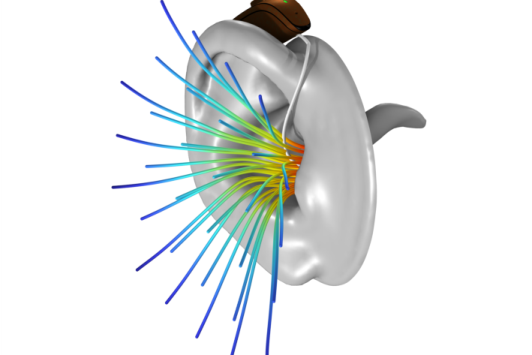
The model calculates the sound pressure level at the eardrum and compares with measurements, Ref. 3.2 The model also simulates the acoustic field outside the ear and includes the acoustic feedback to the two microphones located on the hearing aid cassette, see Figure 1. The acoustic response at the eardrum is characterized by the geometrical features of the ear and earbud and by the viscous losses in the earbud, especially the narrow regions in the wax guard and the vent holes.
Figure 1: Illustrative figure of the model geometry with the ear simulator, hearing aid, and streamlines of the intensity of the acoustic field leaking from the ear canal.
1The hearing aid geometry is copyright and courtesy of GN Hearing A/S. 2Measurements are courtesy of Hottinger Brüel og Kjaer A/S.
Model Definition
The model geometry consists of the ear, the earbud, and the hearing aid cassette. Only the air domain is considered and pressure acoustics is used to model the acoustic field. The acoustic field is actuated by a speaker in the earbud. A lumped representation is used to model the speaker in the earbud which is implemented using the Lumped Port boundary condition. To model the correct damping in the system both the Narrow Region Acoustics and the Thermoviscous Boundary Layer Impedance features are used where appropriate. It is important to model the losses accurately since the damping is important to achieve the correct sound pressure levels and response. Outside the ear, the Perfectly Matched Boundary is used to mimic an infinite baffle around the outer ear and hearing aid cassette.
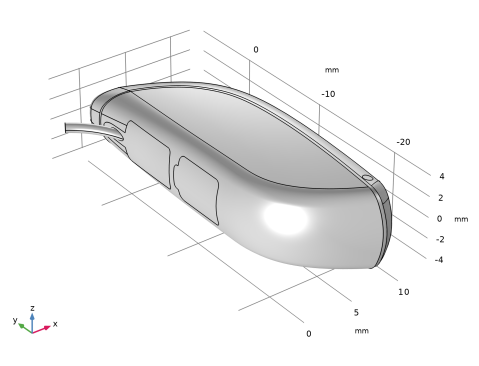
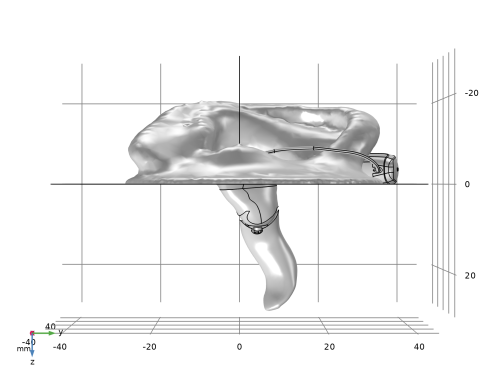
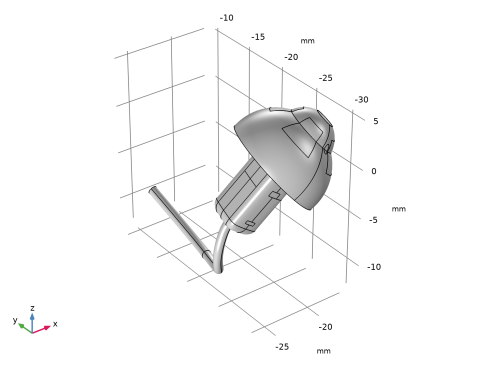
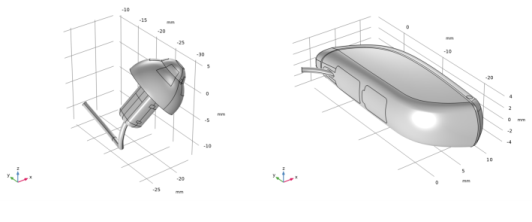
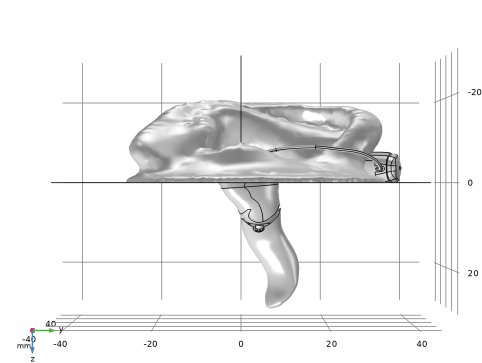
The geometry is made from three different geometry files that are combined. The hearing aid cassette and earbud are imported as geometry parts, see Figure 2. They are prepared by removing details and features that are unimportant for the model and would be expensive to resolve numerically. This is achieved using Virtual Operations in the Geometry such as Collapse Faces, Merge Edges, and Ignore Vertices. The geometry is shown in Figure 3. The air domains in the ear canal and outside the hearing aid are connected by two narrow vent holes. The two vent holes are the only sources for acoustic energy to propagate outside the ear canal since the structural vibrations of the hearing aid are neglected.
To accurately model the acoustic response, we are using a lumped model of the hearing aid speaker (the so-called hearing aid receiver) and a specific impedance for the eardrum, Ref. 2. To transform the pressure at the microphones to an electrical signal, we are using a set of sensitivity parameters for the microphones. The transfer matrix or ABCS-parameters for the speaker and microphone sensitivity curves are courtesy of GN Hearing A/S. The data for the speaker and microphone is defined up to 10 kHz, at higher frequencies the values at 10 kHz are used.
Figure 2: Geometry of the earbud (left) and hearing aid cassette (right). Hearing aid geometry copyright and courtesy of GN Hearing A/S.
Figure 3: Geometry of the full model including the ear and hearing aid. Hearing aid geometry copyright and courtesy of GN Hearing A/S.
Results and Discussion
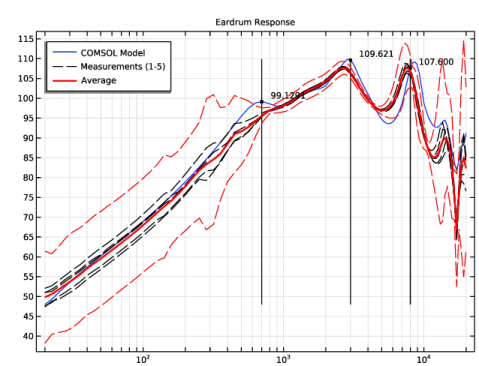
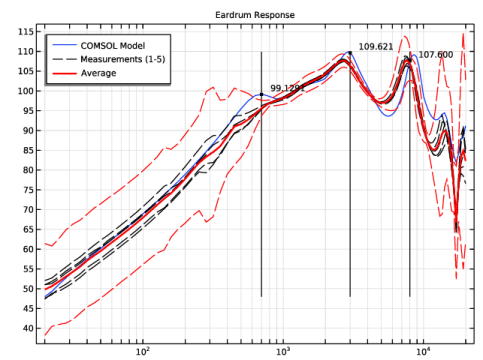
The main result is the acoustic pressure and sound pressure level inside and outside the ear. The acoustic response at the eardrum is compared to measurements in the range from 20 Hz to 20 kHz in Figure 4. An average measurement result is calculated from five individual measurements, where the earbud has been positioned in the ear canal (of a commercial available Type 4.3 Ear Simulator), measured and then remove from the ear canal again. Each measurement is represented by a dashed black line, the average by a thick red line, and the dashed red lines are the six standard deviation uncertainty limits.
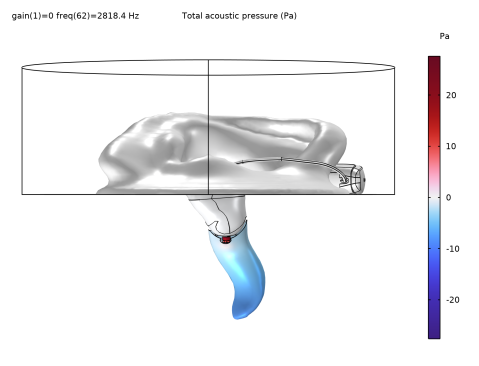
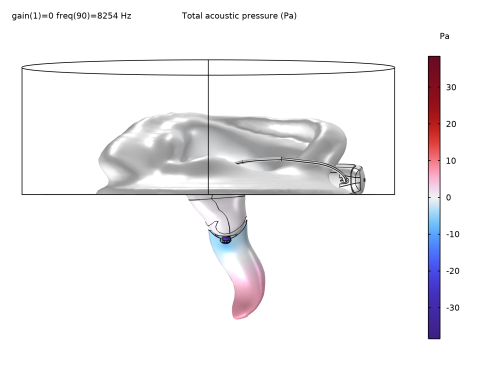
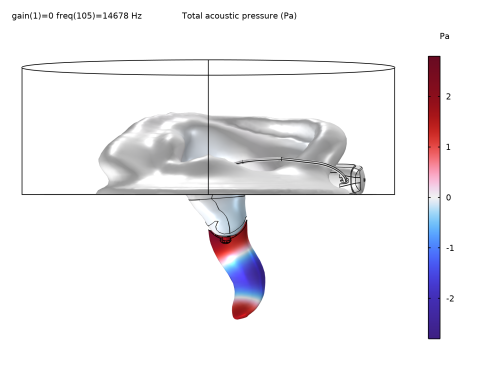
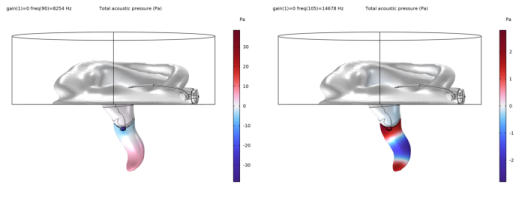
In general, the model matches the acoustic response well. The roll-off toward lower frequencies is caused by the acoustic leakage of the two vents in the dome. At higher frequencies, resonances appear. The model catches the resonances but the peaks are shifted slightly toward higher frequencies. The placement of the resonances are determined by the geometry of the ear canal and how far into the ear the earbud is placed. The resonance peaks at 8 kHz and 14 kHz correspond to a half wave and full wave resonances in the ear canal. The acoustic pressure at the two resonance peaks is shown in Figure 5.
The simulated response does have a resonance peak around 700 Hz which does not exist or is heavily suppressed in the measurement data. This peak is the Helmholtz resonance of the air volume in the ear canal.
Figure 4: Acoustic response at the eardrum from the model and from measurements. Measurements courtesy of Hottinger Brüel and Kjær A/S. The black dashed lines are the five individual measurements using a commercially available Type 4.3 Ear Simulator. The thick red line is the experimental average while the dashed red lines represent six standard deviations. The blue line is the modeled acoustic response.
Figure 5: Acoustic pressure in the ear one half and one wavelength resonances at 8000 Hz (left) and 14000 Hz (right).
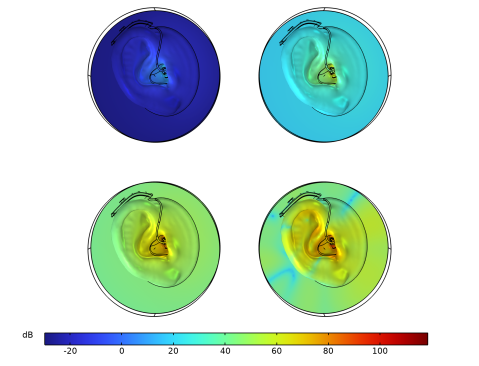
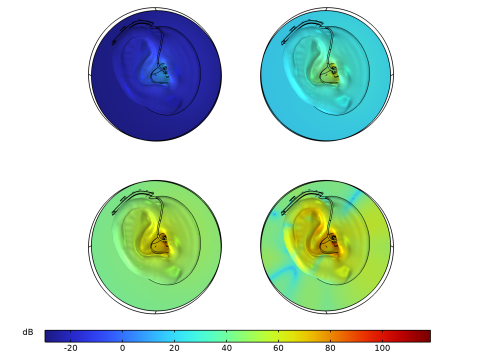
The acoustic field outside the ear is very weak compared to inside the ear. The sound does leak out and results in feedback in the microphones in the hearing aid cassette. The sound pressure level outside the ear is shown in Figure 6 at 20 Hz, 200 Hz, 2 kHz, and 20 kHz.
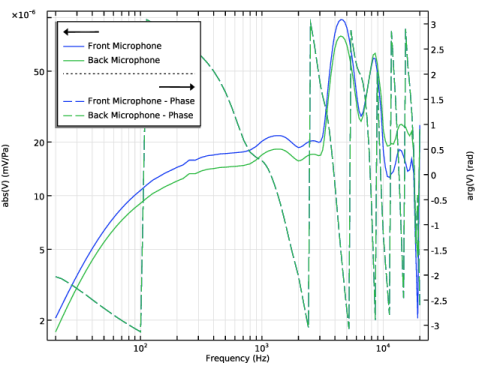
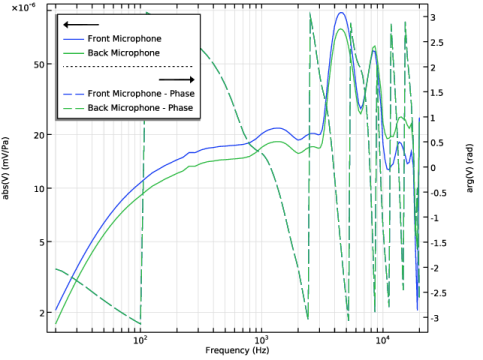
The feedback at the two microphones at the hearing aid cassette is shown in Figure 7, with both the absolute value and phase of the acoustic feedback in the microphones. Positive feedback occurs when the feedback is in phase with the actuation, thus when the phase is zero. The phase of the two microphones are slightly shifted since the two microphones are positioned at different distance relative to the ear canal. The feedback is in phase around 1100 Hz, 3300 Hz, 7500 Hz, and 9100 Hz and it is expected to see positive feedback at these frequencies at high gain of the hearing aid.
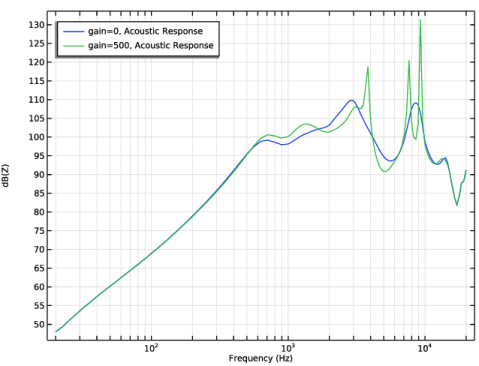
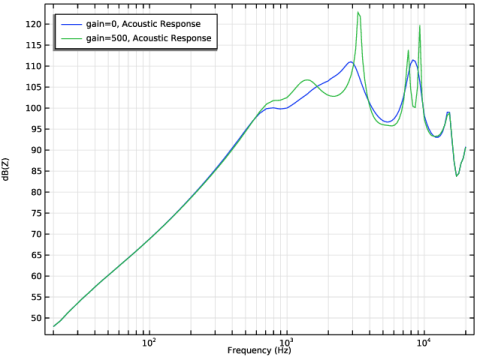
In Figure 8, the gain has been set to 0 and 500, a gain of 0 corresponds to no acoustic feedback and a gain of 500 here means that the actuation voltage is 500 times larger than the voltage measured at the microphones. In this model, a simple constant gain has been used. It is possible to make the gain frequency dependent. With a gain of 500, the acoustic feedback causes resonances at the frequencies where the acoustic feedback is in phase with the actuation.
Figure 6: Sound pressure level outside the ear at 20 Hz (top left), 200 Hz (top right), 2000 Hz (bottom left), and 20 kHz (bottom right).
Figure 7: Acoustic feedback at the two microphones on the hearing aid cassette. With solid lines, the absolute value of the feedback in mV/Pa and in dashed lines, the phase in radians.
Figure 8: The acoustic response at the eardrum with no feedback and a gain of 500. Resonance peaks develop at the frequencies where the feedback is in phase with the actuation.
Notes About the COMSOL Implementation
The geometry has been cleaned up to make the simulation easier. For the clean up, a variety of virtual geometry operations have been used including Form Composite Faces, Collapse Faces, Merge Vertices, and Ignore Vertices. This is done to remove fine details which do not influence the acoustics but do need a very fine mesh to resolve.
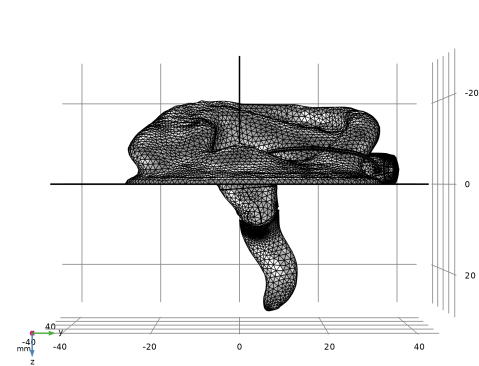
Note also that the model uses linear elements for the pressure field degree of freedom. This is done because there are a lot of narrow domains where the restriction on the mesh is defined by the geometry and not the wavelength. For linear elements it is recommended to use at least 12 elements per wavelength. The latter only really applies outside the ear in the current model.
References
1. ITU-T Recommendation P.57: Artificial Ears. 2021.
2. L.B. Nielsen and M. Herring Jensen, “The Digital Twin of a New and Standardized Fullband Ear Simulator,” DAGA 2022.
3. L.B. Nielsen and M. Herring Jensen, “Simulation and Physical Testing using Standardized Ear Simulators,” DAGA 2023.
Application Library path: Acoustics_Module/Electroacoustic_Transducers/full_ear_hearing_aid
Modeling Instructions
From the File menu, choose New.
New
In the New window, click  Model Wizard.
Model Wizard
1
In the Model Wizard window, click  3D.
2
In the Select Physics tree, select Acoustics > Pressure Acoustics > Pressure Acoustics, Frequency Domain (acpr).
3
Click Add.
4
Click  Study.
5
In the Select Study tree, select General Studies > Frequency Domain.
6
Global Definitions
Parameters 1
The model parameters are loaded from the file full_ear_hearing_aid_parameters.txt.
1
In the Model Builder window, under Global Definitions click Parameters 1.
2
In the Settings window for Parameters, locate the Parameters section.
3
Click  Load from File.
4
Geometry 1
1
In the Model Builder window, under Component 1 (comp1) click Geometry 1.
2
In the Settings window for Geometry, locate the Units section.
3
From the Length unit list, choose mm.
4
Locate the Advanced section. From the Geometry representation list, choose CAD kernel.
5
Select the Design Module Boolean operations checkbox.
6
In the Geometry toolbar, click Insert Sequence and choose Insert Sequence.
7
8
In the Insert Sequence dialog, click OK.
9
In the Geometry toolbar, click  Build All.
Definitions
View 1
Hide boundaries to make it easier to visualize the model.
Hide for Geometry 1
1
In the Model Builder window, expand the Component 1 (comp1) > Definitions node.
2
Right-click View 1 and choose Hide for Geometry.
3
In the Settings window for Hide for Geometry, locate the Selection section.
4
From the Geometric entity level list, choose Boundary.
5
On the object cle1, select Boundaries 1–3, 141, and 142 only.
Geometry 1
1
In the Geometry toolbar, click  Build All.
2
In the Model Builder window, under Component 1 (comp1) click Geometry 1.
Part 1
In the Model Builder window, expand the Global Definitions > Geometry Parts node, then click Part 1.
Ear bud
In the Model Builder window, under Global Definitions > Geometry Parts click Ear bud.
Load in data files for the ear drum impedance, the hearing aid lumped speaker parameters, microphone sensitivity, and experimental data.
Global Definitions
Interpolation 1 (int1)
1
In the Home toolbar, click  Functions and choose Global > Interpolation.
2
In the Settings window for Interpolation, locate the Definition section.
3
From the Data source list, choose File.
4
In the Filename text field, type full_ear_hearing_aid_impedance.txt.
5
Locate the Data Column Settings section. In the table, click to select the cell at row number 1 and column number 1.
6
In the Unit text field, type 1.
7
8
In the Name text field, type absZ.
9
In the Unit text field, type kg/(m^2*s).
10
11
In the Name text field, type argZ.
12
In the Unit text field, type rad.
13
Locate the Definition section. Click  Import.
14
Interpolation 2 (int2)
1
In the Home toolbar, click  Functions and choose Global > Interpolation.
2
In the Settings window for Interpolation, locate the Definition section.
3
From the Data source list, choose File.
4
In the Filename text field, type full_ear_hearing_aid_abcd.dat.
5
Locate the Data Column Settings section. In the table, enter the following settings:
6
7
In the Unit text field, type Hz.
8
9
In the Name text field, type Ar.
10
11
In the Name text field, type Ai.
12
13
In the Name text field, type Br.
14
15
In the Name text field, type Bi.
16
17
In the Name text field, type Cr.
18
19
In the Name text field, type Ci.
20
21
In the Name text field, type Dr.
22
23
In the Name text field, type Di.
24
Locate the Definition section. Click  Import.
25
Interpolation 3 (int3)
1
In the Home toolbar, click  Functions and choose Global > Interpolation.
2
In the Settings window for Interpolation, locate the Definition section.
3
From the Data source list, choose File.
4
In the Filename text field, type full_ear_hearing_aid_measurements.txt.
5
Locate the Data Column Settings section. In the table, enter the following settings:
6
7
In the Unit text field, type Hz.
8
9
In the Name text field, type L1.
10
In the Unit text field, type dB.
11
12
In the Name text field, type L2.
13
In the Unit text field, type dB.
14
15
In the Name text field, type L3.
16
In the Unit text field, type dB.
17
18
In the Name text field, type L4.
19
In the Unit text field, type dB.
20
21
In the Name text field, type L5.
22
In the Unit text field, type dB.
23
24
In the Name text field, type Lav.
25
In the Unit text field, type dB.
26
27
In the Name text field, type Lpsigma.
28
In the Unit text field, type dB.
29
30
In the Name text field, type Lmsigma.
31
In the Unit text field, type dB.
32
Locate the Definition section. Click  Import.
33
Interpolation 4 (int4)
1
In the Home toolbar, click  Functions and choose Global > Interpolation.
2
In the Settings window for Interpolation, locate the Definition section.
3
From the Data source list, choose File.
4
In the Filename text field, type full_ear_hearing_aid_microphonesensitivity.txt.
5
Locate the Data Column Settings section. In the table, click to select the cell at row number 1 and column number 1.
6
In the Unit text field, type Hz.
7
8
9
In the Name text field, type Tr.
10
In the Unit text field, type V/Pa.
11
12
In the Name text field, type Ti.
13
In the Unit text field, type V/Pa.
14
Locate the Definition section. Click  Import.
15
Geometry 1
Cleanup Log
1
In the Definitions toolbar, click  Nonlocal Couplings and choose Average.
2
In the Geometry Cleanup dialog that opens, click Clean up Automatically to automatically clean up the geometry.
Definitions
Average 1 (aveop1)
1
In the Model Builder window, under Component 1 (comp1) > Definitions click Average 1 (aveop1).
2
In the Settings window for Average, type aveop_ed in the Operator name text field.
3
Locate the Source Selection section. From the Geometric entity level list, choose Boundary.
4
From the Selection list, choose Ear Drum.
Average 2 (aveop2)
1
In the Definitions toolbar, click  Nonlocal Couplings and choose Average.
2
In the Settings window for Average, type aveop_mic in the Operator name text field.
3
Locate the Source Selection section. From the Geometric entity level list, choose Boundary.
4
From the Selection list, choose Microphones.
Add Material
1
In the Home toolbar, click  Add Material to open the Add Material window.
2
Go to the Add Material window.
3
In the tree, select Built-in > Air.
4
Click the Add to Component button in the window toolbar.
5
In the Home toolbar, click  Add Material to close the Add Material window.
Pressure Acoustics, Frequency Domain (acpr)
1
In the Settings window for Pressure Acoustics, Frequency Domain, click to expand the Discretization section.
2
From the Element order list, choose Linear.
Lumped Port 1
1
In the Physics toolbar, click  Boundaries and choose Lumped Port.
2
In the Settings window for Lumped Port, locate the Boundary Selection section.
3
From the Selection list, choose Speaker.
4
Locate the Connection Type section. From the Two-port representation list, choose Electroacoustic.
5
In the T11 text field, type Ar(freq)+i*Ai(freq).
6
In the T12 text field, type Br(freq)+i*Bi(freq).
7
In the T21 text field, type Cr(freq)+i*Ci(freq).
8
In the T22 text field, type Dr(freq)+i*Di(freq).
9
Locate the Source Settings section. In the Vin text field, type V0+(Tr(freq)+i*Ti(freq))*aveop_mic(acpr.p_t)*gain.
Impedance - Ear Drum
1
In the Physics toolbar, click  Boundaries and choose Impedance.
2
In the Settings window for Impedance, type Impedance - Ear Drum in the Label text field.
3
Locate the Boundary Selection section. From the Selection list, choose Ear Drum.
4
Locate the Impedance section. In the Zn text field, type absZ(log10(freq[1/Hz]))*exp(i*argZ(log10(freq[1/Hz]))).
Thermoviscous Boundary Layer Impedance 1
1
In the Physics toolbar, click  Boundaries and choose Thermoviscous Boundary Layer Impedance.
2
In the Settings window for Thermoviscous Boundary Layer Impedance, locate the Boundary Selection section.
3
From the Selection list, choose Ear Canal - TVBLI Boundaries.
4
Locate the Fluid Properties section. From the Fluid material list, choose Air (mat1).
Include the losses in the thin domains by the Narrow Region Acoustics feature.
Narrow Region Acoustics - Vent Holes
1
In the Physics toolbar, click  Domains and choose Narrow Region Acoustics.
2
In the Settings window for Narrow Region Acoustics, type Narrow Region Acoustics - Vent Holes in the Label text field.
3
Locate the Domain Selection section. From the Selection list, choose Vent Holes.
4
Locate the Duct Properties section. From the Duct type list, choose Circular duct.
5
In the a text field, type a_vent.
Narrow Region Acoustics - Wax Guard Holes
1
In the Physics toolbar, click  Domains and choose Narrow Region Acoustics.
2
In the Settings window for Narrow Region Acoustics, type Narrow Region Acoustics - Wax Guard Holes in the Label text field.
3
Locate the Domain Selection section. From the Selection list, choose Wax Guard Holes.
4
Locate the Duct Properties section. From the Duct type list, choose Circular duct.
5
In the a text field, type 0.5*0.4[mm].
Wax Guard
1
In the Physics toolbar, click  Domains and choose Narrow Region Acoustics.
2
In the Settings window for Narrow Region Acoustics, locate the Domain Selection section.
3
From the Selection list, choose Ear-Bud Domain.
4
In the Label text field, type Wax Guard.
5
Locate the Duct Properties section. From the Duct type list, choose Circular duct.
6
In the a text field, type a_port.
Perfectly Matched Boundary is used to mimic an infinite baffle.
Perfectly Matched Boundary 1
1
In the Physics toolbar, click  Boundaries and choose Perfectly Matched Boundary.
2
Mesh 1
Free Tetrahedral 1
In the Mesh toolbar, click  Free Tetrahedral.
Size 1
1
Right-click Free Tetrahedral 1 and choose Size.
Set a finer mesh size in the thin regions.
2
In the Settings window for Size, locate the Geometric Entity Selection section.
3
From the Geometric entity level list, choose Domain.
4
5
Locate the Element Size section. Click the Custom button.
6
Locate the Element Size Parameters section.
7
Select the Maximum element size checkbox. In the associated text field, type a_vent/3.
Size 2
1
In the Model Builder window, right-click Free Tetrahedral 1 and choose Size.
2
In the Settings window for Size, locate the Geometric Entity Selection section.
3
From the Geometric entity level list, choose Domain.
4
5
Locate the Element Size section. Click the Custom button.
6
Locate the Element Size Parameters section.
7
Select the Minimum element size checkbox. In the associated text field, type a_vent/3.
8
Select the Maximum element growth rate checkbox. In the associated text field, type 1.3.
Size
1
In the Model Builder window, under Component 1 (comp1) > Mesh 1 click Size.
2
In the Settings window for Size, click to expand the Element Size Parameters section.
3
Locate the Element Size section. Click the Custom button.
4
Locate the Element Size Parameters section. In the Maximum element size text field, type h_max.
5
In the Minimum element size text field, type h_max/2.
6
Click  Build All.
Study 1
Step 1: Frequency Domain
A finer step size is chosen for the higher frequencies. This is to resolve the resonance peaks appearing when the gain is nonzero.
1
In the Model Builder window, under Study 1 click Step 1: Frequency Domain.
2
In the Settings window for Frequency Domain, locate the Study Settings section.
3
In the Frequencies text field, type {10^{range(log10(20),1/20,log10(950))} 10^{range(log10(1000),1/60,log10(20000))}}.
4
Click to expand the Results While Solving section. From the Probes list, choose None.
Show the default solver suggestions and enable an iterative solver suggestion.
Solution 1 (sol1)
1
In the Study toolbar, click  Show Default Solver.
2
In the Model Builder window, expand the Solution 1 (sol1) node.
3
In the Model Builder window, expand the Study 1 > Solver Configurations > Solution 1 (sol1) > Stationary Solver 1 node.
4
Right-click Study 1 > Solver Configurations > Solution 1 (sol1) > Stationary Solver 1 > Suggested Iterative Solver (GMRES with GMG) (acpr) and choose Enable.
Parametric Sweep
1
In the Study toolbar, click  Parametric Sweep.
2
In the Settings window for Parametric Sweep, locate the Study Settings section.
3
4
5
In the Study toolbar, click  Compute.
Create a plot for the acoustic response on the ear drum including both the experimental measurements and the simulation results.
Results
Eardrum Response
1
In the Results toolbar, click  1D Plot Group.
2
In the Settings window for 1D Plot Group, locate the Data section.
3
From the Dataset list, choose Study 1/Parametric Solutions 1 (sol2).
4
From the Parameter selection (gain) list, choose First.
5
Locate the Legend section. From the Position list, choose Upper left.
6
In the Label text field, type Eardrum Response.
7
Click to expand the Title section. From the Title type list, choose Label.
Octave Band 1
1
In the Eardrum Response toolbar, click  More Plots and choose Octave Band.
2
In the Settings window for Octave Band, locate the Selection section.
3
From the Geometric entity level list, choose Boundary.
4
From the Selection list, choose Ear Drum.
5
Locate the y-Axis Data section. In the Amplitude reference text field, type acpr.pref_SPL*sqrt(2).
6
Locate the Plot section. From the Quantity list, choose Continuous power spectral density.
7
Click to expand the Legends section. Select the Show legends checkbox.
8
From the Legends list, choose Manual.
9
Graph Marker 1
1
Right-click Octave Band 1 and choose Graph Marker.
2
In the Settings window for Graph Marker, locate the Display section.
3
From the Display mode list, choose Line intersection.
4
In the x-coordinates text field, type 700 3000 8000.
5
Select the Show lines checkbox.
Measurements (1)
1
In the Model Builder window, right-click Eardrum Response and choose Global.
2
In the Settings window for Global, type Measurements (1) in the Label text field.
3
Locate the y-Axis Data section. In the table, enter the following settings:
4
Click to expand the Legends section. From the Legends list, choose Manual.
5
6
Click to expand the Coloring and Style section. Find the Line style subsection. From the Line list, choose Dashed.
7
From the Color list, choose Black.
Measurements (2-5)
1
Right-click Measurements (1) and choose Duplicate.
2
In the Settings window for Global, type Measurements (2-5) in the Label text field.
3
Locate the Legends section. Clear the Show legends checkbox.
4
Locate the y-Axis Data section. In the table, enter the following settings:
5
In the Eardrum Response toolbar, click  Plot.
Measurements (Average)
1
In the Model Builder window, right-click Measurements (1) and choose Duplicate.
2
In the Settings window for Global, type Measurements (Average) in the Label text field.
3
Locate the y-Axis Data section. In the table, enter the following settings:
4
Locate the Coloring and Style section. Find the Line style subsection. From the Line list, choose Solid.
5
From the Color list, choose Red.
6
From the Width list, choose 2.
7
Locate the Legends section. In the table, enter the following settings:
8
In the Eardrum Response toolbar, click  Plot.
Measurements (+-sigma)
1
Right-click Measurements (Average) and choose Duplicate.
2
In the Settings window for Global, type Measurements (+-sigma) in the Label text field.
3
Locate the y-Axis Data section. In the table, enter the following settings:
4
Locate the Coloring and Style section. Find the Line style subsection. From the Line list, choose Dashed.
5
From the Width list, choose Default from preferences (1).
6
Locate the Legends section. Clear the Show legends checkbox.
7
In the Eardrum Response toolbar, click  Plot.
Create a plot for the acoustic feedback at the microphones. Plot both the amplitude and phase of the acoustic feedback.
Microphones
1
In the Results toolbar, click  1D Plot Group.
2
In the Settings window for 1D Plot Group, type Microphones in the Label text field.
3
Locate the Data section. From the Dataset list, choose Study 1/Parametric Solutions 1 (sol2).
4
From the Parameter selection (gain) list, choose First.
5
Locate the Legend section. From the Position list, choose Upper left.
Front Microphone
1
In the Microphones toolbar, click  More Plots and choose Octave Band.
2
In the Settings window for Octave Band, type Front Microphone in the Label text field.
3
Locate the Selection section. From the Geometric entity level list, choose Boundary.
4
From the Selection list, choose Front Microphone.
5
Locate the y-Axis Data section. In the Expression text field, type abs((Tr(freq)+i*Ti(freq))*acpr.p_t).
6
From the Expression type list, choose General (non-dB).
7
In the Reference expression text field, type aveop_ed(abs(acpr.p_t)).
8
Locate the Plot section. From the Quantity list, choose Continuous power spectral density.
9
Locate the Legends section. Select the Show legends checkbox.
10
From the Legends list, choose Manual.
11
Back Microphone
1
Right-click Front Microphone and choose Duplicate.
2
In the Settings window for Octave Band, type Back Microphone in the Label text field.
3
Locate the Selection section. Click to select the  Activate Selection toggle button.
4
From the Selection list, choose Back Microphone.
5
Locate the Legends section. In the table, enter the following settings:
6
Click the  y-Axis Log Scale button in the Graphics toolbar.
Microphones
Right-click Back Microphone and choose Point Graph.
Point Graph 1
1
In the Settings window for Point Graph, locate the Selection section.
2
From the Selection list, choose Front Microphone Point.
3
Locate the y-Axis Data section. In the Expression text field, type arg(acpr.p_t).
4
Click to expand the Coloring and Style section. From the Color list, choose Cycle (reset).
5
Find the Line style subsection. From the Line list, choose Dashed.
6
Click to expand the Legends section. Select the Show legends checkbox.
7
From the Legends list, choose Manual.
8
Point Graph 2
1
Right-click Results > Microphones > Point Graph 1 and choose Duplicate.
2
In the Settings window for Point Graph, locate the Selection section.
3
Click to select the  Activate Selection toggle button.
4
From the Selection list, choose Front Microphone Point.
5
Locate the Coloring and Style section. From the Color list, choose Cycle.
6
Locate the Legends section. In the table, enter the following settings:
Microphones
1
In the Model Builder window, click Microphones.
2
In the Settings window for 1D Plot Group, locate the Plot Settings section.
3
Select the Two y-axes checkbox.
4
In the table, select the Plot on secondary y-axis checkboxes for Point Graph 1 and Point Graph 2.
5
Select the y-axis label checkbox. In the associated text field, type abs(V) (mV/Pa).
6
Select the Secondary y-axis label checkbox. In the associated text field, type arg(V) (rad).
7
Select the x-axis label checkbox. In the associated text field, type Frequency (Hz).
8
Locate the Title section. From the Title type list, choose None.
9
In the Microphones toolbar, click  Plot.
Sound Pressure Level (acpr)
1
In the Model Builder window, click Sound Pressure Level (acpr).
2
In the Settings window for 3D Plot Group, locate the Data section.
3
From the Parameter value (freq (Hz)) list, choose 2417.3.
4
In the Sound Pressure Level (acpr) toolbar, click  Plot.
5
Click the  Show Grid button in the Graphics toolbar.
Sound Pressure Level Array
1
Right-click Sound Pressure Level (acpr) and choose Duplicate.
2
In the Settings window for 3D Plot Group, type Sound Pressure Level Array in the Label text field.
3
Locate the Data section. From the Parameter value (gain) list, choose 0.
4
Locate the Color Legend section. From the Position list, choose Bottom.
5
Click to expand the Title section. From the Title type list, choose None.
6
Click to expand the Plot Array section. From the Array type list, choose Square.
Surface 1
1
In the Model Builder window, expand the Sound Pressure Level Array node, then click Surface 1.
2
In the Settings window for Surface, locate the Data section.
3
From the Dataset list, choose Study 1/Solution 1 (sol1).
Surface 2
1
Right-click Results > Sound Pressure Level Array > Surface 1 and choose Duplicate.
2
In the Settings window for Surface, locate the Data section.
3
From the Parameter value (freq (Hz)) list, choose 1995.3.
4
Click to expand the Inherit Style section. From the Plot list, choose Surface 1.
Surface 3
1
Right-click Surface 2 and choose Duplicate.
2
In the Settings window for Surface, locate the Data section.
3
From the Parameter value (freq (Hz)) list, choose 200.
Surface 4
1
Right-click Surface 3 and choose Duplicate.
2
In the Settings window for Surface, locate the Data section.
3
From the Parameter value (freq (Hz)) list, choose 20.
4
Click the  Show Axis Orientation button in the Graphics toolbar.
5
In the Sound Pressure Level Array toolbar, click  Plot.
Acoustic Pressure (acpr)
1
In the Model Builder window, under Results click Acoustic Pressure (acpr).
2
In the Settings window for 3D Plot Group, locate the Data section.
3
From the Parameter value (gain) list, choose 0.
4
In the Model Builder window, click Acoustic Pressure (acpr).
5
From the Parameter value (freq (Hz)) list, choose 14678.
6
In the Acoustic Pressure (acpr) toolbar, click  Plot.
Create a plot of the acoustic response on the eardrum including effects of acoustic feedback.
Acoustic Feedback - Constant Gain
1
In the Results toolbar, click  1D Plot Group.
2
In the Settings window for 1D Plot Group, locate the Data section.
3
From the Dataset list, choose Study 1/Parametric Solutions 1 (sol2).
4
In the Label text field, type Acoustic Feedback - Constant Gain.
5
Locate the Title section. From the Title type list, choose None.
6
Locate the Legend section. From the Position list, choose Upper left.
Octave Band 1
1
In the Acoustic Feedback - Constant Gain toolbar, click  More Plots and choose Octave Band.
2
In the Settings window for Octave Band, locate the Selection section.
3
From the Geometric entity level list, choose Boundary.
4
From the Selection list, choose Ear Drum.
5
Locate the y-Axis Data section. In the Amplitude reference text field, type acpr.pref_SPL*sqrt(2).
6
Locate the Plot section. From the Quantity list, choose Continuous power spectral density.
7
Locate the Legends section. Select the Show legends checkbox.
8
Locate the y-Axis Data section.
9
Select the Description checkbox. In the associated text field, type Acoustic Response.
10
In the Acoustic Feedback - Constant Gain toolbar, click  Plot.
Thumbnail
1
In the Results toolbar, click  3D Plot Group.
2
In the Settings window for 3D Plot Group, type Thumbnail in the Label text field.
3
Locate the Data section. From the Dataset list, choose Study 1/Parametric Solutions 1 (sol2).
4
From the Parameter value (gain) list, choose 0.
5
From the Parameter value (freq (Hz)) list, choose 1847.8.
6
Locate the Plot Settings section. Clear the Plot dataset edges checkbox.
7
Locate the Color Legend section. Clear the Show legends checkbox.
8
Locate the Title section. From the Title type list, choose None.
Intensity
1
Right-click Thumbnail and choose Streamline.
2
In the Settings window for Streamline, type Intensity in the Label text field.
3
Locate the Expression section. In the X-component text field, type -acpr.Ix.
4
In the Y-component text field, type -acpr.Iy.
5
In the Z-component text field, type -acpr.Iz.
6
Locate the Streamline Positioning section. In the Number text field, type 30.
7
8
Locate the Coloring and Style section. Find the Line style subsection. From the Type list, choose Tube.
9
Click to expand the Advanced section. Clear the Allow backward time integration checkbox.
Color Expression 1
1
Right-click Intensity and choose Color Expression.
2
In the Settings window for Color Expression, locate the Expression section.
3
In the Expression text field, type acpr.I_mag.
4
Locate the Coloring and Style section. From the Color table list, choose Rainbow.
5
From the Scale list, choose Logarithmic.
6
Click to expand the Range section. Select the Manual color range checkbox.
7
In the Maximum text field, type 1e-5.
Ear
1
In the Model Builder window, right-click Thumbnail and choose Surface.
2
In the Settings window for Surface, type Ear in the Label text field.
Material Appearance 1
1
Right-click Ear and choose Material Appearance.
2
In the Settings window for Material Appearance, locate the Appearance section.
3
From the Appearance list, choose Custom.
4
From the Color list, choose Gray.
Selection 1
1
In the Model Builder window, right-click Ear and choose Selection.
2
In the Settings window for Selection, locate the Selection section.
3
Click  Paste Selection.
4
In the Paste Selection dialog, type 5-9, 14, 129 in the Selection text field.
5
Wire
1
Right-click Ear and choose Duplicate.
2
In the Model Builder window, click Ear 1.
3
In the Settings window for Surface, type Wire in the Label text field.
Material Appearance 1
1
In the Model Builder window, click Material Appearance 1.
2
In the Settings window for Material Appearance, locate the Appearance section.
3
From the Color list, choose White.
Selection 1
1
In the Model Builder window, click Selection 1.
2
In the Settings window for Selection, locate the Selection section.
3
Click  Clear Selection.
4
Click  Paste Selection.
5
In the Paste Selection dialog, type 44, 45, 135-140, 143, 144 in the Selection text field.
6
Hearing Aid (Copper)
1
In the Model Builder window, right-click Wire and choose Duplicate.
2
In the Model Builder window, click Wire 1.
3
In the Settings window for Surface, type Hearing Aid (Copper) in the Label text field.
Material Appearance 1
1
In the Model Builder window, click Material Appearance 1.
2
In the Settings window for Material Appearance, locate the Appearance section.
3
From the Material type list, choose Copper (oxidized).
Selection 1
1
In the Model Builder window, click Selection 1.
2
In the Settings window for Selection, locate the Selection section.
3
Click  Clear Selection.
4
Click  Paste Selection.
5
In the Paste Selection dialog, type 146, 148, 150, 151, 153-155, 157, 159, 160, 162, 163, 165-168, 170-176, 178, 179, 181-189, 191, 194, 195 in the Selection text field.
6
Hearing Aid (Black)
1
In the Model Builder window, right-click Hearing Aid (Copper) and choose Duplicate.
2
In the Model Builder window, click Hearing Aid (Copper) 1.
3
In the Settings window for Surface, type Hearing Aid (Black) in the Label text field.
Material Appearance 1
1
In the Model Builder window, click Material Appearance 1.
2
In the Settings window for Material Appearance, locate the Appearance section.
3
From the Material type list, choose Plastic.
4
From the Color list, choose Black.
Selection 1
1
In the Model Builder window, click Selection 1.
2
In the Settings window for Selection, locate the Selection section.
3
Click  Clear Selection.
4
Click  Paste Selection.
5
In the Paste Selection dialog, type 10-13, 15-43, 46-128, 130-134, 145, 147, 149, 152, 156, 158, 164, 177, 180, 190, 192, 193, 196 in the Selection text field.
6
LED
1
In the Model Builder window, right-click Hearing Aid (Black) and choose Duplicate.
2
In the Model Builder window, click Hearing Aid (Black) 1.
3
In the Settings window for Surface, type LED in the Label text field.
Material Appearance 1
1
In the Model Builder window, click Material Appearance 1.
2
In the Settings window for Material Appearance, locate the Appearance section.
3
From the Color list, choose Green.
Selection 1
1
In the Model Builder window, click Selection 1.
2
In the Settings window for Selection, locate the Selection section.
3
Click  Clear Selection.
4
Click  Paste Selection.
5
In the Paste Selection dialog, type 169 in the Selection text field.
6
Geometry Modeling Instructions
From the File menu, choose New.
New
In the New window, click  Blank Model.
Add Component
In the Home toolbar, click  Add Component and choose 3D.
Geometry 1
1
In the Settings window for Geometry, locate the Units section.
2
From the Length unit list, choose mm.
3
Locate the Advanced section. From the Geometry representation list, choose CAD kernel.
In the first geometry part, load the CAD file for a hearing aid cassette and prepare it for the model. Because only the outer shell of the cassette is of interest, remove details of the interior geometry. Simplify the geometry to avoid small features that would require a really fine mesh.
Part 1
1
In the Model Builder window, right-click Global Definitions and choose Geometry Parts > 3D Part.
2
In the Settings window for Part, locate the Units section.
3
From the Length unit list, choose mm.
4
Locate the Advanced section. From the Geometry representation list, choose CAD kernel.
5
Select the Design Module Boolean operations checkbox.
Import 1 (imp1)
1
In the Geometry toolbar, click  Import.
2
In the Settings window for Import, locate the Source section.
3
Click  Browse.
4
5
Extract 1 (extract1)
1
In the Geometry toolbar, click  Extract.
2
In the Settings window for Extract, locate the Entities or Objects to Extract section.
3
Click the  Paste Selection button for Selection.
4
In the Paste Selection dialog, type imp1: 16-19, 26, 27, 32, 33, 43, 44, 53-56, 65, 67, 687, 688, 1036, 1038, 1063, 1064, 1081, 1082, 1165, 1166, 1174, 1175, 1479, 1480, 1539, 1540, 1722, 1723, 1768, 1769, 1820, 1821, 2133, 2134, 2143, 2144, 2264, 2265, 2357, 2358, 2375, 2423, 2500, 2501, 2655-2659 in the Selection text field.
5
6
In the Settings window for Extract, locate the Entities or Objects to Extract section.
7
From the Input object handling list, choose Remove.
8
Click  Build Selected.
Repair 1 (rep1)
1
In the Geometry toolbar, click  Defeaturing and Repair and choose Repair.
2
In the Settings window for Repair, locate the Repair section.
3
In the Absolute repair tolerance text field, type 5e-2.
4
Select the object extract1 only.
5
Right-click Repair 1 (rep1) and choose Build All Objects.
Cap Faces 1 (cap1)
1
In the Geometry toolbar, click  Defeaturing and Repair and choose Cap Faces.
2
Click the  Zoom Box button in the Graphics toolbar.
3
In the Settings window for Cap Faces, locate the Cap Faces section.
4
Select the Group adjacent edges checkbox.
5
On the object rep1, select Edges 6–11, 14, 15, 21–26, 42–59, 62–64, 66, 68, 69, 96, 97, 107, 108, 118, 120, 135, 137, 160, and 161 only.
6
Click  Build Selected.
Line Segment 1 (ls1)
1
In the Geometry toolbar, click  More Primitives and choose Line Segment.
2
On the object cap1, select Point 61 only.
3
In the Settings window for Line Segment, locate the Endpoint section.
4
Click to select the  Activate Selection toggle button for End vertex.
5
On the object cap1, select Point 63 only.
Line Segment 2 (ls2)
1
Right-click Line Segment 1 (ls1) and choose Duplicate.
2
In the Settings window for Line Segment, locate the Starting Point section.
3
Click to select the  Activate Selection toggle button for Start vertex.
4
5
On the object cap1, select Point 62 only.
6
Locate the Endpoint section. Click to select the  Activate Selection toggle button for End vertex.
7
8
On the object cap1, select Point 64 only.
9
Click  Build Selected.
Union 1 (uni1)
1
In the Geometry toolbar, click  Booleans and Partitions and choose Union.
2
Click in the Graphics window and then press Ctrl+A to select all objects.
3
In the Settings window for Union, click  Build Selected.
Cap Faces 2 (cap2)
1
In the Geometry toolbar, click  Defeaturing and Repair and choose Cap Faces.
2
In the Settings window for Cap Faces, locate the Cap Faces section.
3
Select the Group adjacent edges checkbox.
4
On the object uni1, select Edges 20, 21, 23, 24, 40, 41, 43, 45, 76, 77, 83, and 85 only.
5
Click  Build Selected.
Cap Faces 3 (cap3)
1
Right-click Cap Faces 2 (cap2) and choose Duplicate.
2
On the object cap2, select Edges 83–86, 88, 90, 92, 94, 99, 100, 119–124, 131–134, 137, and 139 only.
3
In the Settings window for Cap Faces, click  Build Selected.
Cap Faces 4 (cap4)
1
Right-click Cap Faces 3 (cap3) and choose Duplicate.
2
On the object cap3, select Edges 1, 2, and 150–153 only.
3
In the Settings window for Cap Faces, click  Build Selected.
Cap Faces 5 (cap5)
1
Right-click Cap Faces 4 (cap4) and choose Duplicate.
2
On the object cap4, select Edges 222–227 only.
3
In the Settings window for Cap Faces, click  Build Selected.
Convert to Solid 1 (csol1)
1
In the Geometry toolbar, click  Conversions and choose Convert to Solid.
2
3
In the Settings window for Convert to Solid, click  Build Selected.
Work Plane 1 (wp1)
1
In the Geometry toolbar, click  Work Plane.
2
In the Settings window for Work Plane, locate the Plane Definition section.
3
From the Plane type list, choose Normal vector.
4
Find the Normal vector subsection. In the x text field, type -1.
5
In the y text field, type 0.6.
6
In the z text field, type 0.
7
Find the Point on plane subsection. In the x text field, type -6.5.
8
Click  Build Selected.
Partition Domains 1 (pard1)
1
In the Geometry toolbar, click  Booleans and Partitions and choose Partition Domains.
2
On the object csol1, select Domain 1 only.
3
In the Settings window for Partition Domains, click  Build Selected.
Delete Entities 1 (del1)
1
In the Model Builder window, right-click Part 1 and choose Delete Entities.
2
In the Settings window for Delete Entities, locate the Entities or Objects to Delete section.
3
From the Geometric entity level list, choose Domain.
4
On the object pard1, select Domain 1 only.
5
Click  Build Selected.
Delete Entities 2 (del2)
1
Right-click Part 1 and choose Delete Entities.
2
On the object del1, select Boundaries 9, 10, 60–63, and 65 only.
3
In the Settings window for Delete Entities, click  Build Selected.
Ignore Edges 1 (ige1)
1
In the Geometry toolbar, click  Virtual Operations and choose Ignore Edges.
2
On the object fin, select Edges 5, 14, 15, 20, 31, 67, 69, 76, 109, 137, 145, 158, 163, and 174 only.
3
In the Geometry toolbar, click  Build All.
Remove Details 1 (rmd1)
1
In the Geometry toolbar, click  Virtual Operations and choose Remove Details.
2
Click  Build All.
In the second geometry part, load and prepare the CAD file for the in-ear hearing aid. Remove details and define a work plane to use when aligning the hearing aid with the ear.
Ear bud
1
In the Model Builder window, under Global Definitions right-click Geometry Parts and choose 3D Part.
2
In the Settings window for Part, type Ear bud in the Label text field.
3
Locate the Units section. From the Length unit list, choose mm.
4
Locate the Advanced section. From the Geometry representation list, choose CAD kernel.
5
Select the Design Module Boolean operations checkbox.
Import 1 (imp1)
1
In the Geometry toolbar, click  Import.
2
In the Settings window for Import, locate the Source section.
3
Click  Browse.
4
5
Work Plane 1 (wp1)
1
In the Geometry toolbar, click  Work Plane.
2
In the Settings window for Work Plane, locate the Plane Definition section.
3
From the Plane type list, choose Face parallel.
4
On the object imp1, select Boundary 222 only.
Partition Domains 1 (pard1)
1
In the Geometry toolbar, click  Booleans and Partitions and choose Partition Domains.
2
In the Settings window for Partition Domains, locate the Partition Domains section.
3
From the Partition with list, choose Extended faces.
4
Click to select the  Activate Selection toggle button for Domains to partition.
5
On the object imp1, select Domain 2 only.
6
Click to select the  Activate Selection toggle button for Planar, cylindrical, or spherical faces.
7
On the object imp1, select Boundary 34 only.
8
Click  Build Selected.
Delete Entities 1 (del1)
1
In the Model Builder window, right-click Ear bud and choose Delete Entities.
2
In the Settings window for Delete Entities, locate the Entities or Objects to Delete section.
3
From the Geometric entity level list, choose Domain.
4
On the object pard1, select Domain 3 only.
5
Click  Build Selected.
Partition Domains 2 (pard2)
1
In the Geometry toolbar, click  Booleans and Partitions and choose Partition Domains.
2
On the object del1, select Domain 9 only.
3
In the Settings window for Partition Domains, locate the Partition Domains section.
4
From the Partition with list, choose Extended faces.
5
On the object del1, select Boundaries 184 and 195 only.
6
In the Geometry toolbar, click  Build All.
Collapse Faces 1 (clf1)
1
In the Geometry toolbar, click  Virtual Operations and choose Collapse Faces.
2
On the object fin, select Boundaries 63, 65, 109, 126, 129, 181, 188, 236, and 247 only.
3
In the Geometry toolbar, click  Build All.
Ignore Edges 1 (ige1)
1
In the Geometry toolbar, click  Virtual Operations and choose Ignore Edges.
2
On the object clf1, select Edges 11, 18, 23, 24, 39, 45, 109, 121, 159, 186, 187, 198, 244, 267, 278, and 300 only.
3
In the Geometry toolbar, click  Build All.
Remove Details 1 (rmd1)
1
In the Geometry toolbar, click  Virtual Operations and choose Remove Details.
2
Click  Build All.
The next step is to combine the two parts of the hearing aid with the model of the full ear.
Geometry 1
Import 1 (imp1)
1
In the Geometry toolbar, click  Import.
2
In the Settings window for Import, locate the Source section.
3
Click  Browse.
4
5
6
Locate the Virtual Geometry section. Clear the Include result from virtual operations checkbox.
7
Click  Build Selected.
Definitions
In the Model Builder window, expand the Component 1 (comp1) > Definitions node.
Hide for Geometry 1
1
In the Model Builder window, expand the Component 1 (comp1) > Definitions > View 1 node.
2
Right-click View 1 and choose Hide for Geometry.
3
In the Settings window for Hide for Geometry, locate the Selection section.
4
From the Geometric entity level list, choose Boundary.
5
On the object imp1, select Boundaries 1, 2, 4, 26, and 46 only.
Geometry 1
Part Instance 1 (pi1)
1
In the Geometry toolbar, click  Part Instance and choose Part 1.
2
In the Settings window for Part Instance, locate the Position and Orientation of Output section.
3
Find the Displacement subsection. In the xwi text field, type 111.
4
In the ywi text field, type 75.3.
5
In the zwi text field, type 72.
6
Find the Rotation subsection. From the Specify list, choose Euler angles (Z-X-Z).
7
In the β text field, type 80.
8
In the γ text field, type 58.
9
Click  Build Selected.
Work Plane 1 (wp1)
1
In the Geometry toolbar, click  Work Plane.
2
In the Settings window for Work Plane, locate the Plane Definition section.
3
From the Plane type list, choose Normal vector.
4
Find the Normal vector subsection. In the x text field, type 0.4.
5
In the y text field, type -2.
6
In the z text field, type 0.4.
7
Find the Point on plane subsection. In the x text field, type 110.
8
In the y text field, type 59.
9
In the z text field, type 40.1.
10
Click  Build Selected.
Ear bud 1 (pi2)
1
In the Geometry toolbar, click  Part Instance and choose Ear bud.
2
In the Settings window for Part Instance, locate the Position and Orientation of Output section.
3
Find the Coordinate system in part subsection. From the Work plane in part list, choose Work Plane 1 (wp1).
4
Find the Coordinate system to match subsection. From the Work plane list, choose Work Plane 1 (wp1).
5
Find the Displacement subsection. In the xwi text field, type -5.25.
6
In the ywi text field, type -6.5.
7
In the zwi text field, type 2.1.
8
Find the Rotation subsection. In the Rotation angle text field, type 100.
9
Click  Build Selected.
Work Plane 2 (wp2)
1
In the Geometry toolbar, click  Work Plane.
2
In the Settings window for Work Plane, locate the Plane Definition section.
3
From the Plane type list, choose Face parallel.
4
On the object pi1, select Boundary 1 only.
The hearing aid cassette is connected to the in-ear hearing aid by a wire. To do this, define three points to create a work plane in which you can draw a line that the wire will follow.
Point 1 (pt1)
1
In the Geometry toolbar, click  More Primitives and choose Point.
2
In the Settings window for Point, locate the Coordinate System section.
3
From the Work plane list, choose Work Plane 2 (wp2).
Partition Edges 1 (pare1)
1
In the Geometry toolbar, click  Booleans and Partitions and choose Partition Edges.
2
On the object pi2, select Edge 54 only.
Point 2 (pt2)
1
In the Geometry toolbar, click  More Primitives and choose Point.
2
In the Settings window for Point, locate the Point section.
3
In the x text field, type 90.
4
In the y text field, type 85.
5
In the z text field, type 60.
6
Click  Build All Objects.
Work Plane 3 (wp3)
1
In the Geometry toolbar, click  Work Plane.
2
In the Settings window for Work Plane, locate the Plane Definition section.
3
From the Plane type list, choose Vertices.
4
On the object pt1, select Point 1 only.
5
Click to select the  Activate Selection toggle button for Second vertex.
6
On the object pt2, select Point 1 only.
7
Click to select the  Activate Selection toggle button for Third vertex.
8
On the object pare1, select Point 201 only.
Work Plane 3 (wp3) > Plane Geometry
In the Model Builder window, click Plane Geometry.
Work Plane 3 (wp3) > Interpolation Curve 1 (ic1)
1
In the Work Plane toolbar, click  More Primitives and choose Interpolation Curve.
2
In the Settings window for Interpolation Curve, locate the Interpolation Points section.
3
4
Click  Build Selected.
After drawing the line the Sweep node is used to sweep one boundary along the line and connect to the two parts of the hearing aid.
Sweep 1 (swe1)
1
In the Model Builder window, right-click Geometry 1 and choose Sweep.
2
On the object pare1, select Boundaries 156 and 162 only.
3
In the Settings window for Sweep, locate the Spine Curve section.
4
Click to select the  Activate Selection toggle button for Edges to follow.
5
On the object wp3, select Edge 1 only.
6
Find the Alignment at end subsection. Select the Make spine perpendicular to entities checkbox.
7
On the object pi1, select Boundary 1 only.
8
In the Adjustment parameter length text field, type 1.
9
Find the Alignment at start subsection. Select the Make spine perpendicular to entities to sweep checkbox.
10
In the Adjustment parameter length text field, type 0.3.
11
Select the Manual control of sweep direction checkbox.
12
Select the Reverse direction checkbox.
13
Click  Build Selected.
Because the model only uses the air domain, use a union between the different objects and delete the hearing aid, wire, and cassette. Thus, the geometry only contains the air domain.
Union 1 (uni1)
1
In the Geometry toolbar, click  Booleans and Partitions and choose Union.
2
Select the objects pi1 and swe1 only.
3
In the Settings window for Union, click  Build Selected.
4
Locate the Union section. Click to select the  Activate Selection toggle button for Input objects.
5
Select the objects pare1, pi1, and swe1 only.
6
Click  Build Selected.
Union 2 (uni2)
1
In the Geometry toolbar, click  Booleans and Partitions and choose Union.
2
Select the objects imp1 and uni1 only.
3
In the Settings window for Union, click  Build Selected.
Delete Entities 1 (del1)
1
Right-click Geometry 1 and choose Delete Entities.
2
In the Settings window for Delete Entities, locate the Entities or Objects to Delete section.
3
From the Geometric entity level list, choose Domain.
4
On the object uni2, select Domains 2–7, 9–13, 22–25, 28–30, 32, and 33 only.
5
Click  Build Selected.
Work Plane 4 (wp4)
1
In the Geometry toolbar, click  Work Plane.
2
In the Settings window for Work Plane, locate the Plane Definition section.
3
From the Plane type list, choose Face parallel.
4
On the object del1, select Boundary 3 only.
Rigid Transform 1 (rt1)
1
In the Geometry toolbar, click  Transforms and choose Rigid Transform.
2
3
In the Settings window for Rigid Transform, locate the Coordinate System for Objects section.
4
From the Work plane for objects list, choose Work Plane 4 (wp4).
5
Click  Build Selected.
Delete Entities 2 (del2)
1
Right-click Geometry 1 and choose Delete Entities.
2
Click in the Graphics window and then press Ctrl+D to clear all objects.
3
In the Settings window for Delete Entities, locate the Entities or Objects to Delete section.
4
From the Geometric entity level list, choose Object.
5
Select the objects pt1, pt2, and wp3 only.
Create selections to make it simpler to add features to the correct domains and surfaces.
Speaker
1
In the Geometry toolbar, click  Selections and choose Explicit Selection.
2
In the Settings window for Explicit Selection, type Speaker in the Label text field.
3
Locate the Entities to Select section. From the Geometric entity level list, choose Boundary.
4
On the object rt1, select Boundary 117 only.
Front Microphone
1
In the Geometry toolbar, click  Selections and choose Explicit Selection.
2
In the Settings window for Explicit Selection, type Front Microphone in the Label text field.
3
Locate the Entities to Select section. From the Geometric entity level list, choose Boundary.
4
On the object rt1, select Boundary 230 only.
Back Microphone
1
In the Geometry toolbar, click  Selections and choose Explicit Selection.
2
In the Settings window for Explicit Selection, type Back Microphone in the Label text field.
3
Locate the Entities to Select section. From the Geometric entity level list, choose Boundary.
4
On the object rt1, select Boundary 255 only.
Microphones
1
In the Geometry toolbar, click  Selections and choose Union Selection.
2
In the Settings window for Union Selection, type Microphones in the Label text field.
3
Locate the Geometric Entity Level section. From the Level list, choose Boundary.
4
Locate the Input Entities section. Click  Add.
5
In the Add dialog, in the Selections to add list, choose Front Microphone and Back Microphone.
6
7
In the Settings window for Union Selection, click  Build Selected.
Ear Drum
1
In the Geometry toolbar, click  Selections and choose Explicit Selection.
2
In the Settings window for Explicit Selection, type Ear Drum in the Label text field.
3
Locate the Entities to Select section. From the Geometric entity level list, choose Boundary.
4
On the object rt1, select Boundaries 193 and 194 only.
Ear Canal - TVBLI Boundaries
1
In the Geometry toolbar, click  Selections and choose Explicit Selection.
2
In the Settings window for Explicit Selection, type Ear Canal - TVBLI Boundaries in the Label text field.
3
Locate the Entities to Select section. From the Geometric entity level list, choose Boundary.
4
On the object rt1, select Boundaries 30–32, 34, 42, 48, 61–63, 67, 85, 111, 120, 127, 129, 185–188, and 210 only.
Front Microphone Point
1
In the Geometry toolbar, click  Selections and choose Explicit Selection.
2
In the Settings window for Explicit Selection, type Front Microphone Point in the Label text field.
3
Locate the Entities to Select section. From the Geometric entity level list, choose Point.
4
On the object rt1, select Point 401 only.
Back Microphone Point
1
In the Geometry toolbar, click  Selections and choose Explicit Selection.
2
In the Settings window for Explicit Selection, type Back Microphone Point in the Label text field.
3
Locate the Entities to Select section. From the Geometric entity level list, choose Point.
4
On the object rt1, select Point 467 only.
Form Union (fin)
In the Geometry toolbar, click  Build All.
Vent Holes
1
In the Geometry toolbar, click  Selections and choose Explicit Selection.
2
In the Settings window for Explicit Selection, type Vent Holes in the Label text field.
3
On the object fin, select Domains 7 and 13 only.
Wax Guard Holes
1
In the Geometry toolbar, click  Selections and choose Explicit Selection.
2
In the Settings window for Explicit Selection, type Wax Guard Holes in the Label text field.
3
On the object fin, select Domains 4, 5, and 8–12 only.
Ear-Bud Domain
1
In the Geometry toolbar, click  Selections and choose Explicit Selection.
2
In the Settings window for Explicit Selection, type Ear-Bud Domain in the Label text field.
3
On the object fin, select Domains 3 and 6 only.
Finally, clean up the model by collapsing thin faces, merging edges, and removing vertices. This helps to avoid creating too small mesh elements when meshing the geometry.
Form Composite Faces 1 (cmf1)
1
In the Geometry toolbar, click  Virtual Operations and choose Form Composite Faces.
2
On the object fin, select Boundaries 19 and 183 only.
3
In the Settings window for Form Composite Faces, click  Build Selected.
Collapse Faces 1 (clf1)
1
In the Geometry toolbar, click  Virtual Operations and choose Collapse Faces.
2
On the object cmf1, select Boundaries 19, 204, and 207 only.
3
In the Settings window for Collapse Faces, click  Build Selected.
Ear
1
In the Geometry toolbar, click  Virtual Operations and choose Form Composite Faces.
2
In the Settings window for Form Composite Faces, type Ear in the Label text field.
3
On the object clf1, select Boundaries 5–16, 19–21, 26, 78, 161, 183, 212, 214, 217, 218, 220, 225, 235–238, 242, 243, 249–251, and 257–259 only.
4
Click  Build Selected.
Ear drum
1
Right-click Ear and choose Duplicate.
2
In the Settings window for Form Composite Faces, type Ear drum in the Label text field.
3
Locate the Input section. From the Faces to composite list, choose Ear Drum.
4
Click  Build Selected.
Ear canal
1
Right-click Ear drum and choose Duplicate.
2
In the Settings window for Form Composite Faces, type Ear canal in the Label text field.
3
On the object cmf3, select Boundaries 19, 35, and 142–144 only.
4
Click  Build Selected.
Ear bud
1
In the Geometry toolbar, click  Virtual Operations and choose Form Composite Faces.
2
In the Settings window for Form Composite Faces, type Ear bud in the Label text field.
3
On the object cmf4, select Boundaries 11–18, 28, 34, 35, 52, 53, 62, 104, 116, 138, 139, 157, 159, 161, and 165 only.
4
Click  Build Selected.
Form Composite Faces 6 (cmf6)
1
In the Geometry toolbar, click  Virtual Operations and choose Form Composite Faces.
2
On the object cmf5, select Boundaries 15, 16, 27, 28, 33, 34, 37–39, 48, 70, 77, 110, 122, 124, 125, 136, 139, 142, and 143 only.
3
In the Geometry toolbar, click  Build All.
Collapse Edges 1 (cle1)
1
In the Geometry toolbar, click  Virtual Operations and choose Collapse Edges.
2
On the object cmf6, select Edges 180, 241, 296, 297, 327, 332, 333, and 337 only.
3
In the Geometry toolbar, click  Build All.
4
Click the  Go to Default View button in the Graphics toolbar.