PDF

Neuron over Microelectrode Array
Introduction
Micreoelectrode arrays (MEAs) enable long and stable extracellular recordings of neuronal activity and are thus widely used in neuroscience applications. This tutorial model shows how to describe the interaction of a mammalian neuron with an MEA, with a focus on the transduction of the neuronal ionic activity into an electrically recorded signal.
Neurons are excitable cells capable of generating and propagating electric signals called action potentials. This phenomenon is modeled here using a multicompartment Hodgkin–Huxley (HH)-like computational model for a membrane with parameters related to a specific type of mammalian neuron (Rat RGC Type I), as reported in Ref. 1. The HH model relates the net membrane potential change over time (Vmemb) to the effective ionic exchange across the membrane through sodium (INa), potassium (IK), and leakage (Il) current densities that depend on the evolution of three gating variables, n, m, and h:
(1)
Here
Cm is the membrane capacitance per unit area
Istim is an external stimulation current density required to unbalance the steady-state solution until the threshold for action potential generation is reached
αq and βq are the gating rate constants, whose values are taken from Ref. 1
Each ion current density also depends on the corresponding ion current conductance and equilibrium potential, but these are not included in Equation 1 to improve readability. The gating rate constants, the ion current conductances, and the equilibrium potentials are all taken from Ref. 1 for T = 35°C.
The neuron intracellular solution and the extracellular solution are reservoirs of diluted ions. Considering both as neutral, monovalent electrolyte solutions, they can be treated as ohmic conductors with electric conductivity proportional to the ion concentration, valence and mobility, and permittivity of water. The conductivity of the neuron intracellular solution is taken from Ref. 1 for T = 35°C. These assumptions allow for simplifying the description of the ionic currents in Equation 1 as equivalent electric currents carrying the same net charge over time across the membrane.
Model Definition
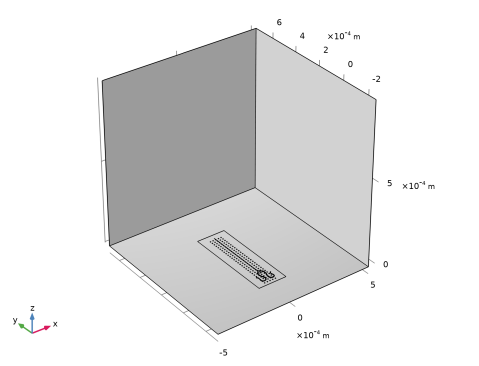
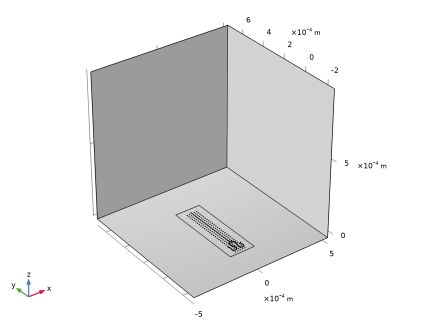
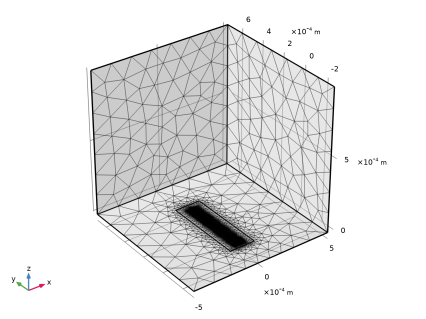
Figure 1 shows the 3D geometry of the system, which includes a neuron over a portion of a microelectrode array (5-by-28 electrodes). The external box constitutes the extracellular solution domain. Notice that the neuron geometry has been constructed considering realistic numbers for the main relevant compartments: dendrites, soma, hillock, axon initial segment (AIS), and axon.
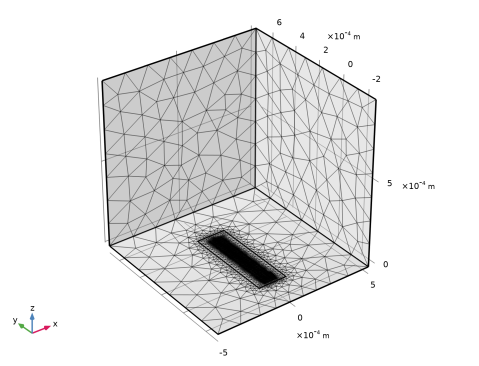
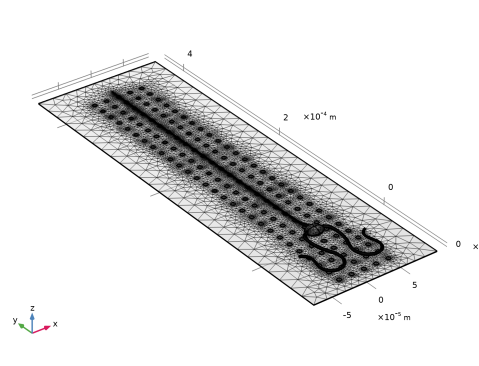
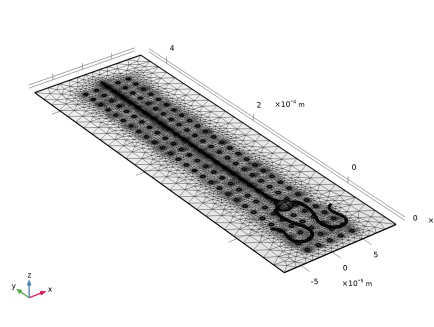
Figure 2 shows the computational mesh. For better visualization, Figure 3 shows a zoomed view of the mesh on the MEA and neuron. The mesh is refined along the longitudinal edges of the neuron facing the MEA and coarse elsewhere to save mesh size.
The implementation requires the use of two Electric Currents interfaces and one Boundary ODEs and DAEs interface. The Electric Currents interfaces model the conductive media solutions inside and outside the neuron membrane. They are also required to set the reference electrode (the upper face of the box) as well as the microelectrode array’s terminals. The latter interface allows to incorporate on the cell membrane the Hodgkin–Huxley-like model for the generation of action potentials.
Figure 1: 3D geometry of the neuron over a microelectrode array (MEA) and the surrounding extracellular domain.
Figure 2: Computational mesh.
Figure 3: Zoomed view of the computational mesh on the MEA and the neuron.
Results and Discussion
This tutorial performs a time dependent study in which the transient response to an action potential is recorded from the extracellular MEA.
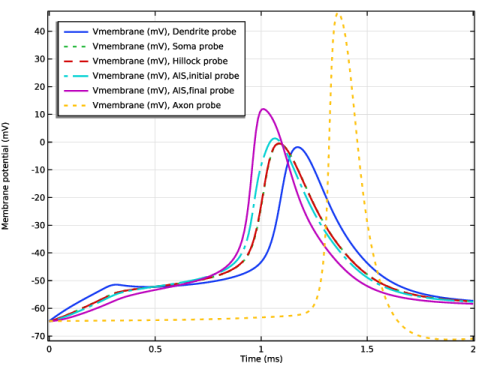
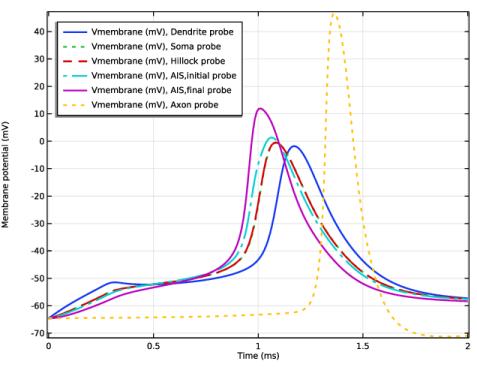
Figure 4 shows the membrane potentials sampled at point probes located on main neuron membrane compartments. The Axon Initial Segment (AIS) compartment is the richest in Sodium ion channels and is the first to show an action potential. After that, Hillock and Soma, Dendrite, and finally Axon show sequentially the action potential.
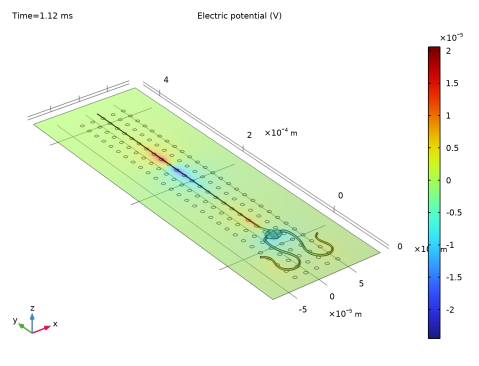
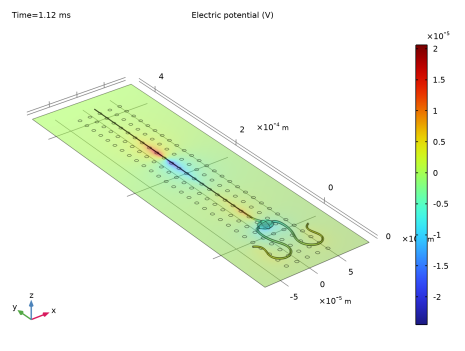
Figure 5 illustrates a snapshot of the extracellular electric potential during the action potential propagation along the neuron. The red and blue nearby spots on the MEA suggests that the action potential has reached the two third of the axon at that time step.
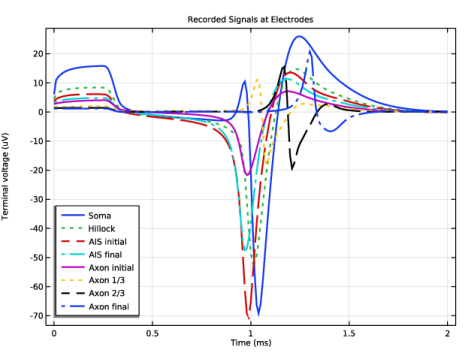
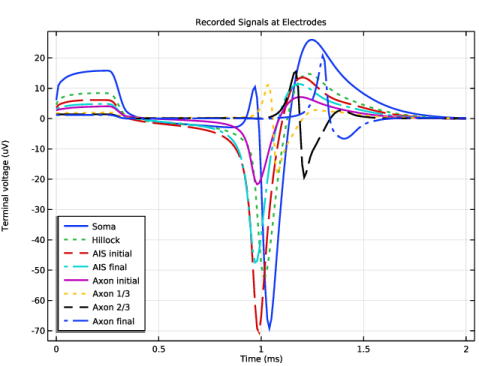
Figure 6 depicts the extracellular electric signals recorded by a fraction of microelectrodes located under main neuron compartments. The recorded traces allow us to assess the generation and propagation of the action potential from the outside of the neuron. This finding is consistent with the plot in Figure 4.
Figure 4: Membrane potential probed at different neuron compartments.
Figure 5: Extracellular potential surface plot during an action potential propagation.
Figure 6: Electric signals recorded at microelectrodes under main neuron compartments.
Reference
1. J.F. Fohlmeister, D. Ethan, and E.A. Newman, “Mechanisms and Distribution of Ion Channels in Retinal Ganglion Cells: Using Temperature as an Independent Variable,” J. Neurophysiology, vol. 103, no. 3, pp. 1357–1374, 2010.
The parameter values for the Hodgkin–Huxley-type model used in this tutorial were taken from Ref. 1.
Application Library path: ACDC_Module/Devices,_Resistive/neuron_over_microelectrode_array
Modeling Instructions
From the File menu, choose New.
New
In the New window, click  Model Wizard.
Model Wizard
1
In the Model Wizard window, click  3D.
2
In the Select Physics tree, select AC/DC > Electric Fields and Currents > Electric Currents (ec).
3
Click Add.
4
In the Select Physics tree, select AC/DC > Electric Fields and Currents > Electric Currents (ec).
5
Click Add.
6
In the Select Physics tree, select Mathematics > ODE and DAE Interfaces > Boundary ODEs and DAEs (bode).
7
Click Add.
8
Click  Study.
9
In the Select Study tree, select General Studies > Time Dependent.
10
Geometry 1
First, define the geometric and physical parameters of the model.
Global Definitions
Geometric Parameters
1
In the Model Builder window, under Global Definitions click Parameters 1.
2
In the Settings window for Parameters, type Geometric Parameters in the Label text field.
3
Locate the Parameters section. In the table, enter the following settings:
Physical Parameters
1
In the Home toolbar, click  Parameters and choose Add > Parameters.
2
In the Settings window for Parameters, type Physical Parameters in the Label text field.
3
Locate the Parameters section. In the table, enter the following settings:
Electrode Parameters
1
In the Home toolbar, click  Parameters and choose Add > Parameters.
2
In the Settings window for Parameters, type Electrode Parameters in the Label text field.
3
Locate the Parameters section. In the table, enter the following settings:
Neuron Parameters
1
In the Home toolbar, click  Parameters and choose Add > Parameters.
2
In the Settings window for Parameters, type Neuron Parameters in the Label text field.
3
Locate the Parameters section. In the table, enter the following settings:
Build the geometry with the following instructions.
Geometry 1
Soma
1
In the Geometry toolbar, click  More Primitives and choose Ellipsoid.
2
In the Settings window for Ellipsoid, type Soma in the Label text field.
3
Locate the Size and Shape section. In the a-semiaxis text field, type r_soma*1.2.
4
In the b-semiaxis text field, type r_soma.
5
In the c-semiaxis text field, type r_soma*0.5.
6
Locate the Selections of Resulting Entities section. Select the Resulting objects selection checkbox.
Work Plane 1 (wp1)
1
In the Geometry toolbar, click  Work Plane.
2
In the Settings window for Work Plane, locate the Plane Definition section.
3
From the Plane list, choose xz-plane.
4
In the y-coordinate text field, type r_soma-r_soma/10.
Work Plane 1 (wp1) > Plane Geometry
In the Model Builder window, click Plane Geometry.
Work Plane 1 (wp1) > Circle 1 (c1)
1
In the Work Plane toolbar, click  Circle.
2
In the Settings window for Circle, locate the Size and Shape section.
3
In the Radius text field, type r_hillock.
4
Locate the Selections of Resulting Entities section. Select the Resulting objects selection checkbox.
Work Plane 2 (wp2)
1
In the Model Builder window, right-click Geometry 1 and choose Work Plane.
2
In the Settings window for Work Plane, locate the Plane Definition section.
3
From the Plane list, choose yz-plane.
Work Plane 2 (wp2) > Plane Geometry
In the Model Builder window, click Plane Geometry.
Work Plane 2 (wp2) > Polygon 1 (pol1)
1
In the Work Plane toolbar, click  Polygon.
2
In the Settings window for Polygon, locate the Object Type section.
3
From the Type list, choose Open curve.
4
Locate the Coordinates section. In the table, enter the following settings:
5
Locate the Selections of Resulting Entities section. Select the Resulting objects selection checkbox.
6
From the Show in 3D list, choose Boundary selection.
Hillock
1
In the Model Builder window, right-click Geometry 1 and choose Sweep.
2
In the Settings window for Sweep, type Hillock in the Label text field.
3
Locate the Cross Section section. Clear the Create cross-sectional faces checkbox.
4
Locate the Spine Curve section. From the Parameterization list, choose Normalized arc length.
5
Locate the Cross Section section. From the Entities to sweep list, choose Circle 1 (Work Plane 1).
6
Locate the Spine Curve section. Click to select the  Activate Selection toggle button for Edges to follow.
7
Click the  Clear Selection button for Edges to follow.
8
On the object wp2, select Edges 1–4 only.
9
Locate the Input Object Handling section. Select the Include all inputs in Form Union/Assembly checkbox.
10
Locate the Motion of Cross Section section. Find the Additional twisting and scaling subsection. In the Scale factor text field, type (1-(r_hillock-r_AIS)/r_hillock*s).
11
Locate the Selections of Resulting Entities section. Select the Resulting objects selection checkbox.
AIS
1
Right-click Hillock and choose Duplicate.
2
In the Settings window for Sweep, type AIS in the Label text field.
3
Locate the Cross Section section. Click to select the  Activate Selection toggle button for Entities to sweep.
4
5
Click the  Clear Selection button for Entities to sweep.
6
On the object swe1, select Boundary 4 only.
7
Locate the Spine Curve section. Click to select the  Activate Selection toggle button for Edges to follow.
8
9
Click the  Clear Selection button for Edges to follow.
10
On the object wp2, select Edge 5 only.
11
Locate the Motion of Cross Section section. Find the Additional twisting and scaling subsection. In the Scale factor text field, type (1-(r_AIS-r_axon)/r_AIS*s).
12
Click  Build Selected.
Work Plane 3 (wp3)
1
In the Geometry toolbar, click  Work Plane.
2
In the Settings window for Work Plane, locate the Plane Definition section.
3
From the Offset type list, choose Through vertex.
4
On the object wp2, select Point 6 only.
Work Plane 3 (wp3) > Plane Geometry
In the Model Builder window, click Plane Geometry.
Work Plane 3 (wp3) > Polygon 1 (pol1)
1
In the Work Plane toolbar, click  Polygon.
2
In the Settings window for Polygon, locate the Object Type section.
3
From the Type list, choose Open curve.
4
Locate the Coordinates section. In the table, enter the following settings:
5
Locate the Selections of Resulting Entities section. Select the Resulting objects selection checkbox.
6
From the Show in 3D list, choose Boundary selection.
Axon
1
In the Model Builder window, under Component 1 (comp1) > Geometry 1 right-click AIS (swe2) and choose Duplicate.
2
In the Settings window for Sweep, type Axon in the Label text field.
3
Locate the Cross Section section. Click to select the  Activate Selection toggle button for Entities to sweep.
4
5
Click the  Clear Selection button for Entities to sweep.
6
On the object swe2, select Boundary 4 only.
7
Locate the Spine Curve section. Click to select the  Activate Selection toggle button for Edges to follow.
8
9
Click the  Clear Selection button for Edges to follow.
10
On the object wp3, select Edge 1 only.
11
Locate the Motion of Cross Section section. Find the Additional twisting and scaling subsection. In the Scale factor text field, type 1.
12
Click  Build Selected.
Work Plane 4 (wp4)
1
In the Model Builder window, right-click Geometry 1 and choose Work Plane.
2
In the Settings window for Work Plane, locate the Plane Definition section.
3
From the Plane list, choose yz-plane.
4
In the x-coordinate text field, type r_soma*1.1.
Work Plane 4 (wp4) > Plane Geometry
In the Model Builder window, click Plane Geometry.
Work Plane 4 (wp4) > Circle 1 (c1)
1
In the Work Plane toolbar, click  Circle.
2
In the Settings window for Circle, locate the Size and Shape section.
3
In the Radius text field, type r_dendrite_ini.
4
Locate the Selections of Resulting Entities section. Select the Resulting objects selection checkbox.
Work Plane 5 (wp5)
In the Model Builder window, right-click Geometry 1 and choose Work Plane.
Work Plane 5 (wp5) > Interpolation Curve 1 (ic1)
1
In the Work Plane toolbar, click  More Primitives and choose Interpolation Curve.
2
In the Settings window for Interpolation Curve, locate the Interpolation Points section.
3
4
Locate the Selections of Resulting Entities section. Select the Resulting objects selection checkbox.
5
From the Show in 3D list, choose Boundary selection.
Dendrite
1
In the Model Builder window, under Component 1 (comp1) > Geometry 1 right-click Axon (swe3) and choose Duplicate.
2
In the Settings window for Sweep, type Dendrite in the Label text field.
3
Locate the Input Object Handling section. Clear the Keep input objects checkbox.
4
Locate the Cross Section section. Click to select the  Activate Selection toggle button for Entities to sweep.
5
6
Click the  Clear Selection button for Entities to sweep.
7
From the Entities to sweep list, choose Circle 1 (Work Plane 4).
8
Locate the Spine Curve section. Click to select the  Activate Selection toggle button for Edges to follow.
9
10
Click the  Clear Selection button for Edges to follow.
11
On the object wp5, select Edge 1 only.
12
Locate the Motion of Cross Section section. Find the Additional twisting and scaling subsection. In the Scale factor text field, type (1-(r_dendrite_ini-r_dendrite_fin)/r_dendrite_ini*s).
13
Click  Build Selected.
Mirror 1 (mir1)
1
In the Model Builder window, right-click Geometry 1 and choose Transforms > Mirror.
2
In the Settings window for Mirror, locate the Input section.
3
From the Input objects list, choose Dendrite.
4
Select the Keep input objects checkbox.
5
Locate the Normal Vector to Plane of Reflection section. In the x text field, type -1.
6
In the z text field, type 0.
Block 1 (blk1)
1
In the Geometry toolbar, click  Block.
2
In the Settings window for Block, locate the Size and Shape section.
3
In the Width text field, type l_box.
4
In the Depth text field, type l_box.
5
In the Height text field, type l_box.
6
Locate the Position section. In the x text field, type -l_box/2.
7
In the y text field, type -l_box/2+l_axon/2+2*r_soma.
8
In the z text field, type -t_cleft-r_soma*0.5-r_axon.
9
Click  Build Selected.
Work Plane 6 (wp6)
1
In the Geometry toolbar, click  Work Plane.
2
In the Settings window for Work Plane, locate the Plane Definition section.
3
From the Offset type list, choose Through vertex.
4
Click the  Zoom Extents button in the Graphics toolbar.
5
On the object blk1, select Point 1 only.
6
Locate the Selections of Resulting Entities section. Find the Selections from plane geometry subsection. Select the Show in physics checkbox.
Work Plane 6 (wp6) > Plane Geometry
In the Model Builder window, click Plane Geometry.
Work Plane 6 (wp6) > Circle 1 (c1)
1
In the Work Plane toolbar, click  Circle.
2
In the Settings window for Circle, locate the Size and Shape section.
3
In the Radius text field, type r_ele.
4
Locate the Position section. In the xw text field, type -2*pitch_ele.
5
In the yw text field, type -5*pitch_ele.
Work Plane 6 (wp6) > Array 1 (arr1)
1
In the Work Plane toolbar, click  Transforms and choose Array.
2
3
In the Settings window for Array, locate the Size section.
4
In the xw size text field, type row_ele.
5
In the yw size text field, type col_ele.
6
Locate the Displacement section. In the xw text field, type pitch_ele.
7
In the yw text field, type pitch_ele.
8
Locate the Selections of Resulting Entities section. Select the Resulting objects selection checkbox.
Work Plane 6 (wp6) > Box Selection 1 (boxsel1)
1
In the Work Plane toolbar, click  Selections and choose Box Selection.
2
In the Settings window for Box Selection, locate the Box Limits section.
3
In the xw minimum text field, type -pitch_ele/1.5.
4
In the xw maximum text field, type pitch_ele/1.5.
5
In the yw minimum text field, type -r_soma.
6
In the yw maximum text field, type l_box/2.
Work Plane 6 (wp6) > Rectangle 1 (r1)
1
In the Work Plane toolbar, click  Rectangle.
2
In the Settings window for Rectangle, locate the Size and Shape section.
3
In the Width text field, type row_ele*pitch_ele*2.
4
In the Height text field, type col_ele*pitch_ele*1.1.
5
Locate the Position section. In the yw text field, type l_axon/2-r_soma.
6
From the Base list, choose Center.
7
Click  Build Selected.
Difference 1 (dif1)
1
In the Model Builder window, right-click Geometry 1 and choose Booleans and Partitions > Difference.
2
Select the objects mir1, swe1, and swe4 only.
3
In the Settings window for Difference, locate the Difference section.
4
Click to select the  Activate Selection toggle button for Objects to subtract.
5
From the Objects to subtract list, choose Soma.
6
Select the Keep objects to subtract checkbox.
Delete Entities 1 (del1)
1
Right-click Geometry 1 and choose Delete Entities.
2
On the object wp1, select Boundary 1 only.
Delete Entities 2 (del2)
1
Right-click Geometry 1 and choose Delete Entities.
2
In the Settings window for Delete Entities, locate the Entities or Objects to Delete section.
3
From the Geometric entity level list, choose Edge.
4
On the object wp2, select Edges 1–5 only.
5
On the object wp3, select Edge 1 only.
6
Click  Build Selected.
7
In the Geometry toolbar, click  Build All.
8
Click  Cleanup Wizard.
Cleanup Wizard
1
Go to the Cleanup Wizard window.
2
Click the Manual button.
3
In the Detail size text field, type 1E-8.
4
Click the Apply button in the window toolbar.
5
Click the Apply button in the window toolbar.
6
Click the Done button in the window toolbar.
Geometry 1
1
In the Model Builder window, under Component 1 (comp1) click Geometry 1.
2
In the Graphics window toolbar, clicknext to  Select Edges, then choose Select Boundaries.
3
Click the  Click and Hide button in the Graphics toolbar.
4
On the object aigv2, select Boundary 1 only.
5
On the object aigv2, select Boundary 4 only.
6
On the object aigv2, select Boundary 2 only.
7
Click the  Zoom Extents button in the Graphics toolbar.
Neuron
1
In the Geometry toolbar, click  Selections and choose Union Selection.
2
In the Settings window for Union Selection, type Neuron in the Label text field.
3
Locate the Input Entities section. Click  Add.
4
In the Add dialog, in the Selections to add list, choose Soma, Hillock, AIS, Axon, and Dendrite.
5
All Neuron Boundaries
1
In the Geometry toolbar, click  Selections and choose Adjacent Selection.
2
In the Settings window for Adjacent Selection, type All Neuron Boundaries in the Label text field.
3
Locate the Input Entities section. Click  Add.
4
In the Add dialog, select Neuron in the Input selections list.
5
Neuron Caps
1
In the Geometry toolbar, click  Selections and choose Explicit Selection.
2
In the Settings window for Explicit Selection, locate the Entities to Select section.
3
From the Geometric entity level list, choose Boundary.
4
On the object aigv2, select Boundaries 7, 113, and 189 only.
5
In the Label text field, type Neuron Caps.
Neuron Boundary
1
In the Geometry toolbar, click  Selections and choose Difference Selection.
2
In the Settings window for Difference Selection, type Neuron Boundary in the Label text field.
3
Locate the Geometric Entity Level section. From the Level list, choose Boundary.
4
Locate the Input Entities section. Click the  Add button for Selections to add.
5
In the Add dialog, select All Neuron Boundaries in the Selections to add list.
6
7
In the Settings window for Difference Selection, locate the Input Entities section.
8
Click the  Add button for Selections to subtract.
9
In the Add dialog, select Neuron Caps in the Selections to subtract list.
10
Dendrite Boundary
1
In the Geometry toolbar, click  Selections and choose Adjacent Selection.
2
In the Settings window for Adjacent Selection, type Dendrite Boundary in the Label text field.
3
Locate the Input Entities section. Click  Add.
4
In the Add dialog, select Dendrite in the Input selections list.
5
Assign the neuron parameters to the corresponding membrane regions.
Definitions
Variables Dendrites
1
In the Model Builder window, expand the Component 1 (comp1) > Definitions node.
2
Right-click Definitions and choose Variables.
3
In the Settings window for Variables, locate the Geometric Entity Selection section.
4
From the Geometric entity level list, choose Domain.
5
From the Selection list, choose Dendrite.
6
In the Label text field, type Variables Dendrites.
7
Locate the Variables section. In the table, enter the following settings:
Variables Soma
1
Right-click Definitions and choose Variables.
2
In the Settings window for Variables, locate the Geometric Entity Selection section.
3
From the Geometric entity level list, choose Domain.
4
From the Selection list, choose Soma.
5
In the Label text field, type Variables Soma.
6
Locate the Variables section. In the table, enter the following settings:
Variables Hillock
1
Right-click Definitions and choose Variables.
2
In the Settings window for Variables, locate the Geometric Entity Selection section.
3
From the Geometric entity level list, choose Domain.
4
From the Selection list, choose Hillock.
5
In the Label text field, type Variables Hillock.
6
Locate the Variables section. In the table, enter the following settings:
Variables AIS
1
Right-click Definitions and choose Variables.
2
In the Settings window for Variables, locate the Geometric Entity Selection section.
3
From the Geometric entity level list, choose Domain.
4
From the Selection list, choose AIS.
5
In the Label text field, type Variables AIS.
6
Locate the Variables section. In the table, enter the following settings:
Variables Axon
1
Right-click Definitions and choose Variables.
2
In the Settings window for Variables, locate the Geometric Entity Selection section.
3
From the Geometric entity level list, choose Domain.
4
From the Selection list, choose Axon.
5
In the Label text field, type Variables Axon.
6
Locate the Variables section. In the table, enter the following settings:
Variables Neuron
1
Right-click Definitions and choose Variables.
2
In the Settings window for Variables, locate the Geometric Entity Selection section.
3
From the Geometric entity level list, choose Boundary.
4
From the Selection list, choose Neuron Boundary.
5
In the Label text field, type Variables Neuron.
6
Locate the Variables section. In the table, enter the following settings:
alpha_n
1
In the Definitions toolbar, click  Analytic.
2
In the Settings window for Analytic, type alpha_n in the Label text field.
3
In the Function name text field, type alpha_n.
4
Locate the Definition section. In the Expression text field, type -0.09575*(Vmembrane/1[mV]+37)/(exp(-0.1*(Vmembrane/1[mV]+37))-1).
5
In the Arguments text field, type Vmembrane.
6
Locate the Units section. In the table, enter the following settings:
7
In the Function text field, type 1/ms.
beta_n
1
Right-click alpha_n and choose Duplicate.
2
In the Settings window for Analytic, type beta_n in the Label text field.
3
In the Function name text field, type beta_n.
4
Locate the Definition section. In the Expression text field, type 1.915*exp(-(Vmembrane/1[mV]+47)/80).
alpha_n (alpha_n), beta_n (beta_n)
1
In the Model Builder window, under Component 1 (comp1) > Definitions, Ctrl-click to select alpha_n (alpha_n) and beta_n (beta_n).
2
alpha_m
1
In the Settings window for Analytic, type alpha_m in the Label text field.
2
In the Function name text field, type alpha_m.
3
Locate the Definition section. In the Expression text field, type -2.725*(Vmembrane/1[mV]+35)/(exp(-0.1*(Vmembrane/1[mV]+35))-1).
beta_m
1
In the Model Builder window, under Component 1 (comp1) > Definitions click beta_n 1 (beta_n4).
2
In the Settings window for Analytic, type beta_m in the Label text field.
3
In the Function name text field, type beta_m.
4
Locate the Definition section. In the Expression text field, type 90.83*exp(-(Vmembrane/1[mV]+60)/20).
alpha_h
1
In the Model Builder window, under Component 1 (comp1) > Definitions right-click alpha_n (alpha_n) and choose Duplicate.
2
In the Settings window for Analytic, type alpha_h in the Label text field.
3
In the Function name text field, type alpha_h.
4
Locate the Definition section. In the Expression text field, type 1.817*exp(-(Vmembrane/1[mV]+52)/20).
beta_h
1
In the Model Builder window, under Component 1 (comp1) > Definitions right-click beta_n (beta_n) and choose Duplicate.
2
In the Settings window for Analytic, type beta_h in the Label text field.
3
In the Function name text field, type beta_h.
4
Locate the Definition section. In the Expression text field, type 27.25/(exp(-0.1*(Vmembrane/1[mV]+22))+1).
n_inf
1
In the Model Builder window, under Component 1 (comp1) > Definitions right-click alpha_n (alpha_n) and choose Duplicate.
2
In the Settings window for Analytic, type n_inf in the Label text field.
3
In the Function name text field, type n_inf.
4
Locate the Definition section. In the Expression text field, type alpha_n(Vmembrane)/(alpha_n(Vmembrane)+beta_n(Vmembrane)).
5
Locate the Units section. In the Function text field, type 1.
m_inf
1
Right-click n_inf and choose Duplicate.
2
In the Settings window for Analytic, type m_inf in the Label text field.
3
In the Function name text field, type m_inf.
4
Locate the Definition section. In the Expression text field, type alpha_m(Vmembrane)/(alpha_m(Vmembrane)+beta_m(Vmembrane)).
h_inf
1
Right-click m_inf and choose Duplicate.
2
In the Settings window for Analytic, type h_inf in the Label text field.
3
In the Function name text field, type h_inf.
4
Locate the Definition section. In the Expression text field, type alpha_h(Vmembrane)/(alpha_h(Vmembrane)+beta_h(Vmembrane)).
alpha_h (alpha_h), alpha_m (alpha_m), alpha_n (alpha_n), beta_h (beta_h), beta_m (beta_m), beta_n (beta_n), h_inf (h_inf), m_inf (m_inf), n_inf (n_inf)
1
In the Model Builder window, under Component 1 (comp1) > Definitions, Ctrl-click to select alpha_n (alpha_n), beta_n (beta_n), alpha_m (alpha_m), beta_m (beta_m), alpha_h (alpha_h), beta_h (beta_h), n_inf (n_inf), m_inf (m_inf), and h_inf (h_inf).
2
Neuron Functions
In the Settings window for Group, type Neuron Functions in the Label text field.
Rectangle 1 (rect1)
1
In the Definitions toolbar, click  More Functions and choose Rectangle.
2
In the Settings window for Rectangle, locate the Parameters section.
3
In the Lower limit text field, type -0.5[ms].
4
In the Upper limit text field, type 0.3[ms].
5
Click to expand the Smoothing section. In the Size of transition zone text field, type 0.1[ms].
Dendrite Probe
1
In the Definitions toolbar, click  Probes and choose Point Probe.
2
In the Settings window for Point Probe, locate the Source Selection section.
3
Click  Clear Selection.
4
Click  Clear Selection.
5
Locate the Expression section. In the Expression text field, type Vmembrane.
6
In the Table and plot unit field, type mV.
7
In the Variable name text field, type Dendrite_prb.
8
In the Label text field, type Dendrite Probe.
9
Soma Probe
1
Right-click Dendrite Probe and choose Duplicate.
2
In the Settings window for Point Probe, type Soma_prb in the Variable name text field.
3
In the Label text field, type Soma Probe.
4
Locate the Source Selection section. Click  Clear Selection.
5
Hillock Probe
1
Right-click Soma Probe and choose Duplicate.
2
In the Settings window for Point Probe, type Hillock_prb in the Variable name text field.
3
In the Label text field, type Hillock Probe.
4
Locate the Source Selection section. Click  Clear Selection.
5
AIS, Initial Probe
1
Right-click Hillock Probe and choose Duplicate.
2
In the Settings window for Point Probe, type AIS_initial_prb in the Variable name text field.
3
In the Label text field, type AIS, Initial Probe.
4
Locate the Source Selection section. Click  Clear Selection.
5
AIS, Final Probe
1
Right-click AIS, Initial Probe and choose Duplicate.
2
In the Settings window for Point Probe, type AIS_final_rpb in the Variable name text field.
3
In the Label text field, type AIS, Final Probe.
4
Locate the Source Selection section. Click  Clear Selection.
5
Axon Probe
1
Right-click AIS, Final Probe and choose Duplicate.
2
In the Settings window for Point Probe, type Axon_prb in the Variable name text field.
3
In the Label text field, type Axon Probe.
4
Locate the Source Selection section. Click  Clear Selection.
5
Add one blank material per domain and link the corresponding properties.
Add Material
1
In the Materials toolbar, click  Add Material to open the Add Material window.
2
Go to the Add Material window.
Extracellular Solution
1
In the Model Builder window, under Component 1 (comp1) right-click Materials and choose Blank Material.
2
In the Materials toolbar, click  Add Material to close the Add Material window.
3
In the Settings window for Material, type Extracellular Solution in the Label text field.
4
Locate the Geometric Entity Selection section. Click  Clear Selection.
5
6
Locate the Material Contents section. In the table, enter the following settings:
Neuron
1
Right-click Extracellular Solution and choose Duplicate.
2
In the Settings window for Material, type Neuron in the Label text field.
3
Locate the Material Contents section. In the table, enter the following settings:
4
Locate the Geometric Entity Selection section. Click  Clear Selection.
5
From the Selection list, choose All domains.
6
7
From the Selection list, choose Neuron.
Use the following settings for the Electric Current interfaces and the Boundary ODE interface.
Electric Currents (ec)
1
In the Model Builder window, under Component 1 (comp1) click Electric Currents (ec).
2
In the Settings window for Electric Currents, click to expand the Discretization section.
3
From the Electric potential list, choose Linear.
4
Click to expand the Dependent Variables section. In the Electric potential (V) text field, type Vout.
5
Locate the Domain Selection section. Click  Clear Selection.
6
Ground 1
1
In the Physics toolbar, click  Boundaries and choose Ground.
2
Normal Current Density 1
1
In the Physics toolbar, click  Boundaries and choose Normal Current Density.
2
In the Settings window for Normal Current Density, locate the Boundary Selection section.
3
From the Selection list, choose Neuron Boundary.
4
Locate the Normal Current Density section. In the Jn text field, type ICm+INa+IK+IL.
Boundary Terminal 1
1
In the Physics toolbar, click  Boundaries and choose Boundary Terminal.
2
In the Settings window for Boundary Terminal, locate the Boundary Selection section.
3
From the Selection list, choose Box Selection 1 (Work Plane 6).
Boundary Terminal 23
Right-click Boundary Terminal 1 and choose Split by Connectivity.
Electric Currents 2 (ec2)
1
In the Settings window for Electric Currents, locate the Domain Selection section.
2
From the Selection list, choose Neuron.
3
Locate the Discretization section. From the Electric potential list, choose Linear.
4
Locate the Dependent Variables section. In the Electric potential (V) text field, type Vin.
Normal Current Density 1
In the Physics toolbar, click  Boundaries and choose Normal Current Density.
Initial Values 1
1
In the Model Builder window, click Initial Values 1.
2
In the Settings window for Initial Values, locate the Initial Values section.
3
In the Vin text field, type Vr.
Normal Current Density 1
1
In the Model Builder window, click Normal Current Density 1.
2
In the Settings window for Normal Current Density, locate the Boundary Selection section.
3
From the Selection list, choose Neuron Boundary.
4
Locate the Normal Current Density section. In the Jn text field, type -ICm-IL-IK-INa.
Normal Current Density 2
1
In the Physics toolbar, click  Boundaries and choose Normal Current Density.
2
In the Settings window for Normal Current Density, locate the Normal Current Density section.
3
In the Jn text field, type Istim*rect1(t).
4
Locate the Boundary Selection section. From the Selection list, choose Dendrite Boundary.
Boundary ODEs and DAEs (bode)
1
In the Model Builder window, under Component 1 (comp1) click Boundary ODEs and DAEs (bode).
2
In the Settings window for Boundary ODEs and DAEs, locate the Boundary Selection section.
3
From the Selection list, choose Neuron Boundary.
4
Click to expand the Discretization section. From the Element order list, choose Linear.
5
Locate the Units section. In the Source term quantity table, enter the following settings:
6
Click to expand the Dependent Variables section. In the Dependent variables (1) table, enter the following settings:
7
Click  Add Dependent Variable.
8
In the Dependent variables (1) table, enter the following settings:
9
Click  Add Dependent Variable.
10
In the Dependent variables (1) table, enter the following settings:
Distributed ODE 1
1
In the Model Builder window, under Component 1 (comp1) > Boundary ODEs and DAEs (bode) click Distributed ODE 1.
2
In the Settings window for Distributed ODE, locate the Source Term section.
3
In the f text-field array, type alpha_n(Vmembrane)*(1-n)-beta_n(Vmembrane)*n on the first row.
4
In the f text-field array, type alpha_m(Vmembrane)*(1-m)-beta_m(Vmembrane)*m on the second row.
5
In the f text-field array, type alpha_h(Vmembrane)*(1-h)-beta_h(Vmembrane)*h on the third row.
Initial Values 1
1
In the Model Builder window, click Initial Values 1.
2
In the Settings window for Initial Values, locate the Initial Values section.
3
In the n text field, type n_inf(Vr).
4
In the m text field, type m_inf(Vr).
5
In the h text field, type h_inf(Vr).
Next, build the computational mesh as follows.
Mesh 1
1
In the Model Builder window, under Component 1 (comp1) click Mesh 1.
2
In the Settings window for Mesh, locate the Physics-Controlled Mesh section.
3
From the Element size list, choose Coarse.
4
Locate the Sequence Type section. From the list, choose User-controlled mesh.
Size
1
In the Model Builder window, under Component 1 (comp1) > Mesh 1 click Size.
2
In the Settings window for Size, locate the Element Size Parameters section.
3
In the Minimum element size text field, type t_cleft/3.
Size 1, Size 2
1
In the Model Builder window, under Component 1 (comp1) > Mesh 1, Ctrl-click to select Size 1 and Size 2.
2
Size 1
1
In the Model Builder window, expand the Component 1 (comp1) > Mesh 1 > Free Tetrahedral 1 node.
2
Right-click Free Tetrahedral 1 and choose Size.
3
In the Settings window for Size, locate the Geometric Entity Selection section.
4
From the Geometric entity level list, choose Edge.
5
6
Locate the Element Size section. Click the Custom button.
7
Locate the Element Size Parameters section.
8
Select the Maximum element size checkbox. In the associated text field, type pitch_ele.
9
Select the Minimum element size checkbox. In the associated text field, type t_cleft/3.
10
Click the  Transparency button in the Graphics toolbar.
11
In the Model Builder window, right-click Mesh 1 and choose Build All.
12
Click the  Zoom Extents button in the Graphics toolbar.
13
Click the  Click and Hide button in the Graphics toolbar.
14
In the Graphics window toolbar, clicknext to  Select Edges, then choose Select Boundaries.
15
16
17
18
Click the  Zoom Extents button in the Graphics toolbar.
Finally, specify study settings and compute.
Study 1
1
In the Model Builder window, click Study 1.
2
In the Settings window for Study, locate the Study Settings section.
3
Clear the Generate default plots checkbox.
Step 1: Time Dependent
1
In the Model Builder window, under Study 1 click Step 1: Time Dependent.
2
In the Settings window for Time Dependent, locate the Study Settings section.
3
From the Time unit list, choose ms.
4
In the Output times text field, type range(0,0.01,2).
Solution 1 (sol1)
1
In the Study toolbar, click  Show Default Solver.
2
In the Model Builder window, expand the Solution 1 (sol1) node.
3
In the Model Builder window, under Study 1 > Solver Configurations > Solution 1 (sol1) click Time-Dependent Solver 1.
4
In the Settings window for Time-Dependent Solver, click to expand the Time Stepping section.
5
From the Steps taken by solver list, choose Intermediate.
6
Right-click Study 1 > Solver Configurations > Solution 1 (sol1) > Time-Dependent Solver 1 and choose Fully Coupled.
7
In the Study toolbar, click  Compute.
Results
Study 1/Solution 1 (sol1)
In the Model Builder window, expand the Results > Datasets node, then click Study 1/Solution 1 (sol1).
Selection
1
In the Results toolbar, click  Attributes and choose Selection.
2
In the Settings window for Selection, locate the Geometric Entity Selection section.
3
From the Geometric entity level list, choose Boundary.
4
Click the  Select All button in the Graphics toolbar.
5
Action Potential Generation and Propagation
1
In the Model Builder window, expand the Results > Probe Plot Group 1 node, then click Probe Plot Group 1.
2
In the Settings window for 1D Plot Group, type Action Potential Generation and Propagation in the Label text field.
3
Locate the Plot Settings section.
4
Select the y-axis label checkbox. In the associated text field, type Membrane potential (mV).
5
Locate the Legend section. From the Position list, choose Upper left.
Probe Table Graph 1
1
In the Model Builder window, click Probe Table Graph 1.
2
In the Settings window for Table Graph, locate the Coloring and Style section.
3
Find the Line style subsection. From the Line list, choose Cycle (reset).
4
From the Width list, choose 2.
5
Click the  Zoom Extents button in the Graphics toolbar.
Electric Potential at MEA Plane
1
In the Results toolbar, click  3D Plot Group.
2
In the Settings window for 3D Plot Group, type Electric Potential at MEA Plane in the Label text field.
3
Locate the Data section. From the Time (ms) list, choose Interpolation.
4
In the Time text field, type 1.12.
Surface 1
1
Right-click Electric Potential at MEA Plane and choose Surface.
2
In the Electric Potential at MEA Plane toolbar, click  Plot.
3
Click the  Zoom Extents button in the Graphics toolbar.
4
In the Model Builder window, click Surface 1.
Recorded Signals at Electrodes
1
In the Results toolbar, click  1D Plot Group.
2
In the Settings window for 1D Plot Group, type Recorded Signals at Electrodes in the Label text field.
3
Click to expand the Title section. From the Title type list, choose Label.
4
Locate the Legend section. From the Position list, choose Lower left.
Global 1
1
Right-click Recorded Signals at Electrodes and choose Global.
2
In the Settings window for Global, click to expand the Coloring and Style section.
3
Find the Line style subsection. From the Line list, choose Cycle.
4
From the Width list, choose 2.
5
Locate the y-Axis Data section. In the table, enter the following settings:
6
Click to expand the Legends section. From the Legends list, choose Manual.
7
8
In the Recorded Signals at Electrodes toolbar, click  Plot.
9
Click the  Zoom Extents button in the Graphics toolbar.