|
|
|

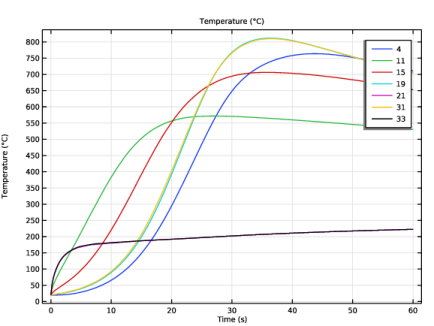
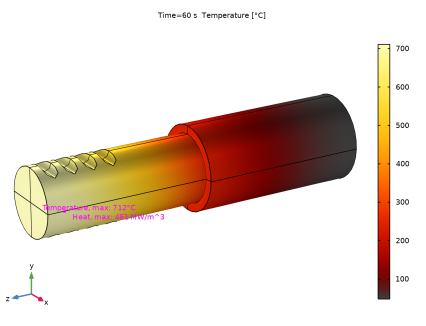
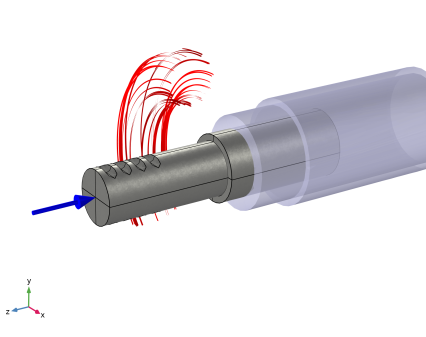
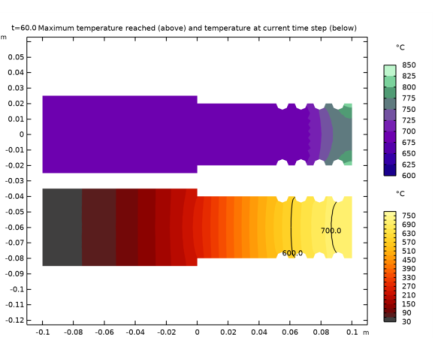
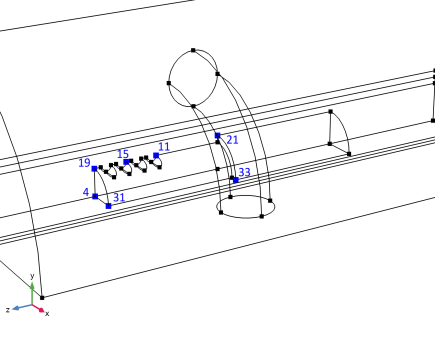 . The edge points 4, 19, and 31 reach the highest temperatures.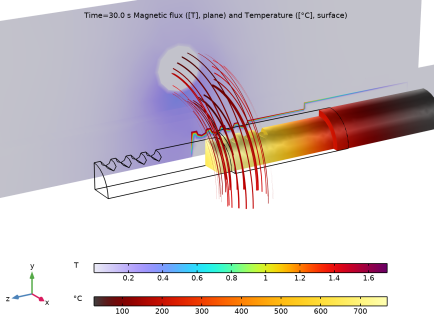
|
1
|
|
2
|
|
3
|
Click Add.
|
|
4
|
|
5
|
Click Add.
|
|
6
|
In the Select Physics tree, select Mathematics > Deformed Mesh > Moving Mesh > Prescribed Deformation.
|
|
7
|
Click Add.
|
|
8
|
Click
 Study. Study. |
|
9
|
|
10
|
Click
 Done. Done. |
|
1
|
|
2
|
|
3
|
Click
 Load from File. Load from File. |
|
4
|
Browse to the model’s Application Libraries folder and double-click the file induction_heating_curie_movement_parameters.txt.
|
|
1
|
|
2
|
|
3
|
|
4
|
Click
 Load from File. Load from File. |
|
5
|
Browse to the model’s Application Libraries folder and double-click the file induction_heating_curie_movement_mur_of_B.txt.
|
|
6
|
|
7
|
In the Argument table, enter the following settings:
|
|
1
|
|
2
|
|
3
|
|
4
|
|
5
|
|
6
|
|
7
|
|
1
|
|
2
|
|
3
|
|
4
|
|
1
|
|
2
|
|
3
|
|
4
|
|
5
|
|
1
|
|
2
|
|
3
|
|
4
|
|
1
|
|
2
|
|
3
|
|
4
|
|
5
|
|
6
|
|
7
|
Click to expand the Layers section. In the table, enter the following settings:
|
|
1
|
|
2
|
|
3
|
|
4
|
|
5
|
|
6
|
Click to expand the Layers section. In the table, enter the following settings:
|
|
1
|
|
2
|
|
3
|
Click the Angles button.
|
|
4
|
|
5
|
Locate the Revolution Axis section. Find the Direction of revolution axis subsection. In the xw text field, type 1.
|
|
6
|
|
1
|
|
2
|
|
3
|
|
4
|
|
1
|
|
2
|
|
3
|
|
4
|
|
5
|
|
6
|
Locate the Layers section. In the table, enter the following settings:
|
|
7
|
Clear the Layers on bottom checkbox.
|
|
8
|
Select the Layers on top checkbox.
|
|
1
|
|
2
|
|
3
|
|
4
|
|
5
|
|
1
|
|
2
|
|
3
|
|
4
|
|
1
|
|
2
|
|
3
|
|
4
|
Clear the Keep interior boundaries checkbox.
|
|
1
|
|
2
|
|
3
|
Click the Angles button.
|
|
4
|
|
5
|
Locate the Revolution Axis section. Find the Direction of revolution axis subsection. In the xw text field, type 1.
|
|
6
|
|
1
|
|
2
|
|
3
|
|
4
|
|
5
|
|
6
|
|
7
|
|
1
|
|
2
|
Select the object cyl1 only.
|
|
3
|
|
4
|
|
5
|
|
1
|
|
2
|
|
3
|
|
4
|
|
5
|
|
6
|
Locate the Difference section. Click to select the
 Activate Selection toggle button for Objects to subtract. Activate Selection toggle button for Objects to subtract. |
|
7
|
Select the objects arr1(1,1,1), arr1(1,1,2), arr1(1,1,3), and arr1(1,1,4) only. That is, all four small cylinders.
|
|
8
|
Locate the Selections of Resulting Entities section. Select the Resulting objects selection checkbox.
|
|
9
|
|
1
|
|
2
|
|
3
|
|
4
|
Locate the Selections of Resulting Entities section. Select the Resulting objects selection checkbox.
|
|
1
|
|
2
|
|
3
|
|
4
|
Clear the Fast pair detection for stacked objects checkbox.
|
|
5
|
|
6
|
|
7
|
|
1
|
|
2
|
|
3
|
|
4
|
|
5
|
Click OK.
|
|
1
|
|
2
|
|
3
|
|
1
|
|
2
|
|
3
|
|
4
|
|
5
|
|
6
|
Click OK.
|
|
7
|
|
8
|
|
9
|
|
10
|
Click OK.
|
|
1
|
|
2
|
|
1
|
|
2
|
|
3
|
|
4
|
|
5
|
|
6
|
|
7
|
|
8
|
|
9
|
|
10
|
Locate the Output Entities section. From the Include entity if list, choose All vertices inside cylinder.
|
|
1
|
|
2
|
|
3
|
|
4
|
|
5
|
|
1
|
|
2
|
|
3
|
Select the Wireframe rendering checkbox.
|
|
4
|
Clear the Show grid checkbox.
|
|
5
|
Select the Lock camera checkbox.
|
|
1
|
|
2
|
|
3
|
|
4
|
|
5
|
|
6
|
|
7
|
|
8
|
|
9
|
|
10
|
|
11
|
|
12
|
|
1
|
|
2
|
|
3
|
|
4
|
|
5
|
|
6
|
|
7
|
|
8
|
|
9
|
|
10
|
|
11
|
|
12
|
|
13
|
|
1
|
In the Model Builder window, under Component 1 (comp1) > Moving Mesh click Prescribed Deformation 1.
|
|
2
|
|
3
|
|
4
|
|
1
|
|
2
|
|
3
|
|
1
|
|
2
|
|
3
|
|
1
|
|
2
|
|
3
|
Click
 Add. Add. |
|
4
|
|
5
|
Click OK.
|
|
1
|
|
2
|
|
3
|
|
4
|
|
5
|
|
1
|
In the Model Builder window, expand the Component 1 (comp1) > Magnetic Fields (mf) > Domain Coil 1 > Geometry Analysis 1 node, then click Input 1.
|
|
2
|
|
3
|
|
1
|
|
2
|
|
3
|
|
1
|
|
2
|
|
3
|
|
4
|
Locate the Constitutive Relation B-H section. From the μr list, choose User defined. In the associated text field, type 1+murOfB(mf.normB)*CuriePermFact(T).
|
|
1
|
|
2
|
|
3
|
|
4
|
|
1
|
In the Model Builder window, under Component 1 (comp1) > Heat Transfer in Solids (ht) click Solid 1.
|
|
2
|
|
3
|
From the Cp list, choose User defined. In the associated text field, type (440+2e5*CurieHeatFact(T))*1[J/(kg*K)].
|
|
1
|
|
2
|
|
3
|
Select the Disconnect pair checkbox.
|
|
1
|
|
2
|
|
3
|
|
4
|
|
5
|
|
1
|
|
2
|
|
3
|
|
4
|
Locate the Surface-to-Ambient Radiation section. From the ε list, choose User defined. In the associated text field, type 0.9.
|
|
1
|
|
2
|
|
3
|
|
4
|
|
1
|
Go to the Add Material window.
|
|
2
|
|
3
|
Click the Add to Component button in the window toolbar.
|
|
4
|
|
5
|
Click the Add to Component button in the window toolbar.
|
|
6
|
|
7
|
Click the Add to Component button in the window toolbar.
|
|
8
|
|
1
|
|
2
|
|
1
|
|
2
|
|
3
|
|
1
|
|
2
|
|
3
|
From the list, choose User-controlled mesh.
|
|
4
|
|
1
|
|
2
|
|
3
|
|
4
|
|
5
|
|
1
|
|
3
|
|
4
|
|
1
|
|
3
|
|
4
|
|
1
|
|
2
|
|
3
|
|
1
|
|
2
|
|
3
|
In the Settings window for Distribution, in the Graphics window toolbar, click
 next to next to  Go to Default View, then choose Go to View 5. Go to Default View, then choose Go to View 5.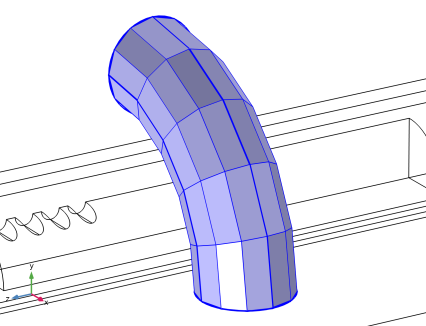 |
|
1
|
|
2
|
|
3
|
|
4
|
|
5
|
|
6
|
Locate the Element Size Parameters section.
|
|
7
|
|
1
|
|
2
|
|
3
|
|
4
|
|
5
|
|
6
|
|
1
|
|
2
|
In the Settings window for Size, in the Graphics window toolbar, click
 next to next to  Go to Default View, then choose Go to View 4. Go to Default View, then choose Go to View 4. |
|
3
|
|
5
|
|
6
|
Locate the Element Size Parameters section.
|
|
7
|
|
8
|
|
1
|
|
2
|
|
3
|
|
4
|
|
1
|
|
2
|
|
3
|
|
4
|
|
5
|
|
6
|
|
7
|
|
8
|
In the Settings window for Mesh, in the Graphics window toolbar, click
 next to next to  Go to Default View, then choose Go to View 4. Go to Default View, then choose Go to View 4.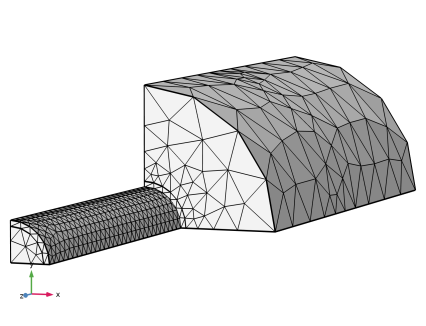 |
|
1
|
|
2
|
|
3
|
|
1
|
|
2
|
Drag and drop above Step 2: Frequency Domain.
|
|
1
|
|
2
|
|
3
|
|
1
|
|
2
|
In the Model Builder window, expand the Solution 1 (sol1) node, then click Compile Equations: Frequency Domain.
|
|
3
|
|
4
|
Select the Split complex variables in real and imaginary parts checkbox.
|
|
5
|
Click
 Run. Run. |
|
1
|
|
2
|
|
3
|
|
4
|
|
5
|
|
1
|
|
2
|
In the Settings window for Volume, click Replace Expression in the upper-right corner of the Expression section. From the menu, choose Component 1 (comp1) > Magnetic Fields > Heating and losses > mf.Qrh - Volumetric loss density, electric - W/m³.
|
|
3
|
|
4
|
|
1
|
|
2
|
|
3
|
|
1
|
|
2
|
|
3
|
|
4
|
|
1
|
|
2
|
|
3
|
|
1
|
|
2
|
|
3
|
|
1
|
|
2
|
Go to the Add Study window.
|
|
3
|
Find the Studies subsection. In the Select Study tree, select Preset Studies for Selected Multiphysics > Frequency–Transient.
|
|
4
|
Click the Add Study button in the window toolbar.
|
|
5
|
|
1
|
|
2
|
|
1
|
|
2
|
Drag and drop above Step 2: Frequency–Transient.
|
|
3
|
In the Settings window for Coil Geometry Analysis, click to expand the Values of Dependent Variables section.
|
|
4
|
Find the Values of variables not solved for subsection. From the Settings list, choose User controlled.
|
|
5
|
|
6
|
|
1
|
|
2
|
|
3
|
|
4
|
|
1
|
|
2
|
In the Model Builder window, expand the Solution 3 (sol3) node, then click Compile Equations: Frequency–Transient.
|
|
3
|
|
4
|
Select the Split complex variables in real and imaginary parts checkbox.
|
|
5
|
In the Model Builder window, under Induction Heating Moving Load > Solver Configurations > Solution 3 (sol3) click Dependent Variables 2.
|
|
6
|
|
7
|
|
8
|
In the Model Builder window, under Induction Heating Moving Load > Solver Configurations > Solution 3 (sol3) click Time-Dependent Solver 1.
|
|
9
|
|
10
|
|
11
|
Right-click Induction Heating Moving Load > Solver Configurations > Solution 3 (sol3) > Time-Dependent Solver 1 and choose Fully Coupled.
|
|
12
|
|
13
|
|
14
|
Click
 Run. Run. |
|
1
|
|
2
|
|
3
|
Locate the Data section. From the Dataset list, choose Induction Heating Moving Load/Solution 3 (sol3).
|
|
1
|
|
2
|
In the Settings window for Point Graph, in the Graphics window toolbar, click
 next to next to  Go to Default View, then choose Go to View 5. Go to Default View, then choose Go to View 5. |
|
4
|
|
5
|
|
6
|
|
7
|
|
1
|
|
2
|
Right-click Results > Datasets > Induction Heating Moving Load/Solution 3 (sol3) and choose Duplicate.
|
|
3
|
In the Settings window for Solution, type Induction Heating Moving Load/Solution 2 (Ferromagnetic Domain) in the Label text field.
|
|
4
|
|
1
|
|
2
|
|
3
|
|
4
|
|
1
|
|
2
|
|
3
|
From the Dataset list, choose Induction Heating Moving Load/Solution 2 (Ferromagnetic Domain) (sol3).
|
|
4
|
|
1
|
|
2
|
|
3
|
|
1
|
In the Model Builder window, under Results > Datasets right-click Initialization (Magnetic)/Solution 1 (sol1) and choose Duplicate.
|
|
2
|
In the Settings window for Solution, type Initialization (Magnetic)/Solution 1 (Current Domain) in the Label text field.
|
|
1
|
|
2
|
|
3
|
|
4
|
|
1
|
|
2
|
|
3
|
|
4
|
|
5
|
|
6
|
|
7
|
|
8
|
Clear the Description checkbox.
|
|
9
|
Clear the Unit checkbox.
|
|
10
|
|
11
|
|
1
|
|
2
|
|
3
|
|
4
|
|
5
|
|
6
|
|
1
|
|
2
|
|
3
|
|
4
|
|
5
|
|
6
|
|
7
|
Select the Include unit checkbox.
|
|
8
|
|
9
|
|
10
|
|
1
|
|
2
|
|
3
|
|
4
|
|
5
|
|
6
|
|
7
|
|
1
|
|
2
|
|
3
|
From the Dataset list, choose Induction Heating Moving Load/Solution 2 (Ferromagnetic Domain) (sol3).
|
|
4
|
|
1
|
|
2
|
|
3
|
|
4
|
|
5
|
Select the Show trailing zeros checkbox.
|
|
6
|
|
7
|
In the Title text area, type Maximum temperature reached (above) and temperature at current time step (below).
|
|
8
|
|
9
|
|
10
|
|
11
|
|
1
|
|
2
|
|
3
|
|
4
|
|
5
|
|
6
|
|
7
|
|
8
|
|
9
|
|
1
|
|
2
|
|
3
|
|
4
|
|
1
|
|
2
|
|
3
|
|
4
|
|
5
|
Locate the Scale section.
|
|
6
|
|
1
|
|
2
|
|
3
|
|
4
|
|
5
|
|
6
|
|
7
|
|
1
|
|
2
|
|
3
|
|
4
|
|
5
|
Locate the Scale section.
|
|
6
|
|
1
|
|
2
|
|
3
|
Clear the Color legend checkbox.
|
|
1
|
|
2
|
|
3
|
|
1
|
|
2
|
|
3
|
|
4
|
|
5
|
|
6
|
|
7
|
|
8
|
|
9
|
|
10
|
Clear the Color legend checkbox.
|
|
1
|
|
2
|
|
3
|
|
4
|
|
5
|
Locate the Scale section.
|
|
6
|
|
1
|
In the Model Builder window, under Results > Temperature Cross Sections right-click Contour 5 and choose Duplicate.
|
|
2
|
|
3
|
|
4
|
|
1
|
|
2
|
|
3
|
|
4
|
|
5
|
|
1
|
|
2
|
|
3
|
Locate the Data section. From the Dataset list, choose Induction Heating Moving Load/Solution 3 (sol3).
|
|
4
|
|
5
|
|
6
|
|
7
|
|
8
|
Select the Show trailing zeros checkbox.
|
|
9
|
|
10
|
Find the User subsection. In the Suffix text field, type Magnetic flux ([T], plane) and Temperature ([°C], surface).
|
|
11
|
|
12
|
Clear the Type checkbox.
|
|
13
|
Clear the Unit checkbox.
|
|
14
|
|
15
|
|
16
|
Clear the Plot dataset edges checkbox.
|
|
17
|
|
18
|
|
1
|
|
2
|
|
3
|
|
4
|
|
1
|
|
2
|
|
3
|
|
4
|
Locate the Scale section.
|
|
5
|
|
1
|
|
2
|
|
3
|
|
4
|
|
5
|
|
1
|
|
2
|
|
3
|
|
1
|
|
2
|
|
3
|
|
4
|
|
5
|
|
6
|
|
1
|
|
2
|
|
3
|
|
4
|
|
1
|
|
2
|
In the Settings window for Streamline, click Replace Expression in the upper-right corner of the Expression section. From the menu, choose Component 1 (comp1) > Magnetic Fields > Currents and charge > mf.Jx,...,mf.Jz - Current density (spatial frame).
|
|
3
|
Locate the Streamline Positioning section. From the Positioning list, choose Starting-point controlled.
|
|
4
|
|
5
|
Locate the Coloring and Style section. Find the Line style subsection. From the Type list, choose Ribbon.
|
|
1
|
|
2
|
|
3
|
|
4
|

















 next to