PDF

A Geoelectrical Forward Problem
Introduction
Electrical resistivity tomography (ERT) is a geophysical method used for imaging the resistivity of soil and rocks in the subsurface, based on measurements of electrical quantities by means of electrodes at the surface or inside boreholes. The method has its roots in the vertical electrical sounding techniques (VES) (Ref. 1) and exploits the fact that resistivity varies over several orders of magnitude in different types of rock. In particular, it depends on the conductivity and quantity of fluids and minerals contained in the rocks.
ERT is today routinely applied in order to investigate targets from diverse applications such as mining, oil and gas exploration, groundwater, waste disposal, landslides, dams and embankments, geological faults, volcanoes, and archaeology. The method is closely related to electrical impedance tomography (EIT) as it is used in medical imaging or nondestructive material testing. One peculiarity of geophysical ERT is, however, that the boundaries of the target region are typically far away from the measurement system, virtually at infinity.
Typically, the physical domain in which the geoelectrical survey takes place is so large that it can be considered unbounded to the sides and the bottom. This property must be properly taken into account during modeling.
A single geoelectrical measurement involves the injection of a current I through two point-like electrodes, typically called C1 and C2, and the measurements of the potential difference V12 between two other electrodes (P1 and P2) resulting in a measured resistance R = V12/I. This application describes the 3D ERT forward problem for 25 electrodes in a homogeneous ground of resistivity 100 Ω⋅m, and compares the result with the analytical solution.
Although technically a low-frequency alternating current is used, inductive and capacitive effects are typically ignored and the governing equation is
(1)
Here, V represents the electric potential, σ is the subsurface electric conductivity, and are point current sources from the electrodes located at positions rC1 and rC2 (actually, one electrode acts as current source, and the other as current sink).


The goal of ERT is to determine the unknown subsurface resistivity from measurements with a multitude of electrode configurations, R(C1,C2,P1,P2)i, i = 1,…, N. The procedure typically involves two steps:
The procedure is repeated iteratively until an acceptable fit between predicted and measured data, and possibly an agreement with additional constraints (for example, smoothness or a priori information), are found.
While the forward step is well defined by Equation 1, many algorithms have been proposed for the inverse step. Most commonly, gradient-based inverse methods are used (Ref. 2), which require the calculation of a parameter sensitivity matrix S that describes how the measured resistance would be affected by the change of a parameter (typically the resistivity in a certain subsurface region).
It can be shown (Ref. 3) that the measured resistance can also be expressed as
with the sensitivity function Si defined as
(2)
which is given by the reciprocity theorem (Ref. 4). Here, rC1 and rC2 designate the positions of the electrodes injecting the electric current into the ground, and rP1 and rP2 are the position for the electrodes measuring the difference in electric potential V12, for a given configuration “i”.
Model Definition
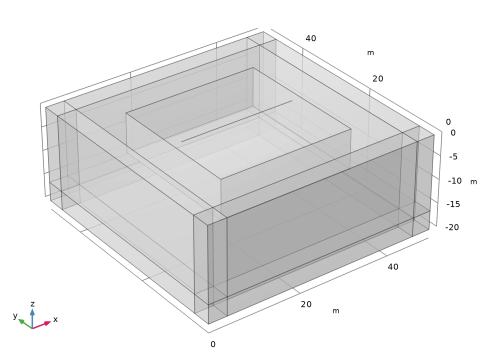
The model illustrates the forward step and the sensitivity calculation for a typical situation of near-surface ERT with 25 point electrodes spaced one meter from each other. The model is geometrically parameterized to be easily adaptable to various sizes.
At the sides and at the bottom of the computational region, the infinite element domains account for the fact that the domain is not bounded.
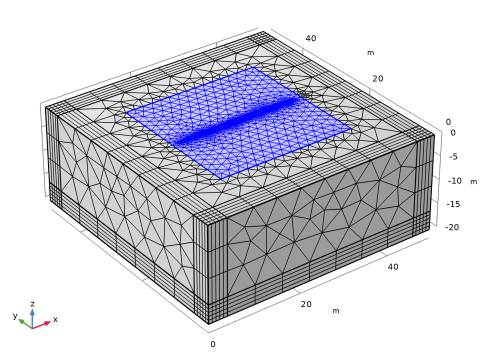
Figure 1: Computational domain. A line of 25 electrodes is placed at the top of a 50-by-50-by-20 meters box bounded by infinite element regions.
As a material, a homogeneous half-space that often serves as a reference model for forward algorithms is used. The electric conductivity is σ = 0.01 S/m, which corresponds to a resistivity of 100 Ωm.
The solution is compared to the analytical solution
(3)
To achieve sufficient accuracy, the mesh density is refined directly at the electrodes and in the region of particular interest underneath them. A swept mesh is used in infinite element regions; see Figure 2.
Figure 2: Refined mesh around the electrodes and swept mesh in infinite element regions.
Use the continuation solver to switch between different electrode configurations.
Results and Discussion
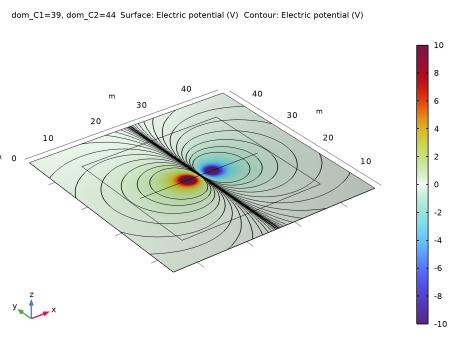
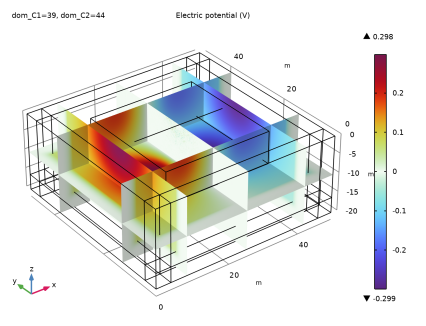
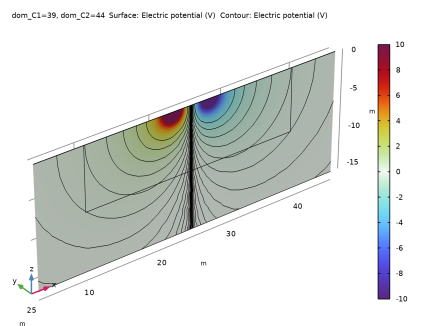
Figure 3 shows the potential distribution around the active pair for the second of the two electrode configurations that the model solves for.
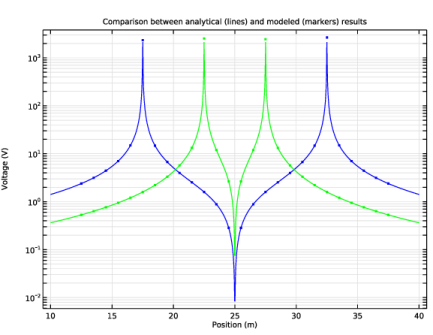
Figure 4 compares the simulation results for the potential at the electrode positions for both electrode configurations to the analytical solution given by Equation 3.
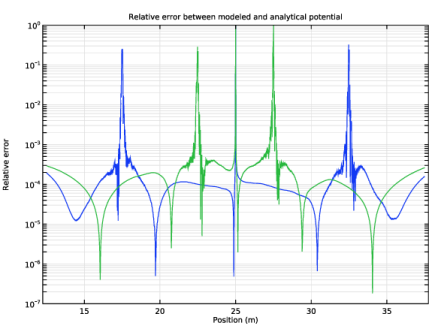
Figure 5 shows the relative error of the computed solutions with respect to the analytical solutions given by Equation 3 for the two electrode configurations. The plot is taken along the line joining the point sources.
Figure 3: Electric potential around the active electrode pair.
Figure 4: Comparison between analytical (lines) and modeled (markers) results.
Figure 5: The relative error of the computed solutions with respect to the analytical solutions for the two electrode configurations. The plot is taken along the line joining the point sources.
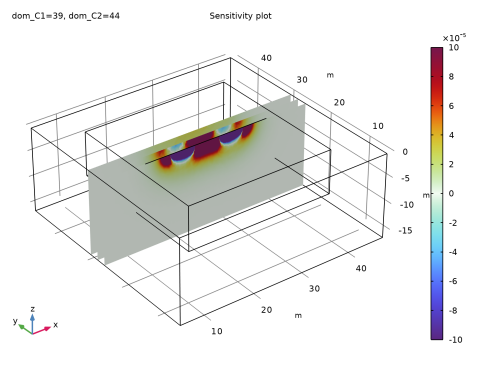
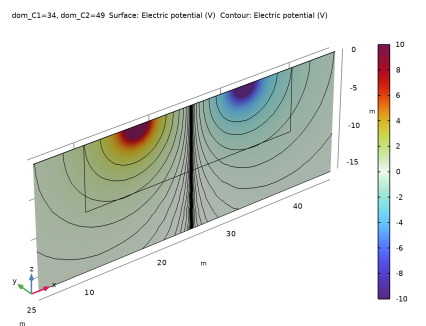
The model solves for two current dipole situations with a common midpoint. Together they allow the calculation of the sensitivity of a Wenner-α configuration according to Equation 2.
S = with(1,ec.Jx)*with(2,ec.Jx) + with(1,ec.Jy)*with(2,ec.Jy) +
    with(1,ec.Jz)*with(2,ec.Jz))
The with operator makes reference to the modeled configuration (1 or 2 in the first argument of the operator). Figure 3 shows a plot of this expression.
Figure 6: Sensitivity plot.
References
1. F. Wenner, “A Method of Measuring Earth Resistivity,” National Bureau of Standards, Bull. 12(4) 258, pp. 478–496, 1915.
2. M.H. Loke and R.D. Barker, “Practical techniques for 3D resistivity surveys and data inversion,” Geophysical Prospecting, vol. 44, pp. 499–523, 1996.
3. S. Friedel, “Resolution, Stability and Efficiency of Resistivity Tomography Estimated from a Generalized Inverse Approach,” Geophys. J. Int., vol. 153, pp. 305–316, 2003.
4. D.B. Geselowitz, “An application of electrocardiographic lead theory to impedance plethysmography,” IEEE Trans. Biomed. Eng. BME-18, pp. 38–41, 1971.
Application Library path: ACDC_Module/Devices,_Resistive/geoelectrics
Modeling Instructions
From the File menu, choose New.
New
In the New window, click  Model Wizard.
Model Wizard
1
In the Model Wizard window, click  3D.
2
In the Select Physics tree, select AC/DC > Electric Fields and Currents > Electric Currents (ec).
3
Click Add.
4
Click  Study.
5
In the Select Study tree, select General Studies > Stationary.
6
Geometry 1
Add parameters that are useful for defining physical and geometric quantities.
Global Definitions
Parameters 1
1
In the Model Builder window, under Global Definitions click Parameters 1.
2
In the Settings window for Parameters, locate the Parameters section.
3
100 Ω·m
Add two extra parameters which are going to be useful for sweeping among excitations applied to different entities. For further details, look at coming comments in these instructions, where the parameters are used.
4
Geometry 1
Block 1 (blk1)
1
In the Geometry toolbar, click  Block.
2
In the Settings window for Block, locate the Size and Shape section.
3
In the Width text field, type L.
4
In the Depth text field, type W.
5
In the Height text field, type H.
6
Locate the Position section. In the z text field, type -H.
7
Click to expand the Layers section. In the table, enter the following settings:
8
Find the Layer position subsection. Select the Left checkbox.
9
Select the Right checkbox.
10
Select the Front checkbox.
11
Select the Back checkbox.
12
Click  Build Selected.
Polygon 1 (pol1)
1
In the Geometry toolbar, click  More Primitives and choose Polygon.
2
In the Settings window for Polygon, locate the Coordinates section.
3
From the Data source list, choose Vectors.
4
In the x text field, type range(x0,a,x0+N*a).
5
In the y text field, type y0+0*range(0,1,N).
6
In the z text field, type 0*range(0,1,N).
7
Click  Build Selected.
Block 2 (blk2)
1
In the Geometry toolbar, click  Block.
2
In the Settings window for Block, locate the Size and Shape section.
3
In the Width text field, type (N+4)*a.
4
In the Depth text field, type (N+4)*a.
5
In the Height text field, type N*a/3.
6
Locate the Position section. In the x text field, type x0-2*a.
7
In the y text field, type y0-(N+4)*a/2.
8
In the z text field, type -N*a/3.
9
Click  Build Selected.
Form Union (fin)
1
In the Model Builder window, click Form Union (fin).
2
In the Settings window for Form Union/Assembly, click  Build Selected.
3
Click the  Go to Default View button in the Graphics toolbar.
4
Click the  Transparency button in the Graphics toolbar to see the interior of the geometry.
The completed geometry is shown in Figure 1.
5
Click the  Transparency button in the Graphics toolbar to return to the default state.
Definitions
Analytic 1 (an1)
1
In the Definitions toolbar, click  Analytic.
2
In the Settings window for Analytic, type V_ref in the Function name text field.
3
Locate the Definition section. In the Expression text field, type 1[A]*rho0/(2*pi)*(1/abs(x-x1)-1/abs(x-x2)).
4
In the Arguments text field, type x, x1, x2.
The analytical solution given by V_ref will be used to validate the computed solution.
Ground Boundaries
1
In the Definitions toolbar, click  Explicit.
2
In the Settings window for Explicit, locate the Input Entities section.
3
From the Geometric entity level list, choose Boundary.
4
Select all the exterior boundaries located in the ground. This operation can be performed quickly by selecting the Group by continuous tangent checkbox, then clicking on one boundary from each of the sides and the bottom of the box.
5
In the Label text field, type Ground Boundaries.
Infinite Element Domains
1
In the Definitions toolbar, click  Explicit.
2
3
In the Settings window for Explicit, type Infinite Element Domains in the Label text field.
Infinite Elements Boundaries
1
In the Definitions toolbar, click  Explicit.
2
3
In the Settings window for Explicit, locate the Output Entities section.
4
From the Output entities list, choose Adjacent boundaries.
5
Select the Interior boundaries checkbox.
6
In the Label text field, type Infinite Elements Boundaries.
Infinite Element Domain 1 (ie1)
1
In the Definitions toolbar, click  Infinite Element Domain.
2
In the Settings window for Infinite Element Domain, locate the Domain Selection section.
3
From the Selection list, choose Infinite Element Domains.
Set the physical size of the infinite elements domain to be 100 times the size of the geometry. Larger sizes can give even more accurate results but will require a more refined mesh to be resolved.
4
Locate the Scaling section. In the Physical width text field, type 1e2*dGeomChar.
Materials
100 Ohmm Homogeneous
1
In the Model Builder window, under Component 1 (comp1) right-click Materials and choose Blank Material.
2
In the Settings window for Material, locate the Material Contents section.
3
4
In the Label text field, type 100 Ohmm Homogeneous.
Electric Currents (ec)
Point Current Source 1
1
In the Physics toolbar, click  Points and choose Point Current Source.
2
3
In the Settings window for Point Current Source, locate the Point Current Source section.
4
In the Qj,p text field, type 1*(dom==dom_C1)-1*(dom==dom_C2).
The dom variable is a built-in variable that represents the domain number. It uniquely identifies each entity within the specified dimension. In this model, it is used to select different points, since on point 1 it has a value of 1, on point 2 it has a value of 2, and so on. The == operator, together with a sweep over a parameter, allows for scanning over different sources, identifying them by their domain number. Point number dom_C1 injects a unit charge. Point number dom_C2 extracts a unit charge. See the COMSOL Multiphysics Reference Manual for more information about built-in variables and operators.
5
Locate the Point Selection section. Click  Create Selection.
6
In the Create Selection dialog, type Point sources in the Selection name text field.
7
Ground 1
1
In the Physics toolbar, click  Boundaries and choose Ground.
2
In the Settings window for Ground, locate the Boundary Selection section.
3
From the Selection list, choose Ground Boundaries.
Mesh 1
In the Model Builder window, under Component 1 (comp1) right-click Mesh 1 and choose Edit Physics-Induced Sequence.
Size 1
1
In the Model Builder window, right-click Free Tetrahedral 1 and choose Size.
2
In the Settings window for Size, locate the Geometric Entity Selection section.
3
From the Geometric entity level list, choose Edge.
4
5
Locate the Element Size section. Click the Custom button.
6
Locate the Element Size Parameters section.
7
Select the Maximum element size checkbox. In the associated text field, type 0.05.
Size 2
1
Right-click Free Tetrahedral 1 and choose Size.
2
3
In the Settings window for Size, locate the Element Size section.
4
Click the Custom button.
5
Locate the Element Size Parameters section.
6
Select the Maximum element size checkbox. In the associated text field, type 2.
7
Click  Build All.
The resulting mesh is shown in Figure 2.
Study 1
Step 1: Stationary
1
In the Model Builder window, under Study 1 click Step 1: Stationary.
2
In the Settings window for Stationary, click to expand the Study Extensions section.
Add a parametric sweep on the charge source and sink. It can be seen that only one Jacobian is going to be computed, making the solution time for subsequent parameters after the first one faster. A further time improvement can be achieved by forcing a direct solver, as the whole LU decomposition of first step would be reused in that case. This improved solution time comes at the cost of a larger memory usage.
3
Select the Auxiliary sweep checkbox.
4
5
6
7
The continuation solver is not needed for this sweep.
8
From the Run continuation for list, choose No parameter.
9
In the Study toolbar, click  Compute.
Results
Electric Potential (ec)
The default volume plot of the electric potential is useful when checking for general modeling errors. To adapt the plot for this application, modify it as follows:
Volume 1
1
In the Model Builder window, expand the Electric Potential (ec) node.
2
Right-click Volume 1 and choose Delete.
Multislice 1
1
In the Electric Potential (ec) toolbar, click  More Plots and choose Multislice.
2
In the Settings window for Multislice, locate the Multiplane Data section.
3
Find the x-planes subsection. In the Planes text field, type 3.
4
Find the y-planes subsection. In the Planes text field, type 2.
5
Locate the Coloring and Style section. From the Color table list, choose Dipole.
6
In the Electric Potential (ec) toolbar, click  Plot.
Follow the instructions below to create tailored plots for this application.
Definitions
Hide for Physics 1
1
In the Model Builder window, right-click View 1 and choose Hide for Physics.
2
In the Settings window for Hide for Physics, locate the Geometric Entity Selection section.
3
From the Selection list, choose Infinite Element Domains.
Hide for Physics 2
1
Right-click View 1 and choose Hide for Physics.
2
In the Settings window for Hide for Physics, locate the Geometric Entity Selection section.
3
From the Geometric entity level list, choose Boundary.
4
From the Selection list, choose Infinite Elements Boundaries.
Start by reproducing the sensitivity plot shown in Figure 3.
Results
3D Plot Group 3
In the Results toolbar, click  3D Plot Group.
Slice 1
1
Right-click 3D Plot Group 3 and choose Slice.
2
In the Settings window for Slice, locate the Expression section.
3
In the Expression text field, type with(1,ec.Jx)*with(2,ec.Jx)+with(1,ec.Jy)*with(2,ec.Jy)+with(1,ec.Jz)*with(2,ec.Jz).
4
Locate the Plane Data section. From the Plane list, choose zx-planes.
5
From the Entry method list, choose Coordinates.
6
In the y-coordinates text field, type 25 27 29.
7
Click to expand the Range section. Select the Manual color range checkbox.
8
In the Minimum text field, type -1E-4.
9
In the Maximum text field, type 1E-4.
10
Locate the Coloring and Style section. From the Color table list, choose Dipole.
11
In the 3D Plot Group 3 toolbar, click  Plot.
Sensitivity
1
In the Model Builder window, click 3D Plot Group 3.
2
In the Settings window for 3D Plot Group, click to expand the Title section.
3
From the Title type list, choose Manual.
4
In the Title text area, type Sensitivity plot.
5
In the Label text field, type Sensitivity.
Next, plot the electric potential on the surface.
Study 1/Solution 1 (2) (sol1)
1
In the Model Builder window, expand the Results > Datasets node.
2
Right-click Results > Datasets > Study 1/Solution 1 (sol1) and choose Duplicate.
Selection
1
In the Results toolbar, click  Attributes and choose Selection.
2
In the Settings window for Selection, locate the Geometric Entity Selection section.
3
From the Geometric entity level list, choose Boundary.
4
Electric Potential at the Surface
1
In the Results toolbar, click  3D Plot Group.
2
In the Settings window for 3D Plot Group, type Electric Potential at the Surface in the Label text field.
3
Locate the Data section. From the Dataset list, choose Study 1/Solution 1 (2) (sol1).
Surface 1
1
Right-click Electric Potential at the Surface and choose Surface.
2
In the Settings window for Surface, click to expand the Range section.
3
Select the Manual color range checkbox.
4
In the Minimum text field, type -10.
5
In the Maximum text field, type 10.
6
Locate the Coloring and Style section. From the Color table list, choose Dipole.
Contour 1
1
In the Model Builder window, right-click Electric Potential at the Surface and choose Contour.
2
In the Settings window for Contour, locate the Levels section.
3
From the Entry method list, choose Levels.
4
In the Levels text field, type -10^(range(0,-0.2,-3)) 10^(range(-3,0.2,0)).
5
Locate the Coloring and Style section. From the Coloring list, choose Uniform.
6
From the Color list, choose Black.
7
Clear the Color legend checkbox.
8
In the Electric Potential at the Surface toolbar, click  Plot.
9
Click the  Go to Default View button in the Graphics toolbar.
Cut Plane 1
1
In the Results toolbar, click  Cut Plane.
2
In the Settings window for Cut Plane, locate the Plane Data section.
3
From the Plane list, choose zx-planes.
4
In the y-coordinate text field, type y0.
Electric Potential, Slice
1
In the Results toolbar, click  3D Plot Group.
2
In the Settings window for 3D Plot Group, type Electric Potential, Slice in the Label text field.
3
Locate the Data section. From the Dataset list, choose Cut Plane 1.
4
From the Parameter value (dom_C1,dom_C2) list, choose 1: dom_C1=34, dom_C2=49.
Surface 1
1
Right-click Electric Potential, Slice and choose Surface.
2
In the Settings window for Surface, locate the Range section.
3
Select the Manual color range checkbox.
4
In the Minimum text field, type -10.
5
In the Maximum text field, type 10.
6
Locate the Coloring and Style section. From the Color table list, choose Dipole.
Contour 1
1
In the Model Builder window, right-click Electric Potential, Slice and choose Contour.
2
In the Settings window for Contour, locate the Levels section.
3
From the Entry method list, choose Levels.
4
In the Levels text field, type -10^(range(0.4,-0.2,-3)) 10^(range(-3,0.2,0.4)).
5
Locate the Coloring and Style section. From the Coloring list, choose Uniform.
6
From the Color list, choose Black.
7
Clear the Color legend checkbox.
8
In the Electric Potential, Slice toolbar, click  Plot.
Electric Potential, Slice
1
In the Model Builder window, click Electric Potential, Slice.
2
In the Settings window for 3D Plot Group, locate the Data section.
3
From the Parameter value (dom_C1,dom_C2) list, choose 2: dom_C1=39, dom_C2=44.
4
In the Electric Potential, Slice toolbar, click  Plot.
Proceed to reproduce the comparison plot in Figure 4. Begin by adding a Function dataset for the analytic solution.
Grid 1D 1
1
In the Results toolbar, click  More Datasets and choose Grid > Grid 1D.
2
In the Settings window for Grid 1D, locate the Data section.
3
From the Source list, choose Function.
4
From the Function list, choose Analytic 1 (V_ref).
5
Locate the Parameter Bounds section. In the Minimum text field, type 10.
6
In the Maximum text field, type 40.
Result Comparison
1
In the Results toolbar, click  1D Plot Group.
2
In the Settings window for 1D Plot Group, type Result Comparison in the Label text field.
3
Click to expand the Title section. From the Title type list, choose Manual.
4
In the Title text area, type Comparison between analytical (lines) and modeled (markers) results.
5
Locate the Plot Settings section.
6
Select the x-axis label checkbox. In the associated text field, type Position (m).
7
Select the y-axis label checkbox. In the associated text field, type Voltage (V).
Point Graph 1
1
Right-click Result Comparison and choose Point Graph.
2
In the Settings window for Point Graph, locate the Data section.
3
From the Dataset list, choose Study 1/Solution 1 (1) (sol1).
4
From the Parameter selection (dom_C1, dom_C2) list, choose First.
5
Locate the Selection section. From the Selection list, choose Point sources.
6
Locate the y-Axis Data section. In the Expression text field, type abs(V).
7
Locate the x-Axis Data section. From the Parameter list, choose Expression.
8
In the Expression text field, type x.
9
Click to expand the Coloring and Style section. From the Color list, choose Blue.
10
Click to expand the Legends section.
Point Graph 2
1
Right-click Point Graph 1 and choose Duplicate.
2
In the Settings window for Point Graph, locate the Data section.
3
From the Parameter selection (dom_C1, dom_C2) list, choose Last.
4
Locate the Coloring and Style section. From the Color list, choose Green.
Line Graph 1
1
In the Model Builder window, right-click Result Comparison and choose Line Graph.
2
In the Settings window for Line Graph, locate the Data section.
3
From the Dataset list, choose Grid 1D 1.
4
Locate the y-Axis Data section. In the Expression text field, type abs(V_ref(x,17.5,32.5)).
5
Locate the x-Axis Data section. From the Parameter list, choose Expression.
6
In the Expression text field, type x.
7
Click to expand the Coloring and Style section. From the Color list, choose Blue.
Line Graph 2
1
Right-click Line Graph 1 and choose Duplicate.
2
In the Settings window for Line Graph, locate the y-Axis Data section.
3
In the Expression text field, type abs(V_ref(x,22.5,27.5)).
4
Locate the Coloring and Style section. From the Color list, choose Green.
5
In the Result Comparison toolbar, click  Plot.
Change to log scale.
6
Click the  y-Axis Log Scale button in the Graphics toolbar.
7
In the Result Comparison toolbar, click  Plot.
Finally, reproduce the relative error plots in Figure 5.
Relative Error
1
In the Results toolbar, click  1D Plot Group.
2
In the Settings window for 1D Plot Group, type Relative Error in the Label text field.
3
Locate the Title section. From the Title type list, choose Manual.
4
In the Title text area, type Relative error between modeled and analytical potential.
5
Locate the Plot Settings section.
6
Select the x-axis label checkbox. In the associated text field, type Position (m).
7
Select the y-axis label checkbox. In the associated text field, type Relative error.
8
Locate the Axis section. Select the Manual axis limits checkbox.
9
Select the y-axis log scale checkbox.
10
In the x minimum text field, type 12.25.
11
In the x maximum text field, type 37.75.
12
In the y minimum text field, type 1e-7.
Line Graph 1
1
Right-click Relative Error and choose Line Graph.
2
In the Settings window for Line Graph, locate the Data section.
3
From the Dataset list, choose Study 1/Solution 1 (1) (sol1).
4
From the Parameter selection (dom_C1, dom_C2) list, choose First.
5
Locate the y-Axis Data section. In the Expression text field, type abs(V-V_ref(x,17.5,32.5))/abs(V).
6
7
Locate the x-Axis Data section. From the Parameter list, choose Expression.
8
In the Expression text field, type x.
Line Graph 2
1
Right-click Line Graph 1 and choose Duplicate.
2
In the Settings window for Line Graph, locate the Data section.
3
From the Parameter selection (dom_C1, dom_C2) list, choose Last.
4
Locate the y-Axis Data section. In the Expression text field, type abs(V-V_ref(x,22.5,27.5))/abs(V).
5
In the Relative Error toolbar, click  Plot.