|
2
|
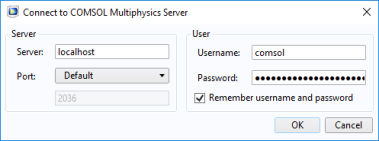
In the COMSOL Desktop, from File menu (Windows users) or from the Options menu (Mac and Linux users), select Client Server > Connect to Server (
 ). ). |
|
2
|
In the COMSOL Desktop, from File menu (Windows users) or from the Options menu (Mac and Linux users), select Client Server > Connect to Server (
). |
 ) from the File menu (Windows users) or from the Options menu (Mac and Linux users). In the Import Application from Server window select the model to import.
 ).
).