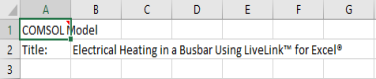
To extract model definitions or results to an Excel® worksheet you need to link the workbook with a model loaded in a COMSOL
server. You can directly open the model from Excel. If it is not already running, this starts a COMSOL Multiphysics server in the background where the model is loaded. You can open any new Model MPH file or open a model already linked in the workbook.
Under the File Excel ribbon tab click
COMSOL to access the COMSOL Backstage view.
Click Open (

), and again
Open (

), then find the model MPH file and click
OK.
If the worksheet already contains a cell link with a model path you can open directly open the associated model. Under the File Excel ribbon tab click
COMSOL to access the COMSOL Backstage view. Select
Open >
Open linked (

), to open the file with the path defined in the cell comment link.
You can choose to open a model from a Model Manager database. Select File inside the Excel user interface, then click
COMSOL to access the COMSOL Backstage view. Click
Open >
Open from database (

), this opens a window where you can click any available Model Manager database (

) to open models from that database. For more details, see
Opening Models from Databases in the
Model Manager Reference Manual. Select a model and click the
Open button (

) to load the model in the COMSOL Multiphysics server and create a link to the model in the worksheet.
Under the File Excel ribbon tab click
COMSOL to access the COMSOL Backstage view. Click
Open (

), and then
Recent (

), to get the list of the recent files open in a Multiphysics Server. Select the desired file and click
OK to load the file in the server and establish the connection with the worksheet.
If the model contains a user defined physics interface created using the COMSOL Physics Builder, you need to save the compiled archive (.jar) in your user home folder
.comsol/v64/archives. Any compressed archive (with extension
.jar) is loaded next time the COMSOL Multiphysics server starts.