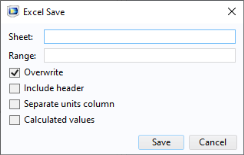
In the Settings window of the feature click the
Save to File button (

), usually located below the table. From the
Save as type list select
Microsoft Excel Workbook (*.xlsx), then specify the desired filename and click
Save. Specify the sheet and cell range for the data export.
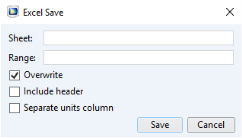
In the Sheet text field enter the worksheet name where to store the data. If no sheet name is defined, the first worksheet of the Excel workbook is selected by default.
In the Range field enter the cell range where data should be written. The range can be either defined using:
Clear the Overwrite checkbox if you want to append the data to the Excel file. Note that you can only append data to empty cells.
Select Include headers to export the table header row together with the data.
Click Save to save to export the data. Excel automatically starts in the background, if available. Excel will close after the export has been performed.
For parameters import select Separate units column to save the units in separate columns. Select
Calculated values to save the parameter values in separate columns.