Copy Domain
Use Copy Domain (2D () or 3D ()) to copy meshes on domains using a rigid body transformation with a scale factor. The Copy Domain operation will automatically select a suitable copy type, or manually select to either copy a set of meshed domains onto each destination domain separately, or to copy each meshed domain onto a single unmeshed domain (as shown in Figure 8-39).
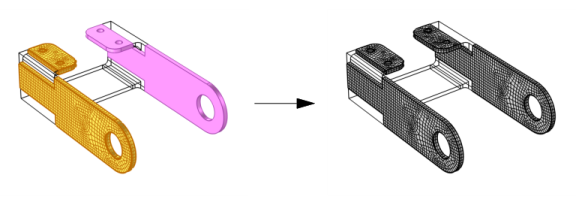
Figure 8-39: Copy the source mesh (yellow) to the destination domains (magenta) with a Copy Domain operation. The image to the right shows the resulting mesh after building the operation.
Requirements:
If you copy between domains with a common boundary, the copy operation mirrors the mesh if the domains are symmetric (see the upper right image in Figure 8-43). If the domains are symmetric but separated from each other, you can enforce a mirrored mesh by adding an Edge Map or a Two-Point Map attribute that controls the orientation of the copied mesh.
To add a Copy Domains node, select one or several meshed source domains and unmeshed destination domains, then choose one of the following:
In The Mesh Toolbar, choose Copy Domain from the Copy () menu.
Right-click the Mesh node and choose Copy Domain from the Copying Operations menu.
Then enter the properties for the copy operation using the following sections:
Source and Destination Domains
It is possible to copy a mesh from one or several source domains onto one or several destination domains. The source must be of exactly the same shape as the corresponding destination, up to a constant scaling factor. More precisely, the distance between any two geometry vertices on the destination is required to be the same, up to a constant scaling factor, as the distance between the corresponding geometry vertices on the source.
Click the Activate Selection button to toggle between turning ON and OFF selections. Select the domains to copy the mesh from in the Graphics window.
The source domains must be connected when the Single copy (all-to-one) option is specified. In an assembly, an identity pair is not sufficient to connect boundaries across parts. Instead, use the Automatic option or consider forming a union of the parts or splitting the destination boundary (using imprints, for example) so that the mesh copy is a one-to-one copy operation using two or more Copy Domain nodes.
Swap Source and Destination
Click the Swap Source and Destination button () to switch source and destination selections. Edge map is available to be switched, if provided.
Type of Copy
For settings information, see Type of Copy for the Copy operation.
Control Entities
Use the Smooth across removed control entities setting to smooth the transition in element size across removed mesh control entities. Choose Automatic (default) to let the algorithm decide when to apply smoothing. If the domains adjacent to the removed mesh control entities contain tetrahedral (3D) or triangular (2D) elements only, the element size transition will be smoothed, otherwise not. Choose On to always smooth the element size transition. For this option, you can specify the number of smoothing iterations in the Number of iterations field. In the Maximum element depth to process field you can specify the maximum element depth, from the removed control entity. Choose Off to not smooth the element size transition.
For tutorials using Copy Domain, see:
Piezoelectric Rate Gyroscope: Application Library path MEMS_Module/Piezoelectric_Devices/piezoelectric_rate_gyroscope.
Vibrations of an Impeller: Application Library path Structural_Mechanics_Module/Dynamics_and_Vibration/impeller.
Bracket — Topology Optimization: Application Library path Optimization_Module/Topology_Optimization/bracket_topology_optimization_stl.