



PDF

Evaluation of Dynamic Coefficients of a Cylindrical Journal Bearing
Introduction
When analyzing rotors, it is common that bearings are modeled through their effective dynamic coefficients about a static equilibrium position. This example demonstrates a method to compute such coefficients for a cylindrical journal bearing. Computed coefficients are compared to analytical values obtained from solving Reynolds equation, using a short bearing approximation. To make the comparison meaningful, the length of the bearing is taken to be much smaller than its diameter.
Model Definition
The cylindrical hydrodynamic journal bearing has a radius of 10 cm, and a length of 2 cm. The angular velocity of the journal is 1000 rad/s, and the clearance between the journal and the bearing is 100 μm. The viscosity and density of the lubricant are taken as 20 mPa·s and 866 kg/m3, respectively. To find the equilibrium position corresponding to different static loads, the journal loading is varied from 10 N to 100,000 N.
Bearing stiffness and damping coefficients are computed for the equilibrium positions by solving a perturbed form of Reynolds equation.
The dimensionless stiffness and damping coefficients obtained from an analytical solution of Reynolds equation (Ref. 1) are given by
and
where ε is the relative eccentricity of the journal. The parameter Q is given by
To get the physical values of the dynamic coefficients, the dimensionless parameters must be scaled. This can be done by using the scaling factors
for the stiffness and damping, respectively. The parameter W is the bearing load, C is the clearance, and Ω is the angular speed of the journal.
Results and Discussion
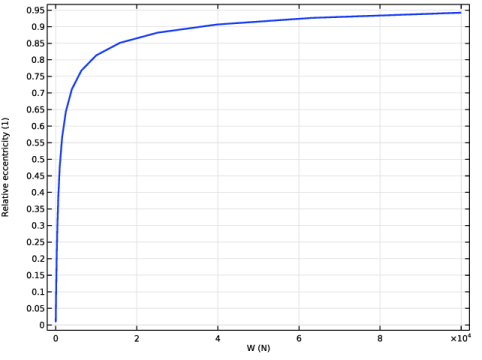
Figure 1 shows how the journal eccentricity changes with the static load on the bearing. The figure shows that with increasing load, its effect on eccentricity decreases. This clearly depicts the nonlinear behavior of the bearing.
Figure 1: Eccentricity versus load.
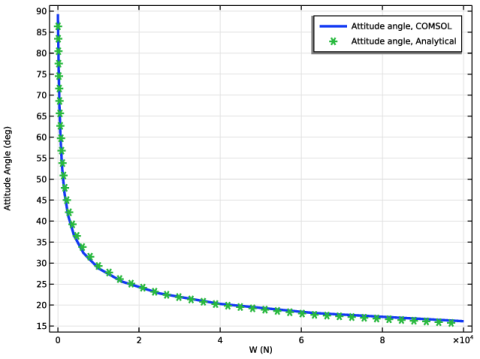
Figure 2 shows the computed attitude angle with respect to loading direction, compared to the analytical curve. For small loads the curves coincide. With increasing loads, the journal becomes increasingly eccentric in the bearing. This produces a difference in shear forces at the minimum and maximum film thickness locations. The difference results in a net force on the journal. In high eccentricity cases, the journal equilibrium location is determined by the balance of external loads on the bearing, and the pressure and shear forces.
Figure 2: Attitude angle versus load.
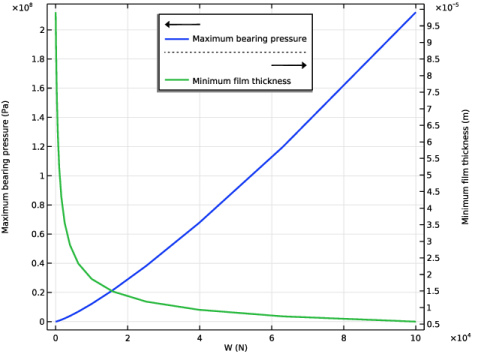
The maximum film pressure and minimum film thickness are two important performance parameters for a bearing. These are plotted in Figure 3.
Figure 3: Maximum pressure and minimum film thickness versus load.
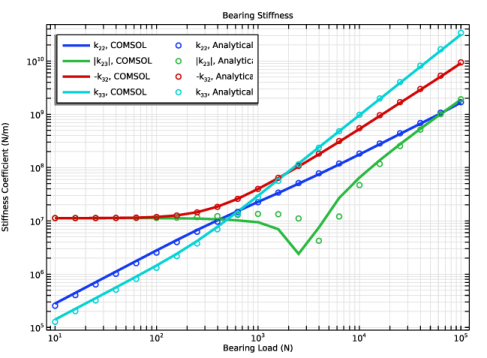
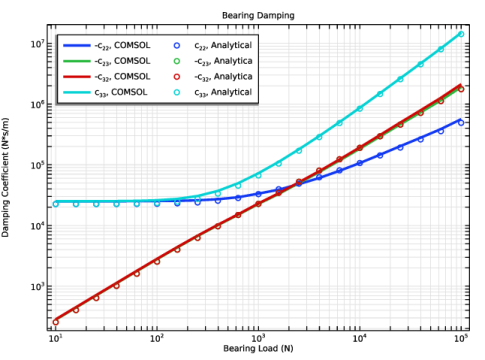
Figure 4 and Figure 5 compare the computed values of the dimensionless stiffness and dimensionless damping coefficient with the corresponding analytical values. The computed values match the analytical values.
Figure 4: Bearing stiffness.
Figure 5: Bearing damping.
Reference
1. J.S. Rao, Rotor Dynamics, section 7.6, pp. 179–191, New Age International (P) Limited, 2014.
Application Library path: Rotordynamics_Module/Verification_Examples/journal_bearing_dynamic_coefficients
Modeling Instructions
From the File menu, choose New.
New
In the New window, click  Model Wizard.
Model Wizard
1
In the Model Wizard window, click  3D.
2
In the Select Physics tree, select Structural Mechanics > Rotordynamics > Hydrodynamic Bearing (hdb).
3
Click Add.
4
Click  Study.
5
In the Select Study tree, select General Studies > Stationary.
6
Global Definitions
Parameters 1
1
In the Model Builder window, under Global Definitions click Parameters 1.
2
In the Settings window for Parameters, locate the Parameters section.
3
Geometry 1
Cylinder 1 (cyl1)
1
In the Geometry toolbar, click  Cylinder.
2
In the Settings window for Cylinder, locate the Object Type section.
3
From the Type list, choose Surface.
4
Locate the Size and Shape section. In the Radius text field, type R.
5
In the Height text field, type L.
6
Locate the Axis section. From the Axis type list, choose x-axis.
7
Click  Build All Objects.
Define the variables for the analytical stiffness and damping.
Definitions
Variables 1
1
In the Model Builder window, expand the Component 1 (comp1) > Definitions node.
2
Right-click Definitions and choose Variables.
3
In the Settings window for Variables, locate the Variables section.
4
Hydrodynamic Bearing (hdb)
1
In the Model Builder window, under Component 1 (comp1) click Hydrodynamic Bearing (hdb).
2
In the Settings window for Hydrodynamic Bearing, locate the Dynamic Coefficients section.
3
Select the Calculate dynamic coefficients checkbox.
Hydrodynamic Journal Bearing 1
1
In the Model Builder window, under Component 1 (comp1) > Hydrodynamic Bearing (hdb) click Hydrodynamic Journal Bearing 1.
2
In the Settings window for Hydrodynamic Journal Bearing, locate the Bearing Properties section.
3
In the C text field, type C.
4
From the Xc list, choose From geometry.
5
Locate the Journal Properties section. From the Specify list, choose Load.
6
Specify the Wj vector as
7
Specify the uj0 vector as
8
In the Ω text field, type Omega.
9
Locate the Fluid Properties section. From the μ list, choose User defined. In the associated text field, type mu0.
10
From the ρ list, choose User defined. In the associated text field, type rho0.
Use a mapped mesh to resolve the pressure.
Mesh 1
Mapped 1
1
In the Mesh toolbar, click  More Generators and choose Mapped.
2
In the Settings window for Mapped, locate the Boundary Selection section.
3
From the Selection list, choose All boundaries.
Distribution 1
1
Right-click Mapped 1 and choose Distribution.
2
3
In the Settings window for Distribution, locate the Distribution section.
4
In the Number of elements text field, type 50.
Distribution 2
1
In the Model Builder window, right-click Mapped 1 and choose Distribution.
2
3
In the Settings window for Distribution, locate the Distribution section.
4
In the Number of elements text field, type 12.
5
Click  Build All.
Study 1
Step 1: Stationary
1
In the Model Builder window, under Study 1 click Step 1: Stationary.
2
In the Settings window for Stationary, click to expand the Study Extensions section.
3
Select the Auxiliary sweep checkbox.
4
5
6
In the Study toolbar, click  Compute.
Results
Fluid Pressure (hdb)
In the Fluid Pressure (hdb) toolbar, click  Plot.
Use the following instructions to plot the eccentricity versus load curve shown in Figure 1.
Eccentricity
1
In the Results toolbar, click  1D Plot Group.
2
In the Settings window for 1D Plot Group, type Eccentricity in the Label text field.
Global 1
1
Right-click Eccentricity and choose Global.
2
In the Settings window for Global, click Replace Expression in the upper-right corner of the y-Axis Data section. From the menu, choose Component 1 (comp1) > Hydrodynamic Bearing > Hydrodynamic Journal Bearing 1 > Eccentricity and attitude angle > hdb.hjb1.ec_rel - Relative eccentricity - 1.
3
Click to expand the Coloring and Style section. From the Width list, choose 2.
4
In the Eccentricity toolbar, click  Plot.
5
Click the  Show Legends button in the Graphics toolbar.
Eccentricity
1
In the Model Builder window, click Eccentricity.
2
In the Settings window for 1D Plot Group, click to expand the Title section.
3
From the Title type list, choose None.
4
In the Eccentricity toolbar, click  Plot.
To compare the computed and analytical attitude angles shown in Figure 2, follow the below instructions.
Attitude Angle
1
In the Results toolbar, click  1D Plot Group.
2
In the Settings window for 1D Plot Group, type Attitude Angle in the Label text field.
Global 1
1
Right-click Attitude Angle and choose Global.
2
In the Settings window for Global, click Replace Expression in the upper-right corner of the y-Axis Data section. From the menu, choose Component 1 (comp1) > Hydrodynamic Bearing > Hydrodynamic Journal Bearing 1 > Eccentricity and attitude angle > hdb.hjb1.phia - Attitude angle - rad.
3
Locate the y-Axis Data section. In the table, enter the following settings:
4
Locate the Coloring and Style section. From the Width list, choose 3.
Global 2
1
In the Model Builder window, right-click Attitude Angle and choose Global.
2
In the Settings window for Global, locate the y-Axis Data section.
3
4
Locate the Coloring and Style section. Find the Line style subsection. From the Line list, choose None.
5
Find the Line markers subsection. From the Marker list, choose Cycle.
6
From the Positioning list, choose Interpolated.
7
In the Number text field, type 50.
8
In the Attitude Angle toolbar, click  Plot.
Attitude Angle
1
In the Model Builder window, click Attitude Angle.
2
In the Settings window for 1D Plot Group, locate the Plot Settings section.
3
Select the y-axis label checkbox. In the associated text field, type Attitude Angle (deg).
4
Locate the Title section. From the Title type list, choose None.
Duplicate the eccentricity plot and follow the instructions below to plot the maximum pressure, and minimum film thickness curves, as shown in Figure 3.
Pressure and Film Thickness
1
In the Model Builder window, right-click Eccentricity and choose Duplicate.
2
In the Settings window for 1D Plot Group, type Pressure and Film Thickness in the Label text field.
Global 1
1
In the Model Builder window, expand the Pressure and Film Thickness node, then click Global 1.
2
In the Settings window for Global, click Replace Expression in the upper-right corner of the y-Axis Data section. From the menu, choose Component 1 (comp1) > Hydrodynamic Bearing > Pressure > hdb.hjb1.p_max - Maximum bearing pressure - Pa.
Global 2
1
Right-click Results > Pressure and Film Thickness > Global 1 and choose Duplicate.
2
In the Settings window for Global, click Replace Expression in the upper-right corner of the y-Axis Data section. From the menu, choose Component 1 (comp1) > Hydrodynamic Bearing > Journal and bearing properties > Film thickness and clearance > hdb.hjb1.h_min - Minimum film thickness - m.
Pressure and Film Thickness
1
In the Model Builder window, click Pressure and Film Thickness.
2
In the Settings window for 1D Plot Group, locate the Plot Settings section.
3
Select the Two y-axes checkbox.
4
In the table, select the Plot on secondary y-axis checkbox for Global 2.
5
Click the  Show Legends button in the Graphics toolbar.
6
Locate the Legend section. From the Position list, choose Upper middle.
7
In the Pressure and Film Thickness toolbar, click  Plot.
Figure 4 compares the computed stiffness to its analytical counterpart. Follow the instructions below to generate this plot.
Bearing Stiffness
1
In the Results toolbar, click  1D Plot Group.
2
In the Settings window for 1D Plot Group, type Bearing Stiffness in the Label text field.
Global 1
1
Right-click Bearing Stiffness and choose Global.
2
In the Settings window for Global, click Add Expression in the upper-right corner of the y-Axis Data section. From the menu, choose Component 1 (comp1) > Hydrodynamic Bearing > Dynamic coefficients > Translational stiffness coefficient - N/m > hdb.hjb1.k22 - Translational stiffness coefficient, 22-component.
3
Locate the y-Axis Data section. In the table, enter the following settings:
4
Locate the Coloring and Style section. From the Width list, choose 3.
5
Click the  y-Axis Log Scale button in the Graphics toolbar.
6
Click the  x-Axis Log Scale button in the Graphics toolbar.
Global 2
1
In the Model Builder window, right-click Bearing Stiffness and choose Global.
2
In the Settings window for Global, locate the y-Axis Data section.
3
4
Locate the Coloring and Style section. Find the Line style subsection. From the Line list, choose None.
5
From the Color list, choose Cycle (reset).
6
Find the Line markers subsection. From the Marker list, choose Circle.
Bearing Stiffness
1
In the Model Builder window, click Bearing Stiffness.
2
In the Settings window for 1D Plot Group, locate the Title section.
3
From the Title type list, choose Manual.
4
In the Title text area, type Bearing Stiffness.
5
Locate the Plot Settings section.
6
Select the x-axis label checkbox. In the associated text field, type Bearing Load (N).
7
Select the y-axis label checkbox. In the associated text field, type Stiffness Coefficient (N/m).
8
Locate the Legend section. From the Position list, choose Upper left.
9
In the Number of columns text field, type 2.
Figure 5 compares the computed damping to its analytical counterpart. Follow the instructions below to generate this plot.
Bearing Damping
1
In the Results toolbar, click  1D Plot Group.
2
In the Settings window for 1D Plot Group, type Bearing Damping in the Label text field.
Global 1
1
Right-click Bearing Damping and choose Global.
2
In the Settings window for Global, click Add Expression in the upper-right corner of the y-Axis Data section. From the menu, choose Component 1 (comp1) > Hydrodynamic Bearing > Dynamic coefficients > Translational damping coefficient - N·s/m > hdb.hjb1.c22 - Translational damping coefficient, 22-component.
3
Locate the y-Axis Data section. In the table, enter the following settings:
4
Locate the Coloring and Style section. From the Width list, choose 3.
5
Click the  y-Axis Log Scale button in the Graphics toolbar.
6
Click the  x-Axis Log Scale button in the Graphics toolbar.
Global 2
1
In the Model Builder window, right-click Bearing Damping and choose Global.
2
In the Settings window for Global, locate the y-Axis Data section.
3
4
Locate the Coloring and Style section. Find the Line style subsection. From the Line list, choose None.
5
From the Color list, choose Cycle (reset).
6
Find the Line markers subsection. From the Marker list, choose Circle.
7
In the Bearing Damping toolbar, click  Plot.
Bearing Damping
1
In the Model Builder window, click Bearing Damping.
2
In the Settings window for 1D Plot Group, locate the Title section.
3
From the Title type list, choose Manual.
4
In the Title text area, type Bearing Damping.
5
Locate the Plot Settings section.
6
Select the x-axis label checkbox. In the associated text field, type Bearing Load (N).
7
Select the y-axis label checkbox. In the associated text field, type Damping Coefficient (N*s/m).
8
Locate the Legend section. From the Position list, choose Upper left.
9
In the Number of columns text field, type 2.