PDF

Lightning Surge Analysis of an Offshore Wind Farm
Introduction
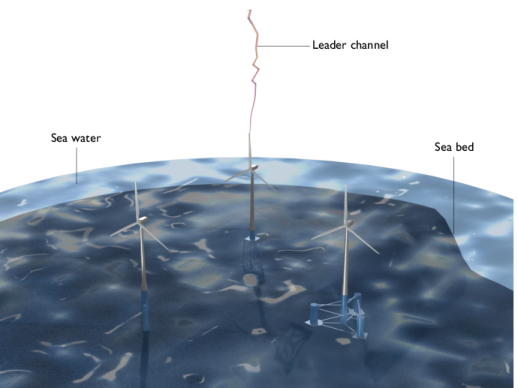
In offshore wind farms, wind turbine resilience against lightning strikes is crucial. Lightning surges can threaten the turbines’ reliability and the wind farm’s efficiency. This model simulates the effects of a lightning strike on one turbine and its resulting induced electric fields on adjacent turbines.
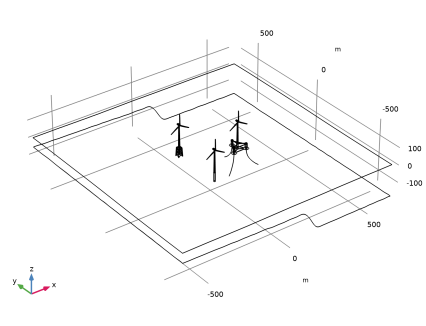
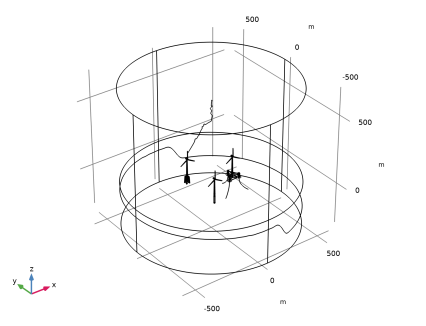
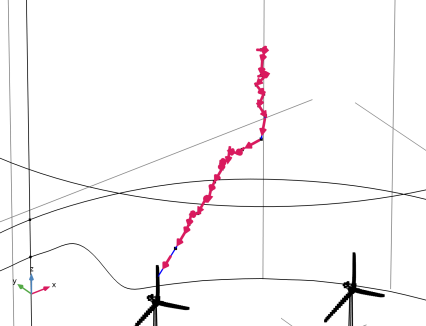
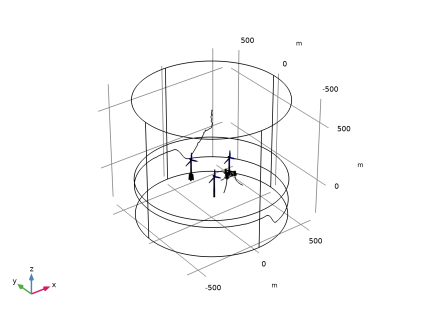
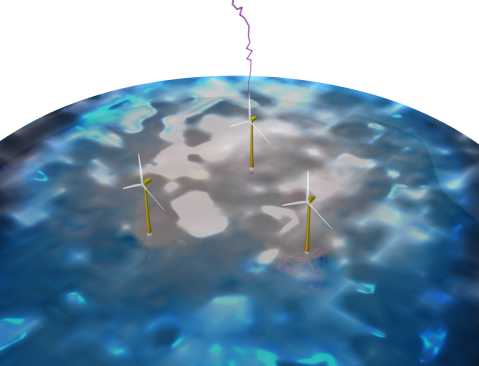
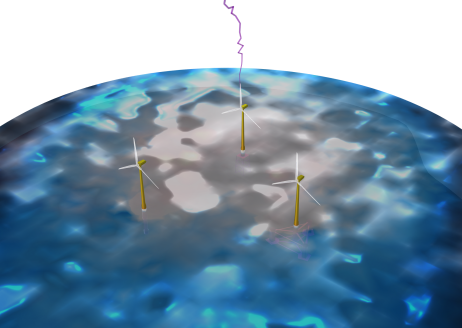
Figure 1: The view of an offshore wind farm. Lightning strikes one of the turbine blades.
This simulation aids in understanding the potential impacts of lightning on interconnected turbines within an offshore wind farm. Through analysis of these fields, engineers and researchers can gauge potential overvoltages and transient effects, thereby informing design for protection measures, wind turbine layout optimization, and continuous farm operation.
Model Definition
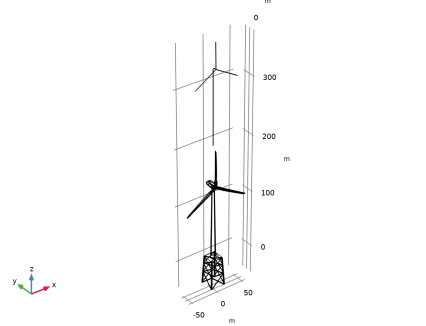
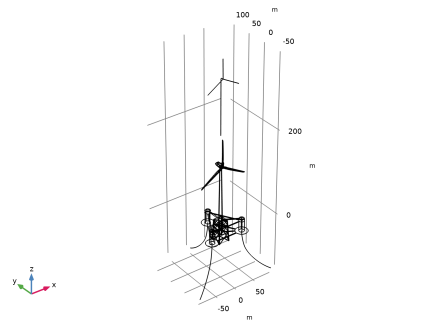
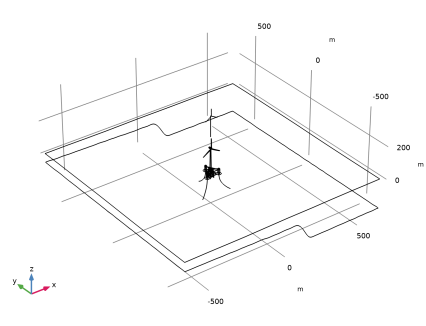
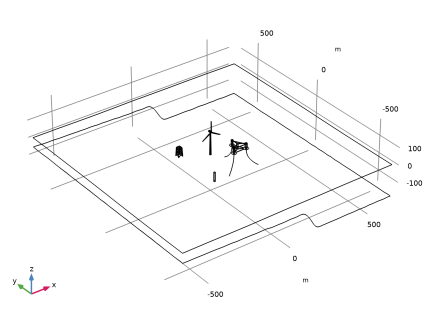
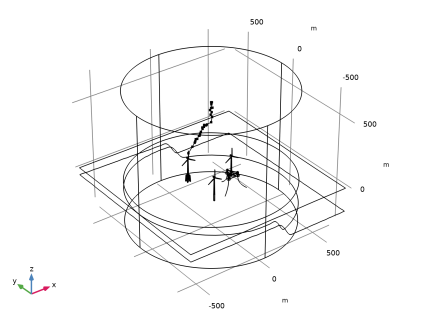
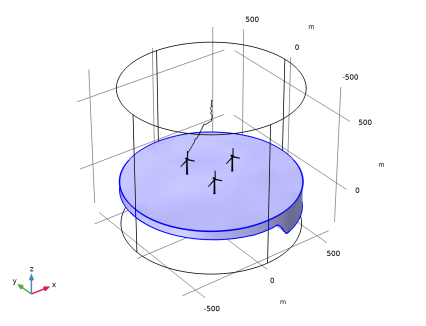
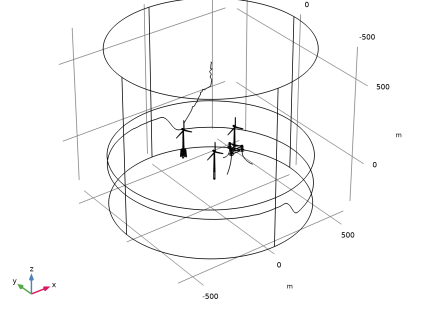
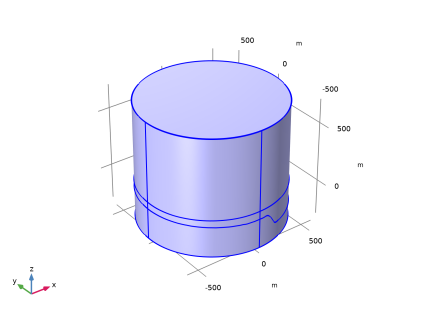
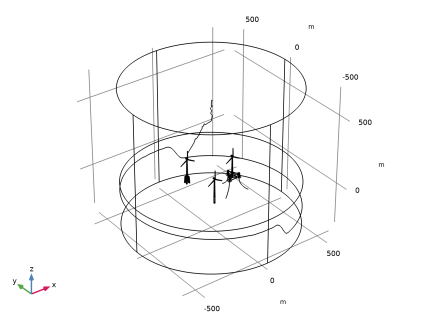
The model’s geometry accurately reflects an offshore wind farm, detailing the strategic placement of turbines and their connectivity to the power grid. This spatial configuration plays a crucial role as it influences the propagation of the induced electric fields. Effects from the saline water and the sea bed are essential components of the model given the offshore setting.
Assuming negligible losses from finite conductivity, the turbine’s framework, which encompasses the tower, inner strips, and tower support structures, is characterized by perfect electric conductors. Meanwhile, the turbine blades, deemed RF-transparent, are excluded from the model for simplification.
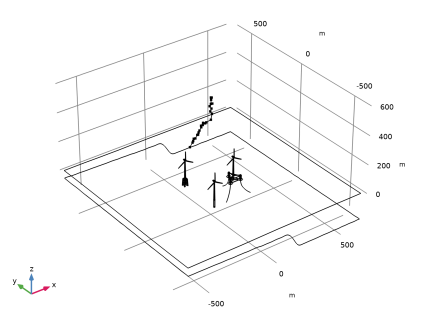
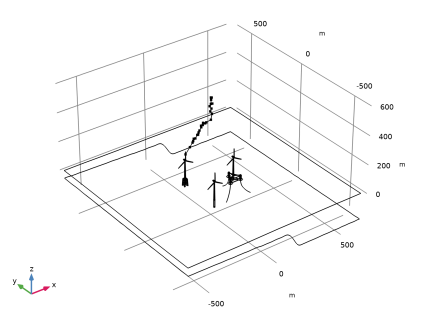
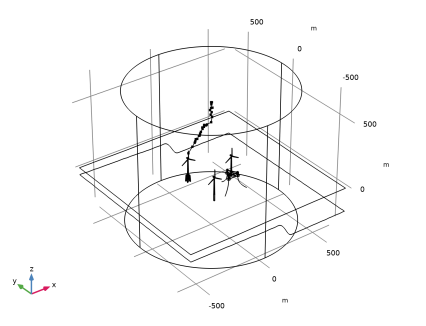
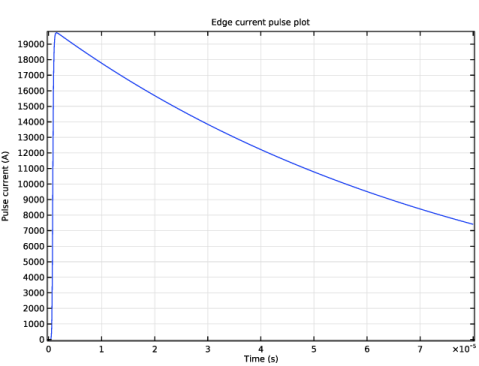
Simulating the actual lightning strike, an edge current feature defines a 20 kA current source that targets a turbine, capturing the temporal nuances of a lightning surge. Furthermore, to emulate an expansive environment and minimize outward radiation, the model’s exterior boundaries are configured with a scattering boundary condition.
Results and Discussion
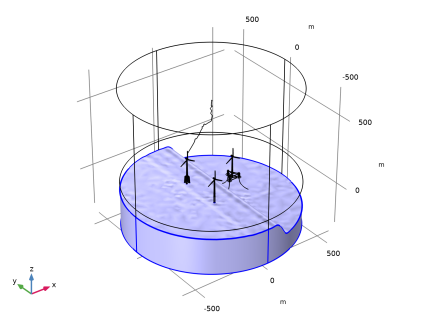
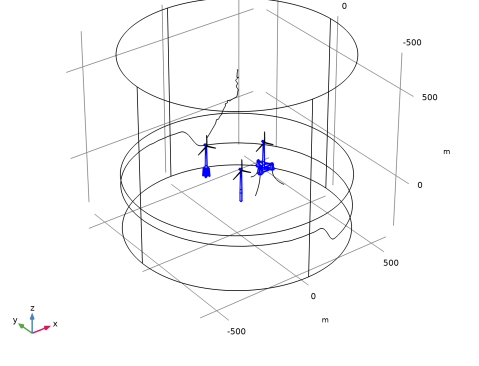
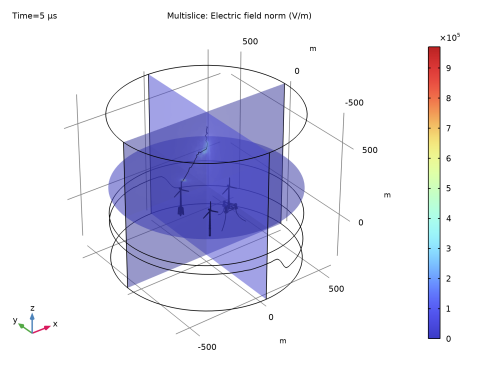
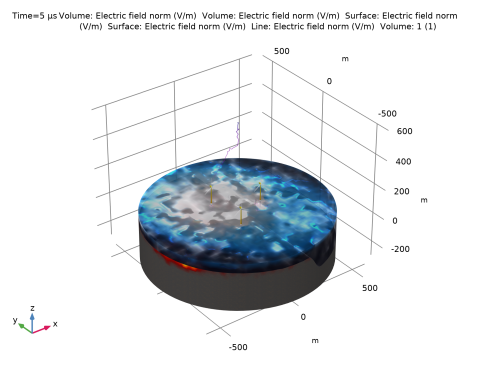
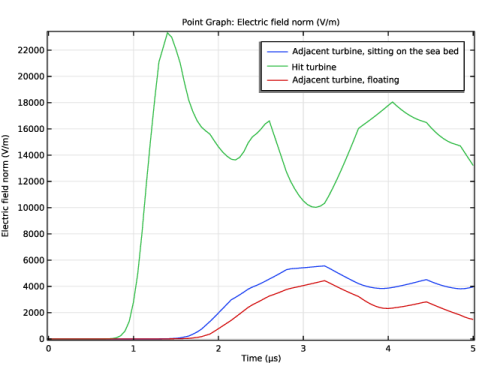
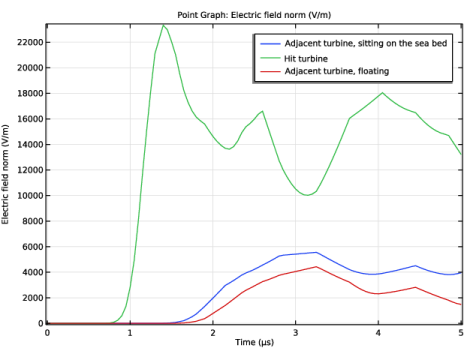
The primary output of the simulation is the induced electric fields in adjacent wind turbines resulting from a lightning strike on one of the turbines, as illustrated in Figure 2. These electric fields shed light on potential overvoltages and transient effects that could impact neighboring turbines. Examining the distribution and magnitude of these induced fields helps identify vulnerable zones within the wind farm layout. Figure 2 focuses on the visual representation of these fields. For a more quantitative evaluation, Figure 3 contrasts the norm of the electric field at a vertex near the tip of the blades across each turbine tower.
Figure 2: The norm of electric field on the turbine towers, sea water, and sea bed at 5 μs.
Figure 3: The norm of electric field on area around the tip of the blades at each tower.
Notes About the COMSOL Implementation
The model is designed for demonstration and emphasizes minimal computational resource use. Linear discretization is employed to lower computational costs.
Application Library path: RF_Module/ESD_and_Lightning_Surge/lightning_surge_wind_farm
Modeling Instructions
From the File menu, choose New.
New
In the New window, click  Model Wizard.
Model Wizard
1
In the Model Wizard window, click  3D.
2
In the Select Physics tree, select Radio Frequency > Electromagnetic Waves, Transient (temw).
3
Click Add.
4
Click  Study.
5
In the Select Study tree, select General Studies > Time Dependent.
6
Geometry 1
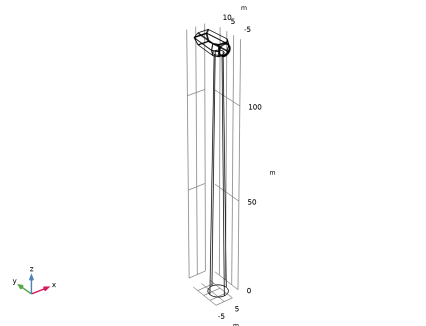
Wind Turbine Tower
1
In the Geometry toolbar, click  Import.
2
In the Settings window for Import, type Wind Turbine Tower in the Label text field.
3
Locate the Source section. Click  Browse.
4
5
Click  Import.
6
Click  Build Selected.
7
Click the  Wireframe Rendering button in the Graphics toolbar.
8
Locate the Selections of Resulting Entities section. Find the Cumulative selection subsection. Click New.
9
In the New Cumulative Selection dialog, type Steel Body in the Name text field.
10
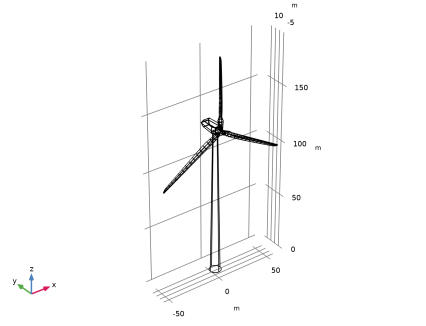
Wind Turbine Blades
1
In the Geometry toolbar, click  Import.
2
In the Settings window for Import, type Wind Turbine Blades in the Label text field.
3
Locate the Source section. Click  Browse.
4
5
Click  Import.
6
Click  Build Selected.
Inner Strip
1
In the Geometry toolbar, click  Import.
2
In the Settings window for Import, type Inner Strip in the Label text field.
3
Locate the Source section. Click  Browse.
4
5
Click  Import.
6
Click  Build Selected.
7
Click the  Zoom Extents button in the Graphics toolbar.
8
Locate the Selections of Resulting Entities section. Find the Cumulative selection subsection. Click New.
9
In the New Cumulative Selection dialog, type Down Conductors in the Name text field.
10
Supporting Structure
1
In the Geometry toolbar, click  Import.
2
In the Settings window for Import, type Supporting Structure in the Label text field.
3
Locate the Source section. Click  Browse.
4
5
Click  Import.
6
Click  Build Selected.
7
Locate the Selections of Resulting Entities section. Find the Cumulative selection subsection. From the Contribute to list, choose Steel Body.
Floating Supporting Structure
1
In the Geometry toolbar, click  Import.
2
In the Settings window for Import, type Floating Supporting Structure in the Label text field.
3
Locate the Source section. Click  Browse.
4
5
Click  Import.
6
Click  Build Selected.
7
Locate the Selections of Resulting Entities section. Find the Cumulative selection subsection. From the Contribute to list, choose Steel Body.
Water and Seabed Surfaces
1
In the Geometry toolbar, click  Import.
2
In the Settings window for Import, type Water and Seabed Surfaces in the Label text field.
3
Locate the Source section. Click  Browse.
4
5
Click  Import.
6
Click  Build Selected.
Move 1 (mov1)
1
In the Geometry toolbar, click  Transforms and choose Move.
2
3
In the Settings window for Move, locate the Displacement section.
4
In the x text field, type 300/sqrt(3).
5
Click  Build Selected.
Move 2 (mov2)
1
In the Geometry toolbar, click  Transforms and choose Move.
2
3
In the Settings window for Move, locate the Displacement section.
4
In the z text field, type -200.
5
Click  Build Selected.
Move 3 (mov3)
1
In the Geometry toolbar, click  Transforms and choose Move.
2
3
In the Settings window for Move, locate the Displacement section.
4
In the x text field, type -150/sqrt(3).
5
In the y text field, type 150.
6
Click  Build Selected.
Cylinder 1 (cyl1)
1
In the Geometry toolbar, click  Cylinder.
2
In the Settings window for Cylinder, locate the Size and Shape section.
3
In the Radius text field, type 5.
4
In the Height text field, type 50.
5
Locate the Position section. In the x text field, type -150/sqrt(3).
6
In the y text field, type -150.
7
In the z text field, type -50.
8
Locate the Selections of Resulting Entities section. Find the Cumulative selection subsection. From the Contribute to list, choose Steel Body.
9
Click  Build Selected.
Copy 1 (copy1)
1
In the Geometry toolbar, click  Transforms and choose Copy.
2
Click the  Select Box button in the Graphics toolbar.
3
Select the objects imp1, imp2, and mov2 only.
4
In the Settings window for Copy, locate the Displacement section.
5
In the x text field, type -150/sqrt(3).
6
Locate the Input section. Clear the Keep input objects checkbox.
7
Locate the Displacement section. In the x text field, type -150/sqrt(3) -150/sqrt(3) 300/sqrt(3).
8
In the y text field, type -150 150 0.
9
Click  Build Selected.
10
Click the  Zoom Extents button in the Graphics toolbar.
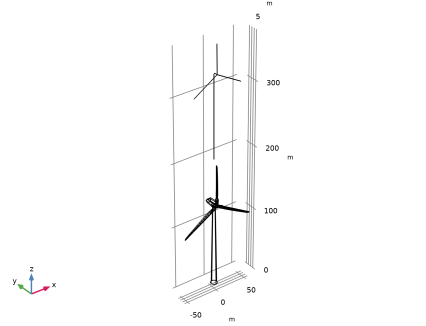
Leader Channel
1
In the Geometry toolbar, click  More Primitives and choose Polygon.
2
In the Settings window for Polygon, type Leader Channel in the Label text field.
3
Locate the Coordinates section. Click  Load from File.
4
5
Click  Build Selected.
6
Locate the Selections of Resulting Entities section. Find the Cumulative selection subsection. Click New.
7
In the New Cumulative Selection dialog, type Lightning Channel in the Name text field.
8
Final Strike
1
In the Geometry toolbar, click  More Primitives and choose Line Segment.
2
In the Settings window for Line Segment, type Final Strike in the Label text field.
3
On the object pol1, select Point 1 only.
4
Locate the Endpoint section. Click to select the  Activate Selection toggle button for End vertex.
5
On the object copy1(5), select Point 273 only.
6
Locate the Selections of Resulting Entities section. Find the Cumulative selection subsection. From the Contribute to list, choose Lightning Channel.
7
Click  Build Selected.
Cylinder 2 (cyl2)
1
In the Geometry toolbar, click  Cylinder.
2
In the Settings window for Cylinder, locate the Size and Shape section.
3
In the Radius text field, type 600.
4
In the Height text field, type 1000.
5
Locate the Position section. In the z text field, type -300.
6
Click  Build Selected.
Partition Objects 1 (par1)
1
In the Geometry toolbar, click  Booleans and Partitions and choose Partition Objects.
2
3
In the Settings window for Partition Objects, locate the Partition Objects section.
4
Click to select the  Activate Selection toggle button for Tool objects.
5
6
Select the Keep tool objects checkbox.
7
Click  Build Selected.
Delete Entities 1 (del1)
1
In the Model Builder window, right-click Geometry 1 and choose Delete Entities.
2
On the object par1, select Boundaries 1 and 2 only.
3
In the Geometry toolbar, click  Build All.
4
In the Model Builder window, click Geometry 1.
Disable the analysis of the geometry as the remaining small geometric details can be kept.
5
In the Model Builder window, click Geometry 1.
6
In the Settings window for Geometry, locate the Cleanup section.
7
Clear the Automatic detection of small details checkbox.
Add Material
1
In the Home toolbar, click  Add Material to open the Add Material window.
2
Go to the Add Material window.
3
In the tree, select Built-in > Air.
4
Click the Add to Component button in the window toolbar.
5
In the Home toolbar, click  Add Material to close the Add Material window.
Materials
Sea Water
1
In the Model Builder window, under Component 1 (comp1) right-click Materials and choose Blank Material.
2
In the Settings window for Material, type Sea Water in the Label text field.
3
4
Locate the Material Contents section. In the table, enter the following settings:
Sea Bed
1
Right-click Materials and choose Blank Material.
2
3
In the Settings window for Material, type Sea Bed in the Label text field.
4
Locate the Material Contents section. In the table, enter the following settings:
Use the Linear discretization to reduce computational costs, though this might compromise accuracy. The model is designed for demonstration with an emphasis on minimizing computational resources.
Electromagnetic Waves, Transient (temw)
1
In the Model Builder window, under Component 1 (comp1) click Electromagnetic Waves, Transient (temw).
2
In the Settings window for Electromagnetic Waves, Transient, click to expand the Discretization section.
3
From the Magnetic vector potential list, choose Linear.
Edge Current 1
1
In the Physics toolbar, click  Edges and choose Edge Current.
2
In the Settings window for Edge Current, locate the Edge Selection section.
3
From the Selection list, choose Lightning Channel.
4
Locate the Edge Current section. From the Edge current type list, choose Lightning.
5
In the I0 text field, type 20[kA].
6
In the τ1 text field, type 0.8[us].
7
In the τ2 text field, type 80[us].
8
In the vp text field, type c_const/3.
9
Select the Reverse direction checkbox.
10
Click the Plot Pulse Shape button in the window toolbar.
Electromagnetic Waves, Transient (temw)
Perfect Electric Conductor 2
1
In the Model Builder window, expand the Component 1 (comp1) > Definitions node.
2
Right-click Component 1 (comp1) > Electromagnetic Waves, Transient (temw) and choose Perfect Electric Conductor.
3
In the Settings window for Perfect Electric Conductor, locate the Boundary Selection section.
4
From the Selection list, choose Steel Body.
Perfect Electric Conductor 3
1
In the Physics toolbar, click  Boundaries and choose Perfect Electric Conductor.
2
3
Click the  Go to Default View button in the Graphics toolbar.
Perfect Electric Conductor 4
1
In the Physics toolbar, click  Boundaries and choose Perfect Electric Conductor.
2
In the Settings window for Perfect Electric Conductor, locate the Boundary Selection section.
3
From the Selection list, choose Down Conductors.
Scattering Boundary Condition 1
1
In the Physics toolbar, click  Boundaries and choose Scattering Boundary Condition.
2
Click the  Orthographic Projection button in the Graphics toolbar.
3
Definitions
Hide for Physics 1
1
In the Model Builder window, right-click View 1 and choose Hide for Physics.
2
In the Settings window for Hide for Physics, locate the Geometric Entity Selection section.
3
From the Geometric entity level list, choose Boundary.
4
Mesh 1
1
In the Model Builder window, under Component 1 (comp1) click Mesh 1.
2
In the Settings window for Mesh, locate the Electromagnetic Waves, Transient (temw) section.
3
In the Maximum element size in free space text field, type 120.
4
Click  Build All.
Make the mesh coarse in the area where the wave propagation is not of interest such as the sea water.
5
In the Settings window for Mesh, locate the Sequence Type section.
6
From the list, choose User-controlled mesh.
Size
1
In the Model Builder window, under Component 1 (comp1) > Mesh 1 click Size.
2
In the Settings window for Size, locate the Element Size Parameters section.
3
In the Maximum element size text field, type 60.
4
In the Minimum element size text field, type 20.
Size 1
1
In the Model Builder window, click Size 1.
2
In the Settings window for Size, locate the Element Size Parameters section.
3
In the Maximum element size text field, type 40.
4
In the Minimum element size text field, type 20.
Size 2
1
In the Model Builder window, click Size 2.
2
In the Settings window for Size, locate the Element Size Parameters section.
3
In the Maximum element size text field, type 30.
4
In the Minimum element size text field, type 20.
5
Click  Build All.
Study 1
Step 1: Time Dependent
1
In the Model Builder window, under Study 1 click Step 1: Time Dependent.
2
In the Settings window for Time Dependent, locate the Study Settings section.
3
From the Time unit list, choose µs.
4
In the Output times text field, type range(0,0.05,5).
5
In the Study toolbar, click  Compute.
Results
Transparency 1
1
In the Model Builder window, expand the 3D Plot Group 1 node.
2
Right-click Multislice 1 and choose Transparency.
3D Plot Group 2
In the Results toolbar, click  3D Plot Group.
Sea Water
1
Right-click 3D Plot Group 2 and choose Volume.
2
In the Settings window for Volume, type Sea Water in the Label text field.
3
Click to expand the Range section. Select the Manual color range checkbox.
4
In the Maximum text field, type 1.
5
Locate the Coloring and Style section. From the Color table list, choose JupiterAuroraBorealis.
Selection 1
1
Right-click Sea Water and choose Selection.
2
Material Appearance 1
1
In the Model Builder window, right-click Sea Water and choose Material Appearance.
2
In the Settings window for Material Appearance, locate the Appearance section.
3
From the Appearance list, choose Custom.
4
From the Material type list, choose Water.
5
Locate the Color section. Select the Use the plot’s color checkbox.
Transparency 1
Right-click Sea Water and choose Transparency.
Sea Bed
1
In the Model Builder window, right-click 3D Plot Group 2 and choose Volume.
2
In the Settings window for Volume, type Sea Bed in the Label text field.
3
Locate the Coloring and Style section. From the Color table list, choose GrayBody.
Selection 1
1
Right-click Sea Bed and choose Selection.
2
Material Appearance 1
1
In the Model Builder window, right-click Sea Bed and choose Material Appearance.
2
In the Settings window for Material Appearance, locate the Appearance section.
3
From the Appearance list, choose Custom.
4
From the Material type list, choose Soil.
5
Locate the Color section. Select the Use the plot’s color checkbox.
Wind Turbine Body
1
In the Model Builder window, right-click 3D Plot Group 2 and choose Surface.
2
In the Settings window for Surface, type Wind Turbine Body in the Label text field.
3
Locate the Coloring and Style section. From the Color table list, choose Plasma.
4
From the Scale list, choose Logarithmic.
Selection 1
1
Right-click Wind Turbine Body and choose Selection.
2
In the Settings window for Selection, locate the Selection section.
3
From the Selection list, choose Steel Body.
Material Appearance 1
1
In the Model Builder window, right-click Wind Turbine Body and choose Material Appearance.
2
In the Settings window for Material Appearance, locate the Appearance section.
3
From the Appearance list, choose Custom.
4
From the Material type list, choose Steel (anodized).
5
Locate the Color section. Select the Use the plot’s color checkbox.
Down Conductors
1
In the Model Builder window, right-click 3D Plot Group 2 and choose Surface.
2
In the Settings window for Surface, type Down Conductors in the Label text field.
Selection 1
1
Right-click Down Conductors and choose Selection.
2
In the Settings window for Selection, locate the Selection section.
3
From the Selection list, choose Down Conductors.
Material Appearance 1
1
In the Model Builder window, right-click Down Conductors and choose Material Appearance.
2
In the Settings window for Material Appearance, locate the Appearance section.
3
From the Appearance list, choose Custom.
4
From the Material type list, choose Gold.
5
Locate the Color section. Select the Use the plot’s color checkbox.
Lightning Channel
1
In the Model Builder window, right-click 3D Plot Group 2 and choose Line.
2
In the Settings window for Line, locate the Coloring and Style section.
3
From the Line type list, choose Tube.
4
In the Tube radius expression text field, type sqrt(z-175).
5
Select the Radius scale factor checkbox. In the associated text field, type 0.1.
6
From the Scale list, choose Logarithmic.
7
From the Color table list, choose Plasma.
8
In the Label text field, type Lightning Channel.
Selection 1
1
Right-click Lightning Channel and choose Selection.
2
In the Settings window for Selection, locate the Selection section.
3
From the Selection list, choose Lightning Channel.
4
In the 3D Plot Group 2 toolbar, click  Plot.
Transparency 1
1
In the Model Builder window, right-click Lightning Channel and choose Transparency.
2
In the Settings window for Transparency, locate the Transparency section.
3
Set the Transparency value to 0.65.
3D Plot Group 2
1
In the Model Builder window, under Results click 3D Plot Group 2.
2
In the Settings window for 3D Plot Group, locate the Plot Settings section.
3
Clear the Plot dataset edges checkbox.
Blades
1
Right-click 3D Plot Group 2 and choose Volume.
2
In the Settings window for Volume, type Blades in the Label text field.
3
Locate the Expression section. In the Expression text field, type 1.
Selection 1
1
Right-click Blades and choose Selection.
2
Material Appearance 1
1
In the Model Builder window, right-click Blades and choose Material Appearance.
2
In the Settings window for Material Appearance, locate the Appearance section.
3
From the Appearance list, choose Custom.
4
In the 3D Plot Group 2 toolbar, click  Plot.
Transparency 1
1
Right-click Blades and choose Transparency.
2
Click the  Show Legends button in the Graphics toolbar.
By adjusting the 3D camera settings, add more visual impact.
Definitions
Camera
1
In the Model Builder window, under Component 1 (comp1) > Definitions > View 1 click Camera.
2
In the Settings window for Camera, locate the Camera section.
3
In the Zoom angle text field, type 35.
4
Locate the Position section. In the x text field, type 800.
5
In the y text field, type -900.
6
In the z text field, type 900.
7
Locate the Target section. In the x text field, type -4000.
8
In the y text field, type 5000.
9
In the z text field, type -4000.
10
Locate the Up Vector section. In the x text field, type -0.3.
11
In the y text field, type 0.35.
12
In the z text field, type 1.
13
Locate the Center of Rotation section. In the x text field, type -50.
14
In the y text field, type 80.
15
In the z text field, type 15.
16
Locate the View Offset section. In the x text field, type 0.05.
17
In the y text field, type 0.05.
18
Click  Update.
Results
3D Plot Group 2
In the Model Builder window, under Results click 3D Plot Group 2.
1D Plot Group 3
In the Results toolbar, click  1D Plot Group.
Point Graph 1
1
Right-click 1D Plot Group 3 and choose Point Graph.
2
3
In the 1D Plot Group 3 toolbar, click  Plot.
4
In the Settings window for Point Graph, locate the Selection section.
5
Click to select the  Activate Selection toggle button.
6
7
Click to expand the Legends section. From the Legends list, choose Manual.
8
9
In the 1D Plot Group 3 toolbar, click  Plot.
10
Select the Show legends checkbox.
11
In the 1D Plot Group 3 toolbar, click  Plot.