PDF

STL Import 1 — Repairing and Combining STL Files1
Introduction
When working with imported STL meshes, there is often a need to repair and edit the mesh, form different computational domains, remesh the faces to improve the element quality, and to fill the domains with a volumetric mesh. In case you have several STL files, you may also need to modify the position of some of the meshes to remove gaps and intersections before combining the meshes.
This tutorial series consists of two parts, where this first part focuses on using available tools to edit imported STL meshes: the different operations for repairing the meshes, combining imported meshes with each other, and generating a volume mesh from the imported surface mesh. The second part of the series, STL Import 2 — Combining Geometry with an Imported Mesh, describes a workflow for combining the mesh obtained in the first part with a parameterized geometry.
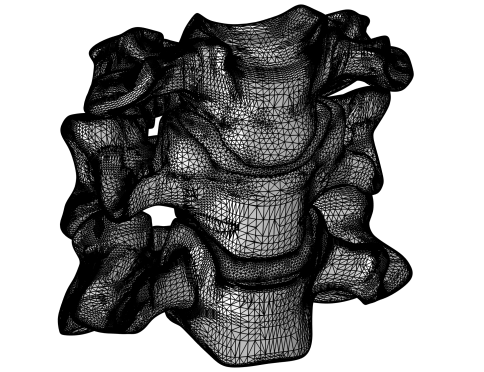
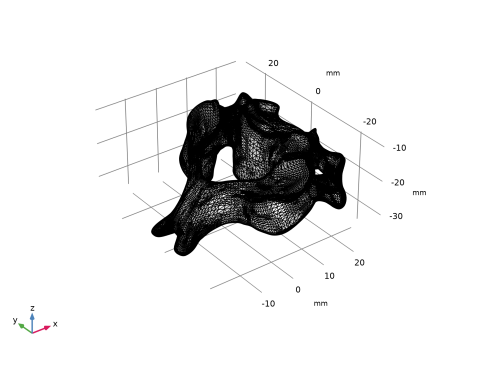
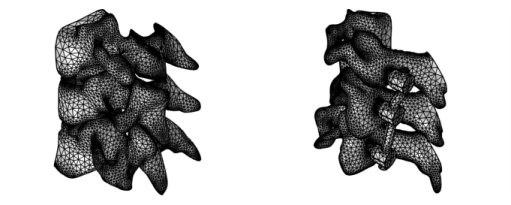
Figure 1: Left: Tetrahedral mesh after repairing, combining and partitioning imported surface meshes in the first part of the tutorial series. Right: Tetrahedral mesh after combining the mesh from the first part with parameterized geometry created in the second part of the tutorial series.
The STL file format is one of the standard file formats for 3D printing, and it is also often used as a format for exchanging 3D scan data. STL files contain only the triangulated surface, which can also be called a surface mesh, of a 3D object. The triangles in the file are identified by their normals and vertex coordinates and are stitched together using a tolerance to form a faceted representation of the object.
COMSOL Multiphysics supports a variety of operations, for example, moving, scaling and rotating an imported mesh, combining the imported mesh with parameterized geometry to run parametric sweeps, and generating unstructured, structured, and boundary layer mesh in the domains. When creating geometry or importing CAD files for combining with an imported mesh, you can view the imported mesh with the geometry to help with positioning the design. This procedure is shown in the second part of this tutorial series, STL Import 2 — Combining Geometry with an Imported Mesh.
Lastly, it is important to mention that the workflows presented in this tutorial series apply to any type of imported surface meshes, such as the formats PLY and 3MF. They also apply when creating a mesh from a Filter or Partition dataset, which you would do when using the results of a simulation as the mesh for a new simulation, for example during a topology optimization study.
Model Definition
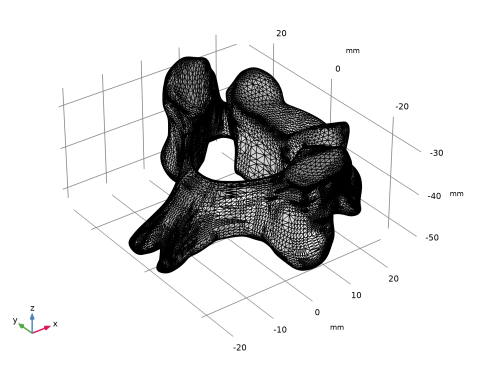
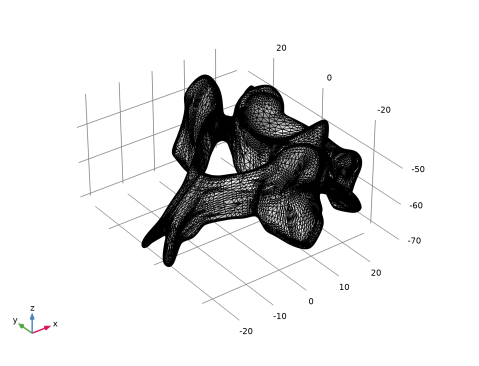
In this tutorial, you will import STL files with surface meshes of the C3,C4 and C5 vertebrae, as well as the C3-C4 and C4-C5 intervertebral discs.
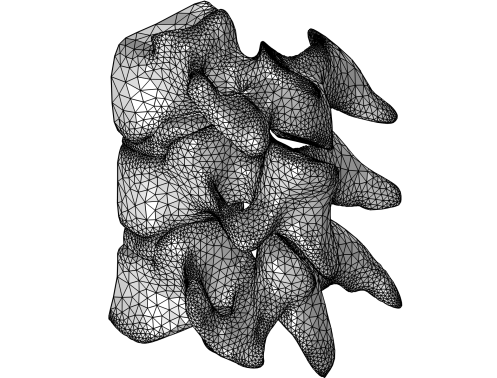
Figure 2: Imported STL meshes of three vertebrae and intervertebral discs that are used as a starting point for this tutorial.
The goal of this tutorial is to demonstrate a workflow for repairing and combining the imported surface meshes such that you can create five connected domains that can be filled with a tetrahedral mesh. The instructions also detail how to further simplify the imported meshes when you can assume that the problem is symmetric, and how to build a physics-controlled mesh.
To achieve this, the tutorial includes the following steps:
Application Library path: COMSOL_Multiphysics/Meshing_Tutorials/stl_1_repair_imported_meshes
Modeling Instructions
From the File menu, choose New.
New
In the New window, click  Model Wizard.
Model Wizard
1
In the Model Wizard window, click  3D.
2
Geometry 1
1
In the Model Builder window, under Component 1 (comp1) click Geometry 1.
2
In the Settings window for Geometry, locate the Units section.
3
From the Length unit list, choose mm.
This will set the length unit to mm for the Component.
Global Definitions
Add a Mesh Part that will be used to import and repair the mesh for the C3 vertebra. It is good practice to repair imported mesh files in separate mesh parts as it makes it easy to ensure that each imported mesh is fully repaired and contains a computational domain before moving on to the next step.
In the Model Builder window, right-click Global Definitions and choose Mesh Parts > 3D Part.
C3
1
In the Settings window for Mesh Part, type C3 in the Label text field.
2
Locate the Units section. Select the Use units checkbox.
3
From the Length unit list, choose mm.
This will set the length unit to mm for this Mesh Part.
Import 1
1
In the Model Builder window, under Global Definitions > Mesh Parts > C3 click Import 1.
2
In the Settings window for Import, locate the Import section.
3
Click  Browse.
4
5
From the Boundary partitioning list, choose Minimal.
This setting is suitable when importing mesh files that have no obvious boundary partitioning, for example, meshes generated by medical imaging techniques. After the import, the mesh will usually consist of only one boundary that you can partition as needed, using the available tools. Use the Automatic or Detect boundaries settings when importing meshes that contain planar faces and fillets, which can then be detected to partition the mesh accordingly.
Notice that the Create domains checkbox is selected by default. Domains are needed before you can generate a tetrahedral mesh in the vertebra. The import checks if the imported surface mesh forms any watertight regions, and if so, it creates domains.
6
Click  Import.
The import automatically generates boundary selections based on the content of the STL file. The selections make it easier to select the proper entities in subsequent mesh operations and later when assigning materials and boundary conditions. If it is successful in creating domains, there will also be domain selections. Rename the boundary selection to something more descriptive.
7
Locate the Boundary Selections section. In the table, enter the following settings:
Information
An Information node appears reporting that a domain could not be created. Expand the node and click on the Information subnode to see more details.
1
In the Model Builder window, expand the Information node, then click Information.
2
In the Settings window for Information, locate the Geometric Entity Selection section.
3
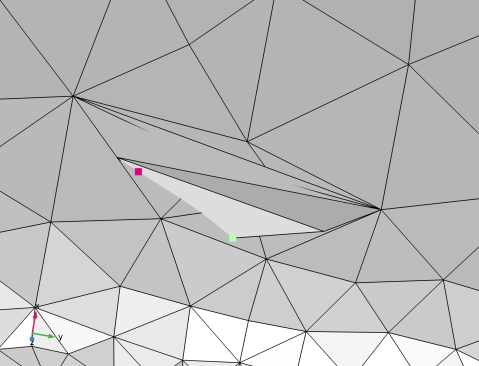
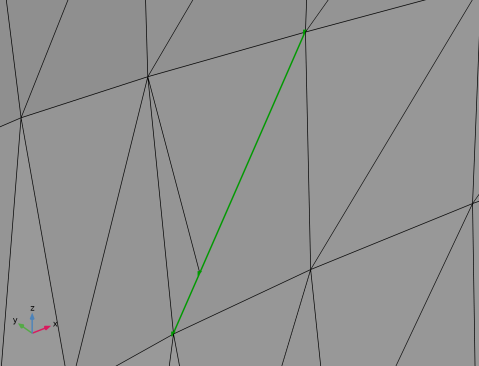
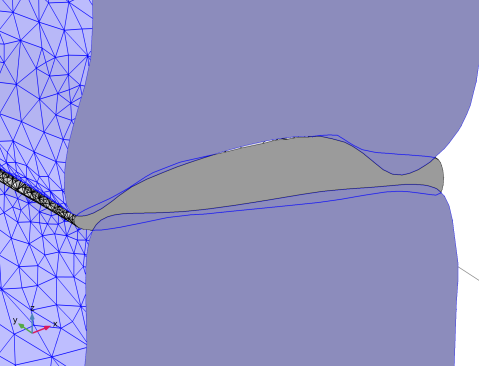
This information message indicates that the mesh of the vertebra does not form a watertight component. The edge that appears in the selection is an exterior edge that is adjacent to a hole in the mesh.
4
Click  Zoom to Selection.
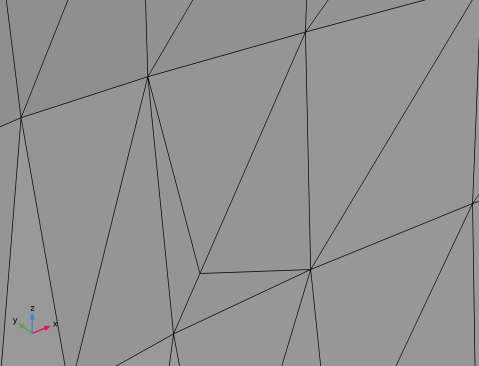
The hole is a slit-like hole with zero or almost zero area. On one side of the slit (on the right side of the green edge in the figure), there is one triangle element, whereas on the other side there are two elements. Since the import functionality cannot partition elements or add new ones, the mesh edges on the two sides of the slit could not be merged even with a larger tolerance.
C3
To repair the slit, you will use the Fill Holes operation, which can introduce new mesh edges in order to merge edges. It searches for holes within a selection of boundaries and will automatically fill all holes smaller than a specified tolerance.
1
In the Mesh toolbar, click  Cleanup and Repair and choose Fill Holes.
2
In the Settings window for Fill Holes, locate the Boundary Selection section.
3
From the Selection list, choose C3.
Notice that the Create Domains checkbox is automatically selected, which means that once all holes are filled and the surface mesh forms a watertight boundary, a domain will be created. Select to create a domain selection and rename the operation to get a more descriptive selection name.
4
Locate the Selections of Resulting Entities section. Select the Resulting domains checkbox.
5
In the Label text field, type C3.
6
Click  Build Selected.
The slit has been repaired by introducing a mesh edge on the right side of the slit, merging the two sides of the hole, and removing the edge. This makes the mesh watertight and a domain has been created, which is reported in the Messages window.
Global Definitions
Next, add a new Mesh Part and import the mesh of the C3-C4 intervertebral disc.
In the Model Builder window, under Global Definitions right-click Mesh Parts and choose 3D Part.
C3-C4 Disc
1
In the Settings window for Mesh Part, type C3-C4 Disc in the Label text field.
2
Locate the Units section. Select the Use units checkbox.
3
From the Length unit list, choose mm.
Import 1
1
In the Model Builder window, under Global Definitions > Mesh Parts > C3-C4 Disc click Import 1.
2
In the Settings window for Import, locate the Import section.
3
Click  Browse.
4
5
From the Boundary partitioning list, choose Minimal.
6
Click  Import.
7
Locate the Boundary Selections section. In the table, enter the following settings:
Information
1
In the Model Builder window, click Information.
2
In the Settings window for Information, locate the Information section.
3
Click Center at Coordinates.
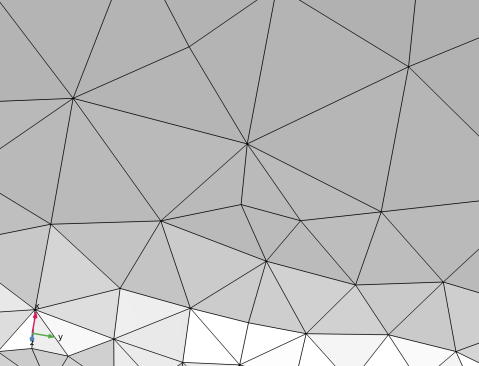
Rotate the mesh and zoom in further to see the view below. For more complex meshes when the coordinates are hidden behind mesh faces, you can also click the Clip Around Coordinates button to remove everything except the mesh closest to the coordinates in the view. If you do, click the Remove Clipping button to return to the view with the full mesh.
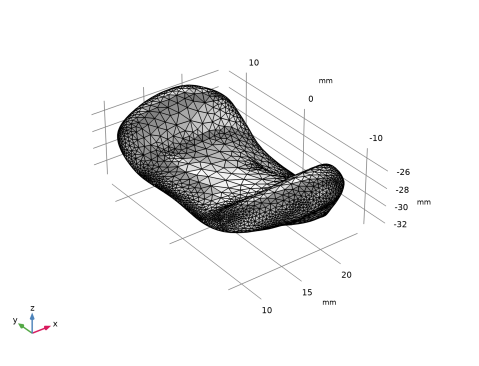
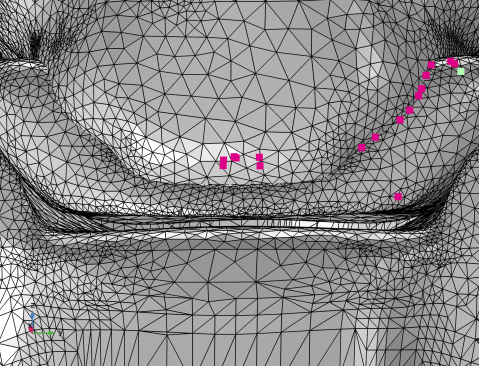
Also in this case, a domain could not be created, this time because there are intersecting mesh elements. To repair the mesh, partition it to create a boundary containing the intersecting elements, delete this boundary, and finally, generate a new mesh face to cover the resulting hole. Here, do the partitioning manually using the Create Edges operation. For a faster workflow, you can also try to use the add-in mesh_partition_with_ball available in the COMSOL Multiphysics Add-in Libraries. See the model Spray Particle Deposition in Human Airways in the Application Gallery on the COMSOL website for an example of how to use the Add-In to clean up an imported STL mesh.
Create Edges 1
1
In the Mesh toolbar, click  Entities and choose Create Edges.
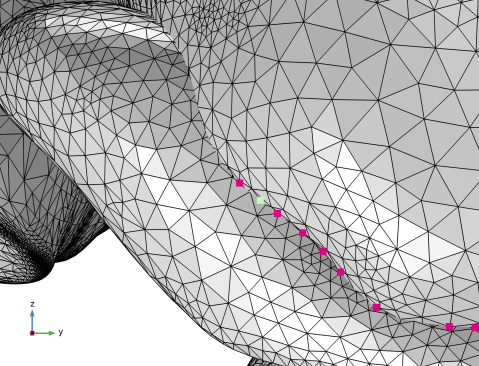
2
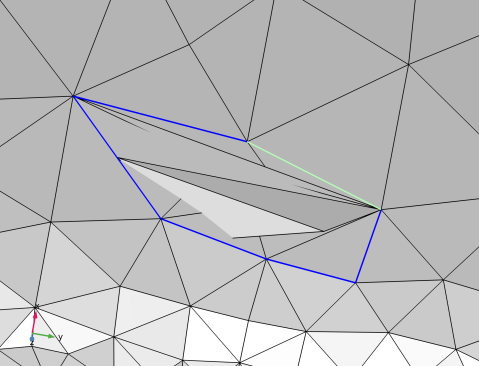
Select mesh edges around the intersecting elements by clicking them in the Graphics window, similar to what is shown in the image below. The selection is most easily done with transparency off. The selected edges can differ from the ones selected in the figure, as long as the edges form a closed loop, include the intersecting elements, and delimit only a small region around the intersecting elements. The last requirement is important when generating a new mesh face that follows the original mesh as close as possible.
3
In the Settings window for Create Edges, locate the Selections of Resulting Entities section.
4
Select the Resulting small faces checkbox to create a selection containing the boundary with the intersecting elements.
5
Click  Build Selected to generate the edges and partition the boundary.
Delete Entities 1
1
In the Mesh toolbar, click  Entities and choose Delete Entities.
2
In the Settings window for Delete Entities, locate the Geometric Entity Selection section.
3
From the Selection list, choose Create Edges 1 (Small faces) (the boundary with the intersecting elements).
4
Click  Build Selected.
There is now a hole in the surface mesh, so before continuing, the hole must be sealed. Two operations can be used for this purpose: Create Faces and Fill Holes. The Create Faces operation is a manual way of generating mesh faces for holes by selecting edge loops. The Fill Holes operation automatically generates mesh faces to cap several holes at once. Here, use the Fill Holes operation. Note that the mesh faces generated by both of these operations will be minimal faces that strive to be as planar as possible.
C3-C4
1
In the Mesh toolbar, click  Cleanup and Repair and choose Fill Holes.
2
In the Settings window for Fill Holes, locate the Boundary Selection section.
3
From the Selection list, choose C3-C4.
4
Locate the Selections of Resulting Entities section. Select the Resulting domains checkbox.
5
In the Label text field, type C3-C4.
6
Click  Build Selected.
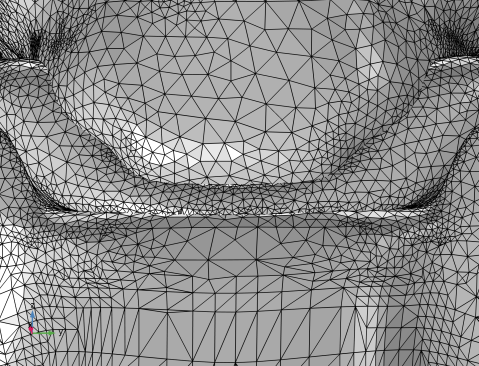
The hole is sealed with a new mesh face and the result is a smooth mesh containing a domain. Check that the domain selection C3-C4 Disc has been added in the Selection List.
Selection List
1
In the Mesh toolbar, click  Selection List to open the Selection List window.
2
In the Model Builder window, click C3-C4.
3
Click the  Go to Default View button in the Graphics toolbar.
Global Definitions
Add a third Mesh Part for the C4 vertebra.
In the Model Builder window, under Global Definitions right-click Mesh Parts and choose 3D Part.
C4
1
In the Settings window for Mesh Part, type C4 in the Label text field.
2
Locate the Units section. Select the Use units checkbox.
3
From the Length unit list, choose mm.
Import 1
1
In the Model Builder window, under Global Definitions > Mesh Parts > C4 click Import 1.
2
In the Settings window for Import, locate the Import section.
3
Click  Browse.
4
5
From the Boundary partitioning list, choose Minimal.
6
Click  Import.
Information
1
In the Model Builder window, expand the Global Definitions > Mesh Parts > C4 > Import 1 > Information node, then click Information.
2
In the Settings window for Information, locate the Geometric Entity Selection section.
3
Once again, the import failed to create a domain due to a hole in the mesh.
4
Click  Zoom to Selection.
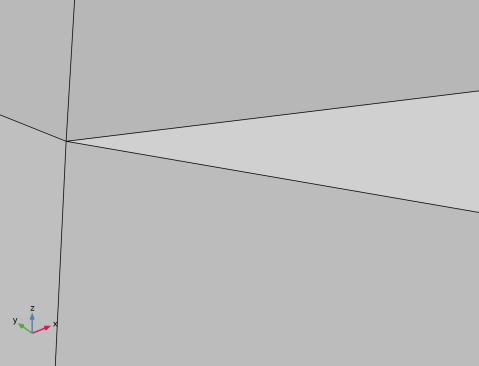
Zoom in as much as possible on the tip of the v-shaped edge to see that the hole is caused by a mismatch in coordinates for one of the triangles.
STL files contain a set of triangles that need to be stitched together within a tolerance. In this case, the automatic tolerance is not large enough to connect the vertices of the triangles. This means that this type of hole can be repaired by increasing the Repair tolerance setting for the import.
Import 1
1
In the Model Builder window, under Global Definitions > Mesh Parts > C4 click Import 1.
2
In the Settings window for Import, locate the Import section.
3
From the Repair tolerance list, choose Absolute.
4
In the Absolute tolerance text field, type 5e-4[mm].
5
Click  Import.
Using the larger repair tolerance, the element edges are now merged. As a result, the imported mesh is watertight and contains a domain with a corresponding domain selection. Rename the selections to something more descriptive.
6
Locate the Domain Selections section. In the table, enter the following settings:
7
Locate the Boundary Selections section. In the table, enter the following settings:
8
Click the  Go to Default View button in the Graphics toolbar.
Global Definitions
Add another mesh part for the C4-C5 intervertebral disc.
In the Model Builder window, under Global Definitions right-click Mesh Parts and choose 3D Part.
C4-C5 Disc
1
In the Settings window for Mesh Part, type C4-C5 Disc in the Label text field.
2
Locate the Units section. Select the Use units checkbox.
3
From the Length unit list, choose mm.
1
In the Model Builder window, under Global Definitions > Mesh Parts > C4-C5 Disc click Import 1.
2
In the Settings window for Import, locate the Import section.
3
Click  Browse.
4
5
Click  Import.
This mesh has been prepared to not contain anything that needs repairing.
6
Locate the Domain Selections section. In the table, enter the following settings:
7
Locate the Boundary Selections section. In the table, enter the following settings:
Global Definitions
Next, add a mesh part for the C5 vertebra.
In the Model Builder window, under Global Definitions right-click Mesh Parts and choose 3D Part.
C5
1
In the Settings window for Import, locate the Import section.
2
Click  Browse.
3
4
From the Boundary partitioning list, choose Minimal.
5
Click  Import.
This mesh has been prepared to fit perfectly with the adjacent vertebrae so here we want the import to partition the boundaries automatically. It is also prepared not to need repair.
6
Locate the Domain Selections section. In the table, enter the following settings:
7
Locate the Boundary Selections section. In the table, enter the following settings:
8
In the Model Builder window, click Mesh Part 5.
9
In the Settings window for Mesh Part, type C5 in the Label text field.
10
Locate the Units section. Select the Use units checkbox.
11
From the Length unit list, choose mm.
Global Definitions
Next, add a Mesh Part where the meshes will be combined into one.
In the Model Builder window, under Global Definitions right-click Mesh Parts and choose 3D Part.
Combined Mesh
1
In the Settings window for Mesh Part, type Combined Mesh in the Label text field.
2
Locate the Units section. Select the Use units checkbox.
3
From the Length unit list, choose mm.
1
In the Model Builder window, under Global Definitions > Mesh Parts > Combined Mesh click Import 1.
2
In the Settings window for Import, locate the Import section.
3
From the Source list, choose Meshing sequence.
4
From the Mesh list, choose C3.
5
Select the Import unmeshed domains checkbox to also import the domain you created earlier for the volume enclosed by the mesh. Domains are needed for most physics interfaces when running simulations in the volumes inside.
6
Click Import.
Import 2
1
In the Mesh toolbar, click  Import.
2
In the Settings window for Import, locate the Import section.
3
From the Source list, choose Meshing sequence.
4
From the Mesh list, choose C3-C4 Disc.
5
Select the Import unmeshed domains checkbox.
6
Click Import.
Information
The information message states that the mesh has intersecting elements and gives the suggestion to use the Union operation to compute the intersection. Rotate the mesh and zoom in on the coordinates to see where they are located.
1
Click the  Go to YZ View button in the Graphics toolbar.
2
In the Model Builder window, click Information.
3
In the Settings window for Information, locate the Information section.
4
From the Select location list, choose Location 11 (23.45, -6.925, -29.37).
5
Click Center at Coordinates.
Zooming in on the intersecting elements confirms that the mesh of the vertebra intersects that of the intervertebral disc. Before resolving the intersection with a Union operation, you will also import the rest of the meshes into this mesh part.
Import 3
1
In the Mesh toolbar, click  Import.
2
In the Settings window for Import, locate the Import section.
3
From the Source list, choose Meshing sequence.
4
From the Mesh list, choose C4.
5
Select the Import unmeshed domains checkbox.
6
Click Import.
Information
1
In the Model Builder window, click Information.
The C4 vertebra does not intersect the intervertebral disc, in fact there is a gap between the two.
Import 3
To adjust the position of the C4 vertebra you can use a Transform attribute to the Import node. This allows for moving, rotating, and scaling an imported mesh. You can add several Transform attributes to an Import node, to, for example, rotate the mesh around more than one axis.
Transform 1
1
In the Mesh toolbar, click  More Attributes and choose Transform.
2
In the Settings window for Transform, locate the Displacement section.
3
In the z text field, type 1[mm].
4
Click  Build Selected.
Import 4
1
In the Mesh toolbar, click  Import.
2
In the Settings window for Import, locate the Import section.
3
From the Source list, choose Meshing sequence.
4
From the Mesh list, choose C4-C5 Disc.
5
Select the Import unmeshed domains checkbox.
6
Click Import.
Information
1
In the Model Builder window, click Information.
2
In the Settings window for Information, locate the Information section.
3
Click Center at Coordinates.
The C4-C5 disc and the C5 vertebra have been prepared with identical meshes on the touching boundaries. These boundaries only need to be merged.
4
Click the  Zoom Extents button in the Graphics toolbar.
Import 5
1
In the Mesh toolbar, click  Import.
2
In the Settings window for Import, locate the Import section.
3
From the Source list, choose Meshing sequence.
4
From the Mesh list, choose C5.
5
Select the Import unmeshed domains checkbox.
6
Click Import.
7
Click the  Zoom Extents button in the Graphics toolbar.
Add a Clip Plane to see inside the mesh and inspect how the meshes are intersecting.
8
In the Graphics window toolbar, clicknext to  Clipping, then choose Add Clip Plane.
9
In the Graphics window, hover over the frame for plane1 and right-click to open up the Graphics context menu. Select Align to y-Axis to rotate plane1 to be parallel with the xz plane.
10
In the Graphics window, hover over the frame for plane1 and right-click to open up the Graphics context menu. Select Invert Clipping to view the part of the mesh that is positioned on the positive side of the y axis.
11
Click the  Go to Default View button in the Graphics toolbar.
12
In the Graphics window toolbar, clicknext to  Clipping Active, then choose Show Cross Section to show the cross-sectional faces of the domains that are cut with the Clip Plane. Since the cross-sectional faces can only be visualized where domains exists, this is one way to check if the mesh operations were actually able to create domains after repairing the holes. Note that the cross-sectional faces are not shown, even if there are domains, if the Wireframe option is enabled in the Graphics toolbar, so remember to check the status of that option if you do not see any cross-sections.
13
In the Graphics window toolbar, clicknext to  Clipping Active, then choose Colorize to disable the colors of the domains. This gives a more clear view of the overlaps between the imported meshes.
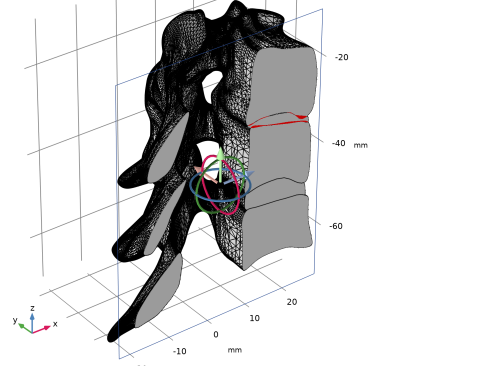
It is possible to click and drag the frame of the Clip Plane in the graphics to pan through the volumes. If you do, move the frame back to somewhere close to y=0 before continuing.
Zoom in on the cross section of the C3-C4 intervertebral disc.
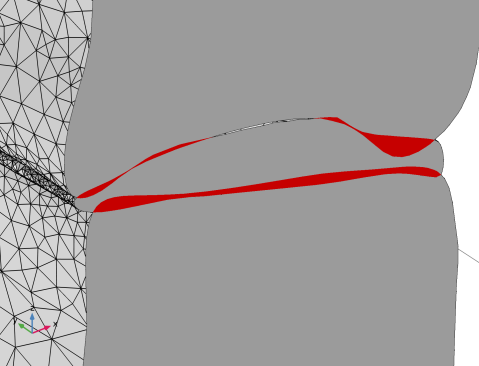
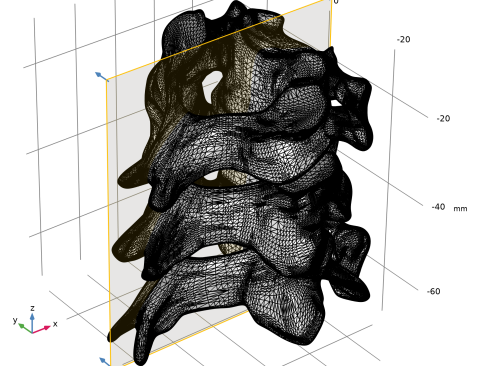
The red areas show where the domains of the imported meshes intersect. In this view you can see that these meshes are not even close to match up no matter how careful you are at positioning the meshes in relation to each other. The black edges on top of the disc indicate that there is a gap between the disc and the C3 vertebra. First unite the meshes and then resolve the intersections and the gap.
Union 1
1
In the Mesh toolbar, click  Booleans and Partitions and choose Union.
2
In the Settings window for Union, locate the Dimension section.
3
From the Geometric entity level list, choose Domain.
4
5
Locate the Cleanup section. From the Repair tolerance list, choose Absolute.
6
In the Absolute tolerance text field, type 6e-4[mm].
Lowering the tolerance usually helps when calculating a complex intersection. In some cases, when the element size differs too much between the input meshes, it can be necessary to remesh the boundaries before the Union operation to obtain similar sized elements. This can help with a successful computation of a mesh union, but is not needed for our vertebra mesh.
7
From the Placement of mesh vertices list, choose Linear.
Switching to a linear placement of the mesh vertices helps here as the curved surfaces almost coincide at some locations.
8
Click  Build Selected.
The red areas are no longer visible as the Union operation has formed separate domains for each intersection region. You can also confirm this using the Selection List window.
Selection List
1
Go to the Selection List window to verify that there are 7 domains in the mesh, one large domain for each of the imported meshes and two that have been created for the intersecting regions. Keep the window open as you will use it more later on.
In the bottom of the Selection List window, the available named selections are also listed for easy access.
Combined Mesh
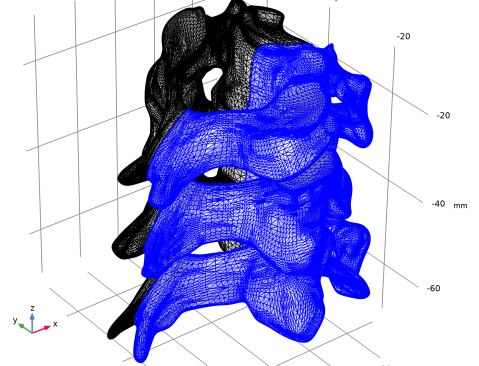
Assuming that you are only interested in the five connected domains for the vertebrae and discs, continue with adding first a Join Entities operation to eliminate the additional domains, and then a Merge Entities operation to collapse the void regions.
Join Entities 1
1
In the Mesh toolbar, click  Entities and choose Join Entities.
2
Note that you can just as well add the overlap domains to the domain of the disc, but in this case add them to the domains of the vertebrae.
3
In the Settings window for Join Entities, click  Build Selected.
Check in the Selection List window that there are now five domains, one for each vertebra and two for the discs.
By switching to wireframe rendering, you can easily inspect the edges formed by the union to see if any edge loops were created around void regions between the domains.
4
Click the  Wireframe Rendering button in the Graphics toolbar.
5
Click the  Mesh Rendering button in the Graphics toolbar.
6
Click the  Clipping Active button in the Graphics toolbar.
7
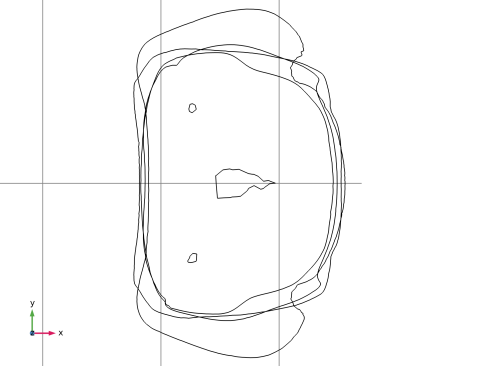
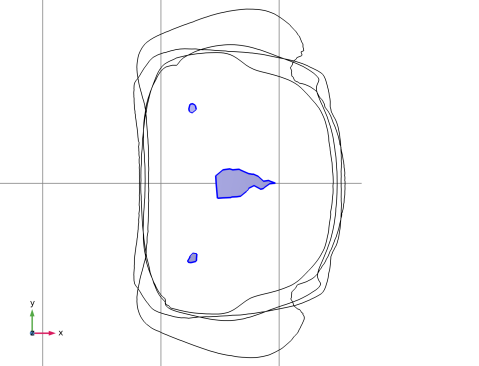
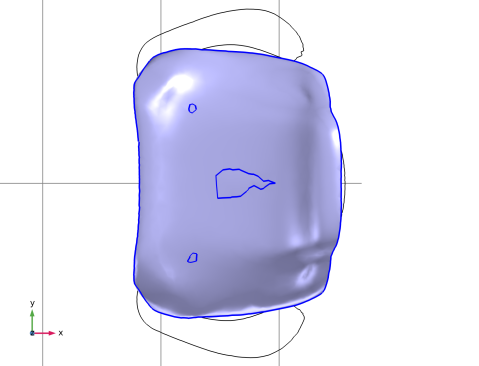
Click the  Go to XY View button in the Graphics toolbar. Zoom in further to see the view below.
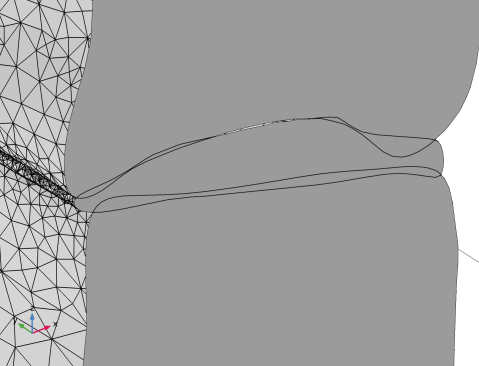
The large loops are the expected intersection edges where the boundaries of the vertebrae and discs intersect. The smaller edge loops are the bounding edges of thin void regions between the C3 vertebra and the disc. These are the result of the gaps you could see when looking at the cross section with clipping applied in the view.
Merge Entities 1
1
In the Mesh toolbar, click  Cleanup and Repair and choose Merge Entities.
2
Click the  Select Box button in the Graphics toolbar.
3
4
In the Settings window for Merge Entities, click  Build Selected.
This still leaves one set of boundaries for each of the voids. Add another Join Entities operation to join these boundaries with the adjacent boundary.
Join Entities 2
1
In the Mesh toolbar, click  Entities and choose Join Entities.
2
In the Settings window for Join Entities, locate the Geometric Entity Selection section.
3
From the Geometric entity level list, choose Boundary.
4
5
Click  Build Selected.
In the Graphics window, you should now only see the larger edge loops in the intersection between the discs and vertebrae.
6
Click the  Go to Default View button in the Graphics toolbar.
Merge Entities 2
Next, Add two Merge Entities operations to merge the boundaries adjacent to the C4-C5 disc.
1
In the Mesh toolbar, click  Cleanup and Repair and choose Merge Entities.
2
3
In the Settings window for Merge Entities, click  Build Selected.
Merge Entities 3
1
In the Mesh toolbar, click  Cleanup and Repair and choose Merge Entities.
2
3
In the Settings window for Merge Entities, click  Build Selected.
Next, restore the mesh rendering before continuing the work on the mesh.
4
Click the  Mesh Rendering button in the Graphics toolbar.
Intersect with Plane 1
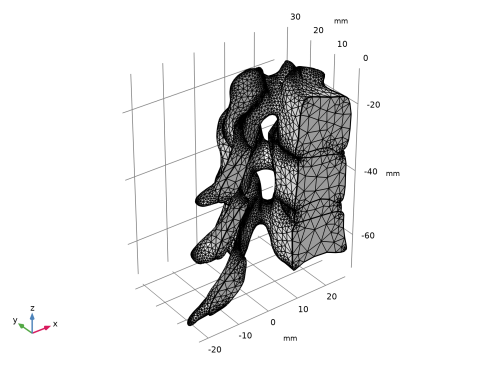
It is often possible to simplify a simulation by exploring symmetries in the geometry and physics. Assuming that the xz-plane is a symmetry for the vertebrae and disc, in the following you will partition and keep only half of the domains.
1
In the Mesh toolbar, click  Booleans and Partitions and choose Intersect with Plane.
2
In the Settings window for Intersect with Plane, locate the Plane Definition section.
3
From the Plane list, choose zx-plane.
Create a selection for the part of the mesh that is below the plane. Selections can be useful during the physics setup, for example to assign materials and boundary conditions. If you, for example, will assign a symmetry boundary condition for the planar faces of the intersection, make sure to also select the checkbox for Intersection faces.
4
Locate the Selections of Resulting Entities section. Select the Entities below checkbox.
5
From the Show outside part list, choose Off.
6
Click  Build Selected.
Delete Entities 1
1
In the Mesh toolbar, click  Entities and choose Delete Entities.
2
In the Settings window for Delete Entities, locate the Geometric Entity Selection section.
3
From the Selection list, choose Intersect with Plane 1 (Below).
4
Click  Build Selected.
Remesh Faces 1
1
In the Mesh toolbar, click  More Generators and choose Remesh Faces.
Remesh the surfaces to prepare for part 2 where the surfaces of the vertebrae will be intersected the geometry of the screws.
2
In the Settings window for Remesh Faces, locate the Boundary Selection section.
3
From the Selection list, choose All boundaries.
Size
1
In the Model Builder window, expand the Remesh Faces 1 node, then click Size.
2
In the Settings window for Size, locate the Element Size section.
3
From the Predefined list, choose Extra fine.
4
Click  Build Selected.
Information
According to the information messages, the element size used does not resolve narrow regions in the ridges of the vertebrae. It is good practice to investigate if you need to refine the mesh further to better resolve geometric details and the solution field in such regions. However, if you know that the mesh is good enough for your purposes, you can safely ignore this information.
You are now done with preparing the geometric model for the vertebrae and discs. The remaining steps will generate a physics-controlled mesh that can be used for computation. You do this in the Component.
Component 1 (comp1)
First, import the combined mesh of the vertebrae and discs into the Mesh 1 node, then build the physics-controlled mesh of Mesh 2 that operates on the geometric model of Mesh 1. In the second part of this tutorial series, Mesh 1 will be used to combine the vertebrae with the geometry of three pedicle screws.
Mesh 1
In the Model Builder window, expand the Component 1 (comp1) node, then click Mesh 1.
Import - Combined mesh
1
In the Mesh toolbar, click  Import.
2
In the Settings window for Import, type Import - Combined mesh in the Label text field.
3
Locate the Import section. From the Source list, choose Meshing sequence.
4
From the Mesh list, choose Combined Mesh.
5
Select the Import unmeshed domains checkbox to also import the domains formed in the Mesh Parts.
6
Click Import.
Add another meshing sequence to generate a physics-controlled mesh.
Physics-Controlled Mesh
1
In the Mesh toolbar, click Add Mesh and choose Add Mesh.
2
In the Settings window for Mesh, type Physics-Controlled Mesh in the Label text field.
3
In the Model Builder window, click Physics-Controlled Mesh.
4
Locate the Physics-Controlled Mesh section. From the Element size list, choose Coarser.
5
Click  Build All.
6
Click the  Go to Default View button in the Graphics toolbar.
7
In the Model Builder window, click Physics-Controlled Mesh.
The volume mesh is now ready and can be used to set up a simulation. This concludes the first part of this tutorial. In the second part, this mesh will be combined with a geometry for three pedicle screws inserted into the vertebrae.

1
The STL geometry is provided courtesy of Mark Yeoman, Continuum Blue, UK.