|
|
|



|
•
|
Darcy’s Law, solving for the pressure in the GDLs
|
|
•
|
Laminar Flow, solving for the gas pressure and velocity field in the channels
|
|
•
|
Phase Transport in Free and Porous Media Flow, solving for the liquid water phase volume fraction in the gas-liquid two-phase mixture
|
|
•
|
Multiphase Flow in Porous Media, coupling Darcy’s law and Phase Transport in the GDLs
|
|
•
|
Free and Porous Media Flow Coupling, defining the boundary between the Laminar Flow and Darcy’s Law domains
|
|
•
|
Mixture Model, coupling Laminar Flow and Phase Transport in the channels
|





|
•
|
A first Current Distribution Initialization step computes suitable initial values for the electrode and electrolyte phase potentials, neglecting nonlinear activation overpotentials.
|
|
•
|
The second Current Distribution Initialization step includes nonlinear activation overpotentials.
|
|
•
|
A third Stationary step then solves for the pressures and velocity fields of the Darcy’s Law and Laminar Flow interfaces only, with all resulting mass sources from the fuel cell model disabled.
|
|
•
|
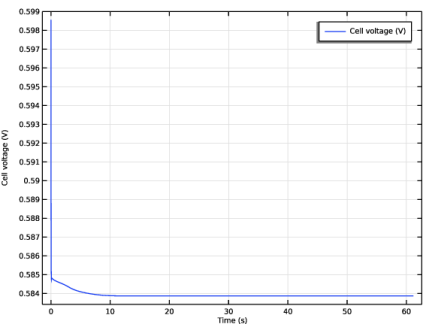
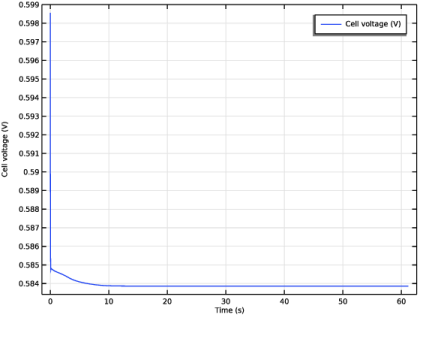
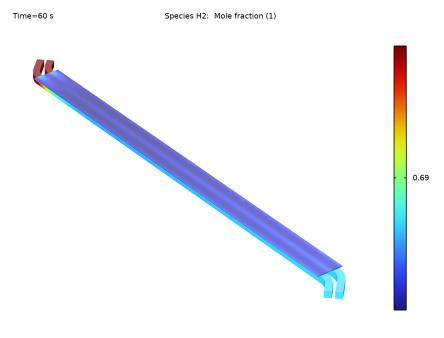
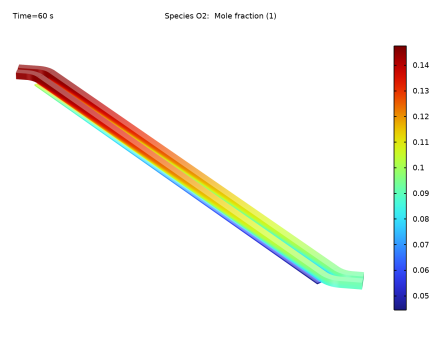
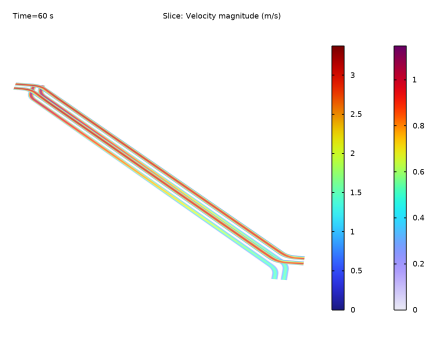
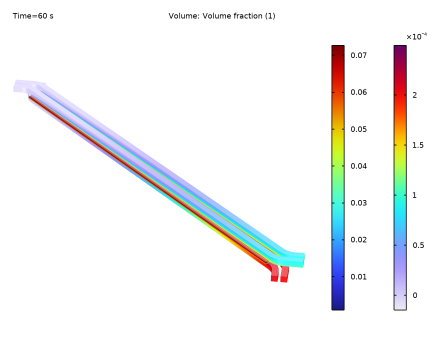
The fourth and final Time Dependent step solves for the fully coupled problem using a time-dependent solver, representing the transient behavior of the cell during 60 s after a current step going from a 0 to 1 A/cm2 average cell current density at t = 0 s.
|

|
1
|
|
2
|
In the Select Physics tree, select Electrochemistry > Hydrogen Fuel Cells > Proton Exchange Membrane (fc).
|
|
3
|
Click Add.
|
|
4
|
In the Select Physics tree, select Fluid Flow > Porous Media and Subsurface Flow > Multiphase Free and Porous Media Flow.
|
|
5
|
Click Add.
|
|
6
|
|
7
|
In the Volume fractions (1) table, enter the following settings:
|
|
8
|
Click
 Study. Study. |
|
9
|
In the Select Study tree, select Preset Studies for Selected Physics Interfaces > Hydrogen Fuel Cell > Time Dependent with Initialization.
|
|
10
|
Click
 Done. Done. |
|
1
|
|
2
|
Browse to the model’s Application Libraries folder and double-click the file two_phase_pemfc_geom_sequence.mph.
|
|
3
|
|
4
|
|
1
|
|
2
|
|
1
|
|
2
|
|
3
|
|
4
|
Browse to the model’s Application Libraries folder and double-click the file two_phase_pemfc_physics_parameters.txt.
|
|
1
|
In the Model Builder window, under Component 1 (comp1) right-click Definitions and choose Variables.
|
|
2
|
|
3
|
|
4
|
|
5
|
|
6
|
Browse to the model’s Application Libraries folder and double-click the file two_phase_pemfc_gdl_variables.txt.
|
|
1
|
|
2
|
|
3
|
|
4
|
|
5
|
|
6
|
Browse to the model’s Application Libraries folder and double-click the file two_phase_pemfc_channel_variables.txt.
|
|
1
|
|
2
|
Go to the Add Material window.
|
|
3
|
In the tree, select Fuel Cell and Electrolyzer > Polymer Electrolytes > Nafion®, EW 1100, Vapor Equilibrated, Protonated.
|
|
4
|
Right-click and choose Add to Component 1 (comp1).
|
|
5
|
|
1
|
|
2
|
|
1
|
Right-click Component 1 (comp1) > Materials > Nafion®, EW 1100, Vapor Equilibrated, Protonated (mat1) and choose Duplicate.
|
|
2
|
|
3
|
|
4
|
|
1
|
|
2
|
|
3
|
|
4
|
|
5
|
|
1
|
|
2
|
|
3
|
|
1
|
|
2
|
|
3
|
|
4
|
|
1
|
|
2
|
|
3
|
|
4
|
|
5
|
|
6
|
|
1
|
|
2
|
|
3
|
|
4
|
|
5
|
|
6
|
|
1
|
|
2
|
|
3
|
|
4
|
|
1
|
|
2
|
In the Settings window for Thin H2 Gas Diffusion Electrode Reaction, locate the Electrode Kinetics section.
|
|
3
|
|
4
|
|
1
|
|
2
|
|
3
|
|
4
|
|
1
|
|
2
|
In the Settings window for Thin O2 Gas Diffusion Electrode Reaction, locate the Electrode Kinetics section.
|
|
3
|
|
4
|
|
5
|
|
1
|
|
2
|
|
3
|
|
1
|
|
2
|
|
3
|
|
1
|
|
2
|
|
3
|
|
1
|
|
2
|
|
3
|
|
4
|
|
1
|
In the Model Builder window, under Component 1 (comp1) > Hydrogen Fuel Cell (fc) click H2 Gas Phase 1.
|
|
2
|
|
3
|
|
4
|
|
1
|
|
2
|
|
3
|
|
1
|
|
2
|
|
3
|
|
1
|
|
2
|
|
3
|
|
4
|
Locate the Condensation-Evaporation Rate section. From the rce list, choose User defined. In the text field, type r_c.
|
|
1
|
|
2
|
|
3
|
|
4
|
|
5
|
|
1
|
In the Model Builder window, under Component 1 (comp1) > Hydrogen Fuel Cell (fc) click O2 Gas Phase 1.
|
|
2
|
|
3
|
|
4
|
|
1
|
|
2
|
|
3
|
|
1
|
|
2
|
|
3
|
|
1
|
|
2
|
|
3
|
|
4
|
Locate the Condensation-Evaporation Rate section. From the rce list, choose User defined. In the text field, type r_c.
|
|
1
|
|
2
|
|
3
|
|
4
|
|
5
|
|
1
|
|
2
|
|
3
|
|
1
|
|
2
|
|
3
|
|
4
|
|
5
|
Clear the Apply condition on each disjoint selection separately checkbox.
|
|
6
|
|
1
|
|
2
|
|
3
|
|
4
|
|
5
|
Clear the Apply condition on each disjoint selection separately checkbox.
|
|
6
|
|
1
|
|
2
|
|
3
|
|
1
|
|
2
|
|
3
|
|
1
|
In the Model Builder window, under Component 1 (comp1) > Darcy’s Law (dl) > Porous Medium 1 click Porous Matrix 1.
|
|
2
|
|
3
|
|
4
|
|
5
|
|
1
|
In the Model Builder window, under Component 1 (comp1) click Phase Transport in Free and Porous Media Flow (phtr).
|
|
2
|
In the Settings window for Phase Transport in Free and Porous Media Flow, locate the Domain Selection section.
|
|
3
|
|
1
|
|
2
|
|
3
|
|
4
|
|
1
|
In the Model Builder window, under Component 1 (comp1) > Phase Transport in Free and Porous Media Flow (phtr) click Porous Medium 1.
|
|
2
|
|
3
|
|
1
|
|
2
|
|
3
|
|
4
|
|
5
|
|
6
|
|
7
|
|
8
|
|
9
|
|
10
|
|
1
|
|
2
|
|
3
|
|
4
|
|
1
|
|
2
|
|
3
|
|
4
|
|
1
|
|
2
|
|
3
|
|
1
|
|
2
|
|
3
|
|
4
|
|
5
|
|
6
|
|
1
|
|
2
|
|
3
|
|
4
|
Locate the Boundary Mass Source section. From the qb,sg list, choose Boundary mass source, gas phase (fc).
|
|
5
|
|
1
|
In the Model Builder window, under Component 1 (comp1) > Multiphysics click Mixture Model 1 (mfmm1).
|
|
2
|
|
3
|
|
4
|
|
5
|
|
6
|
Locate the Dispersed Phase 2 Properties section. From the ρsw list, choose Density of liquid water (fc).
|
|
7
|
|
1
|
|
2
|
|
3
|
|
4
|
|
1
|
|
2
|
|
3
|
From the list, choose User-controlled mesh.
|
|
4
|
|
1
|
|
2
|
|
3
|
|
1
|
|
2
|
|
3
|
|
4
|
|
5
|
|
6
|
|
7
|
Select the Symmetric distribution checkbox.
|
|
1
|
|
2
|
|
3
|
|
4
|
|
1
|
|
2
|
|
3
|
Click the Custom button.
|
|
4
|
Locate the Element Size Parameters section.
|
|
5
|
|
1
|
|
2
|
|
3
|
|
4
|
|
5
|
Locate the Element Size Parameters section.
|
|
6
|
|
1
|
|
2
|
|
3
|
|
4
|
|
1
|
|
2
|
|
3
|
|
1
|
|
2
|
|
3
|
Click the Custom button.
|
|
4
|
Locate the Element Size Parameters section.
|
|
5
|
|
1
|
|
2
|
|
3
|
|
4
|
Locate the Destination Boundaries section. From the Selection list, choose Hydrogen GDL Bottom Boundaries.
|
|
5
|
Click
 Build Selected. Build Selected. |
|
1
|
|
2
|
|
3
|
|
1
|
|
2
|
|
3
|
|
4
|
|
5
|
|
6
|
|
7
|
Select the Reverse direction checkbox.
|
|
1
|
|
2
|
|
3
|
|
4
|
|
1
|
|
2
|
|
3
|
|
4
|
|
5
|
|
6
|
|
1
|
|
2
|
|
3
|
Click the Custom button.
|
|
4
|
Locate the Element Size Parameters section.
|
|
5
|
|
1
|
|
2
|
|
3
|
|
4
|
|
5
|
Locate the Element Size Parameters section.
|
|
6
|
|
7
|
|
1
|
|
2
|
|
3
|
|
4
|
|
1
|
|
2
|
|
3
|
In the Settings window for Stationary, type Stationary - Single Phase Flow Initialization in the Label text field.
|
|
4
|
Locate the Physics and Variables Selection section. In the Solve for column of the table, under Component 1 (comp1), clear the checkboxes for Hydrogen Fuel Cell (fc) and Phase Transport in Free and Porous Media Flow (phtr).
|
|
5
|
Select the Modify model configuration for study step checkbox.
|
|
6
|
In the tree, select Component 1 (comp1) > Phase Transport in Free and Porous Media Flow (phtr) > Mass Source 1.
|
|
7
|
Right-click and choose Disable.
|
|
8
|
In the tree, select Component 1 (comp1) > Phase Transport in Free and Porous Media Flow (phtr) > Boundary Mass Source 1.
|
|
9
|
Right-click and choose Disable.
|
|
1
|
|
2
|
|
3
|
|
1
|
|
2
|
In the Settings window for Global Variable Probe, click Replace Expression in the upper-right corner of the Expression section. From the menu, choose Component 1 (comp1) > Hydrogen Fuel Cell > fc.phis0_ec1 - Electric potential on boundary - V.
|
|
3
|
Locate the Expression section.
|
|
4
|
|
1
|
In the Model Builder window, under Study 1 click Step 3: Stationary - Single Phase Flow Initialization.
|
|
2
|
|
3
|
|
4
|
|
1
|
|
2
|
|
1
|
|
2
|
|
3
|
Clear the Plot dataset edges checkbox.
|
|
4
|
|
1
|
|
2
|
|
3
|
|
1
|
|
2
|
|
3
|
|
4
|
|
5
|
|
1
|
|
2
|
|
3
|
|
4
|
|
5
|
|
1
|
|
2
|
|
3
|
Clear the Plot dataset edges checkbox.
|
|
4
|
|
1
|
In the Model Builder window, under Results, Ctrl-click to select Volume Fraction (phtr) and Volume Fraction (phtr) 1.
|
|
2
|
Right-click and choose Delete.
|
|
1
|
|
2
|
|
1
|
|
2
|
In the Settings window for Volume, click Replace Expression in the upper-right corner of the Expression section. From the menu, choose Component 1 (comp1) > Phase Transport in Free and Porous Media Flow > s_w - Volume fraction - 1.
|
|
1
|
|
2
|
|
3
|
|
1
|
In the Model Builder window, under Results > Liquid Volume Fraction right-click Volume 1 and choose Duplicate.
|
|
2
|
|
3
|
|
4
|
|
1
|
|
2
|
|
3
|
|
1
|
|
2
|
|
3
|
Clear the Plot dataset edges checkbox.
|
|
4
|
|
1
|
|
2
|
In the Settings window for 3D Plot Group, type Cross-Membrane Current Density in the Label text field.
|
|
3
|
|
4
|
|
1
|
|
2
|
In the Settings window for Surface, click Replace Expression in the upper-right corner of the Expression section. From the menu, choose Component 1 (comp1) > Hydrogen Fuel Cell > fc.nIl - Normal electrolyte current density - A/m².
|
|
1
|
|
2
|
|
3
|
Clear the Plot dataset edges checkbox.
|
|
4
|