

PDF

Current Density Distribution in a Solid Oxide Fuel Cell
Introduction
This example studies the current density distribution in a solid oxide fuel cell (SOFC). It includes the full coupling between the mass balances at the anode and cathode, the momentum balances in the gas channels, the gas flow in the porous electrodes, the balance of the ionic current carried by the oxide ion, and an electronic current balance.
Model Definition
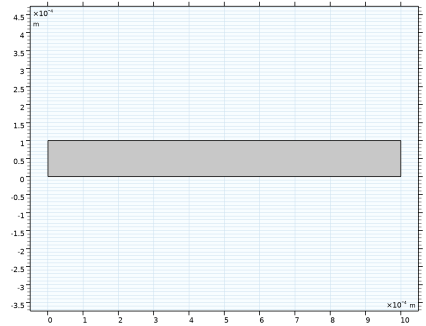
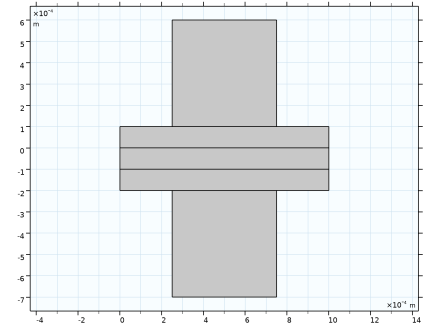
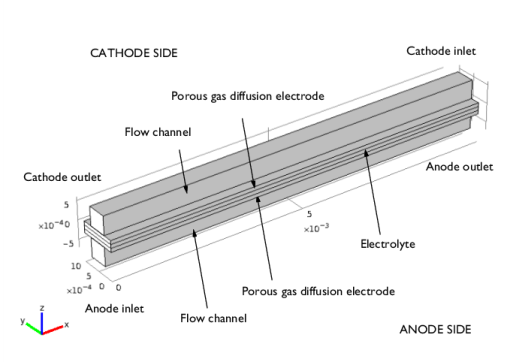
An SOFC is constructed with two porous gas diffusion electrodes (GDEs) with an electrolyte sandwiched in the middle; see Figure 1.
Figure 1: Geometry of the unit cell, with anode at the bottom and cathode at the top.
The fuel feed in the cathode and anode is counterflow, with hydrogen-rich anode gas entering from the left.
The electrochemical reactions in the cell are given below.
The model includes the following processes:
Charge Balances
The charge balance in the anode and cathode current feeders, the electrolyte and GDEs are solved for using a Hydrogen Fuel Cell interface.
The electrode and electrolyte current vectors are defined as (SI unit: A/m2)
and
respectively, where is the electrode phase potential (SI unit: V) and is the electrolyte phase potential (SI unit: V).
The electronic and ionic charge balances are then defined as
and
respectively, where is the electrode phase potential (SI unit: V), is the electrolyte phase potential (SI unit: V) and iv the volumetric current density (SI unit: A/m3), stemming from the charge transfer reactions, is defined as
where Av (SI unit: m2/m3) is the specific surface area and iloc is the local current density (SI unit: A/m2).
Butler-Volmer charge transfer kinetics describe the charge transfer current density as a function of the overpotential and the partial pressures of the reacting gases.
The overpotential is defined as
where, and the equilibrium potential (SI unit: V). The equilibrium potential depends on the partial pressures of the reacting gases and the temperature, and is calculated automatically by using the Nernst equation and the built-in thermodynamical database of the Hydrogen Fuel Cell interface.
At the anode, hydrogen is oxidized to form water, and the following charge transfer kinetics equation applies:
Here i0,a is the anode exchange current density (SI unit: A/m2) for the stated reference pressures, pH2 is the partial pressure of hydrogen, pH2O is the partial pressure of water, pH2,ref and pH2O,ref are the reference pressures (1 atm). Furthermore, F is Faraday’s constant (SI unit: C/mol), R the gas constant (SI unit: J/(mol·K)), T the temperature (SI unit: K), and η the overvoltage (SI unit: V). The exponents and (dimensionless) define the partial pressure dependencies of the reacting gases.

Correspondingly, for the cathode, the relation
is used, where i0,c is the cathode exchange current density (SI unit: A/m2) at the reference pressure, and pO2 is the partial pressure of oxygen. The values of the exponents and the transfer coefficients for both reactions are taken from Ref. 3.
At the anode’s inlet boundary, the potential is grounded to a fixed potential of zero. At the cathode’s inlet boundary, the potential is set to the cell voltage Vcell. In this model, you simulate the fuel cell for a range of cell voltages (ranging from around 1.0 V to 0.5 V) by using an auxiliary sweep.
Multicomponent Mass Transport and Gas-Flow Equations
SOFCs can be operated on many different fuels. This model describes a unit running on hydrogen and air. At the anode, a hydrogen gas is supplied as fuel and water is produced in the electrode reaction, implying that the gas consists of two components: hydrogen and water vapor. In the cathode, air (oxygen and nitrogen) is supplied and oxygen reacts.
The material transport is described by the Maxwell-Stefan’s diffusion and convection equations, solved for by the Hydrogen Fuel Cell interface. The Free and Porous Media Flow, Brinkman interface is used for solving for the velocity field and pressure. The compressible Navier-Stokes equations govern the flow in the open channels and the Brinkman equations describe the flow velocity in the porous GDEs.
Couplings for the density, dynamic viscosity, velocity, pressure and net mass sources and sinks are made between the Hydrogen Fuel Cell and Free and Porous Media Flow, Brinkman interface by using Reacting Flow, H2 Gas Phase and Reacting Flow, O2 Gas Phase multiphysics nodes.
At the inlet, total flux conditions are used, corresponding to stoichiometry values of 2 for a current of 1.5 A/cm2. (This means that twice as much fuel and oxidant is fed into the cell than would be consumed at an average current density of 1.5 A/cm2). At the outlets, condition convective outflow conditions are used.
Results and Discussion
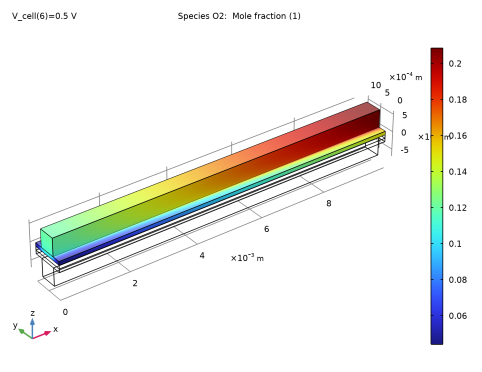
Figure 2 shows the oxygen mole fraction in the cathode at a cell voltage 0.5 V. Significant gradients in the mole fraction is seen in the electrode domain which will be detrimental to the performance of the cell.
Figure 2: Oxygen mole fraction in the gas channel and in the gas diffusion cathode while operating at a cell voltage of 0.5 V. The inlet is to the right.
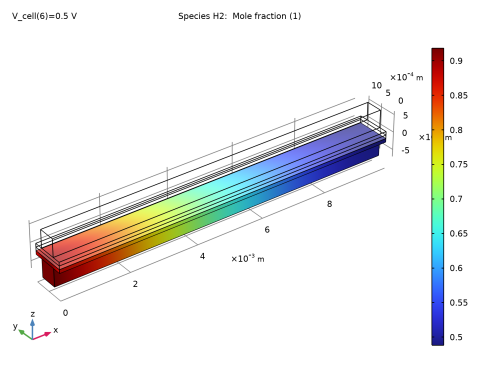
Figure 3 below shows the distribution of hydrogen. The mole fraction of hydrogen in the anode decreases along the channel, but in contrast to the oxygen mole fraction, only small gradients are seen in the y-direction within the electrode domain.
Figure 3: Hydrogen distribution in the anode at 0.5 V cell voltage. The inlet is to the left.
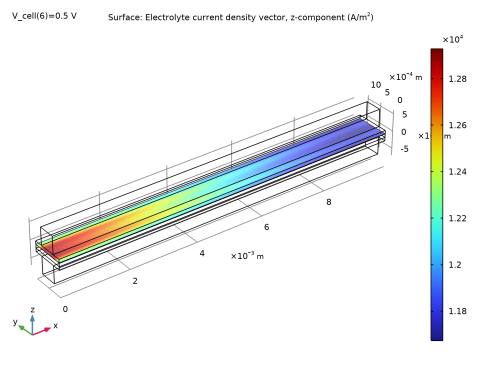
The nun-uniform concentration distribution will contribute to the current density being less uniform in the GDEs. Figure 4 depicts the current density distribution at the cathode side of the ionic conductor.
Figure 4: The electrolyte current density in the unit cell operating at 0.5 V.
One way to improve the operating conditions could be to increase the flow rate (the flow stoichiometry values).
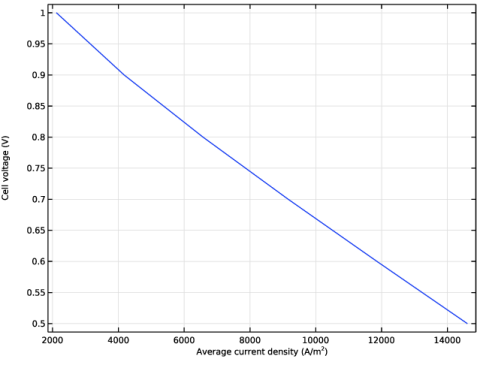
Figure 5 shows the voltage as a function of the total current (polarization curve).
Figure 5: Polarization curve.
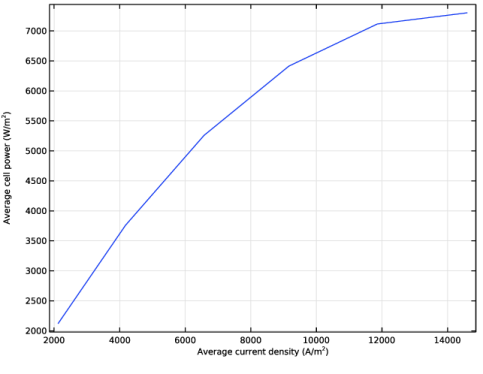
Figure 6 shows the power output as a function of the cell current density. For the highest current level, the power approaches a maximum value of about 7500 W/m2 for the unit cell.
Figure 6: Power output as a function of cell voltage.
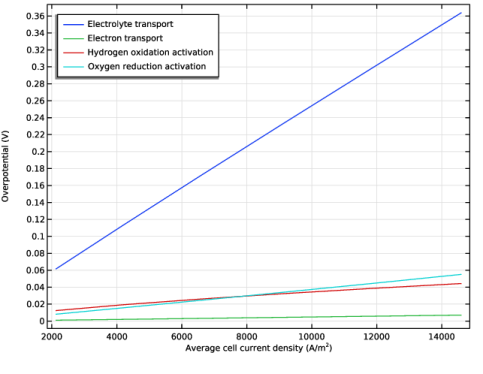
To attribute the voltage losses in the model to separate physical phenomena, we define a set of voltage loss (lumped overpotential) variables. The general approach to define the loss variables is to first compute the total loss in terms of electric power, and then to divide this number by the cell current.
The ohmic losses are computed by integrating the dot product of the gradient of the potential and the corresponding current vector, resulting in
(1)
and
(2)
for the electrolyte and electrode phases, respectively. In the above and following integral expressions, the integration is made for all applicable domains, and Ω is the volume element.
For the activation losses due to the charge transfer reactions in the electrodes, the loss of electric power is computed by integrating the product of the activation overpotential and the volumetric current density
(3)
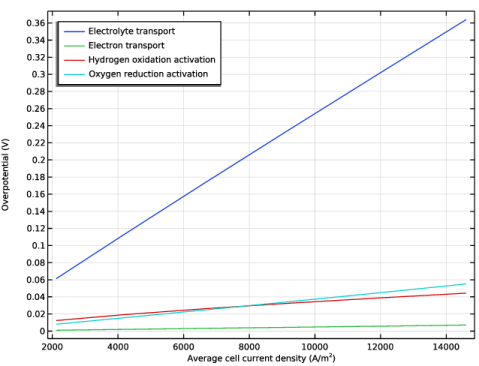
Figure 7 shows the lumped electrolyte and electrode overpotentials, as well as the anode and cathode activation losses. For this cell configuration, the electrolyte losses are the main contributor to the cell polarization.
Figure 7: Lumped overvoltages.


References
1. J. Hartvigsen, S. Elangovan, and A. Khandkar, Science and Technology of Zirconia V, S.P.S. Badwal, M.J. Bannister, and R.H.J. Hannink, eds., p. 682, Technomic Publishing Company Inc., Lancaster, P.A., 1993.
2. R. Herbin, J.M. Fiard, and J.R. Ferguson, First European Solid Oxide Fuel Cell Forum Proceedings, U. Bossel, ed., p. 317, Lucerne, Switzerland, 1994.
3. M. García-Camprubí, S. Izquierdo, and N. Fueyo. Renewable and Sustainable Energy Reviews 33 (2014) 701-718
Application Library path: Fuel_Cell_and_Electrolyzer_Module/Fuel_Cells/sofc_unit_cell
Modeling Instructions
From the File menu, choose New.
New
In the New window, click  Model Wizard.
Model Wizard
1
In the Model Wizard window, click  3D.
2
In the Select Physics tree, select Electrochemistry > Hydrogen Fuel Cells > Solid Oxide (fc).
3
Click Add.
4
In the Select Physics tree, select Fluid Flow > Porous Media and Subsurface Flow > Free and Porous Media Flow, Brinkman (fp).
5
Click Add.
6
In the Velocity field (m/s) text field, type u_c.
7
In the Velocity field components table, enter the following settings:
8
In the Pressure (Pa) text field, type p_c.
9
In the Select Physics tree, select Fluid Flow > Porous Media and Subsurface Flow > Free and Porous Media Flow, Brinkman (fp).
10
Click Add.
11
In the Velocity field (m/s) text field, type u_a.
12
In the Velocity field components table, enter the following settings:
13
In the Pressure (Pa) text field, type p_a.
14
Click  Study.
15
In the Select Study tree, select Preset Studies for Selected Physics Interfaces > Hydrogen Fuel Cell > Stationary with Initialization.
16
Global Definitions
Define the parameters using the text file provided.
Parameters 1
1
In the Model Builder window, under Global Definitions click Parameters 1.
2
In the Settings window for Parameters, locate the Parameters section.
3
Click  Load from File.
4
Geometry 1
Create the geometry by first defining the 2D cross section of the cell, then extrude it to create the 3D model geometry.
Work Plane 1 (wp1)
1
In the Geometry toolbar, click  Work Plane.
2
In the Settings window for Work Plane, locate the Plane Definition section.
3
From the Plane list, choose yz-plane.
Add rectangles as described below.
4
Click  Go to Plane Geometry.
Work Plane 1 (wp1) > Rectangle 1 (r1)
1
In the Work Plane toolbar, click  Rectangle.
2
In the Settings window for Rectangle, locate the Size and Shape section.
3
In the Width text field, type W_channel+W_rib.
4
In the Height text field, type H_gde.
5
Click  Build Selected.
6
Click the  Zoom Extents button in the Graphics toolbar.
Work Plane 1 (wp1) > Rectangle 2 (r2)
1
In the Work Plane toolbar, click  Rectangle.
2
In the Settings window for Rectangle, locate the Size and Shape section.
3
In the Width text field, type W_channel+W_rib.
4
In the Height text field, type H_electrolyte.
5
Locate the Position section. In the yw text field, type -H_electrolyte.
6
Click  Build Selected.
Work Plane 1 (wp1) > Rectangle 3 (r3)
1
In the Work Plane toolbar, click  Rectangle.
2
In the Settings window for Rectangle, locate the Size and Shape section.
3
In the Width text field, type W_channel+W_rib.
4
In the Height text field, type H_gde.
5
Locate the Position section. In the yw text field, type -H_electrolyte-H_gde.
6
Click  Build Selected.
Work Plane 1 (wp1) > Rectangle 4 (r4)
1
In the Work Plane toolbar, click  Rectangle.
2
In the Settings window for Rectangle, locate the Size and Shape section.
3
In the Width text field, type W_channel.
4
In the Height text field, type H_channel.
5
Locate the Position section. In the xw text field, type W_rib/2.
6
In the yw text field, type H_gde.
7
Click  Build Selected.
Work Plane 1 (wp1) > Rectangle 5 (r5)
1
In the Work Plane toolbar, click  Rectangle.
2
In the Settings window for Rectangle, locate the Size and Shape section.
3
In the Width text field, type W_channel.
4
In the Height text field, type H_channel.
5
Locate the Position section. In the xw text field, type W_rib/2.
6
In the yw text field, type -H_gde-H_electrolyte-H_channel.
7
Click  Build Selected.
8
Click the  Zoom Extents button in the Graphics toolbar.
Extrude 1 (ext1)
1
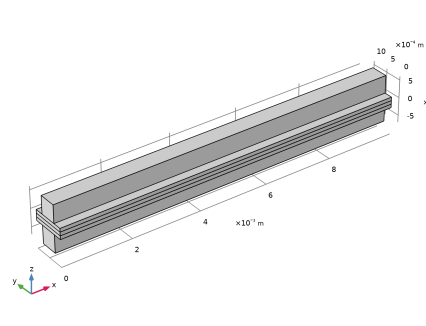
In the Model Builder window, under Component 1 (comp1) > Geometry 1 right-click Work Plane 1 (wp1) and choose Extrude.
2
In the Settings window for Extrude, locate the Distances section.
3
4
Click  Build All Objects.
5
Click the  Zoom Extents button in the Graphics toolbar.
The model geometry is now complete, and it should look like that in the figure below.
Definitions
Now make a number of selections to facilitate choosing different parts of the geometry when setting up the model.
Anode Flow Channel
1
In the Definitions toolbar, click  Explicit.
2
In the Settings window for Explicit, type Anode Flow Channel in the Label text field.
3
Anode Gas Diffusion Electrode
1
In the Definitions toolbar, click  Explicit.
2
In the Settings window for Explicit, type Anode Gas Diffusion Electrode in the Label text field.
3
Cathode Gas Diffusion Electrode
1
In the Definitions toolbar, click  Explicit.
2
In the Settings window for Explicit, type Cathode Gas Diffusion Electrode in the Label text field.
3
Cathode Flow Channel
1
In the Definitions toolbar, click  Explicit.
2
In the Settings window for Explicit, type Cathode Flow Channel in the Label text field.
3
Membrane
1
In the Definitions toolbar, click  Explicit.
2
In the Settings window for Explicit, type Membrane in the Label text field.
3
Anode Flow Domains
1
In the Definitions toolbar, click  Union.
2
In the Settings window for Union, type Anode Flow Domains in the Label text field.
3
Locate the Input Entities section. Under Selections to add, click  Add.
4
In the Add dialog, in the Selections to add list, choose Anode Flow Channel and Anode Gas Diffusion Electrode.
5
Cathode Flow Domains
1
In the Definitions toolbar, click  Union.
2
In the Settings window for Union, type Cathode Flow Domains in the Label text field.
3
Locate the Input Entities section. Under Selections to add, click  Add.
4
In the Add dialog, in the Selections to add list, choose Cathode Gas Diffusion Electrode and Cathode Flow Channel.
5
Add the material properties for the electrolyte from the Material Library.
Add Material
1
In the Materials toolbar, click  Add Material to open the Add Material window.
2
Go to the Add Material window.
3
In the tree, select Fuel Cell and Electrolyzer > Solid Oxides > Yttria-Stabilized Zirconia, 8YSZ, (ZrO2)0.92-(Y2O3)0.08.
4
Right-click and choose Add to Component 1 (comp1).
5
In the Materials toolbar, click  Add Material to close the Add Material window.
Hydrogen Fuel Cell (fc)
Set up the current distribution and mass transport model in the fuel cell interface. In this model we will use the default gas species, which are hydrogen and water on the anode side, and oxygen and nitrogen on the cathode side.
Add a membrane node, and flow channel nodes for the anode and cathode sides, and set the geometry selection. No additional settings are required for these nodes.
Membrane 1
1
In the Physics toolbar, click  Domains and choose Membrane.
2
In the Settings window for Membrane, locate the Domain Selection section.
3
From the Selection list, choose Membrane.
H2 Gas Flow Channel 1
1
In the Physics toolbar, click  Domains and choose H2 Gas Flow Channel.
2
In the Settings window for H2 Gas Flow Channel, locate the Domain Selection section.
3
From the Selection list, choose Anode Flow Channel.
O2 Gas Flow Channel 1
1
In the Physics toolbar, click  Domains and choose O2 Gas Flow Channel.
2
In the Settings window for O2 Gas Flow Channel, locate the Domain Selection section.
3
From the Selection list, choose Cathode Flow Channel.
H2 Gas Diffusion Electrode 1
Now add and set up the anode.
1
In the Physics toolbar, click  Domains and choose H2 Gas Diffusion Electrode.
2
In the Settings window for H2 Gas Diffusion Electrode, locate the Domain Selection section.
3
From the Selection list, choose Anode Gas Diffusion Electrode.
4
Locate the Electrode Charge Transport section. In the σs text field, type kseff_a.
5
Locate the Effective Electrolyte Charge Transport section. From the Effective conductivity correction list, choose User defined. In the fl text field, type fl_a.
6
Locate the Gas Transport section. In the εg text field, type e_por.
Include pore-wall interactions by Knudsen diffusion in the gas diffusion electrodes. This will reduce the mass transport properties of the electrodes by adding additional friction between the gas molecules and the pore walls.
7
Select the Include pore-wall interaction checkbox.
8
In the dpore text field, type d_pore.
H2 Gas Diffusion Electrode Reaction 1
The details of electrode kinetics are set in the child node. Note that the reference equilibrium potential is calculated automatically when the default Built in option is used.
1
In the Model Builder window, click H2 Gas Diffusion Electrode Reaction 1.
2
In the Settings window for H2 Gas Diffusion Electrode Reaction, locate the Electrode Kinetics section.
3
In the i0,ref(T) text field, type i0_a.
4
From the Exchange current density type list, choose Lumped multistep.
5
In the γH2 text field, type gamma_H2.
6
In the γH2O text field, type gamma_H2O.
7
In the αa text field, type alpha_a_H2.
8
In the αc text field, type alpha_c_H2.
9
Locate the Active Specific Surface Area section. In the av text field, type Sa_a.
O2 Gas Diffusion Electrode 1
Add and set up the cathode in a similar way.
1
In the Physics toolbar, click  Domains and choose O2 Gas Diffusion Electrode.
2
In the Settings window for O2 Gas Diffusion Electrode, locate the Domain Selection section.
3
From the Selection list, choose Cathode Gas Diffusion Electrode.
4
Locate the Electrode Charge Transport section. In the σs text field, type kseff_c.
5
Locate the Effective Electrolyte Charge Transport section. From the Effective conductivity correction list, choose User defined. In the fl text field, type fl_c.
6
Locate the Gas Transport section. In the εg text field, type e_por.
7
Select the Include pore-wall interaction checkbox.
8
In the dpore text field, type d_pore.
O2 Gas Diffusion Electrode Reaction 1
1
In the Model Builder window, click O2 Gas Diffusion Electrode Reaction 1.
2
In the Settings window for O2 Gas Diffusion Electrode Reaction, locate the Electrode Kinetics section.
3
In the i0,ref(T) text field, type i0_c.
4
From the Exchange current density type list, choose Lumped multistep.
5
In the γO2 text field, type gamma_O2.
6
In the αa text field, type alpha_a_O2.
7
In the αc text field, type alpha_c_O2.
8
Locate the Active Specific Surface Area section. In the av text field, type Sa_c.
Electronic Conducting Phase 1
Next, set up the boundary conditions and initial values on the phase nodes.
In the Model Builder window, under Component 1 (comp1) > Hydrogen Fuel Cell (fc) click Electronic Conducting Phase 1.
Electric Ground 1
1
In the Physics toolbar, click  Attributes and choose Electric Ground.
2
Electronic Conducting Phase 1
In the Model Builder window, click Electronic Conducting Phase 1.
Electric Potential 1
1
In the Physics toolbar, click  Attributes and choose Electric Potential.
2
3
In the Settings window for Electric Potential, locate the Electric Potential section.
4
In the ϕs,bnd text field, type V_cell.
Initial Values 1
1
In the Model Builder window, expand the Component 1 (comp1) > Hydrogen Fuel Cell (fc) > H2 Gas Phase 1 node, then click Initial Values 1.
2
In the Settings window for Initial Values, locate the Initial Composition section.
3
In the x0,H2O text field, type 0.1.
H2 Gas Phase 1
In the Model Builder window, click H2 Gas Phase 1.
H2 Inlet 1
1
In the Physics toolbar, click  Attributes and choose H2 Inlet.
2
You can also create a named selection from within a feature node as follows:
3
In the Settings window for H2 Inlet, locate the Boundary Selection section.
4
Click  Create Selection.
5
In the Create Selection dialog, type Anode Inlet in the Selection name text field.
6
7
In the Settings window for H2 Inlet, locate the Mixture Specification section.
8
From the list, choose Mass flow rates.
Keep the default value of 0[kg/s] for the flow rate of water. This means the incoming flow consists of pure hydrogen. The total flow rate will be specified later in the Free and Porous Media Flow interface.
H2 Gas Phase 1
In the Model Builder window, click H2 Gas Phase 1.
H2 Outlet 1
1
In the Physics toolbar, click  Attributes and choose H2 Outlet.
2
3
In the Settings window for H2 Outlet, locate the Boundary Selection section.
4
Click  Create Selection.
5
In the Create Selection dialog, type Anode Outlet in the Selection name text field.
6
Initial Values 1
1
In the Model Builder window, expand the Component 1 (comp1) > Hydrogen Fuel Cell (fc) > O2 Gas Phase 1 node, then click Initial Values 1.
2
In the Settings window for Initial Values, locate the Initial Composition section.
3
In the x0,N2 text field, type xN2_in.
O2 Gas Phase 1
In the Model Builder window, click O2 Gas Phase 1.
O2 Inlet 1
1
In the Physics toolbar, click  Attributes and choose O2 Inlet.
2
3
In the Settings window for O2 Inlet, locate the Boundary Selection section.
4
Click  Create Selection.
5
In the Create Selection dialog, type Cathode Inlet in the Selection name text field.
6
7
In the Settings window for O2 Inlet, locate the Mixture Specification section.
8
From the list, choose Mass flow rates.
9
In the J0,N2 text field, type m_N2.
10
In the ω0,bnd,N2 text field, type 0.8.
O2 Gas Phase 1
In the Model Builder window, click O2 Gas Phase 1.
O2 Outlet 1
1
In the Physics toolbar, click  Attributes and choose O2 Outlet.
2
3
In the Settings window for O2 Outlet, locate the Boundary Selection section.
4
Click  Create Selection.
5
In the Create Selection dialog, type Cathode Outlet in the Selection name text field.
6
Free and Porous Media Flow - Cathode
Now set up the convective flow on the cathode side.
1
In the Model Builder window, under Component 1 (comp1) click Free and Porous Media Flow, Brinkman (fp).
2
In the Settings window for Free and Porous Media Flow, Brinkman, type Free and Porous Media Flow - Cathode in the Label text field.
3
Locate the Domain Selection section. From the Selection list, choose Cathode Flow Domains.
4
In the Model Builder window, under Component 1 (comp1) click Free and Porous Media Flow - Cathode (fp).
5
Locate the Physical Model section. From the Compressibility list, choose Compressible flow (Ma<0.3).
6
In the pref text field, type p_atm.
Porous Medium 1
Set up the properties of the porous gas diffusion electrode, followed by the boundary conditions. Note that the density and viscosity of the gas mixture are calculated by the Hydrogen Fuel Cell interface and will be defined automatically after adding the Multiphysics coupling nodes.
1
In the Physics toolbar, click  Domains and choose Porous Medium.
2
In the Settings window for Porous Medium, locate the Domain Selection section.
3
From the Selection list, choose Cathode Gas Diffusion Electrode.
Porous Matrix 1
1
In the Model Builder window, click Porous Matrix 1.
2
In the Settings window for Porous Matrix, locate the Matrix Properties section.
3
From the εp list, choose User defined. In the associated text field, type e_por.
4
From the κ list, choose User defined. In the associated text field, type perm_c.
Inlet 1
1
In the Physics toolbar, click  Boundaries and choose Inlet.
2
In the Settings window for Inlet, locate the Boundary Selection section.
3
From the Selection list, choose Cathode Inlet.
4
Locate the Boundary Condition section. From the list, choose Mass flow.
5
Locate the Mass Flow section. In the m text field, type m_H2.
6
In the m text field, type m_O2+m_N2.
Outlet 1
1
In the Physics toolbar, click  Boundaries and choose Outlet.
2
In the Settings window for Outlet, locate the Boundary Selection section.
3
From the Selection list, choose Cathode Outlet.
4
Locate the Pressure Conditions section. Select the Normal flow checkbox.
Free and Porous Media Flow - Anode
Set up the fluid flow model on the anode side in the same way.
1
In the Model Builder window, under Component 1 (comp1) click Free and Porous Media Flow, Brinkman 2 (fp2).
2
In the Settings window for Free and Porous Media Flow, Brinkman, type Free and Porous Media Flow - Anode in the Label text field.
3
Locate the Domain Selection section. From the Selection list, choose Anode Flow Domains.
4
In the Model Builder window, under Component 1 (comp1) click Free and Porous Media Flow - Anode (fp2).
5
Locate the Physical Model section. From the Compressibility list, choose Compressible flow (Ma<0.3).
6
In the pref text field, type p_atm.
Porous Medium 1
1
In the Physics toolbar, click  Domains and choose Porous Medium.
2
In the Settings window for Porous Medium, locate the Domain Selection section.
3
From the Selection list, choose Anode Gas Diffusion Electrode.
Porous Matrix 1
1
In the Model Builder window, click Porous Matrix 1.
2
In the Settings window for Porous Matrix, locate the Matrix Properties section.
3
From the εp list, choose User defined. In the associated text field, type e_por.
4
From the κ list, choose User defined. In the associated text field, type perm_a.
Inlet 1
1
In the Physics toolbar, click  Boundaries and choose Inlet.
2
In the Settings window for Inlet, locate the Boundary Selection section.
3
From the Selection list, choose Anode Inlet.
4
Locate the Boundary Condition section. From the list, choose Mass flow.
5
Locate the Mass Flow section. In the m text field, type m_H2.
Outlet 1
1
In the Physics toolbar, click  Boundaries and choose Outlet.
2
In the Settings window for Outlet, locate the Boundary Selection section.
3
From the Selection list, choose Anode Outlet.
4
Locate the Pressure Conditions section. Select the Normal flow checkbox.
Multiphysics
Next, couple the flow interfaces to the fuel cell interface by using the reacting flow multiphysics coupling nodes.
Reacting Flow, H2 Gas Phase 1 (rfh1)
1
In the Physics toolbar, click  Multiphysics Couplings and choose Domain > Reacting Flow, H2 Gas Phase.
2
In the Settings window for Reacting Flow, H2 Gas Phase, locate the Coupled Interfaces section.
3
From the Fluid flow list, choose Free and Porous Media Flow - Anode (fp2).
Reacting Flow, O2 Gas Phase 1 (rfo1)
In the Physics toolbar, click  Multiphysics Couplings and choose Domain > Reacting Flow, O2 Gas Phase.
Global Definitions
Default Model Inputs
Default Model Inputs node can be used to set the Temperature for the entire model. This node may be accessed by multiple physics nodes.
1
In the Model Builder window, under Global Definitions click Default Model Inputs.
2
In the Settings window for Default Model Inputs, locate the Browse Model Inputs section.
3
In the tree, select General > Temperature (K) - minput.T.
4
Find the Expression for remaining selection subsection. In the Temperature text field, type T.
Mesh 1
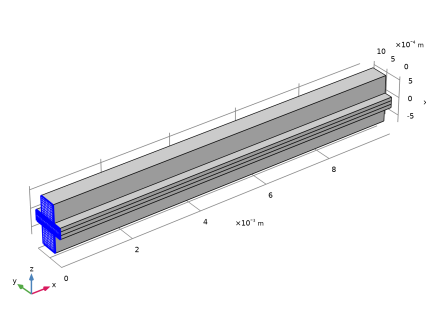
The physics settings for the model is now complete. A mapped mesh, swept in the channel direction, is suitable for this geometry. Control the size in the y direction by using an individual Edge node.
Edge 1
1
In the Mesh toolbar, click  More Generators and choose Edge.
2
Size 1
1
Right-click Edge 1 and choose Size.
2
In the Settings window for Size, locate the Element Size section.
3
Click the Custom button.
4
Locate the Element Size Parameters section.
5
Select the Maximum element size checkbox. In the associated text field, type W_channel/8.
6
Click  Build Selected.
Mapped 1
1
In the Mesh toolbar, click  More Generators and choose Mapped.
2
Distribution 1
1
Right-click Mapped 1 and choose Distribution.
2
3
In the Settings window for Distribution, locate the Distribution section.
4
From the Distribution type list, choose Predefined.
5
In the Number of elements text field, type 10.
6
In the Element ratio text field, type 3.
7
Select the Symmetric distribution checkbox.
Distribution 2
1
In the Model Builder window, right-click Mapped 1 and choose Distribution.
2
3
In the Settings window for Distribution, locate the Distribution section.
4
From the Distribution type list, choose Predefined.
5
In the Number of elements text field, type 8.
6
In the Element ratio text field, type 3.
Distribution 3
1
Right-click Distribution 2 and choose Duplicate.
2
In the Settings window for Distribution, locate the Edge Selection section.
3
Click  Clear Selection.
4
5
Locate the Distribution section. Select the Reverse direction checkbox.
Distribution 4
1
In the Model Builder window, right-click Mapped 1 and choose Distribution.
2
3
In the Settings window for Distribution, locate the Distribution section.
4
In the Number of elements text field, type 3.
Mapped 1
Right-click Mapped 1 and choose Build Selected.
Swept 1
In the Mesh toolbar, click  Swept.
Size 1
1
Right-click Swept 1 and choose Size.
2
In the Settings window for Size, locate the Element Size section.
3
Click the Custom button.
4
Locate the Element Size Parameters section.
5
Select the Maximum element size checkbox. In the associated text field, type W_channel.
6
Click  Build All.
7
Click the  Zoom Extents button in the Graphics toolbar.
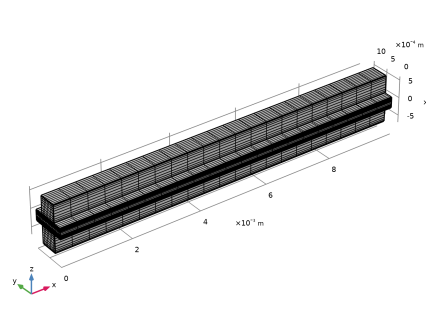
The meshing is now complete, and it should look like that in the figure below.
Definitions
Before solving, add a probe for the average cell current density, it will be plotted during the solver process.
Cell Current Density Probe
1
In the Definitions toolbar, click  Probes and choose Domain Probe.
2
In the Settings window for Domain Probe, type Cell Current Density Probe in the Label text field.
3
In the Variable name text field, type I_cell.
4
Locate the Source Selection section. From the Selection list, choose Anode Gas Diffusion Electrode.
5
Click Replace Expression in the upper-right corner of the Expression section. From the menu, choose Component 1 (comp1) > Hydrogen Fuel Cell > Electrode kinetics > fc.ivtot - Electrode reaction source - A/m³.
6
Locate the Expression section. In the Expression text field, type fc.ivtot*H_gde.
7
Select the Description checkbox. In the associated text field, type Average cell current density.
Study 1
The problem is now ready for solving. Firstly, solve for a current distribution initialization for the fuel cell interface, followed by flow initialization in two subsequent study steps. Finally, solve the entire model including the multiphysics couplings in the final step, along with an auxiliary sweep to solve for a range of different cell polarization voltages.
Step 1: Current Distribution Initialization
1
In the Model Builder window, under Study 1 click Step 1: Current Distribution Initialization.
2
In the Settings window for Current Distribution Initialization, locate the Physics and Variables Selection section.
3
In the Solve for column of the table, under Component 1 (comp1) > Multiphysics, clear the checkboxes for Reacting Flow, H2 Gas Phase 1 (rfh1) and Reacting Flow, O2 Gas Phase 1 (rfo1).
Step 2: Stationary
1
In the Model Builder window, click Step 2: Stationary.
2
In the Settings window for Stationary, locate the Physics and Variables Selection section.
3
In the Solve for column of the table, under Component 1 (comp1), clear the checkboxes for Hydrogen Fuel Cell (fc) and Free and Porous Media Flow - Anode (fp2).
4
In the Solve for column of the table, under Component 1 (comp1) > Multiphysics, clear the checkboxes for Reacting Flow, H2 Gas Phase 1 (rfh1) and Reacting Flow, O2 Gas Phase 1 (rfo1).
Step 3: Stationary 2
1
In the Study toolbar, click  Study Steps and choose Stationary > Stationary.
2
In the Settings window for Stationary, locate the Physics and Variables Selection section.
3
In the Solve for column of the table, under Component 1 (comp1), clear the checkboxes for Hydrogen Fuel Cell (fc) and Free and Porous Media Flow - Cathode (fp).
4
In the Solve for column of the table, under Component 1 (comp1) > Multiphysics, clear the checkboxes for Reacting Flow, H2 Gas Phase 1 (rfh1) and Reacting Flow, O2 Gas Phase 1 (rfo1).
Step 4: Stationary 3
1
In the Study toolbar, click  Study Steps and choose Stationary > Stationary.
2
In the Settings window for Stationary, click to expand the Study Extensions section.
3
Select the Auxiliary sweep checkbox.
4
5
Solution 1 (sol1)
The final study step of the solver sequence, solving for all of the physics interfaces, uses a segregated solver by default in order to save memory. This is however not needed for this fairly small model. To speed up the computation, replace the default segregated solver with a fully coupled solver as follows:
1
In the Study toolbar, click  Show Default Solver.
2
In the Model Builder window, expand the Solution 1 (sol1) node.
3
In the Model Builder window, expand the Study 1 > Solver Configurations > Solution 1 (sol1) > Stationary Solver 4 node.
4
Right-click Study 1 > Solver Configurations > Solution 1 (sol1) > Stationary Solver 4 and choose Fully Coupled.
5
In the Study toolbar, click  Compute.
The computation takes about a minute.
Results
Several default plots are generated. Among them are the plots seen in Figure 2 and Figure 3 that show the oxygen and hydrogen mole fraction distribution, respectively, at a cell voltage of 0.5 V.
Polarization Curve
The following instructions reproduce the plot of the polarization curve for the SOFC (see Figure 5).
1
In the Results toolbar, click  1D Plot Group.
2
In the Settings window for 1D Plot Group, type Polarization Curve in the Label text field.
3
Click to expand the Title section. From the Title type list, choose None.
4
Locate the Plot Settings section.
5
Select the x-axis label checkbox. In the associated text field, type Average current density (A/m<sup>2</sup>).
6
Select the y-axis label checkbox. In the associated text field, type Cell voltage (V).
7
Locate the Legend section. Clear the Show legends checkbox.
Global 1
1
Right-click Polarization Curve and choose Global.
2
In the Settings window for Global, locate the y-Axis Data section.
3
4
Locate the x-Axis Data section. From the Parameter list, choose Expression.
5
In the Expression text field, type I_cell.
6
In the Polarization Curve toolbar, click  Plot.
Power vs. Current
Next, reproduce a plot showing the power output as a function of the cell voltage (Figure 6).
1
In the Results toolbar, click  1D Plot Group.
2
In the Settings window for 1D Plot Group, type Power vs. Current in the Label text field.
3
Locate the Title section. From the Title type list, choose None.
4
Locate the Plot Settings section.
5
Select the x-axis label checkbox. In the associated text field, type Average current density (A/m<sup>2</sup>).
6
Select the y-axis label checkbox. In the associated text field, type Average cell power (W/m<sup>2</sup>).
7
Locate the Legend section. Clear the Show legends checkbox.
Global 1
1
Right-click Power vs. Current and choose Global.
2
In the Settings window for Global, locate the y-Axis Data section.
3
4
Locate the x-Axis Data section. From the Parameter list, choose Expression.
5
In the Expression text field, type I_cell.
6
In the Power vs. Current toolbar, click  Plot.
Electrolyte Current Density
Next reproduce the plot in Figure 4 showing the current density in the unit cell at 0.5 V.
1
In the Results toolbar, click  3D Plot Group.
2
In the Settings window for 3D Plot Group, type Electrolyte Current Density in the Label text field.
3
Click to expand the Selection section. From the Geometric entity level list, choose Boundary.
4
Surface 1
1
Right-click Electrolyte Current Density and choose Surface.
2
In the Settings window for Surface, click Replace Expression in the upper-right corner of the Expression section. From the menu, choose Component 1 (comp1) > Hydrogen Fuel Cell > Electrolyte current density vector - A/m² > fc.Ilz - Electrolyte current density vector, z-component.
3
In the Electrolyte Current Density toolbar, click  Plot.
4
Click the  Zoom Extents button in the Graphics toolbar.
Definitions
To evaluate the overpotentials associated with the different processes in the fuel cell, load a set of preset variables.
Variables 1
1
In the Model Builder window, under Component 1 (comp1) right-click Definitions and choose Variables.
2
In the Settings window for Variables, locate the Variables section.
3
Click  Load from File.
4
Some of the variable expressions are marked in orange, indicating missing integration operators. Add the needed operators as follows:
Integration 1 (intop1)
1
In the Definitions toolbar, click  Nonlocal Couplings and choose Integration.
2
In the Settings window for Integration, type intop_cc in the Operator name text field.
3
Locate the Source Selection section. From the Geometric entity level list, choose Boundary.
4
Integration 2 (intop2)
1
In the Definitions toolbar, click  Nonlocal Couplings and choose Integration.
2
In the Settings window for Integration, type intop_h2_gde in the Operator name text field.
3
Locate the Source Selection section. From the Selection list, choose Anode Gas Diffusion Electrode.
Integration 3 (intop3)
1
In the Definitions toolbar, click  Nonlocal Couplings and choose Integration.
2
In the Settings window for Integration, type intop_o2_gde in the Operator name text field.
3
Locate the Source Selection section. From the Selection list, choose Cathode Gas Diffusion Electrode.
Integration 4 (intop4)
1
In the Definitions toolbar, click  Nonlocal Couplings and choose Integration.
2
In the Settings window for Integration, type intop_mem in the Operator name text field.
3
Locate the Source Selection section. From the Selection list, choose Membrane.
You may now go back to the variables node and check so that the orange highlighting of the expressions in the variable list is no longer present.
Study 1
In order to make the new variable expressions available in the solution data sets, you need to update the solution.
1
In the Study toolbar, click  Update Solution.
Results
Plot the various overpotential variables versus the cell current density as follows:
Overpotentials Comparison
1
In the Results toolbar, click  1D Plot Group.
2
In the Settings window for 1D Plot Group, type Overpotentials Comparison in the Label text field.
Global 1
1
Right-click Overpotentials Comparison and choose Global.
2
In the Settings window for Global, click Add Expression in the upper-right corner of the y-Axis Data section. From the menu, choose Component 1 (comp1) > Definitions > Variables > eta_phil - Cell-averaged electrolyte transport overpotential - V.
3
Click Add Expression in the upper-right corner of the y-Axis Data section. From the menu, choose Component 1 (comp1) > Definitions > Variables > eta_phis - Cell-averaged electron transport overpotential - V.
4
Click Add Expression in the upper-right corner of the y-Axis Data section. From the menu, choose Component 1 (comp1) > Definitions > Variables > eta_act_h2 - Cell-averaged hydrogen oxidation activation overpotential - V.
5
Click Add Expression in the upper-right corner of the y-Axis Data section. From the menu, choose Component 1 (comp1) > Definitions > Variables > eta_act_o2 - Cell-averaged oxygen reduction activation overpotential - V.
6
Click Replace Expression in the upper-right corner of the x-Axis Data section. From the menu, choose Component 1 (comp1) > Definitions > I_cell - Cell Current Density Probe - A/m².
7
In the Overpotentials Comparison toolbar, click  Plot.
8
Click to expand the Legends section. From the Legends list, choose Manual.
9
Overpotentials Comparison
1
In the Model Builder window, click Overpotentials Comparison.
2
In the Settings window for 1D Plot Group, locate the Plot Settings section.
3
Select the x-axis label checkbox. In the associated text field, type Average cell current density (A/m<sup>2</sup>).
4
Select the y-axis label checkbox. In the associated text field, type Overpotential (V).
5
Click to expand the Title section. From the Title type list, choose None.
6
Locate the Legend section. From the Position list, choose Upper left.
7
In the Overpotentials Comparison toolbar, click  Plot.