

PDF

Electrodeposition of an Inductor Coil
Introduction
This example models the deposition of an inductor coil on the μm-scale, where diffusion limitations govern the deposition rate. A 10 μm thick photoresist mask has been used create the deposition pattern. As the deposition process proceeds, the depth of the pattern created by the mask decreases, which in turn affects the current distribution over the active surface.
Model Definition
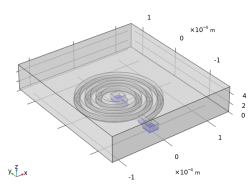
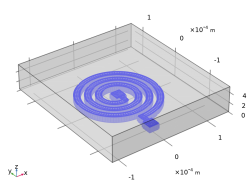
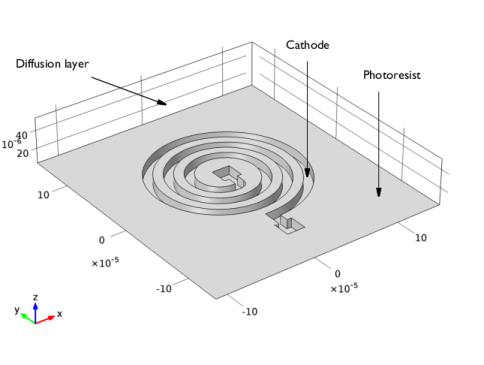
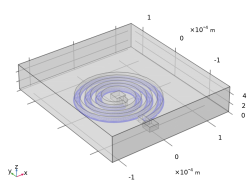
The model geometry is shown in Figure 1. The geometry consists of two domains: the 10 μm extrusion of the deposition pattern down into the photoresist film, and a diffusion layer in form of a rectangular block, 50 μm thick, on top of the photoresist.
Figure 1: Model geometry. The extruded spiral pattern forms the vertical photoresist walls, 10 μm high. The diffusion layer, in form of a rectangular block, is 50 μm thick.
Current Conduction, Electrochemical Reactions, and Geometry Deformation
The potential gradients in the electrolyte are assumed to be negligible. Hence, the Electrodeposition, Tertiary with the Electroanalysis charge balance model is used, using a constant electrolyte potential of 0 V.
On the bottom boundary, the cathode, the electrode reaction
follows the following kinetics expression for the charge transfer current ict:
where i0 is the exchange current density (10 A/m2), η the overpotential, F Faraday’s constant (96,485 C/mol), R the molar gas constant (8.1345 J/(mol·K)), T the temperature, the electrolyte copper ion concentration (mol/m3), and , the reference copper concentration in the bulk electrolyte (500 mol/m3).

Set the current density of the cathode to have an average value of 10 A/dm2. All boundaries except the cathode and the top bulk electrolyte boundary are isolated.
The electrode reaction causes the electrode boundary to move in the normal direction with a velocity vdep (m/s) according to
where MCu is the molar mass (0.06355 kg/mol) and ρCu the density (8960 kg/m3) of copper, respectively.
The extruded pattern domain is allowed to deform according to the electrode boundary deposition rate, whereas the diffusion layer domain is set to be fixed. The vertical walls of the photoresist are fixed in the x and y directions, whereas the interior boundary between the fixed and free moving domain is set to have zero deformation in the z direction.
Transport of Copper Ions in the Electrolyte
The transport of copper ions in the electrolyte is described by Fickian diffusion. Model this transport using the Electrodeposition, Tertiary interface, solving for the electrolyte copper ion concentration, . Set the diffusion coefficient to 109 m2/s.
At the top electrolyte bulk boundary, set the concentration to the bulk concentration, . On the cathode, couple the flux of ions, (mol/(m2·s)), to the electrochemical reactions via Faraday’s law:
Assume No flux conditions for all other boundaries.
Solve the problem using a time-dependent study, investigating the deposition during 180 s, with an initial copper concentration in the electrolyte set to .
Results and Discussion
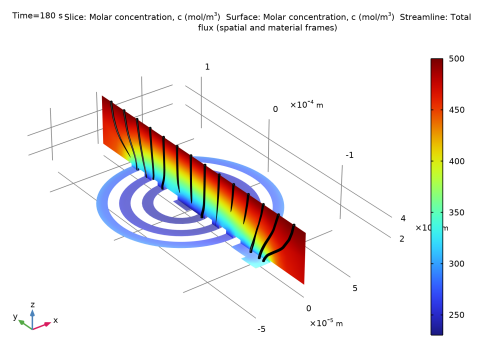
Figure 2 shows the concentration and current streamlines in the electrolyte after 180 s. The copper ion concentration at the cathode is significantly lower than in the bulk. In addition, the concentration at the cathode is slightly higher in outer parts of the pattern compared to the center.
Figure 2: Concentration profile and current streamlines in the electrolyte at t = 180 s.
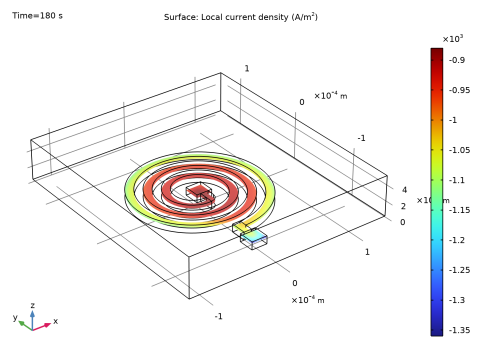
Figure 3 shows the local electrode current, ict, at the cathode at t=180 s. The deposition currents are higher at the outer parts of the pattern due to the higher copper ion concentration.
Figure 3: Electrode reaction current density at t = 180 s.
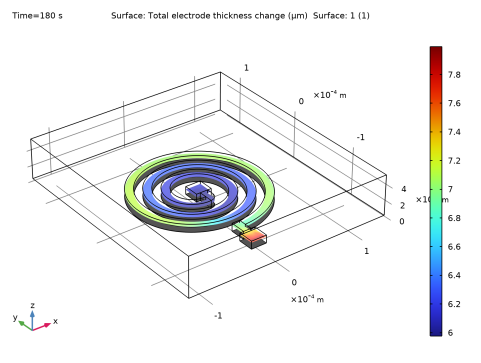
Figure 4 shows the deformation and deposited copper thickness after 180 s. The thickness is significantly thicker on the outermost part of the pattern.
Figure 4: Thickness of the deposited copper layer at 180 s.
Notes About the COMSOL Implementation
By using a Nondeforming Boundary condition on the vertical photoresist walls, and by only allowing deformation to occur along a given line on the cathode, the number of degrees of freedom for the problem gets reduced. This reduces the computation time.
Application Library path: Electrodeposition_Module/Tutorials_with_Deforming_Geometries/inductor_coil
Modeling Instructions
From the File menu, choose New.
New
In the New window, click  Model Wizard.
Model Wizard
1
In the Model Wizard window, click  3D.
2
In the Select Physics tree, select Electrochemistry > Electrodeposition, Deformed Geometry > Electrodeposition, Tertiary with Supporting Electrolyte.
3
Click Add.
4
In the Number of species text field, type 1.
5
In the Concentrations (mol/m³) table, enter the following settings:
6
Click  Study.
7
In the Select Study tree, select Preset Studies for Selected Physics Interfaces > Time Dependent with Initialization.
8
Global Definitions
Load the model parameters from a text file.
Parameters 1
1
In the Model Builder window, under Global Definitions click Parameters 1.
2
In the Settings window for Parameters, locate the Parameters section.
3
Click  Load from File.
4
Analytic 1 (an1)
Define two analytical functions that will be used when drawing the spirals in the geometry.
1
In the Home toolbar, click  Functions and choose Global > Analytic.
2
In the Settings window for Analytic, type spiralX in the Function name text field.
3
Locate the Definition section. In the Expression text field, type -(s/(2*pi)*a_tot+R)*sin(s).
4
In the Arguments text field, type s, R.
5
Locate the Units section. In the table, enter the following settings:
6
In the Function text field, type m.
Analytic 2 (an2)
1
In the Home toolbar, click  Functions and choose Global > Analytic.
2
In the Settings window for Analytic, type spiralY in the Function name text field.
3
Locate the Definition section. In the Expression text field, type -(s/(2*pi)*a_tot+R)*cos(s).
4
In the Arguments text field, type s, R.
5
Locate the Units section. In the table, enter the following settings:
6
In the Function text field, type m.
Geometry 1
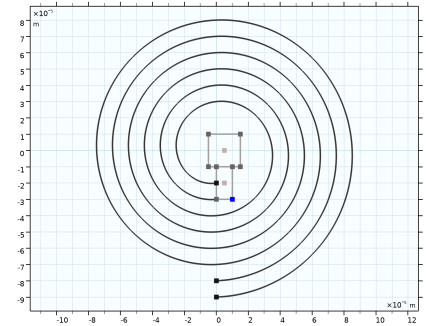
Now draw the geometry. Start with the deposition pattern, using a work plane.
Work Plane 1 (wp1)
1
In the Geometry toolbar, click  Work Plane.
2
In the Settings window for Work Plane, click  Go to Plane Geometry.
Work Plane 1 (wp1) > Plane Geometry
In the Model Builder window, click Plane Geometry.
Work Plane 1 (wp1) > Parametric Curve 1 (pc1)
1
In the Work Plane toolbar, click  More Primitives and choose Parametric Curve.
2
In the Settings window for Parametric Curve, locate the Parameter section.
3
In the Maximum text field, type w_tot.
4
Locate the Expressions section. In the xw text field, type spiralX(s,r0).
5
In the yw text field, type spiralY(s,r0).
6
Click  Build Selected.
Work Plane 1 (wp1) > Parametric Curve 2 (pc2)
1
In the Work Plane toolbar, click  More Primitives and choose Parametric Curve.
2
In the Settings window for Parametric Curve, locate the Parameter section.
3
In the Maximum text field, type w_tot.
4
Locate the Expressions section. In the xw text field, type spiralX(s,r0+a1).
5
In the yw text field, type spiralY(s,r0+a1).
6
Click  Build Selected.
Work Plane 1 (wp1) > Rectangle 1 (r1)
1
In the Work Plane toolbar, click  Rectangle.
2
In the Settings window for Rectangle, locate the Size and Shape section.
3
In the Width text field, type a1.
4
In the Height text field, type 2*a1.
5
Locate the Position section. In the yw text field, type -r0-a1.
6
Click  Build Selected.
Work Plane 1 (wp1) > Square 1 (sq1)
1
In the Work Plane toolbar, click  Square.
2
In the Settings window for Square, locate the Size section.
3
In the Side length text field, type 2*a1.
4
Locate the Position section. In the xw text field, type -a1/2.
5
In the yw text field, type -a1.
6
Click  Build Selected.
Work Plane 1 (wp1) > Fillet 1 (fil1)
1
In the Work Plane toolbar, click  Fillet.
2
Click the  Zoom Extents button in the Graphics toolbar.
3
On the object r1, select Point 2 only.
4
In the Settings window for Fillet, locate the Radius section.
5
In the Radius text field, type a1.
6
Click  Build Selected.
Work Plane 1 (wp1) > Rectangle 2 (r2)
1
In the Work Plane toolbar, click  Rectangle.
2
In the Settings window for Rectangle, locate the Size and Shape section.
3
In the Width text field, type a1.
4
In the Height text field, type 2*a1.
5
Locate the Position section. In the xw text field, type -a1.
6
In the yw text field, type -r0-2*a1-laps*a_tot.
7
Click  Build Selected.
Work Plane 1 (wp1) > Square 2 (sq2)
1
In the Work Plane toolbar, click  Square.
2
In the Settings window for Square, locate the Size section.
3
In the Side length text field, type 2*a1.
4
Locate the Position section. In the xw text field, type -1.5*a1.
5
In the yw text field, type -r0-4*a1-laps*a_tot.
6
Click  Build Selected.
Work Plane 1 (wp1) > Convert to Solid 1 (csol1)
1
In the Work Plane toolbar, click  Conversions and choose Convert to Solid.
2
Click in the Graphics window and then press Ctrl+A to select all objects.
3
In the Settings window for Convert to Solid, click  Build Selected.
Extrude 1 (ext1)
1
In the Model Builder window, under Component 1 (comp1) > Geometry 1 right-click Work Plane 1 (wp1) and choose Extrude.
2
In the Settings window for Extrude, locate the Distances section.
3
4
Click  Build Selected.
Block 1 (blk1)
1
In the Geometry toolbar, click  Block.
2
In the Settings window for Block, locate the Size and Shape section.
3
In the Width text field, type 2*(r0+a_tot*laps+d_dl).
4
In the Depth text field, type 2*(r0+a_tot*laps+d_dl)+3*a1.
5
In the Height text field, type d_dl.
6
Locate the Position section. In the y text field, type -2*a1.
7
In the z text field, type d_pr+d_dl/2.
8
From the Base list, choose Center.
9
Click  Build Selected.
Definitions
Add a number of selections to facilitate domain and boundary selection when setting up the physics.
1
Click the  Transparency button in the Graphics toolbar.
Fixed domain
1
In the Definitions toolbar, click  Explicit.
2
3
In the Settings window for Explicit, type Fixed domain in the Label text field.
Deforming domain
1
In the Definitions toolbar, click  Complement.
2
In the Settings window for Complement, locate the Input Entities section.
3
Under Selections to invert, click  Add.
4
In the Add dialog, select Fixed domain in the Selections to invert list.
5
6
In the Settings window for Complement, type Deforming domain in the Label text field.
Exterior boundaries
1
In the Definitions toolbar, click  Explicit.
2
In the Settings window for Explicit, locate the Input Entities section.
3
Select the All domains checkbox.
4
Locate the Output Entities section. From the Output entities list, choose Adjacent boundaries.
5
In the Label text field, type Exterior boundaries.
Bulk electrolyte boundary
1
In the Definitions toolbar, click  Explicit.
2
In the Settings window for Explicit, locate the Input Entities section.
3
From the Geometric entity level list, choose Boundary.
4
5
In the Label text field, type Bulk electrolyte boundary.
Cathode
1
In the Definitions toolbar, click  Explicit.
2
In the Settings window for Explicit, locate the Input Entities section.
3
From the Geometric entity level list, choose Boundary.
4
Click  Paste Selection.
5
In the Paste Selection dialog, type 8, 13, 18, 25, 30 in the Selection text field.
6
7
In the Settings window for Explicit, type Cathode in the Label text field.
Fixed boundaries
1
In the Definitions toolbar, click  Adjacent.
2
In the Settings window for Adjacent, locate the Input Entities section.
3
Under Input selections, click  Add.
4
In the Add dialog, select Fixed domain in the Input selections list.
5
6
In the Settings window for Adjacent, type Fixed boundaries in the Label text field.
Photoresist vertical walls
1
In the Definitions toolbar, click  Difference.
2
In the Settings window for Difference, locate the Geometric Entity Level section.
3
From the Level list, choose Boundary.
4
Locate the Input Entities section. Under Selections to add, click  Add.
5
In the Add dialog, select Exterior boundaries in the Selections to add list.
6
7
In the Settings window for Difference, locate the Input Entities section.
8
Under Selections to subtract, click  Add.
9
In the Add dialog, in the Selections to subtract list, choose Cathode and Fixed boundaries.
10
11
In the Settings window for Difference, type Photoresist vertical walls in the Label text field.
Tertiary Current Distribution, Nernst-Planck (tcd)
Now start setting up the physics. First, set the charge conservation model to Electroanalysis (no potential gradients) assuming that the expected potential gradients in the modeled diffusion layer are negligible. Then, set the current distribution model and the transport of copper ions in the electrolyte. The electrolyte is assumed to be quiescent within the modeled diffusion layer.
1
In the Model Builder window, under Component 1 (comp1) click Tertiary Current Distribution, Nernst-Planck (tcd).
2
In the Settings window for Tertiary Current Distribution, Nernst-Planck, locate the Electrolyte Charge Conservation section.
3
From the Charge conservation model list, choose Electroanalysis (no potential gradients).
Electrolyte 1
1
In the Model Builder window, under Component 1 (comp1) > Tertiary Current Distribution, Nernst-Planck (tcd) click Electrolyte 1.
2
In the Settings window for Electrolyte, locate the Diffusion section.
3
In the Dc text field, type D_Cu.
Initial Values 1
1
In the Model Builder window, click Initial Values 1.
2
In the Settings window for Initial Values, locate the Initial Values section.
3
In the c text field, type c_ref.
Electrode Surface 1
1
In the Physics toolbar, click  Boundaries and choose Electrode Surface.
2
In the Settings window for Electrode Surface, locate the Boundary Selection section.
3
From the Selection list, choose Cathode.
4
Click to expand the Dissolving-Depositing Species section. Click  Add.
5
Locate the Electrode Phase Potential Condition section. From the Electrode phase potential condition list, choose Average current density.
6
In the il,average text field, type i_avg.
Electrode Reaction 1
1
In the Model Builder window, click Electrode Reaction 1.
2
In the Settings window for Electrode Reaction, locate the Stoichiometric Coefficients section.
3
In the n text field, type 2.
4
In the νc text field, type -1.
5
In the Stoichiometric coefficients for dissolving-depositing species: table, enter the following settings:
6
Locate the Equilibrium Potential section. In the Eeq,ref(T) text field, type Eeq_Cu.
7
Locate the Electrode Kinetics section. In the i0,ref(T) text field, type i0.
8
In the αa text field, type alpha_a.
Concentration 1
1
In the Physics toolbar, click  Boundaries and choose Concentration.
2
In the Settings window for Concentration, locate the Boundary Selection section.
3
From the Selection list, choose Bulk electrolyte boundary.
4
Locate the Concentration section. Select the Species c checkbox.
5
In the c0,c text field, type c_ref.
Linear shape functions for concentration and electric potential are sufficient for this model setup. They also result in reduced computation time and memory requirements when compared to the default quadratic shape functions.
6
In the Model Builder window, click Tertiary Current Distribution, Nernst-Planck (tcd).
7
In the Settings window for Tertiary Current Distribution, Nernst-Planck, click to expand the Discretization section.
8
From the Concentration list, choose Linear.
9
From the Electric potential list, choose Linear.
Component 1 (comp1)
Prescribed Deformation 1
1
In the Physics toolbar, click  Deformed Geometry and choose Prescribed Deformation.
2
In the Settings window for Prescribed Deformation, locate the Geometric Entity Selection section.
3
From the Selection list, choose Fixed domain.
Multiphysics
Nondeforming Boundary 1 (ndbdg1)
Constrain the movement on the vertical walls of the photoresist and on the boundary between the fixed and deforming domain by using the Zero normal displacement setting. This imposes a more stable constraint than the default Zero normal velocity condition.
1
In the Model Builder window, under Component 1 (comp1) > Multiphysics click Nondeforming Boundary 1 (ndbdg1).
2
In the Settings window for Nondeforming Boundary, locate the Nondeforming Boundary section.
3
From the Boundary condition list, choose Zero normal displacement.
Nondeforming Boundary 2 (ndbdg2)
1
In the Physics toolbar, click  Multiphysics Couplings and choose Boundary > Nondeforming Boundary.
2
In the Settings window for Nondeforming Boundary, locate the Boundary Selection section.
3
From the Selection list, choose Photoresist vertical walls.
4
Locate the Nondeforming Boundary section. From the Boundary condition list, choose Zero normal displacement.
5
Select the Allow deformation along specified line only checkbox.
6
Specify the ldef vector as
Mesh 1
1
In the Model Builder window, under Component 1 (comp1) click Mesh 1.
2
In the Settings window for Mesh, locate the Sequence Type section.
3
From the list, choose User-controlled mesh.
4
In the Mesh toolbar, click  Clear Sequence.
Mapped 1
1
In the Mesh toolbar, click  More Generators and choose Mapped.
2
3
In the Settings window for Mapped, click to expand the Reduce Element Skewness section.
4
Select the Adjust edge mesh checkbox.
Size 1
1
Right-click Mapped 1 and choose Size.
2
In the Settings window for Size, locate the Element Size section.
3
Click the Custom button.
4
Locate the Element Size Parameters section.
5
Select the Maximum element size checkbox. In the associated text field, type a1/2.
6
Click  Build Selected.
Free Triangular 1
1
In the Mesh toolbar, click  More Generators and choose Free Triangular.
2
Size 1
1
Right-click Free Triangular 1 and choose Size.
2
In the Settings window for Size, locate the Element Size section.
3
Click the Custom button.
4
Locate the Element Size Parameters section.
5
Select the Maximum element size checkbox. In the associated text field, type a1/2.
6
Click  Build Selected.
Swept 1
1
In the Mesh toolbar, click  Swept.
2
In the Settings window for Swept, locate the Domain Selection section.
3
From the Geometric entity level list, choose Domain.
4
From the Selection list, choose Deforming domain.
Distribution 1
1
Right-click Swept 1 and choose Distribution.
2
Right-click Distribution 1 and choose Build Selected.
Free Tetrahedral 1
1
In the Mesh toolbar, click  Free Tetrahedral.
2
In the Settings window for Free Tetrahedral, click  Build Selected.
Study 1
1
In the Model Builder window, click Study 1.
2
In the Settings window for Study, locate the Study Settings section.
3
Clear the Generate default plots checkbox.
Step 2: Time Dependent
1
In the Model Builder window, under Study 1 click Step 2: Time Dependent.
2
In the Settings window for Time Dependent, locate the Study Settings section.
3
In the Output times text field, type range(0,30,180).
4
In the Study toolbar, click  Compute.
Results
The following steps reproduce the figures from the Results section of the model documentation.
3D Plot Group 1
1
In the Model Builder window, expand the Results node.
2
Right-click Results and choose 3D Plot Group.
3
Click the  Transparency button in the Graphics toolbar.
4
In the Settings window for 3D Plot Group, locate the Plot Settings section.
5
Clear the Plot dataset edges checkbox.
Slice 1
1
Right-click 3D Plot Group 1 and choose Slice.
2
In the Settings window for Slice, click Replace Expression in the upper-right corner of the Expression section. From the menu, choose Component 1 (comp1) > Tertiary Current Distribution, Nernst-Planck > Species c > c - Molar concentration, c - mol/m³.
3
Locate the Plane Data section. In the Planes text field, type 1.
4
In the 3D Plot Group 1 toolbar, click  Plot.
Surface 1
1
In the Model Builder window, right-click 3D Plot Group 1 and choose Surface.
2
In the Settings window for Surface, locate the Expression section.
3
In the Expression text field, type c.
4
Click to expand the Inherit Style section. From the Plot list, choose Slice 1.
Selection 1
1
Right-click Surface 1 and choose Selection.
2
In the Settings window for Selection, locate the Selection section.
3
From the Selection list, choose Cathode.
Streamline 1
1
In the Model Builder window, right-click 3D Plot Group 1 and choose Streamline.
2
In the Settings window for Streamline, click Replace Expression in the upper-right corner of the Expression section. From the menu, choose Component 1 (comp1) > Tertiary Current Distribution, Nernst-Planck > Species c > Fluxes > tcd.tflux_cx,...,tcd.tflux_cz - Total flux (spatial and material frames).
3
Locate the Streamline Positioning section. From the Positioning list, choose Starting-point controlled.
4
From the Entry method list, choose Coordinates.
5
In the X text field, type 0.
6
In the Y text field, type range(-150e-6,20e-6,150e-6).
7
In the Z text field, type d_dl+d_pr.
8
Locate the Coloring and Style section. Find the Line style subsection. From the Type list, choose Tube.
9
Find the Point style subsection. From the Color list, choose Black.
10
In the 3D Plot Group 1 toolbar, click  Plot.
11
Click the  Zoom Extents button in the Graphics toolbar.
3D Plot Group 2
1
In the Results toolbar, click  3D Plot Group.
2
In the Settings window for 3D Plot Group, click to expand the Selection section.
3
From the Geometric entity level list, choose Boundary.
4
From the Selection list, choose Cathode.
Change the frame of the dataset edges to Geometry in order to show the outline of the original (undeformed) geometry in the figure.
5
Locate the Plot Settings section. From the Frame list, choose Geometry  (Xg, Yg, Zg).
Surface 1
1
Right-click 3D Plot Group 2 and choose Surface.
2
In the Settings window for Surface, click Replace Expression in the upper-right corner of the Expression section. From the menu, choose Component 1 (comp1) > Tertiary Current Distribution, Nernst-Planck > Electrode kinetics > tcd.iloc_er1 - Local current density - A/m².
3
In the 3D Plot Group 2 toolbar, click  Plot.
4
Click the  Zoom Extents button in the Graphics toolbar.
3D Plot Group 3
In the Model Builder window, under Results right-click 3D Plot Group 2 and choose Duplicate.
Surface 1
1
In the Model Builder window, expand the 3D Plot Group 3 node, then click Surface 1.
2
In the Settings window for Surface, click Replace Expression in the upper-right corner of the Expression section. From the menu, choose Component 1 (comp1) > Tertiary Current Distribution, Nernst-Planck > Dissolving-depositing species > tcd.sbtot - Total electrode thickness change - m.
3
Locate the Expression section. From the Unit list, choose µm.
Surface 2
1
Right-click Results > 3D Plot Group 3 > Surface 1 and choose Duplicate.
2
In the Settings window for Surface, locate the Data section.
3
From the Dataset list, choose Study 1/Solution 1 (sol1).
4
From the Time (s) list, choose 0.
5
Locate the Expression section. In the Expression text field, type 1.
6
Locate the Coloring and Style section. From the Coloring list, choose Uniform.
7
From the Color list, choose Black.
Selection 1
1
In the 3D Plot Group 3 toolbar, click  Selection.
2
In the Settings window for Selection, locate the Selection section.
3
From the Selection list, choose Cathode.
4
In the 3D Plot Group 3 toolbar, click  Plot.
5
Click the  Zoom Extents button in the Graphics toolbar.