PDF

Inductance of a Power Inductor
Introduction
Power inductors are a central part of many low-frequency power applications. They are, for example, used in switched power supplies and DC-DC converters. The inductor is used in conjunction with a high-power semiconductor switch that operates at a certain frequency, stepping up or down the voltage on the output. The relatively low voltage and high power consumption put high demands on the design of the power supply and especially on the inductor, which must be designed with respect to switching frequency, current rating, and hot environments.
A power inductor usually has a magnetic core to increase its inductance value, reducing the demands for a high frequency while keeping the sizes small. The magnetic core also reduces the electromagnetic interference with other devices. There are only crude analytical formulas or empirical formulas available for calculating impedances, so computer simulations or measurements are necessary in the design of these inductors. This application uses a design drawn in an external CAD software, imports the geometry to COMSOL Multiphysics, and finally calculates the inductance from the specified material parameters and frequency.
Model Definition
The application uses the Magnetic and Electric Fields interface, taking electric and magnetically induced currents into account. This formulation, often referred to as an AV-formulation, solves both for the magnetic vector potential A and the electric potential V. The model is solved first with a free gauge, using an iterative, residual minimizing method and, in a second step with the Coulomb gauge
applied to the magnetic vector potential. See the Theory of Magnetic Fields and Gauge Fixing for A-field sections in the AC/DC Module User’s Guide for more details.
For very high frequencies capacitive effects yield a frequency-dependent coil reactance as shown in the related example described in the manual Introduction to AC/DC Module. There it is also shown how to handle a very small skin depth by, instead of volumetric meshing, using an asymptotic high frequency impedance boundary condition.
In this model the frequency is much lower and the coil is almost purely inductive with an inductance that is close to that computed in the static limit. Still the resistance is frequency dependent due to skin effect. Volumetric meshing is applied but with the twist of using a boundary layer mesh to resolve the skin depth.
The following table lists the material properties used in this application:
σ
5.997·107 S/m
εr
μr
103-10i
The losses in the copper coil are purely resistive, while the core loss is described using a complex relative permeability. The latter information is commonly provided by magnetic material (for example ferrites) manufacturers. In COMSOL Multiphysics the value can easily be made frequency or temperature dependent if needed by means of using interpolation tables, and so on.
The outer boundaries are mainly the default magnetic insulation and electric insulation,
The copper winding is grounded in one end. The other end uses a Terminal boundary condition to apply an electric potential of 1 V. The Terminal generates an admittance variable for the inductor that can be accessed in postprocessing. You can calculate the inductance from the formula
where ω is the angular frequency, and Y11 is the coil/Terminal admittance. The effective conductance that is due to resistive losses in the coil and magnetic losses in the core is evaluated as the real part of Y11.
Results and Discussion
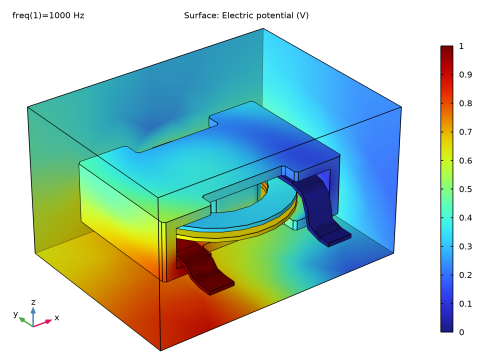
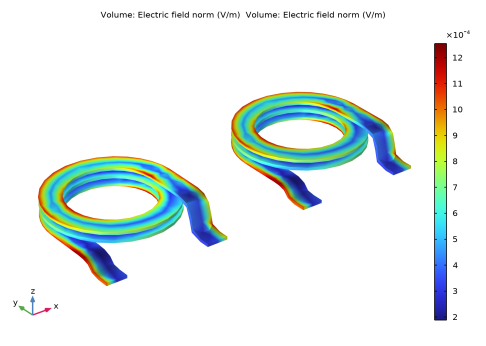
The model is solved for a frequency of 1 kHz. It yields an inductance of 115 μH similar to the static value computed in the manual Introduction to AC/DC Module. The conductance evaluates to 0.015 S and is shown to be balanced by losses in model. Figure 1 shows the distribution of the real part of the electric potential distribution for the case with the Coulomb gauge applied. Note that the electric potential is not gauge invariant so it will look different with the free gauge, see the comparisons in Figure 2. Only the electric and magnetic fields are independent of the gauge, as shown in Figure 3.
Figure 1: Real part of the electric potential distribution.
Figure 2: Comparison of the electric potential distribution on the coil between ungauged formulation (left) and gauged formulation (right).
Figure 3: Comparison of the electric field distribution on the coil between ungauged formulation (left) and gauged formulation (right).
Application Library path: ACDC_Module/Devices,_Inductive/power_inductor
Modeling Instructions
From the File menu, choose New.
New
In the New window, click  Model Wizard.
Model Wizard
1
In the Model Wizard window, click  3D.
2
In the Select Physics tree, select AC/DC > Electromagnetic Fields > Vector Formulations > Magnetic and Electric Fields (mef).
3
Click Add.
4
Click  Study.
5
In the Select Study tree, select General Studies > Frequency Domain.
6
Geometry 1
The geometry of the inductor is available as a CAD file. Import it and create a surrounding air box.
Import 1 (imp1)
1
In the Geometry toolbar, click  Import.
2
In the Settings window for Import, locate the Source section.
3
Click  Browse.
4
5
Click  Import.
Block 1 (blk1)
1
In the Geometry toolbar, click  Block.
2
In the Settings window for Block, locate the Size and Shape section.
3
In the Width text field, type 0.2.
4
In the Depth text field, type 0.15.
5
In the Height text field, type 0.12.
6
Locate the Position section. In the x text field, type -0.1.
7
In the y text field, type -0.08.
8
In the z text field, type -0.04.
9
Click  Build All Objects.
10
Click the  Wireframe Rendering button in the Graphics toolbar.
Materials
This application uses two materials that are already available in the Material Library and one defined from a Blank material.
Add Material
1
In the Materials toolbar, click  Add Material to open the Add Material window.
2
Go to the Add Material window.
3
In the tree, select Built-in > Copper.
4
Click the Add to Component button in the window toolbar.
5
In the Materials toolbar, click  Add Material to close the Add Material window.
Materials
Copper (mat1)
1
In the Settings window for Material, locate the Geometric Entity Selection section.
2
Click  Clear Selection.
3
Magnetic and Electric Fields (mef)
Proceed now with the setup of the physics interface and set up the Terminal and Ground conditions driving the current through the model.
1
In the Model Builder window, under Component 1 (comp1) click Magnetic and Electric Fields (mef).
2
In the Settings window for Magnetic and Electric Fields, click to expand the Discretization section.
3
From the Magnetic vector potential list, choose Linear.
4
From the Electric potential list, choose Linear.
Magnetic Insulation 1
In the Model Builder window, under Component 1 (comp1) > Magnetic and Electric Fields (mef) click Magnetic Insulation 1.
Electric Insulation 1
1
In the Physics toolbar, click  Attributes and choose Electric Insulation.
2
Magnetic Insulation 1
In the Model Builder window, click Magnetic Insulation 1.
Terminal 1
1
In the Physics toolbar, click  Attributes and choose Terminal.
2
3
In the Settings window for Terminal, locate the Terminal section.
4
From the Terminal type list, choose Voltage.
In order to model a finite loss core, it is added a constitutive relationship where the complex relative permeability is specified with the corresponding material providing these data.
Ampère’s Law and Current Conservation in Solids 1
1
In the Physics toolbar, click  Domains and choose Ampère’s Law and Current Conservation in Solids.
2
Ampère’s Law and Current Conservation in Solids 2
1
In the Physics toolbar, click  Domains and choose Ampère’s Law and Current Conservation in Solids.
2
3
In the Settings window for Ampère’s Law and Current Conservation in Solids, locate the Constitutive Relation B-H section.
4
From the Magnetization model list, choose Magnetic losses.
Gauge Fixing for A-field 1
In the Physics toolbar, click  Domains and choose Gauge Fixing for A-field.
Materials
Core Material
1
In the Model Builder window, under Component 1 (comp1) right-click Materials and choose Blank Material.
2
In the Settings window for Material, type Core Material in the Label text field.
3
4
Locate the Material Contents section. In the table, enter the following settings:
Mesh 1
1
In the Model Builder window, under Component 1 (comp1) click Mesh 1.
2
In the Settings window for Mesh, locate the Physics-Controlled Mesh section.
3
From the Element size list, choose Extra coarse.
4
In the table, clear the Use checkbox for Geometric Analysis, Detail Size.
5
Right-click Component 1 (comp1) > Mesh 1 and choose Edit Physics-Induced Sequence.
Free Tetrahedral 1
As in the following linear elements are going to be chosen, a finer mesh in the core is added even though this is unnecessary for the first solution where default quadratic elements are used.
Size 1
1
In the Model Builder window, right-click Free Tetrahedral 1 and choose Size.
2
In the Settings window for Size, locate the Geometric Entity Selection section.
3
From the Geometric entity level list, choose Domain.
4
5
Locate the Element Size section. Click the Custom button.
6
Locate the Element Size Parameters section.
7
Select the Maximum element size checkbox. In the associated text field, type 5[mm].
A boundary layer mesh is added in order to resolve skin depth.
Boundary Layers 1
1
In the Mesh toolbar, click  Boundary Layers.
2
In the Settings window for Boundary Layers, locate the Geometric Entity Selection section.
3
From the Geometric entity level list, choose Domain.
4
Boundary Layer Properties
1
In the Model Builder window, click Boundary Layer Properties.
2
3
In the Settings window for Boundary Layer Properties, locate the Layers section.
4
In the Number of layers text field, type 2.
5
From the Thickness specification list, choose First layer.
6
In the Thickness text field, type 0.5[mm].
7
Click  Build All.
Study 1
Step 1: Frequency Domain
1
In the Model Builder window, under Study 1 click Step 1: Frequency Domain.
2
In the Settings window for Frequency Domain, locate the Study Settings section.
3
In the Frequencies text field, type 1[kHz].
4
Locate the Physics and Variables Selection section. Select the Modify model configuration for study step checkbox.
5
In the tree, select Component 1 (comp1) > Magnetic and Electric Fields (mef) > Gauge Fixing for A-field 1.
6
Solution 1 (sol1)
1
In the Study toolbar, click  Show Default Solver.
2
In the Model Builder window, expand the Solution 1 (sol1) node.
3
In the Model Builder window, expand the Study 1 > Solver Configurations > Solution 1 (sol1) > Stationary Solver 1 node, then click Iterative 1.
4
In the Settings window for Iterative, locate the General section.
5
From the Solver list, choose GMRES.
6
In the Number of iterations before restart text field, type 500.
7
From the Preconditioning list, choose Right.
In order to compute the admittance with sufficient accuracy in this case with fairly low frequency, the error estimate must be increased so that the iterative solver will refine the solution more than the standard value.
8
Click to expand the Error section. In the Factor in error estimate text field, type 1e7.
9
Right-click Study 1 > Solver Configurations > Solution 1 (sol1) > Stationary Solver 1 > Iterative 1 and choose SOR.
10
In the Settings window for Study, locate the Study Settings section.
11
Clear the Generate default plots checkbox.
12
In the Label text field, type Ungauged Formulation.
13
In the Study toolbar, click  Compute.
Add Study
Next, solve the model with Gauge Fixing for A-field. Gauge fixing is compatible with direct solver which essentially does not require any tuning.
1
In the Study toolbar, click  Add Study to open the Add Study window.
2
Go to the Add Study window.
3
Find the Studies subsection. In the Select Study tree, select General Studies > Frequency Domain.
4
Click the Add Study button in the window toolbar.
5
In the Study toolbar, click  Add Study to close the Add Study window.
Study 2
Step 1: Frequency Domain
1
In the Settings window for Frequency Domain, locate the Study Settings section.
2
In the Frequencies text field, type 1[kHz].
Solution 2 (sol2)
1
In the Study toolbar, click  Show Default Solver.
2
In the Model Builder window, expand the Solution 2 (sol2) node.
3
In the Model Builder window, expand the Study 2 > Solver Configurations > Solution 2 (sol2) > Stationary Solver 1 node, then click Fully Coupled 1.
4
In the Settings window for Fully Coupled, locate the General section.
5
From the Linear solver list, choose Direct.
6
In the Model Builder window, click Study 2.
7
In the Settings window for Study, type Gauged Formulation in the Label text field.
8
Locate the Study Settings section. Clear the Generate default plots checkbox.
9
In the Study toolbar, click  Compute.
Next instructions show how to extract the conductance and inductance.
Results
Global Evaluation 1
1
In the Model Builder window, expand the Results node.
2
Right-click Results > Derived Values and choose Global Evaluation.
Compute the conductance as real part of admittance, and inductance as the inverse of admittance imaginary part divided by the angular frequency. Specify the output unit as uH (microhenry, μH).
3
In the Settings window for Global Evaluation, locate the Expressions section.
4
5
Click  Evaluate.
Table 1
1
Go to the Table 1 window.
Real part of admittance evaluates to about 0.015[S] while inductance 115[uH] similarly to the static limit.
Results
Finite value of real part of inductance is due to losses in the material. In the present case, most of the losses are in the lossy core, but some are also in the conducting coil. In the next it is shown how effective conductance of the coil as evaluated by the terminal is consistent with the balance of losses in the whole system.
Volume Integration 1
1
In the Results toolbar, click  More Derived Values and choose Integration > Volume Integration.
2
3
In the Settings window for Volume Integration, locate the Expressions section.
4
5
Clicknext to  Evaluate, then choose Table 1 - Global Evaluation 1.
Global Evaluation 1
Next compute the new estimate of conductance and inductance with Gauged Formulation.
1
In the Model Builder window, click Global Evaluation 1.
2
In the Settings window for Global Evaluation, locate the Data section.
3
From the Dataset list, choose Gauged Formulation/Solution 2 (sol2).
4
Clicknext to  Evaluate, then choose Table 1 - Global Evaluation 1.
Table 1
1
Go to the Table 1 window.
2
Right-click Results > Derived Values > Global Evaluation 1 and choose Plot.
Results
Next compare the electric potential and electric field distributions between results from Ungauged and Gauged formulations.
Electric Potential, Comparison
1
In the Results toolbar, click  3D Plot Group.
2
In the Settings window for 3D Plot Group, type Electric Potential, Comparison in the Label text field.
3
Locate the Plot Settings section. Clear the Plot dataset edges checkbox.
Volume 1
1
Right-click Electric Potential, Comparison and choose Volume.
2
In the Settings window for Volume, locate the Data section.
3
From the Dataset list, choose Ungauged Formulation/Solution 1 (sol1).
Selection 1
1
Right-click Volume 1 and choose Selection.
2
Volume 2
1
In the Model Builder window, under Results > Electric Potential, Comparison right-click Volume 1 and choose Duplicate.
2
In the Settings window for Volume, locate the Data section.
3
From the Dataset list, choose Gauged Formulation/Solution 2 (sol2).
4
Click to expand the Inherit Style section. From the Plot list, choose Volume 1.
Transformation 1
1
Right-click Volume 2 and choose Transformation.
2
In the Settings window for Transformation, locate the Transformation section.
3
In the x text field, type 0.2.
4
Click the  Go to Default View button in the Graphics toolbar.
5
Click the  Show Grid button in the Graphics toolbar.
6
In the Electric Potential, Comparison toolbar, click  Plot.
Electric Field, Comparison
1
In the Model Builder window, right-click Electric Potential, Comparison and choose Duplicate.
2
In the Model Builder window, click Electric Potential, Comparison 1.
3
In the Settings window for 3D Plot Group, type Electric Field, Comparison in the Label text field.
Volume 1
1
In the Model Builder window, click Volume 1.
2
In the Settings window for Volume, locate the Expression section.
3
In the Expression text field, type mef.normE.
Volume 2
1
In the Model Builder window, click Volume 2.
2
In the Settings window for Volume, locate the Expression section.
3
In the Expression text field, type mef.normE.
4
In the Electric Field, Comparison toolbar, click  Plot.
Finally visualize the potential distribution in a new plot group.
Electric Potential, Gauged Formulation
1
In the Results toolbar, click  3D Plot Group.
2
In the Settings window for 3D Plot Group, type Electric Potential, Gauged Formulation in the Label text field.
3
Locate the Data section. From the Dataset list, choose Gauged Formulation/Solution 2 (sol2).
Surface 1
Right-click Electric Potential, Gauged Formulation and choose Surface.
Take a look inside by hiding a few of the exterior boundaries.
Selection 1
1
In the Model Builder window, right-click Surface 1 and choose Selection.
2
Select Boundaries 3 and 5–79 only. The quickest way to do this is to select All boundaries from the Selection list, then remove Boundaries 1, 2, and 4.
Electric Potential, Gauged Formulation
Click 3D Plot Group 2 to visualize the plot reproducing Figure 1 .
1
In the Model Builder window, under Results click Electric Potential, Gauged Formulation.
2
In the Electric Potential, Gauged Formulation toolbar, click  Plot.
3