You are viewing the documentation for an older COMSOL version. The latest version is available here.
PDF

Stress Analysis of a Portal Crane
Introduction
Portal cranes, also known as gantry cranes, are common for handling heavy loads, for example in harbors and on industrial sites. A portal crane consists of a more or less rectangular frame, where the payload is hoisted from a trolley which runs along the upper horizontal beam called the bridge. Often, the crane runs on tracks in the direction perpendicular to the frame.
Figure 1: The Goliath crane in the shipyard of Harland & Wolff in Belfast.
In this example, a portal crane is analyzed using the Beam interface. The crane is subjected to loads from self-weight, payload, and thermal expansion.
Model Definition
Geometry
An overview of the crane geometry is shown in Figure 2. Three different beam cross sections are used:
The supporting columns have box cross sections, varying from 100 mm-by-100 mm at the ground level to 200 mm-by-100 mm at the connection to the bridge. The wall thickness is 10 mm.
The horizontal crossbars between the columns have square box sections, 80 mm-by-80 mm with a wall thickness of 8 mm.
The geometry is parameterized, and the following values are used:
The material of all members is steel.
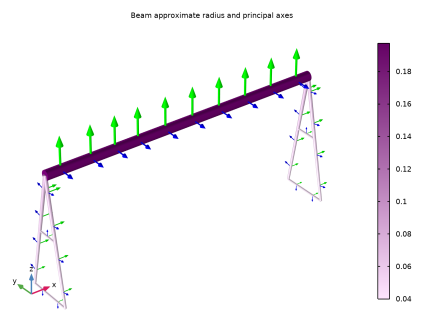
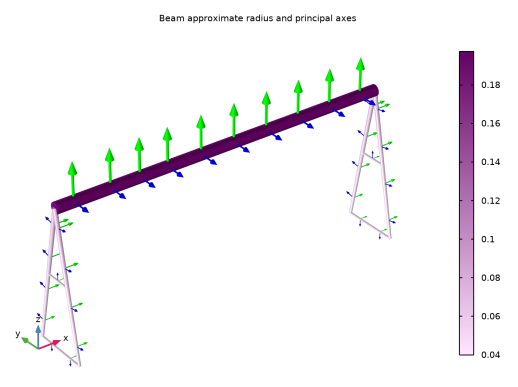
Figure 2: A sketch of the crane, with the stiffness of the members indicated (using size, color surface, and arrows in the principal directions).
Boundary Conditions
The columns are assumed to run on rails. The vertical and transverse displacements are constrained at all four lower ends of the columns. In addition, the displacement in the rail direction is constrained for two of the columns to make the model stable. Because all loads act in the vertical direction, this does not affect the results.
One end of the bridge is hinged with respects to its supporting columns. Because the structure is otherwise symmetric, the location is selected arbitrarily.
Loading
Three different load cases are considered:
Thermal load: The maximum temperature of the crane can rise to 50°C on a hot day. The stress-free assembly temperature is set to 20°C.
Payload: 15 ton are applied as a uniform load over a distance of 0.8 m of the bridge. This is the trolley width. The center of the trolley is placed at 3 m from the hinged end of the bridge.
Results and Discussion
The thermal expansion does not cause any stresses, since the frame is statically determinate. Obtaining a statically determinate structure is a reason for introducing hinges in this type of frame. A statically determinate structure has several advantages
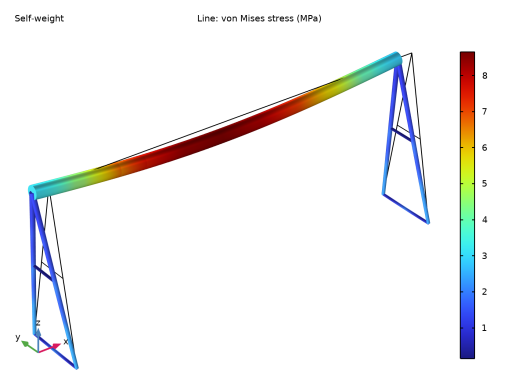
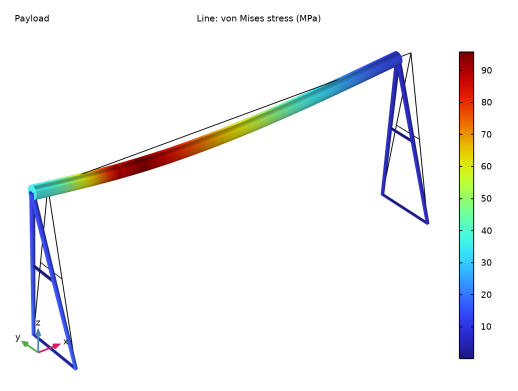
The stress distribution caused by self-weight and payload are shown in Figure 3 and Figure 4, respectively.
Figure 3: Equivalent stress caused by self-weight.
Figure 4: Equivalent stress caused by payload.
In a real-life analysis of this type of structure, there are several other effects that would have to be taken into account. For example:
Notes About the COMSOL Implementation
The Beam End Release node is used to insert a hinge. When more than two beams meet at a point where some degrees of freedom are decoupled, it is necessary to specify how the beams are connected to each other. This is done by adding Edge Group subnodes. All edges that are selected in a single edge group are considered to be rigidly connected to each other at the joints. In this case the two column beams are placed in an edge group.
Application Library path: Structural_Mechanics_Module/Beams_and_Shells/portal_crane
Modeling Instructions
From the File menu, choose New.
New
In the New window, click  Model Wizard.
Model Wizard
1
In the Model Wizard window, click  3D.
2
In the Select Physics tree, select Structural Mechanics>Beam (beam).
3
Click Add.
4
Click  Study.
5
In the Select Study tree, select General Studies>Stationary.
6
Global Definitions
Parameters 1
1
In the Model Builder window, under Global Definitions click Parameters 1.
2
In the Settings window for Parameters, locate the Parameters section.
3
Click  Load from File.
4
Geometry 1
Polygon 1 (pol1)
1
In the Geometry toolbar, click  More Primitives and choose Polygon.
2
In the Settings window for Polygon, locate the Coordinates section.
3
4
Locate the Selections of Resulting Entities section. Find the Cumulative selection subsection. Click New.
5
In the New Cumulative Selection dialog box, type Columns in the Name text field.
6
7
In the Settings window for Polygon, click  Build Selected.
Line Segment 1 (ls1)
1
In the Geometry toolbar, click  More Primitives and choose Line Segment.
2
On the object pol1, select Point 5 only.
3
In the Settings window for Line Segment, locate the Endpoint section.
4
Find the End vertex subsection. Click to select the  Activate Selection toggle button.
5
On the object pol1, select Point 1 only.
6
Locate the Selections of Resulting Entities section. Find the Cumulative selection subsection. Click New.
7
In the New Cumulative Selection dialog box, type Crossbars in the Name text field.
8
Line Segment 2 (ls2)
1
In the Geometry toolbar, click  More Primitives and choose Line Segment.
2
On the object pol1, select Point 4 only.
3
In the Settings window for Line Segment, locate the Endpoint section.
4
Find the End vertex subsection. Click to select the  Activate Selection toggle button.
5
On the object pol1, select Point 2 only.
6
Locate the Selections of Resulting Entities section. Find the Cumulative selection subsection. From the Contribute to list, choose Crossbars.
7
Click  Build All Objects.
Copy 1 (copy1)
1
In the Geometry toolbar, click  Transforms and choose Copy.
2
In the Settings window for Copy, locate the Displacement section.
3
In the x text field, type width.
4
Click in the Graphics window and then press Ctrl+A to select all objects.
5
Click  Build Selected.
6
Click the  Zoom Extents button in the Graphics toolbar.
Polygon 2 (pol2)
1
In the Geometry toolbar, click  More Primitives and choose Polygon.
2
In the Settings window for Polygon, locate the Coordinates section.
3
4
Click  Build All Objects.
Add Material
1
In the Home toolbar, click  Add Material to open the Add Material window.
2
Go to the Add Material window.
3
In the tree, select Built-in>Structural steel.
4
Right-click and choose Add to Component 1 (comp1).
5
In the Home toolbar, click  Add Material to close the Add Material window.
Beam (beam)
Cross Section: Bridge
1
In the Settings window for Cross-Section Data, type Cross Section: Bridge in the Label text field.
2
Locate the Cross-Section Definition section. From the list, choose Common sections.
3
From the Section type list, choose H-profile.
4
In the hy text field, type 490[mm].
5
In the hz text field, type 300[mm].
6
In the ty text field, type 23[mm].
7
In the tz text field, type 12[mm].
Section Orientation 1
1
In the Model Builder window, click Section Orientation 1.
2
In the Settings window for Section Orientation, locate the Section Orientation section.
3
From the Orientation method list, choose Orientation vector.
4
Specify the V vector as
Cross Section: Columns
1
In the Physics toolbar, click  Edges and choose Cross-Section Data.
2
In the Settings window for Cross-Section Data, type Cross Section: Columns in the Label text field.
3
Locate the Edge Selection section. From the Selection list, choose Columns.
4
Locate the Cross-Section Definition section. From the list, choose Common sections.
5
From the Section type list, choose Box.
6
In the hy text field, type 100[mm]+100[mm]*(Z/height).
7
In the hz text field, type 100[mm].
8
In the ty text field, type 10[mm].
9
In the tz text field, type 10[mm].
Section Orientation 1
1
In the Model Builder window, expand the Cross Section: Columns node, then click Section Orientation 1.
2
In the Settings window for Section Orientation, locate the Section Orientation section.
3
From the Orientation method list, choose Orientation vector.
4
Specify the V vector as
Cross Section: Crossbars
1
In the Physics toolbar, click  Edges and choose Cross-Section Data.
2
In the Settings window for Cross-Section Data, type Cross Section: Crossbars in the Label text field.
3
Locate the Edge Selection section. From the Selection list, choose Crossbars.
4
Locate the Cross-Section Definition section. From the list, choose Common sections.
5
From the Section type list, choose Box.
6
In the hy text field, type 80[mm].
7
In the hz text field, type 80[mm].
8
In the ty text field, type 8[mm].
9
In the tz text field, type 8[mm].
Section Orientation 1
1
In the Model Builder window, expand the Cross Section: Crossbars node, then click Section Orientation 1.
2
In the Settings window for Section Orientation, locate the Section Orientation section.
3
From the Orientation method list, choose Orientation vector.
4
Specify the V vector as
Pinned 1
1
In the Physics toolbar, click  Points and choose Pinned.
2
Prescribed Displacement/Rotation 1
1
In the Physics toolbar, click  Points and choose Prescribed Displacement/Rotation.
2
3
In the Settings window for Prescribed Displacement/Rotation, locate the Prescribed Displacement section.
4
From the Displacement in x direction list, choose Prescribed.
5
From the Displacement in z direction list, choose Prescribed.
Beam End Release 1
1
In the Physics toolbar, click  Points and choose Beam End Release.
2
3
In the Settings window for Beam End Release, locate the Release Settings section.
4
Find the Rotation subsection. Select the Release in Y direction check box.
Edge Group 1
1
In the Physics toolbar, click  Attributes and choose Edge Group.
Because three beams meet at the hinge, you must indicate how they are connected.
2
Gravity 1
1
In the Physics toolbar, click  Global and choose Gravity.
2
Click  Load Group and choose New Load Group.
Global Definitions
Load Group: Gravity
1
In the Model Builder window, under Global Definitions>Load and Constraint Groups click Load Group 1.
2
In the Settings window for Load Group, type Load Group: Gravity in the Label text field.
3
In the Parameter name text field, type lgG.
Beam (beam)
Trolley Self-Weight
1
In the Physics toolbar, click  Edges and choose Edge Load.
2
In the Settings window for Edge Load, type Trolley Self-Weight in the Label text field.
3
4
Locate the Force section. From the Load type list, choose Total force.
5
Specify the Ftot vector as
6
Locate the Edge Selection section. Click  Create Selection.
7
In the Create Selection dialog box, type Trolley in the Selection name text field.
8
9
In the Physics toolbar, click  Load Group and choose Load Group: Gravity.
Payload
1
In the Physics toolbar, click  Edges and choose Edge Load.
2
In the Settings window for Edge Load, type Payload in the Label text field.
3
Locate the Edge Selection section. From the Selection list, choose Trolley.
4
Locate the Force section. From the Load type list, choose Total force.
5
Specify the Ftot vector as
6
In the Physics toolbar, click  Load Group and choose New Load Group.
Global Definitions
Load Group: Payload
1
In the Model Builder window, under Global Definitions>Load and Constraint Groups click Load Group 2.
2
In the Settings window for Load Group, type Load Group: Payload in the Label text field.
3
In the Parameter name text field, type lgP.
Beam (beam)
Linear Elastic Material 1
In the Model Builder window, under Component 1 (comp1)>Beam (beam) click Linear Elastic Material 1.
Thermal Expansion 1
1
In the Physics toolbar, click  Attributes and choose Thermal Expansion.
2
In the Settings window for Thermal Expansion, locate the Model Input section.
3
Click  Go to Source for Temperature.
Global Definitions
Default Model Inputs
1
In the Model Builder window, under Global Definitions click Default Model Inputs.
2
In the Settings window for Default Model Inputs, locate the Browse Model Inputs section.
3
Find the Expression for remaining selection subsection. In the Temperature text field, type maxTemp.
Beam (beam)
Thermal Expansion 1
1
In the Model Builder window, under Component 1 (comp1)>Beam (beam)>Linear Elastic Material 1 click Thermal Expansion 1.
2
In the Physics toolbar, click  Load Group and choose New Load Group.
Global Definitions
Load Group: Temperature
1
In the Model Builder window, under Global Definitions>Load and Constraint Groups click Load Group 3.
2
In the Settings window for Load Group, type Load Group: Temperature in the Label text field.
3
In the Parameter name text field, type lgT.
Study 1
Step 1: Stationary
1
In the Model Builder window, under Study 1 click Step 1: Stationary.
2
In the Settings window for Stationary, click to expand the Study Extensions section.
3
Select the Define load cases check box.
4
5
6
7
8
9
10
In the Home toolbar, click  Compute.
Results
Line 1
1
In the Model Builder window, expand the Stress (beam) node, then click Line 1.
2
In the Settings window for Line, locate the Expression section.
3
From the Unit list, choose MPa.
4
Click the  Show Grid button in the Graphics toolbar.
5
In the Stress (beam) toolbar, click  Plot.
The default plot shows the last load case; the thermal loading. The stresses are essentially zero since the frame is statically determinate. Next, consider the self-weight case.
6
Click  Plot First.
The stresses from the self-weight are also small. This is what you would expect in a crane, since it should be possible to add a large payload. Next, move to the results for the payload.
7
Click  Plot Next.
Check that the beams are correctly oriented.
8
In the Home toolbar, click  Add Predefined Plot.
Add Predefined Plot
1
Go to the Add Predefined Plot window.
2
In the tree, select Study 1/Solution 1 (sol1)>Beam>Beam Orientation (beam).
3
Click Add Plot in the window toolbar.
4
In the Home toolbar, click  Add Predefined Plot.
Results
Beam Orientation (beam)
1
In the Model Builder window, under Results click Beam Orientation (beam).
2
In the Beam Orientation (beam) toolbar, click  Plot.
The green arrows show the local Y directions, and the blue arrows show the local Z directions. The arrow sizes indicate the stiffness in each direction (actually the square root of the stiffness to give the arrows better visibility). The radius and the grayscale of the beam structure indicate the dimensions of the beam. Note the gradient in stiffness in the vertical direction of the columns.