
You are viewing the documentation for an older COMSOL version. The latest version is available here.
PDF

Thermal Bridges in Building Construction — 2D Square Column
Introduction
The European standard EN ISO 10211:2007 for thermal bridges in building constructions provides four test cases — two 2D and two 3D — for validating a numerical method (Ref. 1). If the values obtained by a method conform to the results of all these four cases, the method is classified as a three-dimensional steady-state high precision method.
COMSOL Multiphysics successfully passes all the test cases described by the standard. This document presents an implementation of the first 2D model (Case 1).
This example studies the temperature distribution in a square column. Cold and hot temperature conditions are applied to the boundaries. Due to the symmetry of the problem, the geometry can be simplified to half of the square. The temperature field created by heat conduction is measured at 28 equidistant points in the structure to compare with the analytic data.
Figure 1: Geometry and boundary conditions of ISO 10211:2007 test case 1.
Model Definition
Figure 1 shows the geometry and the boundary conditions. The model only includes the half left of the square and applies a symmetry condition to the right boundary. The temperature at the remaining boundaries is maintained at the values specified in the figure.
Notes About the COMSOL Implementation
This case corresponds to a stationary analysis and the structural material has a homogeneous thermal conductivity, k. Therefore, its value does not affect the stationary temperature field. However, to properly define the model, a value must be specified for k. This implementation sets k equal to 1 W/(m·K), the density to 1 kg/m3 and the heat capacity to 1 J/(kg·K).
The temperature is evaluated on the regular grid shown in Figure 2. Because of similarity, the value of L does not affect the results, but a length value must be specified to completely define the model. Here, L is set to 0.8 m.
Figure 2: Regular grid where the temperature is evaluated.
Results and Discussion
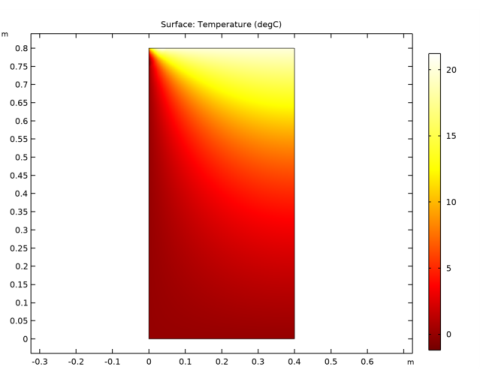
Figure 3 shows the temperature gradient resulting from the temperature differences between the boundaries.
Figure 3: Temperature distribution of ISO 10211:2007 test case 1.
Table 1 compares the numerical results of COMSOL Multiphysics with the expected values provided by EN ISO 10211:2007 (Ref. 1).
The maximum permissible difference, 0.1 °C, to pass this case validation is respected.
Reference
1. European Committee for Standardization, EN ISO 10211, Thermal bridges in building construction – Heat flows and surface temperatures – Detailed calculations (ISO 10211:2007), Appendix A, pp. 30–36, 2007.
Application Library path: Heat_Transfer_Module/Buildings_and_Constructions/thermal_bridge_2d_square_column
Modeling Instructions
From the File menu, choose New.
New
In the New window, click  Model Wizard.
Model Wizard
1
In the Model Wizard window, click  2D.
2
In the Select Physics tree, select Heat Transfer>Heat Transfer in Solids (ht).
3
Click Add.
4
Click  Study.
5
In the Select Study tree, select General Studies>Stationary.
6
Global Definitions
Parameters 1
1
In the Model Builder window, under Global Definitions click Parameters 1.
2
In the Settings window for Parameters, locate the Parameters section.
3
Geometry 1
Include only half of the square due to the symmetry in this model.
Rectangle 1 (r1)
1
In the Geometry toolbar, click  Rectangle.
2
In the Settings window for Rectangle, locate the Size and Shape section.
3
In the Width text field, type L/2.
4
In the Height text field, type L.
5
In the Geometry toolbar, click  Build All.
Materials
Material 1 (mat1)
1
In the Materials toolbar, click  Blank Material.
2
In the Settings window for Material, locate the Material Contents section.
3
Heat Transfer in Solids (ht)
Initial Values 1
1
In the Model Builder window, under Component 1 (comp1)>Heat Transfer in Solids (ht) click Initial Values 1.
2
In the Settings window for Initial Values, locate the Initial Values section.
3
In the T text field, type 0[degC].
Temperature 1
1
In the Physics toolbar, click  Boundaries and choose Temperature.
2
3
In the Settings window for Temperature, locate the Temperature section.
4
In the T0 text field, type 0[degC].
Temperature 2
1
In the Physics toolbar, click  Boundaries and choose Temperature.
2
3
In the Settings window for Temperature, locate the Temperature section.
4
In the T0 text field, type 20[degC].
Symmetry 1
1
In the Physics toolbar, click  Boundaries and choose Symmetry.
2
Study 1
In the Home toolbar, click  Compute.
Results
Temperature (ht)
The first default plot group shows the temperature distribution. Display the plot in degrees Celsius.
Surface
1
In the Model Builder window, expand the Temperature (ht) node, then click Surface.
2
In the Settings window for Surface, locate the Expression section.
3
From the Unit list, choose degC.
4
In the Temperature (ht) toolbar, click  Plot.
5
Click the  Zoom Extents button in the Graphics toolbar.
Figure 3 shows the computed temperature distribution.
Data 1
1
In the Results toolbar, click  Data and choose Data.
Follow the steps below to get the temperature values at the 28 points of the grid and export them to a file.
2
In the Settings window for Data, locate the Expressions section.
3
4
Locate the Output section. Click Browse.
5
Browse to a suitable folder, enter the filename thermal_bridge_2d_square_column.txt, and then click Save.
6
From the Points to evaluate in list, choose Grid.
7
Click  Range for the x-coordinate.
8
In the Range dialog box, type L/8 in the Start text field.
9
In the Step text field, type L/8.
10
In the Stop text field, type L/2.
11
Click Add.
12
In the Settings window for Data, locate the Output section.
13
Click  Range for the y-coordinate.
14
In the Range dialog box, type L/8 in the Start text field.
15
In the Step text field, type L/8.
16
In the Stop text field, type L-L/8.
17
Click Add.
18
Click Export.