You are viewing the documentation for an older COMSOL version. The latest version is available here.
PDF

Vanadium Redox Flow Battery
Introduction
Redox flow batteries store the energy in the liquid electrolytes, pumped through the cell and stored in external tanks, rather than in the porous electrodes as for conventional batteries. This approach offers interesting solutions for low-cost energy storage, load leveling and power peak shaving.
The vanadium redox flow battery uses two different electrolyte solutions, one for the negative side of the cell and another for the positive side. The two solutions are kept separated in the cell by the use of an ion-exchange membrane that allows for transport of ions (primarily protons) between the two cell compartments. The principle of the vanadium redox flow battery is illustrated in Figure 1.
Figure 1: Schematic of a vanadium redox flow battery system.
This example demonstrates how to build a model consisting of two different cell compartments, with different ion compositions and electrode reactions, separated by an ion-exchange membrane. The model is a modified version of published works (Ref. 1 and Ref. 2).
See also the Application Libraries example Soluble Lead-Acid Redox Flow Battery for how to make a transient flow battery model by coupling the cell model to mass balances for the external storage tanks.
Model Definition
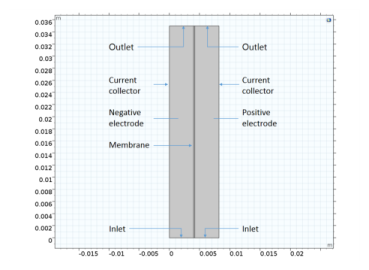
The cell geometry is shown in Figure 2. The model contains three domains, a negative porous electrode (4 mm thick), an ion-exchange membrane (203 μm thick) and a positive porous electrode (4 mm thick). The cell is 35 mm high.
Figure 2: Model geometry. Three domains: negative electrode, membrane, positive electrode.
Each side of the cell is fed with an electrolyte containing sulfuric acid and a vanadium redox couple (see below), flowing through the porous electrodes. The liquid enters the cell from bottom at a constant velocity in the y-direction, corresponding to a flow rate of 30 ml/min at cell depth of 28.5 mm.
The left electrode is grounded, and the current leaves the cell over the rightmost boundary at an average current density of 100 mA/cm2.
The models solves for a stationary case with a given set of inlet concentrations.
Liquid Electrolyte Species and Electrode Reactions
The negative electrolyte contains the following ions:
H+
HSO4-
SO42-
V3+
V2+
The negative electrode reaction is:
The equilibrium potential for this reaction is calculated using Nernst equation according to
where E0, neg is the reference potential for the electrode reaction (SI unit: V), ai is the chemical activity of species i (dimensionless), R is the molar gas constant (8.31 J/(mol·K)), T is the cell temperature (SI unit: K), and F is Faraday’s constant (96,485 s·A/mol).
A Butler-Volmer type of kinetics expression is used for the negative electrode reaction according to:
where A is the specific surface area (SI unit: m2/m3) of the porous electrode, αneg the transfer coefficient (dimensionless), kneg the rate constant.
The overpotential, ηneg (SI unit: V), is defined as
where is the electric potential of the solid phase of the electrode (SI unit: V) and the electrolyte potential (SI unit: V).
The positive electrolyte contains the following ions:
H+
HSO4-
SO42-
VO2+
VO2+
The positive electrode reaction is:
with the equilibrium potential calculated according to:
The ion exchange membrane accounts for transport of the following ions:
H+
HSO4-
SO42-
V3+
V2+
VO2+
VO2+
Sulfuric Acid Dissociation
The first dissociation step of sulfuric acid is assumed to be complete
whereas the second step
is described using a dissociation source term, rd:
where kd is a rate parameter, and β the degree of dissociation.
Ion Transport Equations
In this model the Nernst–Planck equations are used for ion flux and charge transport by which the following equation describes the molar flux of species i, Ni, due to diffusion, migration and convection:
The first term is the diffusion flux, Di is the diffusion coefficient (SI unit: m2/s). The migration term consists of the species charge number zi, the species mobility umob,i (SI unit: s·mol/kg) and the electrolyte potential (). In the convection term, u denotes the fluid velocity vector (SI unit: m/s).


The electrolyte current density is calculated using Faraday’s law by summing up the contributions from the molar fluxes, multiplied by the species charges, with the observation that the convective term vanishes due to the electroneutrality condition (see the theory for the Tertiary Current Distribution, Nernst-Planck interface):
(1)
The conservation of charge is then used to calculate the electrolyte potential.
where the Ri terms are the reaction sources due the porous electrode reactions.
This model uses Equation 1 when solving for the electrolyte potential in the porous electrodes through the Tertiary Current Distribution, Nernst–Planck interface.
In the negative and positive porous electrode domains, where there is free electrolyte present, the concentrations for all the ions are of the same order of magnitude, and the gradients of ci are not negligible. The membrane, however, consists of a polymer electrolyte, with additional negative ions fixed in the polymer matrix, implying that the concentration for this species is constant. In the ion-exchange membrane domain, a fixed space charge, , is added while calculating the sum of charges in the electroneutrality condition:


(2)
The fixed space charge is prescribed in terms of the membrane charge concentration which is varied using an auxiliary sweep in this model.
Membrane — Porous Electrode Boundary Conditions
Donnan Conditions
The boundary conditions at the boundaries between the membrane and the porous electrode domains are set up in the following way.
For species existing on both sides of the membrane-electrode, we have the following relation between the potentials and the concentrations:
(3)
where ci,m is the species concentration in the membrane, and ci,e the species concentration in the free electrolyte and zi the corresponding charge. The potential shift caused by Equation 3 is called Donnan potential (Ref. 3). The Ion Exchange Membrane Boundary feature in the Tertiary Current Distribution, Nernst–Planck interface is used to define the Donnan conditions.
Self-discharge Reactions
At the membrane-negative electrode boundary, the and are assumed to be immediately oxidized according to
and
so that
(4)
Correspondingly, the and concentration are assumed to be zero at the membrane - positive electrode boundaries:
(5)
as a result of the reduction reactions
and
the fast oxidation/reduction reactions are implemented using the Fast Irreversible Reaction kinetics type of the Electrode Surface node.
Results and Discussion
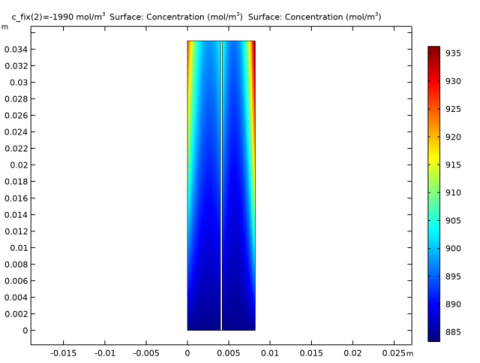
Figure 3 shows the concentration of the V3+ and the VO2+ ions in the porous electrodes for the membrane charge concentration of 1900 mol/m3. The ion concentration for these species is higher toward the current collectors and toward the outlets.
Figure 3: Concentration of the V3+ (left compartment) and the VO2+ (right compartment) ions for a membrane charge concentration of -1900 mol/m3.
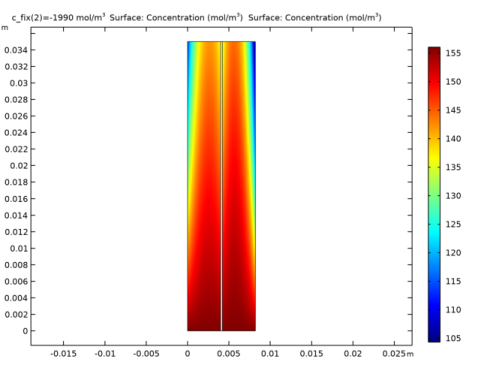
Figure 4 shows the concentration of the V2+ and the VO2+ ions for the membrane charge concentration of 1900 mol/m3. Depletion occurs along the flow direction and also toward both the current collector and membrane sides of the electrodes.
Figure 4: Concentration of the V2+ (left compartment) and the VO2+ (right compartment) ions for a membrane charge concentration of -1900 mol/m3.
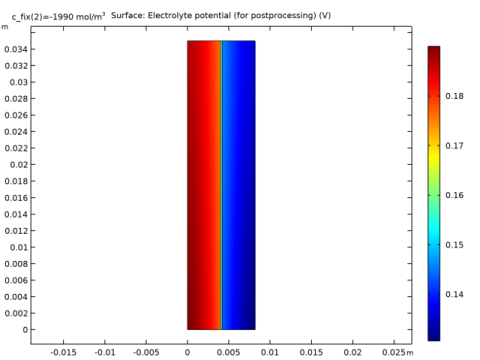
Figure 5 shows the electrolyte potential for the membrane charge concentration of -1900 mol/m3, which decreases toward the positive current collector.
Figure 5: Electrolyte potential for a membrane charge concentration of -1900 mol/m3.
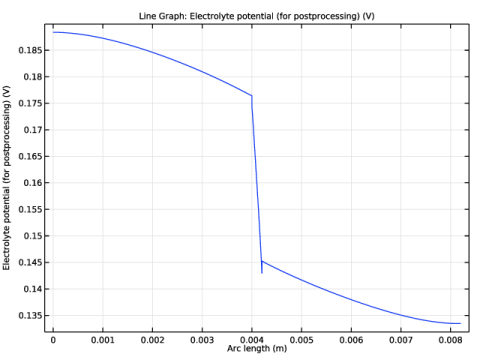
Figure 6 shows a cut line plot of the electrolyte potential at half the cell height. The Donnan potential shifts at the membrane boundaries are clearly visible in the figure.
Figure 6: Electrolyte potential along a horizontal line placed at y = hcell/2.
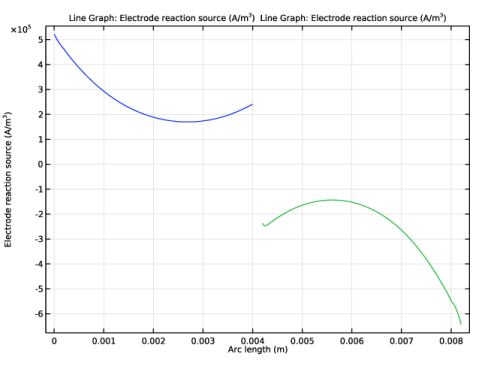
Figure 7 shows the electrode reaction source at half the cell height. The maximum is located toward the current collectors, with a minimum located in the middle of the electrodes. The reason for this phenomena is the similar conductivities of both phases (electrolyte and electrode) of the porous electrodes.
Figure 7: Electrode reaction source in the porous electrodes along a horizontal line placed at y = hcell/2.
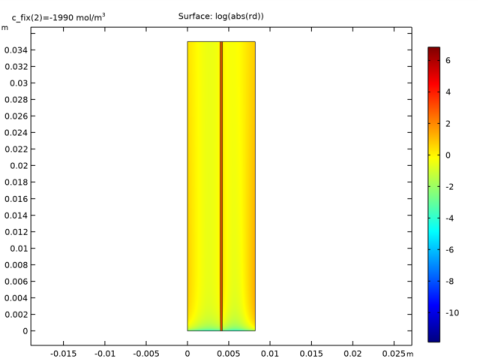
Figure 8 shows the logarithm of the absolute rate of the dissociation reaction. Except from very close to the boundaries, the rates are generally very low, indicating that equilibrium is reached swiftly.
Figure 8: Sulfuric acid dissociation rate.
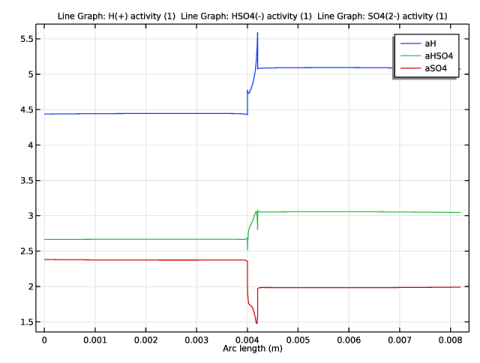
Figure 9 shows the local concentrations of the sulfuric acid species at half the cell height. In the electrodes, gradients are only seen close to the membrane; this is due to the influx and outflux of protons at the membrane boundaries in combination with the acid dissociation reaction.
Figure 9: Sulfuric acid species along a horizontal line placed at y = hcell/2.
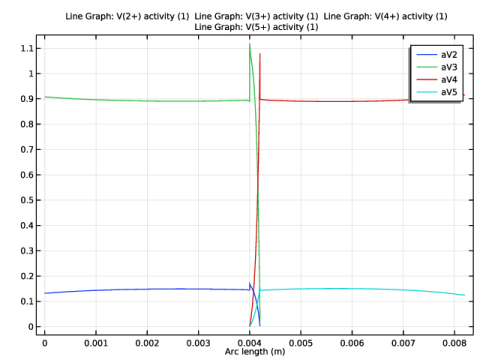
Figure 10 shows the local concentrations of the vanadium species at half the cell height. The highest gradients of vanadium species is seen to be located in the ion exchange membrane.
Figure 10: Vanadium species along a horizontal line placed at y = hcell/2.
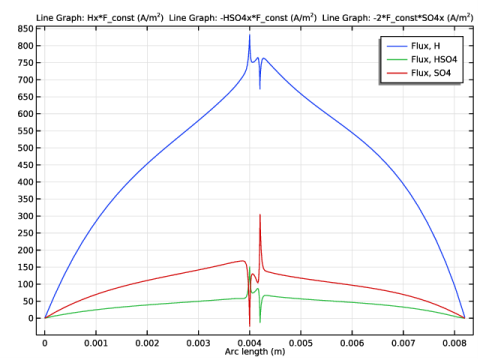
Figure 11 shows the local fluxes of the sulfuric acid species at half the cell height. The fluxes are seen to be the maximum close to the ion exchange membrane.
Figure 11: Sulfuric acid species fluxes along a horizontal line placed at y = hcell/2.
References
1. K. Knehr, E Agar, C. Dennison, A. Kalidindi, and E. Kumbur, “A Transient Vanadium Flow Battery Model Incorporating Vanadium Crossover and Water Transport through the Membrane”, J. Electrochem. Soc., vol. 159, no. 9, pp A1446–A1459, 2012.
2. A.A. Shah, M.J. Watt-Smith, and F.C. Walsh “A dynamic performance model for redox-flow batteries involving soluble species”, Electrochimica Acta vol. 53, pp 8087–8100, 2008.
3. K.W. Knehr and E.C. Kumbur, “Open circuit voltage of vanadium redox flow batteries: Discrepancy between models and experiments”, Electrochemistry Communications, vol. 13, pp 342–345, 2011
Application Library path: Battery_Design_Module/Flow_Batteries/v_flow_battery
Modeling Instructions
From the File menu, choose New.
New
In the New window, click  Model Wizard.
Model Wizard
1
In the Model Wizard window, click  2D.
Add three Tertiary Current Distribution, Nernst Planck interfaces to your model. They will represent the physics for the two porous electrodes and the membrane.
2
In the Select Physics tree, select Electrochemistry>Tertiary Current Distribution, Nernst-Planck>Tertiary, Electroneutrality (tcd).
3
Click Add.
4
In the Number of species text field, type 5.
5
In the Concentrations table, enter the following settings:
6
In the Electrolyte potential text field, type phil_neg.
7
In the Electric potential text field, type phis_neg.
8
In the Select Physics tree, select Electrochemistry>Tertiary Current Distribution, Nernst-Planck>Tertiary, Electroneutrality (tcd).
9
Click Add.
10
In the Number of species text field, type 7.
11
In the Concentrations table, enter the following settings:
12
In the Electrolyte potential text field, type phil_mem.
13
In the Electric potential text field, type phis_mem.
14
In the Select Physics tree, select Electrochemistry>Tertiary Current Distribution, Nernst-Planck>Tertiary, Electroneutrality (tcd).
15
Click Add.
16
In the Number of species text field, type 5.
17
In the Concentrations table, enter the following settings:
18
In the Electrolyte potential text field, type phil_pos.
19
In the Electric potential text field, type phis_pos.
20
Click  Study.
21
In the Select Study tree, select Preset Studies for Selected Physics Interfaces>Stationary with Initialization.
22
Global Definitions
Add the model parameters from a text file.
Parameters 1
1
In the Model Builder window, under Global Definitions click Parameters 1.
2
In the Settings window for Parameters, locate the Parameters section.
3
Click  Load from File.
4
Geometry 1
Draw the geometry as a union of three rectangles (the two porous electrodes and the membrane domains).
Negative Electrode
1
In the Geometry toolbar, click  Rectangle.
2
In the Settings window for Rectangle, locate the Size and Shape section.
3
In the Width text field, type L_e.
4
In the Height text field, type H_cell.
5
Locate the Selections of Resulting Entities section. Select the Resulting objects selection check box.
6
Right-click Rectangle 1 (r1) and choose Rename.
7
In the Rename Rectangle dialog box, type Negative Electrode in the New label text field.
8
Membrane
1
In the Geometry toolbar, click  Rectangle.
2
In the Settings window for Rectangle, locate the Size and Shape section.
3
In the Width text field, type L_m.
4
In the Height text field, type H_cell.
5
Locate the Position section. In the x text field, type L_e.
6
Locate the Selections of Resulting Entities section. Select the Resulting objects selection check box.
7
Right-click Rectangle 2 (r2) and choose Rename.
8
In the Rename Rectangle dialog box, type Membrane in the New label text field.
9
Positive Electrode
1
In the Geometry toolbar, click  Rectangle.
2
In the Settings window for Rectangle, locate the Size and Shape section.
3
In the Width text field, type L_e.
4
In the Height text field, type H_cell.
5
Locate the Position section. In the x text field, type L_e+L_m.
6
Locate the Selections of Resulting Entities section. Select the Resulting objects selection check box.
7
Right-click Rectangle 3 (r3) and choose Rename.
8
In the Rename Rectangle dialog box, type Positive Electrode in the New label text field.
9
10
In the Settings window for Rectangle, click  Build All Objects.
11
Click the  Zoom Extents button in the Graphics toolbar.
Compare the geometry with Figure 2.
Definitions
Add domain specific variables.
Negative Electrode Variables
1
In the Home toolbar, click  Variables and choose Local Variables.
2
In the Settings window for Variables, locate the Geometric Entity Selection section.
3
From the Geometric entity level list, choose Domain.
4
From the Selection list, choose Negative Electrode.
5
Locate the Variables section. Click  Load from File.
6
7
Right-click Variables 1 and choose Rename.
8
In the Rename Variables dialog box, type Negative Electrode Variables in the New label text field.
9
Membrane Variables
1
In the Home toolbar, click  Variables and choose Local Variables.
2
In the Settings window for Variables, locate the Geometric Entity Selection section.
3
From the Geometric entity level list, choose Domain.
4
From the Selection list, choose Membrane.
5
Locate the Variables section. Click  Load from File.
6
7
Right-click Variables 2 and choose Rename.
8
In the Rename Variables dialog box, type Membrane Variables in the New label text field.
9
Positive Electrode Variables
1
In the Home toolbar, click  Variables and choose Local Variables.
2
In the Settings window for Variables, locate the Geometric Entity Selection section.
3
From the Geometric entity level list, choose Domain.
4
From the Selection list, choose Positive Electrode.
5
Locate the Variables section. Click  Load from File.
6
7
Right-click Variables 3 and choose Rename.
8
In the Rename Variables dialog box, type Positive Electrode Variables in the New label text field.
9
Tertiary Current Distribution, Nernst-Planck (Negative)
Now start defining the current distribution models. Start with the negative porous electrode.
1
In the Settings window for Tertiary Current Distribution, Nernst-Planck, type Tertiary Current Distribution, Nernst-Planck (Negative) in the Label text field.
2
Locate the Domain Selection section. From the Selection list, choose Negative Electrode.
3
Locate the Out-of-Plane Thickness section. In the d text field, type wCell.
Porous Electrode 1
1
Right-click Component 1 (comp1)>Tertiary Current Distribution, Nernst-Planck (Negative) and choose Porous Electrode.
2
In the Settings window for Porous Electrode, locate the Domain Selection section.
3
From the Selection list, choose Negative Electrode.
4
Locate the Convection section. Specify the u vector as
5
Locate the Electrode Current Conduction section. From the σs list, choose User defined. In the associated text field, type sigma_e.
6
Locate the Diffusion section. In the DcSO4neg text field, type DSO4.
7
In the DcHSO4neg text field, type DHSO4.
8
In the DcHneg text field, type DH.
9
In the DcV2 text field, type DV2.
10
In the DcV3 text field, type DV3.
11
Locate the Migration in Electric Field section. In the zcSO4neg text field, type -2.
12
In the zcHSO4neg text field, type -1.
13
In the zcHneg text field, type 1.
14
In the zcV2 text field, type 2.
15
In the zcV3 text field, type 3.
16
Locate the Porous Matrix Properties section. In the εl text field, type epsilon.
17
Locate the Effective Transport Parameter Correction section. From the Electrical conductivity list, choose No correction.
Porous Electrode Reaction 1
1
In the Model Builder window, expand the Porous Electrode 1 node, then click Porous Electrode Reaction 1.
2
In the Settings window for Porous Electrode Reaction, locate the Stoichiometric Coefficients section.
3
In the νcV2 text field, type 1.
4
In the νcV3 text field, type -1.
5
Locate the Equilibrium Potential section. In the Eeq,ref(T) text field, type E0_neg.
6
Locate the Electrode Kinetics section. In the i0,ref(T) text field, type i0ref_neg.
7
In the αa text field, type alpha_neg.
8
Locate the Active Specific Surface Area section. In the av text field, type a.
Reactions 1
1
In the Physics toolbar, click  Domains and choose Reactions.
2
In the Settings window for Reactions, locate the Domain Selection section.
3
From the Selection list, choose Negative Electrode.
4
Locate the Reaction Rates section. In the RcSO4neg text field, type -rd.
5
In the RcHSO4neg text field, type rd.
6
In the RcHneg text field, type -rd.
Electric Ground 1
1
In the Physics toolbar, click  Boundaries and choose Electric Ground.
2
Inflow 1
1
In the Physics toolbar, click  Boundaries and choose Inflow.
2
3
In the Settings window for Inflow, locate the Concentration section.
4
In the c0,cHSO4neg text field, type cHSO4_0_neg.
5
In the c0,cHneg text field, type cH_0_neg.
6
In the c0,cV2 text field, type cV2_0.
7
In the c0,cV3 text field, type cV3_0.
8
Locate the Boundary Condition Type section. From the list, choose Flux (Danckwerts).
Outflow 1
1
In the Physics toolbar, click  Boundaries and choose Outflow.
2
Ion Exchange Membrane Boundary 1
The electrolyte potential and species concentration in the membrane and in the porous electrodes are coupled by the use of Donnan potential expression on the boundary between the membrane and the porous electrode.
1
In the Physics toolbar, click  Boundaries and choose Ion Exchange Membrane Boundary.
2
3
In the Settings window for Ion Exchange Membrane Boundary, locate the Ion Exchange Membrane Boundary section.
4
From the φm list, choose Electrolyte potential (tcd2).
5
From the Ion exchange membrane transport model list, choose Multiple ions.
6
In the cmem,cSO4neg text field, type cSO4_mem.
7
Select the Species cHSO4_neg check box.
8
In the cmem,cHSO4neg text field, type cHSO4_mem.
9
Select the Species cH_neg check box.
10
In the cmem,cHneg text field, type cH_mem.
11
Select the Species cV2 check box.
12
In the cmem,cV2 text field, type cV2_mem.
13
Select the Species cV3 check box.
14
In the cmem,cV3 text field, type cV3_mem.
Electrode Current Density 1
Add the electrode current density for the current balance.
1
In the Physics toolbar, click  Boundaries and choose Electrode Current Density.
2
3
In the Settings window for Electrode Current Density, locate the Electrode Current Density section.
4
In the in,s text field, type -tcd2.itot.
Initial Values 1
1
In the Model Builder window, click Initial Values 1.
2
In the Settings window for Initial Values, locate the Initial Values section.
3
In the cHSO4neg text field, type cHSO4_0_neg.
4
In the cHneg text field, type cH_0_neg.
5
In the cV2 text field, type cV2_0.
6
In the cV3 text field, type cV3_0.
Tertiary Current Distribution, Nernst-Planck (Ion Exchange Membrane)
Now set up the Tertiary Current Distribution model for the membrane.
1
In the Model Builder window, under Component 1 (comp1) click Tertiary Current Distribution, Nernst-Planck 2 (tcd2).
2
In the Settings window for Tertiary Current Distribution, Nernst-Planck, type Tertiary Current Distribution, Nernst-Planck (Ion Exchange Membrane) in the Label text field.
3
Locate the Domain Selection section. From the Selection list, choose Membrane.
4
Locate the Out-of-Plane Thickness section. In the d text field, type wCell.
Ion Exchange Membrane 1
1
In the Physics toolbar, click  Domains and choose Ion Exchange Membrane.
2
In the Settings window for Ion Exchange Membrane, locate the Domain Selection section.
3
From the Selection list, choose Membrane.
4
Locate the Ion Exchange Membrane Properties section. In the ρfix text field, type c_fix*F_const.
5
Locate the Diffusion section. In the DcSO4mem text field, type DSO4.
6
In the DcHSO4mem text field, type DHSO4.
7
In the DcHmem text field, type DH.
8
In the DcV2mem text field, type DV2.
9
In the DcV3mem text field, type DV3.
10
In the DcV4mem text field, type DV4.
11
In the DcV5mem text field, type DV5.
12
Locate the Migration in Electric Field section. In the zcSO4mem text field, type -2.
13
In the zcHSO4mem text field, type -1.
14
In the zcHmem text field, type 1.
15
In the zcV2mem text field, type 2.
16
In the zcV3mem text field, type 3.
17
In the zcV4mem text field, type 2.
18
In the zcV5mem text field, type 1.
19
Locate the Porous Matrix Properties section. In the εl text field, type 0.1.
Reactions 1
1
In the Physics toolbar, click  Domains and choose Reactions.
2
In the Settings window for Reactions, locate the Domain Selection section.
3
From the Selection list, choose Membrane.
4
Locate the Reaction Rates section. In the RcSO4mem text field, type -rd.
5
In the RcHSO4mem text field, type rd.
6
In the RcHmem text field, type -rd.
Electrode Surface 1
1
In the Physics toolbar, click  Boundaries and choose Electrode Surface.
2
Electrode Reaction 1
1
In the Model Builder window, expand the Electrode Surface 1 node, then click Electrode Reaction 1.
2
In the Settings window for Electrode Reaction, locate the Stoichiometric Coefficients section.
3
In the νcHmem text field, type -2.
4
In the νcV3mem text field, type 1.
5
In the νcV4mem text field, type -1.
6
Locate the Equilibrium Potential section. From the Eeq list, choose User defined. Locate the Electrode Kinetics section. From the Kinetics expression type list, choose Fast irreversible electrode reaction.
7
From the clim list, choose cV4_mem.
Electrode Surface 1
In the Model Builder window, click Electrode Surface 1.
Electrode Reaction 2
1
In the Physics toolbar, click  Attributes and choose Electrode Reaction.
2
In the Settings window for Electrode Reaction, locate the Stoichiometric Coefficients section.
3
In the νcHmem text field, type -2.
4
In the νcV4mem text field, type 1.
5
In the νcV5mem text field, type -1.
6
Locate the Equilibrium Potential section. From the Eeq list, choose User defined. Locate the Electrode Kinetics section. From the Kinetics expression type list, choose Fast irreversible electrode reaction.
7
From the clim list, choose cV5_mem.
Electrode Surface 2
1
In the Physics toolbar, click  Boundaries and choose Electrode Surface.
2
Electrode Reaction 1
1
In the Model Builder window, expand the Electrode Surface 2 node, then click Electrode Reaction 1.
2
In the Settings window for Electrode Reaction, locate the Equilibrium Potential section.
3
From the Eeq list, choose User defined. Locate the Electrode Kinetics section. From the Kinetics expression type list, choose Fast irreversible electrode reaction.
4
From the clim list, choose cV2_mem.
5
Locate the Stoichiometric Coefficients section. In the νcHmem text field, type -2.
6
In the νcV3mem text field, type 1.
7
In the νcV4mem text field, type -1.
Electrode Surface 2
In the Model Builder window, click Electrode Surface 2.
Electrode Reaction 2
1
In the Physics toolbar, click  Attributes and choose Electrode Reaction.
2
In the Settings window for Electrode Reaction, locate the Equilibrium Potential section.
3
From the Eeq list, choose User defined. Locate the Electrode Kinetics section. From the Kinetics expression type list, choose Fast irreversible electrode reaction.
4
From the clim list, choose cV3_mem.
5
Locate the Stoichiometric Coefficients section. In the νcV2mem text field, type 1.
6
In the νcV3mem text field, type -1.
Initial Values 1
1
In the Model Builder window, click Initial Values 1.
2
In the Settings window for Initial Values, locate the Initial Values section.
3
In the cHSO4mem text field, type (cHSO4_0_pos+cHSO4_0_neg)/2.
4
In the cHmem text field, type (cH_0_pos+cH_0_neg)/2.
5
In the cV2mem text field, type cV2_0/2.
6
In the cV3mem text field, type cV3_0/2.
7
In the cV4mem text field, type cV4_0/2.
8
In the cV5mem text field, type cV5_0/2.
9
In the philmem text field, type -E0_neg.
Tertiary Current Distribution, Nernst-Planck (Positive)
Finish the physics settings by setting up the tertary current distribution model for the positive porous electrode.
1
In the Model Builder window, under Component 1 (comp1) click Tertiary Current Distribution, Nernst-Planck 3 (tcd3).
2
In the Settings window for Tertiary Current Distribution, Nernst-Planck, type Tertiary Current Distribution, Nernst-Planck (Positive) in the Label text field.
3
Locate the Domain Selection section. From the Selection list, choose Positive Electrode.
4
Locate the Out-of-Plane Thickness section. In the d text field, type wCell.
Porous Electrode 1
1
In the Physics toolbar, click  Domains and choose Porous Electrode.
2
In the Settings window for Porous Electrode, locate the Domain Selection section.
3
From the Selection list, choose Positive Electrode.
4
Locate the Convection section. Specify the u vector as
5
Locate the Electrode Current Conduction section. From the σs list, choose User defined. In the associated text field, type sigma_e.
6
Locate the Diffusion section. In the DcSO4pos text field, type DSO4.
7
In the DcHSO4pos text field, type DHSO4.
8
In the DcHpos text field, type DH.
9
In the DcV4 text field, type DV4.
10
In the DcV5 text field, type DV5.
11
Locate the Migration in Electric Field section. In the zcSO4pos text field, type -2.
12
In the zcHSO4pos text field, type -1.
13
In the zcHpos text field, type 1.
14
In the zcV4 text field, type 2.
15
In the zcV5 text field, type 1.
16
Locate the Porous Matrix Properties section. In the εl text field, type epsilon.
17
Locate the Effective Transport Parameter Correction section. From the Electrical conductivity list, choose No correction.
Porous Electrode Reaction 1
1
In the Model Builder window, expand the Porous Electrode 1 node, then click Porous Electrode Reaction 1.
2
In the Settings window for Porous Electrode Reaction, locate the Stoichiometric Coefficients section.
3
In the νcHpos text field, type -2.
4
In the νcV4 text field, type 1.
5
In the νcV5 text field, type -1.
6
Locate the Equilibrium Potential section. In the Eeq,ref(T) text field, type E0_pos.
7
Locate the Electrode Kinetics section. In the i0,ref(T) text field, type i0ref_pos.
8
In the αa text field, type alpha_pos.
9
Locate the Active Specific Surface Area section. In the av text field, type a.
Reactions 1
1
In the Physics toolbar, click  Domains and choose Reactions.
2
In the Settings window for Reactions, locate the Domain Selection section.
3
From the Selection list, choose Positive Electrode.
4
Locate the Reaction Rates section. In the RcSO4pos text field, type -rd.
5
In the RcHSO4pos text field, type rd.
6
In the RcHpos text field, type -rd.
Electrode Current 1
1
In the Physics toolbar, click  Boundaries and choose Electrode Current.
2
In the Settings window for Electrode Current, locate the Electrode Current section.
3
From the list, choose Average current density.
4
5
In the is,average text field, type i_avg.
Inflow 1
1
In the Physics toolbar, click  Boundaries and choose Inflow.
2
3
In the Settings window for Inflow, locate the Concentration section.
4
In the c0,cHSO4pos text field, type cHSO4_0_pos.
5
In the c0,cHpos text field, type cH_0_pos.
6
In the c0,cV4 text field, type cV4_0.
7
In the c0,cV5 text field, type cV5_0.
8
Locate the Boundary Condition Type section. From the list, choose Flux (Danckwerts).
Outflow 1
1
In the Physics toolbar, click  Boundaries and choose Outflow.
2
Ion Exchange Membrane Boundary 1
The boundary condition for the membrane boundary is set as before. The electrolyte potential and species concentration in the membrane and in the porous electrode are coupled by the use of Donnan potential expressions on the boundary between the membrane and the porous electrode.
1
In the Physics toolbar, click  Boundaries and choose Ion Exchange Membrane Boundary.
2
3
In the Settings window for Ion Exchange Membrane Boundary, locate the Ion Exchange Membrane Boundary section.
4
From the φm list, choose Electrolyte potential (tcd2).
5
From the Ion exchange membrane transport model list, choose Multiple ions.
6
In the cmem,cSO4pos text field, type cSO4_mem.
7
Select the Species cHSO4_pos check box.
8
In the cmem,cHSO4pos text field, type cHSO4_mem.
9
Select the Species cH_pos check box.
10
In the cmem,cHpos text field, type cH_mem.
11
Select the Species cV4 check box.
12
In the cmem,cV4 text field, type cV4_mem.
13
Select the Species cV5 check box.
14
In the cmem,cV5 text field, type cV5_mem.
Electrode Current Density 1
Add the electrode current density for the current balance.
1
In the Physics toolbar, click  Boundaries and choose Electrode Current Density.
2
3
In the Settings window for Electrode Current Density, locate the Electrode Current Density section.
4
In the in,s text field, type -tcd2.itot.
Initial Values 1
1
In the Model Builder window, click Initial Values 1.
2
In the Settings window for Initial Values, locate the Initial Values section.
3
In the cHSO4pos text field, type cHSO4_0_pos.
4
In the cHpos text field, type cH_0_pos.
5
In the cV4 text field, type cV4_0.
6
In the cV5 text field, type cV5_0.
Global Definitions
Default Model Inputs
Set up the temperature value used in the entire model.
1
In the Model Builder window, under Global Definitions click Default Model Inputs.
2
In the Settings window for Default Model Inputs, locate the Browse Model Inputs section.
3
In the tree, select General>Temperature (K) - minput.T.
4
Find the Expression for remaining selection subsection. In the Temperature text field, type T.
Mesh 1
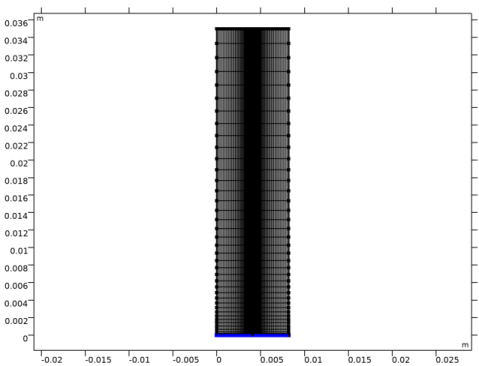
Create a mapped mesh with higher resolution in the porous electrodes toward the membrane and with a boundary layer mesh at the fluid inlet.
Mapped 1
In the Mesh toolbar, click  Mapped.
Distribution 1
1
Right-click Mapped 1 and choose Distribution.
2
3
In the Settings window for Distribution, locate the Distribution section.
4
From the Distribution type list, choose Predefined.
5
In the Number of elements text field, type 20.
6
In the Element ratio text field, type 2.
7
Select the Symmetric distribution check box.
Distribution 2
1
In the Model Builder window, right-click Mapped 1 and choose Distribution.
2
3
In the Settings window for Distribution, locate the Distribution section.
4
From the Distribution type list, choose Predefined.
5
In the Number of elements text field, type 40.
6
In the Element ratio text field, type 20.
Distribution 3
1
Right-click Distribution 2 and choose Duplicate.
2
In the Settings window for Distribution, locate the Boundary Selection section.
3
Click  Clear Selection.
4
5
Locate the Distribution section. Select the Reverse direction check box.
Distribution 4
1
In the Model Builder window, right-click Mapped 1 and choose Distribution.
2
3
In the Settings window for Distribution, locate the Distribution section.
4
From the Distribution type list, choose Predefined.
5
In the Number of elements text field, type 40 .
6
In the Element ratio text field, type 20.
Boundary Layers 1
In the Mesh toolbar, click  Boundary Layers.
Boundary Layer Properties
1
In the Model Builder window, click Boundary Layer Properties.
2
3
In the Settings window for Boundary Layer Properties, click  Build All.
Your mesh should now look like this:
Study 1
Run the model for two values of membrane charge concentration using an auxiliary sweep. The problem is then ready for solving.
1
In the Model Builder window, click Study 1.
2
In the Settings window for Study, locate the Study Settings section.
3
Clear the Generate default plots check box.
Step 2: Stationary
1
In the Model Builder window, under Study 1 click Step 2: Stationary.
2
In the Settings window for Stationary, click to expand the Study Extensions section.
3
Select the Auxiliary sweep check box.
4
5
6
In the Home toolbar, click  Compute.
Results
Reproduce the plots from the Results and Discussion section in the following way:
2D Plot Group 1
In the Home toolbar, click  Add Plot Group and choose 2D Plot Group.
Surface 1
1
Right-click 2D Plot Group 1 and choose Surface.
2
In the Settings window for Surface, locate the Expression section.
3
In the Expression text field, type cV3.
Surface 2
1
Right-click Surface 1 and choose Duplicate.
2
In the Settings window for Surface, locate the Expression section.
3
In the Expression text field, type cV4.
4
Click to expand the Inherit Style section. From the Plot list, choose Surface 1.
5
In the 2D Plot Group 1 toolbar, click  Plot.
V3/V4 Species Concentration
1
In the Model Builder window, right-click 2D Plot Group 1 and choose Rename.
2
In the Rename 2D Plot Group dialog box, type V3/V4 Species Concentration in the New label text field.
3
V3/V4 Species Concentration 1
1
Right-click V3/V4 Species Concentration and choose Duplicate.
Now modify the plot group that was created by the duplicate operation.
Surface 1
1
In the Model Builder window, expand the V3/V4 Species Concentration 1 node, then click Surface 1.
2
In the Settings window for Surface, locate the Expression section.
3
In the Expression text field, type cV2.
Surface 2
1
In the Model Builder window, click Surface 2.
2
In the Settings window for Surface, locate the Expression section.
3
In the Expression text field, type cV5.
V2/V5 Species Concentration
1
In the Model Builder window, click V3/V4 Species Concentration 1.
2
In the V3/V4 Species Concentration 1 toolbar, click  Plot.
3
Right-click V3/V4 Species Concentration 1 and choose Rename.
4
In the Rename 2D Plot Group dialog box, type V2/V5 Species Concentration in the New label text field.
5
2D Plot Group 3
In the Home toolbar, click  Add Plot Group and choose 2D Plot Group.
Surface 1
1
In the Model Builder window, right-click 2D Plot Group 3 and choose Surface.
2
In the 2D Plot Group 3 toolbar, click  Plot.
Electrolyte potential 2D
1
In the Model Builder window, right-click 2D Plot Group 3 and choose Rename.
2
In the Rename 2D Plot Group dialog box, type Electrolyte potential 2D in the New label text field.
3
Cut Line 2D 1
1
In the Results toolbar, click  Cut Line 2D.
2
In the Settings window for Cut Line 2D, locate the Line Data section.
3
In row Point 1, set Y to H_cell/2.
4
In row Point 2, set X to L_e*2+L_m and y to H_cell/2.
1D Plot Group 4
1
In the Results toolbar, click  1D Plot Group.
2
In the Settings window for 1D Plot Group, locate the Data section.
3
From the Dataset list, choose Cut Line 2D 1.
4
From the Parameter selection (c_fix) list, choose Last.
Line Graph 1
1
Right-click 1D Plot Group 4 and choose Line Graph.
2
In the Settings window for Line Graph, click Replace Expression in the upper-right corner of the y-Axis Data section. From the menu, choose Component 1 (comp1)>Definitions>Variables>phil - Electrolyte potential (for postprocessing) - V.
3
In the 1D Plot Group 4 toolbar, click  Plot.
Electrolyte potential
1
In the Model Builder window, right-click 1D Plot Group 4 and choose Rename.
2
In the Rename 1D Plot Group dialog box, type Electrolyte potential in the New label text field.
3
1D Plot Group 5
In the Home toolbar, click  Add Plot Group and choose 1D Plot Group.
Line Graph 1
1
Right-click 1D Plot Group 5 and choose Line Graph.
2
In the Settings window for Line Graph, locate the Data section.
3
From the Dataset list, choose Cut Line 2D 1.
4
From the Parameter selection (c_fix) list, choose Last.
5
Click Replace Expression in the upper-right corner of the y-Axis Data section. From the menu, choose Component 1 (comp1)>Tertiary Current Distribution, Nernst-Planck (Negative)>Electrode kinetics>tcd.ivtot - Electrode reaction source - A/m³.
6
In the 1D Plot Group 5 toolbar, click  Plot.
Line Graph 2
1
Right-click Line Graph 1 and choose Duplicate.
2
In the Settings window for Line Graph, locate the y-Axis Data section.
3
In the Expression text field, type tcd3.ivtot.
4
In the 1D Plot Group 5 toolbar, click  Plot.
Electrode reaction current densities
1
In the Model Builder window, right-click 1D Plot Group 5 and choose Rename.
2
In the Rename 1D Plot Group dialog box, type Electrode reaction current densities in the New label text field.
3
2D Plot Group 6
In the Home toolbar, click  Add Plot Group and choose 2D Plot Group.
Surface 1
1
Right-click 2D Plot Group 6 and choose Surface.
2
In the Settings window for Surface, locate the Expression section.
3
In the Expression text field, type log(abs(rd)).
4
In the 2D Plot Group 6 toolbar, click  Plot.
Dissociation rate
1
In the Model Builder window, right-click 2D Plot Group 6 and choose Rename.
2
In the Rename 2D Plot Group dialog box, type Dissociation rate in the New label text field.
3
1D Plot Group 7
1
In the Home toolbar, click  Add Plot Group and choose 1D Plot Group.
2
In the Settings window for 1D Plot Group, locate the Data section.
3
From the Dataset list, choose Cut Line 2D 1.
4
From the Parameter selection (c_fix) list, choose Last.
Line Graph 1
1
Right-click 1D Plot Group 7 and choose Line Graph.
2
In the Settings window for Line Graph, locate the y-Axis Data section.
3
In the Expression text field, type aH.
4
Click to expand the Legends section. Select the Show legends check box.
5
From the Legends list, choose Manual.
6
Line Graph 2
1
Right-click Line Graph 1 and choose Duplicate.
2
In the Settings window for Line Graph, locate the y-Axis Data section.
3
In the Expression text field, type aHSO4.
4
Locate the Legends section. In the table, enter the following settings:
Line Graph 3
1
Right-click Line Graph 2 and choose Duplicate.
2
In the Settings window for Line Graph, locate the y-Axis Data section.
3
In the Expression text field, type aSO4.
4
Locate the Legends section. In the table, enter the following settings:
Sulphuric acid species
1
In the Model Builder window, click 1D Plot Group 7.
2
In the 1D Plot Group 7 toolbar, click  Plot.
3
Right-click 1D Plot Group 7 and choose Rename.
4
In the Rename 1D Plot Group dialog box, type Sulphuric acid species in the New label text field.
5
1D Plot Group 8
1
In the Home toolbar, click  Add Plot Group and choose 1D Plot Group.
2
In the Settings window for 1D Plot Group, locate the Data section.
3
From the Dataset list, choose Cut Line 2D 1.
4
From the Parameter selection (c_fix) list, choose Last.
Line Graph 1
1
Right-click 1D Plot Group 8 and choose Line Graph.
2
In the Settings window for Line Graph, locate the y-Axis Data section.
3
In the Expression text field, type aV2.
4
Locate the Legends section. Select the Show legends check box.
5
From the Legends list, choose Manual.
6
Line Graph 2
1
Right-click Line Graph 1 and choose Duplicate.
2
In the Settings window for Line Graph, locate the y-Axis Data section.
3
In the Expression text field, type aV3.
4
Locate the Legends section. In the table, enter the following settings:
Line Graph 3
1
Right-click Line Graph 2 and choose Duplicate.
2
In the Settings window for Line Graph, locate the y-Axis Data section.
3
In the Expression text field, type aV4.
4
Locate the Legends section. In the table, enter the following settings:
Line Graph 4
1
Right-click Line Graph 3 and choose Duplicate.
2
In the Settings window for Line Graph, locate the y-Axis Data section.
3
In the Expression text field, type aV5.
4
Locate the Legends section. In the table, enter the following settings:
V2/V3/V4/V5
1
In the Model Builder window, click 1D Plot Group 8.
2
In the 1D Plot Group 8 toolbar, click  Plot.
3
Right-click 1D Plot Group 8 and choose Rename.
4
In the Rename 1D Plot Group dialog box, type V2/V3/V4/V5 in the New label text field.
5
1D Plot Group 9
1
In the Home toolbar, click  Add Plot Group and choose 1D Plot Group.
2
In the Settings window for 1D Plot Group, locate the Data section.
3
From the Dataset list, choose Cut Line 2D 1.
4
From the Parameter selection (c_fix) list, choose Last.
Line Graph 1
1
Right-click 1D Plot Group 9 and choose Line Graph.
2
In the Settings window for Line Graph, locate the y-Axis Data section.
3
In the Expression text field, type Hx*F_const.
4
Locate the Legends section. Select the Show legends check box.
5
From the Legends list, choose Manual.
6
Line Graph 2
1
Right-click Line Graph 1 and choose Duplicate.
2
In the Settings window for Line Graph, locate the y-Axis Data section.
3
In the Expression text field, type -HSO4x*F_const.
4
Locate the Legends section. In the table, enter the following settings:
Line Graph 3
1
Right-click Line Graph 2 and choose Duplicate.
2
In the Settings window for Line Graph, locate the y-Axis Data section.
3
In the Expression text field, type -2*F_const*SO4x.
4
Locate the Legends section. In the table, enter the following settings:
Fluxes
1
In the Model Builder window, click 1D Plot Group 9.
2
In the 1D Plot Group 9 toolbar, click  Plot.
3
Right-click 1D Plot Group 9 and choose Rename.
4
In the Rename 1D Plot Group dialog box, type Fluxes in the New label text field.
5