
You are viewing the documentation for an older COMSOL version. The latest version is available here.
PDF

Loudspeaker Driver in a Vented Enclosure
Introduction
This example models the acoustic behavior of a loudspeaker driver mounted in a bass reflex enclosure.
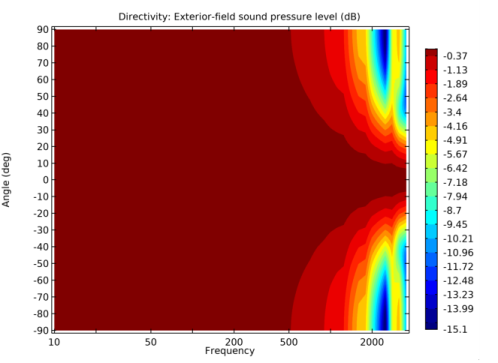
Two of the most important design parameters for a loudspeaker driver is its sensitivity and the directivity of the system. The sensitivity is commonly defined as the on-axis sound pressure level, measured at a 1 m distance, as the driver is loaded by an AC voltage of 4 V. The directivity is assessed using the Directivity plot and represents the spatial sensitivity plotted against the frequency in a contour-like plot.
To isolate the driver’s performance from that of the environment it usually operates in, the driver is often set directly in an infinite baffle. This approach is used in another example Loudspeaker Driver — Frequency-Domain Analysis model in the Acoustics Module Application Library. The model described here borrows the electromagnetic results from that example and shows how the enclosure affects the sensitivity.
The model uses the Acoustic-Shell Interaction, Frequency Domain multiphysics interface. This interface provides automatic coupling between the Shell equation for the moving parts and the Pressure Acoustics equation in the surrounding air.
Note: The model requires the Acoustics Module and the Structural Mechanics Module since it involves the use of the Shell interface.
Model Definition
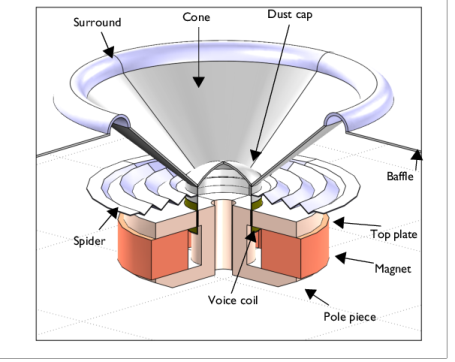
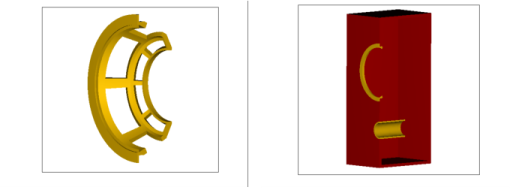
Figure 1 shows the geometry of the considered driver in an infinite baffle, as modeled in the Loudspeaker Driver — Frequency-Domain Analysis example. In the model described here, the driver is set in a frame and placed in a bass reflex enclosure (Figure 2). The defining feature of this enclosure type is the vent, which in a properly designed enclosure acts to boost the sound at low frequencies.
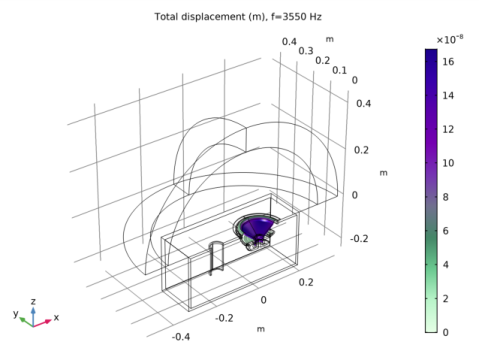
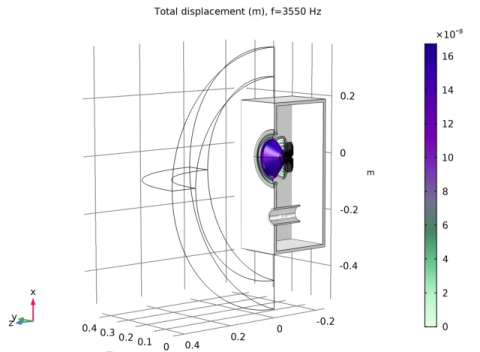
Figure 3 shows the driver mounted in the enclosure. The infinite baffle is now flush with the front wall of the enclosure. The moving parts of the driver are drawn as surfaces rather than thin volumes. This lets you model them as shells, and vastly reduces the number of mesh elements required to resolve the model.
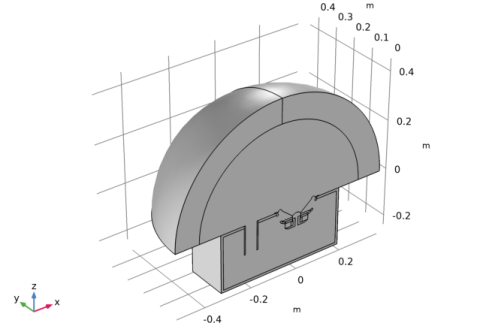
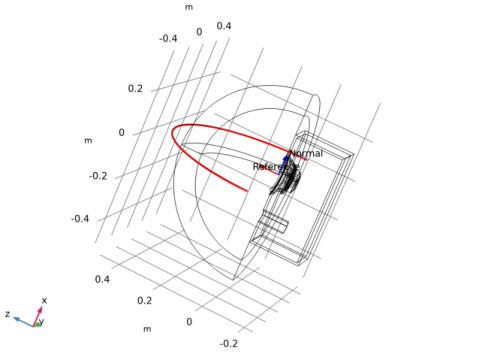
Figure 4 displays the complete model geometry, which includes a spherical domain for the air outside the enclosure. The concentric spherical mantle that envelopes the air domain is a perfectly matched layer (PML), acting to absorb the outgoing waves with a minimum of reflections.
Figure 1: The driver, here set in an infinite baffle as in the Loudspeaker Driver model.
Figure 2: The frame and the vented enclosure.
Figure 3: The geometry of the loudspeaker. The front of the box is set in an infinite baffle (not shown). The figure also shows the displacement of the moving parts at 3550 Hz.
Figure 4: The complete model geometry. Thanks to the symmetry with respect to the xz-plane, the model consists of only one half of the speaker and the outside air.
The model is driven by an electromagnetic force acting on the voice coil:
as derived in the documentation for the Loudspeaker Driver — Frequency-Domain Analysis model. BL is the so-called force factor of the voice coil and Zb is its blocked impedance; the electric impedance as measured when the coil is at stand-still. While BL is a constant 7.55 N/A, Zb is complex-valued function of the frequency. Both BL and Zb are taken directly from the Loudspeaker Driver — Frequency-Domain Analysis, the latter through interpolation from text files with the resistive and inductive contributions listed versus the frequency.
V0 is the applied driving voltage. The definition of sensitivity assumes a driving power that equals 1 W when the total impedance of the loudspeaker is at its nominal value. The modeled driver has a nominal impedance of 8 Ω, which translates to a driving voltage of = V0eiωt with the amplitude V0 = 4 V. The second term in the expression for the driving force contains the velocity of the voice coil, v, which is unknown prior to the computation.
The electromagnetic force is applied as a homogeneous force density over the boundaries constituting the voice coil. As the cone and the suspension move along and deform, their local normal acceleration is automatically coupled over to become a sound source in the Pressure Acoustics equation. The computed acoustic pressure acts back as a load on the shell.
For a discussion of the material and damping parameters used in the moving parts of the driver, see the Loudspeaker Driver — Frequency-Domain Analysis model documentation.
Results and Discussion
The model produces the local stresses and strains in all the moving parts, as well as the sound pressure distribution inside and outside the enclosure at all frequencies solved for. As an example of how you can visualize the deformations, Figure 3 includes them as a deformed surface plot.
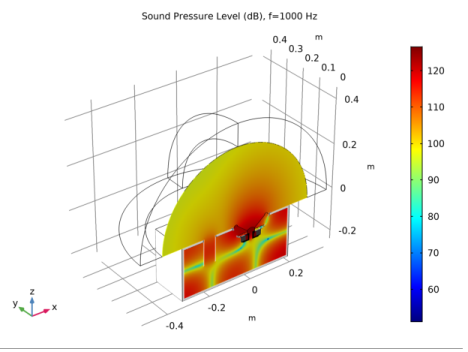
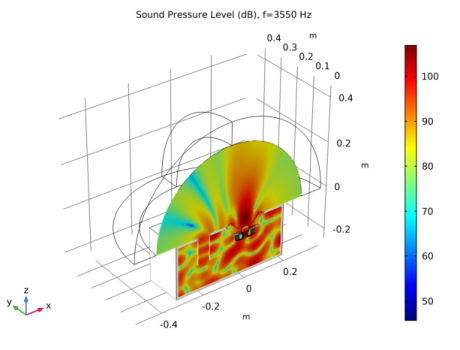
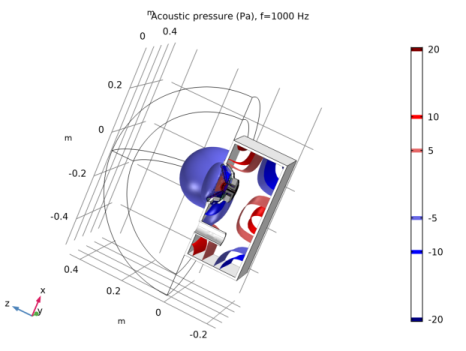
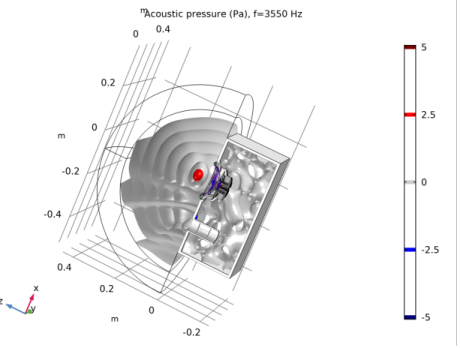
One way of looking at the sound distribution is as in Figure 5, which displays the pressure at 1000 Hz as an isosurface plot. An alternative option is shown in Figure 6, where the sound pressure level in dB is plotted on a slice near the symmetry plane. In Figure 7 and Figure 8, the same plot types illustrate the solution at the highest frequency, 3550 Hz. At this frequency, there is a complex standing wave pattern inside the enclosure.
Figure 5: Isosurface plot of the sound pressure at 1000 Hz.
Figure 6: Slice plot of the sound pressure level at 1000 Hz.
Figure 7: Isosurface plot of the sound pressure at 3550 Hz.
Figure 8: Slice plot of the sound pressure level at 3550 Hz.
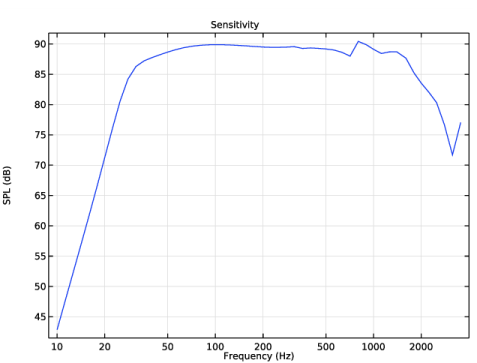
Thanks to the full integral exterior-field evaluation available in COMSOL, you can evaluate the pressure not only inside the computational domain but also anywhere outside the domain. This makes it possible to, for instance, plot the sound pressure level at a given distance versus the elevation angle, or evaluate the directivity. The step-by-step instructions for this model show you how to plot the sensitivity (Figure 9) and the directivity (Figure 11).
Figure 9: Loudspeaker sensitivity measured as the on-axis sound pressure level (dB) at a distance of 1 m from the unit. The pressure is evaluated using an RMS input signal of 2.83 V, corresponding to a power of 1 W at 8 Ω. Note the logarithmic scale for the frequency.
Compared to the sensitivity of the baffled driver alone (Figure 8 in the Loudspeaker Driver — Frequency-Domain Analysis model), adding the enclosure clearly results in a “boost” for the lower frequencies, roughly in the range between 30 Hz and 100 Hz. As in the other model, the dip at around 700 Hz is due to a Helmholtz resonance in the cavity beneath the voice coil. This resonance would be less pronounced if the model were to account for the thermoviscous losses in the thin air gap between the magnet and the pole piece.
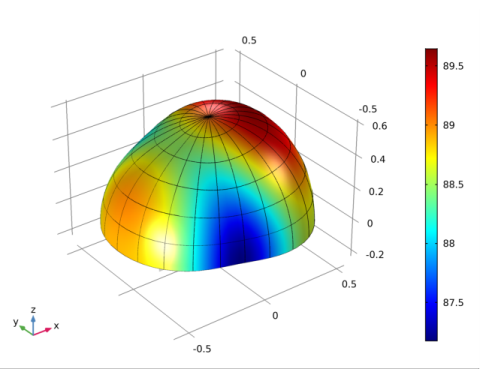
When using the exterior field calculation feature it is also possible to use the dedicated radiation pattern plots to display the spatial response of the speaker. They exist as both 1D polar plots, as 2D plots, and as 3D polar plots. A slightly modified version of the default generated 3D radiation pattern plot is shown in Figure 10. The plot, evaluated for f = 1000 Hz, clearly shows that the speaker has a notch in the horizontal plane and a boost upward and downward. The sensitivity curve in Figure 9 is evaluated at a fixed point 1 m in front of the speaker for all frequencies and, thus, does not provide any spatial information about the speaker performance. This spatial information is visualized in the 3D radiation pattern plot (one frequency at the time) and is of course an important component in speaker design and optimization.
Figure 10: 3D radiation pattern plot of the speaker sensitivity at 1 m evaluated at 1000 Hz.
A plot that gives a mixed frequency and spatial information is the so-called directivity plot depicted in Figure 11. The response of the speaker is evaluated on a half circle 1 m in front of the speaker, the data is collected for all frequencies and plotted in this contour-like plot. The plot is predefined in the Acoustics Module and is simply called Directivity.
Figure 11: Directivity plot for the loudspeaker.
Notes About the COMSOL Implementation
This application requires the Acoustics Module and the Structural Mechanics Module.
The model instructions let you import the entire geometry, including the air and PML domains. In a similar real-life modeling situation it is usually straightforward to add air and PML domains to your own CAD drawing of the enclosure.
Application Library path: Acoustics_Module/Electroacoustic_Transducers/vented_loudspeaker_enclosure
Modeling Instructions
From the File menu, choose New.
New
In the New window, click Model Wizard.
Model Wizard
1
In the Model Wizard window, click 3D.
2
In the Select Physics tree, select Acoustics>Acoustic-Structure Interaction>Acoustic-Shell Interaction, Frequency Domain.
3
Click Add.
4
Click Study.
5
In the Select Study tree, select General Studies>Frequency Domain.
6
Click Done.
Geometry 1
Import 1 (imp1)
1
In the Home toolbar, click Import.
2
In the Settings window for Import, locate the Import section.
3
Click Browse.
4
5
Click Import.
Definitions
To make it easier to select some important sets of domains and boundaries in a complicated geometry such as the one you are looking at, it is good modeling practice to begin by defining selections. When working on your own model, these selections are most conveniently defined by clicking and selecting directly in the geometry. The instructions however refer to them by numbers. Whenever a selection is made, it is therefore recommended that you use the Paste Selection button. Enter the number or list of numbers in the text field that appears. Input such as 5, 5-8, 13, or 4, 7, and 9 is accepted.
Explicit 1
1
In the Definitions toolbar, click Explicit.
2
In the Settings window for Explicit, type Model Domain in the Label text field.
3
Because the magnetic engine and the walls of the enclosure will be considered rigid structures, there is no need to include their interior in the simulation.
Explicit 2
1
In the Definitions toolbar, click Explicit.
2
In the Settings window for Explicit, type Air Domain in the Label text field.
3
Explicit 3
1
In the Definitions toolbar, click Explicit.
2
In the Settings window for Explicit, type PML Domain in the Label text field.
3
Explicit 4
1
In the Definitions toolbar, click Explicit.
2
In the Settings window for Explicit, type Cone in the Label text field.
3
Locate the Input Entities section. From the Geometric entity level list, choose Boundary.
4
Click the Wireframe Rendering button in the Graphics toolbar.
With wireframe rendering, you can see through boundaries and get a better view of which ones you are selecting.
5
Explicit 5
1
In the Definitions toolbar, click Explicit.
2
In the Settings window for Explicit, type Spider in the Label text field.
3
Locate the Input Entities section. From the Geometric entity level list, choose Boundary.
4
Explicit 6
1
In the Definitions toolbar, click Explicit.
2
In the Settings window for Explicit, type Surround in the Label text field.
3
Locate the Input Entities section. From the Geometric entity level list, choose Boundary.
4
Explicit 7
1
In the Definitions toolbar, click Explicit.
2
In the Settings window for Explicit, type Apex in the Label text field.
3
Locate the Input Entities section. From the Geometric entity level list, choose Boundary.
4
Union 1
1
In the Definitions toolbar, click Union.
2
In the Settings window for Union, type Shell Boundaries in the Label text field.
3
Locate the Geometric Entity Level section. From the Level list, choose Boundary.
4
Locate the Input Entities section. Under Selections to add, click Add.
5
In the Add dialog box, in the Selections to add list, choose Cone, Spider, Surround, and Apex.
6
Next, define interpolation functions to bring in the blocked resistance and inductance from the model of the driver.
Interpolation 1 (int1)
1
In the Definitions toolbar, click Interpolation.
2
In the Settings window for Interpolation, locate the Definition section.
3
From the Data source list, choose File.
4
Click Browse.
5
6
Click Import.
7
In the Function name text field, type Rb.
8
Locate the Units section. In the Arguments text field, type Hz.
9
In the Function text field, type ohm.
10
Locate the Interpolation and Extrapolation section. From the Extrapolation list, choose Nearest function.
Set the extrapolation such that the results extend correctly just above the maximal frequency of 3500 Hz in the imported data. The simulation will run up to 3550 Hz.
Interpolation 2 (int2)
1
In the Definitions toolbar, click Interpolation.
2
In the Settings window for Interpolation, locate the Definition section.
3
From the Data source list, choose File.
4
Click Browse.
5
6
Click Import.
7
In the Function name text field, type Lb.
8
Locate the Units section. In the Arguments text field, type Hz.
9
In the Function text field, type H.
10
Locate the Interpolation and Extrapolation section. From the Extrapolation list, choose Nearest function.
To enable extraction of the velocity and application of the electric force on the apex, define average and integration operators.
Integration 1 (intop1)
1
In the Definitions toolbar, click Nonlocal Couplings and choose Integration.
2
In the Settings window for Integration, type int_apex in the Operator name text field.
3
Locate the Source Selection section. From the Geometric entity level list, choose Boundary.
4
From the Selection list, choose Apex.
Average 1 (aveop1)
1
In the Definitions toolbar, click Nonlocal Couplings and choose Average.
2
In the Settings window for Average, type av_apex in the Operator name text field.
3
Locate the Source Selection section. From the Geometric entity level list, choose Boundary.
4
From the Selection list, choose Apex.
Global Definitions
Define parameters for the driving voltage, the BL factor from the loudspeaker driver model, the frequency at which the material losses are specified, and the wavelength at 3500 Hz (used to set the mesh size).
Parameters 1
1
In the Model Builder window, under Global Definitions click Parameters 1.
2
In the Settings window for Parameters, locate the Parameters section.
3
Definitions
Next, create the expressions used in defining the electric driving force. The Description field is optional, but helps you keep track of what you are doing.
Variables 1
1
In the Definitions toolbar, click Local Variables.
2
In the Settings window for Variables, locate the Variables section.
3
Before creating the materials for use in this model, it is a good idea to specify where you want to solve the pressure acoustics equation and also which boundaries constitute moving parts and thus are to be modeled as shells. Using this information, the software can detect which material properties are needed.
Pressure Acoustics, Frequency Domain (acpr)
1
In the Model Builder window, under Component 1 (comp1) click Pressure Acoustics, Frequency Domain (acpr).
2
In the Settings window for Pressure Acoustics, Frequency Domain, locate the Domain Selection section.
3
From the Selection list, choose Model Domain.
The selection you just made removes the rigid structures from the volume where the pressure acoustics equation will be solved.
Shell (shell)
1
In the Model Builder window, under Component 1 (comp1) click Shell (shell).
2
In the Settings window for Shell, locate the Boundary Selection section.
3
From the Selection list, choose Shell Boundaries.
Add Material
1
In the Home toolbar, click Add Material to open the Add Material window.
2
Go to the Add Material window.
3
4
Click Add to Component in the window toolbar.
Materials
Material 2 (mat2)
1
In the Model Builder window, under Component 1 (comp1) right-click Materials and choose Blank Material.
2
In the Settings window for Material, type Composite in the Label text field.
3
Locate the Geometric Entity Selection section. From the Geometric entity level list, choose Boundary.
4
From the Selection list, choose Cone.
5
Locate the Material Contents section. In the table, enter the following settings:
Material 3 (mat3)
1
Right-click Materials and choose Blank Material.
2
In the Settings window for Material, type Cloth in the Label text field.
3
Locate the Geometric Entity Selection section. From the Geometric entity level list, choose Boundary.
4
From the Selection list, choose Spider.
5
Locate the Material Contents section. In the table, enter the following settings:
Material 4 (mat4)
1
Right-click Materials and choose Blank Material.
2
In the Settings window for Material, type Foam in the Label text field.
3
Locate the Geometric Entity Selection section. From the Geometric entity level list, choose Boundary.
4
From the Selection list, choose Surround.
5
Locate the Material Contents section. In the table, enter the following settings:
Add Material
1
Go to the Add Material window.
2
In the tree, select Built-in>Copper.
3
Click Add to Component in the window toolbar.
4
In the Home toolbar, click Add Material to close the Add Material window.
Materials
Copper (mat5)
1
In the Settings window for Material, locate the Geometric Entity Selection section.
2
From the Geometric entity level list, choose Boundary.
3
From the Selection list, choose Apex.
NOTE: In the 2D model of the driver, the apex and the voice coil that is wound around it are two separate domains. In the model at hand, they are lumped together and treated as Copper. Because the apex is not expected to deform considerably, this is fine as long as the shell thickness is tuned so that the total mass becomes the same as in the 2D model.
Definitions
Perfectly Matched Layer 1 (pml1)
1
In the Definitions toolbar, click Perfectly Matched Layer.
2
In the Settings window for Perfectly Matched Layer, locate the Domain Selection section.
3
From the Selection list, choose PML Domain.
4
Locate the Geometry section. From the Type list, choose Spherical.
5
Find the Center coordinate subsection. In the table, enter the following settings:
The default Polynomial stretching is kept as it ensures better convergence of the iterative solver used in the study.
Pressure Acoustics, Frequency Domain (acpr)
With the materials defined, it is now time to set up the remaining physics of the model. Begin by specifying the symmetry condition in the acoustics domain.
Symmetry 1
1
In the Model Builder window, under Component 1 (comp1) right-click Pressure Acoustics, Frequency Domain (acpr) and choose Symmetry.
2
The way the geometry is set up, there are two boundaries just outside the surround, separating the air inside and outside the enclosure. To avoid the air leaking through these boundaries, turn them into (interior) hard walls.
Interior Sound Hard Boundary (Wall) 1
1
In the Physics toolbar, click Boundaries and choose Interior Sound Hard Boundary (Wall).
2
The acoustics physics is now ready, add an exterior-field calculation.
Exterior Field Calculation 1
1
In the Physics toolbar, click Boundaries and choose Exterior Field Calculation.
2
3
In the Settings window for Exterior Field Calculation, locate the Exterior Field Calculation section.
4
From the Condition in the y = y^0 plane list, choose Symmetric/Infinite sound hard boundary.
5
From the Condition in the z = z^0 plane list, choose Symmetric/Infinite sound hard boundary.
You have now supplied a source boundary encompassing all local sound sources and applied symmetry planes to account for the infinite baffle and the geometric symmetry. The Full integral setting lets you compute the pressure field (including phase) at any finite distance from speaker.
Shell (shell)
Now set up the shell physics. Begin by specifying the individual thicknesses and damping properties of the moving parts of the driver.
Damping 1
1
In the Model Builder window, right-click Linear Elastic Material 1 and choose Damping.
2
In the Settings window for Damping, locate the Boundary Selection section.
3
From the Selection list, choose Cone.
4
Locate the Damping Settings section. From the Damping type list, choose Isotropic loss factor.
5
From the ηs list, choose User defined. In the associated text field, type 0.04.
Linear Elastic Material 1
In the Model Builder window, click Linear Elastic Material 1.
Damping 2
1
In the Physics toolbar, click Attributes and choose Damping.
2
In the Settings window for Damping, locate the Boundary Selection section.
3
From the Selection list, choose Spider.
4
Locate the Damping Settings section. In the βdK text field, type 0.14/omega_loss.
Linear Elastic Material 1
In the Model Builder window, click Linear Elastic Material 1.
Damping 3
1
In the Physics toolbar, click Attributes and choose Damping.
2
In the Settings window for Damping, locate the Boundary Selection section.
3
From the Selection list, choose Surround.
4
Locate the Damping Settings section. In the βdK text field, type 0.46/omega_loss.
Linear Elastic Material 1
In the Model Builder window, click Linear Elastic Material 1.
Damping 4
1
In the Physics toolbar, click Attributes and choose Damping.
2
In the Settings window for Damping, locate the Boundary Selection section.
3
From the Selection list, choose Apex.
4
Locate the Damping Settings section. From the Damping type list, choose Isotropic loss factor.
5
From the ηs list, choose User defined. In the associated text field, type 0.04.
Thickness and Offset 1
Change the thickness in the default node to 1[mm], this will be applied to the Cone of the speaker. Set the thickness of the other speaker parts.
1
In the Model Builder window, click Thickness and Offset 1.
2
In the Settings window for Thickness and Offset, locate the Thickness and Offset section.
3
In the d text field, type 1[mm].
Thickness and Offset 2
1
In the Physics toolbar, click Boundaries and choose Thickness and Offset.
2
In the Settings window for Thickness and Offset, locate the Boundary Selection section.
3
From the Selection list, choose Spider.
4
Locate the Thickness and Offset section. In the d text field, type 0.35[mm].
Thickness and Offset 3
1
In the Physics toolbar, click Boundaries and choose Thickness and Offset.
2
In the Settings window for Thickness and Offset, locate the Boundary Selection section.
3
From the Selection list, choose Surround.
4
Locate the Thickness and Offset section. In the d text field, type 1.4[mm].
Thickness and Offset 4
1
In the Physics toolbar, click Boundaries and choose Thickness and Offset.
2
In the Settings window for Thickness and Offset, locate the Boundary Selection section.
3
From the Selection list, choose Apex.
4
Locate the Thickness and Offset section. In the d text field, type 0.166[mm].
Next, apply the electric load onto the apex. Because the load is entered as a volume force density, you need to divide the force by the volume of the apex.
Body Load 1
1
In the Physics toolbar, click Boundaries and choose Body Load.
2
In the Settings window for Body Load, locate the Boundary Selection section.
3
From the Selection list, choose Apex.
4
Locate the Force section. Specify the FV vector as
Fix the outer rim of the spider and the surround.
Fixed Constraint 1
1
In the Physics toolbar, click Edges and choose Fixed Constraint.
2
Keep in mind that you can use the Paste Selection button for all selections. This is also good idea for the following edge setting, which serves to impose the mirror symmetry.
Symmetry 1
1
In the Physics toolbar, click Edges and choose Symmetry.
2
3
In the Settings window for Symmetry, locate the Coordinate System Selection section.
4
From the Coordinate system list, choose Global coordinate system.
Note that the Axis to use as symmetry plane normal is set to 2. This means that the solution will be symmetric with respect to the xz-plane.
Add Physics
In the Physics toolbar, click Add Physics to open the Add Physics window.
You have now set up all the relevant physics. This may be a good time to have a second look at all the features of the model, to verify that all settings make sense and apply to the right domains or boundaries. In particular, you can check the Multiphysics>Acoustic-Structure Boundary 1 node, which has been set automatically.
Mesh 1
The mesh needs to resolve the fine details of the geometry as well as the waves at all frequencies. Furthermore, the PML should have at least 5 elements across its thickness (for the rational scaling). To improve the exterior-field evaluation add a thin boundary layer, of thickness lambda_min/5/10, adjacent to the PML domain. Turn off the smooth transition option - the single layer is used to get a good normal gradient evaluation. These requirements are all met by the following settings.
Boundary Layers 1
1
In the Model Builder window, under Component 1 (comp1) right-click Mesh 1 and choose Boundary Layers.
2
In the Settings window for Boundary Layers, locate the Domain Selection section.
3
From the Geometric entity level list, choose Domain.
4
From the Selection list, choose Air Domain.
5
Click to expand the Transition section. Clear the Smooth transition to interior mesh check box.
Boundary Layer Properties
1
In the Model Builder window, click Boundary Layer Properties.
2
In the Settings window for Boundary Layer Properties, locate the Boundary Layer Properties section.
3
In the Number of boundary layers text field, type 1.
4
5
From the Thickness of first layer list, choose Manual.
6
In the Thickness text field, type lambda_min/5/10.
Size
1
In the Model Builder window, click Size.
2
In the Settings window for Size, click to expand the Element Size Parameters section.
3
In the Maximum element size text field, type lambda_min/5.
This gives you a minimum of 5 elements per wavelength at the highest frequency, 3500 Hz. In practice, remembar that a mesh convergence analysis is always recommended.
4
In the Minimum element size text field, type 1[mm].
The shortest edges of the geometry have length 1 mm, which you will resolve with this setting. You can increase the Minimum element size setting to get a coarser mesh in the narrow region. This can trigger a warning as COMSOL checks if the minimum size is larger than a gometric entity. The model will solve when a warning is present. It is up to the user to decide if the warning is relevant for the quality of the simulation results.
Use a swept mesh for the PML (with the size settings you will get 6 elements in the thickness). For more details on meshing PMLs see the modeling sections in the Acoustics Module User’s Guide.
Swept 1
1
In the Model Builder window, right-click Mesh 1 and choose Swept.
2
In the Settings window for Swept, locate the Domain Selection section.
3
From the Geometric entity level list, choose Domain.
4
From the Selection list, choose PML Domain.
Distribution 1
1
Right-click Swept 1 and choose Distribution.
2
In the Settings window for Distribution, locate the Distribution section.
3
In the Number of elements text field, type 8.
Use the recommended 8 mesh elements in the PML when using the polynomial stretching type.
Finally, mesh the loudspeaker box. The mesh here is only for postprocessing purposes to be able to plot the box as a solid structure. It is not used in the computation.
Free Tetrahedral 1
1
In the Model Builder window, right-click Mesh 1 and choose Free Tetrahedral.
2
Click Build All.
Study 1
1
In the Model Builder window, click Study 1.
2
In the Settings window for Study, locate the Study Settings section.
3
Clear the Generate default plots check box.
Step 1: Frequency Domain
1
In the Model Builder window, under Study 1 click Step 1: Frequency Domain.
2
In the Settings window for Frequency Domain, locate the Study Settings section.
3
Click Range, the icon at the right of the Frequencies edit-filed.
4
In the Range dialog box, choose ISO preferred frequencies from the Entry method list.
5
In the Start frequency text field, type 10.
6
In the Stop frequency text field, type 3550.
7
From the Interval list, choose 1/6 octave.
8
Click Replace.
This gives you frequencies with a 1/6 octave resolution from 10 to 3550 Hz with values specificed by the ISO standard. The model takes about 5 GB of RAM to solve and will solve in around 40 min (depending on your hardware). If you are short on time you can, for example, select 1/3 octave or simply octave spacing.
Generate the default solver sequence, then expand and enable the suggested iterative solve for this acoustic-shell interaction problem. The iterative solver is both faster and more memory efficient than the default direct solver.
Solution 1 (sol1)
1
In the Study toolbar, click Show Default Solver.
2
In the Model Builder window, expand the Solution 1 (sol1) node.
3
In the Model Builder window, expand the Study 1>Solver Configurations>Solution 1 (sol1)>Stationary Solver 1 node.
4
Right-click Suggested Iterative Solver (GMRES with GMG and Direct Precon.) (asb1) and choose Enable.
5
In the Study toolbar, click Compute.
Results
3D Plot Group 1
1
In the Home toolbar, click Add Plot Group and choose 3D Plot Group.
2
In the Settings window for 3D Plot Group, type Displacement in the Label text field.
3
Click to expand the Title section. From the Title type list, choose Manual.
4
Select the Allow evaluation of expressions check box.
5
In the Title text area, type Total displacement (m), f=eval(freq,Hz) Hz.
6
Clear the Parameter indicator text field.
Surface 1
1
Right-click Displacement and choose Surface.
2
In the Settings window for Surface, click Replace Expression in the upper-right corner of the Expression section. From the menu, choose Component 1>Shell>Displacement>shell.disp - Total displacement - m.
Deformation 1
Right-click Surface 1 and choose Deformation.
Surface 1
1
In the Displacement toolbar, click Plot.
2
Click the Go to Default View button in the Graphics toolbar.
3
In the Model Builder window, click Surface 1.
4
In the Settings window for Surface, locate the Coloring and Style section.
5
From the Color table list, choose AuroraBorealis.
This first plot shows how the shell displaces. The colors represent the total displacement and the deformation shows the position of the membrane at zero phase. Try looking at a couple of different solutions to see how the displacement amplitude and phase change with the frequency.
6
In the Displacement toolbar, click Plot.
Displacement
1
In the Model Builder window, click Displacement.
2
In the Settings window for 3D Plot Group, locate the Data section.
3
From the Parameter value (freq (Hz)) list, choose 10.
4
In the Displacement toolbar, click Plot.
5
From the Parameter value (freq (Hz)) list, choose 3550.
6
In the Displacement toolbar, click Plot.
Datasets
In order to display the box and reproduce Figure 3, create a new data set defined only in the solid parts of the model.
Study 1/Solution 1 (2) (sol1)
1
In the Model Builder window, expand the Datasets node.
2
Right-click Results>Datasets>Study 1/Solution 1 (sol1) and choose Duplicate.
3
In the Settings window for Solution, type Study 1/Solution 1 - Speaker box in the Label text field.
Selection
1
Right-click Study 1/Solution 1 - Speaker box and choose Selection.
2
In the Settings window for Selection, locate the Geometric Entity Selection section.
3
From the Geometric entity level list, choose Domain.
4
Volume 1
1
In the Model Builder window, right-click Displacement and choose Volume.
2
In the Settings window for Volume, locate the Data section.
3
From the Dataset list, choose Study 1/Solution 1 - Speaker box (sol1).
4
Click Replace Expression in the upper-right corner of the Expression section. From the menu, choose Geometry>dom - Entity index.
5
Locate the Coloring and Style section. From the Color table list, choose GrayScale.
6
Clear the Color legend check box.
7
Select the Reverse color table check box.
8
Click to expand the Quality section. From the Resolution list, choose No refinement.
By plotting the domain number in grayscale, you have now added a black and white visualization of the enclosure and the solid parts of the driver. Lowering the resolution makes the visualization faster. If you rotate the plot a little, it should now resemble Figure 3.
Next, create a plot of the sound pressure level in a centered slice of the geometry. It is convenient to copy and paste the plot group from the first plot.
Displacement 1
1
Right-click Displacement and choose Duplicate.
2
In the Settings window for 3D Plot Group, type Sound Pressure Level in the Label text field.
3
Locate the Title section. In the Title text area, type Sound Pressure Level (dB), f=eval(freq,Hz) Hz.
Surface 1
1
In the Model Builder window, expand the Results>Sound Pressure Level node, then click Surface 1.
2
In the Settings window for Surface, locate the Coloring and Style section.
3
Clear the Color legend check box.
Slice 1
1
In the Model Builder window, right-click Sound Pressure Level and choose Slice.
2
In the Settings window for Slice, click Replace Expression in the upper-right corner of the Expression section. From the menu, choose Component 1>Pressure Acoustics, Frequency Domain>Pressure and sound pressure level>acpr.Lp - Sound pressure level - dB.
3
Locate the Plane Data section. From the Plane list, choose ZX-planes.
4
From the Entry method list, choose Coordinates.
5
Click to expand the Quality section. From the Smoothing list, choose None.
The smoothing algorithm will attempt to make the pressure continuous across the membrane. You get a sharper plot if you remove it.
6
In the Sound Pressure Level toolbar, click Plot.
The plot range is dominated by the large pressure drop in the PML. You can hide the PML domain by letting the solution data set be defined only in the air.
Study 1/Solution 1 (3) (sol1)
1
In the Results toolbar, click More Datasets and choose Solution.
2
In the Settings window for Solution, type Study 1/Solution 1 - Air domain in the Label text field.
Selection
1
Right-click Study 1/Solution 1 - Air domain and choose Selection.
2
In the Settings window for Selection, locate the Geometric Entity Selection section.
3
From the Geometric entity level list, choose Domain.
4
From the Selection list, choose Air Domain.
Sound Pressure Level
1
In the Model Builder window, click Sound Pressure Level.
2
In the Settings window for 3D Plot Group, locate the Data section.
3
From the Dataset list, choose Study 1/Solution 1 - Air domain (sol1).
4
In the Sound Pressure Level toolbar, click Plot.
5
Click the Go to Default View button in the Graphics toolbar.
The plot should now like Figure 8. Switch to 1000 Hz to reproduce Figure 6.
6
From the Parameter value (freq (Hz)) list, choose 1000.
7
In the Sound Pressure Level toolbar, click Plot.
Create a third plot group to show the 3D exterior-field polar plot. It is the spatial sensitivity characteristic evaluated at a distance of 1 m and at 1000 Hz.
3D Plot Group 3
1
In the Home toolbar, click Add Plot Group and choose 3D Plot Group.
2
In the Settings window for 3D Plot Group, type Exterior-Field Sound Pressure Level in the Label text field.
3
Locate the Data section. From the Parameter value (freq (Hz)) list, choose 1000.
4
Locate the Title section. From the Title type list, choose None.
Radiation Pattern 1
1
In the Exterior-Field Sound Pressure Level toolbar, click More Plots and choose Radiation Pattern.
2
In the Settings window for Radiation Pattern, locate the Expression section.
3
In the Expression text field, type (acpr.efc1.Lp_pext-77)/20.
4
Clear the Use as color expression check box.
5
Locate the Evaluation section. Find the Angles subsection. In the Number of elevation angles text field, type 30.
6
In the Number of azimuth angles text field, type 60.
7
From the Restriction list, choose Manual.
8
In the θ range text field, type 90.
9
Locate the Coloring and Style section. From the Grid list, choose Fine.
The first expression defines the shape of the 3D polar plot. In this case it is modified to set the reference at 77 dB and then scaled by a factor of 20 in order to visualize it relative to the model geometry. Changing the reference to 77 dB enhances the visualization of the notches. The surface color (second expression, enabled with the check box) gives the true SPL at 1 m from the speaker. Change the evaluation frequency to see how the directivity of the speaker changes with frequency. Set the expression back to acpr.efc1.Lp_pext and use the Zoom Extents tool.
Volume 1
In the Model Builder window, right-click Volume 1 and choose Copy.
Volume 1
1
In the Model Builder window, right-click Exterior-Field Sound Pressure Level and choose Paste Volume.
2
In the Exterior-Field Sound Pressure Level toolbar, click Plot.
3
Click the Go to Default View button in the Graphics toolbar.
Rotate the plot in order to reproduce Figure 10.
Now, plot the sensitivity versus the frequency and reproduce Figure 9 as follows.
1D Plot Group 4
1
In the Home toolbar, click Add Plot Group and choose 1D Plot Group.
2
In the Settings window for 1D Plot Group, type Sensitivity in the Label text field.
3
Click to expand the Title section. From the Title type list, choose Manual.
4
In the Title text area, type Sensitivity.
5
Locate the Plot Settings section. Select the x-axis label check box.
6
7
Select the y-axis label check box.
8
Octave Band 1
1
In the Sensitivity toolbar, click More Plots and choose Octave Band.
2
In the Settings window for Octave Band, locate the Selection section.
3
From the Geometric entity level list, choose Global.
4
Locate the y-Axis Data section. In the Expression text field, type pext(0,0,1).
5
Locate the Plot section. From the Style list, choose Continuous.
This will plot the sound pressure level using the reference pressure, which defaults to the commonly used value 20 μPa. The pext(x,y,z) operator extracts the sound pressure in (x,y,z) = (0,0,1[m]).
You can change the style to 1/3 octave or octave to plot the sensitivity in bands if needed.
6
In the Sensitivity toolbar, click Plot.
The next set of instructions show you how to create an isosurface plot of the pressure distribution in and outside of the speaker. The last plot is the directivity plot for the speaker.
Displacement 1
1
In the Model Builder window, right-click Displacement and choose Duplicate.
2
In the Settings window for 3D Plot Group, type Acoustic Pressure in the Label text field.
3
Locate the Title section. In the Title text area, type Acoustic pressure (Pa), f=eval(freq,Hz) Hz.
4
Locate the Data section. From the Dataset list, choose Study 1/Solution 1 - Air domain (sol1).
Surface 1
1
In the Model Builder window, expand the Results>Acoustic Pressure node, then click Surface 1.
2
In the Settings window for Surface, locate the Coloring and Style section.
3
Clear the Color legend check box.
Isosurface 1
1
In the Model Builder window, right-click Acoustic Pressure and choose Isosurface.
2
In the Settings window for Isosurface, locate the Levels section.
3
From the Entry method list, choose Levels.
4
In the Levels text field, type -5 -2.5 0 2.5 5.
5
Locate the Coloring and Style section. From the Color table list, choose Wave.
6
In the Acoustic Pressure toolbar, click Plot.
7
Click the Zoom Extents button in the Graphics toolbar.
The plot should resemble Figure 5. To reproduce Figure 7, change the frequency and the levels for the isosurface plot.
Acoustic Pressure
1
In the Model Builder window, click Acoustic Pressure.
2
In the Settings window for 3D Plot Group, locate the Data section.
3
From the Parameter value (freq (Hz)) list, choose 1000.
Isosurface 1
1
In the Model Builder window, click Isosurface 1.
2
In the Settings window for Isosurface, locate the Levels section.
3
In the Levels text field, type -20 -10 -5 5 10 20.
4
In the Acoustic Pressure toolbar, click Plot.
5
Click the Zoom Extents button in the Graphics toolbar.
Finally, create the directivity plot depicted in Figure 11 for the loudspeaker.
1D Plot Group 6
1
In the Home toolbar, click Add Plot Group and choose 1D Plot Group.
2
In the Settings window for 1D Plot Group, type Directivity Plot in the Label text field.
Directivity 1
1
In the Directivity Plot toolbar, click More Plots and choose Directivity.
2
In the Settings window for Directivity, locate the Evaluation section.
3
Find the Angles subsection. From the Restriction list, choose Manual.
4
In the φ start text field, type -90.
5
In the φ range text field, type 180.
6
In the Number of angles text field, type 90.
7
Find the Reference direction subsection. In the x text field, type 0.
8
In the z text field, type 1.
9
Find the Normal subsection. In the x text field, type 1.
10
In the z text field, type 0.
These settings give a directivity plot taken in the yz-plane where 0 deg. correspond to the z-axis direction. The evaluation plane can easily be visualized using the Preview Evaluation Plane feature. The radius of the red evaluation circle displayed is normalized relative to the geometry.
11
Click Preview Evaluation Plane.
12
In the Directivity Plot toolbar, click Plot.
13
Click the x-Axis Log Scale button in the Graphics toolbar.