


You are viewing the documentation for an older COMSOL version. The latest version is available here.
PDF

Uniform Layer Waveguide
Introduction
Whenever dimensions in waveguides become small compared to the viscous and thermal boundary layers, it is necessary to model acoustics using thermoviscous acoustics. In the present model, the thermoviscous acoustic wave field in a shallow uniform waveguide is modeled and compared with an analytical solution.
Model Definition
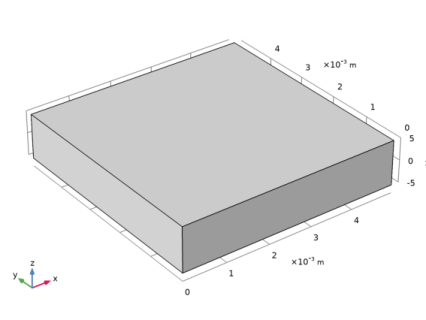
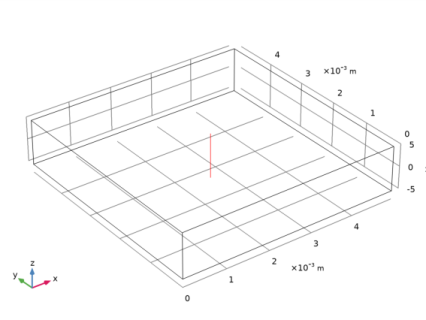
An infinitely wide slit of length L and height H is subject to a harmonically varying pressure drop of 1 Pa. In order to reduce the model size, only a section of width L is modeled using symmetry conditions. The waveguide top and bottom are modeled as no slip isothermal walls.
Model parameters are summarized in Table 1.
f0
500 Hz
T0
293 K
p0
1 atm
1 mm
5 mm
pin
1 Pa
dvisc
Analytical Theory
A thermoviscous acoustics problem can in principle be thought of as a three wave problem, each with its own wave number: the acoustic k0, the viscous kv, and the thermal kh, with
where c0 is the isentropic speed of sound, ω the angular frequency, ρ0 is the static density, μ is the dynamic viscosity, Cp is the heat capacity, and k is the thermal conductance.
The thermal and viscous waves are rapidly decaying waves normal to a wall. The three waves interact and in the case of geometries with small dimensions, this interaction becomes evident. In simple geometries, analytical solutions of this interaction exist. In the case of a uniform slit, the cross-sectional variation of the temperature T and velocity u is:
where the function Ψ is a complex-valued scalar field
and is either v or h. The pressure gradient and the pressure are in this simple geometry given by (disregarding the phase)

Results and Discussion
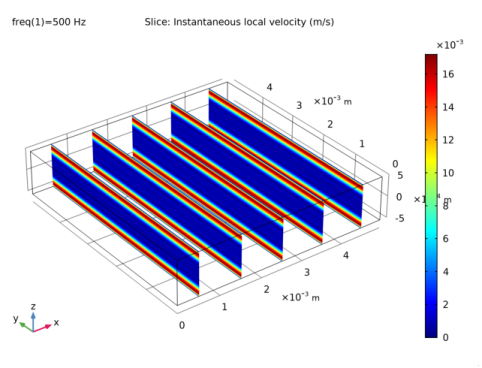
At 500 Hz, the characteristic size of the viscous boundary layer is about 0.1 mm (for air at 20°C), this length is 1/10 of the waveguide thickness H. This is seen in Figure 1 as the changing colors region near the wall where the velocity is varying to fulfill the no slip condition.
Figure 1: Slice plot of the instantaneous particle velocity U. Outside the boundary layer (red regions) the velocity profile becomes flat as in pressure acoustics.
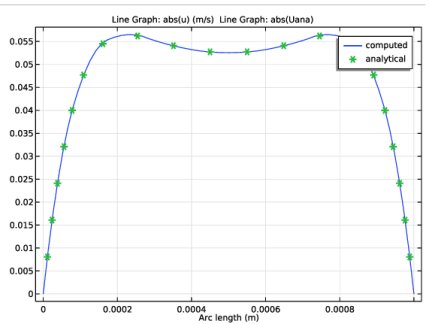
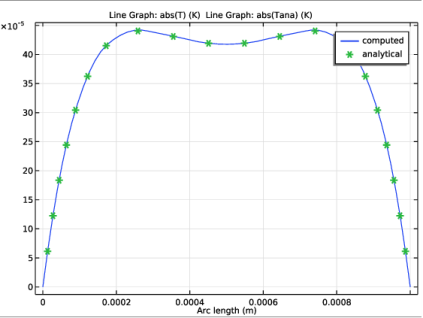
The velocity and temperature profiles are probed using a 3D cut line and compared to the expressions found in the theory. The velocity profile is shown in Figure 2, while the temperature profile is shown in Figure 3. The results agree very well. When modeling acoustics in small dimensions, it is essential to include the thermal and viscous losses (see Ref. 1).
Figure 2: Comparison of the analytical and numerical velocity profiles.
Figure 3: Comparison of the analytical and the COMSOL generated solution for the amplitude of the acoustic temperature variation T.
Reference
1. H. Tijdeman, “On the propagation of sound waves in cylindrical tubes,” J. Sound Vib, vol. 39, no. 1, pp. 1–33, 1975.
Application Library path: Acoustics_Module/Verification_Examples/uniform_layer_waveguide
Modeling Instructions
From the File menu, choose New.
New
In the New window, click Model Wizard.
Model Wizard
1
In the Model Wizard window, click 3D.
2
In the Select Physics tree, select Acoustics>Thermoviscous Acoustics>Thermoviscous Acoustics, Frequency Domain (ta).
3
Click Add.
4
Click Study.
5
In the Select Study tree, select General Studies>Frequency Domain.
6
Click Done.
Global Definitions
Parameters 1
1
In the Model Builder window, under Global Definitions click Parameters 1.
2
In the Settings window for Parameters, locate the Parameters section.
3
Click Load from File.
4
Definitions
Variables 1
1
In the Model Builder window, under Component 1 (comp1) right-click Definitions and choose Variables.
2
In the Settings window for Variables, locate the Variables section.
3
Click Load from File.
4
Geometry 1
Block 1 (blk1)
1
In the Geometry toolbar, click Block.
2
In the Settings window for Block, locate the Size and Shape section.
3
In the Width text field, type L.
4
In the Depth text field, type L.
5
In the Height text field, type H.
6
Locate the Position section. In the z text field, type -H/2.
7
Click Build Selected.
8
Click the Zoom Extents button in the Graphics toolbar.
Add Material
1
In the Home toolbar, click Add Material to open the Add Material window.
2
Go to the Add Material window.
3
4
Click Add to Component in the window toolbar.
5
In the Home toolbar, click Add Material to close the Add Material window.
Thermoviscous Acoustics, Frequency Domain (ta)
Thermoviscous Acoustics Model 1
1
In the Model Builder window, under Component 1 (comp1)>Thermoviscous Acoustics, Frequency Domain (ta) click Thermoviscous Acoustics Model 1.
2
In the Settings window for Thermoviscous Acoustics Model, locate the Model Input section.
3
In the T0 text field, type T0.
4
In the p0 text field, type p0.
Symmetry 1
1
In the Physics toolbar, click Boundaries and choose Symmetry.
2
Pressure (Adiabatic) 1
1
In the Physics toolbar, click Boundaries and choose Pressure (Adiabatic).
2
3
In the Settings window for Pressure (Adiabatic), locate the Pressure section.
4
In the pbnd text field, type pin.
Pressure (Adiabatic) 2
1
In the Physics toolbar, click Boundaries and choose Pressure (Adiabatic).
2
Mesh 1
When modeling thermoviscous acoustics, the mesh is important as it needs to resolve the boundary layers properly. In the parameters list the quantity d_visc approximates the thickness of the viscous boundary layer, in air, for the frequency f0. This parameter is used in the boundary layer mesh properties in order to get a proper mesh.
Mapped 1
1
In the Model Builder window, under Component 1 (comp1) right-click Mesh 1 and choose More Operations>Mapped.
2
Distribution 1
1
Right-click Mapped 1 and choose Distribution.
2
3
In the Settings window for Distribution, locate the Distribution section.
4
In the Number of elements text field, type 3.
5
Click Build Selected.
Swept 1
In the Model Builder window, right-click Mesh 1 and choose Swept.
Distribution 1
1
In the Model Builder window, right-click Swept 1 and choose Distribution.
2
Click Build Selected.
Boundary Layers 1
In the Model Builder window, right-click Mesh 1 and choose Boundary Layers.
Boundary Layer Properties
1
2
In the Settings window for Boundary Layer Properties, locate the Boundary Layer Properties section.
3
In the Number of boundary layers text field, type 3.
4
From the Thickness of first layer list, choose Manual.
5
In the Thickness text field, type 0.8*d_visc.
6
Click Build All.
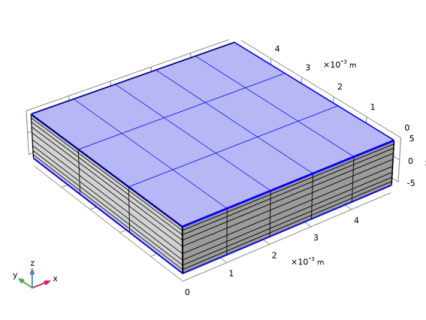
The finished mesh should look like that in the figure below.
Mesh of the uniform layer waveguide including the boundary layer mesh.
Study 1
Step 1: Frequency Domain
1
In the Model Builder window, under Study 1 click Step 1: Frequency Domain.
2
In the Settings window for Frequency Domain, locate the Study Settings section.
3
In the Frequencies text field, type f0.
4
In the Home toolbar, click Compute.
Results
Acoustic Velocity (ta)
The second default plot shows a slice plot of the instantaneous particle velocity Figure 1.
Datasets
To compare the analytical and numerical velocity and temperature profiles, as done in Figure 2 and Figure 3, follow the steps given below.
Cut Line 3D 1
1
In the Results toolbar, click Cut Line 3D.
2
In the Settings window for Cut Line 3D, locate the Line Data section.
3
In row Point 1, set X to L/2, y to L/2, and z to H/2.
4
In row Point 2, set X to L/2, y to L/2, and z to -H/2.
5
Click Plot.
1D Plot Group 4
1
In the Results toolbar, click 1D Plot Group.
2
In the Settings window for 1D Plot Group, type Velocity Profile in the Label text field.
3
Locate the Data section. From the Dataset list, choose Cut Line 3D 1.
Line Graph 1
1
Right-click Velocity Profile and choose Line Graph.
2
In the Settings window for Line Graph, locate the y-Axis Data section.
3
In the Expression text field, type abs(u).
4
Click to expand the Legends section. Select the Show legends check box.
5
From the Legends list, choose Manual.
6
Line Graph 2
1
In the Model Builder window, right-click Velocity Profile and choose Line Graph.
2
In the Settings window for Line Graph, locate the y-Axis Data section.
3
In the Expression text field, type abs(Uana).
4
Click to expand the Coloring and Style section. Find the Line style subsection. From the Line list, choose None.
5
Find the Line markers subsection. From the Marker list, choose Cycle.
6
In the Number text field, type 20.
7
Locate the Legends section. Select the Show legends check box.
8
From the Legends list, choose Manual.
9
10
In the Velocity Profile toolbar, click Plot.
Velocity Profile 1
1
Right-click Velocity Profile and choose Duplicate.
2
In the Settings window for 1D Plot Group, type Temperature Profile in the Label text field.
Line Graph 1
1
In the Model Builder window, expand the Results>Temperature Profile node, then click Line Graph 1.
2
In the Settings window for Line Graph, locate the y-Axis Data section.
3
In the Expression text field, type abs(T).
Line Graph 2
1
In the Model Builder window, click Line Graph 2.
2
In the Settings window for Line Graph, locate the y-Axis Data section.
3
In the Expression text field, type abs(Tana).
4
In the Temperature Profile toolbar, click Plot.